4.8/5
Free How To Guide Generator
Turn Screen Recordings Into Professional How-To Guides Instantly
Create Your Guide Now

Trupeer's how to guide generator revolutionizes the way you create instructional content by automatically converting screen recordings into comprehensive, professional how-to guides. Unlike traditional documentation methods that require hours of manual writing and formatting, our AI-powered platform transforms your recorded workflows into polished written guides complete with screenshots, step-by-step instructions, and customizable formatting. The core challenge with creating how-to guides has always been the time-intensive nature of the process. You capture screenshots, write detailed explanations, format the content, and ensure consistency across all your documentation.
Trupeer flips the order. Do the work and let the AI write up what you did. Hit record before you start the workflow. Walk through it the way you would if a new hire were watching over your shoulder. Talk while you click, or don't. Stop when you're done. The AI handles the rest. Filler words removed. Zooms applied at the moments the click happened. Screenshots inline in the written guide. The video and the written walkthrough both come out of the same recording, in the same job. Total extra time spent on the documentation itself: roughly zero. Plus a few minutes to review the auto-generated draft before shipping.
How Does the How to Guide Generator Work?
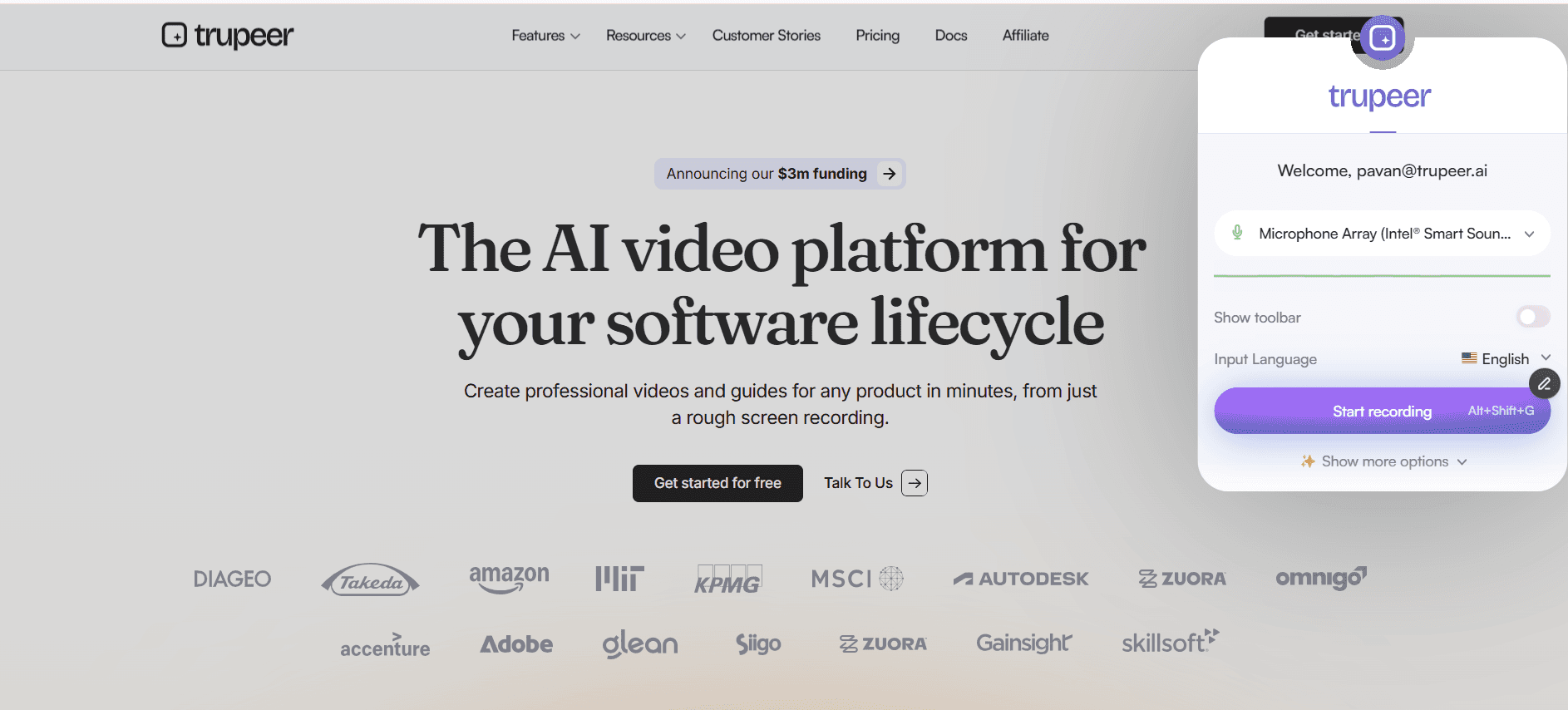
The process begins with capturing your workflow, which you can do in two ways: recording directly through Trupeer's built-in screen recorder or uploading an existing screen recording. Our AI-powered capture system works seamlessly across Mac and PC platforms, ensuring high-quality recordings regardless of your operating system. When recording live, the system captures not only your screen activity but also analyzes the context of each action you perform. It's the same answer to how to guide record the process once and the steps are documented for you.
Step 1: Record or Upload Your Workflow
Start by either recording your screen directly through Trupeer's interface or uploading an existing raw recording. Our system supports various video formats and automatically optimizes the input for processing. If you're recording live, simply select your capture area, click record, and demonstrate your process naturally. The AI captures every interaction, click, and navigation step while maintaining high video quality.
Step 2: AI Processing and Enhancement
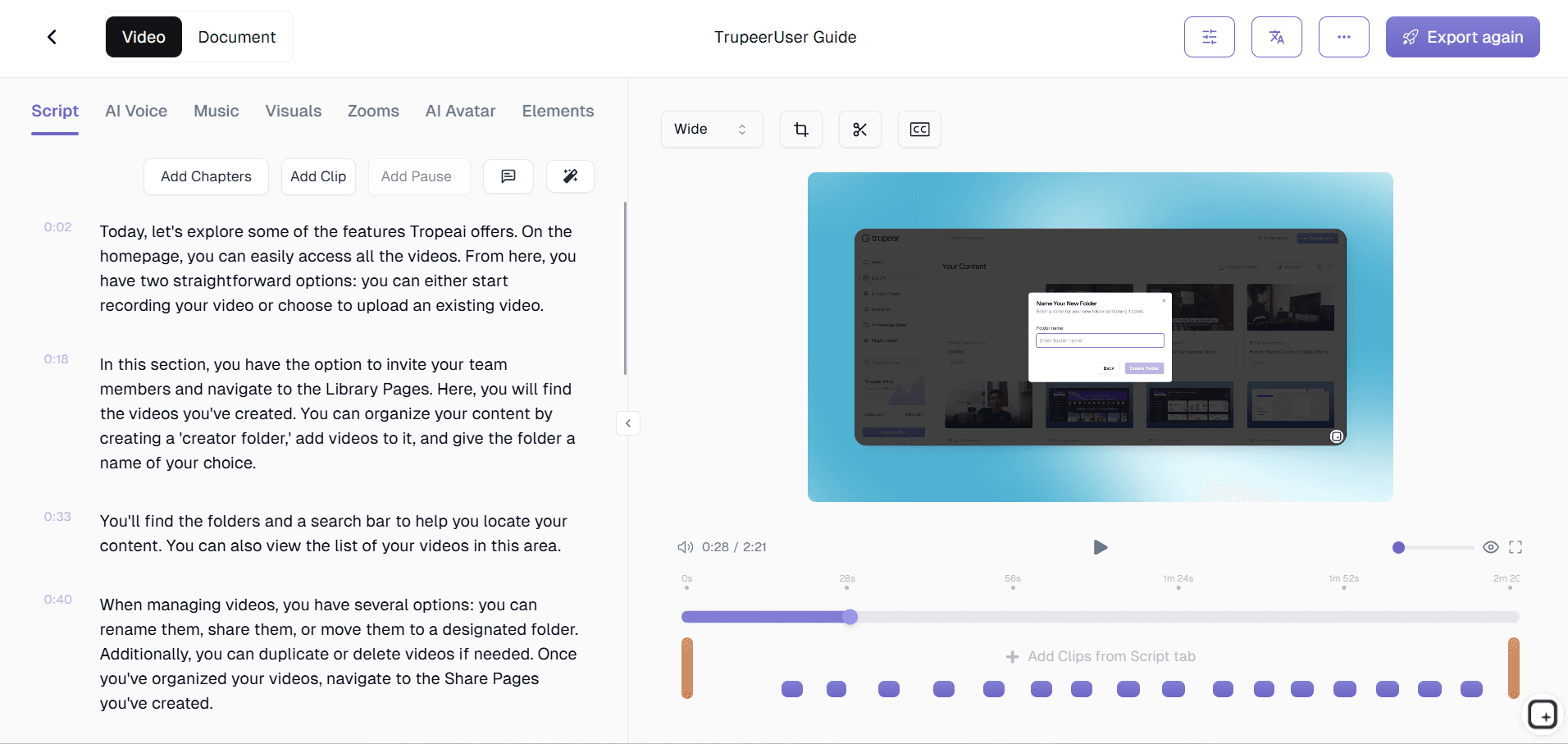
Once your recording is complete or uploaded, Trupeer's AI immediately begins processing the content. The system removes background noise, eliminates filler words if you've provided narration, and adds intelligent zoom effects to highlight important interface elements. Simultaneously, the AI analyzes the visual content to understand the sequence of actions and begins generating corresponding written documentation.
Step 3: Automatic Documentation Generation
The AI creates comprehensive written instructions by interpreting your recorded actions. It identifies software interfaces, recognizes specific tools and features you're using, and generates step-by-step instructions that mirror your demonstrated process. The system creates natural language descriptions of each action, complete with contextual explanations and helpful tips where appropriate.
Step 4: Template Application and Formatting
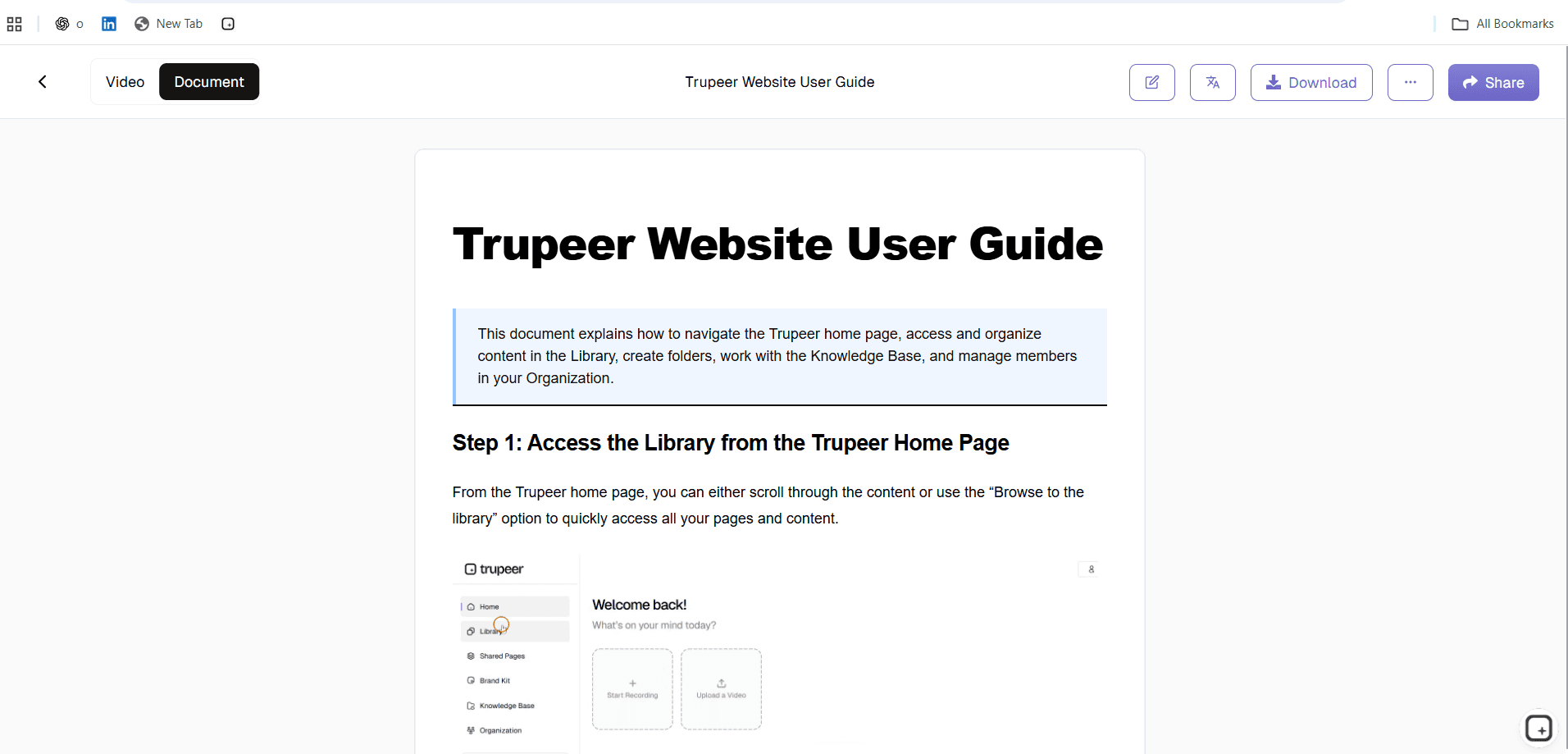
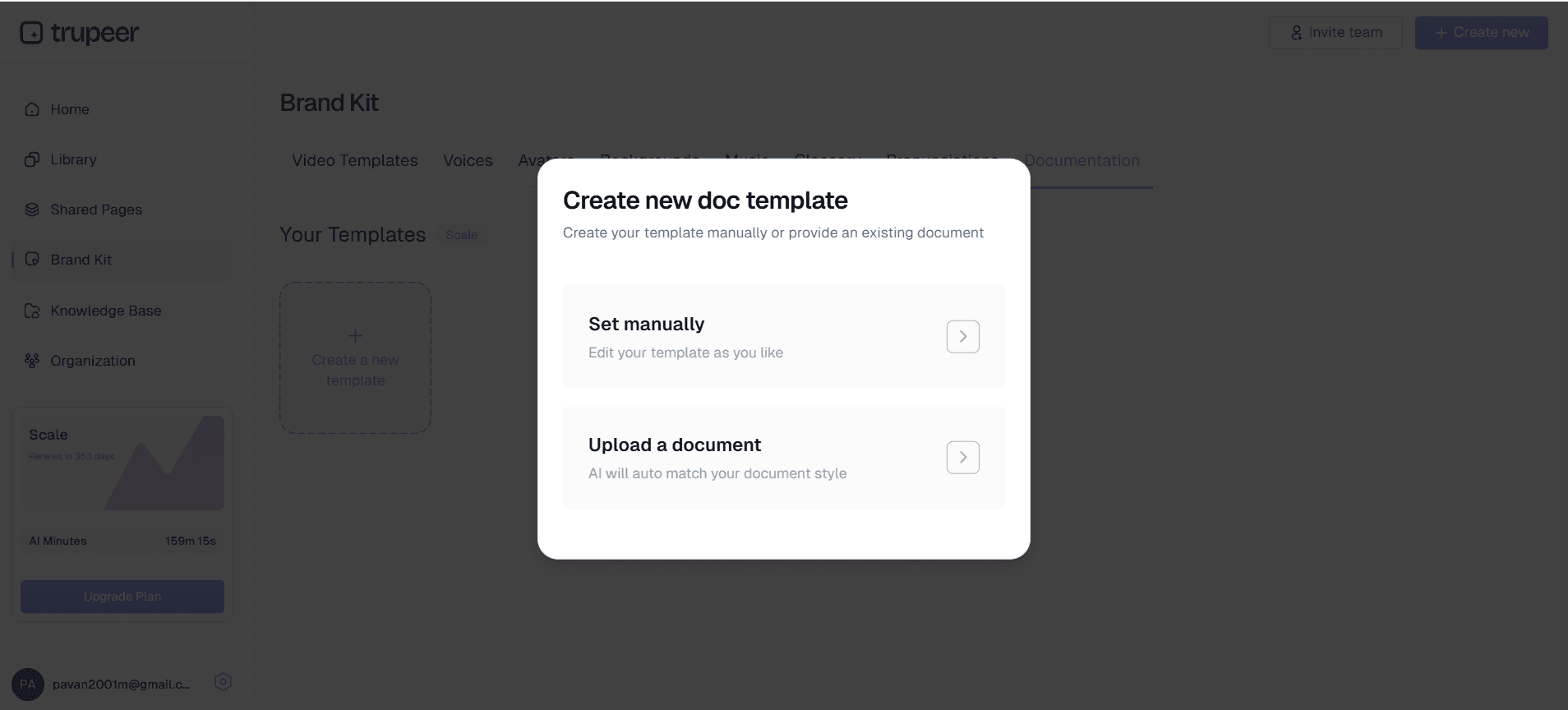
Your generated documentation is automatically formatted using your selected template. Trupeer's documentation templates ensure consistent styling, proper heading hierarchy, and professional presentation. You can customize these templates to match your brand guidelines, preferred formatting styles, and organizational standards, then save them for future use across all your documentation.
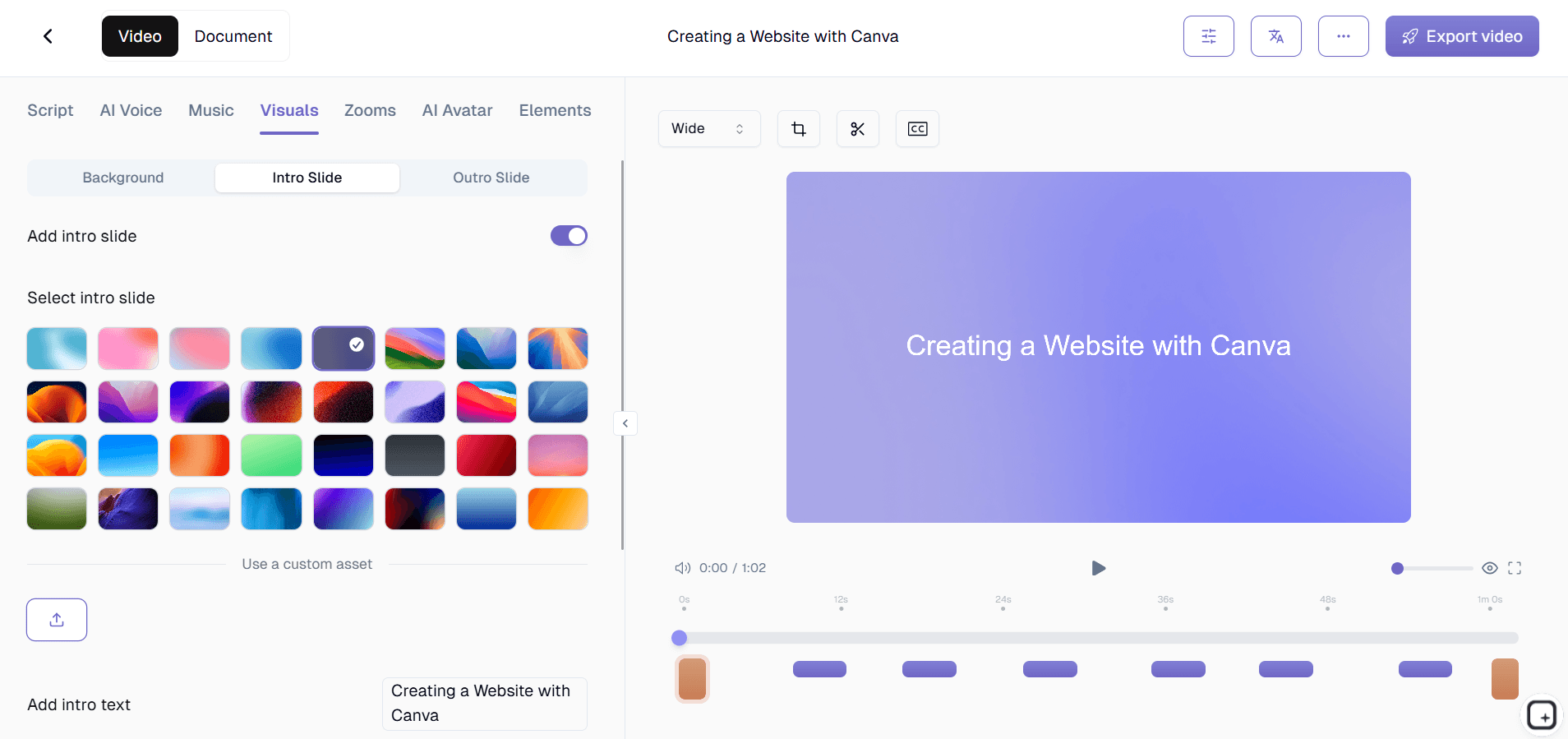
Step 5: Branding and Finalization
The final step involves applying your brand kit to both the video and written documentation. This includes adding your company colors, logos, custom intros and outros for videos, and ensuring visual consistency across all your generated content. The result is professional, branded documentation ready for immediate sharing or integration into your knowledge base.
Key Features and Capabilities
AI-Powered Content Recognition sets our how to guide generator apart from simple screen recording tools. The system doesn't just capture what's happening on your screen - it understands the context of your actions. When you click a button, navigate through menus, or fill out forms, the AI recognizes these interactions and creates appropriate written descriptions. This intelligent analysis works across different software platforms and applications, making it versatile enough for any workflow documentation needs. The technology integrates seamlessly with our video translation capabilities, allowing you to create multilingual documentation from a single recording.
Customizable Documentation Templates provide the foundation for consistent, professional-looking guides across your organization. These templates aren't just visual styling - they include structural elements like standard heading hierarchies, consistent formatting for steps and procedures, and placeholder sections for common documentation elements. You can create multiple templates for different types of guides, whether you're documenting AI Screen Recorder processes, technical procedures, or training materials. Once saved, these templates ensure every guide follows your organization's standards automatically.
Dual Output Generation means every recording session produces both polished video content and comprehensive written documentation. This approach maximizes the value of your time investment, giving you multiple content formats to serve different learning preferences and use cases. The video output includes all the AI enhancements like noise removal and zoom effects, while the written guide provides searchable, accessible documentation that can be easily updated or referenced. Both outputs maintain consistency in branding and messaging through our brand kits feature.
Multi-Platform Integration capabilities ensure your generated guides work wherever you need them. Whether you're building internal knowledge bases, customer help centers, or training materials, the documentation exports in formats compatible with popular platforms. The system generates clean HTML, markdown, or formatted text that integrates seamlessly with existing documentation systems, learning management platforms, or content management systems.
Advanced Editing and Enhancement features give you control over the final output without requiring technical expertise. You can adjust the automatically generated text, modify the sequence of steps, add additional context or warnings, and customize the visual presentation. The AI suggestions help improve clarity and completeness, while maintaining the natural flow of the original demonstration. These editing capabilities work alongside our comprehensive tools suite for complete content creation control.
Why Should You Use the How to Guide Generator?
Time savings that are actually concrete. A traditional how-to guide takes 3 to 5 hours when you factor in planning, writing, screenshot capture, formatting, and review cycles. Trupeer compresses that into the time it takes to record the workflow plus a few minutes of AI processing. So a guide that used to ship Wednesday afternoon now lands by Tuesday lunch. Most teams find their first batch of guides shipping in a single afternoon.
Consistency across the whole library. Most documentation libraries look like five different people wrote them. Because five different people did. Tone varies. Formatting varies. Some guides have screenshots, some don't. Some have intros, some get straight to step 1. The brand kit in Trupeer applies the same logo, colors, and intro/outro slides to every output. The written articles use the same heading hierarchy and step formatting. So the library actually feels like one library, not five different ones glued together.
Updates that take 10 minutes instead of 3 hours. When the UI changes (and it will, every quarter), re-record just the segment that changed. The AI re-processes that part. Both the video and the written guide update in place. The rest of the guide stays. So the cost of maintaining an existing guide drops from "expensive enough to skip" to "cheap enough to actually do." This is the part that bites most teams using traditional documentation tools: every UI change means rewriting the guide from scratch, so guides drift, and the team apologizes in tickets when customers notice.
Two formats from one source. Most documentation tools give you a written guide. Some give you a video. Trupeer produces both from the same recording. So the people who learn by reading get the article. The people who learn by watching get the video. And the team doesn't have to pick which format to invest in or maintain two separate production pipelines.
Who Can Use the How to Guide Generator?
Content Creators and Technical Writers benefit enormously from the efficiency gains and consistency improvements our generator provides. Instead of spending hours crafting individual guides from scratch, they can focus on higher-level content strategy and quality assurance. The system handles the time-intensive aspects of documentation creation while maintaining the professional standards these professionals demand. Content teams can produce more comprehensive AI Video Editor and written materials, improving their overall content output and impact.
Marketing Teams leverage the dual-output capability to create compelling product demonstrations and detailed feature explanations simultaneously. When launching new features or products, marketing professionals can record comprehensive product walkthroughs and immediately have both video content for social media and detailed written guides for website integration. This efficiency is particularly valuable for AI Screen Recorder campaigns where consistent messaging across multiple content formats is essential.
Educators and Training Professionals find the automated generation process invaluable for creating comprehensive learning materials. Whether developing corporate training programs, online courses, or educational resources, educators can focus on instructional design rather than content formatting. The system's ability to create both visual and written learning materials supports different learning styles while maintaining instructional consistency across all materials.
Product Teams use the generator to create and maintain technical documentation that actually stays current with product development. As features change and new capabilities are added, product managers can quickly update documentation by recording new workflows. This approach ensures user guides, internal procedures, and technical documentation remain accurate and useful rather than becoming outdated references that frustrate users.
Sales Professionals utilize the system to create personalized product demonstrations and detailed feature explanations for prospects. The ability to quickly generate both video presentations and written follow-up materials streamlines the sales process and provides prospects with comprehensive information in their preferred format. This approach supports the entire sales cycle from initial demonstration through detailed evaluation and implementation planning.
Small Business Owners and Entrepreneurs appreciate the professional results they can achieve without dedicating extensive time to documentation creation. Whether creating customer onboarding materials, internal procedures, or product tutorials, small business owners can produce professional-quality content that competes with larger organizations' documentation standards. The template system ensures consistency even when multiple team members contribute to documentation efforts.
The common thread across these audiences: nobody has time to write up the workflow after doing it. So the workflow gets done, and the documentation gets postponed. Trupeer collapses both steps into one. Record while you're doing the work. The guide writes itself. The video comes along for free. Most teams that adopt this pattern produce more documentation in the first month than they produced in the previous six
Best Practices for Using the How to Guide Generator
Plan your recording session by outlining the key steps and ensuring your screen is clean and organized before starting. Close unnecessary applications, clear your desktop of distracting elements, and prepare any files or data you'll need for the demonstration. This preparation results in cleaner recordings that generate more focused documentation. Consider creating a brief outline of the major steps you'll cover, which helps maintain a logical flow and ensures you don't miss important details during the recording.
Speak clearly and naturally if you choose to include narration with your screen recording. The AI processes both visual and audio information to create more comprehensive documentation. Natural speech patterns and clear explanations enhance the AI's ability to generate contextually appropriate written instructions. Even if you prefer silent recordings, consider adding brief verbal explanations of complex steps or important considerations that might not be obvious from visual actions alone.
Utilize the template customization features to establish consistent documentation standards across your organization. Spend time initially setting up templates that reflect your brand guidelines, preferred formatting styles, and standard information architecture. Once these templates are configured and saved, they ensure all future documentation maintains professional consistency regardless of who creates the content. Review the guides section for additional template optimization strategies.
Take advantage of the editing capabilities to refine and enhance the AI-generated content. While the automated generation provides an excellent foundation, adding context-specific information, warnings about potential issues, or links to related resources improves the final documentation quality. The goal is to enhance rather than replace the AI's work, focusing on additions that provide unique value based on your specific knowledge and experience.
Leverage the multi-format output by planning how you'll use both video and written versions of your guides. Consider creating video versions for initial training or complex procedures, while using written documentation for quick reference or troubleshooting. This strategic approach maximizes the value of each recording session and provides comprehensive resources for different use cases and user preferences.
Re-record the segment, not the whole guide. When the UI changes (and it will), don't start over. Re-record just the 30 seconds that changed. The AI re-processes only that segment and updates both the video and the written guide in place. Saves hours every time the product ships a new release. Useful for SaaS companies that release every sprint and have a library of 20+ guides to maintain.
Set the custom glossary early. If your team has internal product names, acronyms, or specific terminology (RevRec, AR aging, the name of your specific dashboard), add them to the custom glossary before generating the first batch of guides. The AI uses the glossary to spell those terms correctly in transcripts and on-screen text. Doing this upfront beats finding and replacing typos across 30 guides later.
Where Trupeer fits next to Scribe, Tango, Guidde, and other how-to guide tools
The how-to guide tool category has a few distinct shapes. Scribe and Tango capture clicks and produce step-by-step written guides automatically. They're fast and they do one thing well: turn a clicked workflow into a written guide with screenshots. But they don't produce a video alongside. So if the team needs both formats (the help center wants both, the LMS wants the video, the wiki wants the written article), Scribe or Tango covers half the work and the team has to use a second tool for the video. Guidde sits closer to Trupeer: it produces both video and written guides from the same recording. The editing experience, brand kit treatment, and translation handling differ across tools, so it's worth trying both on the same workflow to see which output the team actually prefers shipping.
A different cluster: Loom and Vidyard. These are screen recorders that don't auto-generate written guides at all. So if the team only needs the video, Loom is enough. If the team needs the written walkthrough too, Loom is half the job and something else has to write up the steps. And then there's the broader documentation category: Confluence, Notion, GitBook. Those host the documentation but don't help produce it. Most teams using one of those tools as the host eventually pair it with a production tool, so the host actually has content to host. The decision between Trupeer and the alternatives comes down to two questions. Does the team need both video and written outputs from one recording? If yes, favor Trupeer or Guidde. Does the team need brand kit and 65+ language translation built in? If yes, favor Trupeer. Worth running a side-by-side on the same workflow before committing.
Explore Related Tools
Why Choose Trupeer's How to Guide Generator
Instant Documentation Creation
Transform screen recordings into professional written guides automatically with AI-powered content generation.
Dual Video and Text Output
Get both polished tutorial videos and comprehensive written documentation from a single recording session.
Customizable Professional Templates
Use branded templates for consistent formatting and professional presentation across all your documentation.
Create Professional How-To Guides in Minutes
Step 1
Record your screen workflow
Step 2
AI generates written documentation
Step 3
Apply templates and share
Frequently Asked Questions
What makes a how to guide generator different from regular screen recording?
A how to guide generator creates comprehensive written documentation automatically from your recordings, not just video files. It uses AI to analyze your actions and generate step-by-step written instructions alongside the video content.
Can I upload existing recordings to generate documentation?
Yes, you can upload existing screen recordings and our AI will process them to create professional documentation. You don't need to record fresh content through our platform to benefit from the automated guide generation.
How accurate is the AI-generated documentation?
The AI achieves high accuracy by analyzing visual actions, interface elements, and any audio narration. You can review and edit the generated content to ensure it meets your specific requirements and includes any additional context needed.
What types of processes work best for how to guide generation?
Software tutorials, workflow demonstrations, training procedures, and any screen-based process work excellently. The more structured and sequential your process, the better the AI can generate clear, organized documentation.
Can I customize the format and branding of generated guides?
Absolutely. You can create custom templates with your preferred formatting, styling, colors, and branding elements. These templates can be saved and reused across all your documentation for consistent professional presentation.
More Tools


