4.8/5
Free Mac Screen Recorder
Trupeer’s AI-powered screen recorder helps you capture, edit, and share videos effortlessly, no editing skills required
Click Here To Record

Trupeer's Mac Screen Recorder captures high-quality screen activity, browser tabs, or full desktop directly from macOS with seamless integration. As the best free Mac screen recorder software, it provides instant cloud sharing and basic editing without performance impact or complex setups.
Why Mac Screen Recorder is required?
Mac users struggle with bloated screen recorder apps that slow down their systems and require constant permission resets. Even when searching for a reliable screen recorder Mac with audio, many tools either consume too many resources or fail to capture system sound properly. Built-in macOS tools also lack cloud sharing and advanced editing features essential for professional workflows. Cross-platform teams need consistent capture quality without switching between multiple apps.
Manual workflows force users to rely on separate screenshot tools, annotation software, and file-sharing services. Tutorial creators using a screen recorder Mac with audio often waste time exporting, compressing, and uploading recordings individually. Remote support sessions also lack instant sharing capabilities, making quick troubleshooting demonstrations slower and less efficient.
What this Mac Screen Recorder does
Trupeer's recorder captures crisp 4K screen activity with system audio, microphone, or webcam overlay, automatically uploading to secure cloud storage for instant link sharing. The best free Mac screen recorder software includes timeline trimming, annotations, and compression before sharing, streamlining the entire capture-to-delivery process.
Core Capabilities
High-resolution capture of entire screen, apps, or browser tabs
Simultaneous system audio and microphone recording
Automatic cloud upload with instant shareable links
Built-in trim, annotate, and export functionality
How Trupeer’s Best Mac Screen Recorder works
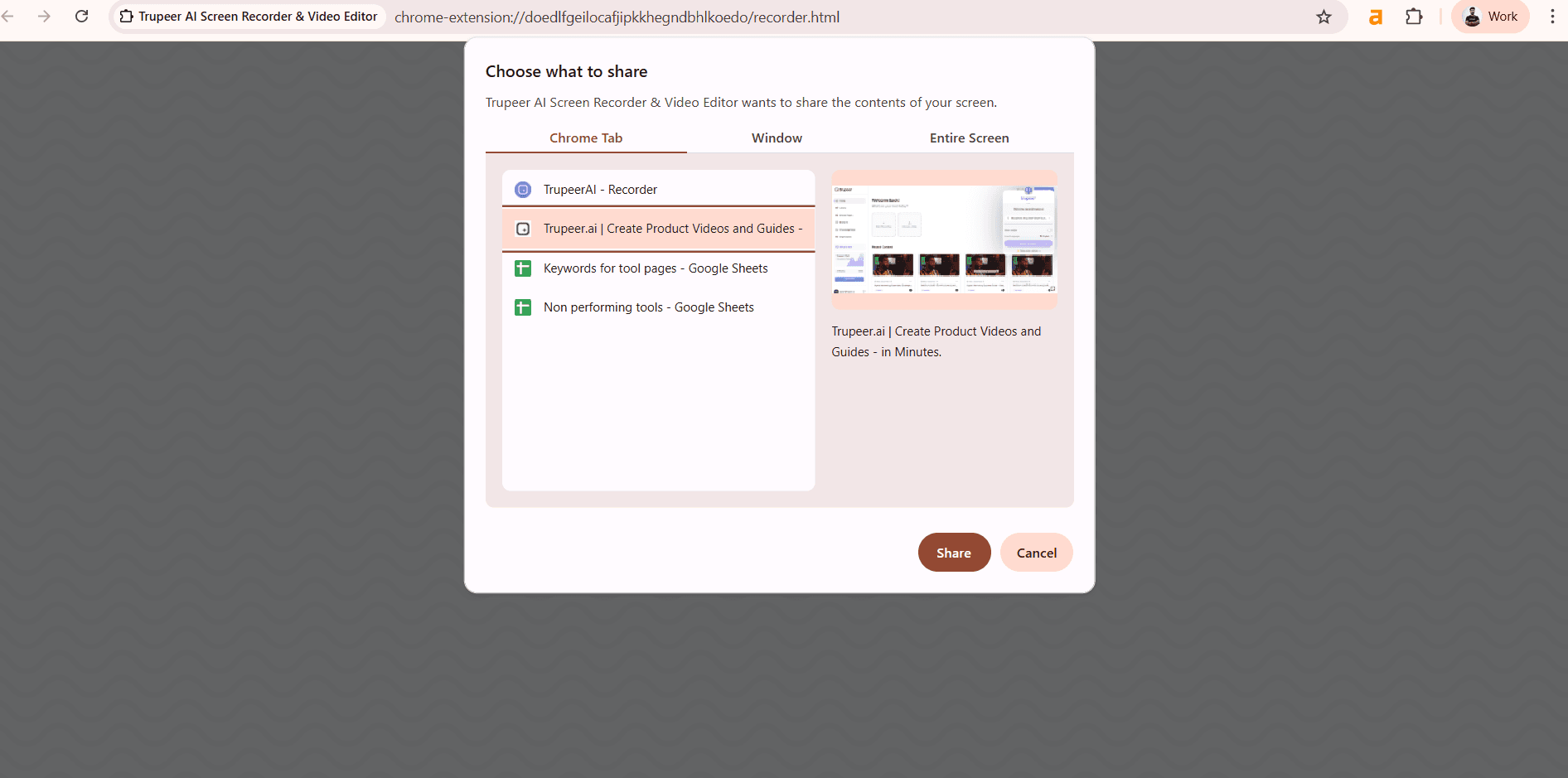
Step 1: Launch & Select Area
Click icon in menu bar, choose screen region or full display to capture.
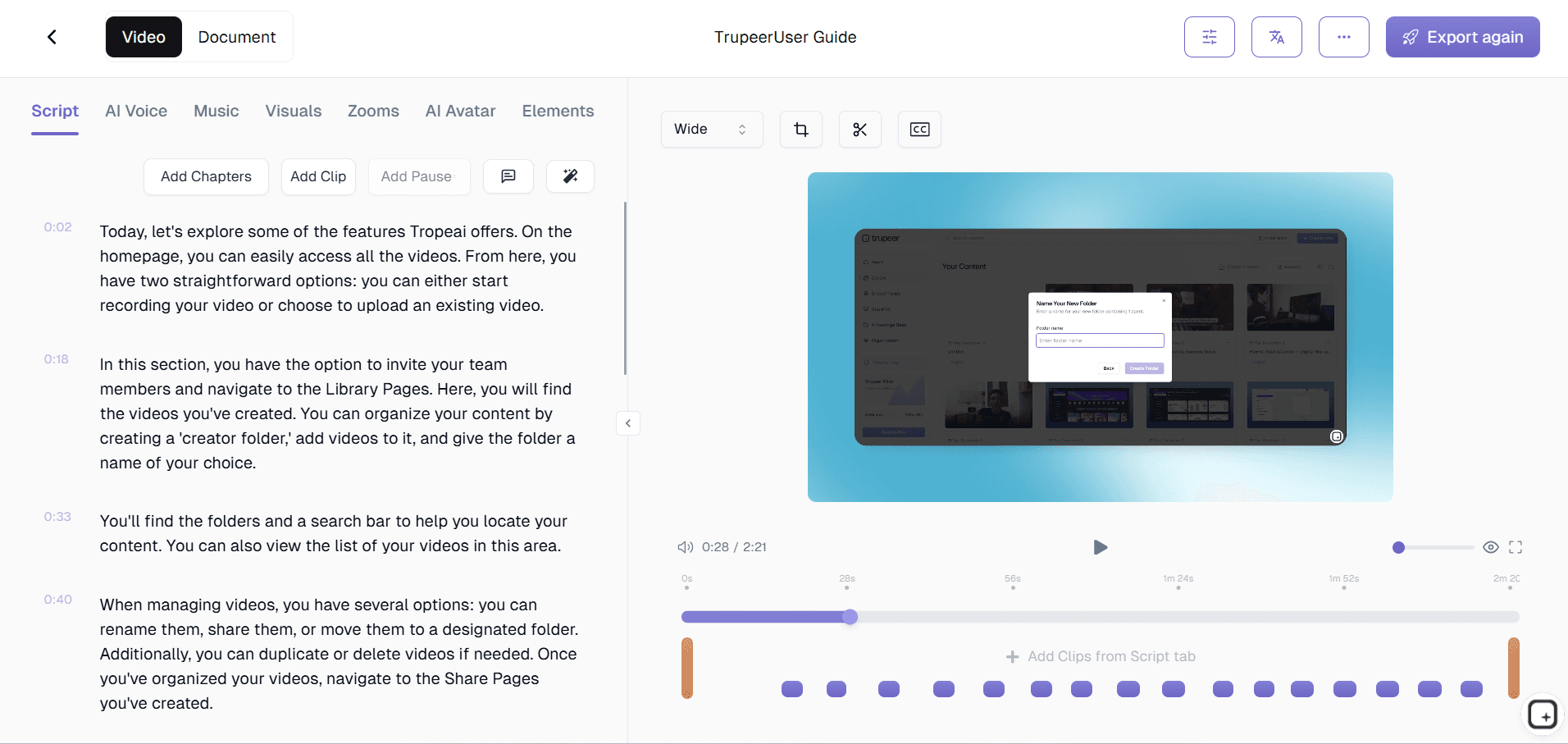
Step 2: Record with Audio
Start recording with system sound, mic, or webcam overlay options.
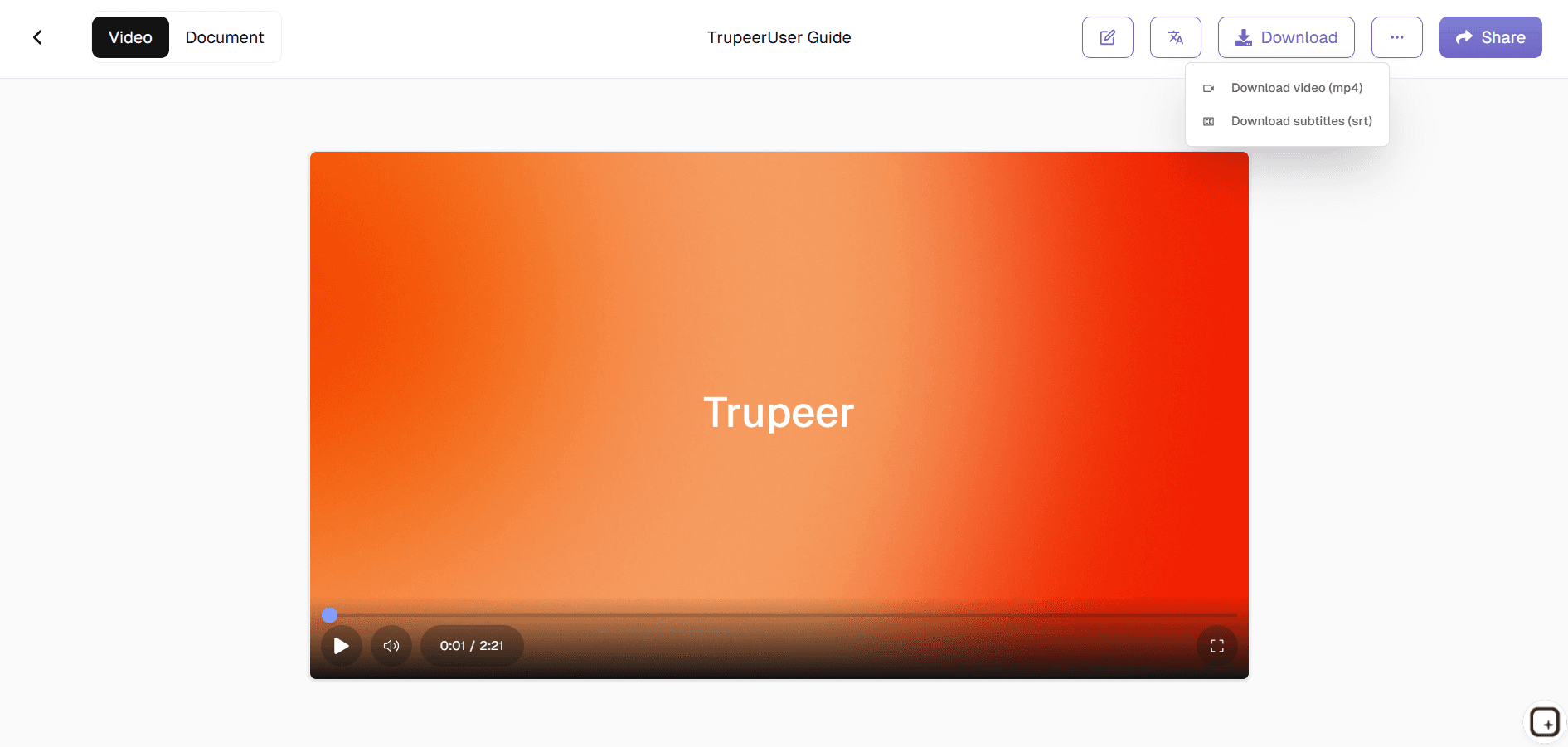
Step 3: Edit & Share Instantly
Trim timeline, add annotations, then copy cloud link or download.
Who this Trupeer’s Mac Screen Recorder is for
The best free Mac screen recorder software serves Mac professionals needing efficient capture workflows without system overhead.
Customer Support Specialists:
Record troubleshooting sessions with clear audio and instant sharing for team collaboration and client demonstrations, eliminating email back-and-forthTechnical Trainers & Educators:
Capture software tutorials with webcam overlay to create step-by-step instructional videos that maintain crisp quality across different Mac modelsSoftware Developers:
Document bug reproduction steps or feature showcases for stakeholders with precise timestamped recordings and annotation capabilitiesContent Creators & YouTubers:
Produce clean screen recordings optimized for editing software import while maintaining 4K quality from any MacBook or iMacRemote Workers & Managers:
Share workflow demonstrations or training walkthroughs instantly via secure cloud links without file size limitations or compression issues
Key Features of Best Mac Screen Recorder
Lightweight best free Mac screen recorder software delivering professional capture without compromising Mac performance or battery life.
Zero Performance Impact:
Native macOS optimization ensures smooth recording even on base M1 Macs while running multiple apps, unlike resource-heavy alternatives that cause lag and overheatingSmart Audio Capture:
Simultaneously records system audio, microphone, and webcam with perfect sync, ideal for tutorials needing voice explanation over application soundsInstant Cloud Delivery:
Automatic upload creates shareable links immediately after stopping recording, perfect for urgent support tickets or stakeholder updatesProfessional Editing Suite:
Built-in timeline trimming, annotation tools, and compression let users polish recordings before sharing without launching separate applicationsUniversal Mac Compatibility:
Works flawlessly across Intel and Apple Silicon Macs, from MacBook Air to Mac Studio, maintaining consistent 4K quality regardless of hardware
This screen recorder chrome extension builds on Screenity, originally created by Alyssa X and licensed under the GNU GPLv3, with enhancements developed by the Trupeer team. Source code available here: https://github.com/trupeer-ai/trupeer-chrome-capture.
Explore Related Tools
Benefits of Free Screen Recorder for Mac
Record High-Quality Videos with Audio
Capture smooth, high-resolution screen recordings with system and microphone audio ideal for tutorials and presentations
Easily Edit & Enhance Your Recordings
Trim, annotate, and refine your videos to highlight key details before sharing
Quickly Share or Download Your Content
Save recordings in popular formats or share them instantly with your team, customers, or audience
How to Record Screen on Mac with audio
Step 1
Start Recording
Step 2
Edit & Customize
Step 3
Export & Share
Frequently Asked Questions
Is this Mac screen recorder software free?
Yes, this Mac screen recorder software offers a free version with unlimited recording, no watermarks, and no time limits, making it one of the best free options available for macOS users.
What features and options does Mac Screen Recorder software include?
Mac Screen Recorder features and options include full-screen capture, specific app window recording, browser tab recording, system audio, microphone input, and webcam overlay all in one tool.
What does Mac Screen Recorder capture?
It can capture your entire screen or selected areas, along with system audio, microphone voice, and webcam feed simultaneously ideal for tutorials, demos, and presentations.
Does Mac screen recorder software slow down my Mac?
No, optimized Mac screen recorder software is designed to use minimal CPU resources, ensuring smooth performance even during high-quality or 4K recordings on base model Macs.
Can I edit videos using Mac Screen Recorder software?
Yes, many tools include built-in editing features such as timeline trimming, annotations, compression, and instant sharing options, giving you a complete recording solution in one place.
More Tools


