4.8/5
Document to Video Converter
Turn PDFs, Word documents, PowerPoint files and Google Docs into narrated videos with AI scripts, scenes, voiceovers and captions. Free to start, no editing skills needed.

Trupeer's document to video converter turns a PDF, Word document, PowerPoint, Google Doc or text file into a narrated video in minutes. Upload your document and the AI writes the script, plans the scenes, adds a natural voiceover and exports an MP4 you can download, share or embed. It runs on the same AI video platform teams use for product and training videos, so there is no recording, no editing timeline and no design work.
Convert PDF, DOC, DOCX, PPT, PPTX, TXT files and Google Docs links into video.
The AI explains your document instead of reading it aloud word for word.
Natural AI voices, an optional AI avatar presenter, captions and your brand kit.
Edit the video like a document and update it when the source changes.
Free to start online, no credit card required.
What Is a Document to Video Converter?
A document to video converter turns written content, such as a PDF, Word file, slide deck or knowledge base article, into a video people watch instead of read. Instead of asking your audience to work through ten pages of text, you give them a few minutes of clear, narrated video that covers the same points.
Trupeer does this with AI. It reads the document, works out what matters, writes a spoken script, builds scenes with on-screen text and visuals, and narrates the result with a realistic AI voice or avatar. It works like a text to video generator, except the input is a complete document with its own structure, and that structure is what makes the output useful.
How the converter reads your document
Headings become scenes. Each section of your document turns into its own scene, so the video follows the same order as the original.
Lists become steps. Numbered and bulleted lists are shown as clear, sequential points on screen instead of dense paragraphs.
Key facts are pulled forward. Important numbers, dates and definitions are highlighted so viewers don't miss them.
Long text is rewritten for listening. Written sentences are turned into shorter spoken lines that sound natural when narrated.
Why teams convert documents into video
Most documents are written once and skimmed rarely. A policy, onboarding guide or product brief can hold exactly the right information and still fail, because people don't finish reading it. Video solves that: it sets the pace, points attention at what matters, and is easy to share in chat, email, an LMS or a help center. Converting the document you already have also means you don't start from a blank script. The content is done; the converter just changes the format into a short explainer video people actually watch.
How to Convert a Document to Video Online
Converting a document to video online with Trupeer takes four steps and usually a few minutes, all in your browser. There is nothing to install, and you don't need any video editing experience.
Step 1: Upload your document
Drag and drop a PDF, Word (DOC or DOCX), PowerPoint (PPT or PPTX) or TXT file into the converter above, or paste a Google Docs link. Long documents are fine, because the AI picks out what matters rather than narrating every sentence. Working mainly with PDFs? The PDF to Video converter has format-specific tips.
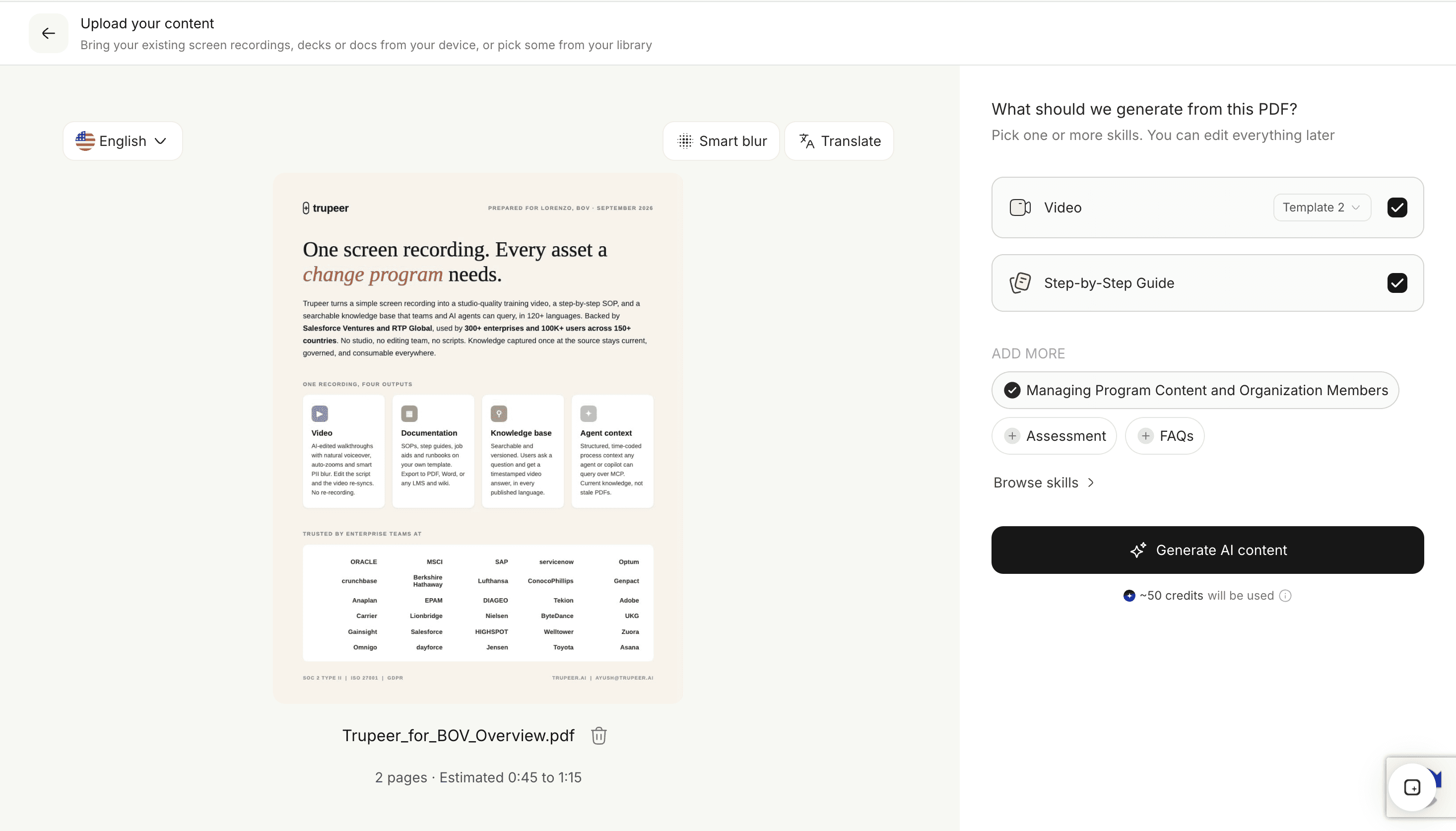
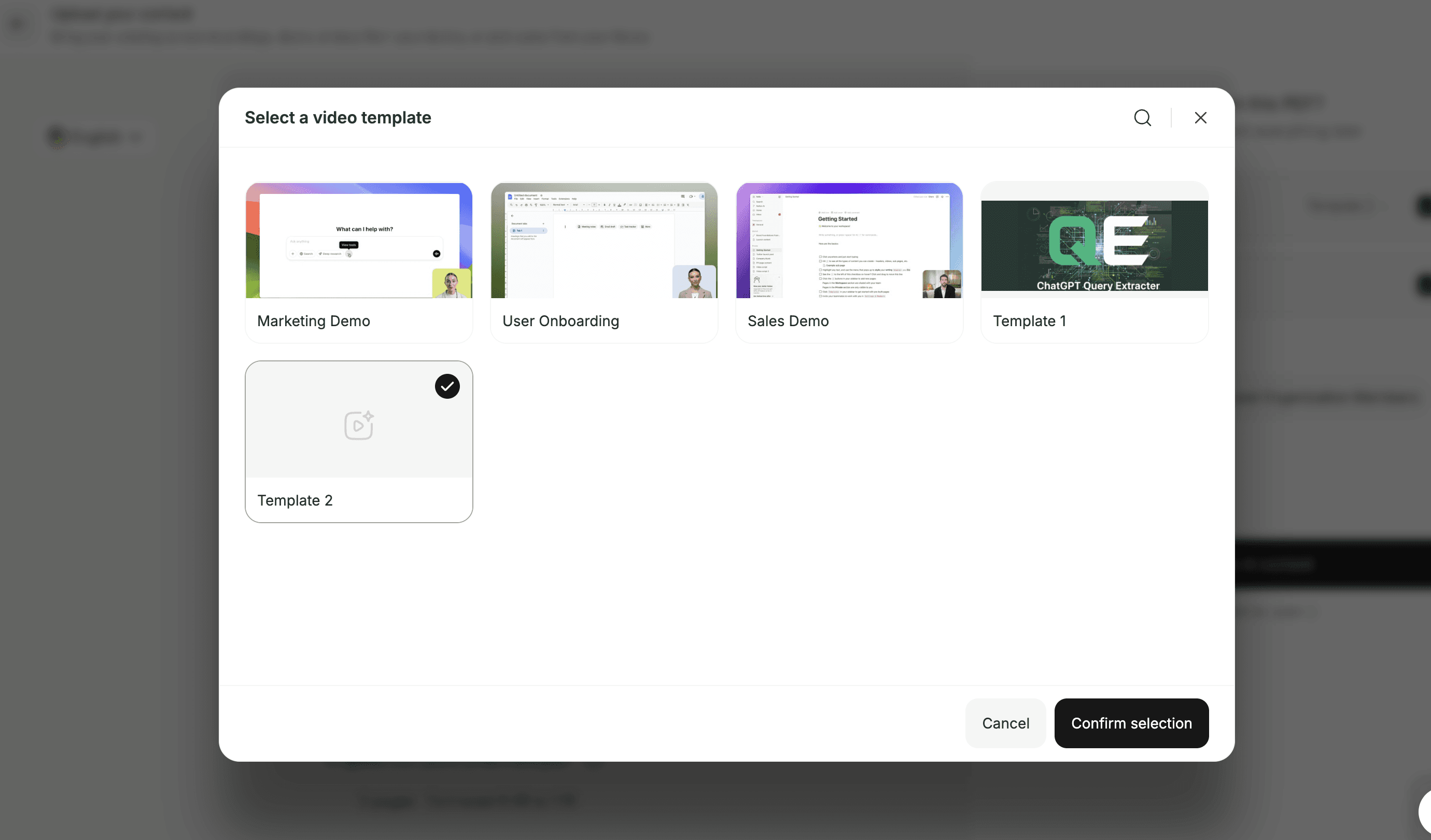
Step 2: Choose a video style
Pick an explainer, a training lesson, a product walkthrough or a quick summary. The style shapes how AI scripting writes the narration, how long the video runs and how each scene is paced. A training video walks through every step carefully; a summary covers only the headline points; an explainer focuses on why something matters and how it works.
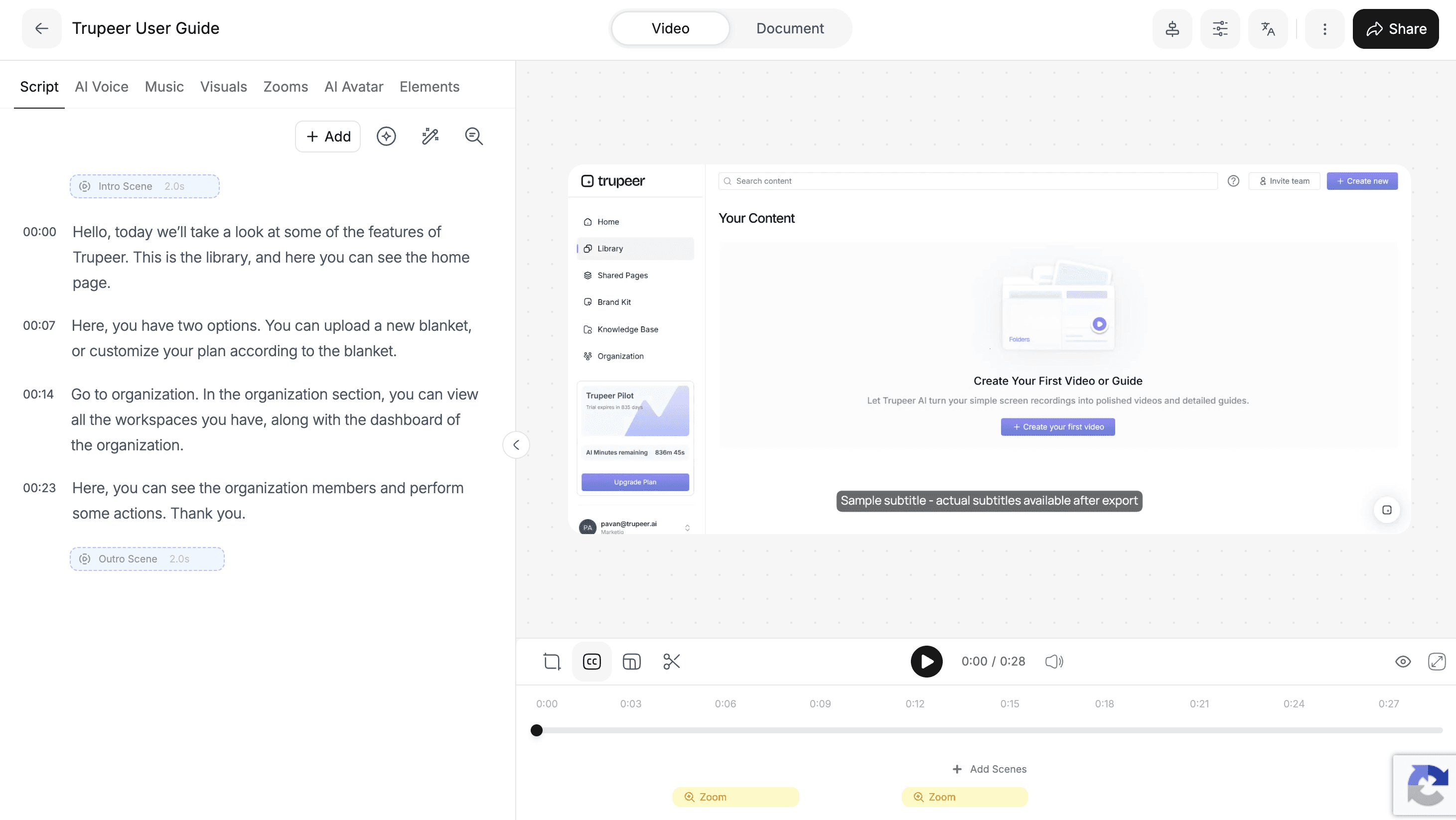
Step 3: Review the script and scenes
Trupeer turns your document into an editable script split into scenes. Read it the way you would proof a document: rewrite a line, reorder scenes, shorten a section or cut anything your audience doesn't need. Because Trupeer is an AI-powered video editor, every script change updates the voiceover and visuals automatically, so you never have to line audio up with footage.
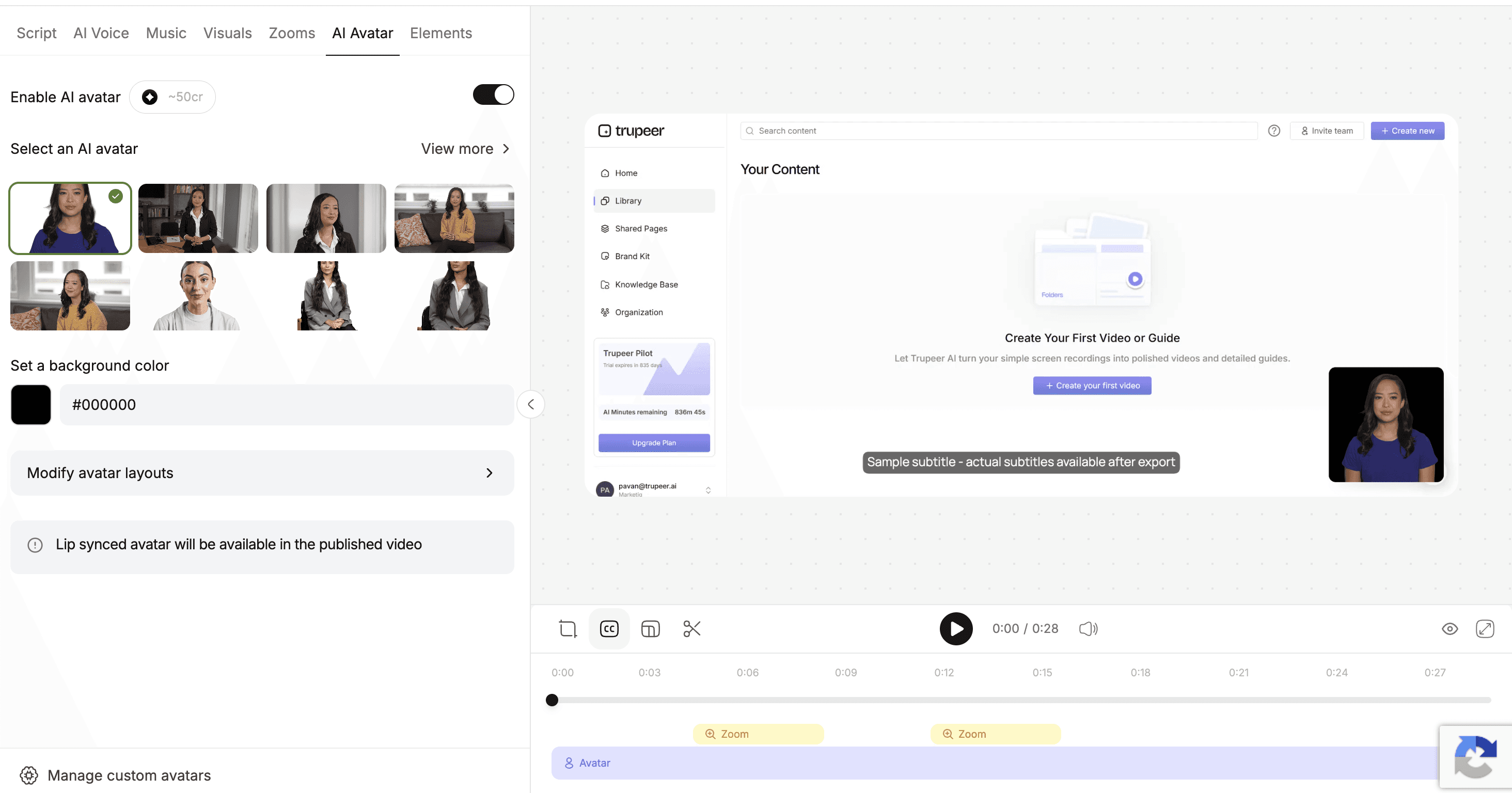
Step 4: Add a voice, avatar and brand, then export
Choose an AI voice that fits the tone of the content, add an optional custom AI avatar presenter and apply your brand kit so the logo, colors and fonts match your other content. Preview the video, then download it as an MP4, share it with a link, or embed it in your LMS, help center or website.
See What You Get from One Document
It helps to see the conversion end to end. Here is what happens to two typical documents when you convert them with Trupeer.
Example 1: A 12-page employee onboarding PDF
What you upload. The PDF as it is: headings, paragraphs, bullet lists, a few screenshots and a benefits table.
What Trupeer creates. A spoken script written from the key points, split into scenes that follow your headings, with on-screen titles, highlighted steps and the numbers that matter pulled out of the table.
What you review. An editable script and scene list. You trim a section, reword two lines and choose a voice and presenter.
What you share. A short narrated video with captions and your branding, sent to every new hire instead of a PDF most of them would skim.
Example 2: A product release notes document
What you upload. A Word or Google Doc listing new features, fixes and screenshots.
What Trupeer creates. A scene for each feature, with a one-line summary of what changed and why it matters to the user.
What you share. A launch video for customers, a version for your help center, and translated versions for other regions, all from the same document.
In both cases, the information stays exactly the same. What changes is how quickly people understand it.
Document to Video AI vs. DOC to MP4 File Converters
Search for document to video and you will find two very different kinds of tools. Knowing the difference saves you from exporting a video nobody watches.
DOC to MP4 file converters. These turn each page into a still image and stitch the pages into an MP4 file. There is no narration, no script and no structure. They work if all you need is a file format change, but nobody wants to watch a 20-page PDF scroll by.
Read-aloud tools. These add a voice that reads your text word for word over each page. Faster than recording yourself, but dense documents turn into long, flat videos that viewers abandon.
Trupeer's document to video AI. Trupeer rewrites the document into a spoken script, breaks it into scenes, highlights the key steps and data, and narrates it naturally, with an optional AI talking head on screen. A 15-page policy becomes a clear three-to-five-minute video, and you control every line.
When a simple file converter is enough
If you only need a document in a video file format, for example to upload a static slideshow to a platform that only accepts MP4, a basic converter does the job. The moment people are expected to learn something from the video, you need narration, structure and pacing, and that is where an AI document to video converter is the better choice.
Quick comparison
Narration: file converters have none; read-aloud tools read every word; Trupeer writes and narrates a script.
Structure: file converters show pages; Trupeer builds scenes from your headings and steps.
Editing: file converters require a new export for every change; Trupeer lets you edit the script and regenerate.
Output: all three can give you an MP4, but only one gives you a video people will watch to the end.
Convert PDF, Word, PowerPoint and Google Docs to Video
The converter accepts the document formats teams already work in, so you can start from whatever file you have.
PDF to video
Reports, manuals, guides, research papers and handouts are often shared as PDFs precisely because they are finished documents. Trupeer uses the PDF's headings and layout to plan scenes, so a structured PDF produces a structured video. Tables and figures can be summarized on screen instead of shown as a wall of numbers.
Word document to video (DOC, DOCX)
SOPs, policies, proposals, onboarding docs and how-to guides usually live in Word. Yes, AI can convert a Word document into a video: upload the file and Trupeer builds the script and scenes from your headings and paragraphs. Documents that use Word's heading styles convert especially cleanly.
Google Docs to video
Paste a shareable link and convert the doc without downloading it first. This is the fastest route for living documents that your team edits in Google Docs, such as process notes and internal guides.
PowerPoint and presentations to video (PPT, PPTX)
Slides already split content into scenes, which makes decks one of the easiest formats to convert. Turn slides into a narrated video with AI voiceover using PowerPoint to Video. For Google Slides, Keynote and other decks, use Presentation to Video.
Notes and text files (TXT)
Meeting notes, lesson notes and copied knowledge base articles work too, even without formatting. If you already have a finished, word-for-word script, the script to video maker is the faster route, since it narrates your script exactly as written.
Key Features of Trupeer's Document to Video Converter
Everything you need to go from a finished document to a finished video is in one place, so you don't have to move between a script tool, a voice tool and a video editor.
AI script writing from your document. Trupeer reads the full document, identifies the main points and rewrites them as a natural spoken script. Headings become scenes, lists become steps, and long paragraphs become short lines a viewer can follow. You stay in control and can rewrite any line.
Scene planning and visuals. Each scene gets on-screen text, key figures and supporting visuals, so the video looks designed rather than recorded. Scene order follows your document, which keeps the video easy to check against the source.
Natural AI voiceovers. Choose from a library of realistic AI voices across accents, tones and styles, with natural pacing that sounds like a presenter explaining the document rather than a machine reading it. Pick a calm voice for policy and training content and a more energetic one for product launches.
AI avatar presenters. Put an AI presenter on screen with lip sync to make training and explainer videos more personal. Avatars are especially useful for onboarding and customer-facing content where a human face builds trust.
Edit the video like a document. Change a word in the script and the voiceover and scenes update. There is no timeline, no re-recording and no need to sync audio by hand.
Translation into 120+ languages. Convert one document into a video, then use video translation to add dubbed voiceovers and subtitles for every region you serve, without recreating the video for each language.
Brand consistency. Your logo, colors, fonts, intros and outros are applied automatically to every document video, so content created by different teams still looks like it came from one company.
Captions and subtitles. Auto-generated captions make videos accessible and watchable on mute, which matters for viewers in open offices, on mobile and in noisy environments.
MP4 export, links and embeds. Download as MP4, share a link, or embed videos in your LMS, help center or knowledge base, wherever your audience already looks for answers.
Document to Video Use Cases: Training, SOPs, Product and Sales
Any team with documents nobody reads can turn them into videos people finish. These are the use cases where document to video saves the most time.
Training and onboarding
Onboarding packs, compliance policies, handbooks and course material are long, important and easy to ignore. Converting them into short lessons helps new hires absorb the essentials in their first week, and gives L&D teams a consistent version of every session. For a training-first workflow, use Document to Training Video or see how teams build training videos with Trupeer.
SOPs and process documents
Convert SOPs and checklists into step-by-step videos so every team follows the same process, the same way, across shifts and locations. A video version makes it much easier to train someone on a task they perform only occasionally. Pair it with the SOP creator to keep written and video versions in sync.
Product marketing
Release notes, feature briefs, one-pagers and positioning docs already contain the story of a launch. Turn them into short explainer videos for your website, social channels and launch emails, without waiting for a video team. More ideas in product marketing.
Customer success and support
Help articles and user guides answer the right questions, but many customers prefer to watch rather than read. Converting your most-visited articles into how-to videos helps customers solve problems on their own. See how customer success teams use video to cut tickets.
Sales enablement
Battlecards, case studies, proposals and product sheets become short videos reps can watch before a call or send to prospects after one. It is an easy way to keep the whole team telling the same story, as part of a wider sales enablement workflow.
Education and courses
Lecture notes, study guides and handouts become video lessons students can pause and rewatch. Educators can convert existing material instead of recording every lesson from scratch, and translate lessons for students in other regions.
Update Your Document Video When the Source Changes
Documents are never finished. Policies get revised, products ship new features, prices change and processes get rebuilt. With traditional video, every one of those changes means booking the presenter again, re-recording and re-editing, so most teams simply let their videos go out of date. With Trupeer, the script is the source of truth for the video, so updating a video is as quick as editing a document.
What you can change without re-recording
A single line or number. Edit the sentence in the script and the voiceover, captions and on-screen text update to match.
A whole section. Add, remove or reorder scenes when a step is added to a process or a feature is retired.
The voice or presenter. Swap the AI voice or avatar without touching the rest of the video.
The branding. Change your logo, colors or outro in the brand kit, and new exports follow it.
The language versions. After editing the source video, regenerate the translated versions so every region sees the same update.
How updating a document video works
Open the existing video in Trupeer, or upload the revised version of the document.
Edit the affected lines or scenes in the script. Everything you didn't change stays exactly as it was.
Preview the changed scenes, then export or share the updated video.
Where this matters most
Keeping videos current is most valuable when the same change has to reach many people quickly: a revised HR policy that every employee must see, a new step in a support process, or an interface change that makes last quarter's product tutorial wrong. It is why document to video fits so well into change management, and why teams with large libraries pair it with a training video management platform to track what needs refreshing.
A simple habit helps: whenever a document is updated, update its video in the same sitting. Because the edit takes minutes rather than a re-shoot, your video library stays as accurate as your written docs.
Why Convert Documents to Video Instead of Recording
Recording a video from scratch means writing a script, setting up a camera or screen recorder, doing several takes and then editing. Converting a document skips most of that, because the content already exists.
Time. Scripting, recording and editing a five-minute video can take a full day. Converting a document takes minutes, and most of that time is reviewing the script.
Cost. No camera, microphone, voice actor, studio or agency is needed, so video becomes practical for everyday documents, not just big launches.
Consistency. Every video uses the same voices, avatars and brand kit, whoever creates it, so a library built by many people still looks and sounds like one company.
Scale. Convert a whole library of documents and translate each video into the languages your teams and customers speak.
Maintenance. When something changes, you edit the script instead of re-shooting, so videos stay accurate for as long as the document does.
Recording still has its place. When a process is easier to show than describe, such as a software workflow, add a screen recording for the hands-on part and use the converted document for the overview.
Tips to Turn a Document into an Engaging Video
The converter does the heavy lifting, but a little preparation makes the finished video noticeably better.
Use clear headings. Headings become scenes, so a well-structured document produces a well-structured video. If your document is one long block of text, add a few headings before uploading.
One document, one goal. A video that covers one topic performs better than one that covers everything. Split very long documents, such as a full employee handbook, into a short series of focused videos.
Keep the key visuals. Screenshots, diagrams and charts make scenes more useful than text alone. Remove decorative images that don't help explain anything.
Write for the ear. When you review the script, read it out loud. Shorten long sentences, spell out acronyms the first time and cut anything that only makes sense on paper.
Aim for a few minutes. Most explainer and training videos work best when they are short. If the script runs long, it is usually a sign the document should become more than one video.
Match the style to the audience. Use the training style for internal teams, the explainer style for customers and the summary style for busy stakeholders. For slide decks, convert the presentation directly so your slide design carries over.
End with a clear next step. Close the video by telling viewers what to do next, such as completing a form, watching a product demo or reading the full policy.
Free Document to Video Converter
You can convert a document to video online for free with Trupeer, directly in your browser, with no software to install and no credit card required. The free plan is the easiest way to test document to video on your own files before rolling it out to a team.
What you can do for free
Upload a PDF, Word, PowerPoint or TXT file, or paste a Google Docs link.
Let the AI write the script and plan the scenes from your document.
Pick an AI voice, edit the script and preview your video.
Try the full document to video workflow on real content, not a demo file.
Free plans come with limits on things like video length and exports. When you need longer videos, more exports, AI avatars, translation or team features, compare the options on the pricing page.
What to look for in a free document to video converter
Many tools advertise a free document to video converter, but the output varies a lot. Before you choose one, check:
Does it narrate, or just convert pages? Some free tools only turn pages into an MP4 with no voice or script. That is a file conversion, not a video.
Can you edit the script? If you can't change what the AI says, one wrong sentence means starting over.
Which formats does it accept? Make sure it handles the files you actually use, such as PDF, Word, PowerPoint and Google Docs.
What does export look like? Check for watermarks, length limits and whether you can download an MP4 or only share a link.
Can it grow with you? Voices, avatars, branding and translation matter once videos go to customers or large teams.
Need the Opposite? Convert Video to a Document
Some people searching for document to video actually want the reverse: they have a recording and need a written guide. Trupeer does that too. Record your screen or upload an existing recording, and Trupeer detects each step, captures a screenshot for every action and writes the instructions that go with it, ready to export as PDF, Word or Markdown.
How video to document works
Record or upload. Capture a workflow with the Trupeer Chrome extension while you talk through it, or upload a recording you already have.
Steps are detected automatically. Trupeer follows every click and action, so each step gets its own screenshot and a clear written instruction.
Structure comes built in. Headings, numbered steps and descriptions are laid out for you, with no formatting work.
Edit and export. Adjust the wording, then export as PDF, Word or Markdown, or share the guide with a link.
What you can create from a recording
Standard operating procedures, when you convert a screen recording into an SOP.
Help center articles, user guides and product manuals with the user guide and manual creator.
Onboarding and training documents for new hires who need a reference they can search.
Internal how-to guides for tools and processes your team repeats every week.
Use both directions together
The two workflows cover each other. A written policy becomes a video for people who prefer to watch, and a recorded walkthrough becomes a document for people who prefer to read, skim or search. Many teams keep one source of truth and publish it in both formats, so the video and the document always say the same thing. Learn more about how video to documentation AI works.
Explore Related Tools
Why Teams Choose Trupeer for Document to Video
Explained, Not Read Aloud
AI rewrites your document into a clear spoken script and scenes, so viewers actually finish the video.
Edit Like a Doc
Change a line in the script and the voiceover and scenes update. Update the video whenever the document changes.
Any Format, Any Language
Convert PDF, Word, PowerPoint, TXT and Google Docs, then translate the video into 120+ languages.
How to Convert a Document to Video
Step 1
Upload a PDF, Word or PowerPoint file, or paste a Google Docs link
Step 2
Review the AI-written script and scenes, then pick a voice or avatar
Step 3
Export your document video as MP4 or share it with a link
Frequently Asked Questions
How do I convert a document to video?
Upload your PDF, Word, PowerPoint or TXT file, or paste a Google Docs link, into Trupeer. Choose a video style, review the AI-generated script and scenes, pick a voice or AI avatar, and export your video as an MP4 or share it with a link. The whole process takes a few minutes.
Can I turn a PDF into a video?
Yes. Upload the PDF and Trupeer reads it, writes a narrated script, builds scenes from the key points and adds an AI voiceover. You can edit the script before exporting, then download the video as MP4 or embed it anywhere.
Can AI convert a Word document into a video?
Yes. Upload a DOC or DOCX file and Trupeer turns your headings and paragraphs into scenes with a spoken script, visuals, captions and a natural AI voice or avatar presenter. No recording or video editing is needed.
Is there a free document to video converter?
Yes. Trupeer lets you convert documents to video online for free, with no credit card required. Longer videos, more exports, AI avatars and advanced features are available on paid plans.
Can I download my document video as an MP4?
Yes. Every document video can be exported as an MP4 file. You can also share it with a link or embed it in your LMS, help center, knowledge base or website.
More Tools


