4.8/5
PDF to Video Converter
Upload a PDF and get a narrated video with an AI-written script, scenes, voiceover and captions. Free to start, no editing skills needed.

TL;DR: Trupeer's PDF to video converter turns any PDF into a narrated video in minutes. Upload a report, manual, lecture handout or research paper, and the AI writes a spoken script, builds scenes from your headings, adds a natural voiceover and exports an MP4 you can download, share or embed. It is part of Trupeer's document to video converter, built for teams that need people to actually take in what is inside their PDFs.
Convert any PDF into a narrated video with an AI-written script.
PDF to video with audio: natural AI voices and an optional AI avatar presenter.
Scenes follow your headings, so the video keeps the structure of the document.
Edit the script like a doc, and update the video when the PDF changes.
Free to start online, no credit card required.
A PDF to video AI tool like Trupeer does more than put each page on screen. It reads the document, finds the main ideas, rewrites them as a spoken script and turns each section into a scene with on-screen text and visuals. A voiceover or AI presenter then explains the content the way a person would.
So yes, you can turn a PDF into a video without a video editor. The PDF stays your source, and the video becomes a shorter, easier way to deliver it: a 20-page manual becomes a few minutes of clear explanation, and a dense report becomes a summary your stakeholders will finish.
Create a PDF Video in 4 Steps
To convert PDF to video with Trupeer, follow four steps, all online in your browser.
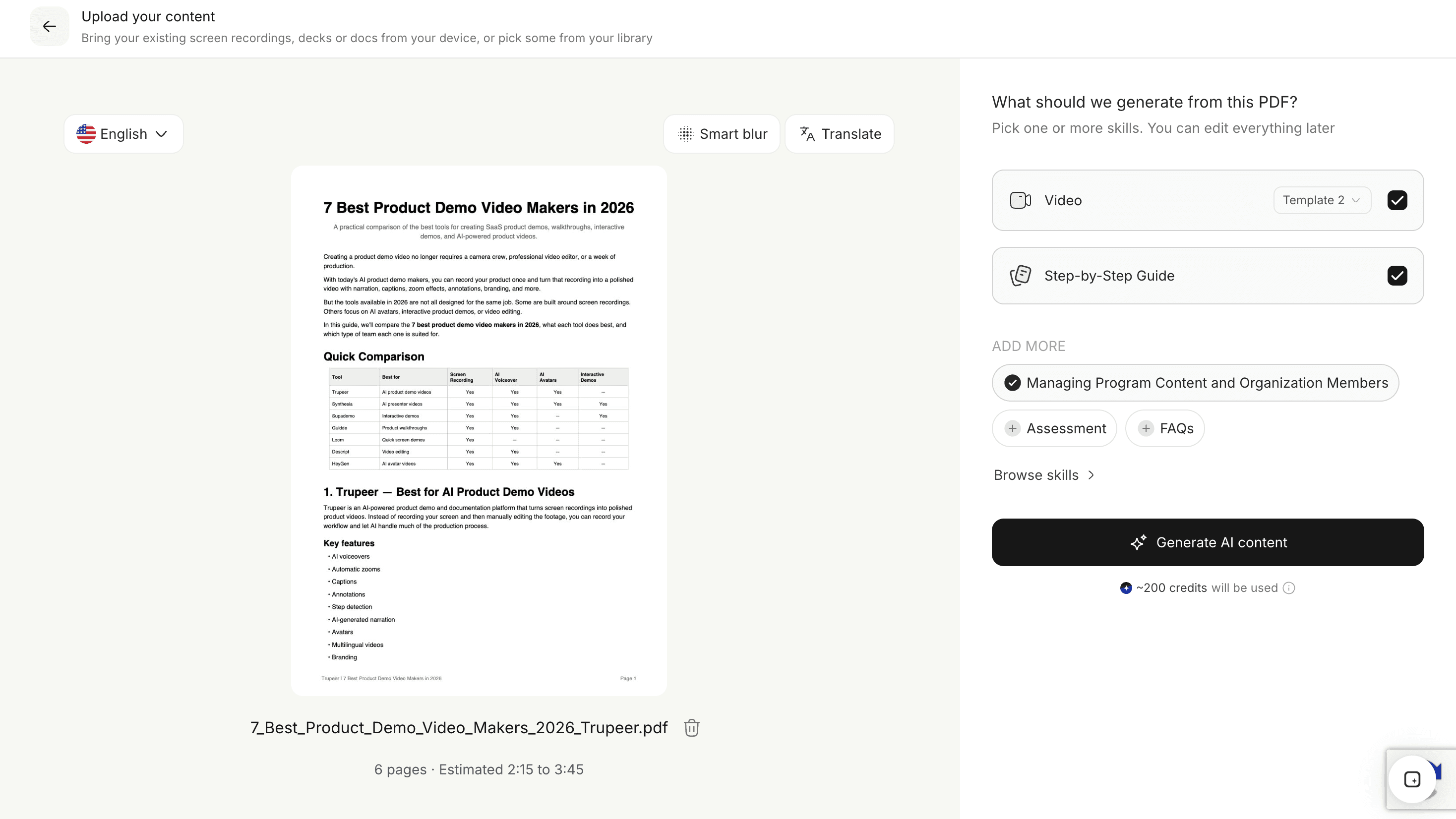
Upload your PDF
Drag and drop your PDF into the converter above. Reports, guides, manuals, slide decks saved as PDF, lecture notes and research papers all work. If your content is in PPT or PPTX, PowerPoint to Video converts it directly.
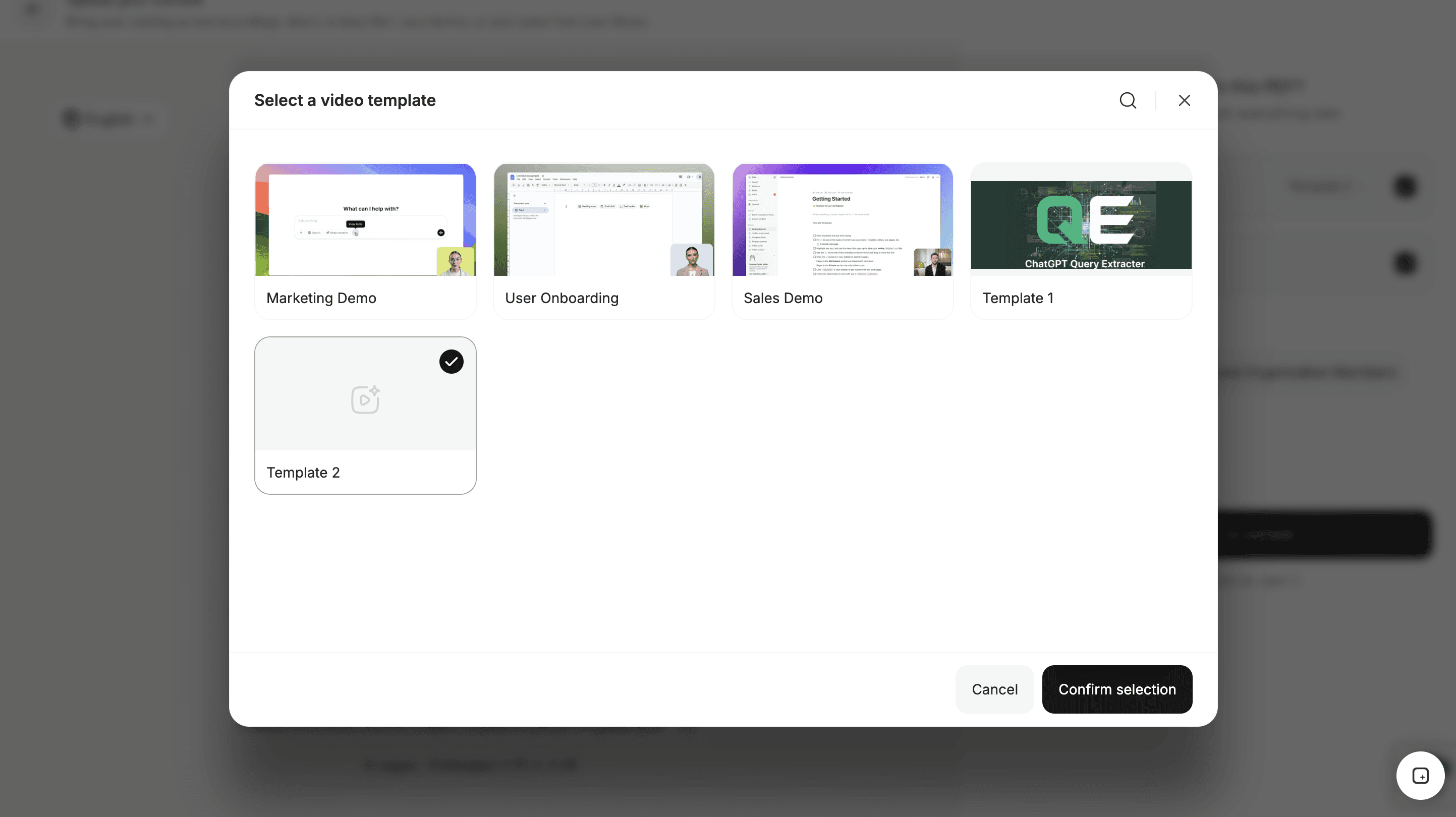
Choose a video style
Pick an explainer, a training lesson, a lecture or a quick summary. The style decides how AI scripting writes the narration: a lecture keeps more detail and explanation, while a summary keeps only the key points.
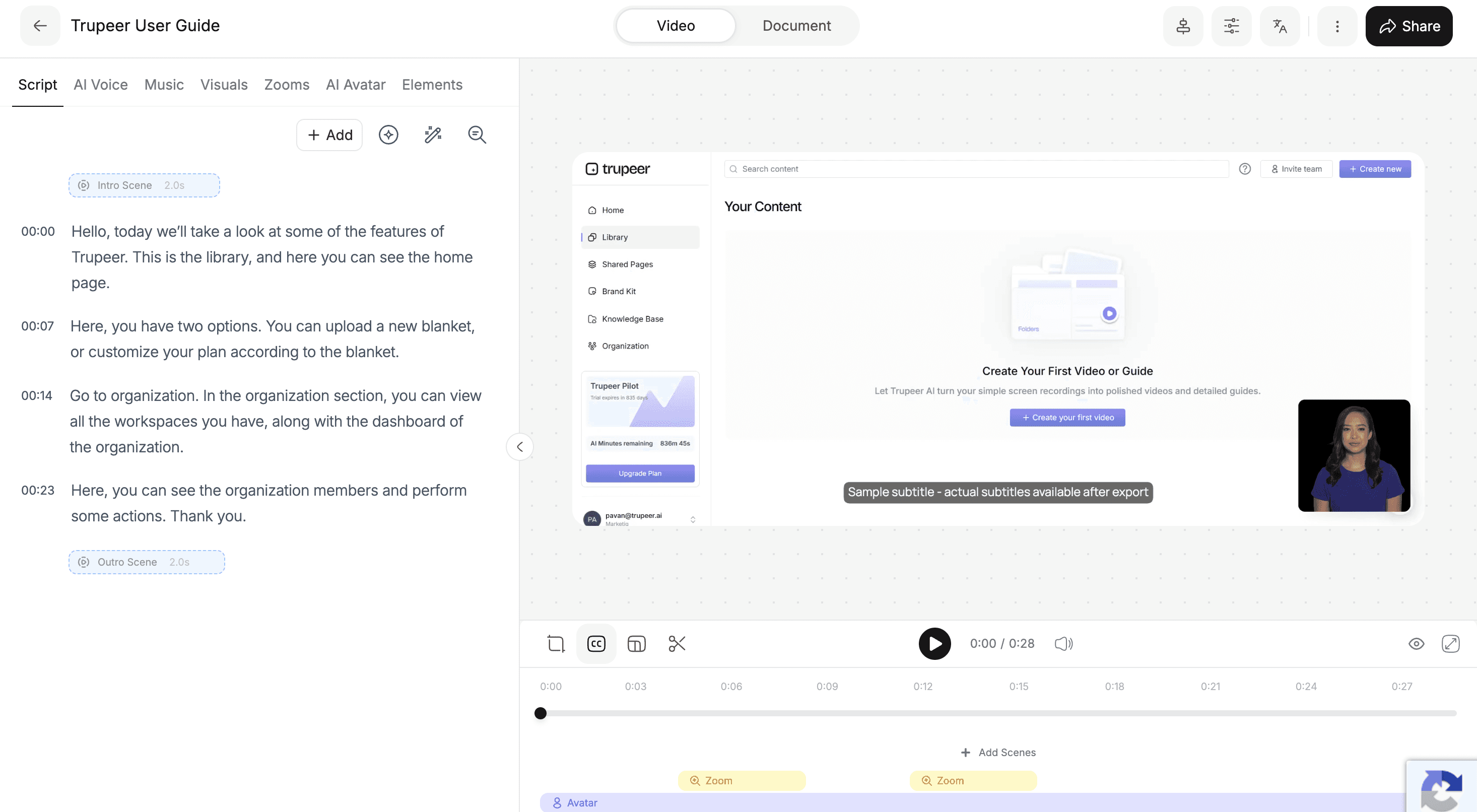
Review the script and scenes
Trupeer turns your PDF into an editable script split into scenes that follow your headings. Rewrite a sentence, reorder scenes or remove sections you don't need. Because Trupeer is an AI-powered video editor, every script change updates the voiceover and visuals automatically.
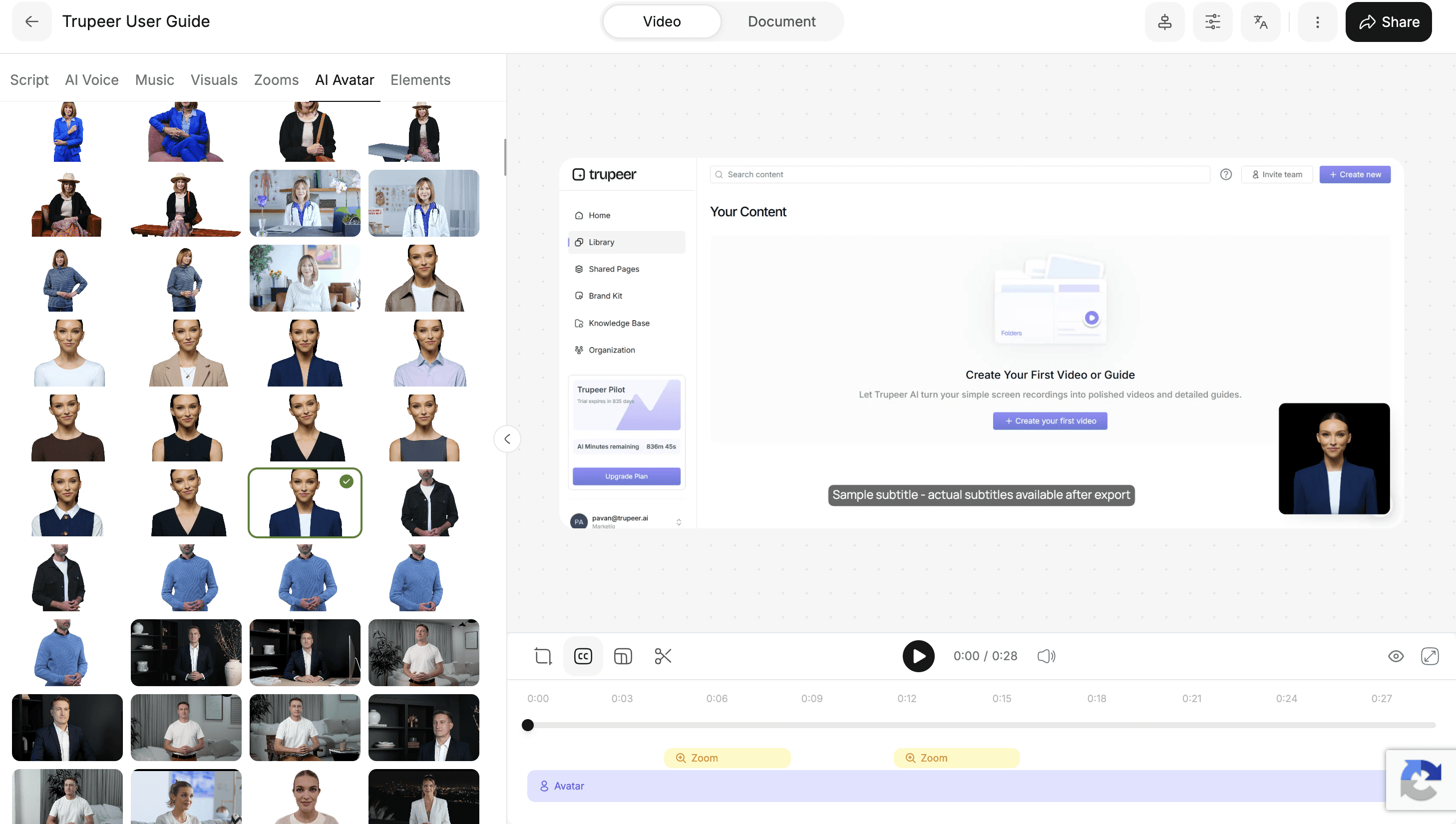
Add a voice or avatar
Choose an AI voice, add an optional custom AI avatar and apply your brand kit. Then download the video as an MP4, share it with a link, or embed it in your LMS, website or help center.
See What Trupeer Creates from Your PDF
Here is what happens to a typical PDF, such as a 15-page product manual, when you convert it with Trupeer:
What you upload. The manual as it is: chapter headings, numbered instructions, a few screenshots and a specifications table.
What Trupeer creates. A spoken script built from the key instructions, split into scenes that follow the chapters, with on-screen titles, highlighted steps and the numbers that matter pulled out of the table.
What you review. An editable script and scene list. You shorten one chapter, reword two lines and pick a voice.
What you share. A short narrated video with captions and your branding, as an MP4 or a link, instead of a manual most users never open.
Add AI Voiceovers, Captions, and Avatars
Most people looking to convert a PDF to video want the one thing a plain file converter can't give them: audio. Every PDF video in Trupeer comes with narration built in.
AI voiceover. Choose from a library of natural AI voices across accents, tones and styles. The voice reads the script Trupeer wrote from your PDF, not the raw page text, so it sounds like an explanation rather than a recitation.
AI avatar presenter. Put an AI talking head on screen with lip sync, which works well for training, onboarding and lecture-style videos.
Captions. Captions are generated from the narration, so your PDF video is accessible and still works on mute.
Other languages. Narrate the same PDF video in 120+ languages with video translation, including dubbed voiceover and subtitles.
More Than a PDF Slideshow
If you look for ways to convert a PDF to a video slideshow online, you will find two kinds of tool, and they produce very different videos.
PDF to MP4 slideshow converters. Each page becomes a still frame, and the frames are stitched into an MP4. Some add background music or a voice reading the page text. That is fine if you only need a file format change or want to loop pages on a screen at an event.
Trupeer. The PDF is rewritten into a script and rebuilt as scenes, so the video explains the document instead of displaying it. Key steps and data are highlighted, filler is cut, and a 20-page PDF becomes a few minutes of watchable content.
Should you convert a PDF to video or to images? Images work for sharing a single page or chart. Video is better when someone needs to understand the whole document, because narration and structure carry them through it.
Create Videos from Manuals, Reports, Guides, and More
Almost any PDF with text and structure makes a good video. The most common ones are:
Reports and research papers. Quarterly reports, whitepapers and academic papers become short video summaries that highlight the key findings.
Manuals and user guides. Product manuals and how-to guides become step-by-step videos customers can follow.
Policies and compliance documents. HR policies, safety procedures and compliance guidelines become videos employees actually watch.
Lecture notes and course material. Turn a PDF into a video lecture: handouts, study guides and slides become lessons students can rewatch.
Brochures, one-pagers and case studies. Marketing PDFs become short videos for your website, email or social channels.
Slide decks exported as PDF. These convert the same way. To keep your original slide design, use Presentation to Video.
For the best result, use a text-based PDF rather than a scan, keep clear headings (each one becomes a scene), and split very long PDFs into a short series of focused videos.
Built for Training, Education, Marketing, and Support
Training and onboarding
Turn onboarding packs, handbooks and process PDFs into training lessons. For a training-first workflow, use Document to Training Video, or see how teams build training videos with Trupeer.
Education and lectures
Teachers and trainers convert lecture notes, research papers and study guides into video lessons. Students can pause, rewatch and review the key points, which is harder with a long PDF.
Product marketing
Turn feature one-pagers, release notes and product brochures into explainer videos with Document to Explainer Video. See more ideas for product marketing.
Customer support
Convert PDF manuals and help guides into how-to videos that answer questions faster, a common approach for customer success teams.
Sales enablement
Turn case studies, proposals and product sheets into short videos reps can send before or after a call, as part of sales enablement.
Edit and Update Your PDF Videos
A PDF video should be as easy to change as the PDF itself. Trupeer treats the script as the source of the video, so you edit words, not timelines.
Edit like a document. Change a word in the script and the voiceover, captions and scenes update. No re-recording.
Stay on brand. Your logo, colors, fonts, intros and outros are applied to every PDF video automatically.
Update when the PDF changes. When a manual, policy or report is revised, edit the affected lines or upload the new version. Everything you didn't change stays as it was, which matters most during change management.
Share anywhere. Export as MP4, share a link or embed the video in your LMS, help center or knowledge base.
Try PDF to Video for Free
You can convert a PDF to video online for free with Trupeer, directly in your browser, with no software to install and no credit card required. It is the simplest way to test a PDF to video converter on your own files before rolling it out to a team.
What You Can Do for Free
Upload a PDF and let the AI write the script and plan the scenes.
Pick an AI voice, edit the script and preview your video.
Try the full workflow on real content, not a sample file.
Free plans come with limits on things like video length and exports. For longer videos, more exports, AI avatars, translation or team features, compare plans on the pricing page.
Are There Free PDF to Video AI Tools?
Yes, several tools offer a free PDF to video converter, but the free output varies a lot. Some only turn pages into a silent MP4, some add a watermark, and some cap videos at a few minutes a month. Check what the free plan actually includes before you commit.
What Makes a Great PDF Video?
A great PDF video explains the document, sounds natural and stays accurate as the PDF changes. Whichever PDF to video generator you use, these six questions separate a useful video from a page-to-MP4 conversion:
Does it explain the PDF or just show the pages? For training, education and marketing, you want a script and scenes, not a slideshow.
Can you edit the script before exporting? One wrong sentence shouldn't mean starting over.
How natural is the audio? Flat narration is the fastest way to lose viewers.
Can it keep your branding? Logos, colors and fonts matter once videos go to customers.
Does it translate? If you serve more than one market, translation saves recreating every video.
Can you update the video later? PDFs change, and editing a script is far faster than rebuilding a video.
Trupeer covers all six, and it handles Word files and decks too through Document to Video, so one tool works for every document your team produces.
Need the Opposite? Convert Video to PDF
Some people searching for PDF to video actually want the reverse: turning a video into a PDF guide. Trupeer does that too. Record your screen or upload a recording, and Trupeer detects each step, captures a screenshot for every action and writes the instructions, ready to export as PDF, Word or Markdown.
How Video to PDF Works
Record or upload. Capture a workflow with the Trupeer Chrome extension, or upload a recording you already have.
Steps are detected automatically. Every click and action becomes a step with its own screenshot and written instruction.
Structure comes built in. Headings, numbered steps and descriptions are laid out for you.
Export as PDF. Edit the wording, then export as PDF, Word or Markdown, or share with a link.
What You Can Create
SOPs, when you convert a screen recording into an SOP.
User guides and manuals with the user guide and manual creator.
Training documents and quick reference guides for new hires.
Used together, the two workflows keep one source of truth in both formats: a PDF for people who read and search, and a video for people who prefer to watch. Learn more about video to documentation AI.
Explore Related Tools
Why Teams Use Trupeer for PDF Videos
Explained, Not a Slideshow
AI rewrites your PDF into a spoken script and scenes, so viewers understand it instead of scrolling past pages.
Narration Built In
Every PDF video comes with natural AI voiceover, captions and an optional AI avatar presenter.
Edit Like a Doc
Change a line in the script and the video updates. Refresh the video whenever the PDF changes.
Create Your First PDF Video
Step 1
Upload your PDF to the converter
Step 2
Review the AI-written script and scenes, then pick a voice or avatar
Step 3
Export your PDF video as MP4 or share it with a link
Frequently Asked Questions
What is a PDF to video AI tool?
A PDF to video AI tool turns the content of a PDF into a narrated video. It reads the document, writes a spoken script from the key points, builds scenes from your headings and adds an AI voiceover or presenter, so the video explains the PDF instead of just showing its pages.
How do I convert a PDF to video?
Upload your PDF to Trupeer, choose a video style, review the AI-generated script and scenes, pick a voice or AI avatar, and export. You get an MP4 you can download, share with a link or embed, usually within a few minutes.
Can I convert a PDF to video with audio?
Yes. Every PDF video in Trupeer includes narration. Choose from natural AI voices, add an optional AI avatar presenter, and captions are generated from the voiceover automatically.
Are there free PDF to video AI tools?
Yes. Trupeer lets you convert a PDF to video online for free with no credit card required. Free plans have limits on things like video length and exports, and paid plans add longer videos, AI avatars, translation and team features.
Which PDF to video AI generator is best?
The best PDF to video AI generator explains your PDF rather than turning pages into a slideshow, lets you edit the script, has natural voices, keeps your branding, supports translation and lets you update the video later. Trupeer is built for teams that need all of these, especially for training, education and product content.
More Tools


