4.8/5
Free Browser Screen Recorder
Instantly share narrated screen recordings with AI avatars and subtitles no downloads.
Get started for free

Trupeer's Browser Screen Recorder captures browser tabs, applications, or full screens directly within Chrome, Firefox, and modern browsers using a lightweight extension. This tool records workflows, demos, and tutorials with AI-powered enhancements including automatic captions, annotations, and cloud sharing without desktop software installation.
Why Browser Screen Recorder is required?
Users waste time downloading heavy desktop recording apps that require permissions and slow systems. Browser-based workflows get interrupted switching between tabs and external recorders. Raw recordings lack professional polish needed for tutorials, support tickets, and demos.The same demo can feed straight into the free screen recorder, so you're not putting it together separately.
Teams struggle with inconsistent recording quality across devices and browsers. Manual editing after recording doubles workload for customer support and training content. Sharing large video files creates storage and compatibility headaches without instant cloud links.
What this Browser Screen Recorder does
Trupeer's recorder captures browser activity with system audio, microphone, or webcam overlay, then applies AI enhancements like auto-trimming silences, smart captions, click highlighting, and basic annotations. Videos upload automatically to cloud storage with instant sharing links, eliminating post-production for most use cases.
Core Capabilities
Record browser tabs, windows, or full screens seamlessly
Capture system audio, microphone, and webcam simultaneously
AI auto-edits with captions and click animations
Instant cloud sharing with private/public link options
How Trupeer’s Browser Screen Recorder works
Step 1: Open Trupeer
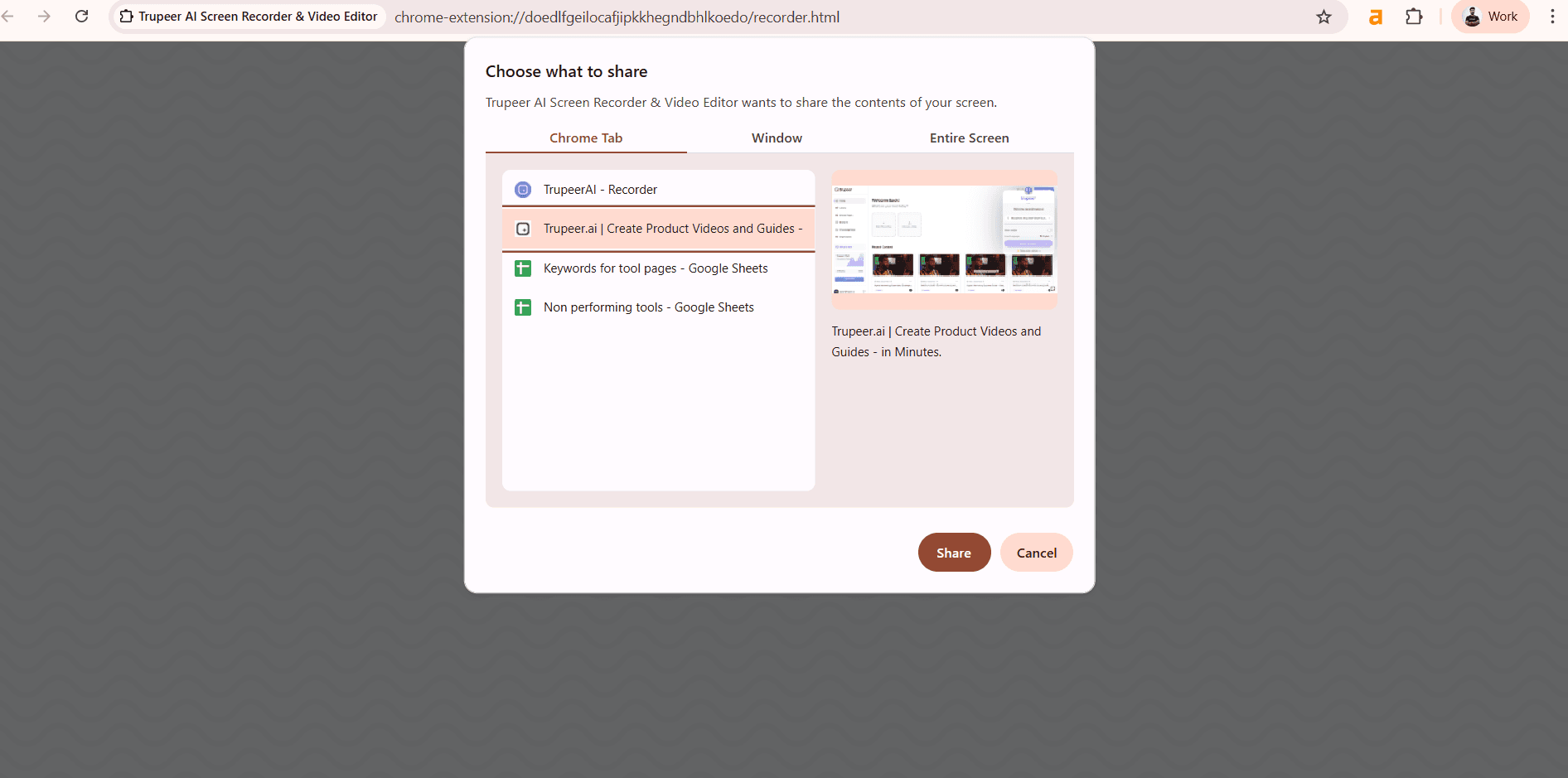
Click the extension icon to select recording area (tab/window/screen).
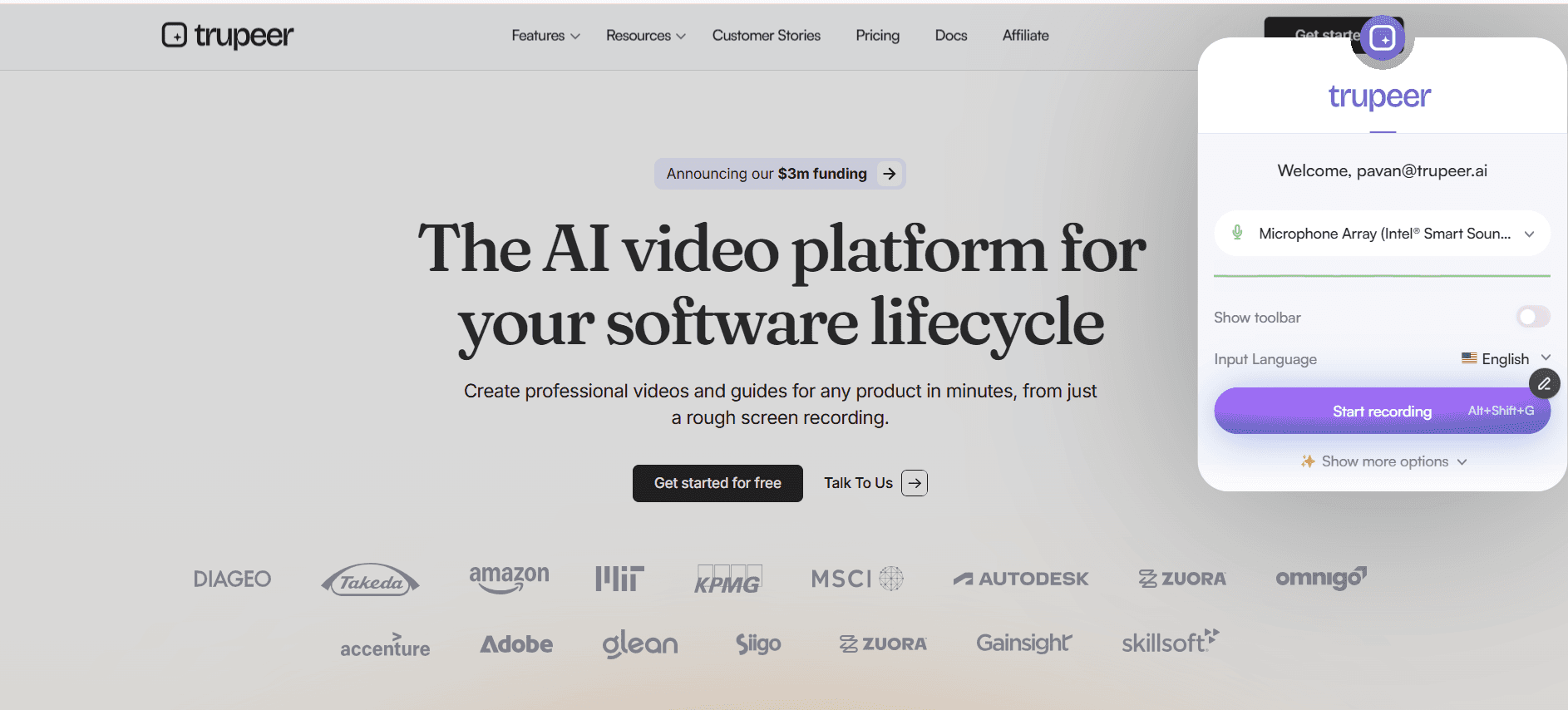
Step 2: Record Your Screen
Start capture with audio/webcam options; AI tracks clicks automatically.
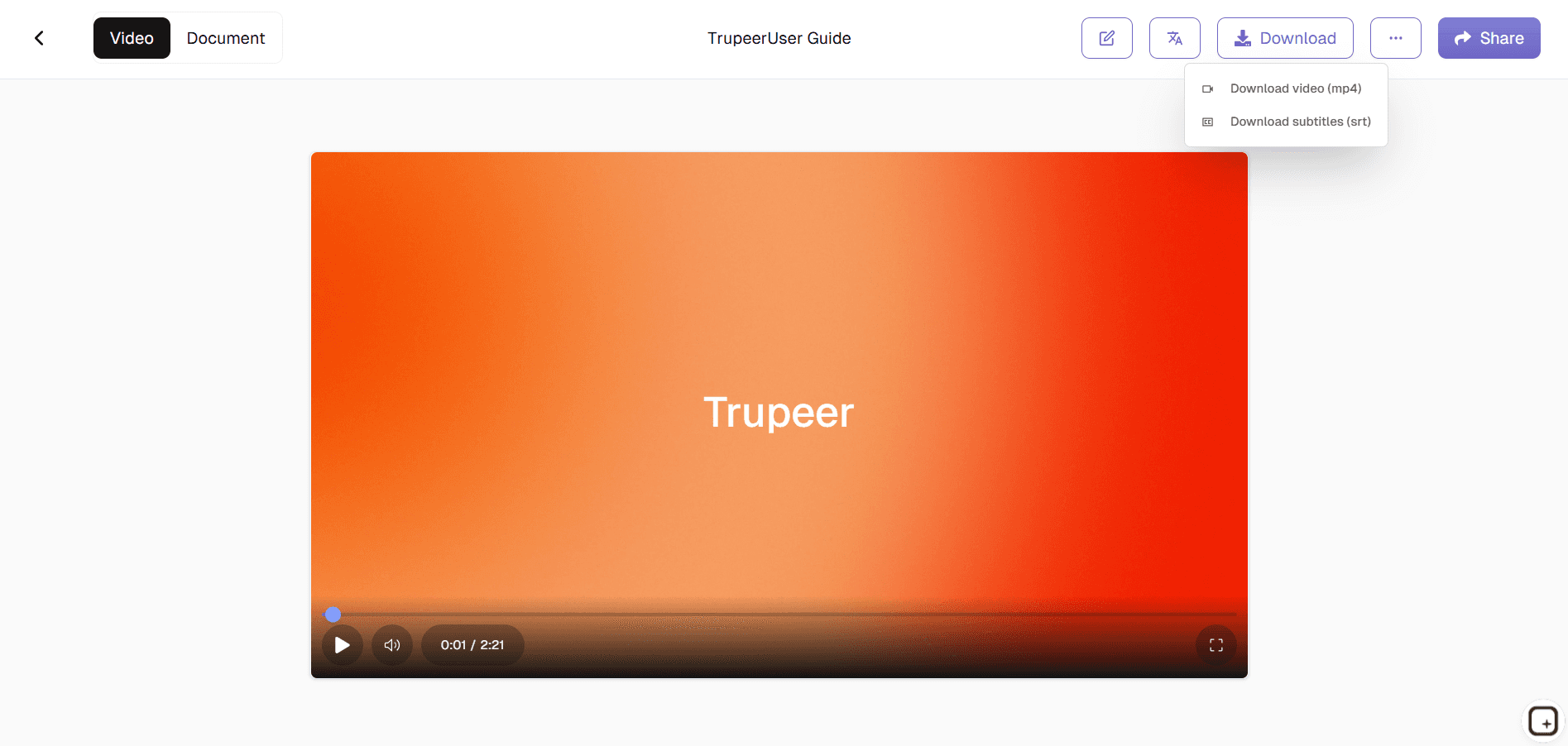
Step 3: Enhance & Share
AI processes video with captions, then provides instant sharing links.
Who this Trupeer’s Browser Screen Recorder is for
Essential for professionals who create screen capture content directly from browsers without complex setups.
Customer Support Specialists:
Record troubleshooting sessions with clear click paths and annotations, eliminating "I can't see what you're clicking" issues for faster ticket resolutionTechnical Trainers & Educators:
Capture browser-based tutorials with automatic step markers and captions, perfect for creating repeatable training content without editingSoftware Developers:
Document bug reproduction steps or feature demos with precise interaction recording, enabling instant sharing with QA teams or stakeholdersContent Creators & YouTubers:
Generate quick tutorial videos with AI-enhanced visuals and instant cloud publishing, streamlining daily content workflowsRemote Teams & Managers:
Create workflow walkthroughs and process documentation during live browser sessions, maintaining visual consistency across distributed teams
Key Features of Trupeer’s Browser Screen Recorder
Professional screen recordings enhanced by AI without downloads or editing software.
Multi-Browser Compatibility:
Works seamlessly across Chrome, Firefox, Safari, and Edge with identical quality and interface, ensuring consistent recording capabilities regardless of team browser preferencesAI Click & Action Highlighting:
Automatically detects and emphasizes mouse movements, clicks, and keyboard inputs with subtle animations, making tutorials self-explanatory without manual annotation workIntelligent Audio Processing:
Separates and enhances microphone from system audio while removing background noise, delivering studio-quality sound from standard laptop microphonesAutomatic Caption Generation:
AI transcribes speech with 95%+ accuracy and syncs captions to video timeline, making content accessible and improving viewer comprehension without subtitle editorsInstant Cloud Workflow:
Videos process and upload automatically with private sharing links that expire on schedule, eliminating manual file transfers and storage management
This screen recorder chrome extension builds on Screenity, originally created by Alyssa X and licensed under the GNU GPLv3, with enhancements developed by the Trupeer team. Source code available here: https://github.com/trupeer-ai/trupeer-chrome-capture.
Explore Related Tools
Benefits of Using Trupeer’s Browser Screen Recorder
No Downloads Required
Start recording instantly from your browser fast, simple, and secure.
AI-Powered Enhancements
Add avatars, subtitles, and auto-generated scripts to make recordings professional.
Multi-Purpose Output
Turn recordings into tutorials, product demos, or documentation in minutes.
Record Your Screen in Browser with Trupeer
Step 1
Open Trupeer
Step 2
Record Your Screen
Step 3
Enhance & Share
Frequently Asked Questions
Is this Browser Screen Recorder free?
Yes, unlimited browser recording with core AI enhancements available at no cost.
What browsers does Browser Screen Recorder support?
Chrome, Firefox, Safari, Edge, and all modern browsers with identical features.
What formats can Browser Screen Recorder export?
MP4, WebM with instant cloud links or direct downloads optimized for web.
Does Browser Screen Recorder capture webcam?
Yes, picture-in-picture webcam overlay with perfect audio synchronization.
Can I edit Browser Screen Recorder outputs?
Yes. After recording, you can share your video using a link, embed it on your website, or export it in HD formats. Trupeer also integrates with team collaboration tools for faster distribution of recordings.
More Tools


