4.8/5
Documentation Automation Software
Automate documentation creation from process recordings with AI-generated steps, screenshots, video and publishing.
Try Trupeer free

Turn a process recording into usable documentation without writing every step manually. Trupeer captures the workflow, generates the documentation, and gives your team a way to edit, publish and refresh it.
Documentation gets expensive when every process needs somebody to record it, write out the steps, capture the screenshots, format the page, and then repeat most of that work each time the process changes. Automation targets the repeatable half of that.
What Is Documentation Automation?
Automating the production and upkeep of documentation rather than the storage of it. The workflow is captured once, the documentation is generated from that capture, and updates start from the source rather than from a blank page.
In practice it covers four things:
Creation: capture the workflow, generate the steps, apply the structure
Transformation: screenshots, written guide and video from the same source
Publishing: share by link, publish to a knowledge base, or export
Maintenance: re-record or edit the affected part when the workflow changes
It is a different job from managing a documentation library. Automation reduces the work of producing and maintaining documentation; management organises, controls and governs it once it exists. If your problem is organisation, permissions and search rather than production, see the documentation management platform.
How Does Documentation Automation Work?
Three steps, from a recorded workflow to published documentation.
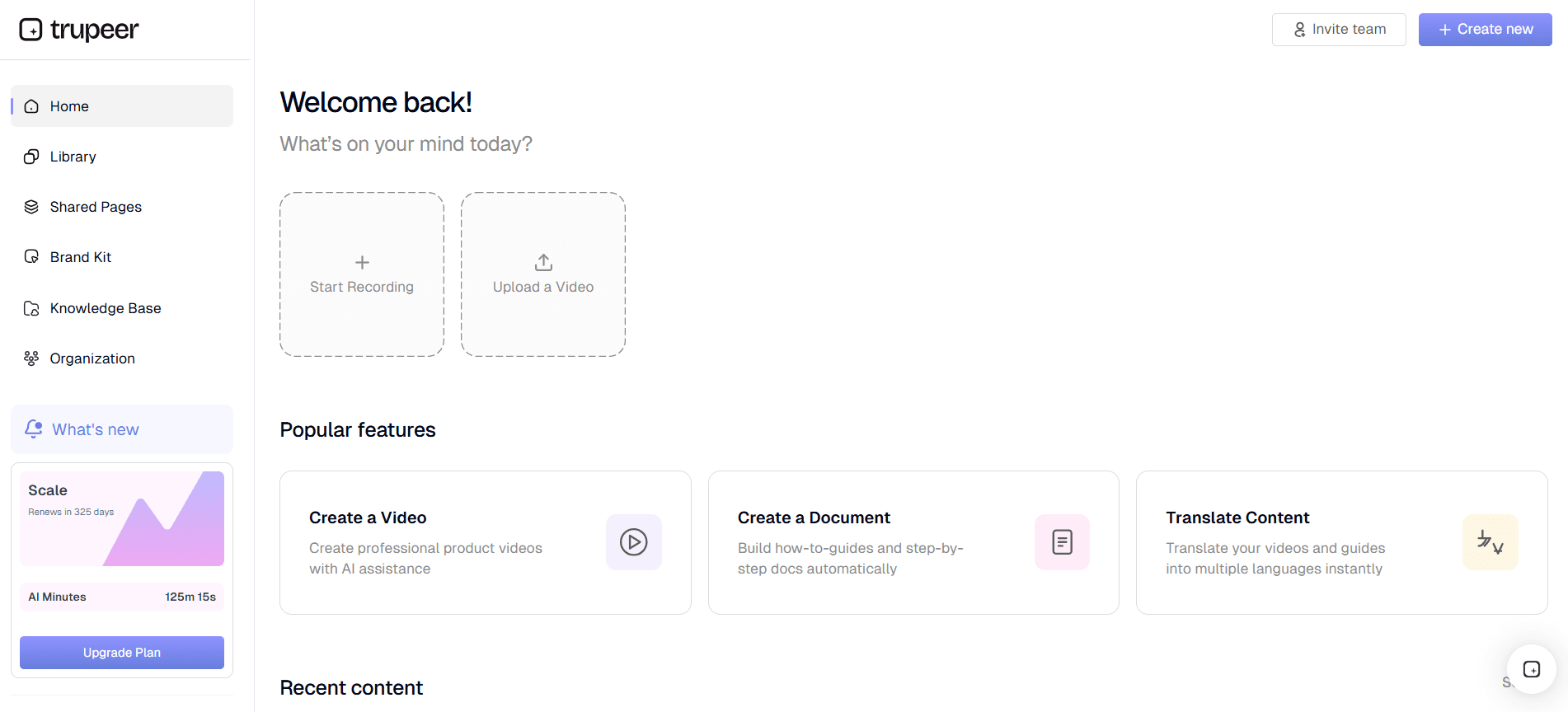
Step 1: Record or upload the workflow
Capture the process in your browser as you perform it, or upload a recording you already have. Documentation starts from the actual recorded workflow rather than from someone's memory, which is what removes the reconstruct-it-afterwards step.
Step 2: Generate the documentation
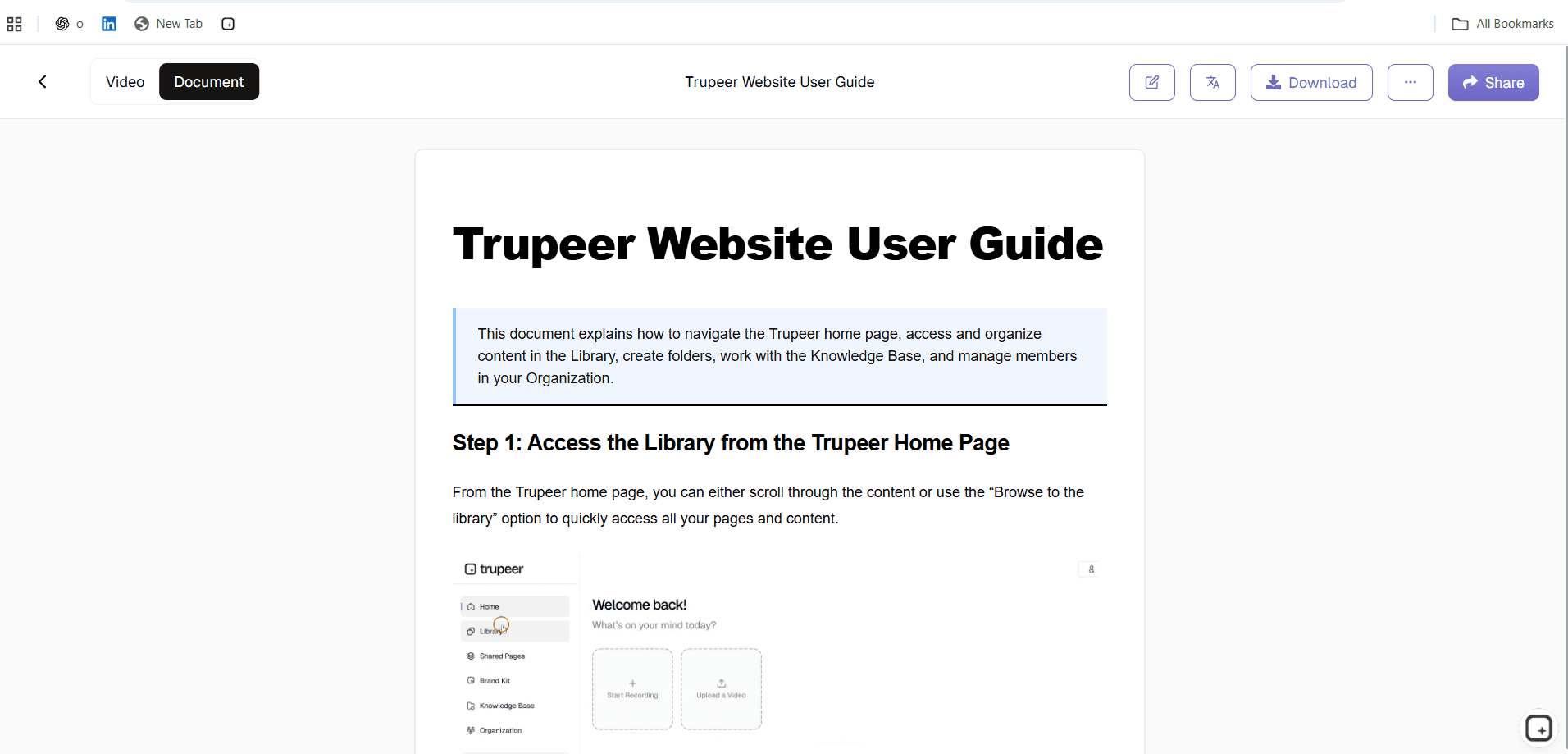
Trupeer identifies the steps in the recording, captures a screenshot for each one, drafts the instruction text and produces the video version from the same capture. What you get is a structured draft rather than a finished document.
Step 3: Edit, publish and refresh
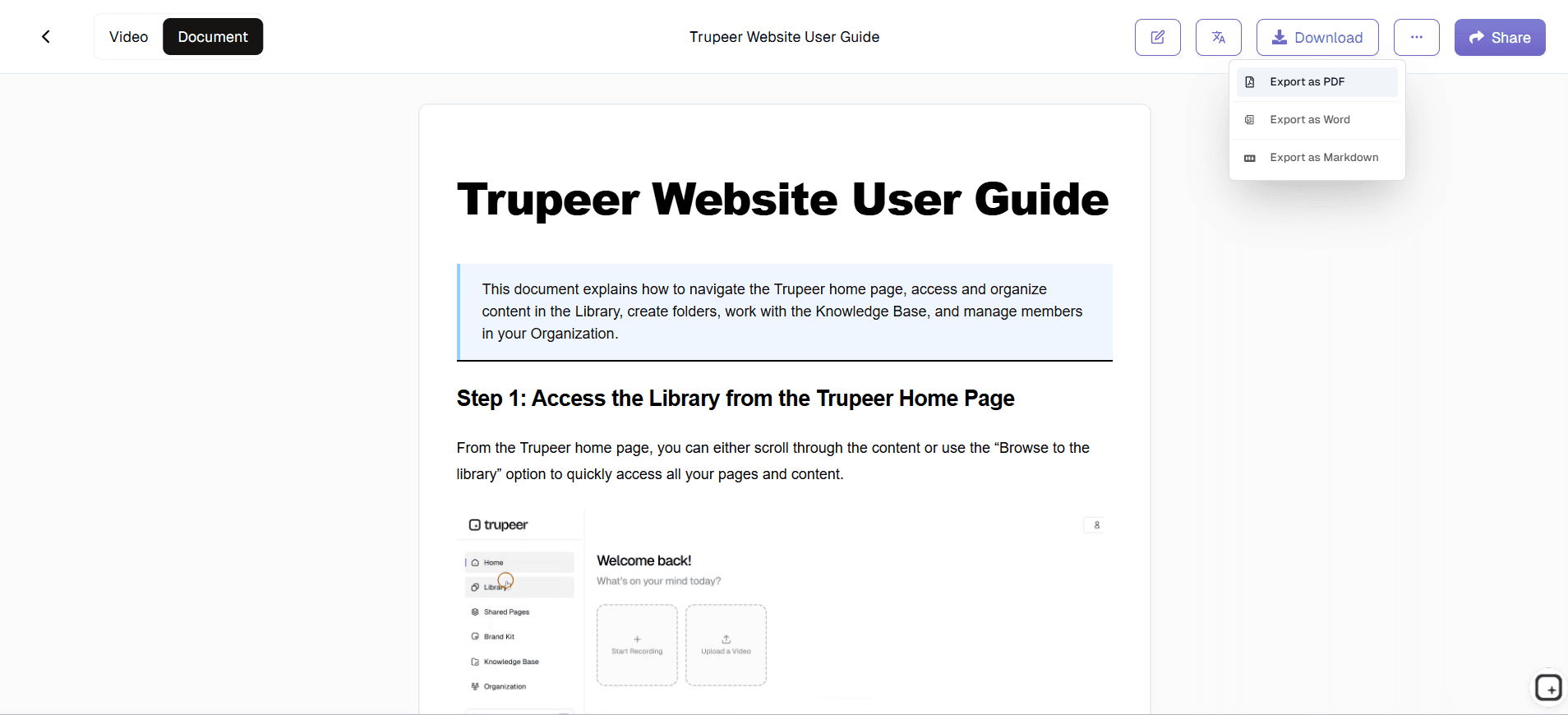
Review the output, reorder or rewrite steps, crop and annotate screenshots, blur anything sensitive, then publish by link or export. When the workflow changes, you can edit or re-record the affected documentation rather than rebuilding it.
The review is not automated and should not be. Reasoning, approvals and exceptions that were never visible during capture still need adding by whoever owns the process. AI documentation accuracy covers what to check.
What Documentation Automation Replaces
Manual: record → write → screenshot → format → record video → publish → repeat it all next time.
Automated: record → generate → review → publish → refresh.
Manual task | Automated workflow |
|---|---|
Writing out every step | Steps drafted from the recording |
Capturing screenshots one at a time | A screenshot captured per step |
Formatting each document by hand | Consistent structure applied automatically |
Recording a separate training video | Video produced from the same capture |
Rebuilding after an interface change | Re-record or edit the affected part |
Translating each document separately | Published in other languages from one source |
What You Can Automate With Trupeer
Workflow capture: record in the browser, or upload an existing recording including one from a meeting tool
AI-generated documentation: ordered steps with drafted instruction text, produced from the captured actions
Screenshots: taken per step, then croppable, annotatable and blurrable for sensitive data
Video: a narrated walkthrough from the same recording, with filler words and dead air removed
Editing: reorder, merge and split steps, rewrite wording and apply your brand kit
Translation: publish the same documentation in other languages without maintaining separate documents
Publishing: share by link, publish to a knowledge base, or export to PDF or Word
Updates: refresh the affected part when the workflow changes rather than starting again
Example: Automating a Repeated Documentation Workflow
A support team documents a troubleshooting workflow. Rather than writing the guide, capturing the screenshots and recording a separate training video, someone records the workflow once.
Trupeer generates the step-by-step guide with screenshots and the video version from that single capture, and the team reviews the draft before publishing. When the interface changes, they re-record the affected steps instead of rebuilding the guide, the screenshots and the video separately.
Where Documentation Automation Helps
Software and process documentation: repeatable workflows performed on screen, where capture has something to observe
Onboarding and training: where people watch first and reference the written version afterwards
Customer and support documentation: help articles and troubleshooting guides that change with the product
Knowledge transfer: capturing how something is done before the person who knows moves on
For the procedure-specific workflow, see converting a screen recording to an SOP. For producing several formats from one source, see the multi-format documentation generator.
Where the Automation Actually Saves Effort
Worth being specific, because the saving is not evenly spread across the documentation job.
Production, heavily:
writing steps, capturing screenshots and formatting are the tasks capture removes almost entirely. On a multi-step workflow, this can remove a substantial amount of repetitive production workConsistency, structurally:
documentation produced from the same workflow arrives in the same shape regardless of who recorded it, which is a problem manual authoring never solves at scaleUpdates, substantially:
the recurring cost. A procedure that is cheap to refresh actually gets refreshed, and that is what decides whether a library is trustworthy in a yearReview, not at all:
checking the draft, adding the reasoning and approving it stays human, and on a complex process that can be the longer halfDeciding what to document, not at all:
automation makes production cheap, which makes it easier to document things nobody needed
Documentation Automation vs Documentation Management
Worth separating, because teams often need both and they solve different problems.
Automation reduces the manual work of creating and maintaining documentation: capture, generate, update, publish
Management organises and governs documentation once it exists: structure, permissions, search, ownership, review cycles
Automation without management produces a lot of documentation nobody can find. Management without automation produces a well-organised library that goes out of date. See the documentation management platform for that half.
What to Look for in Documentation Automation Software
Six things worth scoring a shortlist against, in roughly the order they matter:
Workflow capture: can it record the process, and accept a recording you already have?
AI-generated steps: does it produce ordered, readable instructions rather than a transcript?
Screenshots: captured per step from the workflow, rather than pasted in afterwards
Editing and review: how easily can a person correct the draft and add what capture could not see?
Publishing: does the output reach where your readers are, and export to a file if you need one?
Update workflow: when the process changes, what does refreshing actually involve? This is the one most evaluations skip, and the one that decides whether documentation stays accurate
What Automation Does Not Do
It does not decide what should be documented, verify that the process you recorded was the correct one, or supply context that was never on screen. It also does not make documentation maintenance disappear: refreshing is cheaper than rebuilding, but somebody still has to notice the process changed.
For controlled documentation, automation supports clear ownership, review and publishing processes rather than replacing them. Requirements vary by regime, so confirm specifics against your own obligations.
What you can automate
Capture and generate
Record or upload a workflow and get ordered steps with a screenshot each, plus a narrated video from the same source.
Edit before publishing
Reorder, merge and split steps, rewrite wording, crop and annotate screenshots, and blur sensitive data.
Publish and refresh
Share by link, publish to a knowledge base or export to PDF or Word, then update the affected part when the process changes.
How documentation automation works
Step 1
Record the workflow in your browser, or upload a recording you already have.
Step 2
Trupeer identifies the steps, captures a screenshot for each and produces the documentation and video from the same capture.
Step 3
Review and edit the draft, publish it, and refresh the affected part when the workflow changes.
Frequently Asked Questions
What is documentation automation?
Automating the production and upkeep of documentation rather than the storage of it: capturing a workflow once, generating the documentation from that capture, and updating from the source rather than from a blank page.
How does Trupeer automate documentation?
It records the workflow, identifies the steps, captures a screenshot for each and drafts the instruction text, producing a structured draft plus a video from the same capture. You review and edit before publishing.
Can I create documentation from an existing recording?
Yes. You can record in the browser or upload a recording you already have, including walkthroughs captured in a meeting tool.
What outputs can Trupeer create?
Step-by-step written documentation with screenshots, a narrated video, translated versions from the same source, and exports to PDF or Word.
Can I edit AI-generated documentation?
Yes, and you should. Steps can be reordered, merged or split, wording rewritten, screenshots cropped and annotated, and sensitive data blurred. The reasoning, approvals and exceptions that were not visible during capture need adding by hand.
More Tools


