4.8/5
AI Software Documentation Generator
Generate software documentation from a recording. Step-by-step guides with screenshots and video, from the software in use.
Try Trupeer free

Record a software workflow and turn it into step-by-step documentation with screenshots. Trupeer captures the workflow, generates the guide with a screenshot per step, and gives your team a draft to review, publish and refresh when the interface changes.
This is for documenting how software is used, not for generating API reference or developer specifications.
Why Software Documentation Is Different
Documenting software is not the same job as documenting a process on paper, and the differences decide what a tool needs to do.
The steps are interface actions: what to click, where, and in what order, which is tedious to write and easy to get subtly wrong from memory
Screenshots have to match the step: a screenshot of the wrong state is worse than none, and capturing them individually is the slowest part of writing software docs
The interface keeps moving: a redesign invalidates the wording and every screenshot at once, so software documentation can become stale quickly because interfaces change frequently
Generating from a recording addresses the first three directly: the actions are observed rather than recalled, the screenshots come from the workflow itself, and refreshing means re-capturing rather than rebuilding.
How the AI Software Documentation Generator Works
Three steps from software in use to published documentation.
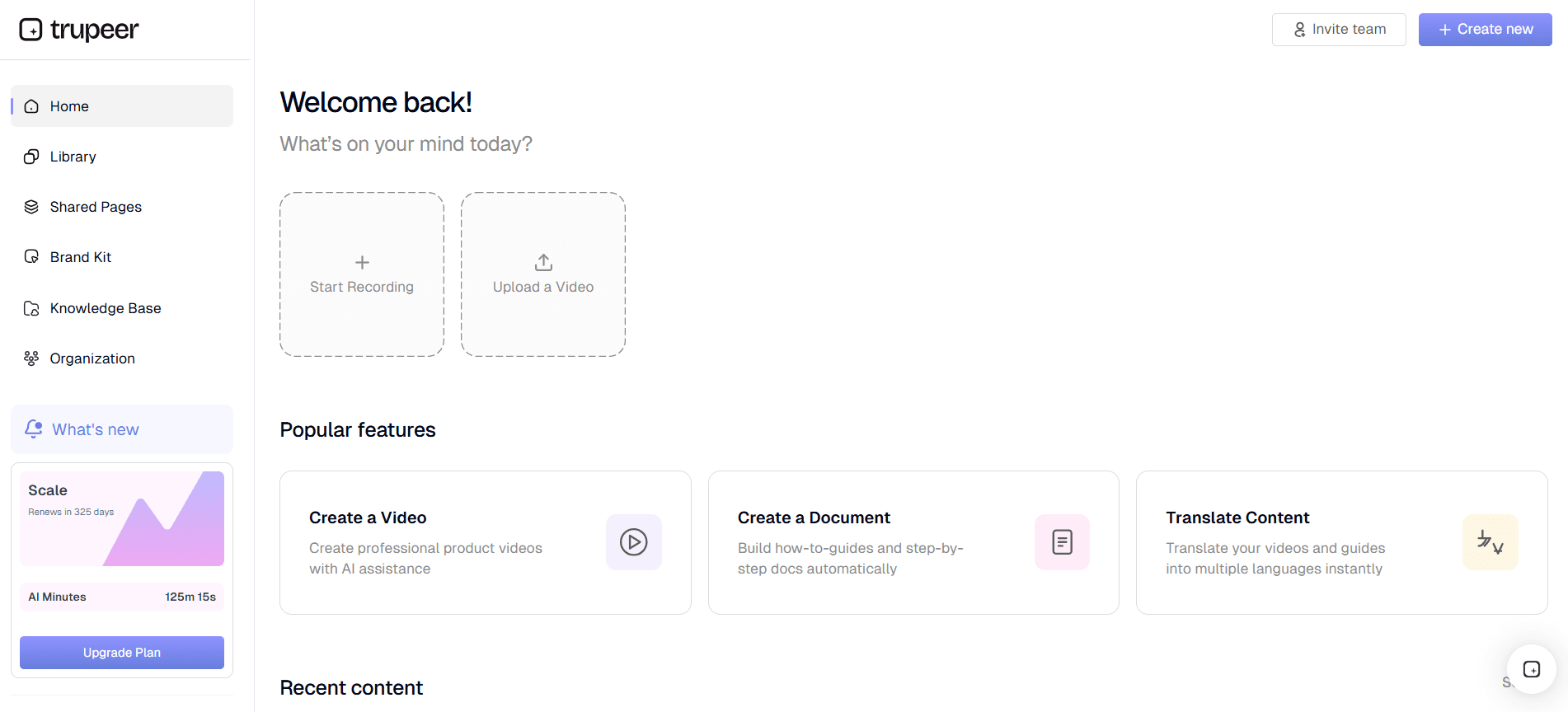
Step 1: Record or upload the workflow
Capture the feature or workflow in your browser as you use it, or upload a recording you already have. The documentation starts from the recorded workflow rather than from someone reconstructing it afterwards.
Step 2: Generate the software guide
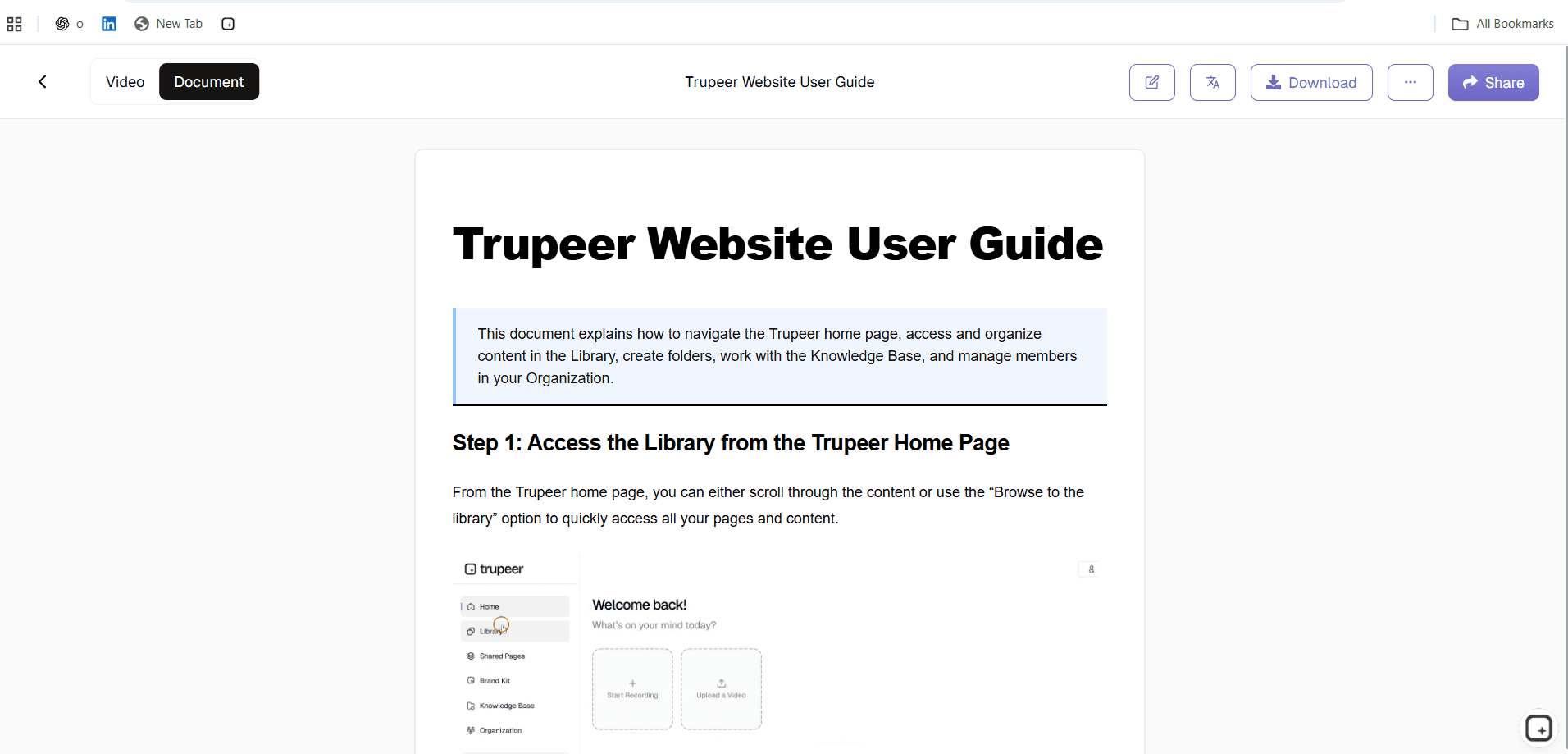
Trupeer identifies the interface actions, captures a screenshot for each step, drafts the instruction text and produces a narrated video from the same recording.
Step 3: Edit, publish and refresh
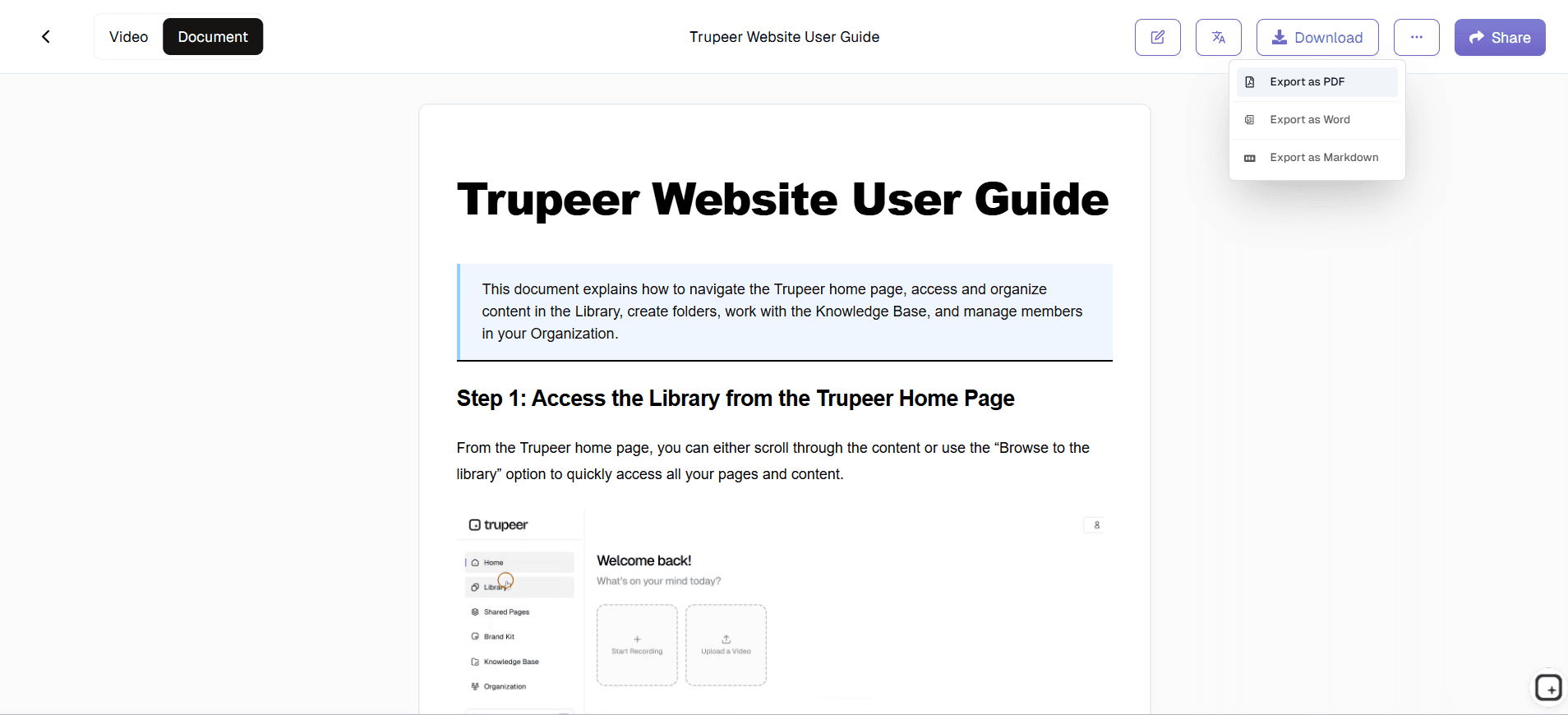
Review the draft, reorder or rewrite steps, crop and annotate screenshots, blur anything sensitive, then publish by link or export. When the interface changes, re-record the affected part.
The review is not automated. Anything not visible on screen, including why a setting matters, what the limits are and which cases need approval, still needs adding. AI documentation accuracy sets out the gaps worth checking for.
Why Use an AI Software Documentation Generator?
Because most of the effort in software documentation is not the writing. It is reconstructing the workflow from memory and capturing the screenshots by hand, and both get repeated every time the interface changes. That is the work a generator removes.
What You Can Create With Trupeer
Software guides: step-by-step instructions for a feature or workflow, with a screenshot per step
Screenshots: captured from the workflow, then croppable, annotatable and blurrable for sensitive data
Customer-facing product guides: published to a knowledge base or shared by link
Video walkthroughs: narrated, from the same recording, as a secondary output alongside the written guide
Internal process documentation: the same workflow written for the team rather than the customer
Translated versions: published in other languages from one source
Exports: PDF or Word where a file is required
For API reference, SDK guides and developer specs, that is a different category. See AI tools for technical documentation.
What Makes a Good Recording for Software Documentation
The generated guide is only as good as the capture. A few things decide that, and none of them take extra time once you know them.
Use a clean account with realistic data:
an empty test account produces screenshots that look nothing like what a user sees, while a live account puts customer data in every image. Seeded demo data is the middle ground, and it saves a blurring pass laterStart from a predictable screen:
begin at a URL or view the reader can also reach, not halfway through a session with filters already appliedMove deliberately between actions:
a brief pause after each click makes step boundaries easier to identify correctly, which is where most correction time goesDo not backtrack:
if you take a wrong turn, restart rather than correcting on camera. A corrected mistake often ends up documented as two steps that undo each otherKeep one workflow per recording:
two features in one capture produces one confused guide, and splitting it afterwards costs more than recording twiceSet the window to a standard size:
consistent dimensions across recordings means consistent screenshots across your library
What to Add After the Capture
A recording shows what was done. It does not show what a reader needs to know, and for software documentation the gaps are consistent enough to check for directly.
Prerequisites: the permission, role or plan needed before step one. Discovering at step seven that you lack access is the most common reason a guide gets abandoned
What the setting actually does: the recording shows a toggle being switched, not what switching it changes
Limits and constraints: file sizes, character limits, rate limits and plan restrictions that only appear when you hit them
What happens next: whether the change is immediate, queued, or needs someone else to approve it
The alternative paths: the same task reached from a different screen, or the bulk version of a single action
What to do when it fails: the error the reader is most likely to hit, and what it means
Example: Documenting a New Feature
A SaaS team launches a billing feature. Rather than writing the guide, capturing the screenshots and recording a separate walkthrough, a product manager records the workflow once while testing it.
Trupeer generates the step-by-step guide with screenshots and the video from that capture. The team reviews the draft, adds the pricing rules and edge cases that were not on screen, publishes the customer guide to the help centre and shares the video with support before launch. When the billing interface changes, the team can re-record the affected section.
Where AI Software Documentation Generators Help
Product feature walkthroughs: feature documentation that has to ship with the release rather than after it
Internal software and process training: admin workflows, internal tooling and the screens nobody has written up
Software onboarding: new starters learn the product from the walkthrough, then work from the written guide
Customer and support product guides: help articles and troubleshooting guides that change with the product
For producing several formats from one capture, see the multi-format documentation generator. For automating the wider documentation lifecycle beyond software workflows, see documentation automation software.
Keeping Software Documentation Current
Software documentation has a maintenance problem the other kinds do not: an interface change invalidates the screenshots as well as the wording, and screenshots are the expensive part to redo by hand.
Two things make that manageable. Record in sections rather than one long capture, so a change to one screen means re-recording that section instead of the whole workflow. And note which guides cover which features, so when a release touches a screen you know what needs checking rather than finding out from a support ticket.
What This Does Not Do
It does not decide what to document, confirm the workflow you recorded is the one users should follow, or supply the reasoning, limits and approvals that were never on screen. Refreshing after a change is cheaper than rebuilding, but somebody still has to notice the interface moved.
Where ownership and review processes matter, the editing and publishing steps support your own process rather than replacing it.
What you can create
Guides with screenshots
Step-by-step software guides with a screenshot captured per step, croppable and annotatable, with blur for sensitive data.
Video from the same capture
A narrated walkthrough produced from the same recording, so the guide and the video describe the same workflow.
Publish and refresh
Publish to a knowledge base or share by link, export to PDF or Word, and re-record the affected part when the interface changes.
How to generate software documentation
Step 1
Record the feature or workflow in your browser, or upload a recording you already have.
Step 2
Trupeer identifies the interface actions, captures a screenshot per step and drafts the guide, plus a narrated video from the same recording.
Step 3
Review and edit the draft, publish it, and re-record the affected part when the interface changes.
Frequently Asked Questions
How does an AI software documentation generator work?
It records the software in use, identifies the interface actions, captures a screenshot for each step and drafts the instruction text, producing a structured guide you then review and edit.
Can I create software documentation from a screen recording?
Yes. Record the workflow in your browser or upload a recording you already have, and the guide and screenshots are generated from it.
What software documentation can Trupeer create?
Step-by-step feature guides with screenshots, narrated video walkthroughs, customer-facing product documentation, internal process documentation, translated versions, and PDF or Word exports.
Can I edit generated software documentation?
Yes, and it needs it. Steps can be reordered, merged or rewritten, screenshots cropped and annotated, and sensitive data blurred. Anything not visible on screen, such as limits and approvals, has to be added.
Can I update documentation after a software change?
Re-record the affected part or edit the steps directly, rather than rebuilding the guide. This matters more for software than other documentation, because an interface change invalidates the screenshots as well as the wording.
More Tools


