

Как увеличить размер ячеек в Google Sheets
Узнайте, как изменить размер ячеек в Google Sheets, изменяя размер строк и столбцов. Это руководство показывает быстрые способы настроить макет таблицы.
This process outlines how to modify the size of cells in Google Sheets by adjusting the dimensions of rows or columns.
If you need more space in your cells either vertically or horizontally you can easily adjust the row height or column width. Google Sheets offers both manual drag options and precise input for resizing.
1. Resizing Columns:
Drag the column border:
Move your mouse to the right edge of the column header (where the letters are). When the double-sided arrow shows up, click and drag to make the column wider.
Right-click and resize:
Right-click on the column letter, select “Resize column”, and then enter the width in pixels. You can also choose “Fit to data” to let Google Sheets adjust it automatically based on the content.
2. Resizing Rows:
Drag the row border:
Hover your cursor over the bottom edge of the row number. When you see the double arrow, drag the border to increase the row height.
Right-click and resize:
Right-click on the row number, choose “Resize row”, and type in your preferred height. You can also select “Fit to data” here if needed.
3. Other Options:
Autosizing:
Double-click the edge of a row or column to auto-resize it to fit the content perfectly.
Resize multiple at once:
You can select multiple rows or columns and drag one of the borders—or right-click and resize—to adjust all of them together.
Use the Format menu:
For more control, go to the “Format” menu where you can fine-tune cell sizing along with other layout options.
Step-by-Step Guide: How to Increase Cell Size in Google Sheets
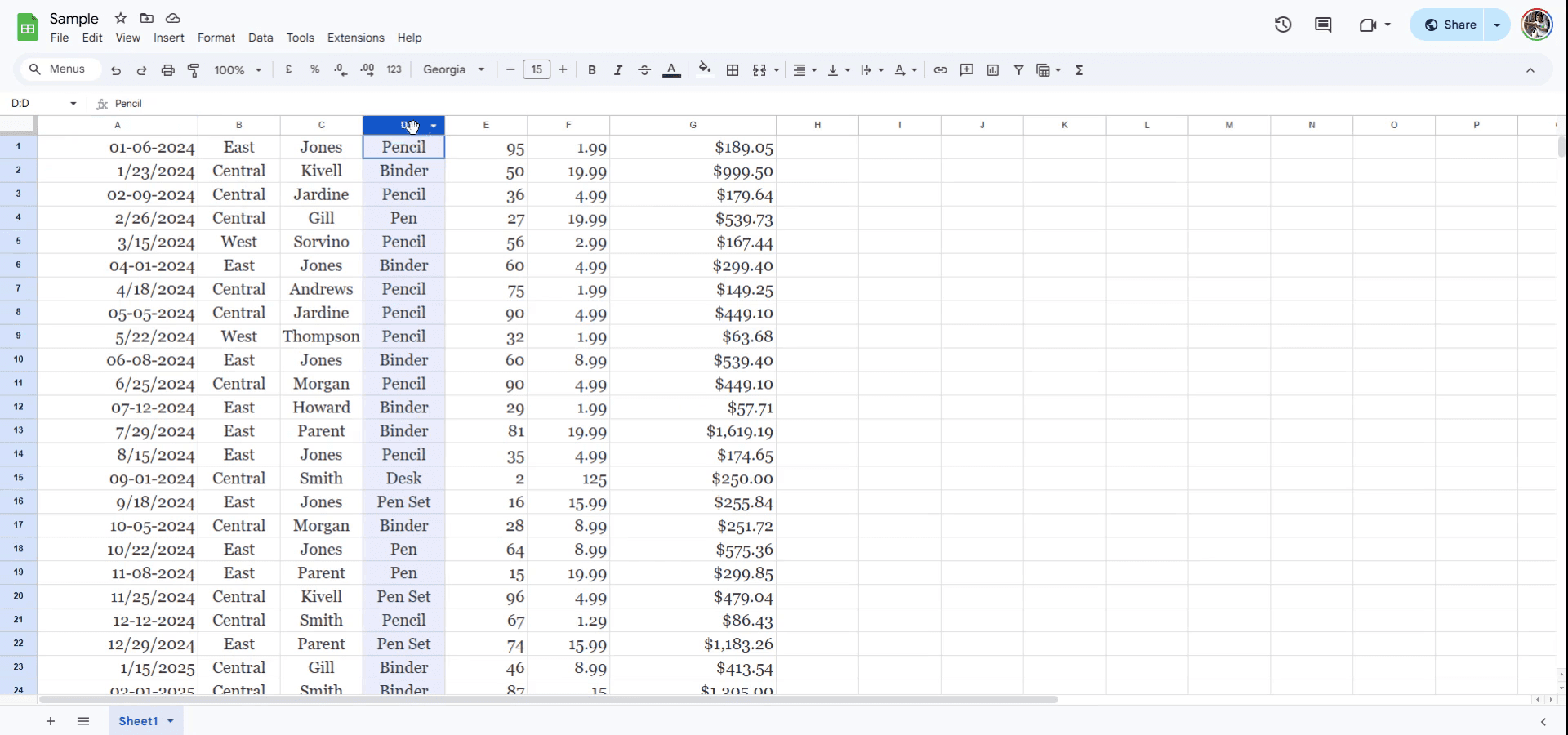
Step 1
To change the size of a row or column, begin by selecting the specific row number or column letter header. In this example, column D is selected.
Step 2
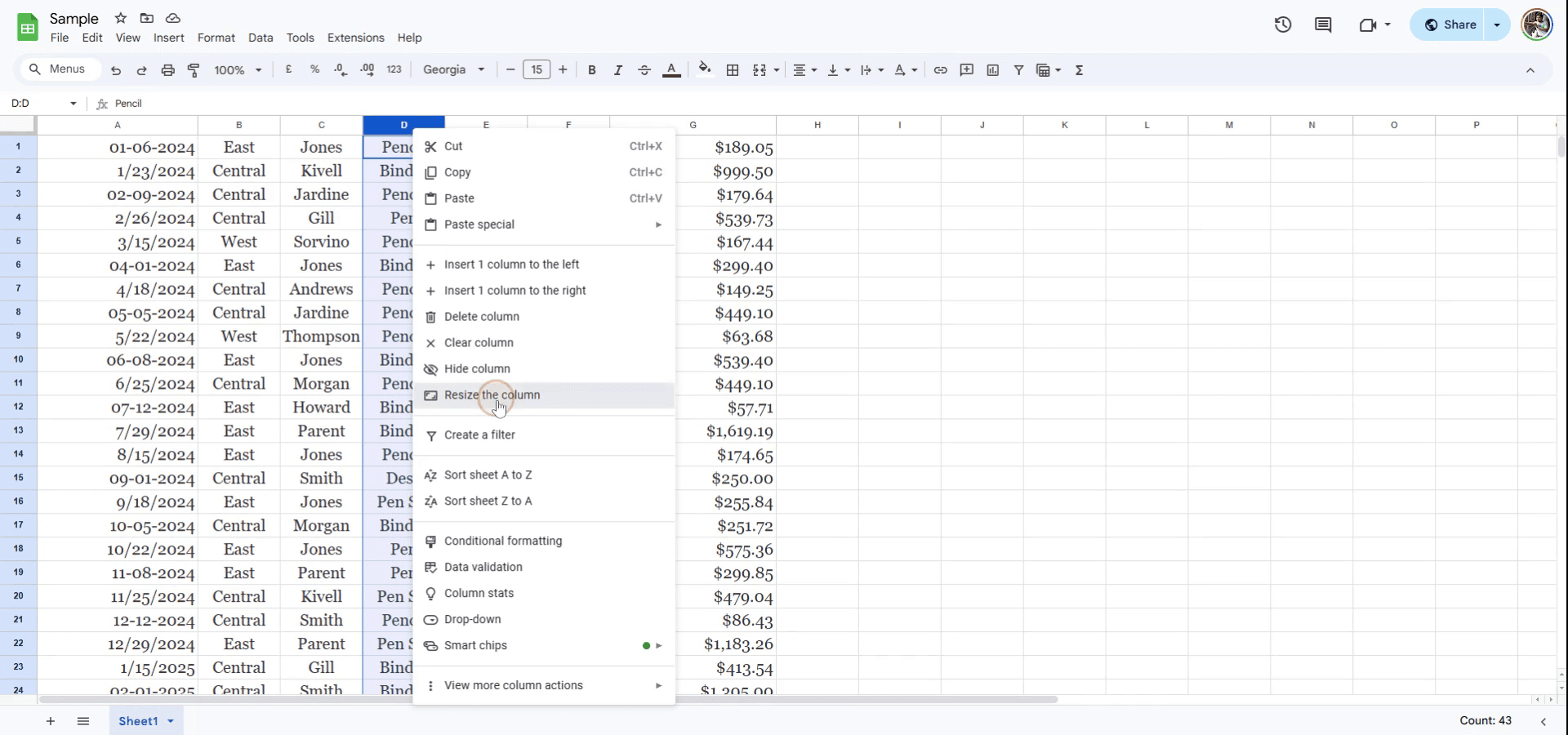
Next, right-click on the selected row or column header. From the context menu that appears, choose the option to resize either the column or the row, depending on your selection.
Step 3
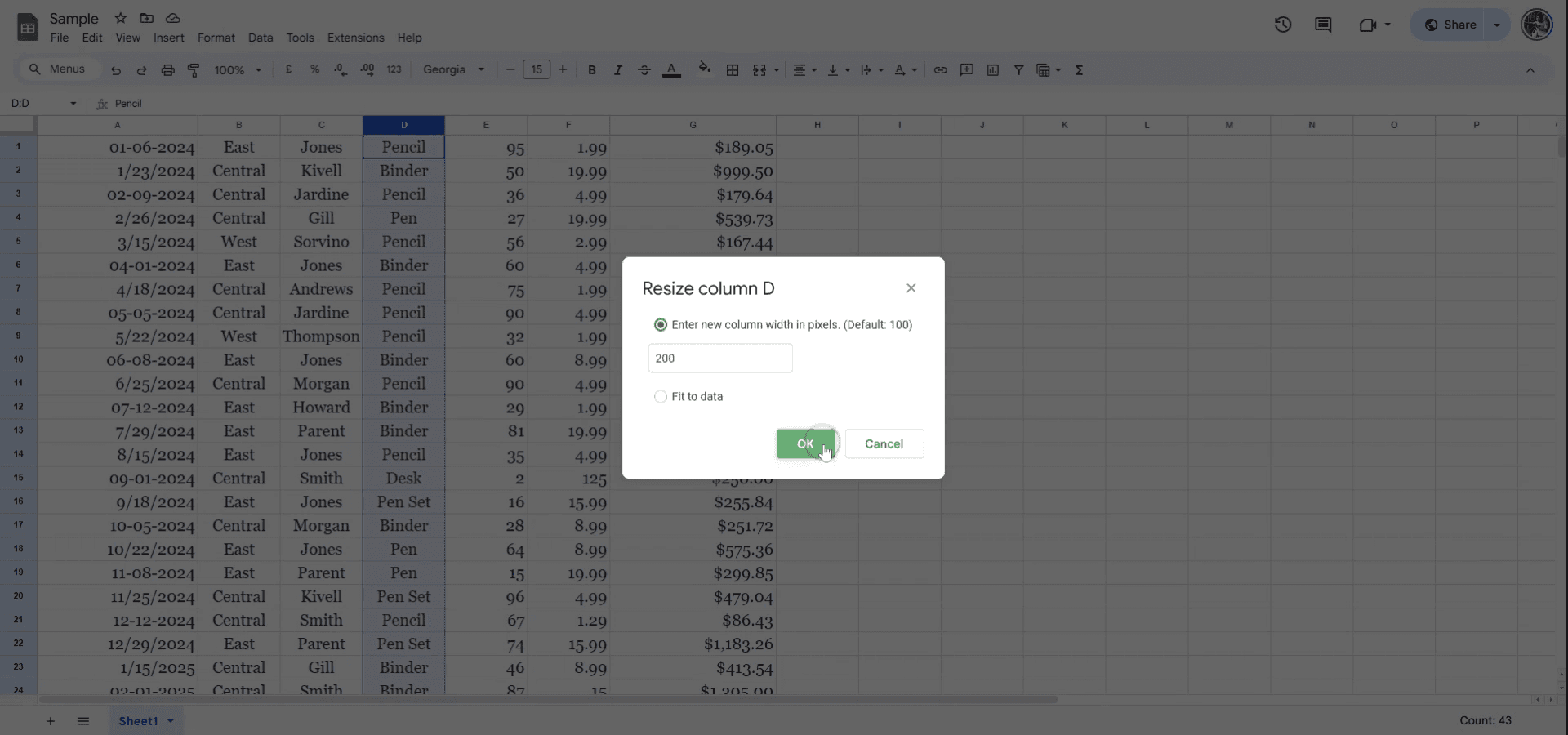
You can enter a new pixel size if desired. Alternatively, you may choose to automatically fit the data. After making your choice, click on "OK" to apply the changes. The row or column will now be resized accordingly.
Полезные советы по увеличению размера ячеек в Google Sheets
Изменяйте ширину/высоту вручную: наведите курсор на линию между буквами или номерами столбцов/строк, пока не появится двусторонняя стрелка, затем нажмите и перетащите, чтобы изменить размер ячейки.
Используйте параметр изменения размера: щелкните правой кнопкой мыши по заголовку столбца или строки и выберите «Resize column» или «Resize row», чтобы ввести нужный размер в пикселях.
Автоматическое изменение размера под содержимое: дважды щелкните по линии между столбцами или строками, чтобы автоматически подстроить их под содержимое в ячейках.
Частые ошибки и как их избежать при увеличении размера ячеек в Google Sheets
Случайное изменение размера слишком сильно: если перетащить границу столбца/строки слишком далеко, ячейки могут стать слишком большими, из-за чего появится лишнее пространство. Исправление: используйте параметр «Resize» для большего контроля или дважды щелкните, чтобы выполнить автоматическую подстройку.
Не изменяется размер обоих элементов: если вам нужно увеличить и ширину, и высоту, обязательно настройте и столбцы, и строки. Исправление: выделите весь лист (щелкните по верхнему левому углу) и измените размер нескольких столбцов или строк одновременно.
Несовпадение размеров в нескольких столбцах/строках: не все столбцы/строки могут изменяться одинаково. Исправление: удерживайте «Shift» и выделите несколько столбцов или строк перед изменением размера, чтобы применить изменения ко всем сразу.
Common FAQs for increasing cell size in a Google Sheets
How do I make a column wider in Sheets?
Hover over the column header’s line and drag to the right to increase the width. Alternatively, right-click the column and select "Resize column".How can I adjust row height in Sheets?
Hover over the row header’s line, drag down to increase the height, or right-click and select "Resize row" for precise control.Can I resize multiple columns or rows at once?
Yes, select multiple columns/rows by holding "Shift" and clicking the headers, then resize them simultaneously by dragging or using the "Resize" option.How to screen record on mac?
To screen record on a Mac, you can use Trupeer AI. It allows you to capture the entire screen and provides AI capabilities such as adding AI avatars, add voiceover, add zoom in and out in the video. With trupeer’s AI video translation feature, you can translate the video into 30+ languages.How to add an AI avatar to screen recording?
To add an AI avatar to a screen recording, you'll need to use an AI screen recording tool. Trupeer AI is an AI screen recording tool, which helps you create videos with multiple avatars, also helps you in creating your own avatar for the video.How to screen record on windows?
To screen record on Windows, you can use the built-in Game Bar (Windows + G) or advanced AI tool like Trupeer AI for more advanced features such as AI avatars, voiceover, translation etc.How to add voiceover to video?
To add voiceover to videos, download trupeer ai chrome extension. Once signed up, upload your video with voice, choose the desired voiceover from trupeer and export your edited video.How do I Zoom in on a screen recording?
To zoom in during a screen recording, use the zoom effects in Trupeer AI which allows you to zoom in and out at specific moments, enhancing the visual impact of your video content.
Suggested Reads
Technical Documentation Generator
How to Add Rupee Symbol in Google Sheets
How to Change Currency Format in Google Sheets
How To Change Ownership Of A Google Sheet
How To Calculate Percentage In Google Sheets
How to Hide and Unhide Columns in Google Sheets
Похожие руководства