チュートリアル
Zoomのウェイティングルームを無効にする方法
参加者がZoomミーティングに即座に参加できるようにしたいですか?デスクトップまたはモバイルで簡単な手順を使ってZoomの待機室機能を無効にする方法を学びましょう。

ステップバイステップのガイドを紹介します:
Zoomウェブポータルにサインインします: Zoomのウェブサイトにアクセスし、アカウントの認証情報を使用してサインインします。
設定に移動します: ナビゲーションメニューで「設定」をクリックします。
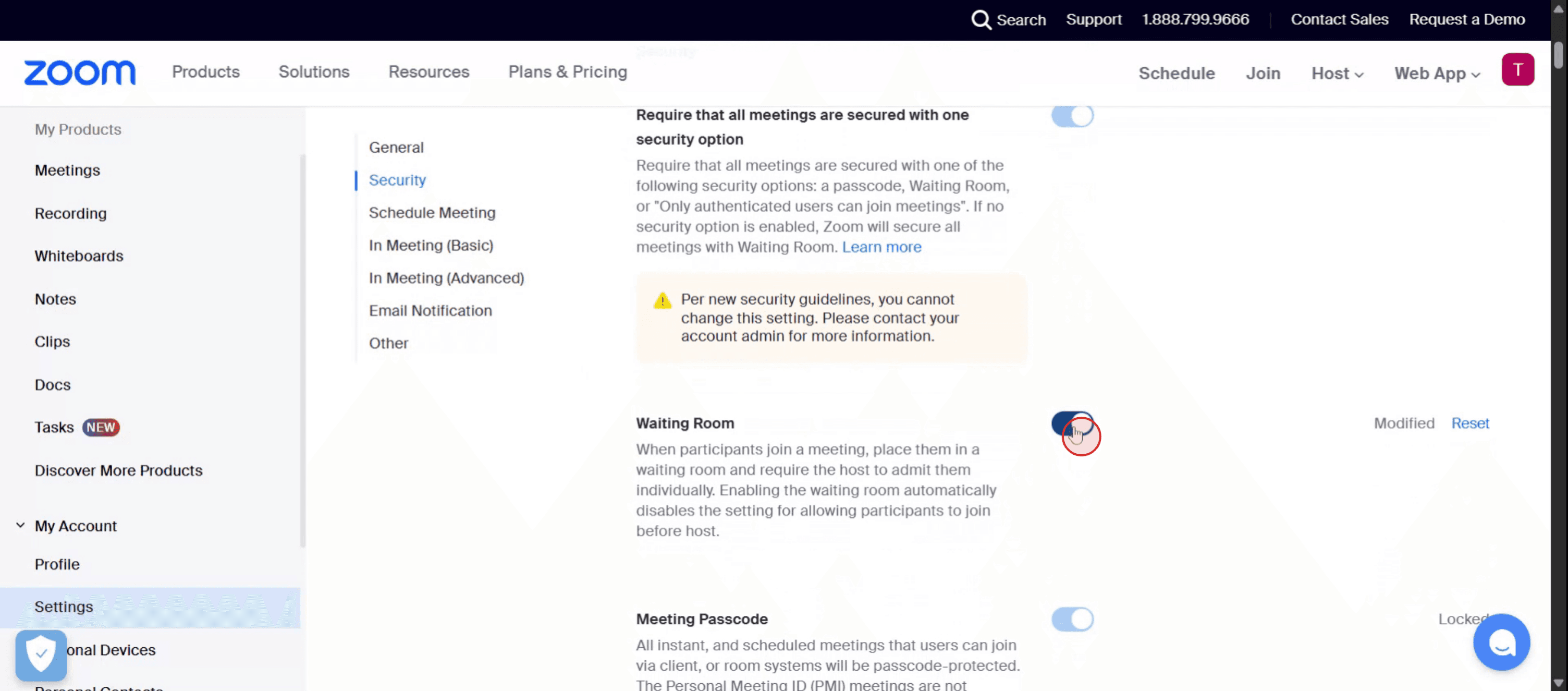
ウェイティングルームを見つけます: 「ミーティング」タブの下で、「セキュリティ」セクションを探します。
ウェイティングルームを無効にします: 「ウェイティングルーム」オプションをオフに切り替えます。
変更を確認します: 確認ダイアログが表示された場合は、「無効にする」をクリックして確認します。
管理者ロックを確認します: トグルがグレーアウトしている場合、管理者によってロックされています。
変更を行うには、管理者に連絡する必要があります。
ステップバイステップガイド: Zoomでウェイティングルームを無効にする方法
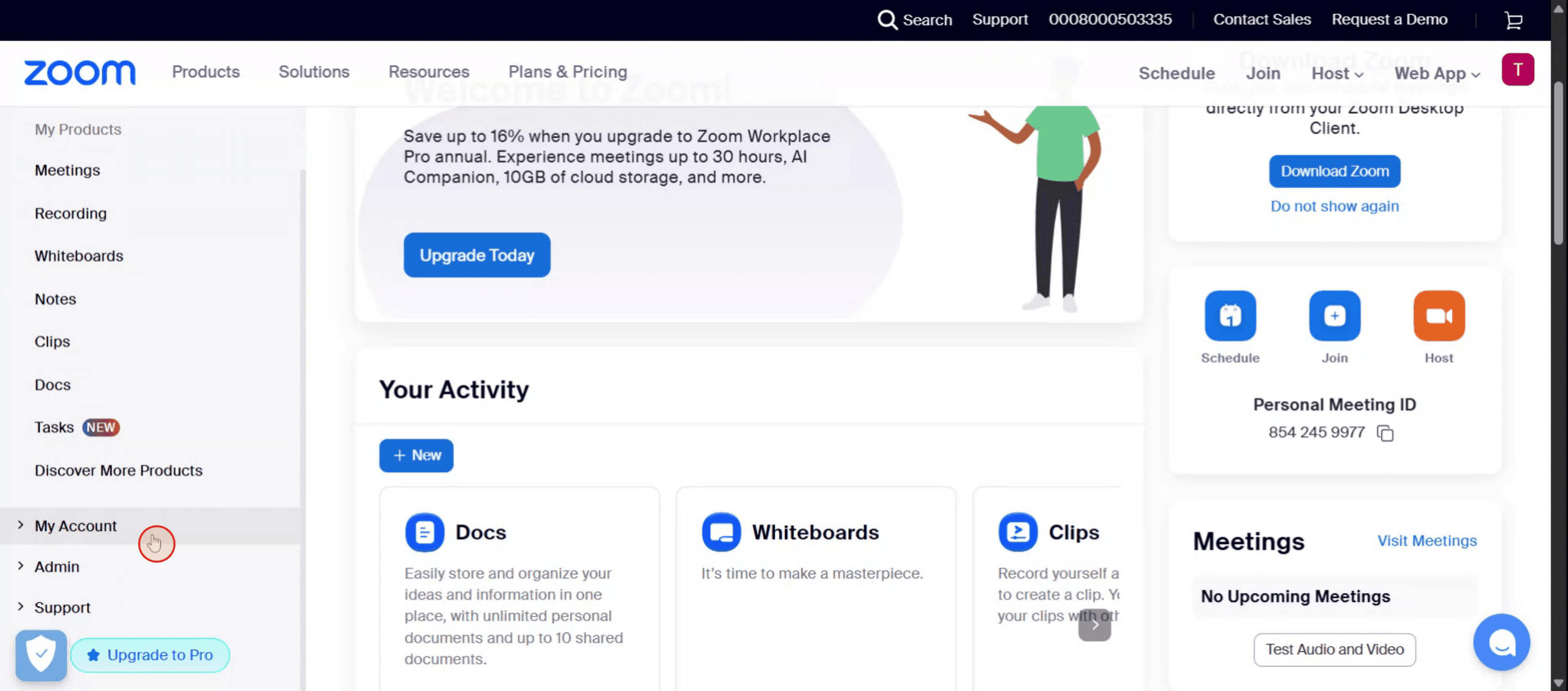
ステップ 1
最初に、Zoomの左側メニューから「マイアカウント」オプションを見つけて選択します。

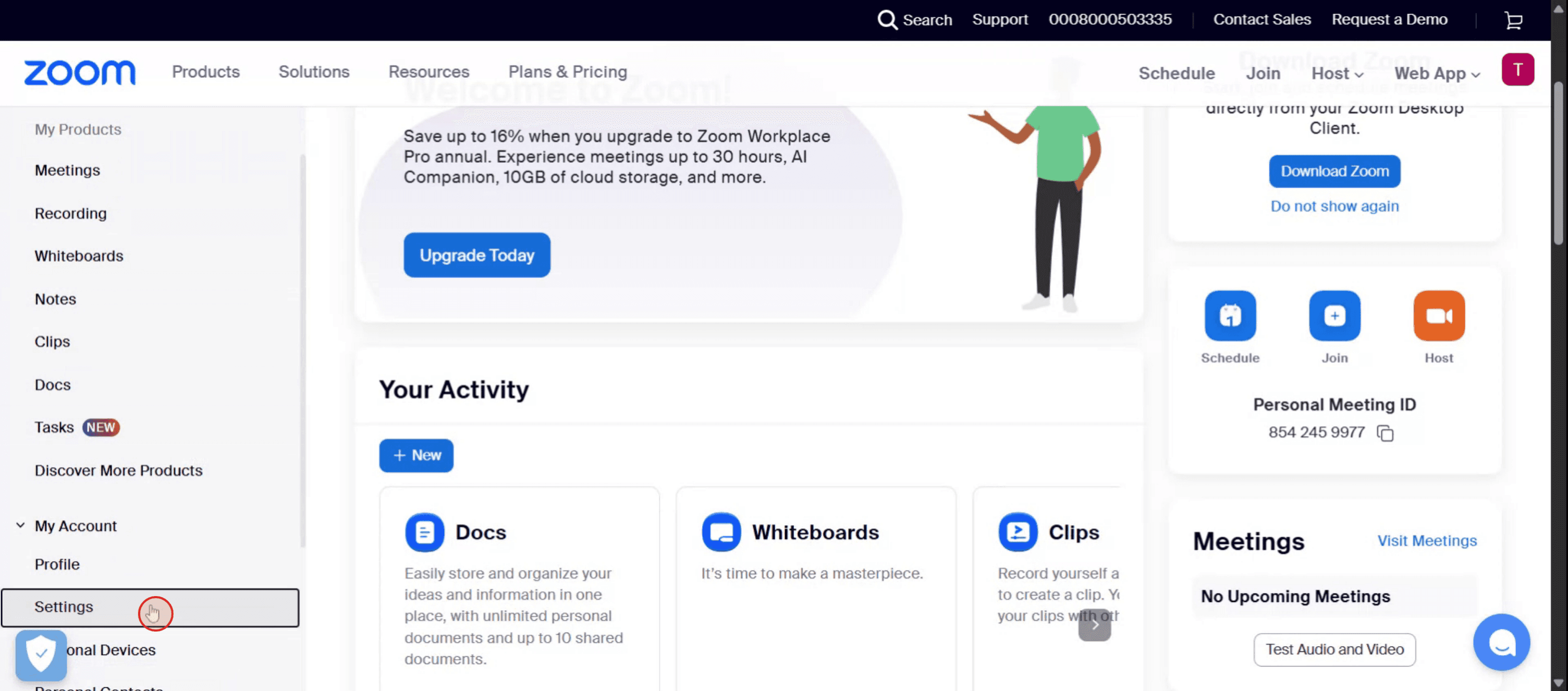
ステップ 2
設定オプションをクリックします。

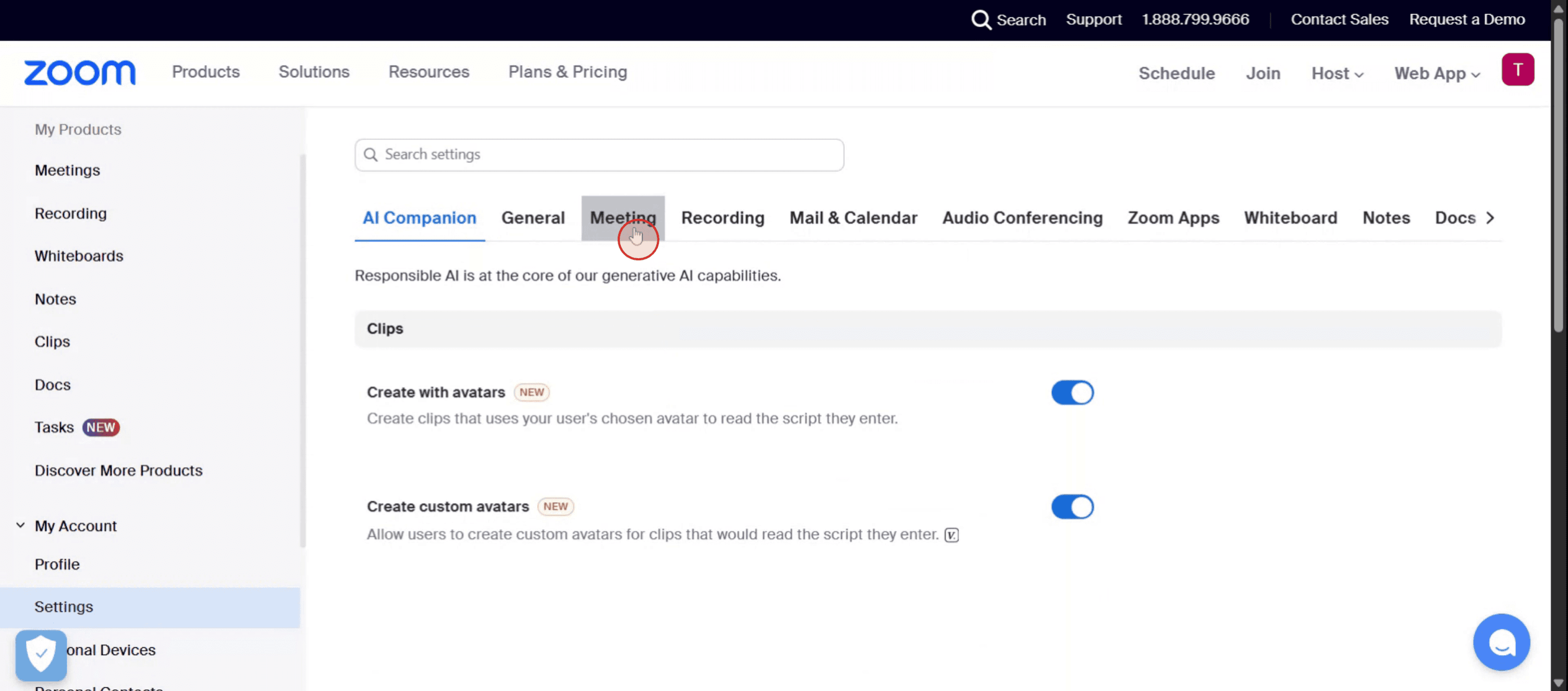
ステップ 3
利用可能な選択肢からミーティングオプションを選択します。

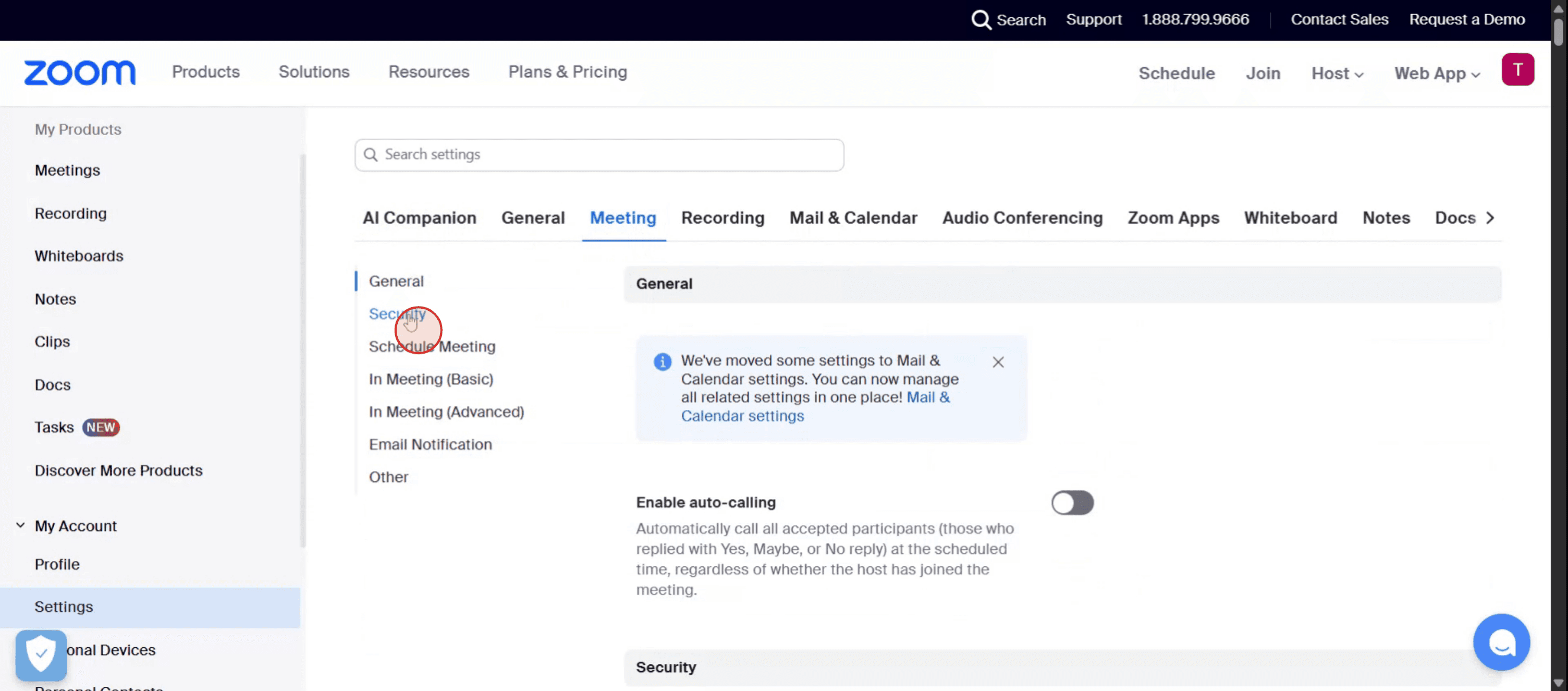
ステップ 4
ここで、セキュリティオプションを見つけます。

ステップ 5
Zoomでウェイティングルームを無効にするには、単にスイッチをオフに切り替えます。

Zoomでウェイティングルームを無効にするためのプロのヒント
Zoomアカウントにサインインします
Zoomのウェブサイトにアクセスし、管理者またはホストの認証情報を使用してサインインします。設定セクションに移動します
ログイン後、「パーソナル」または「管理者」カテゴリーの下にある左側のナビゲーションメニューから「設定」をクリックします。セキュリティタブに移動します
設定内で「セキュリティ」セクションまでスクロールします。ここにウェイティングルーム機能が通常表示されます。ウェイティングルームオプションを見つけます
「ウェイティングルーム」のトグルを探します。これが有効になっている場合(青色)、現在アクティブであることを意味します。トグルを無効にします
青色のトグルをクリックしてウェイティングルーム機能をオフにします。無効にすると、参加者はバーチャルロビーに保留されることなく、あなたのミーティングに参加できるようになります。
一般的な落とし穴とそれを避ける方法
変更を保存するのを忘れる
設定を切り替えた後、下にスクロールして「保存」をクリックしなければ、機能がアクティブなままになる可能性があります。一部のミーティングのためだけにウェイティングルームを無効にする
アカウントレベルで無効にしているのか、単に個々のミーティングのために無効にしているのか確認してください。一貫した好みを持ちましょう。無効にした後のセキュリティの懸念
ウェイティングルームがない場合、参加者は瞬時に入ります。入場を監視するか、パスコードを使用して不正な参加者を避けてください。パーソナルミーティングルームがまだ有効
全体でウェイティングルームを無効にしても、パーソナルミーティングルームは別にそれが有効になっている場合があります。両方を調整してください。管理者によって設定がロックされている
組織に属している場合、一部の設定は管理者によってロックされている可能性があります。変更するには許可が必要です。
Zoomでウェイティングルームを無効にすることに関する一般的なFAQ
すべてのZoomミーティングについてウェイティングルームを無効にするにはどうすればよいですか?
Zoom設定 > セキュリティセクションに行き、「ウェイティングルーム」オプションをオフに切り替えます。すべてのミーティングのために変更を適用します。特定のミーティングだけにウェイティングルームを無効にできますか?
はい、ミーティングをスケジュールする際に「ウェイティングルームを有効にする」オプションをチェックを外すことで無効にできます。Zoomでウェイティングルームをオフにすることは安全ですか?
はい、安全ですが、他のセキュリティ機能(パスコードの設定や認証されたユーザーへのアクセス制限など)を有効にしてミーティングのセキュリティを維持するべきです。なぜウェイティングルームをオフにできないのですか?
Zoomの組織に属している場合、設定が管理者によってロックされている可能性があります。変更を要求するために管理者に連絡してください。ウェイティングルームをオフにすることは以前にスケジュールされたミーティングに影響しますか?
No、設定を新しいものに反映させるために戻って手動でアップデートしない限り、既存のミーティングには影響しません。Macで画面録画するにはどうすればよいですか?
Macで画面録画するには、Trupeer AIを使用できます。これにより、画面全体をキャプチャし、AIアバターの追加、音声オーバー、ビデオのズームインとズームアウトなどのAI機能を提供します。TrupeerのAIビデオ翻訳機能により、ビデオを30以上の言語に翻訳できます。画面録画にAIアバターを追加するにはどうすればよいですか?
画面録画にAIアバターを追加するには、AI画面録画ツールを使用する必要があります。Trupeer AIはAI画面録画ツールで、複数のアバターを持つ動画を作成するのに役立ち、自分自身のアバターを作成するのにも役立ちます。Windowsで画面録画するにはどうすればよいですか?
Windowsで画面録画するには、組み込みのゲームバー(Windows + G)や、Trupeer AIのような高度なAIツールを使用して、AIアバター、音声オーバー、翻訳などのより高度な機能を取得できます。ビデオに音声オーバーを追加するにはどうすればよいですか?
ビデオに音声オーバーを追加するには、Trupeer AIのChrome拡張機能をダウンロードします。サインアップした後、音声のあるビデオをアップロードし、Trupeerから希望の音声オーバーを選択して、編集されたビデオをエクスポートします。画面録画でズームインするにはどうすればよいですか?
画面録画中にズームインするには、Trupeer AIのズーム効果を使用して特定の瞬間にズームインおよびズームアウトし、ビデオコンテンツの視覚的影響を強化します。

ステップバイステップのガイドを紹介します:
Zoomウェブポータルにサインインします: Zoomのウェブサイトにアクセスし、アカウントの認証情報を使用してサインインします。
設定に移動します: ナビゲーションメニューで「設定」をクリックします。
ウェイティングルームを見つけます: 「ミーティング」タブの下で、「セキュリティ」セクションを探します。
ウェイティングルームを無効にします: 「ウェイティングルーム」オプションをオフに切り替えます。
変更を確認します: 確認ダイアログが表示された場合は、「無効にする」をクリックして確認します。
管理者ロックを確認します: トグルがグレーアウトしている場合、管理者によってロックされています。
変更を行うには、管理者に連絡する必要があります。
ステップバイステップガイド: Zoomでウェイティングルームを無効にする方法
ステップ 1
最初に、Zoomの左側メニューから「マイアカウント」オプションを見つけて選択します。

ステップ 2
設定オプションをクリックします。

ステップ 3
利用可能な選択肢からミーティングオプションを選択します。

ステップ 4
ここで、セキュリティオプションを見つけます。

ステップ 5
Zoomでウェイティングルームを無効にするには、単にスイッチをオフに切り替えます。

Zoomでウェイティングルームを無効にするためのプロのヒント
Zoomアカウントにサインインします
Zoomのウェブサイトにアクセスし、管理者またはホストの認証情報を使用してサインインします。設定セクションに移動します
ログイン後、「パーソナル」または「管理者」カテゴリーの下にある左側のナビゲーションメニューから「設定」をクリックします。セキュリティタブに移動します
設定内で「セキュリティ」セクションまでスクロールします。ここにウェイティングルーム機能が通常表示されます。ウェイティングルームオプションを見つけます
「ウェイティングルーム」のトグルを探します。これが有効になっている場合(青色)、現在アクティブであることを意味します。トグルを無効にします
青色のトグルをクリックしてウェイティングルーム機能をオフにします。無効にすると、参加者はバーチャルロビーに保留されることなく、あなたのミーティングに参加できるようになります。
一般的な落とし穴とそれを避ける方法
変更を保存するのを忘れる
設定を切り替えた後、下にスクロールして「保存」をクリックしなければ、機能がアクティブなままになる可能性があります。一部のミーティングのためだけにウェイティングルームを無効にする
アカウントレベルで無効にしているのか、単に個々のミーティングのために無効にしているのか確認してください。一貫した好みを持ちましょう。無効にした後のセキュリティの懸念
ウェイティングルームがない場合、参加者は瞬時に入ります。入場を監視するか、パスコードを使用して不正な参加者を避けてください。パーソナルミーティングルームがまだ有効
全体でウェイティングルームを無効にしても、パーソナルミーティングルームは別にそれが有効になっている場合があります。両方を調整してください。管理者によって設定がロックされている
組織に属している場合、一部の設定は管理者によってロックされている可能性があります。変更するには許可が必要です。
Zoomでウェイティングルームを無効にすることに関する一般的なFAQ
すべてのZoomミーティングについてウェイティングルームを無効にするにはどうすればよいですか?
Zoom設定 > セキュリティセクションに行き、「ウェイティングルーム」オプションをオフに切り替えます。すべてのミーティングのために変更を適用します。特定のミーティングだけにウェイティングルームを無効にできますか?
はい、ミーティングをスケジュールする際に「ウェイティングルームを有効にする」オプションをチェックを外すことで無効にできます。Zoomでウェイティングルームをオフにすることは安全ですか?
はい、安全ですが、他のセキュリティ機能(パスコードの設定や認証されたユーザーへのアクセス制限など)を有効にしてミーティングのセキュリティを維持するべきです。なぜウェイティングルームをオフにできないのですか?
Zoomの組織に属している場合、設定が管理者によってロックされている可能性があります。変更を要求するために管理者に連絡してください。ウェイティングルームをオフにすることは以前にスケジュールされたミーティングに影響しますか?
No、設定を新しいものに反映させるために戻って手動でアップデートしない限り、既存のミーティングには影響しません。Macで画面録画するにはどうすればよいですか?
Macで画面録画するには、Trupeer AIを使用できます。これにより、画面全体をキャプチャし、AIアバターの追加、音声オーバー、ビデオのズームインとズームアウトなどのAI機能を提供します。TrupeerのAIビデオ翻訳機能により、ビデオを30以上の言語に翻訳できます。画面録画にAIアバターを追加するにはどうすればよいですか?
画面録画にAIアバターを追加するには、AI画面録画ツールを使用する必要があります。Trupeer AIはAI画面録画ツールで、複数のアバターを持つ動画を作成するのに役立ち、自分自身のアバターを作成するのにも役立ちます。Windowsで画面録画するにはどうすればよいですか?
Windowsで画面録画するには、組み込みのゲームバー(Windows + G)や、Trupeer AIのような高度なAIツールを使用して、AIアバター、音声オーバー、翻訳などのより高度な機能を取得できます。ビデオに音声オーバーを追加するにはどうすればよいですか?
ビデオに音声オーバーを追加するには、Trupeer AIのChrome拡張機能をダウンロードします。サインアップした後、音声のあるビデオをアップロードし、Trupeerから希望の音声オーバーを選択して、編集されたビデオをエクスポートします。画面録画でズームインするにはどうすればよいですか?
画面録画中にズームインするには、Trupeer AIのズーム効果を使用して特定の瞬間にズームインおよびズームアウトし、ビデオコンテンツの視覚的影響を強化します。
Start creating videos with our AI Video + Doc generator for free
Pro Tips for Disabling the Waiting Room in Zoom
Sign in to your Zoom account
Go to the Zoom website and sign in using your administrator or host credentials.Go to the Settings section
After logging in, click on “Settings” from the left-hand navigation menu under the “Personal” or “Admin” category depending on your role.Navigate to the Security tab
Inside Settings, scroll to the “Security” section. This is where the Waiting Room feature is typically listed.Locate the Waiting Room option
Find the toggle for “Waiting Room.” If it’s enabled (blue), that means it's currently active.Disable the toggle
Click the blue toggle to turn off the Waiting Room feature. Once disabled, participants will be able to join your meetings without being held in a virtual lobby.
Common Pitfalls and How to Avoid Them
Forgetting to save changes
If you don’t scroll down and hit “Save” after toggling settings, the feature may remain active.Disabling Waiting Room only for some meetings
Check whether you’re disabling it at the account level or just for individual meetings. Be consistent with your preference.Security concerns after disabling
Without a Waiting Room, participants enter instantly. Make sure to monitor entry or use passcodes to avoid unwanted attendees.Personal Meeting Room still enabled
Even if you disable Waiting Room globally, your Personal Meeting Room might still have it turned on separately. Adjust both.Settings locked by administrator
If you're part of an organization, some settings might be locked by the admin. You’ll need permission to change them.
Pro Tips for Disabling the Waiting Room in Zoom
Sign in to your Zoom account
Go to the Zoom website and sign in using your administrator or host credentials.Go to the Settings section
After logging in, click on “Settings” from the left-hand navigation menu under the “Personal” or “Admin” category depending on your role.Navigate to the Security tab
Inside Settings, scroll to the “Security” section. This is where the Waiting Room feature is typically listed.Locate the Waiting Room option
Find the toggle for “Waiting Room.” If it’s enabled (blue), that means it's currently active.Disable the toggle
Click the blue toggle to turn off the Waiting Room feature. Once disabled, participants will be able to join your meetings without being held in a virtual lobby.
Common Pitfalls and How to Avoid Them
Forgetting to save changes
If you don’t scroll down and hit “Save” after toggling settings, the feature may remain active.Disabling Waiting Room only for some meetings
Check whether you’re disabling it at the account level or just for individual meetings. Be consistent with your preference.Security concerns after disabling
Without a Waiting Room, participants enter instantly. Make sure to monitor entry or use passcodes to avoid unwanted attendees.Personal Meeting Room still enabled
Even if you disable Waiting Room globally, your Personal Meeting Room might still have it turned on separately. Adjust both.Settings locked by administrator
If you're part of an organization, some settings might be locked by the admin. You’ll need permission to change them.
Common FAQs About Disabling Waiting Room in Zoom
How do I disable the Waiting Room for all Zoom meetings?
Go to Zoom Settings > Security section, and toggle off the “Waiting Room” option. Apply changes for all meetings when prompted.Can I disable the Waiting Room for just one meeting?
Yes, you can disable it while scheduling a meeting by unchecking the “Enable waiting room” option in the security settings.Is it safe to turn off the Waiting Room in Zoom?
Yes, but you should enable other security features like passcodes or restrict access to authenticated users to maintain meeting security.Why can’t I turn off the Waiting Room?
If you're part of a Zoom organization, the setting may be locked by the administrator. Contact your admin to request changes.Does turning off Waiting Room affect previously scheduled meetings?
No, it won’t affect existing meetings unless you go back and manually update them to reflect the new setting.How to screen record on mac?
To screen record on a Mac, you can use Trupeer AI. It allows you to capture the entire screen and provides AI capabilities such as adding AI avatars, add voiceover, add zoom in and out in the video. With trupeer’s AI video translation feature, you can translate the video into 30+ languages.How to add an AI avatar to screen recording?
To add an AI avatar to a screen recording, you'll need to use an AI screen recording tool. Trupeer AI is an AI screen recording tool, which helps you create videos with multiple avatars, also helps you in creating your own avatar for the video.How to screen record on windows?
To screen record on Windows, you can use the built-in Game Bar (Windows + G) or advanced AI tool like Trupeer AI for more advanced features such as AI avatars, voiceover, translation etc.How to add voiceover to video?
To add voiceover to videos, download trupeer ai chrome extension. Once signed up, upload your video with voice, choose the desired voiceover from trupeer and export your edited video.How do I Zoom in on a screen recording?
To zoom in during a screen recording, use the zoom effects in Trupeer AI which allows you to zoom in and out at specific moments, enhancing the visual impact of your video content.
People also ask
Common FAQs About Disabling Waiting Room in Zoom
How do I disable the Waiting Room for all Zoom meetings?
Go to Zoom Settings > Security section, and toggle off the “Waiting Room” option. Apply changes for all meetings when prompted.Can I disable the Waiting Room for just one meeting?
Yes, you can disable it while scheduling a meeting by unchecking the “Enable waiting room” option in the security settings.Is it safe to turn off the Waiting Room in Zoom?
Yes, but you should enable other security features like passcodes or restrict access to authenticated users to maintain meeting security.Why can’t I turn off the Waiting Room?
If you're part of a Zoom organization, the setting may be locked by the administrator. Contact your admin to request changes.Does turning off Waiting Room affect previously scheduled meetings?
No, it won’t affect existing meetings unless you go back and manually update them to reflect the new setting.How to screen record on mac?
To screen record on a Mac, you can use Trupeer AI. It allows you to capture the entire screen and provides AI capabilities such as adding AI avatars, add voiceover, add zoom in and out in the video. With trupeer’s AI video translation feature, you can translate the video into 30+ languages.How to add an AI avatar to screen recording?
To add an AI avatar to a screen recording, you'll need to use an AI screen recording tool. Trupeer AI is an AI screen recording tool, which helps you create videos with multiple avatars, also helps you in creating your own avatar for the video.How to screen record on windows?
To screen record on Windows, you can use the built-in Game Bar (Windows + G) or advanced AI tool like Trupeer AI for more advanced features such as AI avatars, voiceover, translation etc.How to add voiceover to video?
To add voiceover to videos, download trupeer ai chrome extension. Once signed up, upload your video with voice, choose the desired voiceover from trupeer and export your edited video.How do I Zoom in on a screen recording?
To zoom in during a screen recording, use the zoom effects in Trupeer AI which allows you to zoom in and out at specific moments, enhancing the visual impact of your video content.
People also ask

Instant AI Product Videos & Docs from Rough Screen Recordings
Experience the new & faster way of creating product videos.
Instant AI Product Videos and Docs from Rough Screen Recordings.
Experience the new & faster way of creating product videos.
Instant AI Product Videos and Docs from Rough Screen Recordings.
Experience the new & faster way of creating product videos.
Instant AI Product Videos and Docs from Rough Screen Recordings.
Build Killer Demos & Docs in 2 minutes