チュートリアル

自分のCalendlyリンクを見つけるにはどうすればよいですか

クライアントやチームメイトと共有するために、Calendlyのスケジューリングリンクを迅速に見つけてコピーする方法を学びましょう。デスクトップおよびモバイルユーザー向けのステップバイステップガイド。

Calendlyリンクを見つけるには、まずCalendlyアカウントにログインします。次に、右上隅のプロフィール写真またはイニシャルをクリックします。主なCalendlyリンク(形式はcalendly.com/yourname)が表示され、通常は名前の下にあります。このリンクをコピーして他の人と共有できます。 

以下は、さらに詳しい手順です:

1. ログイン: calendly.comにアクセスして、アカウントにサインインします。 
2. プロフィールにアクセス: ページの右上隅にあるプロフィール写真またはイニシャルをクリックします。 
3. リンクを見つける: 主なCalendlyリンクが表示され、通常は青色で、名前の真下にあります。 
4. リンクをコピー: リンクをクリックしてコピーします。これで、他の人とこのリンクを共有して、会議を設定してもらうことができます。 

ステップバイステップガイド:Calendlyリンクの見つけ方

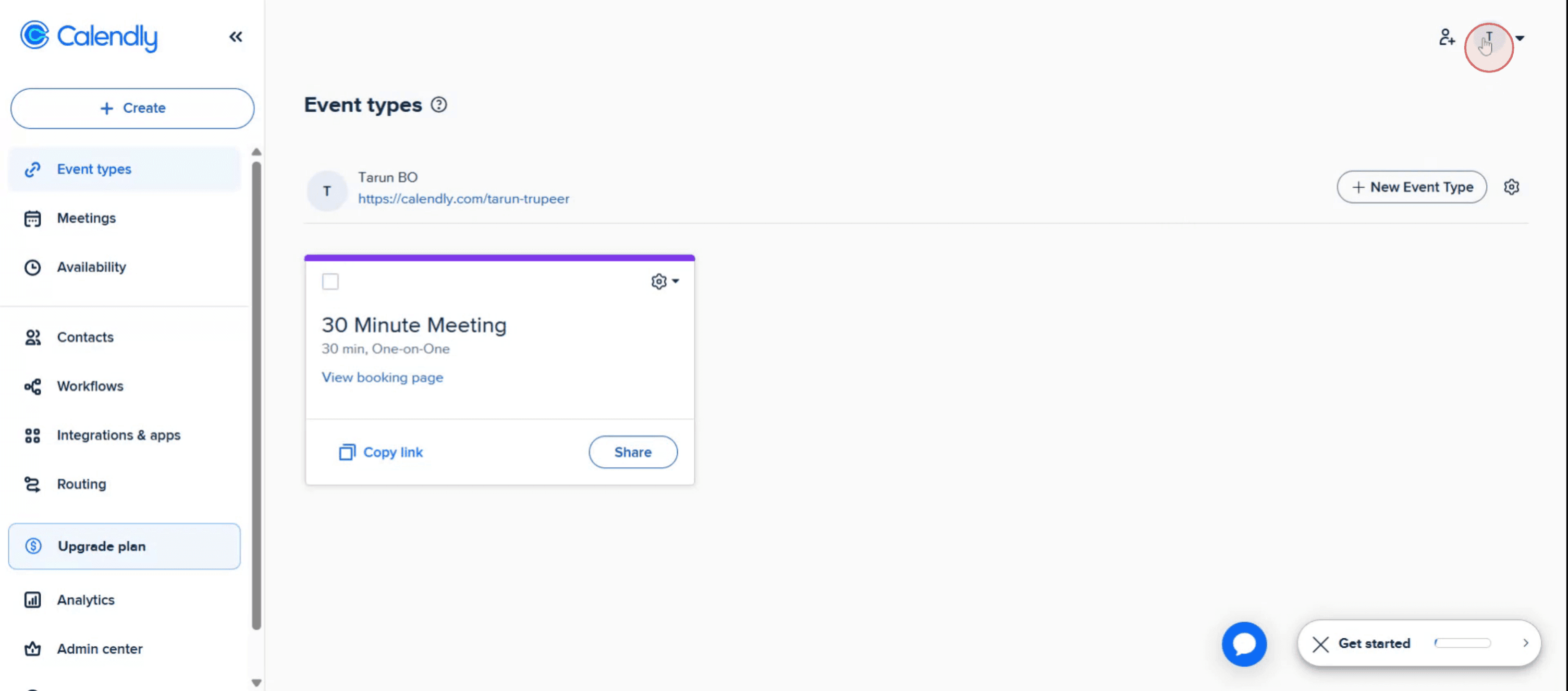
ステップ1

プロフィール写真オプションをクリックすることから始めます。

Begin by clicking on the profile picture option.

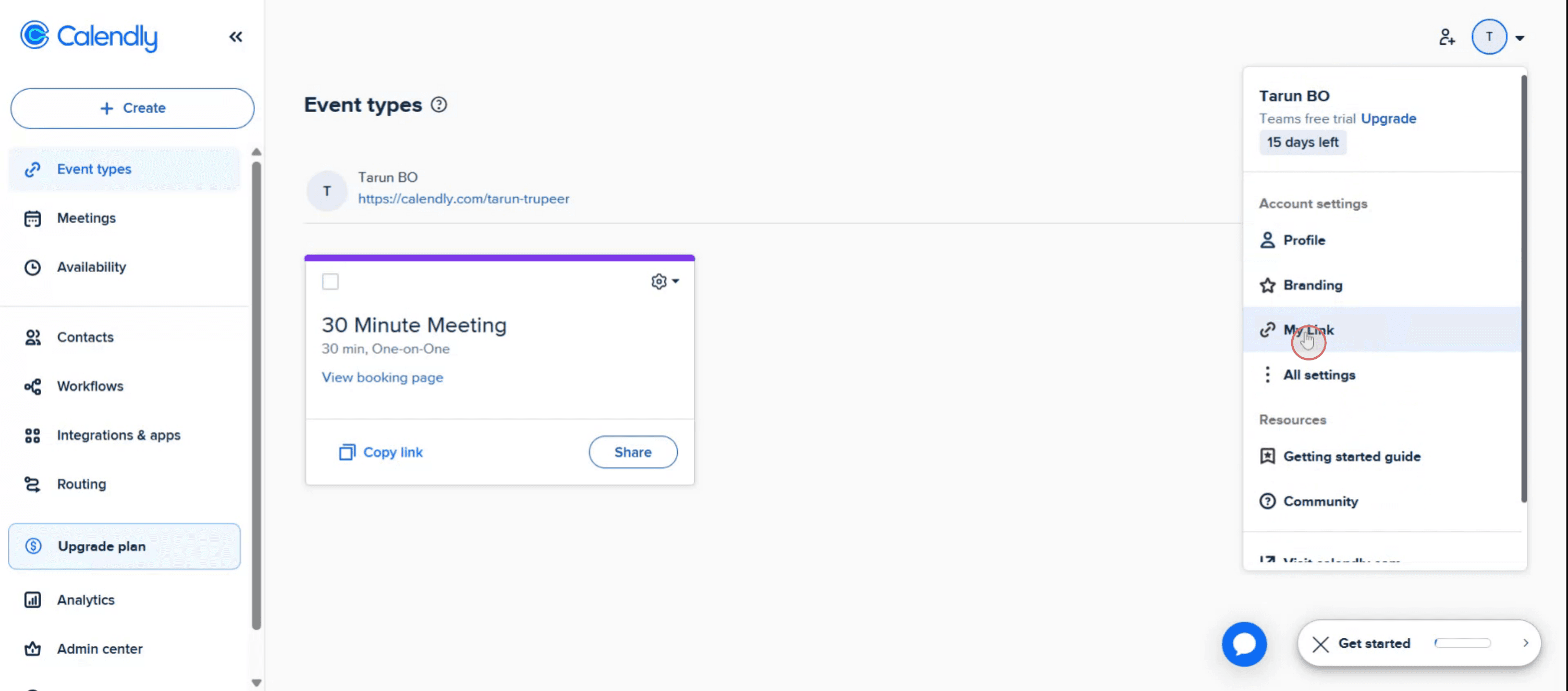
ステップ2

「私のリンク」とラベル付けされたオプションに気づくでしょう。

You will notice an option labeled "My Link."

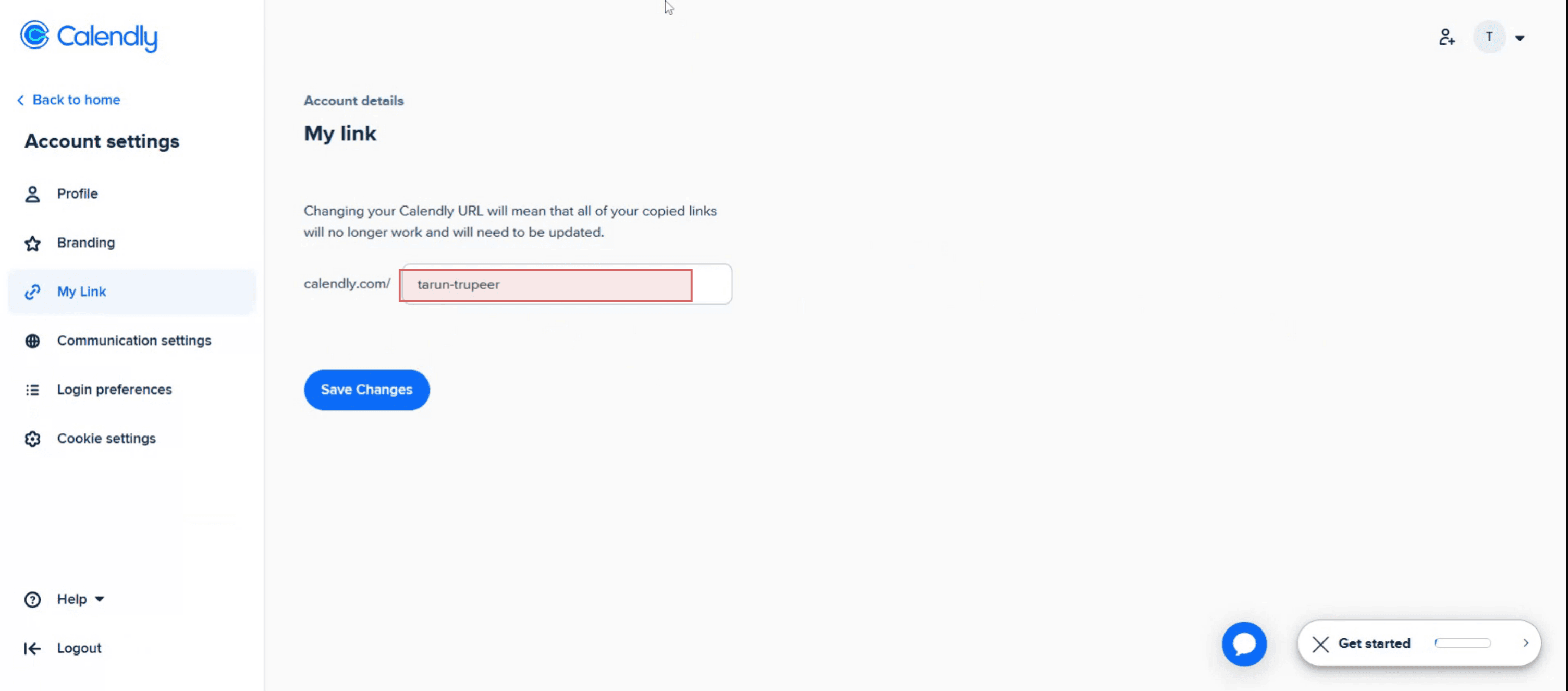
ステップ3

Calendlyリンクが表示されます。

Your Calendly link will be displayed

Calendlyリンクを見つけるためのプロのヒント

  1. Calendlyアカウントにログイン
    calendly.comにアクセスし、認証情報を使ってサインインします。Calendlyダッシュボードに移動します。

  2. イベントタイプセクションに移動
    ダッシュボードには、すべてのイベントタイプが表示されます。これらは異なる会議オプションを表します(例:15分間の電話、30分間のセッション)。

  3. イベントの共有ボタンをクリック
    共有したい特定のイベントの上にカーソルを合わせ、「共有」ボタンをクリックします。これにより、そのイベントの直接のスケジューリングリンクが表示されます。

  4. 一般的なCalendlyリンクをコピー
    一般的なCalendlyリンク(通常はcalendly.com/yourusername)を共有することもでき、これにより利用可能なすべてのイベントタイプが表示されます。ダッシュボードの右上隅にあります。

  5. 必要に応じてリンクをカスタマイズ
    イベントタイプの「編集」オプションを使ってURLを名前変更したりカスタマイズしたりできます。これはブランディングやより記憶に残るリンクを作成するのに役立ちます。

一般的な落とし穴とそれを避ける方法

  1. 正しいアカウントにサインインしていない
    特に複数のアカウントを管理している場合は、正しいCalendlyアカウントにサインインしていることを確認し、正しいリンクにアクセスします。

  2. 共有可能なリンクではなく管理ビューリンクをコピー
    イベントを管理する際にブラウザのURLをコピーしないようにします。「共有」ボタンを使用して正しい公開用リンクを取得します。

  3. 期限切れまたは非アクティブなイベントの共有
    イベントタイプが無効になっている場合、共有したリンクは機能しません。イベントがアクティブで利用可能な時間帯があることを確認してください。

  4. 変更されたユーザー名を更新しない
    最近Calendlyユーザー名を変更した場合、一般的なリンクも変更されます。以前に共有したすべてのリンクを更新してこの変更を反映させてください。

  5. モバイルアクセスを確認し忘れる
    Calendlyモバイルアプリを使用している場合、手順が少し異なります。イベントをタップし、リンクを取得するために共有アイコンを探します。

Calendlyリンクを見つけるための一般的なFAQ

  1. 主なCalendlyリンクはどこで見つけられますか?
    ログインすると、ダッシュボードの右上に主なリンク(例:calendly.com/yourusername)が表示されます。

  2. 複数のCalendlyリンクを作成できますか?
    はい、各イベントタイプには独自のユニークなリンクがあります。個別のイベントリンクまたは主なプロフィールリンクを共有できます。

  3. リンクを共有する前にプレビューする方法はありますか?
    はい、「共有」をクリックした後、新しいタブでリンクを開くことで、招待者が見える内容を正確にプレビューできます。

  4. Calendly URLをカスタマイズできますか?
    はい、アカウント設定でユーザー名を変更でき、セットアップ中に個別のイベントURLをカスタマイズできます。

  5. モバイルでCalendlyリンクを見つけるにはどうすればよいですか?
    Calendlyモバイルアプリを開き、イベントを選択し、リンクを直接コピーまたは送信するために共有アイコンをタップします。

  6. Macで画面を録画する方法は? 
    Macで画面を録画するために、Trupeer AIを使用できます。これにより、画面全体をキャプチャでき、AIアバターを追加したり、音声を追加したり、動画でズームインおよびズームアウトを提供したりします。TrupeerのAI動画翻訳機能を使えば、ビデオを30以上の言語に翻訳できます。 

  7. 画面録画にAIアバターを追加する方法は?
    画面録画にAIアバターを追加するには、AI画面録画ツールを使用する必要があります。Trupeer AIはAI画面録画ツールで、複数のアバターで動画を作成するのを助け、動画のための自分のアバターを作成する助けもしてくれます。

  8. Windowsで画面を録画する方法は?
    Windowsで画面を録画するには、組み込みのゲームバー(Windows + G)を使用するか、Trupeer AIのような高度なAIツールを使用して、AIアバター、音声、翻訳などのより高度な機能を利用できます。

  9. 動画に音声を追加する方法は?
    動画に音声を追加するためには、Trupeer AIのChrome拡張をダウンロードします。サインアップ後、音声で動画をアップロードし、Trupeerから望ましい音声を選択して、編集した動画をエクスポートします。 

  10. 画面録画中にズームインするにはどうすればいいですか?
    画面録画中にズームインするには、Trupeer AIのズーム効果を使用すると、特定の瞬間にズームインおよびズームアウトでき、動画コンテンツの視覚的インパクトを高めます。

Calendlyリンクを見つけるには、まずCalendlyアカウントにログインします。次に、右上隅のプロフィール写真またはイニシャルをクリックします。主なCalendlyリンク(形式はcalendly.com/yourname)が表示され、通常は名前の下にあります。このリンクをコピーして他の人と共有できます。 

以下は、さらに詳しい手順です:

1. ログイン: calendly.comにアクセスして、アカウントにサインインします。 
2. プロフィールにアクセス: ページの右上隅にあるプロフィール写真またはイニシャルをクリックします。 
3. リンクを見つける: 主なCalendlyリンクが表示され、通常は青色で、名前の真下にあります。 
4. リンクをコピー: リンクをクリックしてコピーします。これで、他の人とこのリンクを共有して、会議を設定してもらうことができます。 

ステップバイステップガイド:Calendlyリンクの見つけ方

ステップ1

プロフィール写真オプションをクリックすることから始めます。

Begin by clicking on the profile picture option.

ステップ2

「私のリンク」とラベル付けされたオプションに気づくでしょう。

You will notice an option labeled "My Link."

ステップ3

Calendlyリンクが表示されます。

Your Calendly link will be displayed

Calendlyリンクを見つけるためのプロのヒント

  1. Calendlyアカウントにログイン
    calendly.comにアクセスし、認証情報を使ってサインインします。Calendlyダッシュボードに移動します。

  2. イベントタイプセクションに移動
    ダッシュボードには、すべてのイベントタイプが表示されます。これらは異なる会議オプションを表します(例:15分間の電話、30分間のセッション)。

  3. イベントの共有ボタンをクリック
    共有したい特定のイベントの上にカーソルを合わせ、「共有」ボタンをクリックします。これにより、そのイベントの直接のスケジューリングリンクが表示されます。

  4. 一般的なCalendlyリンクをコピー
    一般的なCalendlyリンク(通常はcalendly.com/yourusername)を共有することもでき、これにより利用可能なすべてのイベントタイプが表示されます。ダッシュボードの右上隅にあります。

  5. 必要に応じてリンクをカスタマイズ
    イベントタイプの「編集」オプションを使ってURLを名前変更したりカスタマイズしたりできます。これはブランディングやより記憶に残るリンクを作成するのに役立ちます。

一般的な落とし穴とそれを避ける方法

  1. 正しいアカウントにサインインしていない
    特に複数のアカウントを管理している場合は、正しいCalendlyアカウントにサインインしていることを確認し、正しいリンクにアクセスします。

  2. 共有可能なリンクではなく管理ビューリンクをコピー
    イベントを管理する際にブラウザのURLをコピーしないようにします。「共有」ボタンを使用して正しい公開用リンクを取得します。

  3. 期限切れまたは非アクティブなイベントの共有
    イベントタイプが無効になっている場合、共有したリンクは機能しません。イベントがアクティブで利用可能な時間帯があることを確認してください。

  4. 変更されたユーザー名を更新しない
    最近Calendlyユーザー名を変更した場合、一般的なリンクも変更されます。以前に共有したすべてのリンクを更新してこの変更を反映させてください。

  5. モバイルアクセスを確認し忘れる
    Calendlyモバイルアプリを使用している場合、手順が少し異なります。イベントをタップし、リンクを取得するために共有アイコンを探します。

Calendlyリンクを見つけるための一般的なFAQ

  1. 主なCalendlyリンクはどこで見つけられますか?
    ログインすると、ダッシュボードの右上に主なリンク(例:calendly.com/yourusername)が表示されます。

  2. 複数のCalendlyリンクを作成できますか?
    はい、各イベントタイプには独自のユニークなリンクがあります。個別のイベントリンクまたは主なプロフィールリンクを共有できます。

  3. リンクを共有する前にプレビューする方法はありますか?
    はい、「共有」をクリックした後、新しいタブでリンクを開くことで、招待者が見える内容を正確にプレビューできます。

  4. Calendly URLをカスタマイズできますか?
    はい、アカウント設定でユーザー名を変更でき、セットアップ中に個別のイベントURLをカスタマイズできます。

  5. モバイルでCalendlyリンクを見つけるにはどうすればよいですか?
    Calendlyモバイルアプリを開き、イベントを選択し、リンクを直接コピーまたは送信するために共有アイコンをタップします。

  6. Macで画面を録画する方法は? 
    Macで画面を録画するために、Trupeer AIを使用できます。これにより、画面全体をキャプチャでき、AIアバターを追加したり、音声を追加したり、動画でズームインおよびズームアウトを提供したりします。TrupeerのAI動画翻訳機能を使えば、ビデオを30以上の言語に翻訳できます。 

  7. 画面録画にAIアバターを追加する方法は?
    画面録画にAIアバターを追加するには、AI画面録画ツールを使用する必要があります。Trupeer AIはAI画面録画ツールで、複数のアバターで動画を作成するのを助け、動画のための自分のアバターを作成する助けもしてくれます。

  8. Windowsで画面を録画する方法は?
    Windowsで画面を録画するには、組み込みのゲームバー(Windows + G)を使用するか、Trupeer AIのような高度なAIツールを使用して、AIアバター、音声、翻訳などのより高度な機能を利用できます。

  9. 動画に音声を追加する方法は?
    動画に音声を追加するためには、Trupeer AIのChrome拡張をダウンロードします。サインアップ後、音声で動画をアップロードし、Trupeerから望ましい音声を選択して、編集した動画をエクスポートします。 

  10. 画面録画中にズームインするにはどうすればいいですか?
    画面録画中にズームインするには、Trupeer AIのズーム効果を使用すると、特定の瞬間にズームインおよびズームアウトでき、動画コンテンツの視覚的インパクトを高めます。

Start creating videos with our AI Video + Doc generator

Start creating videos with our AI Video + Doc generator

Start creating videos with our AI Video + Doc generator

Start creating videos with our AI Video + Doc generator for free

Start creating videos with our AI Video + Doc generator for free

Start creating videos with our AI Video + Doc generator for free

Pro Tips for Finding Your Calendly Link

  1. Log in to Your Calendly Account
    Visit calendly.com and sign in using your credentials. You’ll be directed to your Calendly dashboard.

  2. Go to the Event Types Section
    On your dashboard, you'll see all your event types. These represent the different meeting options (e.g., 15-minute call, 30-minute session).

  3. Click the Share Button on an Event
    Hover over the specific event you want to share and click the "Share" button. This reveals the direct scheduling link for that event.

  4. Copy Your General Calendly Link
    You can also share your general Calendly link (usually calendly.com/yourusername), which will show all available event types. It’s located in the top right corner of your dashboard.

  5. Customize the Link If Needed
    Use the “Edit” option on the event type to rename or customize the URL. This is helpful for branding or creating a more memorable link.

Common Pitfalls and How to Avoid Them

  1. Not Signed In to the Right Account
    Make sure you're signed into the correct Calendly account—especially if you manage multiple ones—to access the right link.

  2. Copying the Admin View Link Instead of the Shareable One
    Avoid copying the browser URL when managing an event. Use the “Share” button to get the correct public-facing link.

  3. Sharing an Expired or Inactive Event
    If the event type has been deactivated, your shared link won’t work. Double-check that the event is active and has available time slots.

  4. Not Updating a Changed Username
    If you recently changed your Calendly username, your general link will change too. Update all previously shared links to reflect this change.

  5. Forgetting to Check Mobile Access
    If you're using the Calendly mobile app, the steps are slightly different. Tap the event, then look for the share icon to grab your link.

Pro Tips for Finding Your Calendly Link

  1. Log in to Your Calendly Account
    Visit calendly.com and sign in using your credentials. You’ll be directed to your Calendly dashboard.

  2. Go to the Event Types Section
    On your dashboard, you'll see all your event types. These represent the different meeting options (e.g., 15-minute call, 30-minute session).

  3. Click the Share Button on an Event
    Hover over the specific event you want to share and click the "Share" button. This reveals the direct scheduling link for that event.

  4. Copy Your General Calendly Link
    You can also share your general Calendly link (usually calendly.com/yourusername), which will show all available event types. It’s located in the top right corner of your dashboard.

  5. Customize the Link If Needed
    Use the “Edit” option on the event type to rename or customize the URL. This is helpful for branding or creating a more memorable link.

Common Pitfalls and How to Avoid Them

  1. Not Signed In to the Right Account
    Make sure you're signed into the correct Calendly account—especially if you manage multiple ones—to access the right link.

  2. Copying the Admin View Link Instead of the Shareable One
    Avoid copying the browser URL when managing an event. Use the “Share” button to get the correct public-facing link.

  3. Sharing an Expired or Inactive Event
    If the event type has been deactivated, your shared link won’t work. Double-check that the event is active and has available time slots.

  4. Not Updating a Changed Username
    If you recently changed your Calendly username, your general link will change too. Update all previously shared links to reflect this change.

  5. Forgetting to Check Mobile Access
    If you're using the Calendly mobile app, the steps are slightly different. Tap the event, then look for the share icon to grab your link.

Common FAQs About Finding a Calendly Link

  1. Where can I find my main Calendly link?
    Your main link (e.g., calendly.com/yourusername) is shown at the top right of your dashboard once you log in.

  2. Can I create multiple Calendly links?
    Yes, each event type has its own unique link. You can share individual event links or your main profile link.

  3. Is there a way to preview the link before sharing?
    Yes, after clicking “Share,” you can open the link in a new tab to preview exactly what invitees will see.

  4. Can I customize my Calendly URL?
    Yes, you can change your username in the account settings, and you can customize individual event URLs during setup.

  5. How do I find my Calendly link on mobile?
    Open the Calendly mobile app, select the event, and tap the share icon to copy or send the link directly.

  6. How to screen record on mac? 
    To screen record on a Mac, you can use Trupeer AI. It allows you to capture the entire screen and provides AI capabilities such as adding AI avatars, add voiceover, add zoom in and out in the video. With trupeer’s AI video translation feature, you can translate the video into 30+ languages. 

  7. How to add an AI avatar to screen recording?
    To add an AI avatar to a screen recording, you'll need to use an AI screen recording tool. Trupeer AI is an AI screen recording tool, which helps you create videos with multiple avatars, also helps you in creating your own avatar for the video.

  8. How to screen record on windows?
    To screen record on Windows, you can use the built-in Game Bar (Windows + G) or advanced AI tool like Trupeer AI for more advanced features such as AI avatars, voiceover, translation etc.

  9. How to add voiceover to video?
    To add voiceover to videos, download trupeer ai chrome extension. Once signed up, upload your video with voice, choose the desired voiceover from trupeer and export your edited video. 

  10. How do I Zoom in on a screen recording?
    To zoom in during a screen recording, use the zoom effects in Trupeer AI which allows you to zoom in and out at specific moments, enhancing the visual impact of your video content.

People also ask

Technical Documentation Generator

User Manual Guide

Knowledge base software

How to Rotate a Document in Canva

How to Add Fonts to Canva

How to Mask in Canva

How to Wrap Text in Canva

How to Spell Check in Canva

Common FAQs About Finding a Calendly Link

  1. Where can I find my main Calendly link?
    Your main link (e.g., calendly.com/yourusername) is shown at the top right of your dashboard once you log in.

  2. Can I create multiple Calendly links?
    Yes, each event type has its own unique link. You can share individual event links or your main profile link.

  3. Is there a way to preview the link before sharing?
    Yes, after clicking “Share,” you can open the link in a new tab to preview exactly what invitees will see.

  4. Can I customize my Calendly URL?
    Yes, you can change your username in the account settings, and you can customize individual event URLs during setup.

  5. How do I find my Calendly link on mobile?
    Open the Calendly mobile app, select the event, and tap the share icon to copy or send the link directly.

  6. How to screen record on mac? 
    To screen record on a Mac, you can use Trupeer AI. It allows you to capture the entire screen and provides AI capabilities such as adding AI avatars, add voiceover, add zoom in and out in the video. With trupeer’s AI video translation feature, you can translate the video into 30+ languages. 

  7. How to add an AI avatar to screen recording?
    To add an AI avatar to a screen recording, you'll need to use an AI screen recording tool. Trupeer AI is an AI screen recording tool, which helps you create videos with multiple avatars, also helps you in creating your own avatar for the video.

  8. How to screen record on windows?
    To screen record on Windows, you can use the built-in Game Bar (Windows + G) or advanced AI tool like Trupeer AI for more advanced features such as AI avatars, voiceover, translation etc.

  9. How to add voiceover to video?
    To add voiceover to videos, download trupeer ai chrome extension. Once signed up, upload your video with voice, choose the desired voiceover from trupeer and export your edited video. 

  10. How do I Zoom in on a screen recording?
    To zoom in during a screen recording, use the zoom effects in Trupeer AI which allows you to zoom in and out at specific moments, enhancing the visual impact of your video content.

People also ask

Technical Documentation Generator

User Manual Guide

Knowledge base software

How to Rotate a Document in Canva

How to Add Fonts to Canva

How to Mask in Canva

How to Wrap Text in Canva

How to Spell Check in Canva

Start creating videos with our AI Video + Doc generator

Start creating videos with our AI Video + Doc generator

Start creating videos with our AI Video + Doc generator

私たちのAIビデオ+ドキュメントジェネレーターで動画を作成し始めましょう

粗いスクリーン録画からのインスタントAI製品ビデオとドキュメント

Experience the new & faster way of creating product videos.

Instant AI Product Videos and Docs from Rough Screen Recordings.

Experience the new & faster way of creating product videos.

Instant AI Product Videos and Docs from Rough Screen Recordings.

Experience the new & faster way of creating product videos.

Instant AI Product Videos and Docs from Rough Screen Recordings.