4.8/5
Free Screen Recording to Training Video
Convert Any Screen Recording to Training Video with AI
Create Your Training Video Now

Trupeer's screen recording to training video tool turns a raw screen capture into a polished, studio-quality training video, without any editing skills. Instead of recording your screen and then spending hours trimming, narrating, and cleaning up the footage, you record once and let AI handle the production. This solves a problem every L&D, enablement, and product team faces: raw screen recordings are quick to capture but rarely good enough to ship as training content. With Trupeer's AI screen recorder, going from screen recording to training video happens automatically, so what you record is what your team is ready to learn from.
When you convert a screen recording to training video with Trupeer, the AI trims the dead air, removes filler words, applies smart zoom to highlight the right part of the screen, and can layer on a natural-sounding voiceover or an AI presenter. You can record fresh in the browser or upload a screen recording you already have, then publish a finished training video in minutes. Because the same capture also generates step-by-step documentation, one recording gives your team both a video and a written guide. For teams that produce training videos at scale, this collapses a multi-day production cycle into a single recording session.
How to Convert a Screen Recording to Training Video
The process to go from screen recording to training video is built to fit your existing workflow with almost no learning curve. Trupeer's screen recorder captures the footage, and the AI does the editing, narration, and polishing in three steps.
Step 1: Record or Upload Your Screen Recording
Open Trupeer's screen recorder and walk through whatever you want to teach, narrating as you go if you like. Already have footage? Upload your existing screen recording instead. This is the only manual step needed to start the screen recording to training video process.
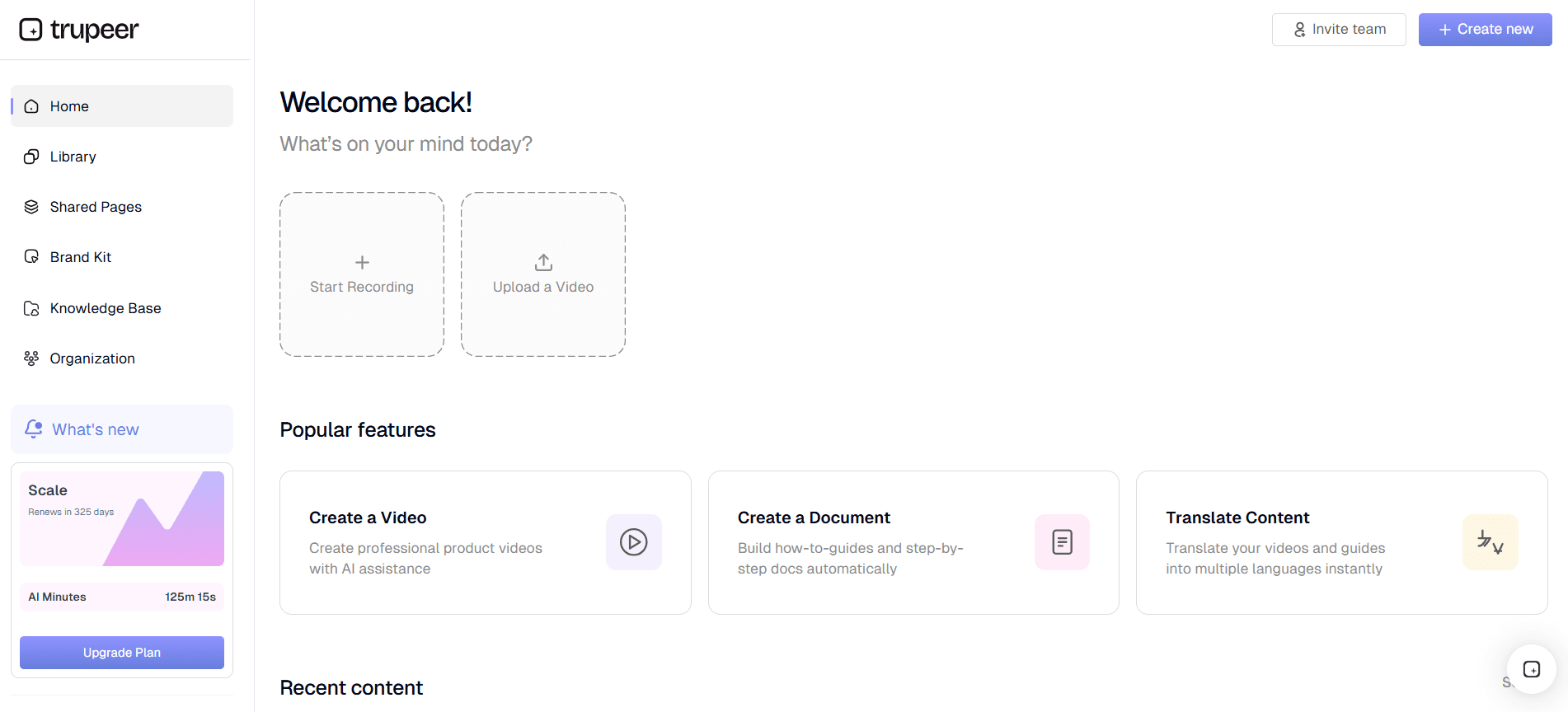
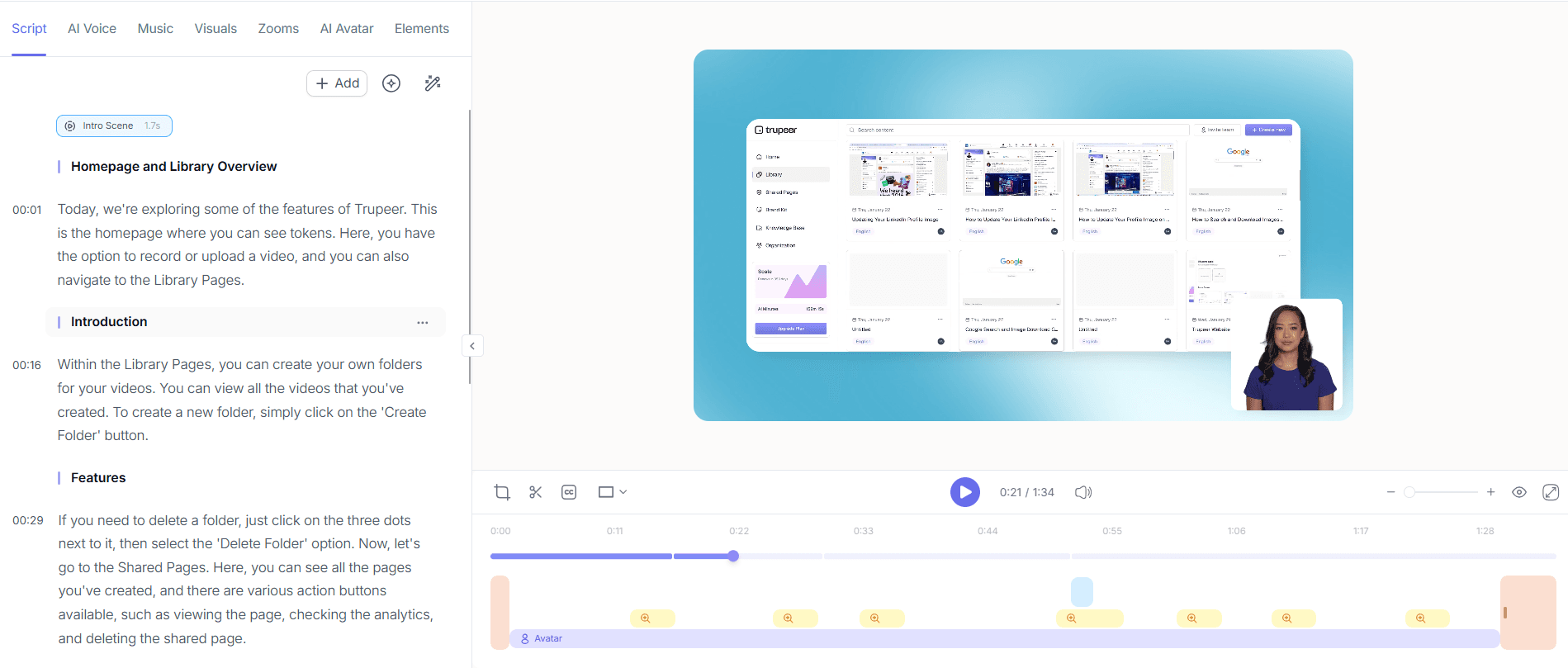
Step 2: AI Converts Your Screen Recording to a Training Video
Trupeer's AI processes the recording automatically. It trims unnecessary sections, removes filler words and background noise, applies intelligent zoom to focus on key actions, and can add a professional AI voiceover in a range of accents or an AI avatar presenter. The result is a clean, engaging training video built from your screen recording.
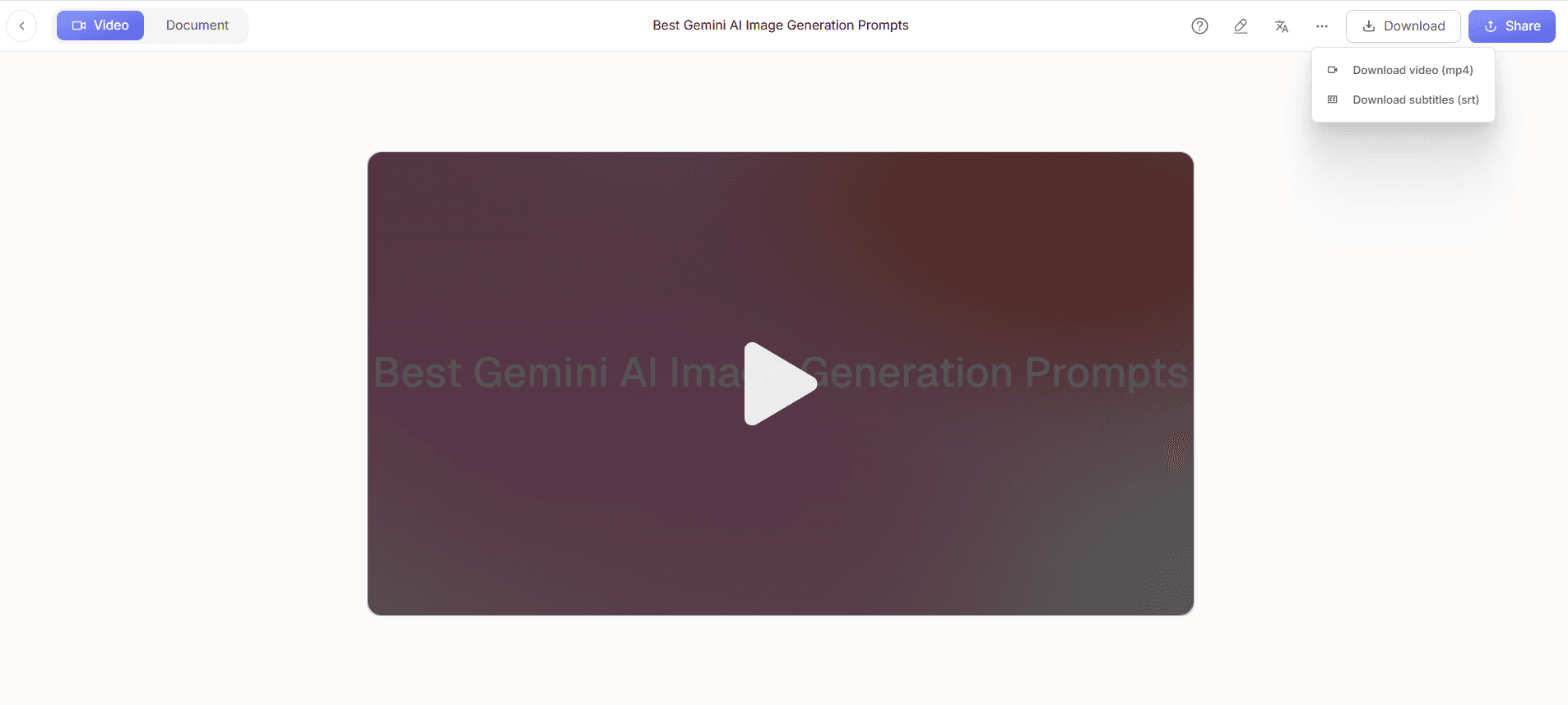
Step 3: Edit, Brand, and Share
Fine-tune the video with captions, transitions, and background music, apply your brand kit for consistent intros, logos, and colors, and translate it into other languages if needed. Then export the finished training video or host it in a searchable knowledge base so your team can find it whenever they need it.
Key Features of Screen Recording to Training Video
The screen recording to training video tool packs the full production workflow into one platform, so a single recording becomes broadcast-ready training content without juggling separate editors, voiceover apps, and hosting tools.
Automatic Video Cleanup: The AI trims silences, cuts filler words, and removes background noise, so your screen recording to training video output looks deliberate and professional with zero manual editing.
Smart Zoom and Focus: Intelligent zoom automatically highlights the part of the screen that matters at each moment, drawing the viewer's eye exactly where it needs to go.
AI Voiceover and Avatars: Add a natural-sounding AI voiceover in multiple accents or an on-screen AI presenter, so you can turn a screen recording to training video content even without recording your own audio.
Captions and Background Music: Auto-generated captions improve accessibility and retention, while background music adds polish, both applied without leaving the editor.
Translation for Global Teams: Publish each training video in multiple languages so distributed and international teams learn the same material in their own language.
Enterprise Hosting and Controls: Organization workspaces, user roles, and shared-page visibility settings let large teams manage screen recording to training video production securely and keep restricted content private.
Why Use Screen Recording to Training Video Software?
Traditional training video production is slow and expensive, often requiring scripts, recording studios, editors, and several rounds of review. Using screen recording to training video software removes that overhead while improving how fast and consistently you can ship content.
Production in Minutes, Not Days: A finished training video is ready in roughly the time it takes to perform the task once, instead of a multi-day editing cycle. Subject-matter experts create content by doing, not by producing.
No Editing Skills Required: Because the AI handles trimming, narration, and polish, anyone on your team can convert a screen recording to training video without touching a timeline editor.
Consistent, On-Brand Output: When everyone uses the same tool, every training video follows the same structure, voice, and branding, regardless of who created it.
Easy to Keep Current: When a workflow or interface changes, re-record and regenerate rather than re-editing from scratch, so it is realistic to refresh your screen recording to training video library as often as your product changes.
Lower Cost Per Video: Replacing studios, freelance editors, and separate voiceover tools with one platform dramatically reduces the cost of every training video you produce.
Better Learner Engagement: Clean visuals, voiceover, captions, and zoom make videos easier to follow than raw screen captures, improving completion and retention.
Who Should Use Screen Recording to Training Video?
The screen recording to training video workflow fits any team that needs to teach a process, a product, or a system, from small teams documenting how they work to enterprises running structured training programs.
L&D and Training Teams: Produce onboarding, compliance, and upskilling content quickly by recording real systems, so learners see exactly what they'll use day to day.
Product and Customer Education: Turn product walkthroughs into training videos and tutorials that reduce support load and speed up adoption.
IT and Operations: Capture system and process walkthroughs once and convert each screen recording to training video content that cuts down on repeat questions.
Sales Enablement: Build repeatable training on tools, demos, and playbooks so new reps ramp faster and consistently.
Enterprise Training Programs: Standardize training across divisions with secure workspaces and centralized hosting, making it safe to scale screen recording to training video production. Learn more on the enterprise page.
Founders and Small Teams: Document how the business works and train new hires from a clear video library, without hiring a video team.
Best Practices for Screen Recording to Training Video
A little preparation makes the screen recording to training video output even stronger, helping the AI produce a cleaner first cut and reducing your review time.
Plan the Walkthrough: Outline what you'll cover before recording so the video flows logically and you don't need to re-record to fill gaps.
Record at a Steady Pace: Move deliberately between actions so the AI can apply zoom cleanly and segment the training video accurately.
Let AI Handle the Audio: If you're not confident narrating live, record silently and add an AI voiceover afterward for a consistent, professional sound across every video.
Keep Videos Focused: Cover one process or topic per video. Short, single-purpose training videos are easier to follow and simpler to update later.
Standardize With a Brand Kit: Apply your brand kit so every training video shares the same intro, logo, and look, making your whole library feel cohesive.
Explore Related Tools
Why Choose Trupeer for Screen Recording to Training Video
AI Video Enhancement
Automatically trim filler, remove noise, and apply smart zoom to turn a raw screen recording into a training video
AI Voiceover & Avatars
Add natural AI voiceovers in multiple accents or an on-screen AI presenter, no recording your own audio required
Brand, Translate & Share
Apply your brand kit, add captions and music, translate into multiple languages, and host in a searchable knowledge base
How to Convert a Screen Recording to Training Video
Step 1
Record or upload your screen recording
Step 2
AI converts it into a polished training video
Step 3
Edit, brand, and share instantly
Frequently Asked Questions
How do I convert a screen recording to a training video?
Record your process with Trupeer's screen recorder or upload an existing recording, and the AI automatically turns the screen recording into a training video, trimming filler, adding zoom, and applying a voiceover. You then review, brand, and publish it in minutes instead of editing for hours.
Can I turn an existing screen recording into a training video, or do I need to record fresh?
Both work. You can record a new walkthrough in Trupeer or upload a screen recording you already have. Either way the AI converts the screen recording to a training video, so you can reuse footage you've already captured.
Can I add an AI voiceover or avatar to my training video?
Yes. Trupeer can add a natural-sounding AI voiceover in a range of accents, or an on-screen AI avatar presenter, so you can produce a polished training video from a screen recording even without recording your own audio or appearing on camera.
Can I translate the training video into other languages?
Yes. After you convert a screen recording to a training video, you can translate the video, voiceover, and captions into multiple languages, making it easy to deliver the same training to distributed and global teams.
Is the screen recording to training video tool suitable for enterprise training teams?
Yes. Organization workspaces, user roles, shared-page visibility controls, and centralized knowledge-base hosting let enterprise L&D teams scale screen recording to training video production securely while keeping sensitive content restricted to the right people.
More Tools


