4.8/5
Annotation Tool
Create Engaging Videos with Professional Annotations
Start Annotating Free

Trupeer's annotation tools revolutionize how you create engaging video content by automatically adding smart annotations, callouts, and interactive elements to your screen recordings. Unlike traditional annotation software that requires manual placement and timing, Trupeer's AI-powered system intelligently identifies key moments in your recordings and suggests relevant annotations that enhance viewer understanding and engagement. The core purpose of these annotation tools extends beyond simple text overlays. What sets Trupeer's approach apart from competitors is the seamless integration with our AI screen recorder and video editing capabilities. While other tools require you to manually add annotations after recording, Trupeer's system can analyze your screen activity in real-time and suggest contextually relevant annotations based on what's happening in your recording. This intelligent approach saves hours of post-production work and ensures your annotations are perfectly timed and positioned.
Worth being clear about what this is and what it isn't. Trupeer isn't a standalone annotation app for marking up PDFs, images, or external videos. The annotation features described on this page live inside Trupeer's training video production workflow: when you record a screen walkthrough or upload a video for AI processing, the annotation layer is part of how the polished output gets built. So the question this page actually answers isn't "should I use Trupeer instead of Markup or Hypothesis for document annotation?" The right question is "if I'm already producing training videos or product walkthroughs, how do annotations fit into the workflow?" The answer: callouts, highlights, numbered step indicators, and text overlays get applied during the same AI processing pass that handles cleanup, zoom effects, and brand styling. So the production sequence stays: record → AI processes everything together → review and ship. Not record → take output to a separate annotation tool → edit there → export → ship.
How Does Annotation Tools Work?
The annotation process in Trupeer follows a streamlined workflow that maximizes efficiency while maintaining professional quality output. The system works whether you're recording fresh content or uploading existing recordings, making it incredibly versatile for different content creation scenarios. It's the same idea behind the annotation generator capture the process once and reuse it instead of redoing the work.
Step 1: Content Analysis and Recognition
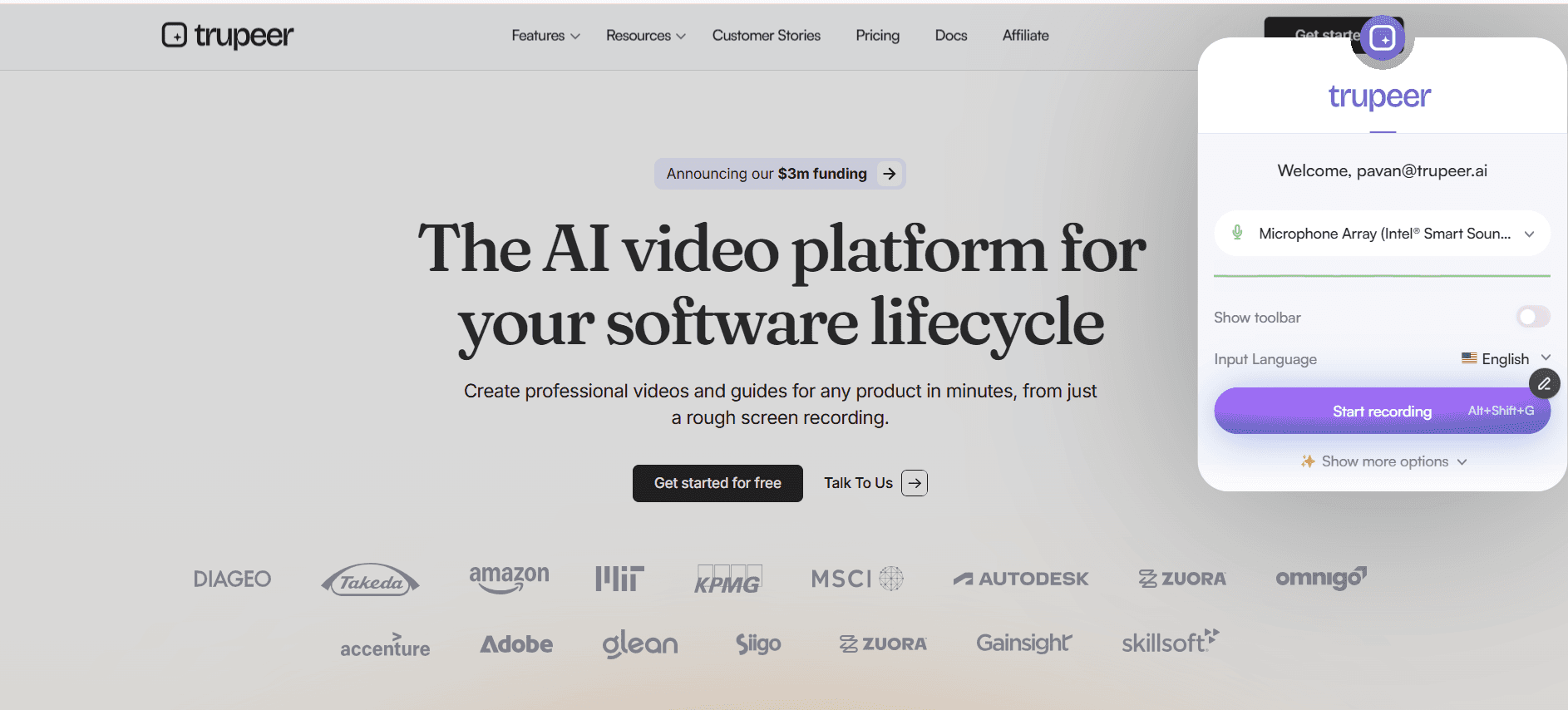
Once you've completed your screen recording or uploaded an existing video file, Trupeer's AI begins analyzing the content frame by frame. The system identifies key interface elements, text content, cursor movements, and user actions to build a comprehensive understanding of your workflow. This analysis phase typically takes just seconds and forms the foundation for all subsequent annotation suggestions.
Step 2: Intelligent Annotation Generation
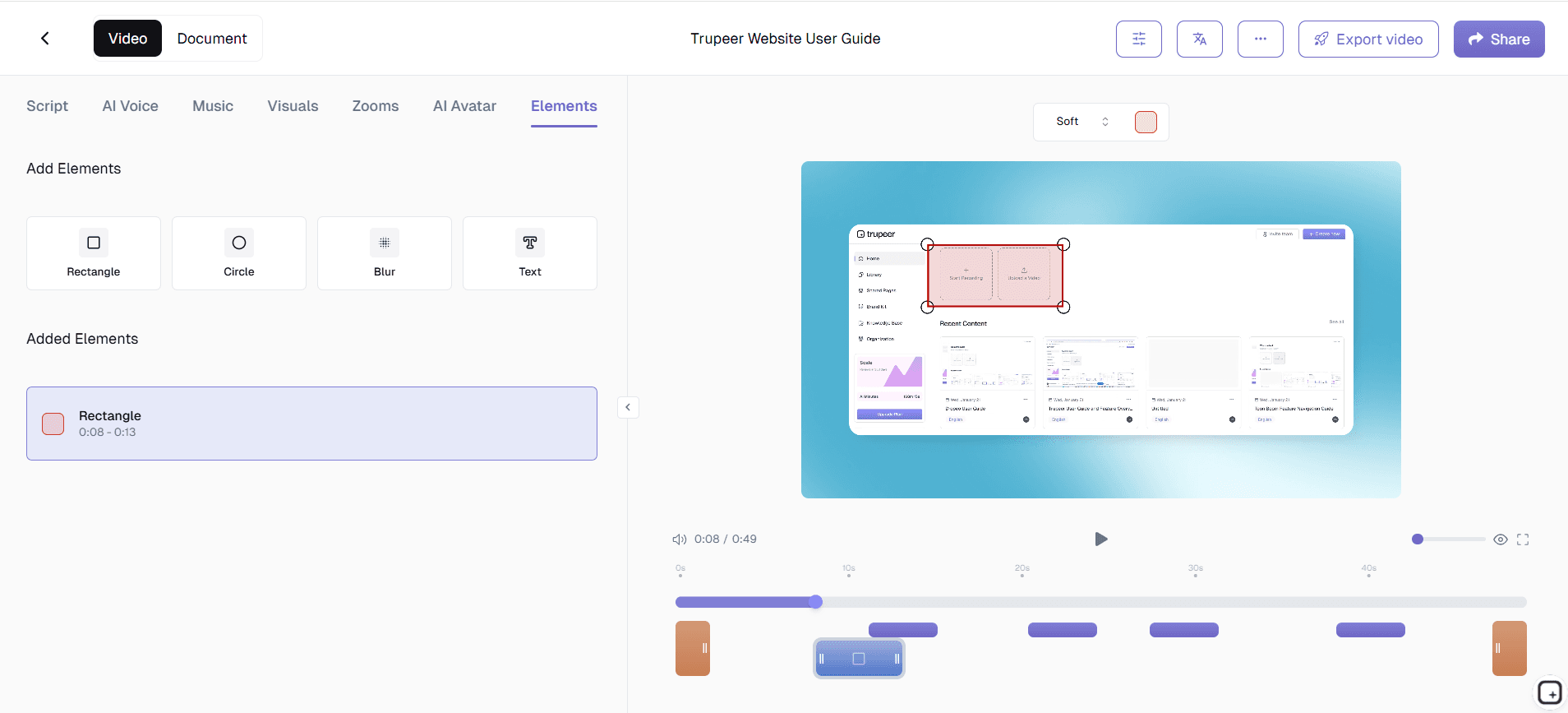
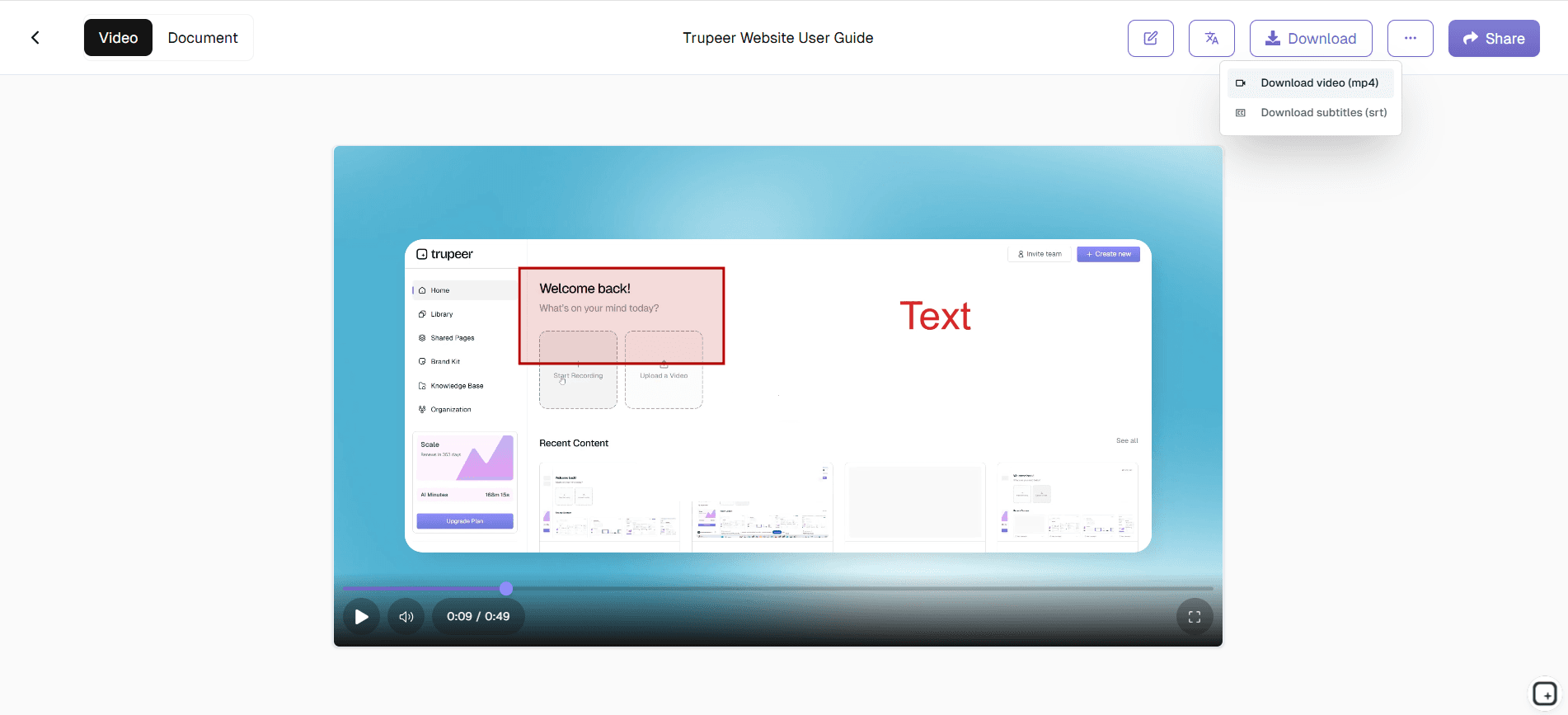
Based on the content analysis, the AI generates contextually appropriate annotations including callout boxes, highlight areas, explanatory text, and directional arrows. The system considers factors like screen region importance, user attention patterns, and content complexity to determine optimal annotation placement and timing. You can review these suggestions and customize them according to your specific needs.
Step 3: Brand Integration and Styling
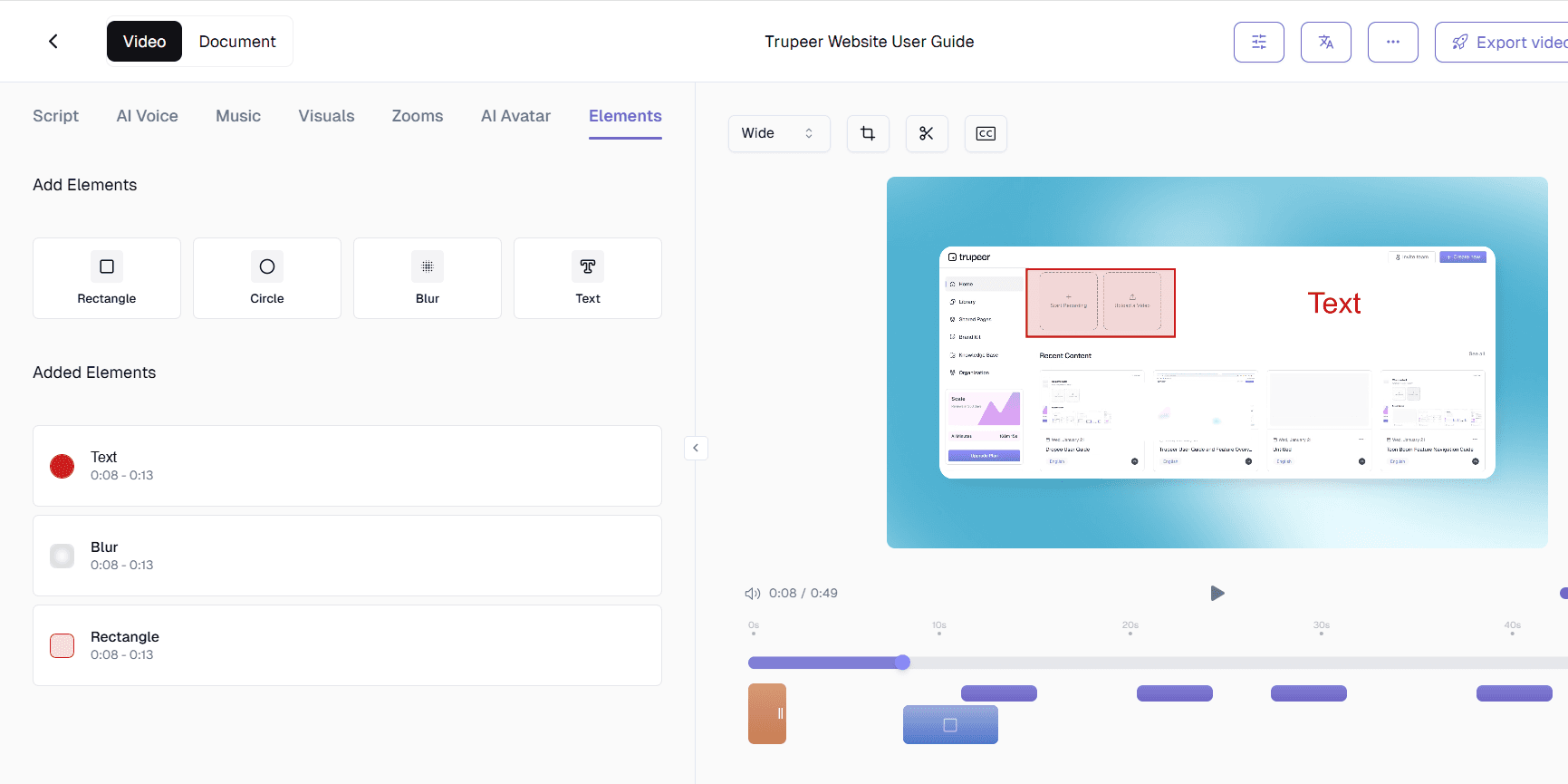
Your annotations automatically inherit styling from your brand kits, ensuring consistent visual presentation across all your video content. Colors, fonts, and design elements align with your brand guidelines without requiring manual adjustment. This integration maintains professional appearance while saving significant time in the styling process.
Step 4: Timing and Animation Optimization
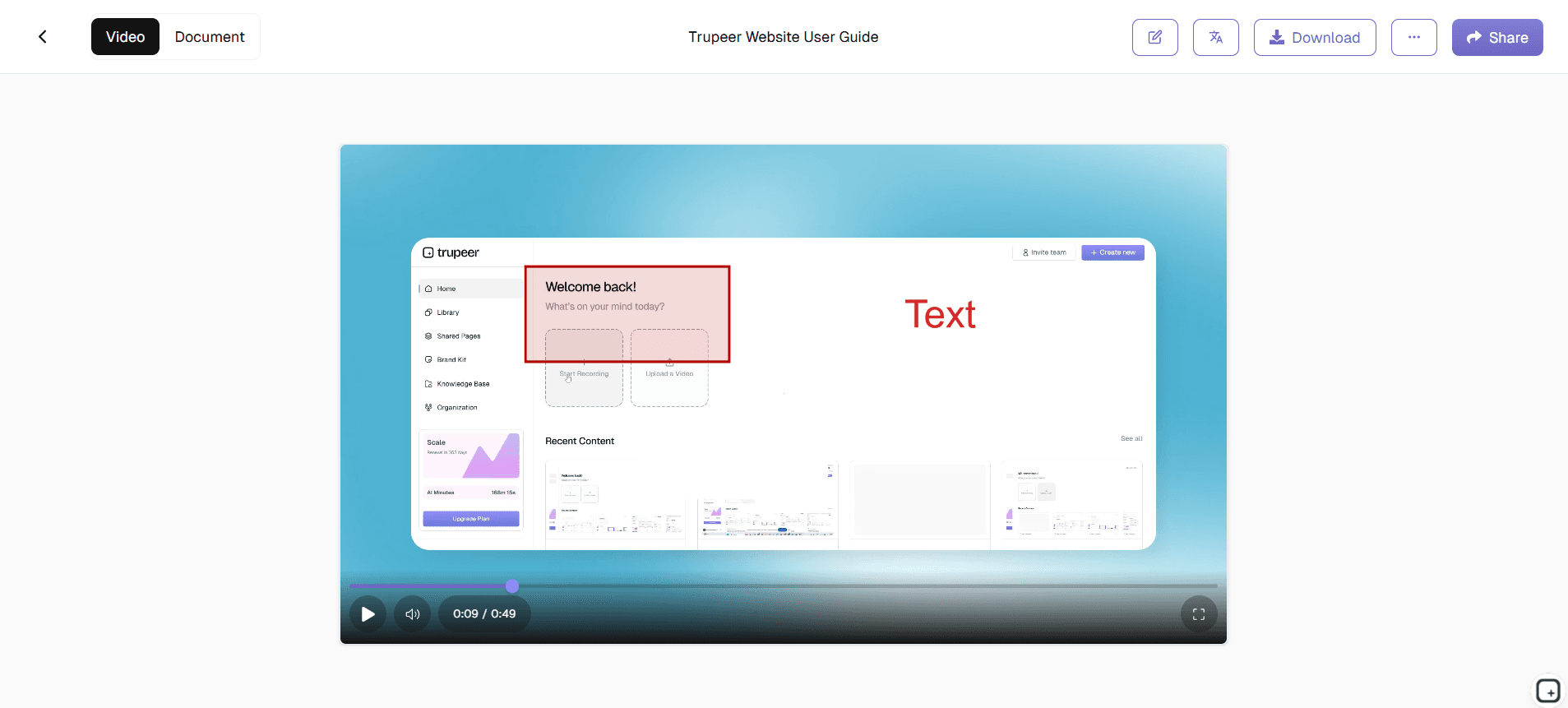
The system automatically calculates optimal display timing for each annotation based on the pacing of your content and typical viewer comprehension speeds. Annotations appear and disappear at natural moments that support rather than disrupt the viewing experience. Animation effects are subtle and professional, designed to draw attention without being distracting.
Step 5: Export and Distribution
Once annotations are finalized, your enhanced video can be exported in multiple formats or shared directly through Trupeer's platform. The annotations are rendered into the final video file, ensuring compatibility across all viewing platforms and devices. You can also generate accompanying documentation that includes annotation text for accessibility and reference purposes.
Key Features and Capabilities
Trupeer's annotation tools offer comprehensive functionality designed to meet diverse content creation needs across different industries and use cases. These features work together to create a cohesive annotation experience that enhances rather than complicates your video creation workflow.
Smart Recognition Technology: The AI automatically identifies clickable elements, form fields, navigation menus, and other interface components in your recordings. This recognition capability enables precise annotation placement and ensures callouts align perfectly with the relevant screen elements. The system works across different applications and websites, making it versatile for various training videos and tutorial content.
Dynamic Callout Generation: Beyond simple text overlays, the system creates dynamic callouts that adapt to screen content and context. These include numbered sequences for step-by-step processes, highlight boxes that emphasize important areas, and explanatory bubbles that provide additional context without cluttering the screen. Each callout type serves specific communication purposes and can be customized for different content types.
Interactive Element Highlighting: When creating instructional content, the annotation tools can automatically highlight buttons, links, form fields, and other interactive elements as they become relevant in your workflow. This feature is particularly valuable for AI Screen Recorder videos where you need to guide prospects through specific actions or demonstrate software functionality clearly.
Multi-Language Annotation Support: Integration with Trupeer's translation capabilities means your annotations can be automatically translated into multiple languages while maintaining proper positioning and formatting. This feature is essential for global teams and companies serving international markets with their video content.
Template-Based Consistency: Create and save annotation templates that can be applied across multiple videos to maintain visual consistency. These templates include positioning rules, styling preferences, and content patterns that ensure all your annotated videos follow the same professional standards and brand guidelines.
Real-Time Preview and Adjustment: The annotation interface provides real-time preview capabilities so you can see exactly how your annotations will appear in the final video. Adjustments to positioning, timing, and styling are immediately visible, allowing for precise fine-tuning without time-consuming render cycles.
Why Should You Use Annotation Tools?
The benefits of using professional annotation tools extend far beyond simple visual enhancement, directly impacting viewer engagement, comprehension, and the overall effectiveness of your video content. These advantages translate into measurable improvements in training outcomes, customer understanding, and content performance.
Enhanced Learning and Retention: Research consistently shows that annotated video content improves viewer comprehension and information retention by up to 65% compared to non-annotated videos. By providing visual cues and contextual information at the right moments, annotations help viewers process complex information more effectively. This benefit is particularly important for technical documentation and educational content where understanding is crucial.
Improved Viewer Engagement: Annotations serve as interactive elements that maintain viewer attention throughout longer videos. They break up monotonous screen recordings with visual variety and provide mental anchor points that help viewers stay focused on the content. This increased engagement translates to higher completion rates and better learning outcomes for your audience.
Reduced Support Burden: Well-annotated instructional videos significantly reduce the number of follow-up questions and support requests by preemptively addressing common confusion points. When viewers can clearly see what actions to take and understand the context behind each step, they're more likely to successfully complete tasks independently. This benefit is especially valuable for Training Manual Generator teams managing large user bases.
Professional Brand Presentation: Consistent, well-designed annotations elevate the perceived quality and professionalism of your video content. This enhanced presentation builds trust with viewers and reflects positively on your brand's attention to detail and commitment to quality communication. Professional annotations also make your content more suitable for external sharing and SOP Generator purposes.
Accessibility and Inclusivity: Annotations provide additional context and information that supports viewers with different learning styles and accessibility needs. Visual learners benefit from graphical callouts, while detailed text annotations support those who prefer written information. This inclusive approach ensures your content reaches and effectively serves a broader audience.
Scalable Content Creation: Once you've established annotation templates and workflows, creating consistently high-quality annotated videos becomes a scalable process. Teams can produce professional content without requiring specialized design skills or extensive video editing experience, making quality video creation accessible across your organization.
Who Can Use Annotation Tools?
Trupeer's annotation tools serve a diverse range of professionals and organizations who need to create clear, engaging video content for various purposes. The flexibility and intelligence of the system make it valuable across different industries and use cases.
Content Creators and Course Developers: Educational content creators use annotation tools to enhance online courses, tutorials, and instructional videos. The ability to clearly highlight interface elements and provide contextual explanations makes complex topics more accessible to learners. Integration with Trupeer's Documentation Generator helps creators develop comprehensive educational content that combines verbal instruction with visual guidance.
Marketing Teams and Product Managers: Marketing professionals leverage annotations to create compelling AI Video Editor that clearly communicate product value and functionality. Annotations help highlight key features, explain benefits, and guide viewers through important product capabilities. This enhanced presentation is particularly valuable for complex software products or technical solutions that require clear explanation.
Educators and Corporate Trainers: Both academic educators and corporate training professionals use annotation tools to create engaging instructional content. Whether explaining software procedures, demonstrating best practices, or walking through complex workflows, annotations provide the visual clarity needed for effective knowledge transfer. The ability to create reusable templates makes it easy to maintain consistency across entire training programs.
Product Teams and Technical Writers: Product teams use annotations to create comprehensive documentation that combines visual demonstration with detailed explanation. This approach is particularly effective for API documentation, user guides, and technical specifications where showing and telling together provides the clearest communication. Integration with Trupeer's documentation generation features creates comprehensive resource libraries.
Sales Professionals and Customer Success Managers: Sales teams use annotated videos for AI Screen Recorder presentations and customer onboarding. Annotations help highlight product benefits, explain complex features, and address common customer questions proactively. Customer success managers use these tools to create self-service resources that reduce support ticket volume while improving customer satisfaction.
Small Business Owners and Solo Entrepreneurs: Individual entrepreneurs and small business owners benefit from the professional quality that annotations bring to their content without requiring extensive design resources or technical expertise. Whether creating marketing videos, customer tutorials, or internal training content, annotations help small teams produce content that competes with larger organizations.
The common pattern across these audiences: annotations are valuable when the video they're added to already serves a clear training, documentation, or sales-enablement purpose. They're not the differentiator that makes a bad video useful they're the polish that makes a useful video clearer. So the realistic decision isn't "should I add annotations to my videos?" The realistic decision is "should I be producing training videos at all, and if so, do my videos need annotation features as part of the production workflow?" If yes to both, the annotation features built into Trupeer's pipeline handle the work without requiring a separate annotation tool. If your team isn't shipping training videos regularly, the annotation features by themselves aren't a strong reason to adopt the platform.
Best Practices for Using Annotation Tools
Maximizing the effectiveness of your annotated videos requires strategic thinking about placement, timing, and content design. Following established best practices ensures your annotations enhance rather than distract from your core message while maintaining viewer engagement throughout the viewing experience.
Strategic Placement and Timing: Position annotations to complement natural eye movement patterns and avoid covering important screen elements. Use the preview feature to ensure annotations appear at moments when viewers need additional context rather than when they're focused on complex actions. Consider the pacing of your content and allow sufficient time for viewers to read and process annotation information without feeling rushed.
Maintain Visual Hierarchy: Establish clear visual priorities by using different annotation styles for different types of information. Primary actions might use bold callouts, while supplementary information uses smaller, less prominent annotations. This hierarchy helps viewers quickly identify the most important information while still providing comprehensive guidance. Explore our tutorials for detailed guidance on visual design principles.
Keep Text Concise and Actionable: Write annotation text that's immediately useful and easy to scan. Use active voice and specific action words rather than vague descriptions. Instead of "This area contains user settings," write "Click here to access user preferences." Concise, actionable annotations respect viewer attention and provide clear guidance for next steps.
Test with Real Users: Before finalizing annotated videos, test them with representative users to identify confusion points or areas where additional annotation might be helpful. User feedback often reveals assumptions about viewer knowledge that can be addressed through strategic annotation placement. This testing approach is particularly valuable for customer-facing content where clarity directly impacts user success.
Set up annotation templates before generating the first video. The trick that turns annotation work from "decisions per video" to "decisions per template": invest 30-60 minutes upfront defining the team's annotation patterns. Which color is used for primary callouts. Which font for explanatory text. Which arrow style. How numbered indicators look. Once the template exists, every annotated video produced by anyone on the team follows the same pattern automatically. Retrofitting 20 existing videos to a new annotation template costs significantly more time than setting it up correctly the first time.
Use annotations for steps that require precision, not narrative. Annotations work best when they direct attention to specific UI elements ("Click here") or convey discrete instructions ("Step 3 of 5"). They work poorly when used to narrate everything that's happening in the video. If the narration already explains what to do, the annotation just creates visual clutter without adding clarity. So most experienced teams use annotations on roughly 20-40% of the video's runtime, concentrated at decision points and specific actions. The rest of the video stays clean.
Where Trupeer's annotation features fit (and what they aren't a substitute for)
Worth being clear about the category mismatch some searchers run into. "Annotation tools" as a search query typically returns one of three distinct tool categories: image and PDF annotation (Markup, Skitch, PDF Expert), document and web annotation (Hypothesis, Genius for collaborative reading), or video annotation for ML training data (CVAT, V7 Darwin, Roboflow for computer vision training). Trupeer isn't in any of these categories. The annotation features described on this page are built into Trupeer's training video production pipeline they apply to screen recordings the team is already producing as training content.
Where Trupeer's annotation features actually fit. The team that's already shipping training videos with a tool like Camtasia and adding annotations manually after recording can move that annotation work upstream into the AI processing pass. The team that's been shipping raw Loom videos and wishing they could add callouts gets the annotation layer without needing a separate editor. The team that's producing customer-facing product walkthroughs gets brand-consistent annotation styling without anyone making styling decisions per video. The team that's translating training content to multiple languages gets annotations translated alongside the voiceover in the same job.
What Trupeer's annotation features aren't a substitute for. If the team needs to annotate static images for design feedback, Markup or Figma comments are the right tools. If the team needs to annotate PDFs for legal review or document collaboration, Adobe Acrobat or Hypothesis fit better. If the team needs to label video frames for machine learning training data, CVAT or V7 Darwin are the right shape. Trupeer's annotation features specifically serve the screen-recorded training video production use case. For that specific use case, they're integrated into the workflow rather than living as a separate tool the team has to switch into.
Explore Related Tools
Why Choose Trupeer's Annotation Tools
AI-Powered Smart Placement
Automatically positions annotations at optimal moments for maximum viewer comprehension and engagement.
Brand-Consistent Styling
Seamlessly integrates with your brand kit for professional, consistent visual presentation across videos.
Multi-Language Support
Translates annotations automatically while maintaining perfect positioning and professional formatting throughout.
How to Use Trupeer's Annotation Tools
Step 1
Record screen or upload video
Step 2
Review AI annotation suggestions
Step 3
Customize and export content
Frequently Asked Questions
What types of annotations can I add to my videos?
You can add callout boxes, highlight areas, arrows, text bubbles, numbered sequences, and interactive element markers. All annotations are automatically styled to match your brand guidelines.
Do annotations work with all types of screen recordings?
Yes, Trupeer's annotation tools work with any screen recording, whether captured with our built-in recorder or uploaded from other sources. The AI adapts to different applications and interfaces.
Can I save annotation templates for consistent branding?
Absolutely. You can create and save annotation templates that include styling preferences, positioning rules, and content patterns for use across multiple videos.
How does the AI determine where to place annotations?
The AI analyzes screen content, user interface elements, cursor movements, and workflow patterns to suggest optimal annotation placement that enhances viewer understanding without disrupting the viewing experience.
Can annotations be translated into different languages?
Yes, annotations integrate with Trupeer's translation system to automatically translate text into multiple languages while maintaining proper positioning and formatting for global audiences.
More Tools


