
How to Wrap Text in Google Sheets – Keep Cell Content Visible
Learn how to wrap text in Google Sheets so all content stays visible within a cell. Follow this quick guide to enable text wrapping manually or automatically.
This document provides step-by-step instructions on how to wrap text in Google Sheets.
Wrapping text allows the content of a cell to be displayed on multiple lines, improving readability without altering the column width.
If your text spills over into neighboring cells, wrapping it keeps everything neatly contained. You can wrap text through the Format menu or directly from the toolbar.
1. Select the cells:
Click on the cell or group of cells where you want the text to wrap.
2. Choose a wrapping method:
Via Format menu:
Go to Format > Wrapping > Wrap.
Using the toolbar:
Click the text wrapping icon in the toolbar (it looks like a curved arrow), then choose Wrap from the dropdown list.
3. See the results:
Once enabled, the text will automatically adjust to stay within the cell's width, and the row height will expand to fit all the lines.
Step-by-Step Guide: How to Wrap Text in Google Sheets
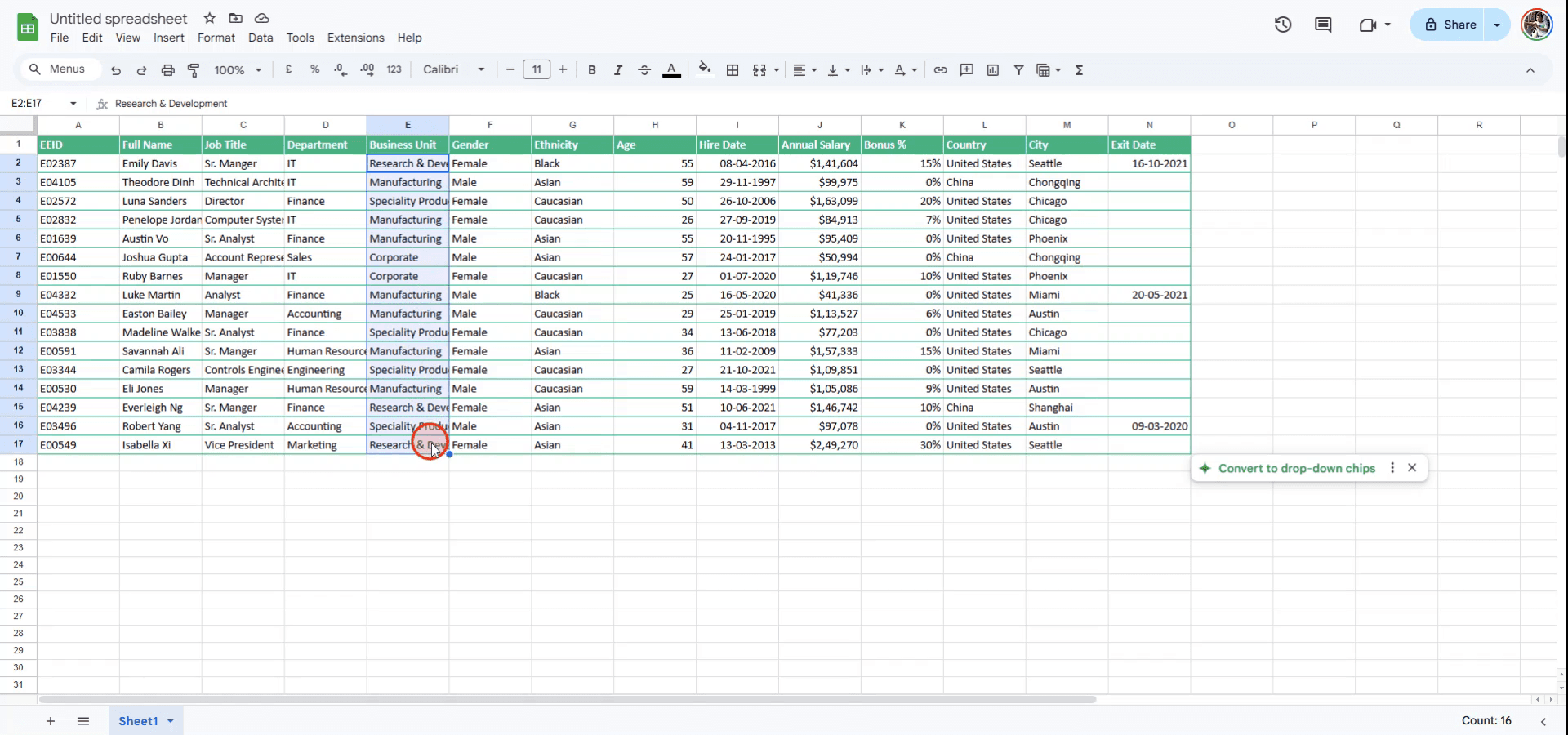
Step 1
To begin wrapping text in Google Sheets, first select the cell or range of cells you wish to format with text wrapping.
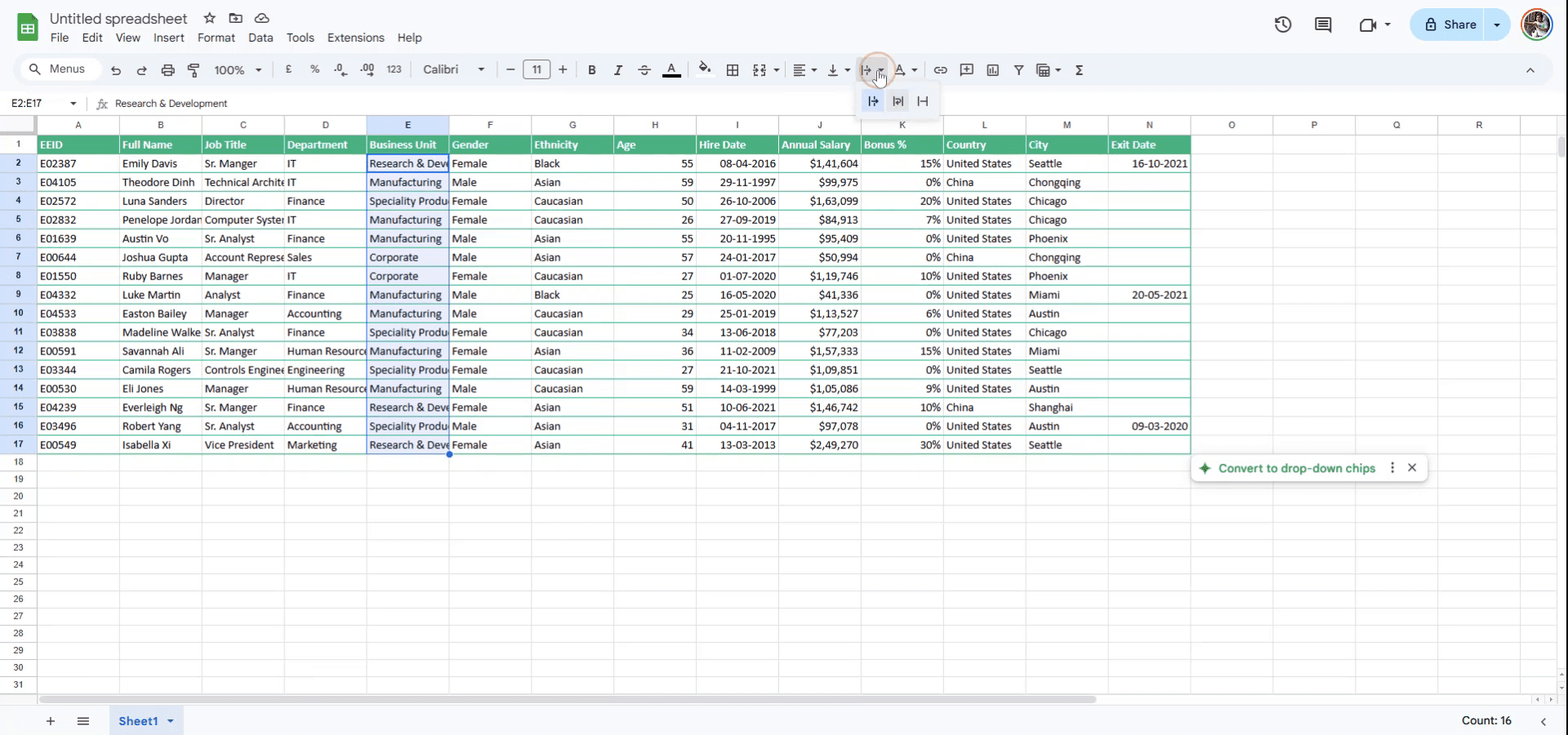
Step 2
Once the desired cells are selected, navigate to the menu above and click on the 'Text Wrapping' option. This will display a dropdown menu for further options.
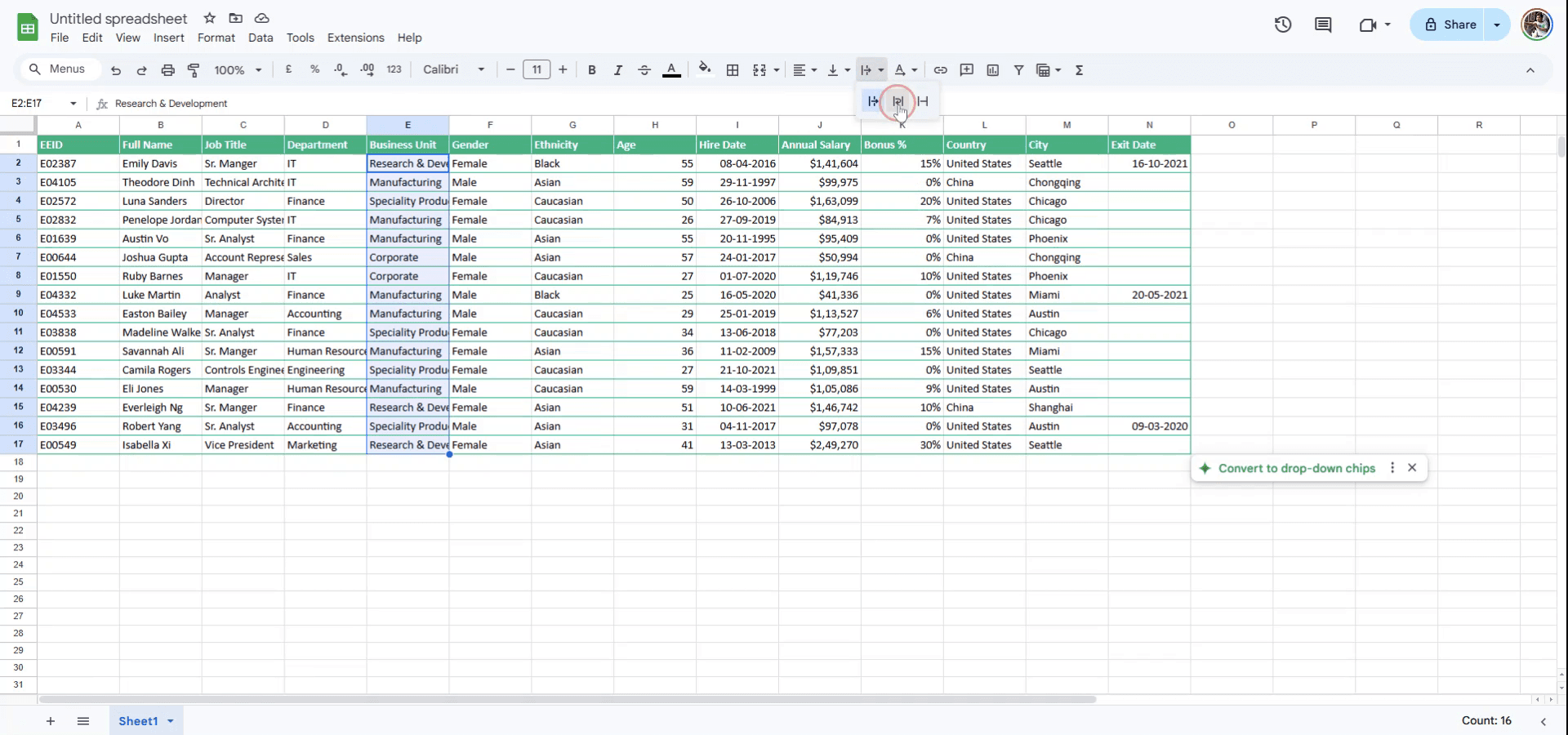
Step 3
In the dropdown menu under 'Text Wrapping', choose the second option labeled 'Wrap'. This will apply the text wrapping to the selected cells.
Pro tips for wrapping text in Google Sheets
Select the cell or range of cells where you want to wrap the text, then go to Format > Text Wrapping > Wrap to ensure the text stays within the cell boundaries.
To adjust row height after wrapping text, right-click on the row number and choose Resize row to ensure the wrapped content is fully visible.
If the text is not fitting properly, try adjusting the column width by dragging the boundary between column letters.
Common pitfalls and how to avoid them for wrapping text in Google Sheets
Text still overflowing: This might happen if the column width is too small. Fix: Increase the column width or use the text wrapping feature to make sure the text fits within the cell.
Extra space in rows: Sometimes, wrapped text may create unnecessary vertical space. Fix: Manually adjust row height to fit the wrapped text and remove excess space.
Cells not wrapping text: This can happen if the wrap setting is not applied. Fix: Go to Format > Text Wrapping > Wrap to enable text wrapping in the cell.
Часто задаваемые вопросы о переносе текста в Google Sheets
Как перенести текст, не меняя ширину столбца?
Используйте опцию Перенос в разделе Формат > Перенос текста, чтобы текст оставался в пределах ячейки и не влиял на ширину столбца.Можно ли запретить перенос текста в ячейке?
Да: перейдите в Формат > Перенос текста > Переполнение, чтобы разрешить тексту выходить за пределы ячейки при необходимости.Можно ли перенести текст сразу в нескольких ячейках?
Да: выделите несколько ячеек и примените опцию Перенос в разделе Формат > Перенос текста > Перенос ко всем выбранным ячейкам.Как сделать запись экрана на mac?
Чтобы сделать запись экрана на Mac, вы можете использовать Trupeer AI. Он позволяет захватить весь экран и предоставляет возможности ИИ, такие как добавление AI-аватаров, добавление голосового сопровождения, добавление зума (приближение и отдаление) в видео. С функцией AI-перевода видео от trupeer вы можете перевести видео на 30+ языков.Как добавить AI-аватар в запись экрана?
Чтобы добавить AI-аватар в запись экрана, вам нужно использовать инструмент для записи экрана с ИИ. Trupeer AI — это инструмент для записи экрана с ИИ, который помогает создавать видео с несколькими аватарами, а также позволяет создать собственный аватар для видео.Как сделать запись экрана на windows?
Чтобы сделать запись экрана в Windows, вы можете использовать встроенную панель Game Bar (Windows + G) или расширенный AI-инструмент вроде Trupeer AI для более продвинутых функций, таких как AI-аватары, голосовое сопровождение, перевод и т. д.Как добавить голосовое сопровождение в видео?
Чтобы добавить голосовое сопровождение в видео, скачайте chrome-расширение trupeer ai. После регистрации загрузите видео с голосом, выберите нужный вариант голосового сопровождения в trupeer и экспортируйте отредактированное видео.Как увеличить масштаб при записи экрана?
Чтобы увеличить масштаб во время записи экрана, используйте эффекты зума в Trupeer AI — они позволяют приближать и отдалять в определенные моменты, усиливая визуальное воздействие вашего видеоконтента.
Люди также спрашивают
Генератор технической документации
Как добавить символ рупии в Google Sheets
Как изменить формат валюты в Google Sheets
Похожие руководства



