

Как выполнить поиск в Google Таблицах
Узнайте, как выполнять поиск в Google Таблицах с помощью встроенных инструментов, таких как «Найти» и «Изучить». Быстрые советы по удобному поиску данных
In Google Sheets, searching and replacing specific text is a straightforward process that can be accomplished using the built-in "Find and Replace" feature.
This function allows you to quickly locate a word or phrase and, if necessary, substitute it with another, thus streamlining your data management tasks. Follow these steps to utilize this feature effectively.
Searching in Google Sheets is simple with the Find and Replace tool. Here's how:
Quick Search (Find Only)
Open your Google Sheet.
Press Ctrl+F (Windows/Linux) or Cmd+F (Mac).
Type the word, number, or phrase you want to find.
Use the arrows to jump between matches.
Advanced Search (Find and Replace)
Go to Edit > Find and replace.
Enter the text in the Find box.
(Optional) Fill the Replace with box if you want to change the value.
Use options like:
Match case
Search using regular expressions
Also search within formulas
Search within a specific range
Click Find, Replace, or Replace all as needed.
Click Done when finished.
Step-by-Step Guide: How to search in Sheets
Step 1
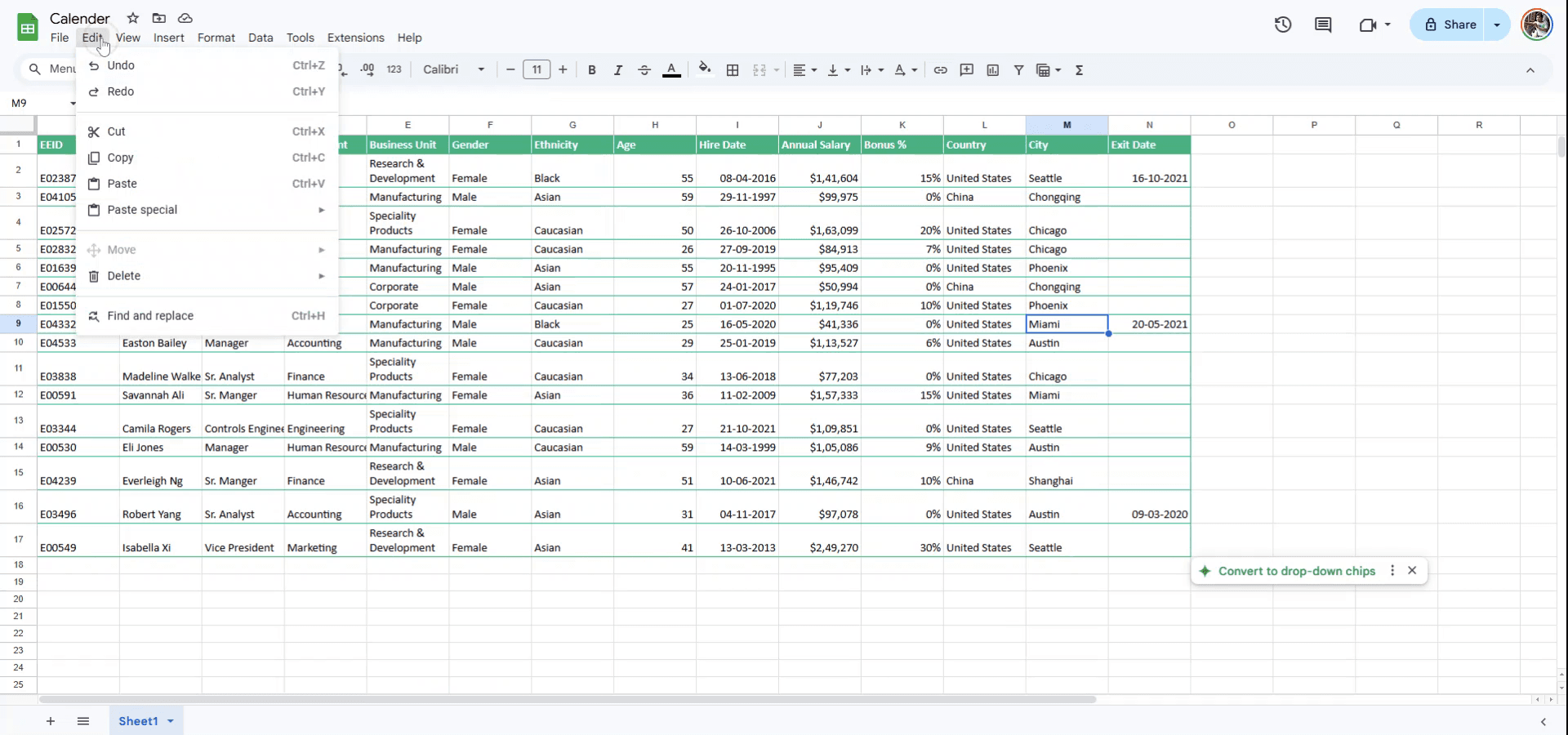
To initiate a search for a specific word in Google Sheets, navigate to the "Edit" menu located at the top of the interface. From the drop-down options, select "Find and Replace."
Step 2
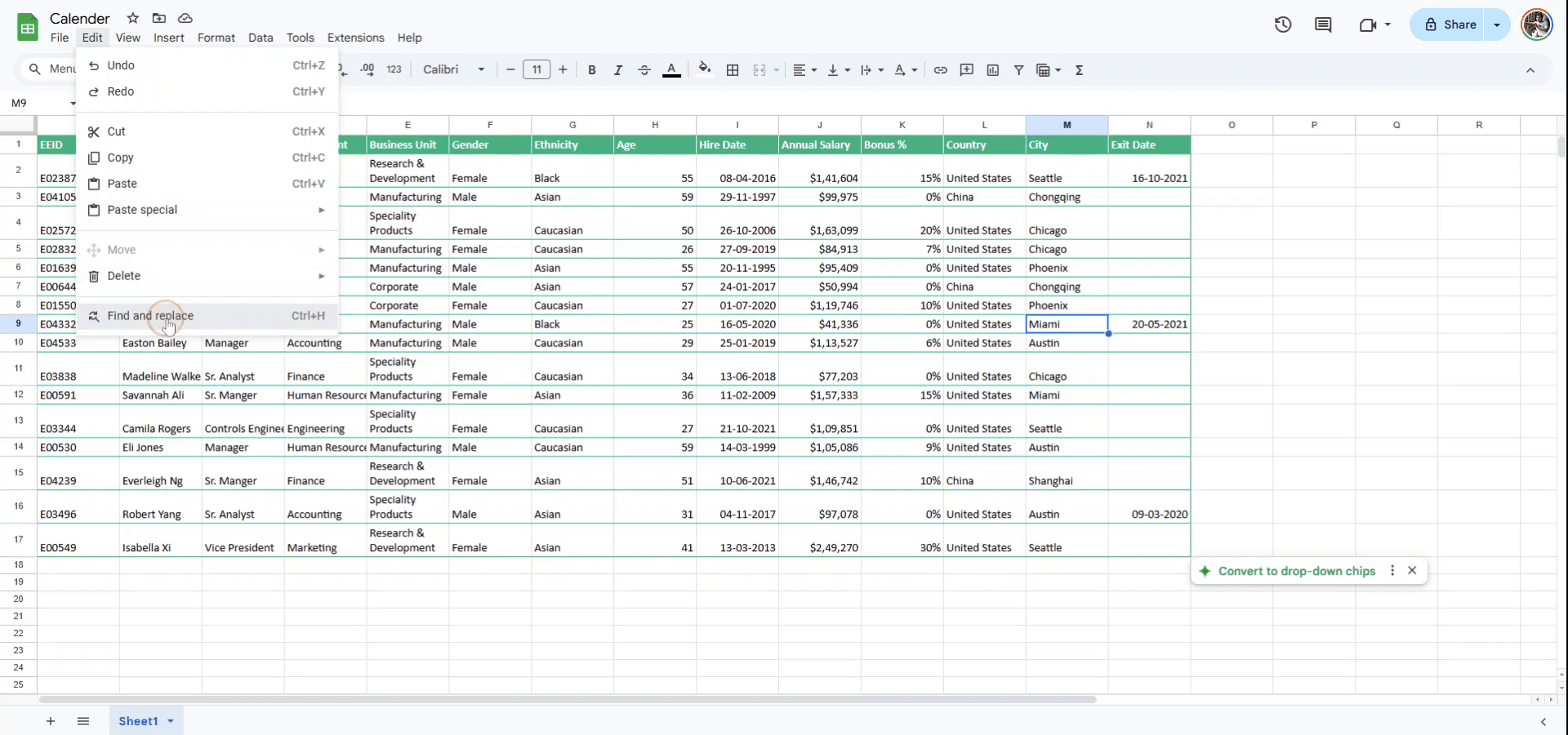
Alternatively, you can use the shortcut by pressing "Ctrl" and "H" simultaneously. This will open the "Find and Replace" menu where you can search for the desired word.
Step 3
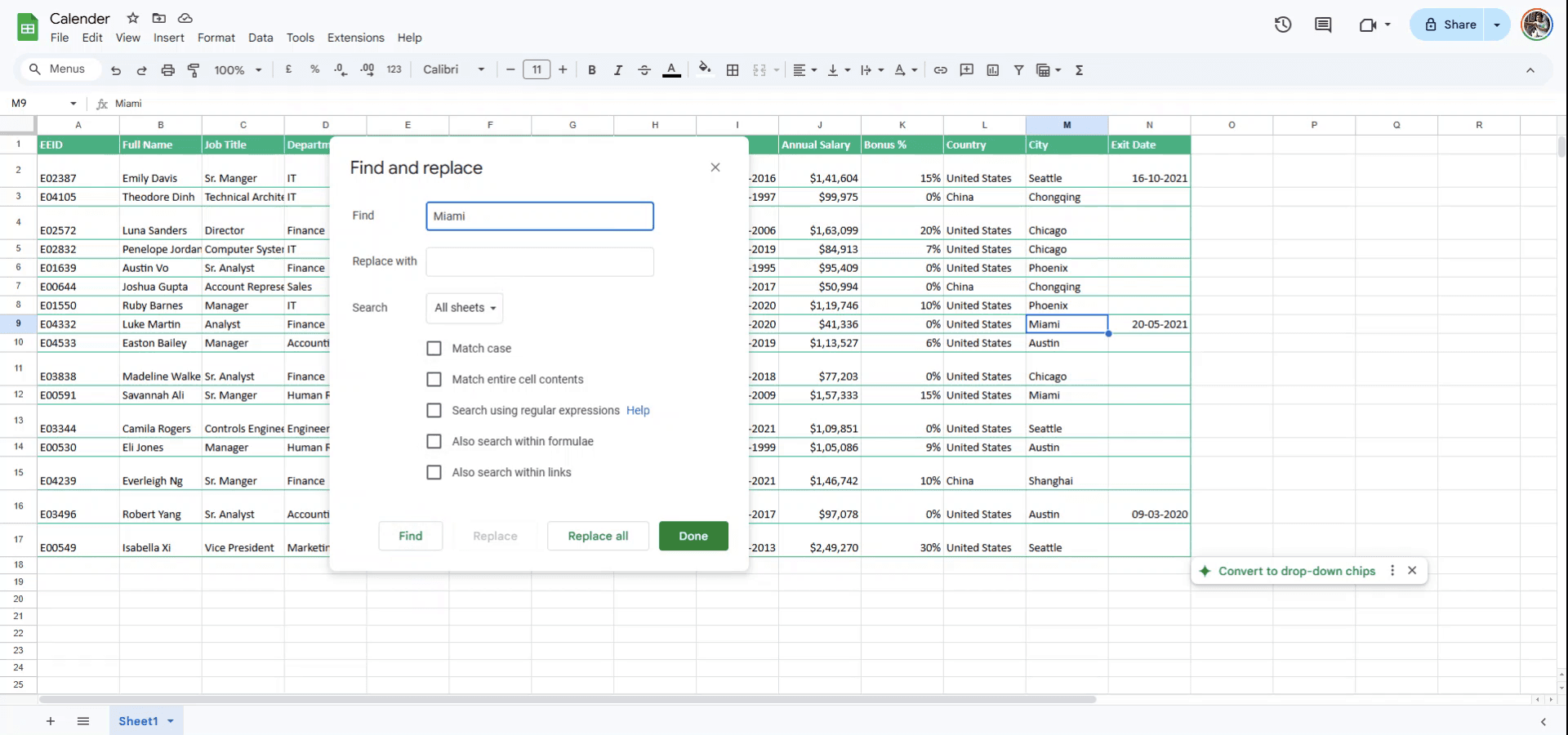
Enter the word you wish to locate in the spreadsheet. If you need to replace this word with a different one, proceed to the next step.
Step 4
In the "Replace with" field, input the new word you want to use, or simply click on "Find" if no replacement is needed. This action will highlight the instances of the word in your document. Thank you for utilizing this guide.

Полезные советы по поиску в Google Sheets
Используйте функцию поиска: нажмите Ctrl + F (или Cmd + F на Mac), чтобы открыть строку поиска и быстро найти любое слово или значение в вашей таблице.
Ищите с фильтрами: если вы хотите уточнить поиск, используйте параметр фильтра, чтобы сузить данные перед поиском. Это помогает, если в вашей таблице много столбцов и строк.
Используйте расширенные параметры поиска: нажмите на три вертикальные точки в строке поиска, чтобы получить доступ к параметрам, например поиск по формулам, учет регистра или использование регулярных выражений для более сложных запросов.
Частые ошибки и как их избежать при поиске в Google Sheets
Не использовать поиск с учетом регистра: если в данных есть варианты написания с разным регистром (например, «apple» и «Apple»), обычный поиск может их не найти. Решение: включите «Учитывать регистр» в параметрах поиска, чтобы обеспечить точность.
Поиск не в том листе или диапазоне: иногда поиск применяется только к видимой части таблицы. Решение: нажмите «Найти все» в параметрах поиска, чтобы он просканировал всю таблицу или нужный диапазон.
Пропуск скрытых строк/столбцов: скрытые строки или столбцы могут не попадать в результаты поиска. Решение: перед поиском сделайте скрытые строки/столбцы видимыми, чтобы вы искали все данные.
Common FAQs for searching in Google Sheets
How can I search across multiple sheets in one go?
Use the Find and replace feature by selecting Edit > Find and replace to search across all sheets within your document.Can I search for specific formulas or text only?
Yes, in the search options, you can specify to search for either formulas, values, or specific formatting.Why is my search not returning any results?
Check that the text or value you are searching for is spelled correctly and is within the current range or sheet you are searching in.How to screen record on mac?
To screen record on a Mac, you can use Trupeer AI. It allows you to capture the entire screen and provides AI capabilities such as adding AI avatars, add voiceover, add zoom in and out in the video. With trupeer’s AI video translation feature, you can translate the video into 30+ languages.How to add an AI avatar to screen recording?
To add an AI avatar to a screen recording, you'll need to use an AI screen recording tool. Trupeer AI is an AI screen recording tool, which helps you create videos with multiple avatars, also helps you in creating your own avatar for the video.How to screen record on windows?
To screen record on Windows, you can use the built-in Game Bar (Windows + G) or advanced AI tool like Trupeer AI for more advanced features such as AI avatars, voiceover, translation etc.How to add voiceover to video?
To add voiceover to videos, download trupeer ai chrome extension. Once signed up, upload your video with voice, choose the desired voiceover from trupeer and export your edited video.How do I Zoom in on a screen recording?
To zoom in during a screen recording, use the zoom effects in Trupeer AI which allows you to zoom in and out at specific moments, enhancing the visual impact of your video content.
Suggested Reads
Technical Documentation Generator
How to Add Rupee Symbol in Google Sheets
How to Change Currency Format in Google Sheets
How To Change Ownership Of A Google Sheet
How To Calculate Percentage In Google Sheets
Похожие руководства