
Как повернуть документ в Canva — простое поворачивание страниц и элементов
Узнайте, как повернуть документ в Canva, поменяв размеры страницы или повернув элементы с помощью маркера поворота. Следуйте этому короткому руководству и создавайте направляющие с Trupeer.
This guide provides clear, step-by-step instructions on how to rotate a Canva document using the resize option.
By interchanging the width and height dimensions, you can effectively rotate the document to your desired orientation.
Rotating Individual Elements
Select the Element
Click on the image, text box, shape, or video you want to rotate.Use the Rotate Handle
A circular handle will appear beneath or beside the selected element.
Click and drag it to manually rotate the element to any angle.Use the Position Tool for Precision
Select the element.
Click "Position" from the top toolbar.
Enter a specific angle (e.g., 45°) in the "Rotate" input field for exact control.
Rotate Inside Frames or Grids
Select the element inside the frame.
Click "Crop", then use the rotate slider to adjust its angle within the frame.
Rotating the Page (Changing Orientation)
Click “Resize & Magic Switch”
Located at the top toolbar (available to Pro users).Choose “Custom Size”
Swap the width and height to change from portrait to landscape (or vice versa).
Example: Change from 1080×1920 (portrait) to 1920×1080 (landscape).Click “Resize” or “Copy & Resize”
Your design will adjust to the new orientation. You may need to manually reposition elements
Step-by-Step Guide: How To Rotate Document in Canva
Step 1
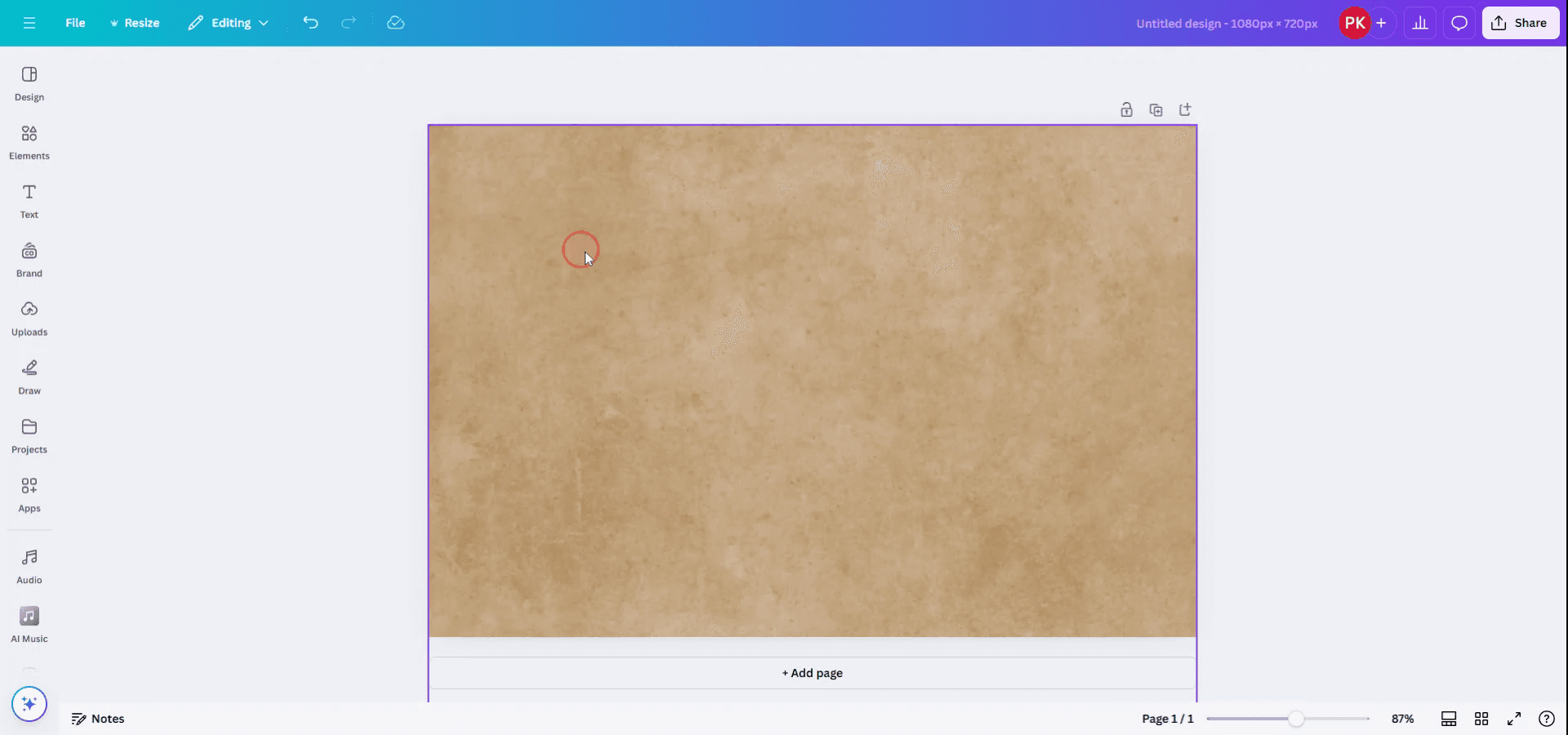
To rotate an entire Canva document, you must utilize the resize option. Begin by opening the document and navigating to the top bar.
Step 2
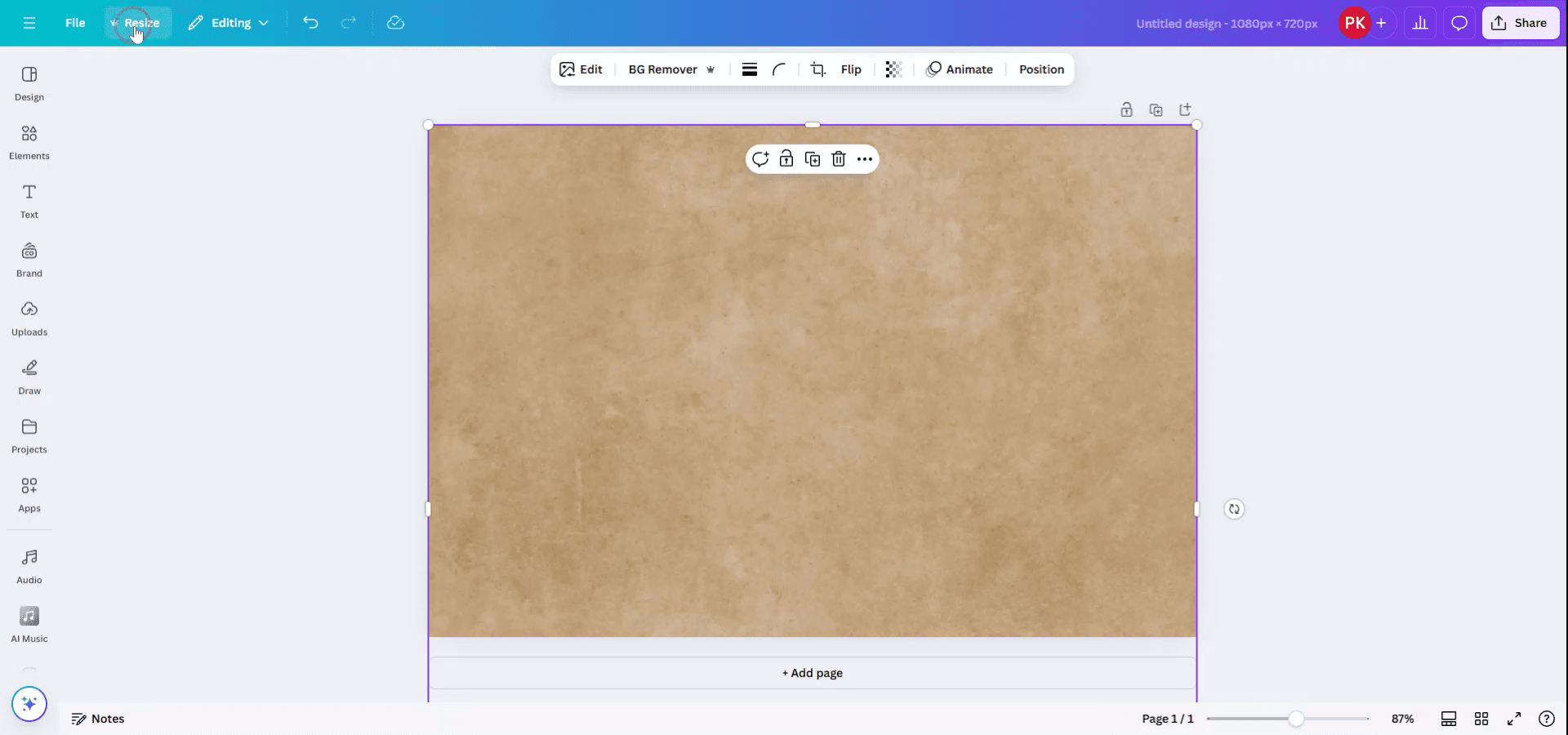
Click on the "Resize" button located in the top menu.
Step 3
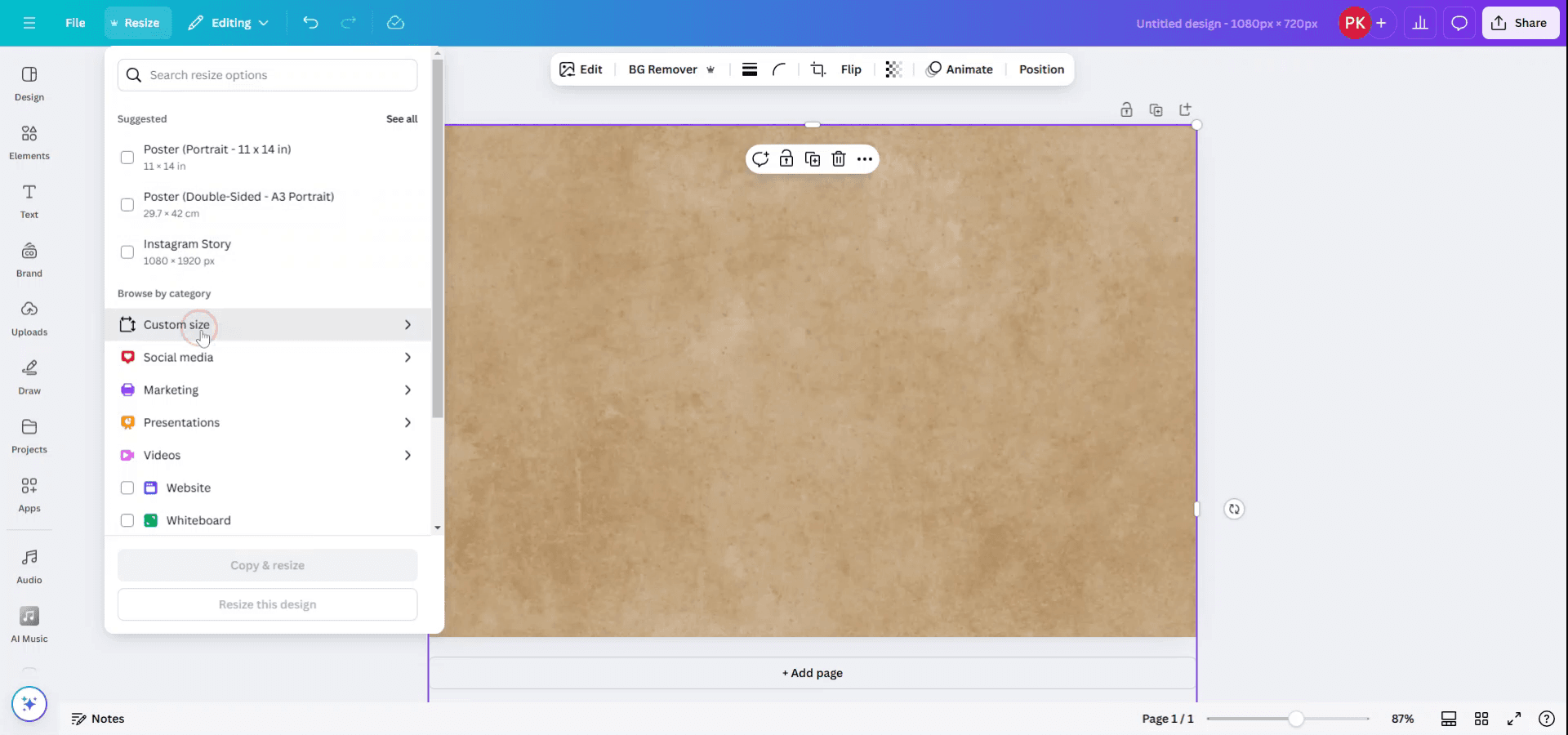
Select from the available sizes or enter a custom size to suit your needs.
Step 4
To rotate the document, interchange the width and height dimensions.
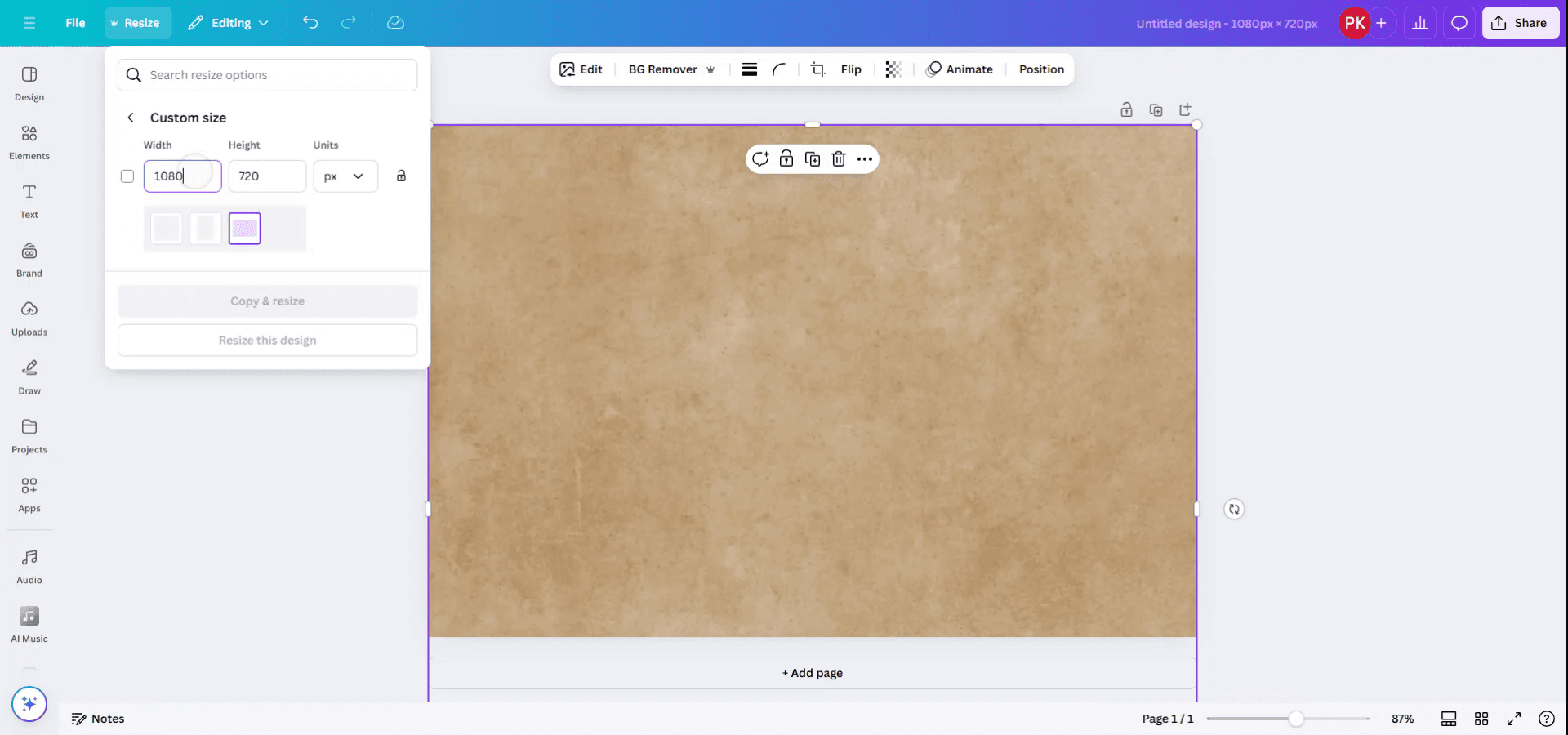
Step 5
You have two choices: apply the rotation by copying the existing template to a new file, or resize the current file directly. Choose the option to copy and resize in the same file.
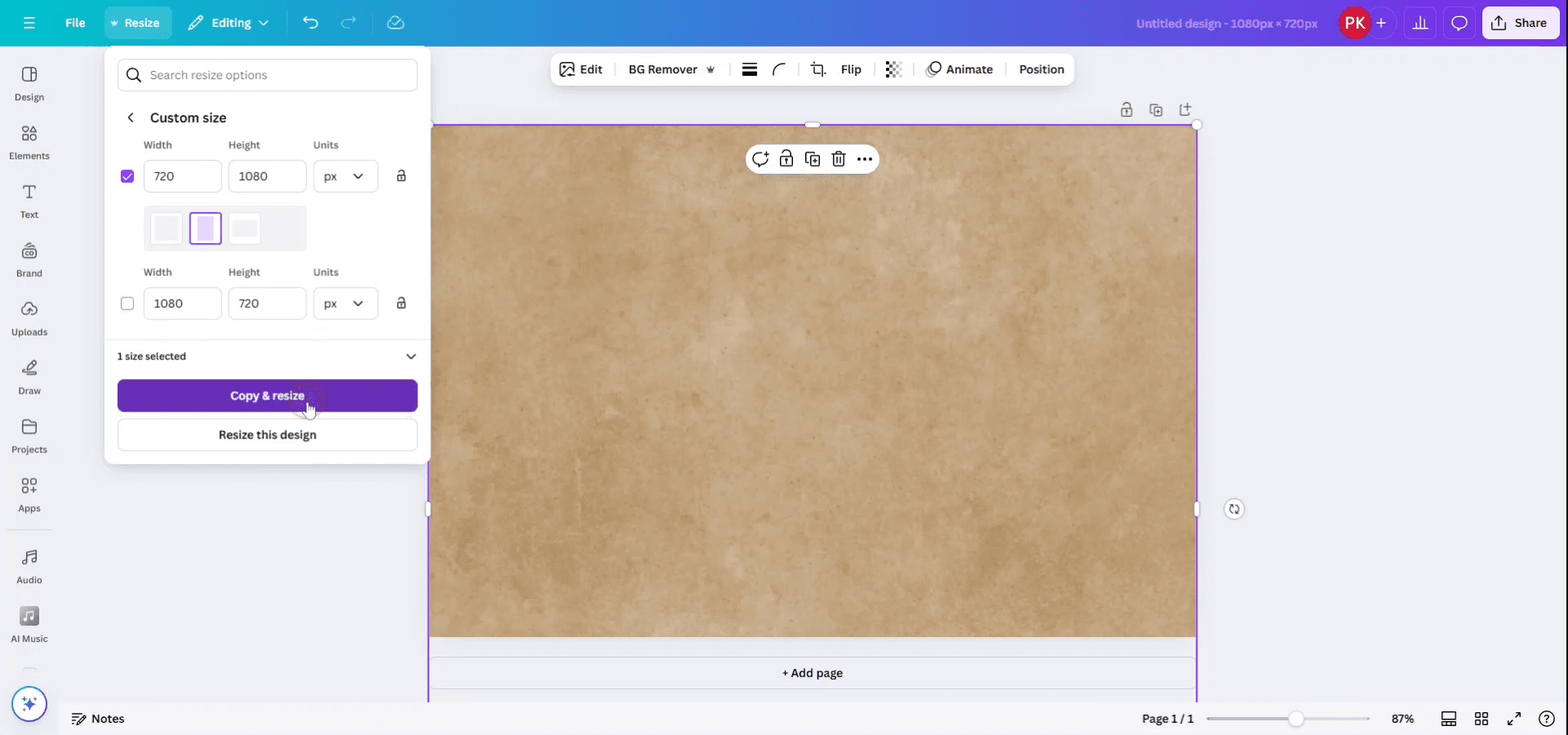
Step 6
The document will now be resized and rotated to the desired orientation.

Pro tips for rotating document in Canva
Select All Elements:
Click and drag to select all elements on the page. Alternatively, you can use the "Ctrl + A" (Windows) or "Cmd + A" (Mac) keyboard shortcut to select everything on the canvas.Group Elements (Optional):
If you want to rotate all elements together as one unit, click on the grouped items and select the "Group" button in the top menu. This makes it easier to rotate everything uniformly.Rotate Using the Handle:
Once all elements are selected, you'll see a rotation handle above the selection box. Click on the rotation handle and drag to rotate the entire document by the desired angle.Use the "Position" Tool:
After selecting the elements, you can also rotate them more precisely by clicking "Position" in the top menu and adjusting the rotation in the provided settings.Rotate the Page Itself (Pro Feature):
To rotate the entire page (including its background), you can use the "Rotate" feature available in Canva Pro. Go to the "File" menu > "Page setup" > "Rotate page" to rotate the entire canvas.
Common pitfalls and how to avoid them for rotating document in Canva
Accidentally Rotating Elements Instead of the Whole Page:
Make sure all elements are selected or grouped before rotating, and check that you’re using the correct rotation handle for the whole page.Not Grouping Items Before Rotating:
If you want to rotate everything together without losing alignment, group all elements before rotating to keep them in the same position relative to each other.Losing Alignment After Rotation:
After rotating, use the "Position" tool to realign elements or use Canva's alignment guides to ensure everything stays in the right place.Unable to Rotate the Page (Free Version):
If you're using the free version, rotating the page itself isn't possible. Consider upgrading to Canva Pro to access this feature.Not Adjusting Text After Rotation:
After rotating, double-check any text elements for legibility. You might need to adjust the text box alignment or font size after rotating the document.
Часто задаваемые вопросы о повороте документа в Canva
Как повернуть весь документ в Canva?
Выберите все элементы, при необходимости сгруппируйте их и используйте маркер поворота над рамкой выделения, чтобы повернуть всё. Также вы можете повернуть саму страницу, если у вас есть Canva Pro.Можно ли повернуть страницу в Canva?
Да, это функция Canva Pro. Перейдите в «Файл» > «Параметры страницы» > «Повернуть страницу», чтобы повернуть весь холст.Как сгруппировать объекты перед поворотом?
Выберите все элементы и нажмите кнопку «Группировать» в верхнем меню, чтобы зафиксировать всё вместе перед поворотом.Почему я не могу повернуть страницу в бесплатной версии Canva?
Функция поворота страницы доступна только при подписке Canva Pro. Чтобы использовать этот вариант, вам нужно перейти на платный тариф.Можно ли повернуть текст после поворота всего документа?
Да, возможно, вам потребуется вручную настроить выравнивание или размер текста после поворота документа, особенно если это влияет на читаемость.Как сделать запись экрана на mac?
Чтобы сделать запись экрана на Mac, вы можете использовать Trupeer AI. Он позволяет записать весь экран и предоставляет возможности ИИ, такие как добавление AI-аватаров, добавление голосового сопровождения, а также масштабирование (приближение и отдаление) в видео. С функцией перевода видео Trupeer на основе ИИ вы можете перевести видео на 30+ языков.Как добавить AI-аватар в запись экрана?
Чтобы добавить AI-аватар в запись экрана, вам нужно использовать инструмент для записи экрана с ИИ. Trupeer AI — это инструмент для записи экрана с ИИ, который помогает создавать видео с несколькими аватарами, а также позволяет создать собственный аватар для видео.Как сделать запись экрана на windows?
Чтобы сделать запись экрана в Windows, вы можете использовать встроенную панель Game Bar (Windows + G) или расширенный инструмент ИИ, например Trupeer AI, для более продвинутых функций, таких как AI-аватары, голосовое сопровождение, перевод и т. д.Как добавить голосовое сопровождение в видео?
Чтобы добавить голосовое сопровождение в видео, скачайте chrome-расширение trupeer ai. После регистрации загрузите видео с голосом, выберите нужный вариант голосового сопровождения в trupeer и экспортируйте отредактированное видео.Как увеличить масштаб в записи экрана?
Чтобы увеличить масштаб во время записи экрана, используйте эффекты масштабирования в Trupeer AI — они позволяют приближать и отдалять в определённые моменты, усиливая визуальное воздействие вашего видеоконтента.
Рекомендуем к прочтению
Генератор технической документации
Как настроить непрозрачность в Canva
Как создать узор из текста в Canva
Похожие руководства



