

Как защитить паролем Google Sheet
Google Sheets не предлагает прямую защиту паролем, но вот как защитить ваши данные с помощью встроенных элементов управления доступом и инструментов Google Workspace.
This guide provides detailed instructions on how to secure a Google Sheet by protecting specific ranges or sheets with a password-like feature, ensuring only authorized users can modify the data.
Google Sheets doesn’t support password protection for individual sheets or the file itself, but it does allow you to control who can edit specific sheets or ranges. You can also manage access to the full file through sharing settings.
How to Protect a Sheet or Range:
Select What to Protect
To protect an entire sheet, click its tab at the bottom.
To protect a specific range, highlight the desired cells.
Open the Protection Settings
Go to Data > Protected sheets and ranges.
A sidebar will appear on the right.
Click “+ Add a sheet or range”
Confirm the range or select the sheet you want to restrict.
Set Editing Permissions
Under “Set permissions,” choose who can edit that range or sheet.
You can limit access to yourself or specific collaborators.
Click “Done”
The protected area is now restricted based on your settings.
Step-by-Step Guide: How to Password Protect a Google Sheet
Step 1
Select the data you wish to protect.
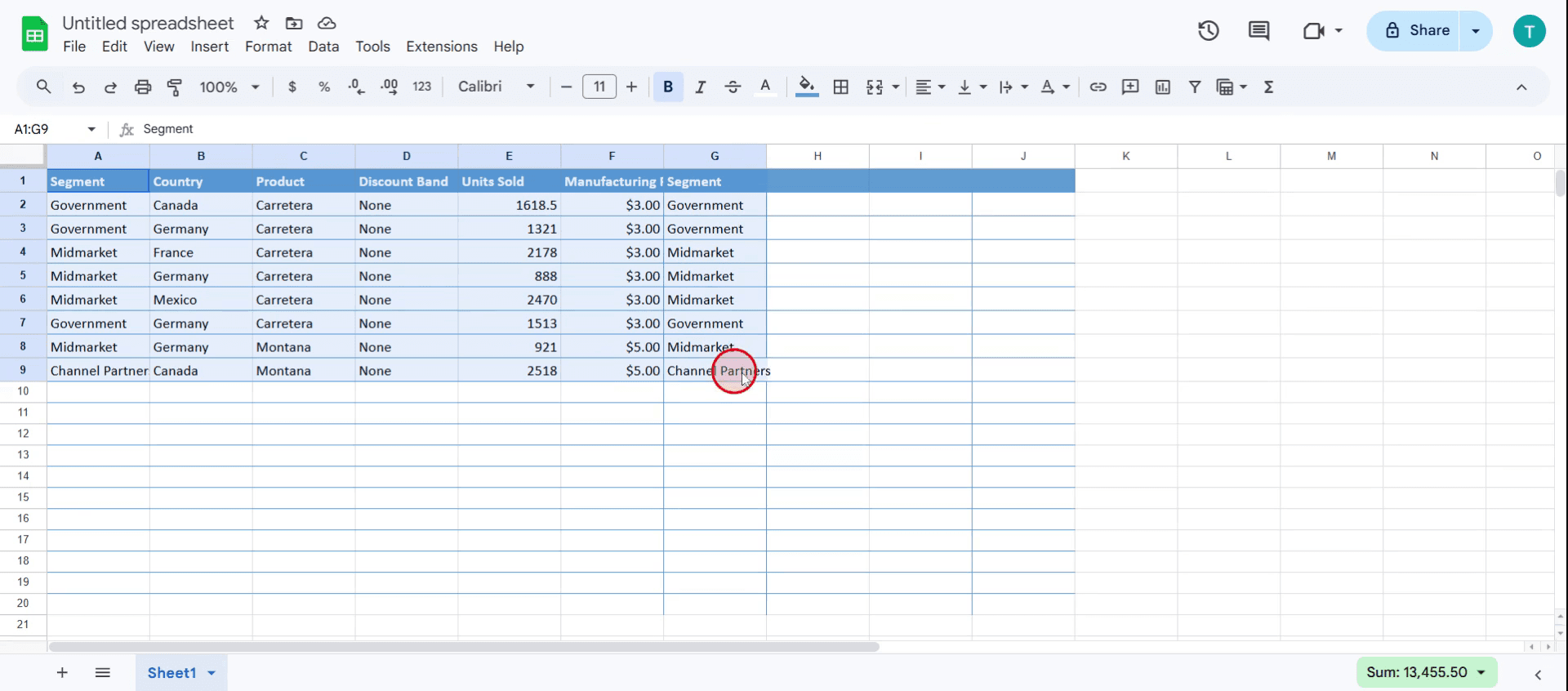
Step 2
Click on the Data in the menu.
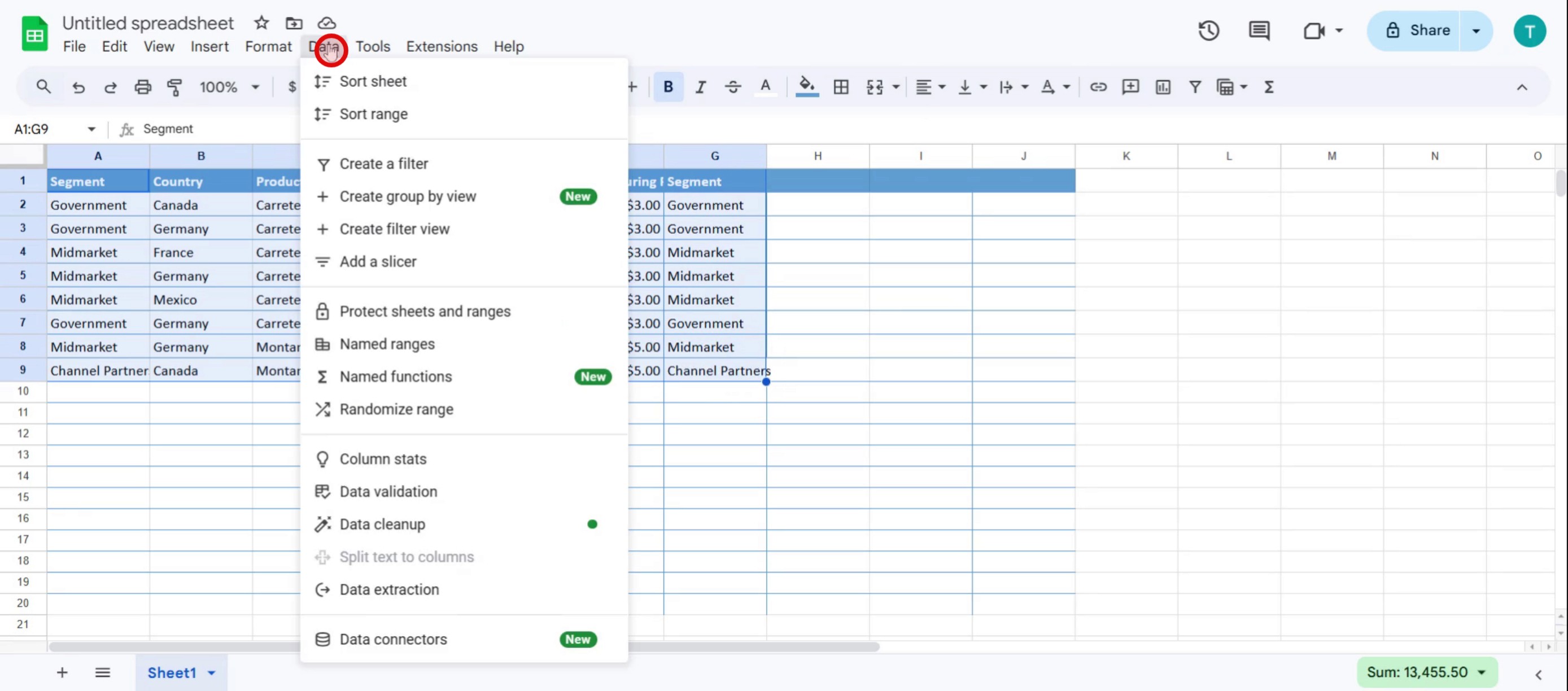
Step 3
Select the Protect Sheets and Ranges,

Step 4
You can see the protected range from cell A1 to cell G9.
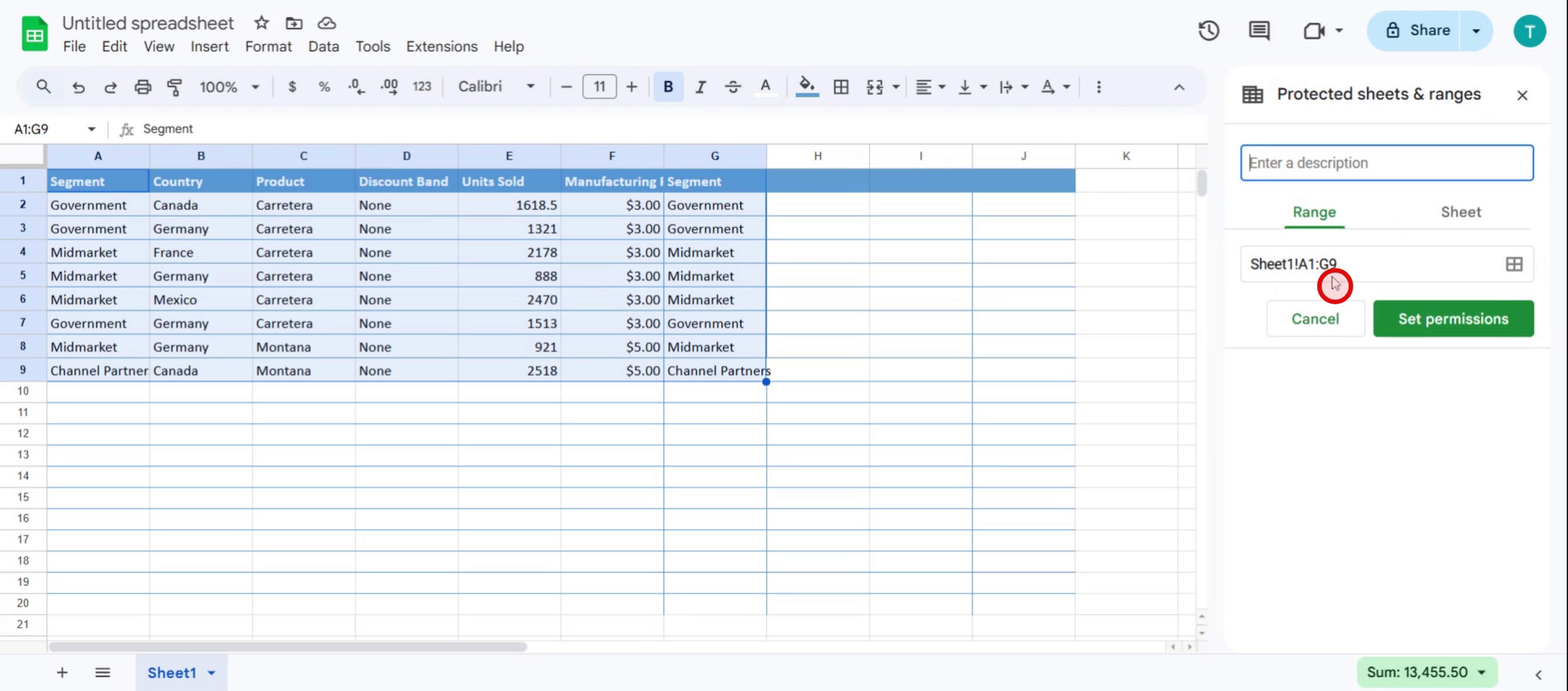
Step 5
Enter a description for the protection

Step 6
Click on the Set Permissions option.
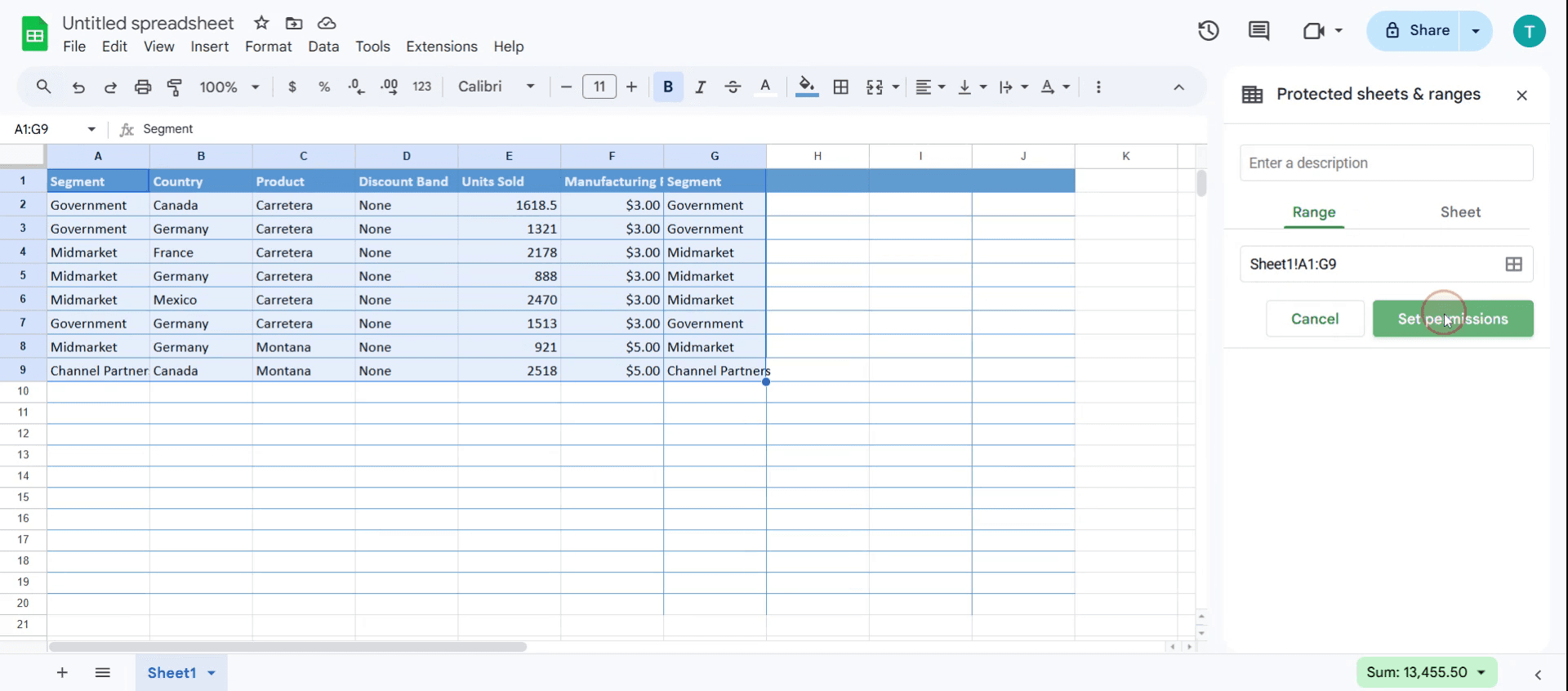
Step 7
Choose Restrict who can edit this range.
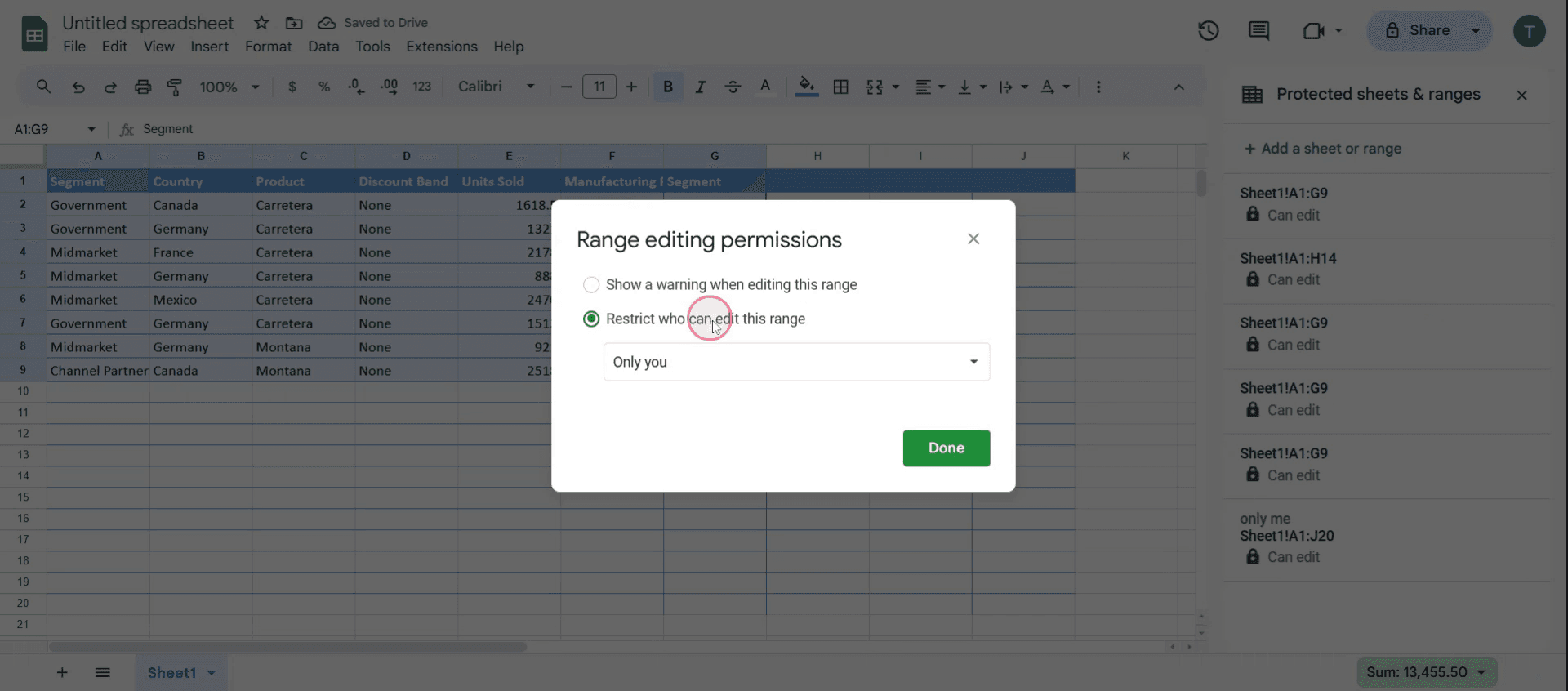
Step 8
And click on only you.
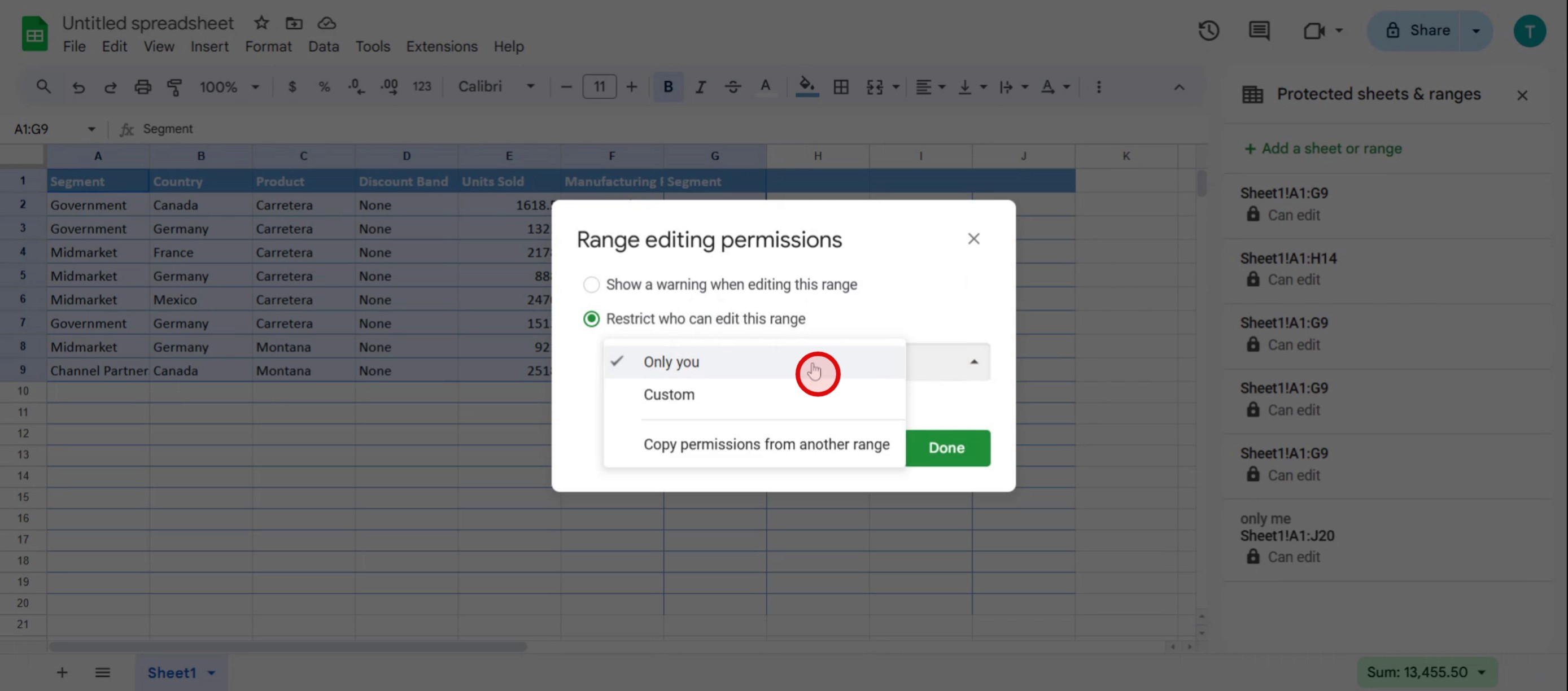
Полезные советы по защите Google-таблицы паролем
Используйте Google Apps Script для защиты — Google Sheets не предлагает встроенную защиту паролем, но вы можете использовать Google Apps Script, чтобы ограничить доступ и потребовать пароль для просмотра/редактирования таблицы.
Ограничьте права на редактирование — Вместо пароля ограничьте доступ, изменив настройки общего доступа в Google Sheets. Установите права «Просмотр», «Комментатор» или «Редактор», чтобы контролировать, кто может вносить изменения.
Используйте сторонние дополнения — Расширения вроде Sheet Protection или Encryptor помогут добавить защиту паролем для конфиденциальных данных. Проверьте Google Workspace Marketplace на наличие надежных инструментов.
Частые ошибки & как их избежать
Google Sheets не предлагает прямую защиту паролем — В отличие от Excel, Google Sheets не поддерживает файлы с защитой паролем. Используйте элементы управления правами или скрипты.
Неправильно настроенные параметры общего доступа — Если лист предоставлен всем, у кого есть ссылка, он не будет защищен. Убедитесь, что доступ ограничен только доверенными пользователями.
Скрипты можно обойти — Если вы используете Google Apps Script для добавления защиты паролем, пользователи, которые знают, как работают скрипты, могут отключить ее. Используйте права Google Workspace для более надежной защиты.
Common FAQs for Password Protecting a Google Sheet
How do i restrict access to a Google Sheet?
Click Share, enter specific email addresses, and set access levels to Viewer, Commenter, or Editor. To prevent unauthorized access, disable link sharing.Can i lock specific cells in Google Sheets?
Yes. Select the cells, go to Data > Protect Sheets and Ranges, and set restrictions. Only authorized users will be able to edit the protected range.What’s the best way to secure sensitive data in Google Sheets?
Use protected ranges, sharing permissions, encryption tools, or Google Apps Script to control access and protect your data.How to screen record on mac?
To screen record on a Mac, you can use Trupeer AI. It allows you to capture the entire screen and provides AI capabilities such as adding AI avatars, add voiceover, add zoom in and out in the video. With trupeer’s AI video translation feature, you can translate the video into 30+ languages.How to add an AI avatar to screen recording?
To add an AI avatar to a screen recording, you'll need to use an AI screen recording tool. Trupeer AI is an AI screen recording tool, which helps you create videos with multiple avatars, also helps you in creating your own avatar for the video.How to screen record on windows?
To screen record on Windows, you can use the built-in Game Bar (Windows + G) or advanced AI tool like Trupeer AI for more advanced features such as AI avatars, voiceover, translation etc.How to add voiceover to video?
To add voiceover to videos, download trupeer ai chrome extension. Once signed up, upload your video with voice, choose the desired voiceover from trupeer and export your edited video.How do I Zoom in on a screen recording?
To zoom in during a screen recording, use the zoom effects in Trupeer AI which allows you to zoom in and out at specific moments, enhancing the visual impact of your video content.
People also ask
Technical Documentation Generator
How to Add Rupee Symbol in Google Sheets
How to Change Currency Format in Google Sheets
How to Add Bullet Points in Google Sheets
Похожие руководства



