Trupeer Blog
Summarise

Imagine you're in charge of creating documentation for a new software roll-out. Every detail needs to be clear, concise, and comprehensive. But manually crafting documentation is time-consuming, prone to error, and often outdated before it's published. This is where AI-powered tools come into play.
Research shows that teams using AI for documentation save up to 50% of time spent on manual writing while boosting accuracy by 30%.
The stakes are high. Efficient documentation can be a big shift for training, onboarding, and compliance. It can also significantly reduce support requests by equipping users with the right information at the right time. By using screen recordings as a foundation, AI can now transform these into structured, editable documentation with minimal effort. This blog is for technical writers, product managers, and team leads who need to produce high-quality documentation quickly without sacrificing accuracy. We'll explore the best screen recording software and how to use AI to turn recordings into powerful documentation.
Why does auto-generating documentation from a screen recording matter?
In many organizations, the documentation process is a bottleneck. Teams spend countless hours writing, reviewing, and updating manuals and guides. This not only delays product launches but also drains resources. Poor documentation can lead to costly errors and increased training times. For example, if a user misunderstands a feature due to poorly written instructions, it could result in lost sales or customer dissatisfaction. By using AI to generate documentation from screen recordings, businesses can overcome these challenges. With an AI adoption workflow, you eliminate the need for manual writing, which cuts down the time and effort required significantly.
Also, capturing information directly from screen recordings ensures accuracy. Every click and action is documented precisely as it happens. This is particularly important for industries with stringent compliance requirements, where even minor discrepancies can lead to audits or fines. When documentation is generated automatically from a screen recording, it's inherently tied to the visual and auditory context of the task. This integration reduces misunderstandings and ensures that the documentation remains aligned with the software's current state, even as updates occur. As a result, organizations can maintain high standards of accuracy and consistency in their documentation.
What are the benefits of AI documentation generation?
Switching to AI-driven documentation from screen recordings offers several tangible benefits that enhance productivity and accuracy.
Time Efficiency. AI automates the documentation process, reducing the time spent on manual writing by up to 50%. This allows teams to focus on higher-value activities.
Accuracy and Consistency. By capturing every detail directly from screen recordings, AI ensures that documentation is consistent with actual software behavior, reducing errors.
Cost Savings. Automating documentation reduces the need for extensive human resources, cutting costs associated with manual documentation by a significant margin.
Scalability. An AI-powered video tool can handle large volumes of documentation without additional overhead, making it ideal for growing businesses.
Improved User Experience. Accurate and up-to-date documentation enhances user satisfaction by providing reliable guidance, reducing support inquiries by up to 40%.
Easy Updates. AI documentation systems can automatically update content to reflect software changes, ensuring users always have the latest information.
Teams ship this workflow end-to-end using Trupeer's AI video platform, which turns raw recordings into polished output without an editor.
Which Trupeer features help you auto-generate documentation from screen recordings?
Trupeer offers a suite of features that make it easy to convert screen recordings into comprehensive documentation effortlessly.
AI screen recording with auto-zoom and click detection
This feature allows you to capture every action on your screen with precision. The best screen recording tool not only records the screen but also automatically zooms into areas of interest and detects clicks. This ensures that every important detail is highlighted and captured accurately. By doing so, Trupeer creates a comprehensive visual record that serves as a reliable source for generating documentation. The auto-zoom and click detection capabilities eliminate the need for post-processing, making the transition from recording to documentation smooth.
Automatic SOP generation from any recording
Trupeer's ability to automatically generate Standard Operating Procedures (SOPs) from screen recordings is a big shift. Once a recording is complete, the AI analyzes the content and creates an edit-ready SOP that can be exported in multiple formats such as MP4, HTML, and PDF. This AI documentation platform ensures that the documentation is not only accurate but also easy to update as processes change. This feature is particularly beneficial for teams that need to maintain up-to-date SOPs without dedicating significant time to manual updates.
AI voiceover in 65+ natural voices
Adding narration to screen recordings can enhance comprehension and engagement. Trupeer offers AI voiceovers in over 65+ natural voices, which can be adjusted for pace and tone. This feature is invaluable for creating tutorials and training materials that need to be both informative and engaging. With the ability to clone voices from a short sample, Trupeer ensures that your brand's voice remains consistent across all materials. This capability not only saves time in producing voiceovers but also ensures that the audio complements the visual content smoothly.
Auto-updating documentation tied to the underlying recording
One of the standout features of Trupeer is its ability to keep documentation synchronized with the latest recordings. This means that whenever you update a screen recording, the associated documentation is automatically updated to reflect those changes. This video knowledge base feature is crucial for organizations that frequently update their software or processes. It ensures that users always have access to the most current information without needing to manually revise documentation, so reducing the risk of outdated information circulating within the organization.
AI-searchable knowledge base
Trupeer enables the creation of an AI-searchable knowledge base, making it easy for users to find specific information within your documentation. By indexing every recording with timestamp-level deep links, users can quickly access the exact moment in a video or text where a specific action or instruction occurs. This best screen recording tool ensures that users spend less time searching and more time understanding the content. The searchable knowledge base is particularly beneficial for large organizations with extensive documentation, as it simplifies the process of finding and retrieving information.
How do you auto-generate documentation from a screen recording step by step with Trupeer?
Step 1: Record Your Screen
Begin by launching the Trupeer screen recorder. You can choose between the browser-based recorder, which requires no installation, or the desktop app for enhanced functionality. Once launched, select the specific area of the screen you want to capture. Trupeer's AI screen recording with auto-zoom and click detection will automatically highlight important actions, ensuring that every critical detail is captured. The recording process is silent, so you won't need to worry about background noise. This step typically takes as long as your process requires, but setup and interface navigation are quick, thanks to Trupeer's user-friendly design. Teams weighing tools often start with a Loom alternatives comparison before standardizing on a workflow.

Step 2: Edit and Enhance the Recording
After capturing your screen, move on to editing. Trupeer automatically removes filler words like "um" and "ah," and trims long pauses to simplify the video. You can also use AI voiceover in 65+ natural voices, adjusting pace and tone to match your brand's voice. If you require a personalized touch, AI voice cloning from a short sample is available. These enhancements ensure your recording is not only informative but also engaging. Editing is typically completed in a few minutes, depending on the length of the recording.
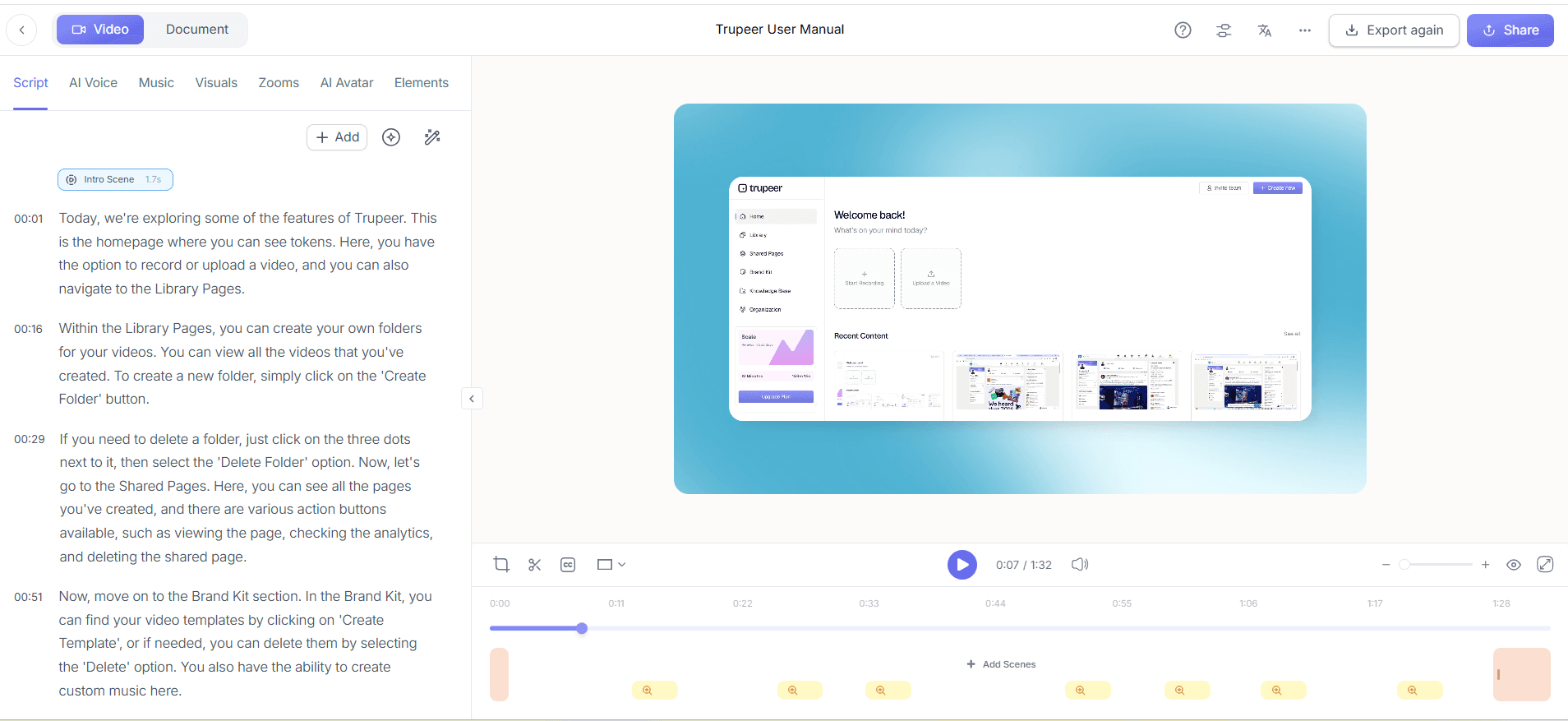
Step 3: Generate Documentation
With your enhanced recording ready, use Trupeer's automatic SOP generation feature. The AI analyzes the video and creates a structured, edit-ready document. You can export this documentation in multiple formats, including HTML and PDF. This process is swift, often taking less than a minute, and results in a draft that's ready for any necessary customizations. If your recording includes complex processes, you may need to review and adjust the documentation to ensure clarity.
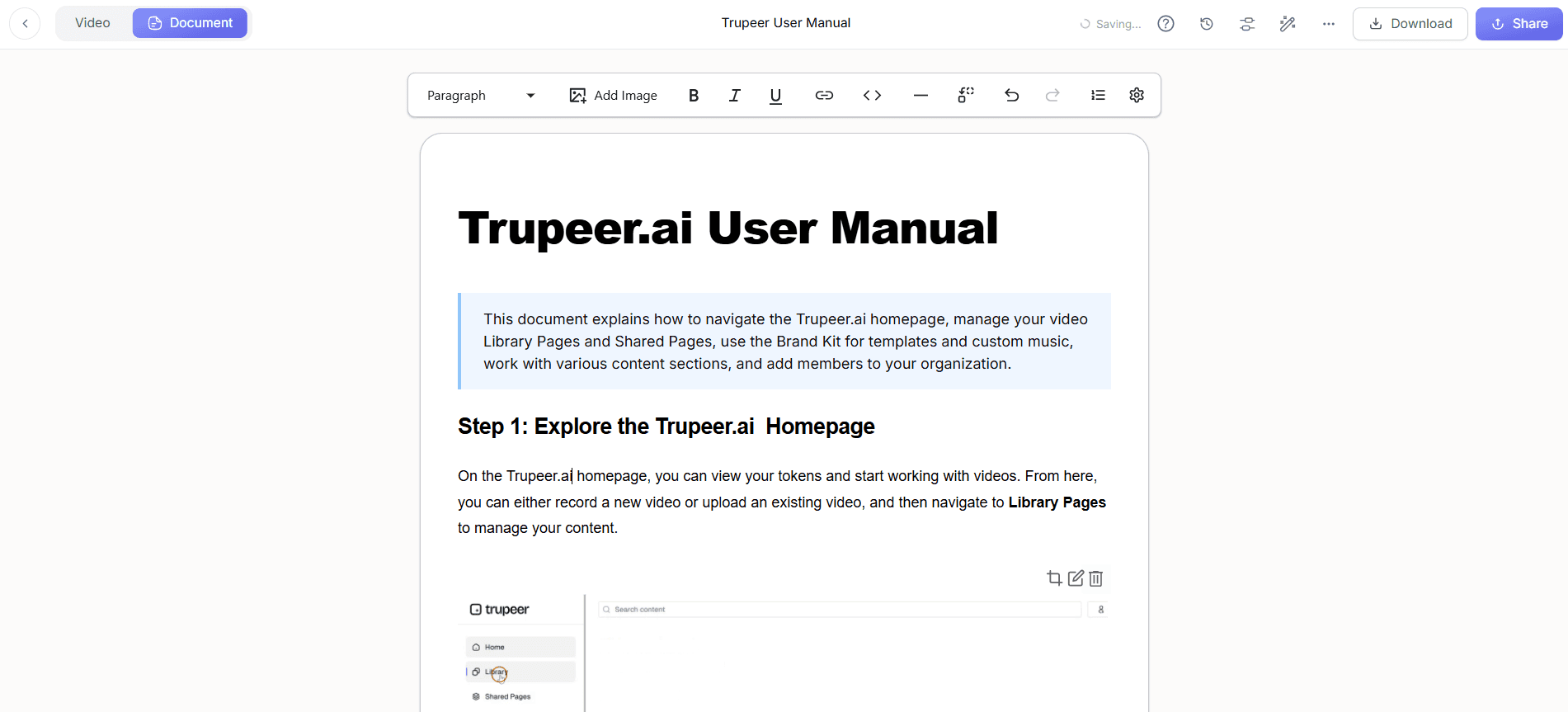
Step 4: Update and Sync Documentation
One of Trupeer's powerful features is auto-updating documentation. If you make changes to your process or update your screen recording, the documentation linked to that recording is automatically updated. This ensures your guides are always current without manual intervention. This feature is particularly useful in dynamic environments where processes frequently change. Simply update your recording, and Trupeer handles the rest, saving you time and ensuring consistency.
Step 5: Distribute Through a Knowledge Base
Once your documentation is ready, distribute it via Trupeer's AI-searchable knowledge base. This platform indexes every recording with timestamp-level deep links, making it easy for users to find specific information quickly. The knowledge base can be customized with your branding and hosted on a custom domain with SSO for smooth access control. This step ensures that your documentation is not only accessible but also easy to navigate, which enhances user satisfaction and reduces support requests.
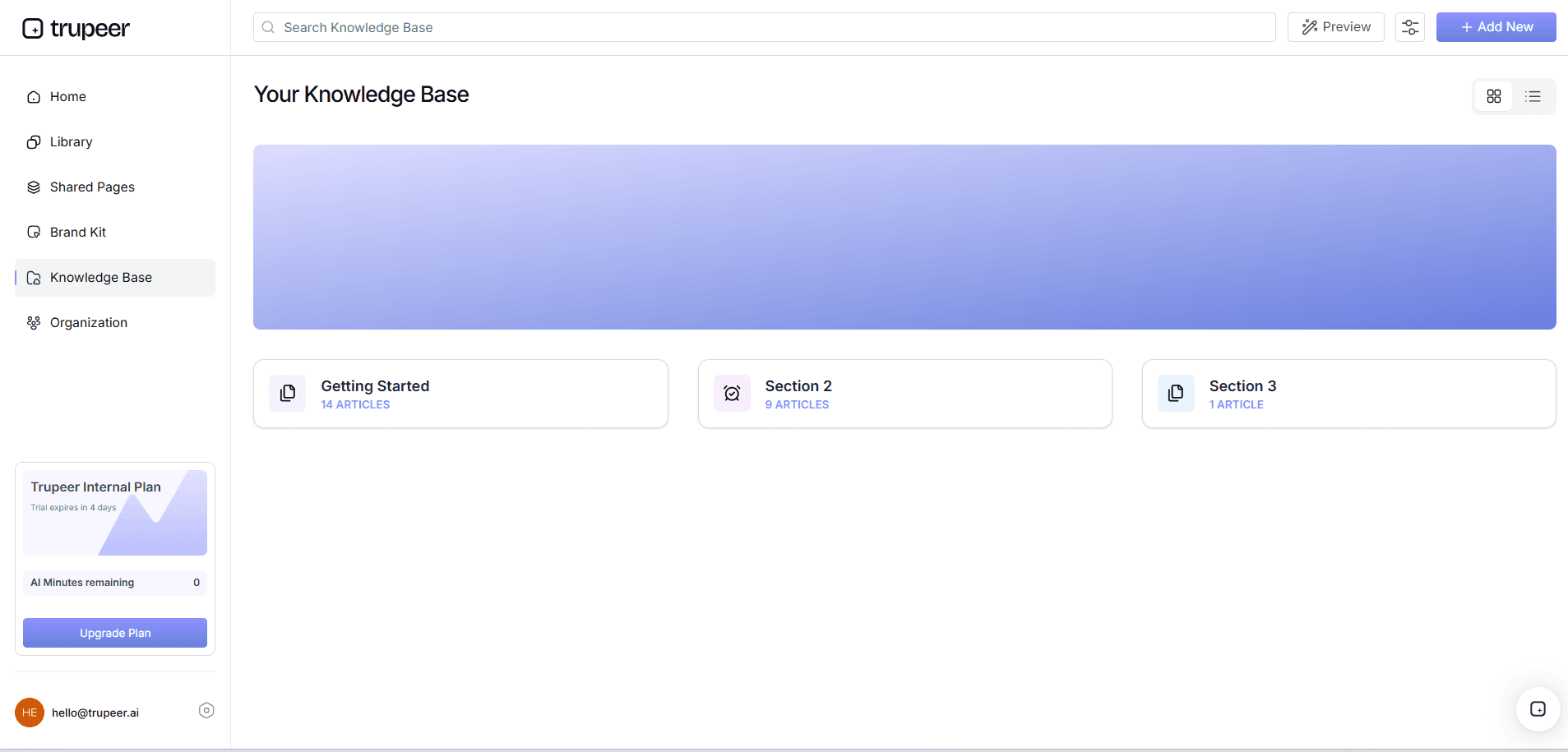
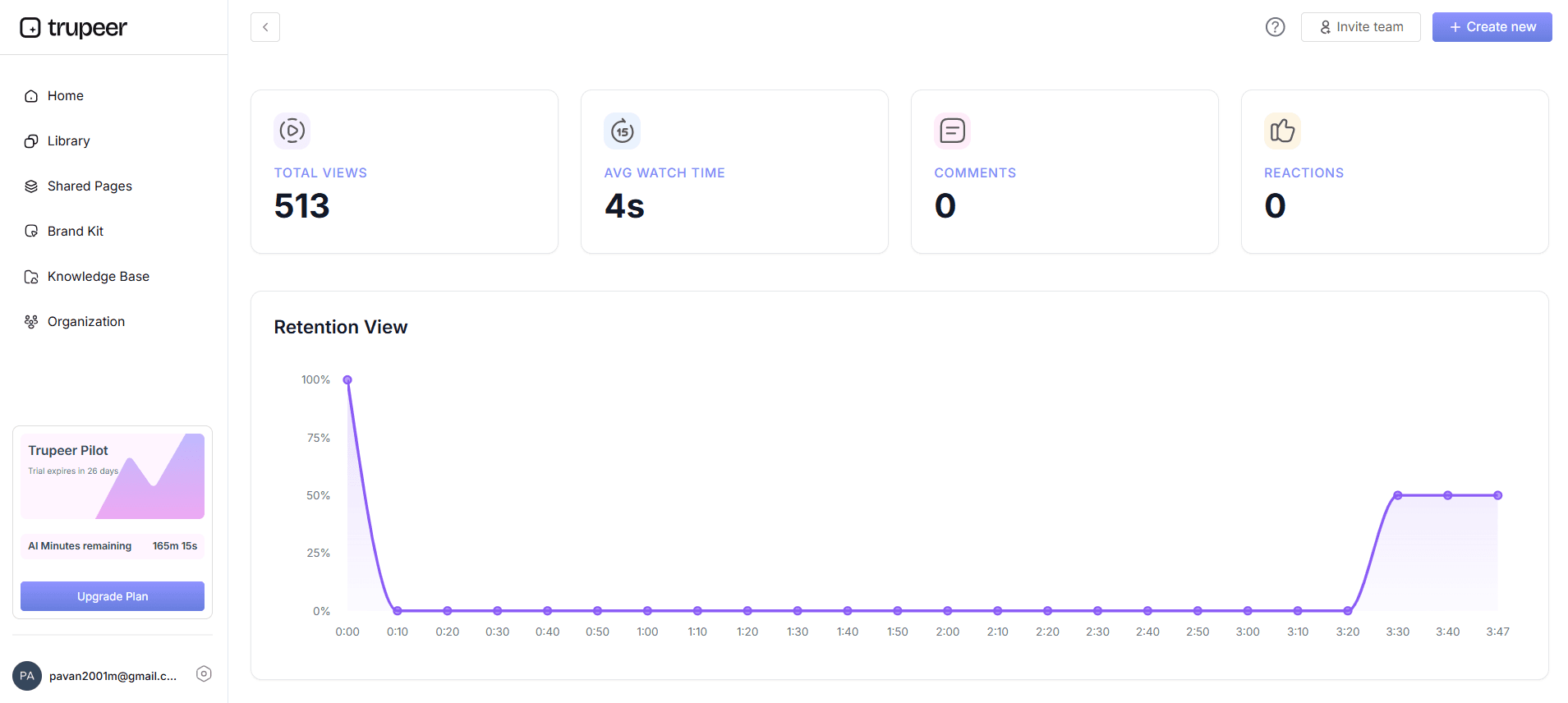
Step 6: Measure Engagement
After distribution, use Trupeer's viewer engagement analytics to track how users interact with your documentation. You'll gain insights into drop-off points and heatmaps, which can guide future improvements. Collaborative review and approval workflows allow teams to refine content based on user feedback, ensuring that the documentation continually meets the needs of its audience. This analytical step usually takes place over a few weeks as user data accumulates, providing a comprehensive view of engagement.
What tips help you auto-generate documentation from screen recordings?
Creating effective documentation from screen recordings requires strategic planning and execution. Here are some tips to optimize this process using Trupeer.
Plan Your Recording. Outline the steps you need to capture before starting to ensure a smooth recording session.
Use AI Enhancements. use Trupeer's AI voiceover and editing capabilities to produce polished, professional content without additional effort.
Standardize Formats. Maintain consistency by using Trupeer's brand kits and templates, which ensure a cohesive look across all documentation.
Regularly Update Content. Use Trupeer's auto-updating documentation feature to keep your materials current, reflecting any process changes instantly.
Engage with Analytics. Review engagement analytics to understand how users interact with your documentation and identify areas for improvement.
use Knowledge Base. Incorporate your documentation into an AI-searchable knowledge base for easy access and improved user experience.
Compare Tools. Consider reviewing Scribe alternatives for SOPs to ensure you're using the best tools for your needs.
Frequently asked questions
How does Trupeer's AI screen recording work?
Trupeer's AI screen recording captures your screen activity with precision. It automatically detects clicks and uses auto-zoom to highlight important areas of action. This feature ensures that every critical detail is captured without manual intervention. Users simply select the screen area to record, and Trupeer handles the rest, allowing for a smooth and efficient recording experience. The AI technology behind this feature analyzes the screen activity in real-time, making adjustments as necessary to ensure clarity and focus on key elements.
What formats can I export my documentation in?
Trupeer allows you to export your documentation in various formats, including MP4, HTML, PDF, and SCORM. This flexibility ensures that you can meet different organizational needs and integrate with existing systems. Exporting is straightforward and quick, taking less than a minute in most cases. Each format serves a unique purpose: MP4 for video tutorials, HTML for web-based access, PDF for easy printing and distribution, and SCORM for e-learning platforms. This range of options supports diverse documentation strategies, accommodating various user preferences and technological environments.
Does Trupeer offer voice customization options?
Yes, Trupeer provides extensive voice customization options. You can choose from over 65+ natural voices, adjust the pace and tone, and even clone voices from a short sample. This flexibility allows you to maintain brand consistency and produce engaging, personalized content. The AI voiceover feature is particularly useful for creating tutorials and training materials that need to resonate with diverse audiences. Voice cloning ensures that the audio matches your brand's identity, providing a smooth and cohesive user experience across all documentation.
Can I use Trupeer for multilingual documentation?
Absolutely, Trupeer supports AI translation into over 40 languages, making it ideal for creating multilingual documentation. This feature includes lip-sync capabilities for videos, ensuring that translations match the original content's timing and flow. By using AI video translation, you can reach global audiences without additional localization costs. The translation process is quick, often completed in minutes, and maintains the integrity of the original message across different languages, enhancing your organization's ability to communicate effectively with international users.
What are the benefits of using an AI-searchable knowledge base?
An AI-searchable knowledge base offers several benefits, including ease of access to information and improved user experience. It indexes every recording with timestamp-level deep links, allowing users to find the exact moment in a video or document where specific information is covered. This feature reduces the time spent searching for information and enhances learning efficiency. By integrating this capability, organizations can significantly reduce support requests, as users can self-serve more effectively. The AI-driven search functionality ensures that relevant information is surfaced quickly, supporting faster decision-making and problem-solving.
Can you turn an existing screen recording into documentation automatically?
Yes, you don't need to re-record anything. Trupeer AI takes an existing screen recording and auto-generates step-by-step documentation from it, pulling the right frames and writing the instructions for you, so recordings you already have become finished guides.
What should you capture automatically versus manually in a workflow?
Capture clicks, screens, and narration automatically, and add context and warnings manually. Trupeer's MCP integration keeps documentation structured and current so AI has reliable content to act on.
Related Blogs


