Trupeer Blog
Summarise

Imagine you've just rolled out a new software update. Your team has put together a comprehensive video tutorial to guide your customers through new features. But some clients request PDF documentation instead. They need a format they can print, annotate, and reference offline. This scenario isn't uncommon. In fact,
over 60% of businesses report that their customers prefer some form of written documentation over video tutorials
. For teams that regularly update software, manually converting video content to written form can be time-consuming and prone to error. This process demands a simplified solution that maintains accuracy without duplicating effort. When SOPs come into the same conversation, a Scribe alternatives comparison helps clarify the scope.
Creating polished, customer-facing PDF documentation directly from screen recordings without relying on the video itself is a big shift for product teams, support specialists, and technical writers. With Trupeer's capabilities, you can transform screen recordings into structured, branded PDF documents, ensuring your documentation stays consistent and up-to-date with minimal manual intervention. This approach not only saves time but also ensures that your documentation aligns with your brand's visual and stylistic guidelines. Whether you're in software development, customer support, or product management, this method offers a smooth transition from video to text, addressing the needs of diverse client bases.
Why does creating customer-facing PDF documentation from screen recordings matter?
For businesses that frequently update their products or services, having an efficient way to document these changes is crucial. Customers often need detailed, step-by-step instructions to understand new features. While video tutorials are popular, they aren't always the best medium for every audience. Some users prefer written instructions they can quickly scan or refer back to as needed. This preference is particularly strong among corporate clients who need to distribute information across large teams or adhere to specific documentation standards.
Also, during operations workflow, the ability to quickly produce accurate, up-to-date documentation can significantly reduce downtime and improve user satisfaction. Teams involved in operations understand that documentation errors can lead to costly misunderstandings. For example, if a critical software update isn't properly communicated, users might miss out on essential features or, worse, encounter system errors. By converting screen recordings directly into PDFs, businesses can ensure their clients always have access to the most recent and relevant information, helping to maintain smooth operations and enhance customer trust.
What are the benefits of creating PDF documentation from screen recordings?
Transforming screen recordings directly into PDF documentation brings several advantages to businesses looking to enhance their customer support and product documentation processes.
Efficiency and Speed. Automatically generating PDFs from screen recordings cuts down the time spent on manually transcribing and formatting content. This allows teams to focus on more strategic tasks instead of repetitive documentation work.
Consistency Across Formats. Using tools like Trupeer ensures that the style and layout of your documentation remain consistent with your brand guidelines, providing a professional and uniform look across all customer-facing materials.
Improved Accessibility. PDF documentation is easily accessible and can be used offline, ensuring that users without reliable internet access can still benefit from comprehensive guides. This is particularly important for global companies with diverse customer bases.
Cost Reduction. Automating the documentation process reduces the need for extensive manual labor, so decreasing operational costs associated with content creation. This can lead to significant resource savings over time.
Enhanced User Experience. By providing both video and PDF options, companies cater to different learning preferences, ensuring that all users can engage with the content in their preferred format. This flexibility can improve overall customer satisfaction.
simplified Updates. With the ability to best screen recording software, updates to documentation can be handled quickly, ensuring that all materials reflect the latest product changes without delay.
Teams ship this workflow end-to-end using Trupeer's AI video platform, which turns raw recordings into polished output without an editor.
Which Trupeer features help you create customer-facing PDF documentation from screen recordings?
Trupeer offers a suite of features designed to simplify the process of converting screen recordings into detailed, branded PDF documentation. These capabilities make it easier for teams to maintain up-to-date and accurate materials.
Automatic SOP generation from any recording
Trupeer's automatic SOP generation feature transforms any screen recording into an edit-ready document. This capability is crucial for teams needing to convert auto-generated documentation into standardized procedures quickly. The system detects key actions and sequences, compiling them into a coherent document that can be exported as a PDF. This process not only saves time but also ensures that each step is captured accurately, reducing the risk of errors in documentation.
Multi-format export: MP4, HTML, PDF, SCORM
With Trupeer, you can export your documentation in multiple formats, including PDF, ensuring versatility in how you distribute content to different audiences. This flexibility is essential for organizations working with varied clients who might require different formats for their internal systems. By offering multiple export options, Trupeer allows you to cater to a wide range of documentation needs without needing additional tools or manual conversion steps.
Brand kits and branded templates
Maintaining a consistent brand image across all documentation is vital for any business. Trupeer provides brand kits and branded templates that ensure your PDF documents match your company's visual identity. This feature helps in creating professional-looking documentation that aligns with your brand's style, whether you're generating a technical manual or a user guide. The use of branded templates also speeds up the document creation process, as it eliminates the need for repetitive formatting tasks.
AI screen recording with auto-zoom and click detection
Trupeer's AI-powered screen recording feature, which includes auto-zoom and click detection, captures every detail necessary for accurate documentation. This capability ensures that every action taken during a recording session is highlighted and easy to follow in the resulting PDF. By focusing on key interactions, your documentation becomes clearer and more informative, which is particularly beneficial when explaining complex processes or software features.
AI-searchable knowledge base
The integration of an AI-searchable knowledge base allows teams to efficiently manage and retrieve documentation. Trupeer indexes all your recordings and associated documents, making it easy to search for specific content. This feature is invaluable when updating documentation, as it ensures that all related materials are easy to access and modify, simplifying the process of keeping your documentation current and relevant.
How do you create customer-facing PDF documentation from screen recordings step by step with Trupeer?
Step 1: Record Your Screen
Begin by using Trupeer's AI screen recording with auto-zoom and click detection. This feature captures every essential detail of your process, ensuring no important action is missed. Open the Trupeer app, either the browser-based version or the desktop app, and select the "Start Recording" option. The AI tools will automatically focus on key interactions, zooming in on clicks and actions, which are crucial for producing clear documentation. This recording process typically takes just as long as your demonstration, with added efficiency from real-time AI enhancements.

Step 2: Generate Automatic SOP
After completing the recording, use Trupeer's automatic SOP generation feature. Click on the "Generate SOP" button, and Trupeer will convert the captured video into an edit-ready document. This process involves the AI analyzing the recording to identify key steps and actions, which are then formatted into a structured document. This usually takes a few minutes, depending on the length of the recording. The resulting SOP draft is immediately available for review and edits.
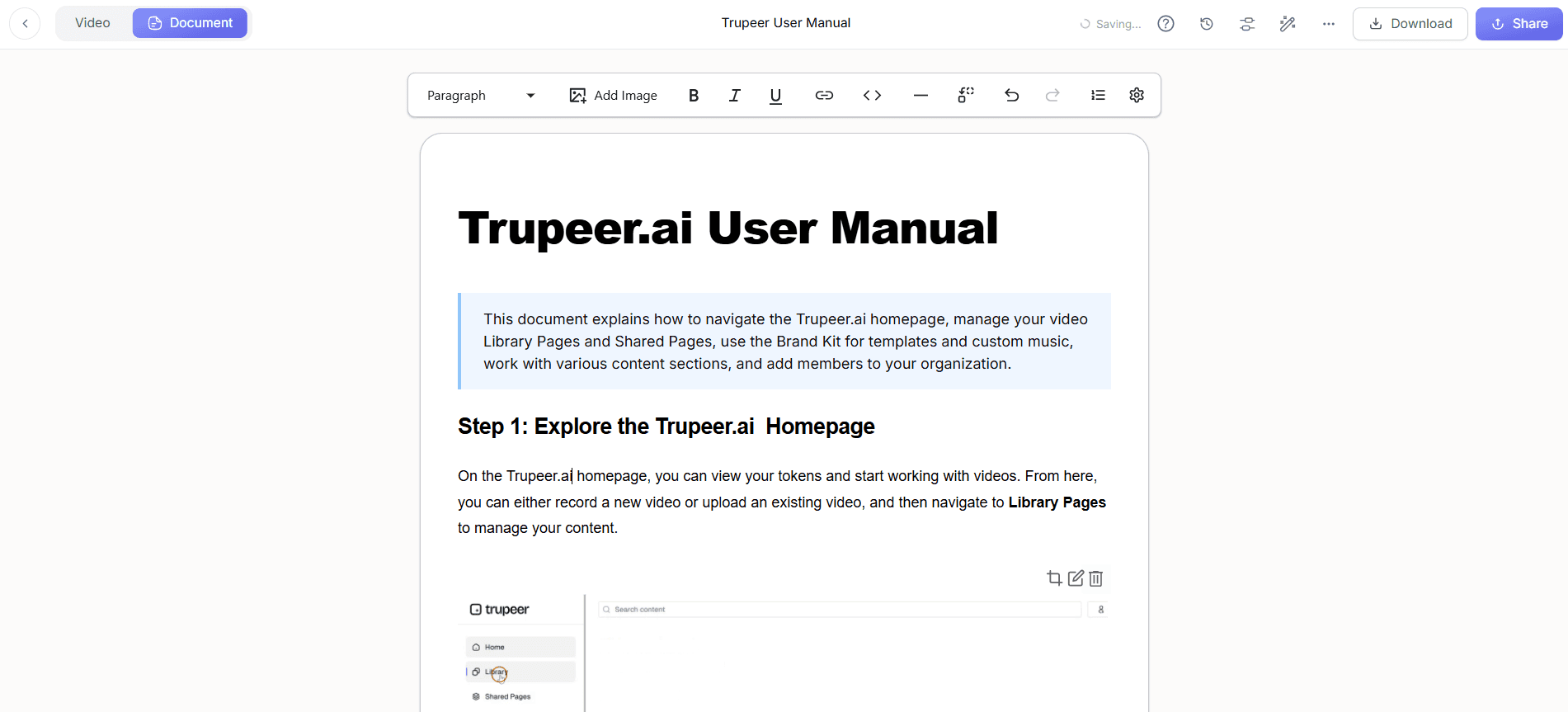
Step 3: Edit and Customize Documentation
Next, refine your SOP by using Trupeer's editing tools. Open the draft document and make any necessary adjustments, such as adding clarifications or removing irrelevant steps. Trupeer allows you to insert images, adjust text formatting, and include additional notes. This customization ensures the final document aligns with your specific requirements and brand standards. Expect this step to take around 10-20 minutes, depending on the complexity of the content.
Step 4: Apply Brand Kits and Templates
To maintain consistency, apply your company's brand kits and templates. In Trupeer, navigate to the "Templates" section and select a branded template that matches your company’s style. This feature automatically applies your brand’s colors, fonts, and logos, giving the document a professional appearance. The branding process is quick, often completed in under five minutes, and ensures your documentation looks polished and on-brand.
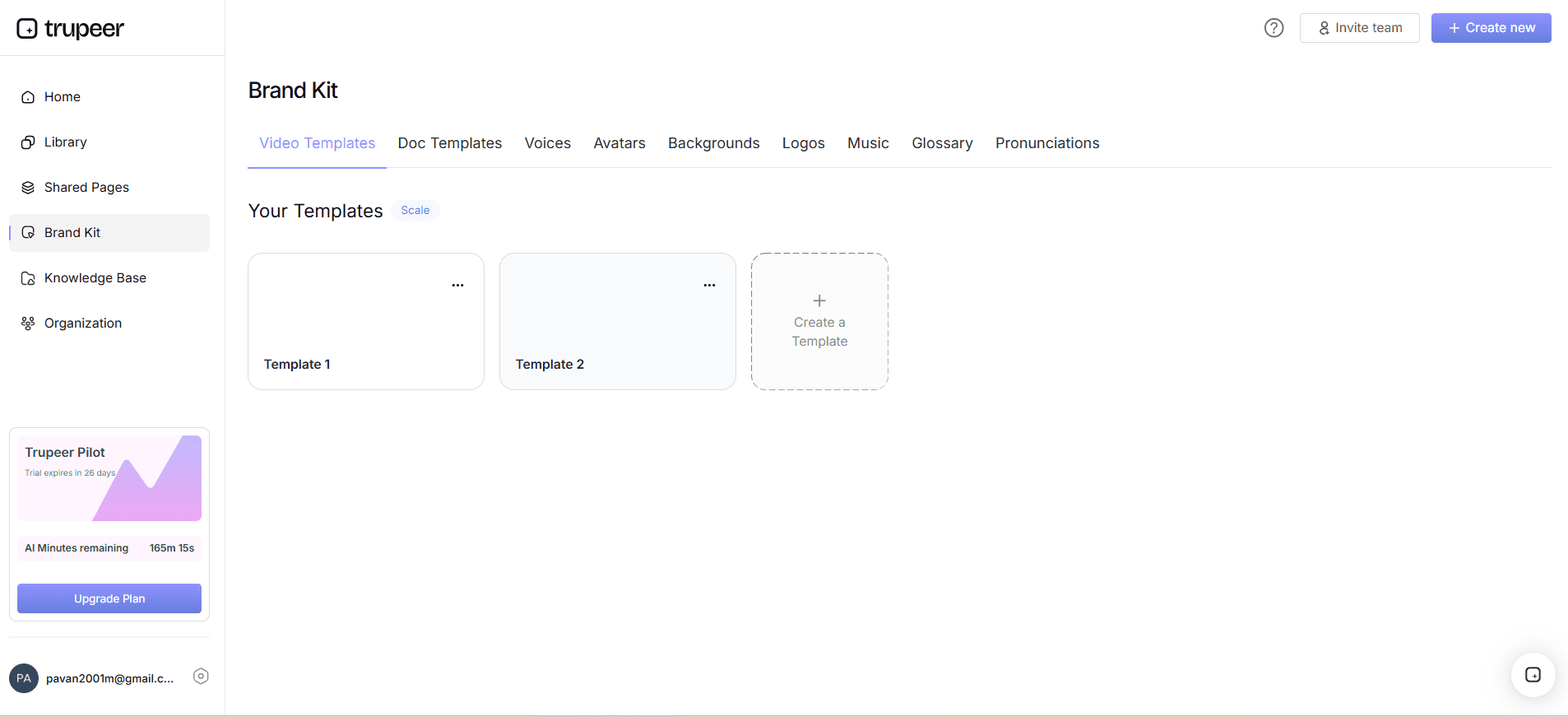
Step 5: Export Documentation to PDF
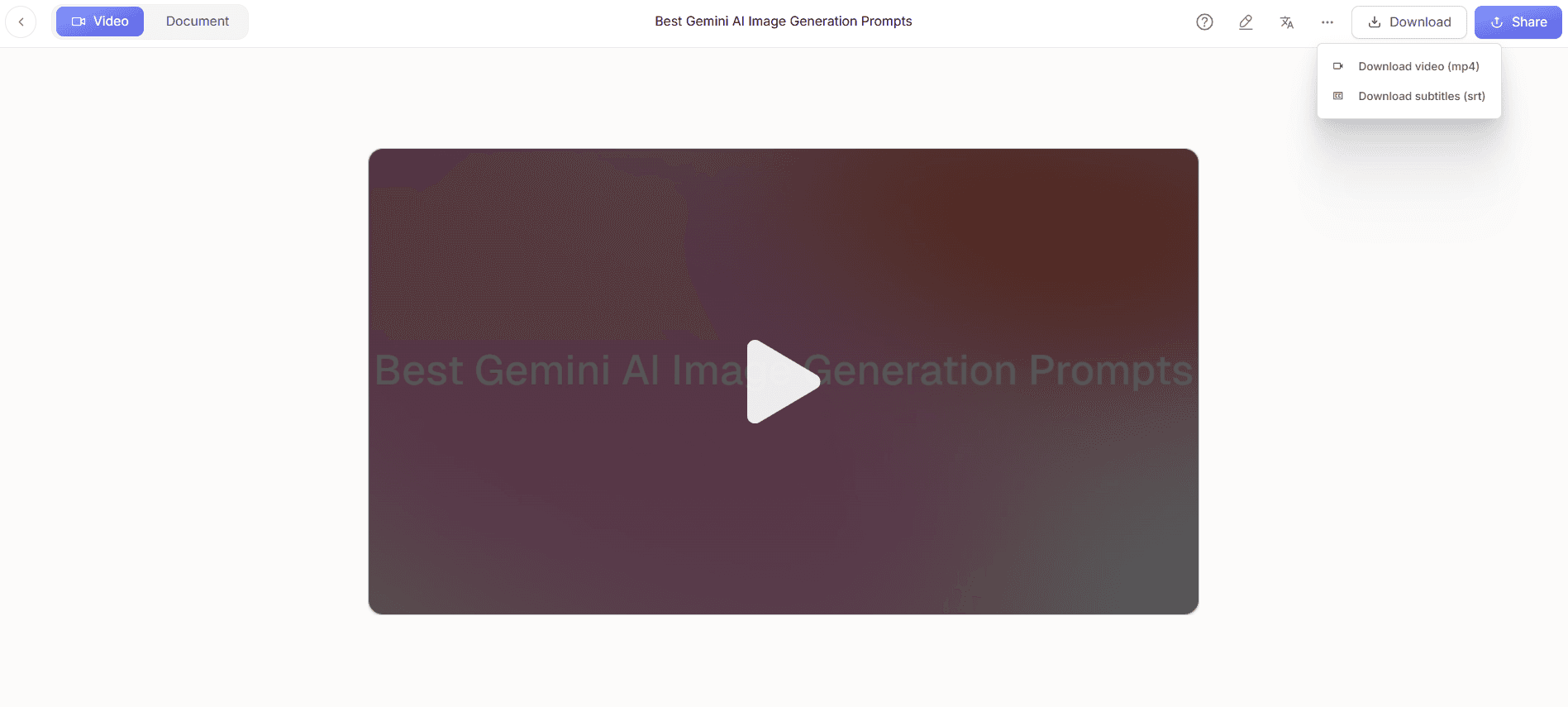
Once satisfied with the edits and branding, export the document to PDF format. Want to go the other way? Here's how to turn a PDF into a video. Go to the "Export" menu in Trupeer and choose the PDF option. This action generates a PDF file that retains all formatting, images, and text structure from the edited document. Exporting takes just a minute and provides a universally accessible file format that can be easily shared with clients and team members.
Step 6: Update and Distribute
Finally, use Trupeer’s auto-updating documentation feature. This ensures that any future changes to the screen recording automatically update the PDF documentation. It’s an excellent way to keep your content current without starting from scratch each time there’s a change. After updating, distribute the PDF through Trupeer’s sharing options, which include links, direct emails, or embedding in portals. This step is crucial for smooth Loom alternative comparison distribution.
What tips help you create customer-facing PDF documentation from screen recordings?
Creating effective PDF documentation from screen recordings involves more than just technical know-how. Here are some practical tips to enhance the quality and usability of your documents.
Plan Your Recording. Before starting, outline the key points you need to cover. This ensures the recording is focused and efficient, and the resulting documentation is comprehensive.
Use High-Quality Audio. If your screen recording includes narration, ensure the audio is clear. Good audio quality translates to better AI transcription and, subsequently, clearer documentation.
use AI Tools. use Trupeer’s capabilities, like AI voiceover and avatars, to enhance the clarity and engagement of your documentation. These tools can make complex instructions more understandable.
Regularly Update Your SOPs. Make sure to revisit and update your documentation regularly to keep it accurate. This is crucial for maintaining trust and usability among users.
Standardize Your Templates. Consistent use of templates ensures your documentation is always on-brand, making it easier for customers to recognize and trust your materials.
Incorporate Visuals. Enhance your PDF with screenshots and diagrams. Visual aids can significantly improve comprehension and make your documentation more engaging.
use Feedback. Gather feedback from users to continuously improve your documentation. Insights from real users can guide enhancements and ensure the material meets their needs.
For a deeper look, our guide on create instructional video covers the adjacent playbook.
For global audiences, adding AI video translation extends the same workflow across 40+ languages with lip-sync.
Frequently asked questions
How do I ensure my PDF documentation stays up-to-date?
Trupeer's auto-updating feature is your solution for keeping documentation current. This feature links your PDF documentation to the original screen recording. Any changes made to the recording will automatically reflect in the PDF. This is particularly useful for software that undergoes frequent updates, as it eliminates the need for manual revisions. Simply update your recording, and the linked documentation will refresh accordingly, ensuring that your users always have access to the latest information.
What file formats can Trupeer export my documentation to?
Trupeer supports multiple export formats to meet diverse needs. You can export your documentation as PDF, HTML, MP4, or SCORM files. This versatility allows you to cater to different audience preferences and technical requirements. For instance, PDF is ideal for print and offline use, while HTML can be integrated into web pages for easy online access. The availability of formats like SCORM also ensures compatibility with learning management systems, broadening the utility of your documentation.
Why should I use screen recordings for creating documentation?
Screen recordings offer a dynamic and detailed way to capture workflows and processes. They provide visual context that written instructions alone might lack. By using screen recordings, you can demonstrate software functionalities, user interfaces, and procedures in real-time, making it easier for users to understand complex information. This method enhances learning and retention, especially when combined with AI tools that convert recordings into written formats, offering the best of both worlds in screen recording for employee training.
Can Trupeer help with translating documentation into other languages?
Yes, Trupeer offers extensive localization features, including translation into over 40 languages. This capability is crucial for businesses operating in multiple regions. The AI technology ensures that translations are accurate and culturally appropriate, facilitating better understanding and engagement from international audiences. Coupled with AI dubbing, you can also create multilingual audio guides, making your documentation accessible to a global audience without losing the nuance of the original content.
Does Trupeer support collaborative documentation efforts?
Trupeer facilitates collaborative workflows with features like viewer engagement analytics and collaborative review processes. These tools allow teams to work together on documentation, ensuring accuracy and comprehensiveness. Team members can leave comments, suggest edits, and approve changes, simplifying the review process. This collaborative approach not only enhances the quality of the documentation but also speeds up the time to publication, ensuring that your documents are ready when your users need them.



