Trupeer Blog
Summarise

Imagine you're tasked with creating a series of training videos for your company's new software rollout. The stakes are high, as these videos will help over 500 employees understand key functionalities. However, not everyone will have access to high-speed internet, making large, high-resolution videos impractical. You need a way to produce clear, engaging content without overwhelming file sizes. That's where AI auto-zoom and click detection come in, transforming your screen recordings into concise, focused tutorials.
Studies show that using AI-enhanced screen recordings can reduce video size by up to 30% while increasing viewer engagement by 25%.
This technology ensures every important click and detail is captured, making your recordings not just watchable, but truly effective. Whether you're an instructional designer or a training manager, incorporating AI auto-zoom and click detection into your workflow can make a significant impact. For a deeper look, our guide on best screen recording software covers the adjacent playbook.
Why does AI auto-zoom and click detection matter?
For businesses, the quality of training materials directly affects employee performance and customer satisfaction. Poorly made screen recordings can lead to misunderstanding, repeated questions, and even costly mistakes. When you're rolling out new software or updating processes, you can't afford these inefficiencies. By integrating AI auto-zoom and click detection, you ensure clarity in every tutorial, reducing the margin for error and improving the overall learning experience.
In environments where employees are working remotely or across various time zones, access to clear and concise training materials is crucial. AI-powered screen recording tools automatically highlight key actions and focus on relevant areas of the screen. This reduces the cognitive load for viewers, allowing them to follow along more easily without unnecessary distractions. Implementing these technologies is not just about maintaining quality, but also about building an environment where learning and understanding are prioritized. This aligns perfectly with the growing need for AI adoption use cases in business settings, where smooth deployment can be a game changer.
What are the benefits of AI auto-zoom and click detection?
AI auto-zoom and click detection offer several distinct advantages that can transform how you produce and consume screen recordings.
Enhanced Focus. By automatically zooming in on the area of the screen where an action occurs, viewers can easily follow along, reducing confusion.
Reduced File Size. With smart zoom, unnecessary screen content is minimized, which can lead to a reduction in video file size by up to 30%, facilitating easier sharing and storage.
Improved Engagement. Engaging visuals keep viewers interested. Screen recordings that adaptively zoom and highlight interactions maintain viewer attention, increasing engagement by 25%.
Consistency Across Tutorials. AI ensures that every recording follows a consistent style, reducing variability and enhancing the professional quality of your training materials. Check out the best screen recording softwares for maintaining consistency.
Time Savings. Automatic zoom and click detection mean less manual editing is needed. This can cut down production time by around 40%, allowing you to produce more content in less time.
Enhanced Clarity. By focusing on relevant screen areas, the clarity of instructional content is improved, which helps learners better understand complex processes. This is especially effective when integrated with an AI video platform that further enhances video clarity.
Which Trupeer features help you improve screen recording quality?
Trupeer offers a suite of features designed to enhance the quality of your screen recordings through AI auto-zoom and click detection, ensuring that every video you create is engaging and informative.
AI screen recording with auto-zoom and click detection
This feature automatically identifies and zooms into areas of activity on your screen during recording. It's particularly useful for tutorials where specific actions need emphasis. The AI intelligently follows the cursor and highlights clicks, ensuring viewers don't miss any essential steps. This technology not only helps in creating more engaging content but also enables viewers to grasp the information quickly. For more precise screen recording, consider Trupeer's best screen recording tool that integrates these capabilities smoothly.
Silent screen recording with automatic AI narration
Trupeer's silent screen recording coupled with AI narration allows you to capture screen activity without background noise. Post-capture, the AI generates a narrative that matches the actions on the screen. This feature is invaluable for creating polished tutorials that are both informative and professional. The automatic narration ensures that the focus remains on the content, without the distractions of ambient noise, providing a cleaner learning experience.
Automatic filler-word removal
This feature enhances the audio quality of your recordings by removing unnecessary filler words like "um" and "ah." It also reduces long pauses, making your videos more concise and to the point. This results in a more professional and engaging viewing experience, which is crucial for maintaining audience attention throughout the video. Trupeer's editing capabilities ensure that your recordings are as effective as possible, allowing for clear and uninterrupted communication.
Auto chapters and segment detection
With automatic chapter creation, Trupeer helps you organize content into logical sections, making it easier for viewers to navigate. This feature is particularly useful for longer tutorials, allowing users to jump to the sections most relevant to them. Auto segment detection saves time in post-production, as the AI automatically marks out key sections, ensuring that your content is structured and easy to follow. This is especially beneficial when creating comprehensive tutorials.
AI-searchable knowledge base
Trupeer's AI-searchable knowledge base indexes every recording with timestamp-level deep links, making it easy for users to find specific information quickly. This feature enhances the utility of your recordings by allowing users to search and jump to the exact point in a video where a topic is covered. It's particularly useful for large organizations where employees need to find information swiftly without watching entire videos.
How do you improve screen recording quality step by step with Trupeer?
Step 1: Launch Trupeer and Choose Your Recording Mode
Begin by launching Trupeer either through the browser-based recorder or the desktop app, depending on your preference. Once the app is open, select the "AI screen recording with auto-zoom and click detection" mode. This mode allows the software to automatically focus on areas of activity, making your recording clear and engaging. After selecting your mode, customize your recording settings, such as screen area and microphone input, before starting the recording. This step usually takes about a minute, ensuring that your setup is optimized for capturing high-quality content.

Step 2: Start Recording and Engage AI Auto-Zoom
To start recording, click the "Record" button. Trupeer will begin capturing your screen activity. The AI auto-zoom will dynamically adjust the focus on areas where you interact with the screen, like mouse clicks and text entries. This ensures that viewers can see the details of your actions without distractions. As you proceed, the auto-zoom feature highlights key interactions automatically. The AI works in real-time, so there's no need to pause or manually adjust the focus during the recording process, allowing you to concentrate on your presentation.
Step 3: Add AI Narration During Post-Capture
Once your recording session is complete, Trupeer offers the option to add AI-generated narration. Navigate to the "Enhancements" menu and select "AI voiceover." Here, you can choose from over 65+ natural voices, adjusting pace and tone to match the content's mood. The AI will analyze the screen activity and generate a narrative that syncs with the visual elements. This process typically takes about 5-10 minutes, depending on the length of your video. If necessary, you can further refine the narration by editing the script directly in Trupeer.

Step 4: Edit and Remove Filler Words
With your narration set, it's time to enhance audio clarity. Go to the "Editing" section and select "Automatic filler-word removal." This feature scans the audio track and automatically eliminates unnecessary fillers like "um" and "ah." It also shortens long pauses, making your video more concise and professional. The editing process is quick, generally taking less than 5 minutes. This step ensures that your instructional video maintains a smooth flow, keeping your audience engaged throughout. Many teams pair this with a documentation platform that generates written guides from the same recording, so the pitch and the how-to stay in sync.
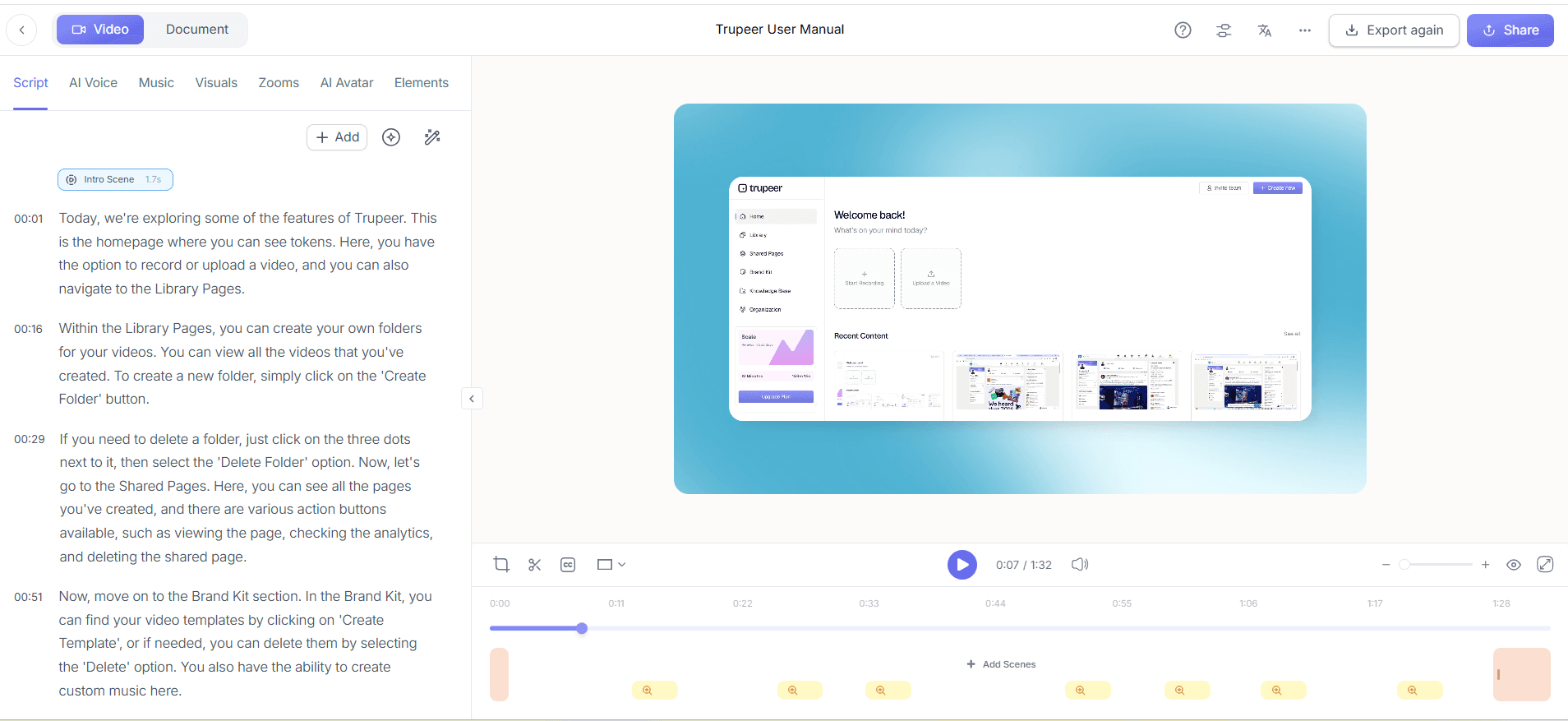
Step 5: Organize Content with Auto Chapters
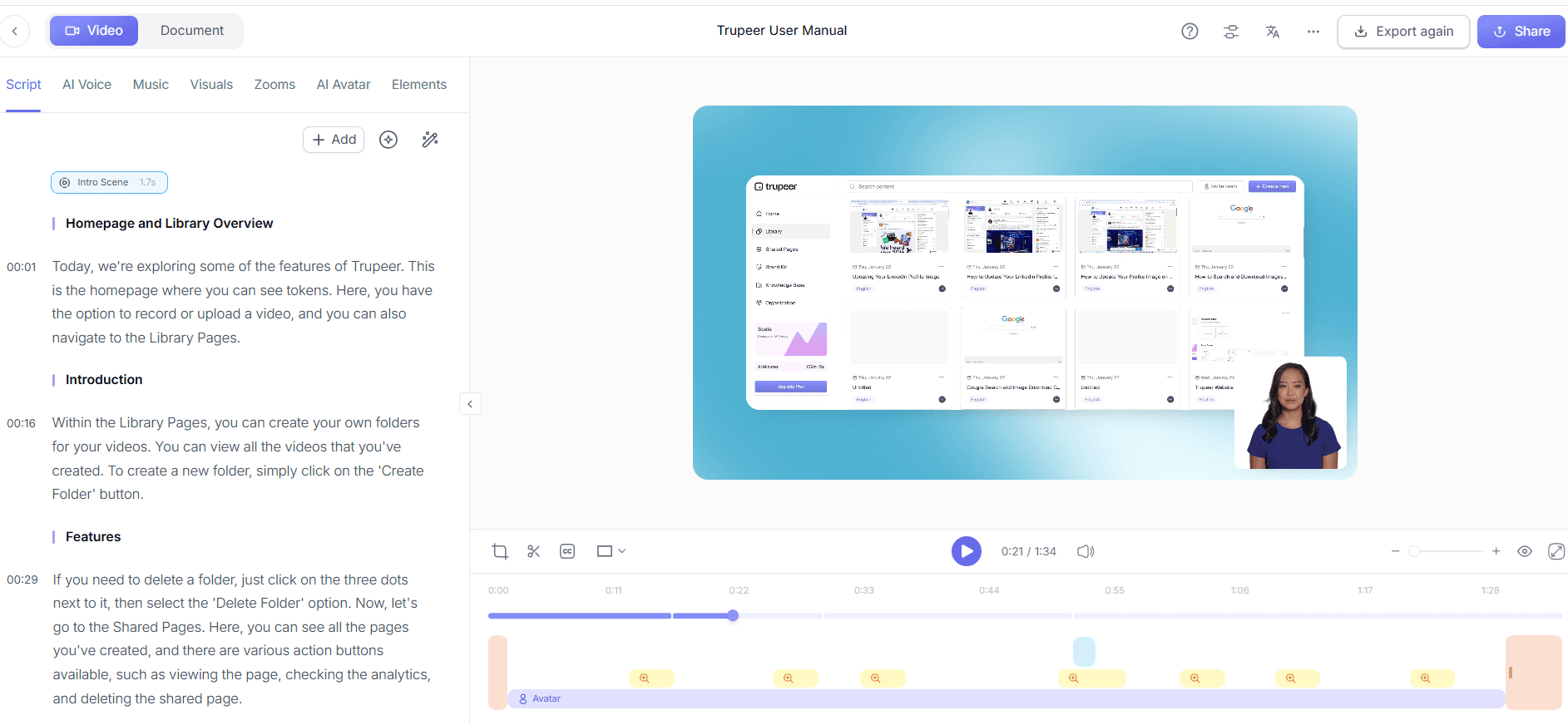
To make your video easier to navigate, use Trupeer's "Auto chapters and segment detection" feature. Enable this option in the "Post-Processing" menu. The AI will automatically segment your recording into logical chapters, based on the content flow and screen interactions. This feature is particularly useful for lengthy tutorials, as it allows viewers to easily jump to the sections they need. The chaptering process is efficient, taking just a few minutes to complete, and significantly enhances the user experience by providing a structured overview of your video.
Step 6: Export and Distribute Your Video
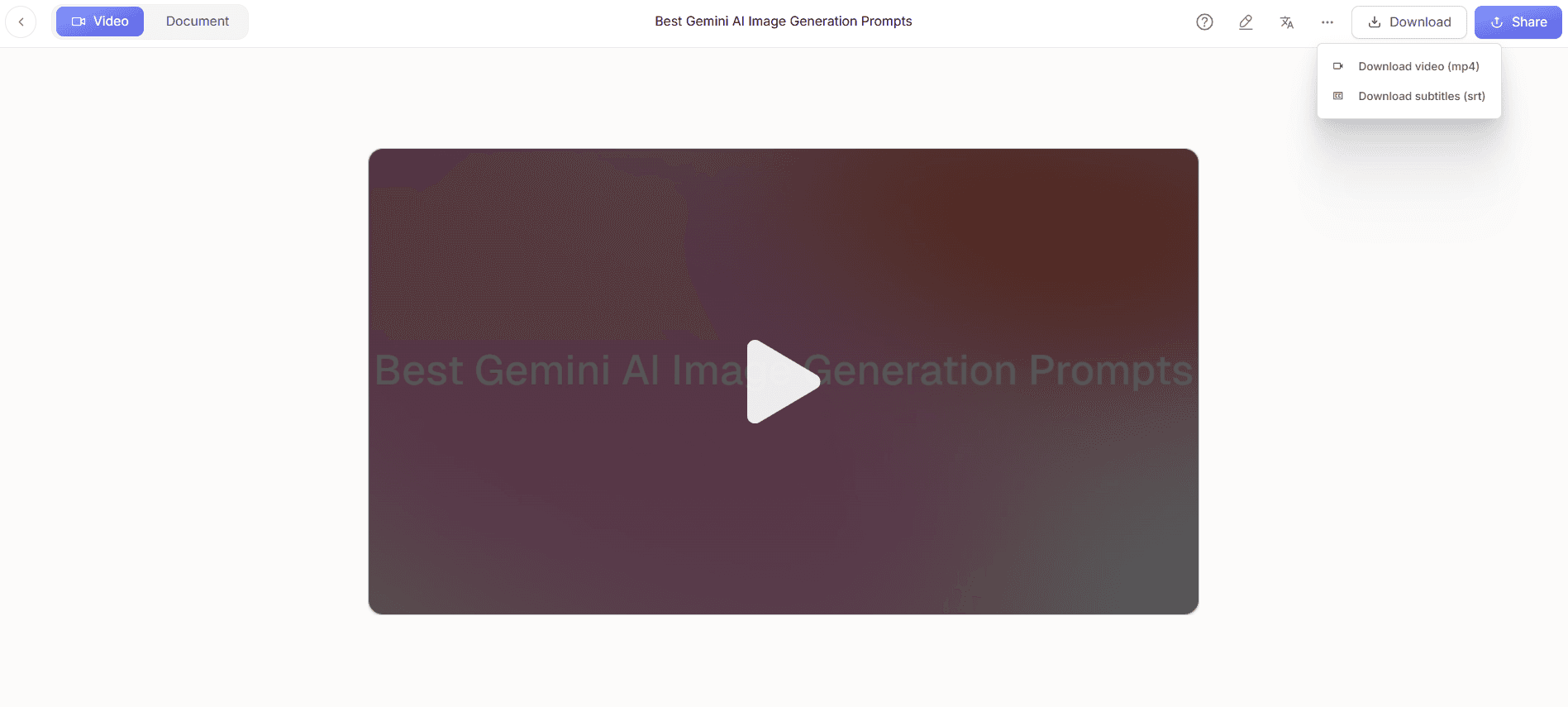
With your screen recording polished and organized, it's time to export. Click on "Export" and select your desired format, such as MP4 or HTML. Trupeer also supports PDF and SCORM exports, catering to diverse distribution needs. The export process is swift, usually taking under 3 minutes. Once exported, you can distribute your video via Trupeer's screen recording for employee training platform, ensuring that your content reaches your intended audience efficiently. This step completes the process, allowing you to share a high-quality, AI-enhanced screen recording.
What tips help you improve screen recording quality?
Improving screen recording quality involves a combination of strategic planning and using the right tools. Here are some practical tips to ensure your recordings are top-notch.
Prepare a Script. Before recording, draft a script to ensure you cover all necessary points without deviation. This reduces filler words and maintains a clear focus.
Optimize Screen Settings. Adjust your screen resolution to match the output format of your video. This ensures that text and graphics appear crisp and clear in the final product.
Minimize Background Noise. Use a good-quality microphone and record in a quiet environment. This will improve the audio quality of your recording.
Use Visual Cues. Incorporate on-screen highlights or annotations to emphasize key points. This aids viewer comprehension and retention.
Test Before Recording. Conduct a quick test recording to ensure that all technical aspects, like sound and video quality, are functioning as expected.
Standardize Capture Style. use a consistent style across all recordings to create a branded experience. This can be achieved by using a Scribe alternative comparison tool for consistent quality.
Review and Revise. After recording, review your video to catch any errors or areas that could be improved. A thorough review can make a big difference in the final quality.
Teams weighing tools often start with a Loom alternatives comparison before standardizing on a workflow.
Frequently asked questions
How does AI auto-zoom work in screen recording?
AI auto-zoom works by dynamically adjusting the focus of the recording to highlight specific areas of activity on the screen. This is achieved through algorithms that track cursor movements and detect significant screen changes, such as mouse clicks or text entries. The result is a recording that naturally emphasizes important actions, making it easier for viewers to follow along. This feature reduces the need for manual zoom adjustments, saving time, and ensuring a consistent focus throughout the video.
Can Trupeer's AI-generated narration be customized?
Yes, Trupeer's AI-generated narration can be customized to fit your specific needs. Users can choose from over 65+ natural voices, each with adjustable pace and tone settings. This allows you to match the narration style to the content's mood and the audience's preferences. also, the generated script can be edited directly within Trupeer, giving you control over the narrative flow and ensuring that the final output aligns with your instructional goals.
What file formats does Trupeer support for exporting videos?
Trupeer supports multiple file formats, including MP4, HTML, PDF, and SCORM, for exporting videos. This versatility ensures that your content can be distributed across various platforms and accessed by different audiences. MP4 is ideal for general video sharing, while HTML is suitable for web-based applications. PDF and SCORM are excellent for educational purposes, allowing integration into learning management systems. Choosing the right format depends on your specific distribution needs and audience preferences.
Does Trupeer offer features for team collaboration?
Yes, Trupeer offers features that facilitate team collaboration, including collaborative review and approval workflows. These tools allow multiple users to review, comment, and approve content before it is finalized, ensuring that all team members are aligned on the quality and message of the videos. This collaborative approach not only improves the quality of the final product but also simplifies the production process, reducing the time and effort needed to produce high-quality instructional content.
Is Trupeer suitable for global audiences and localization?
Absolutely, Trupeer is well-equipped for global audiences, offering features such as AI translation into over 40 languages with lip-sync capabilities. This ensures that your content can be effectively localized, making it accessible to non-English speaking audiences. The AI video translation platform also includes dubbing options, allowing you to create multilingual content without the need for extensive manual editing. These features make Trupeer an excellent choice for organizations looking to reach a diverse, international audience.
Related Blogs


