Trupeer Blog
Summarise

Imagine this: You're tasked with creating a series of instructional videos for your company's latest product release. The pressure is on, as these recordings will serve as the backbone of your training documentation and onboarding materials. Yet, you're not working with a professional studio setup. Instead, it's just your laptop, Zoom, and a quiet corner of your office. How do you ensure the end product is both high-quality and effective? With the right techniques, you can enhance your Zoom recording quality dramatically, even without expensive equipment. Poor audio and video can distort your message, leading to confusion and disengagement among your audience. According to recent data,
over 60% of viewers will stop watching a video if the audio quality is poor.
That's a staggering number, and it underscores the need for precision and clarity in your documentation recordings.
This challenge is crucial for educators, corporate trainers, product managers, and anyone else responsible for creating instructional content. Good recording quality doesn't just enhance comprehension; it boosts engagement and retention, making your materials far more effective. As you navigate the practical constraints of remote work and limited resources, the right tips and tools can make all the difference. For deeper insight into making engaging videos, explore tips making engaging video to enhance your content.
Why does Zoom recording quality matter for documentation?
High-quality Zoom recordings are critical for creating effective documentation, particularly training and onboarding materials. When your team relies on these recordings for learning and reference, any lack in quality can lead to misinterpretation and errors. This is especially critical in fast-paced industries like tech and healthcare where documentation needs to be precise and easily understandable. An instructional video with poor audio quality or blurry visuals can frustrate viewers, leading to disengagement and a lack of confidence in the material presented.
Also, consistent high-quality recordings are essential for maintaining a professional image. Stakeholders, including clients and new employees, judge the professionalism of a company based on the quality of its materials. If your documentation appears amateurish, it can reflect poorly on the company as a whole. In the context of ai adoption use case, precise and clear documentation is a must to ensure that AI tools are understood and correctly implemented by the end users. By investing in quality, you're not just improving immediate comprehension; you're building long-term trust and reliability in your brand's capabilities.
What are the benefits of high-quality Zoom recordings for documentation?
Investing in high-quality Zoom recordings for documentation can transform how effectively your content educates and engages. Here are key benefits that come with a focus on recording quality.
Enhanced Engagement. Clear audio and visuals keep your audience focused and interested, reducing drop-off rates. When viewers don't have to strain to understand, they can fully engage with the content.
Improved Comprehension. High-quality recordings ensure that instructions and information are easily understood, reducing errors in tasks performed based on the documentation. This results in more efficient learning and implementation.
Professional Image. Consistently high-quality recordings convey professionalism and attention to detail, enhancing your company's reputation. This can be especially beneficial when sharing materials with clients or partners.
Time Savings. With clear audio and visuals, you reduce the need for additional explanations or follow-up sessions, as the initial documentation is informative and easy to understand. This allows teams to focus on other critical tasks.
Efficient Editing. Starting with high-quality source material makes the editing process smoother and faster. Tools like ai video editing platforms further simplify this process by automating enhancements.
Better Knowledge Retention. Viewers are more likely to remember and apply information from recordings that are clear and concise. This is facilitated by using an AI video platform that integrates features to support content retention.
Which Trupeer features help you enhance Zoom recording quality?
Trupeer offers a suite of capabilities designed to raise the quality of your Zoom recordings. These features are tailored to address both the audio and visual aspects that are crucial for effective documentation.
AI screen recording with auto-zoom and click detection
This feature ensures that every action on your screen is captured with precision. Whether you're conducting a software demo or a tutorial, the auto-zoom function highlights key areas of the screen, ensuring viewers don't miss critical information. Click detection further aids in emphasizing actions, making your recordings more interactive and engaging. This is particularly useful for tech tutorials where visual clarity is crucial. By using these capabilities, you're ensuring that your documentation is both clear and comprehensive.
Silent screen recording with automatic AI narration
Sometimes, environmental noise can interfere with recording sessions. Trupeer's silent screen recording feature allows you to capture your screen without any background noise. After the recording, the AI adds a natural-sounding voiceover, ensuring your message is conveyed clearly. This tool is ideal for creating polished recordings without the need for a soundproof environment. The AI narration can be adjusted for pace and tone, making it versatile for different audiences and documentation styles. For those looking to add audio to video effortlessly, this feature is indispensable.
Automatic filler-word removal ("um", "ah", long pauses)
Filler words and long pauses can detract from the professionalism of your recordings. Trupeer's automatic filler-word removal cleans up your audio, making your presentations sound polished and concise. This capability is invaluable for live recordings where natural speech patterns may include these filler words. By eliminating them, you ensure that your documentation is direct and to the point, which aids in viewer comprehension and retention.
AI voiceover in 65+ natural voices, adjustable pace and tone
Whether you're localizing content for an international audience or tailoring the tone of your documentation, Trupeer's AI voiceover feature offers a range of voices to suit your needs. With over 50 natural-sounding voices, you can customize the pace and tone to match the context of your content. This flexibility is essential for maintaining engagement across diverse audiences. Paired with the AI documentation platform, it ensures your recordings are both informative and accessible.
AI-searchable knowledge base with timestamp deep-links
After creating high-quality recordings, organizing and accessing them efficiently is crucial. Trupeer's AI-searchable knowledge base indexes every recording, allowing users to search and navigate content through timestamp deep-links. This feature ensures that your documentation is not only high-quality but also easily accessible, enabling users to find specific information quickly. This capability is particularly beneficial for large organizations where documentation needs to be both comprehensive and easy to navigate.
How do you enhance Zoom recording quality step by step with Trupeer?
Step 1: Set Up AI Screen Recording
Begin by accessing Trupeer’s dashboard and selecting the AI screen recording feature. This feature offers auto-zoom and click detection, which enhances visual clarity by focusing on active screen areas. Start by clicking on "Record" and choose your screen or application window. Trupeer captures all interactions with precision, ensuring viewers see every detail. This setup is particularly beneficial for detailed software demonstrations where clarity is crucial. The recording process is intuitive and adjusts automatically, saving you the hassle of manual zooming, which can be distracting and time-consuming.
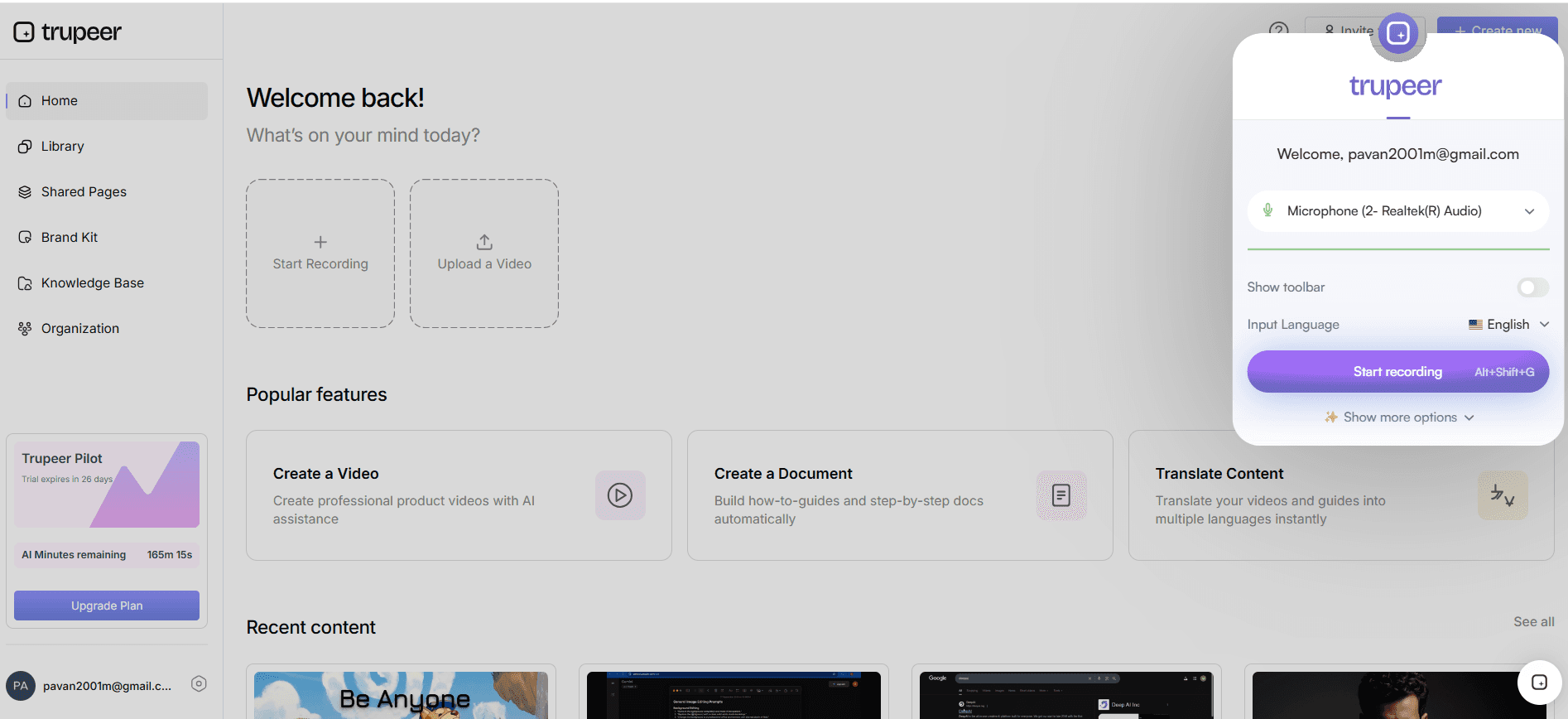
Step 2: Use Silent Screen Recording with AI Narration
Next, choose the silent screen recording option. This mode allows you to capture video without worrying about background noise. Once the recording is complete, use Trupeer’s automatic AI narration feature. Click "Add Narration" and select from over 65+ natural voices to match your desired tone and pace. This step is especially useful in environments where external noise is unavoidable. The AI-generated voiceover smoothly integrates with your visuals, enhancing the overall professionalism of your documentation without requiring a soundproof setup.
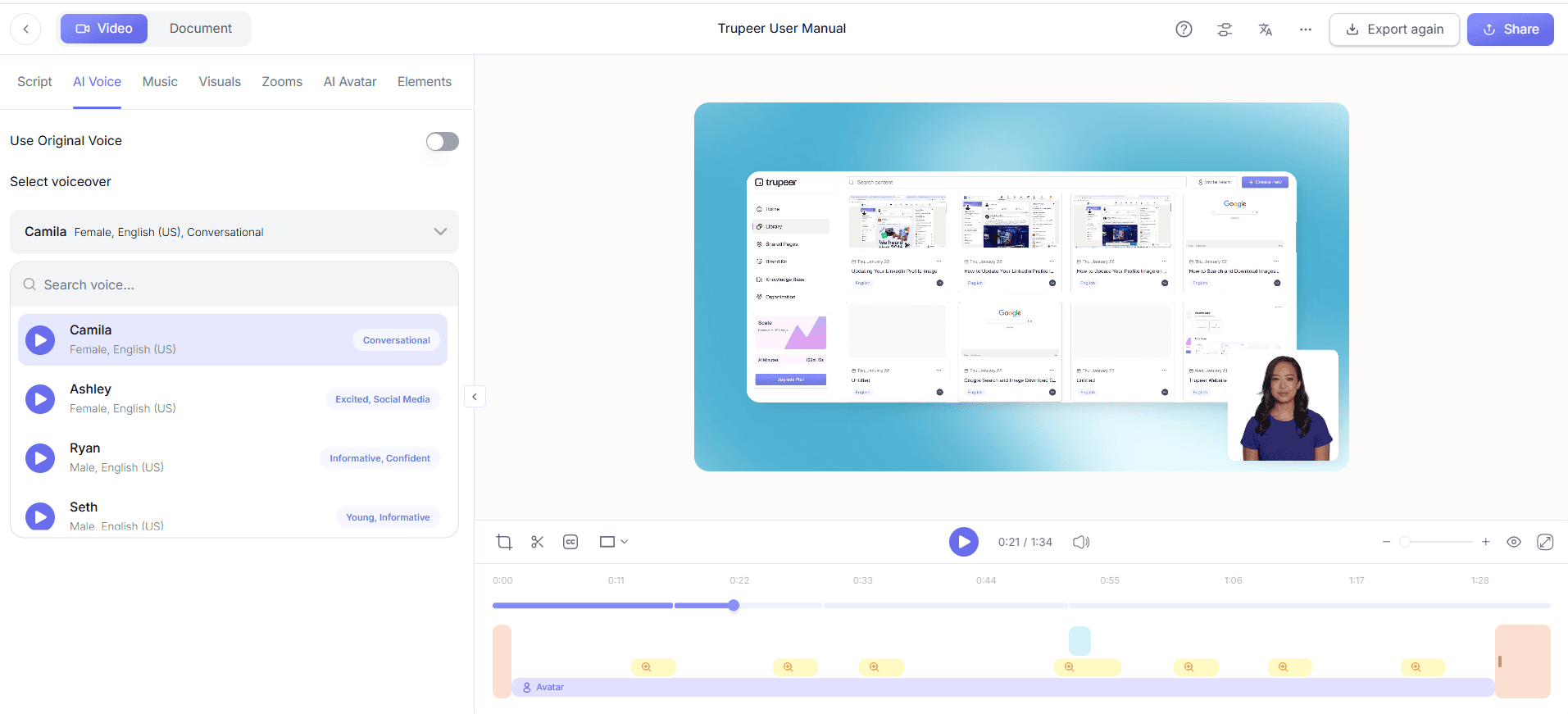
Step 3: Remove Filler Words Automatically
After recording, use Trupeer’s post-capture editing tools to clean up the audio. Select the "Edit" option and enable automatic filler-word removal. This feature quickly eliminates unnecessary "ums," "ahs," and long pauses, simplifying your content to maintain audience engagement. The process is fast, typically taking just a few minutes depending on the length of your recording. By removing these distractions, your videos will sound more polished and professional, which is vital for training and documentation purposes. Teams weighing tools often start with a Loom alternatives comparison before standardizing on a workflow.
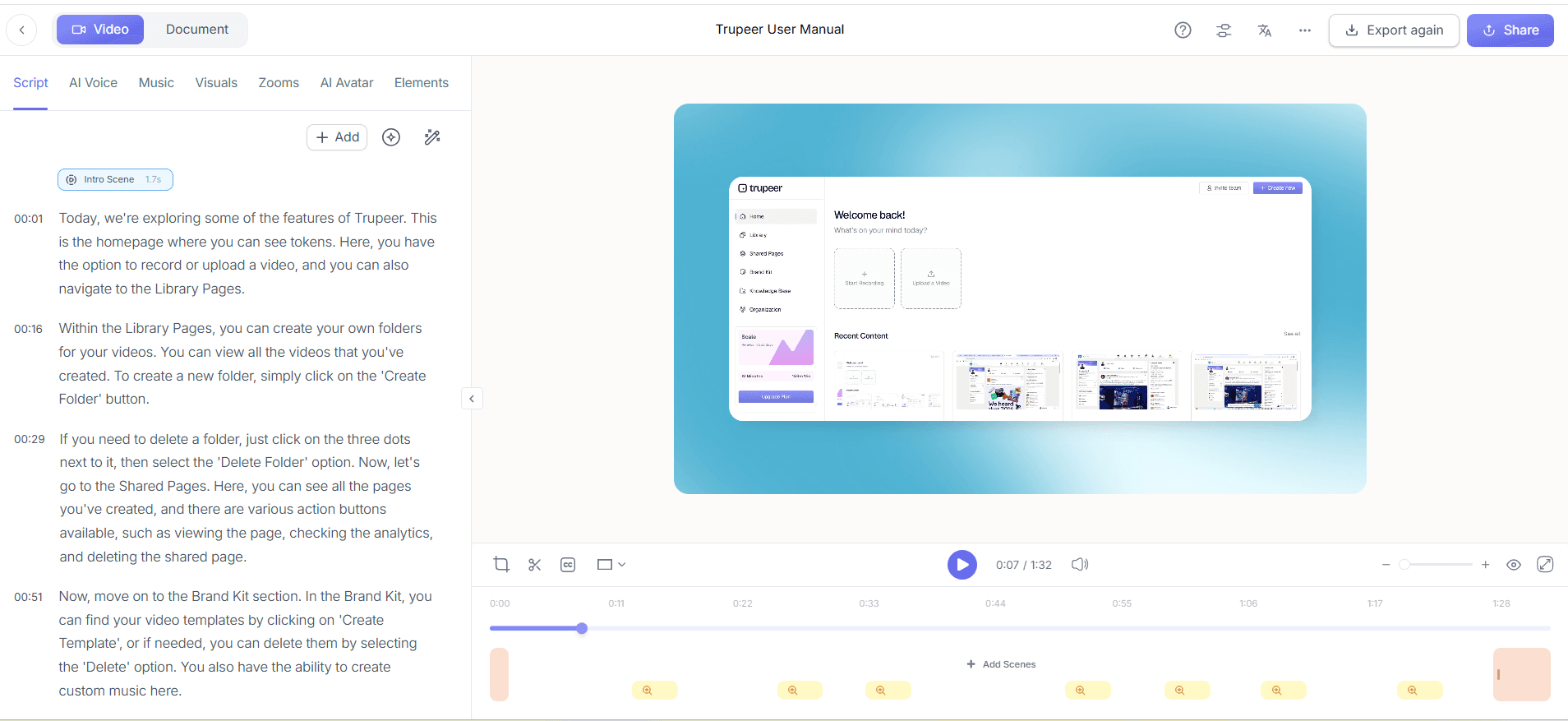
Step 4: Add AI Voiceover for Localization
To localize your content, use the AI voiceover feature. Select "Add Voiceover" and choose the language and voice that suits your target audience. Trupeer supports over 40 languages, making it easy to reach a global audience. This step is critical for organizations working in diverse regions where language barriers can impede understanding. By providing clear and accurate translations, you enhance the accessibility of your documentation, ensuring all team members can benefit from the content.
Step 5: Create Auto-Generated Documentation
With Trupeer’s documentation generator, transform your recordings into structured documents. Select "Generate Documentation" after editing your video. Trupeer automatically transcribes and formats the content into an exportable document. This feature is particularly useful for creating standard operating procedures (SOPs) and training manuals. The resulting documentation is easily editable, allowing you to make quick adjustments as needed. This not only saves time but also ensures consistency across all your training materials.
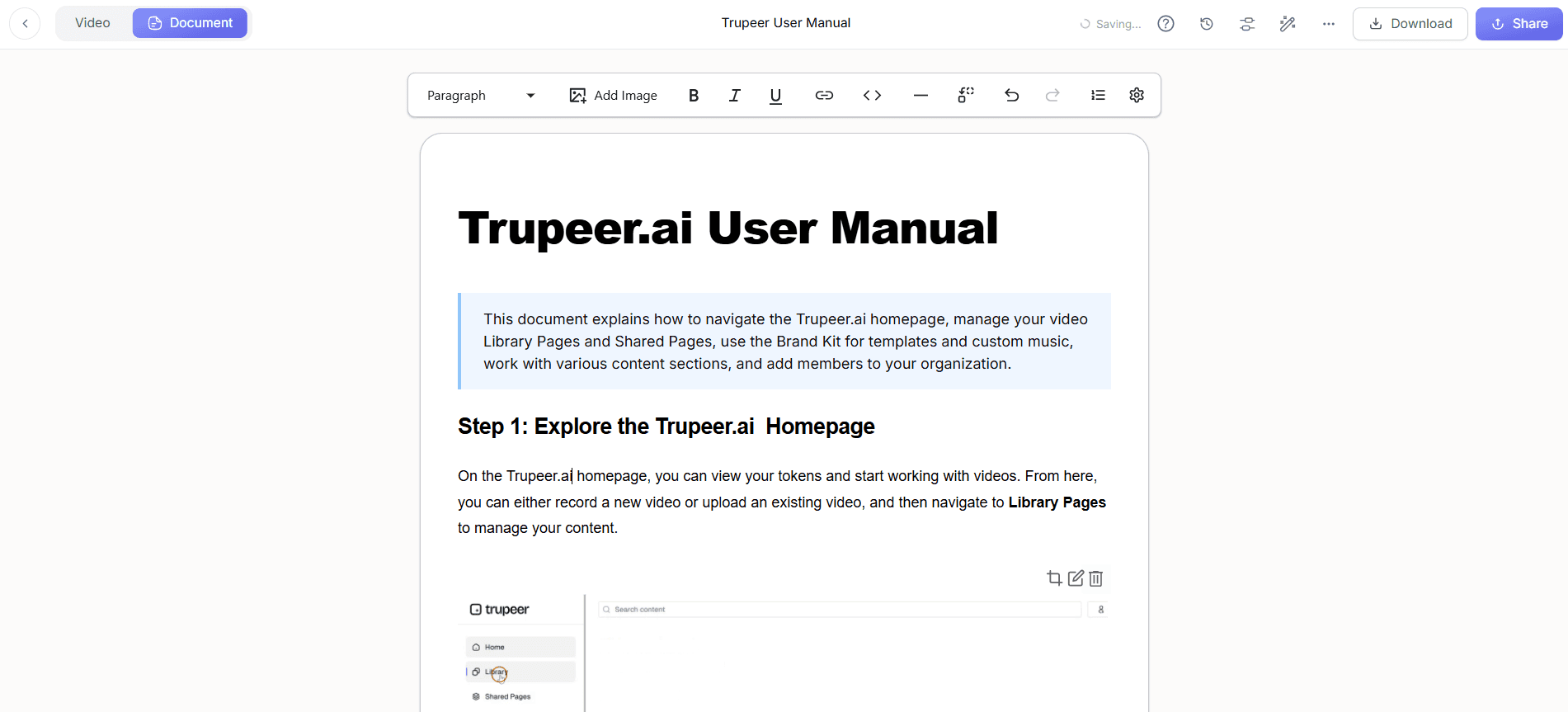
Step 6: Organize with AI-Searchable Knowledge Base
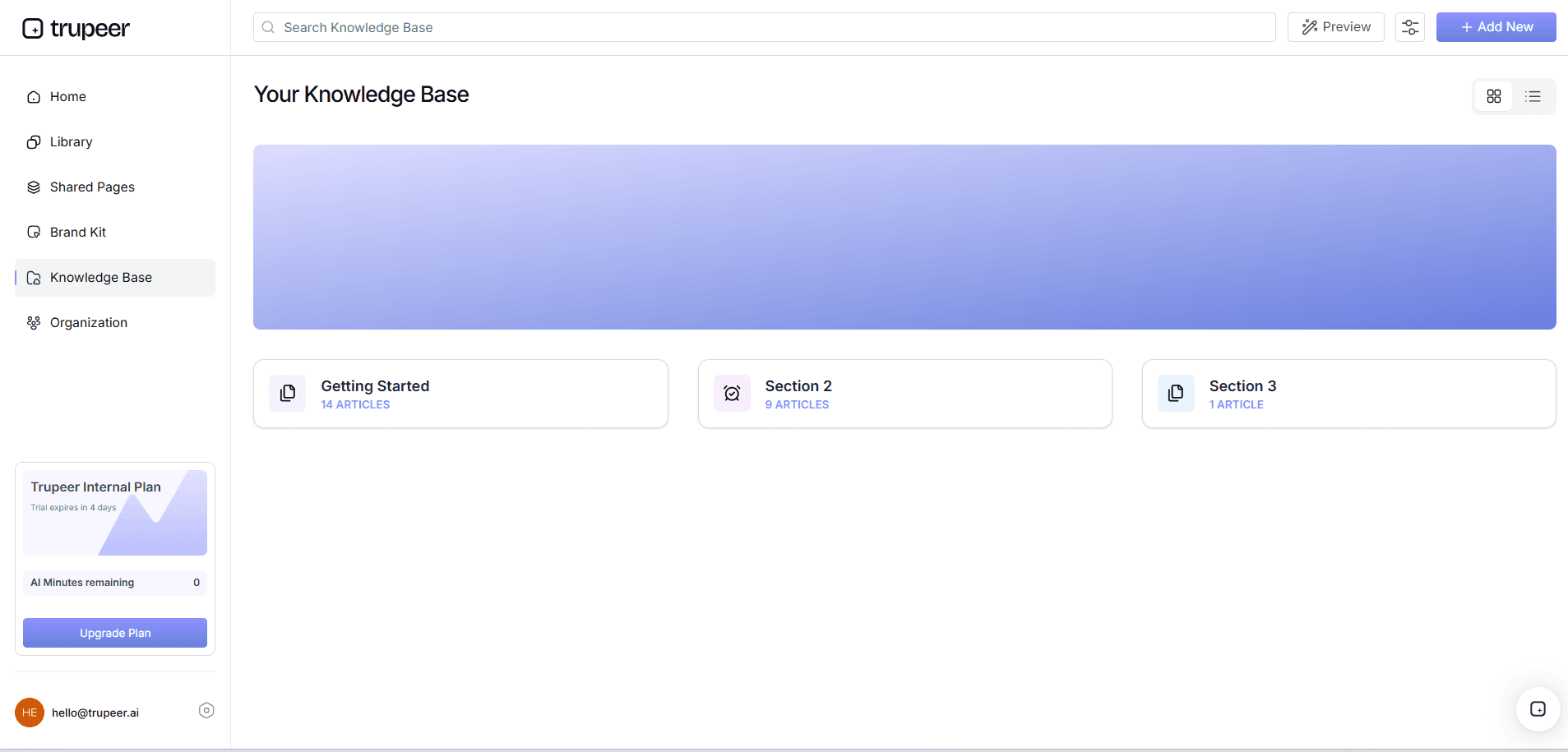
Finally, use Trupeer’s product demo video recording editing tool to store and organize your recordings. Upload your finalized videos to the AI-searchable knowledge base. This tool indexes your content, allowing users to search by keywords and access specific sections via timestamped deep-links. This step simplifies content management and retrieval, making it effortless for team members to find and reference specific parts of your documentation when needed.
What tips help you enhance Zoom recording quality?
Enhancing the quality of your Zoom recordings doesn't have to be a daunting task. By applying the right strategies, you can achieve professional results. Here are some practical tips to help you improve your documentation recordings.
Optimize Your Environment. Choose a quiet, well-lit space to minimize background noise and enhance video clarity. Natural light works best but ensure it's not directly behind you.
Use Quality Equipment. Invest in a good microphone and camera to improve audio and video quality. Even mid-range devices can make a significant difference.
Standardize Capture Style. Use consistent settings and templates to maintain a uniform look across all recordings. This is especially important for brand consistency.
Keep it Concise. Avoid lengthy recordings by focusing on key points. Break information into manageable segments to maintain viewer engagement.
Plan Your Content. Outline your key points before recording to ensure you cover all necessary information without rambling. This helps in maintaining a focused narrative.
Edit Thoroughly. Use a Scribe alternative comparison to refine your videos. Remove unnecessary parts and add annotations where needed.
use AI Tools. Implement training video software for internal documentation to automate enhancements like voiceovers and translations.
Frequently asked questions
How can I improve audio quality in Zoom recordings?
Improving audio quality starts with using a high-quality microphone. Position it close to your mouth, but not directly in front, to avoid popping sounds. Test your audio levels before recording to ensure clarity. also, use Trupeer's automatic filler-word removal to clean up any audio distractions post-recording. This feature eliminates verbal pauses and filler words, making your audio sound more polished.
What equipment is essential for high-quality Zoom recordings?
A good quality microphone and webcam are essential for high-quality Zoom recordings. While built-in laptop cameras and mics can suffice, external devices often provide better clarity. also, ensure you have a stable internet connection to avoid lags or drops in quality during the recording session.
Why should I use AI tools for my recordings?
AI tools enhance recordings by automating tasks that traditionally require significant time and effort. For example, Trupeer's AI capabilities can automatically add natural-sounding voiceovers, remove filler words, and generate subtitles. These features not only improve recording quality but also increase accessibility and engagement, making your content more effective.
Can I use Trupeer for video localization?
Yes, Trupeer offers comprehensive localization features. You can use the AI video translation tools to translate and dub your recordings in over 40 languages. This feature ensures that your documentation is accessible to a global audience, breaking down language barriers and enhancing understanding.
Does Trupeer support collaborative editing and reviews?
Absolutely, Trupeer supports collaborative editing and reviews. This feature allows multiple users to access and edit recordings simultaneously. It includes workflows for feedback and approval, simplifying the review process. This is particularly beneficial for teams that require input from various stakeholders before finalizing documentation. The collaborative tools ensure consistency and accuracy in your final product.
What are practical process documentation tips for People Ops?
Document with the people who run the process, capture real examples on screen, keep guides short, and assign an owner. Trupeer's AI documentation tool generates the write-up straight from a recording and version history keeps it matched to the live process.
Related Blogs


