Trupeer Blog
Summarise

Imagine you're giving a presentation online, showcasing your app's latest features to a potential client. Your screen recording has to be crystal clear, no matter if it's viewed on a large desktop monitor or a small smartphone screen. Yet, this isn't always the case. Different screen sizes and resolutions can drastically alter how your content appears. The clarity your audience experiences depends heavily on the original resolution of your recording and how well it adapts to various viewing devices. According to a recent study,
70% of users watch videos on mobile devices
, highlighting the necessity for recordings to maintain quality across platforms. With the best screen recording software, you can ensure that your audience has a smooth experience, regardless of their device.
Why does auto-zoom quality on different screen sizes and resolutions matter?
In the business world, the clarity of your screen recordings can make or break your communication effectiveness. When you present a demo or tutorial, the audience needs to see every detail clearly. Blurry or pixelated visuals can lead to misunderstandings or disinterest, ultimately affecting your ability to convert leads or train employees effectively. For instance, a training module that’s crystal clear on a desktop might become unreadable on a smartphone, causing confusion and frustration for employees.
Also, the rise of remote work and digital collaboration tools has increased the reliance on screen recordings. According to an AI adoption use case, organizations are increasingly using video content for onboarding, training, and client presentations. Poor quality recordings can disrupt these processes and reduce productivity. Ensuring high-quality auto-zoom across devices isn't just a technical necessity but a strategic business imperative. It influences how well your team collaborates and how effectively your product or service is communicated to stakeholders.
What are the benefits of maintaining auto-zoom quality on different screen sizes and resolutions?
Optimizing your screen recordings for various devices offers several key benefits.
Enhanced user engagement. High-quality visuals maintain audience interest and boost engagement, leading to more effective communication.
Improved accessibility. Ensuring that content is easily viewable on all devices makes your material accessible to a wider audience, increasing reach.
Professional presentation. Consistent quality across devices reflects professionalism and attention to detail, enhancing brand perception.
Efficient training. Clear recordings ensure training materials are effective, reducing the time needed for explanations and follow-ups.
Reduced rework. With the best screen recording softwares, you can avoid the need for re-recording due to poor quality, saving time and resources.
smooth integration. A solid AI video platform allows for easy integration of video content into existing workflows, maximizing efficiency.
Which Trupeer features help you achieve high auto-zoom quality?
Trupeer offers several features that enhance your ability to maintain high-quality auto-zoom across different screen sizes and resolutions.
AI screen recording with auto-zoom and click detection
Trupeer's AI screen recording automatically adjusts the zoom level based on the activity on your screen. This ensures that viewers always see the most relevant part of the content, regardless of their device. The click detection feature highlights key interactions, making it easier for viewers to follow along. This dynamic adjustment improves clarity and engagement, especially for detailed software demos where precision is crucial.
Silent screen recording with automatic AI narration
This feature allows for the creation of comprehensive recordings without the need for live narration. Trupeer's AI generates a natural-sounding voiceover, ensuring that your recordings are not only visually clear but also informative. This is particularly useful for creating content that needs to be easily understood across different languages and regions, enhancing the accessibility and reach of your recordings.
Multi-format export: MP4, HTML, PDF, SCORM
Trupeer supports multiple export formats, making it easy to adjust your content for various platforms and devices. Whether you need a video for a website, a PDF for a report, or a SCORM package for e-learning, Trupeer ensures your content retains its quality. This flexibility is essential for businesses that need to distribute content across diverse channels while maintaining a consistent viewing experience.
AI voiceover in 65+ natural voices, adjustable pace and tone
With Trupeer, you can add professional-grade voiceovers to your recordings, tailored to match the tone and pace of your content. This feature supports over 65+ natural voices, allowing you to choose the best fit for your audience. An AI documentation platform can further enhance these recordings, ensuring clarity and consistency.
Automatic SOP generation from any recording
Generating standard operating procedures (SOPs) directly from your recordings simplifies the documentation process. Trupeer's capability allows you to create edit-ready SOPs that can be exported in various formats. This feature is particularly valuable for creating training materials or process documentation, ensuring that critical information is preserved and easily accessible. Storing outputs inside an AI-searchable knowledge base makes every recording findable by topic and timestamp.
How do you ensure consistent quality step by step with Trupeer?
How do you auto-zoom quality on different screen sizes and resolutions step by step with Trupeer?
Step 1: Start Your Recording
Begin by opening the Trupeer browser-based recorder. No installation is needed, which saves time and ensures compatibility across devices. Click on "Start Recording" to initiate the capture process. Trupeer will automatically detect your screen size and resolution, optimizing the recording settings accordingly. This ensures your video is primed for best clarity when viewed on any device. If you're recording a software demo, the AI will recognize clicks and interactions, enhancing the recording with automatic zooms to highlight key actions.
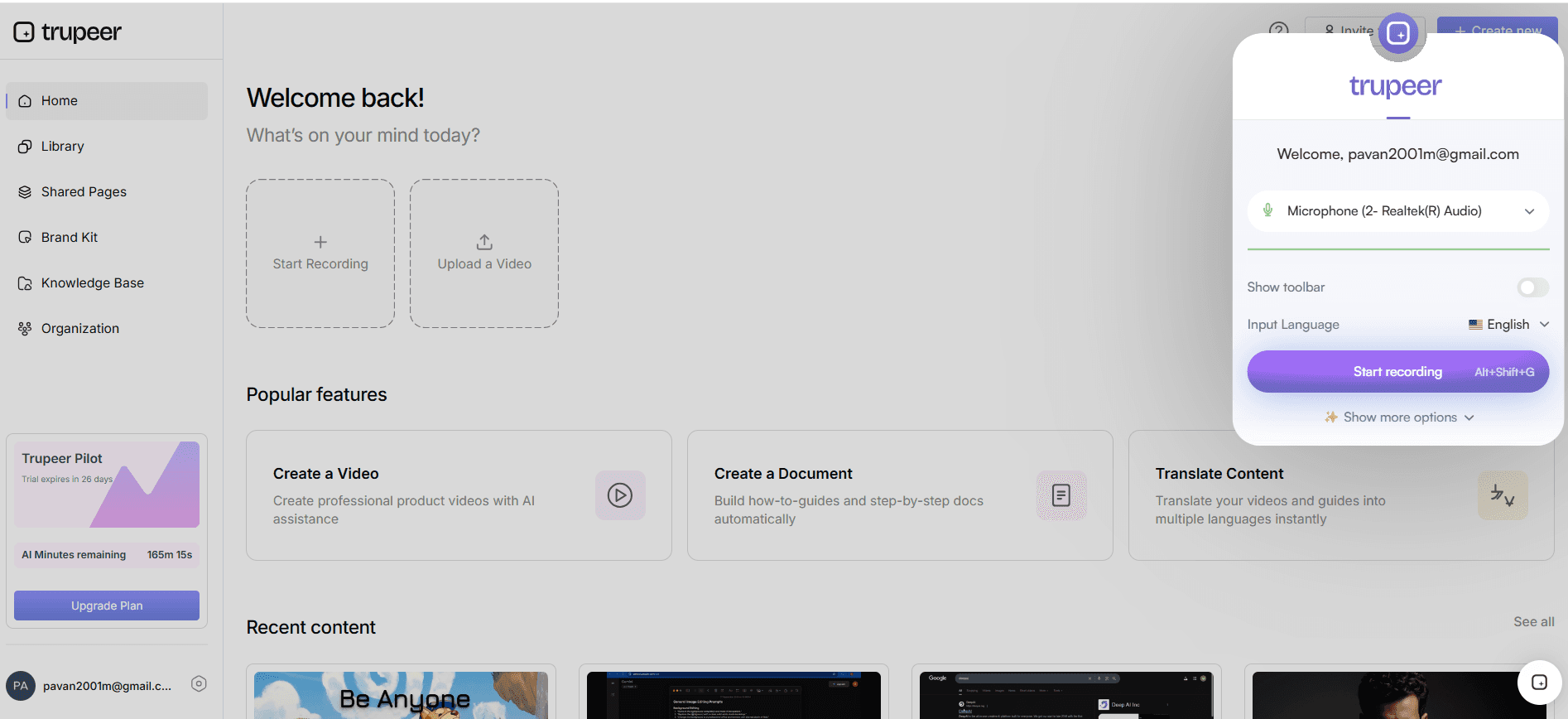
Step 2: Use AI Screen Recording with Auto-Zoom
As you proceed with the recording, Trupeer's AI automatically adjusts the zoom level based on user interactions. This means if you're handling through a complex interface, the AI will focus on the active elements, ensuring viewers don't miss critical details. The click detection feature highlights interactions, making the recording more engaging. This dynamic zooming is particularly useful for intricate tasks or software tutorials, as it provides viewers with a clear and focused view of the action.
Step 3: Apply AI Voiceover
Once your recording is complete, enhance it with Trupeer's AI voiceover capabilities. Select from over 65+ natural voices and adjust the pace and tone to suit your audience. Click on the "Add Voiceover" button, and Trupeer will generate a professional narration that matches your video's timing. This feature is invaluable for making your content accessible to non-native speakers or those who prefer audio guidance. The process takes only a few minutes, ensuring your video is ready for distribution swiftly.
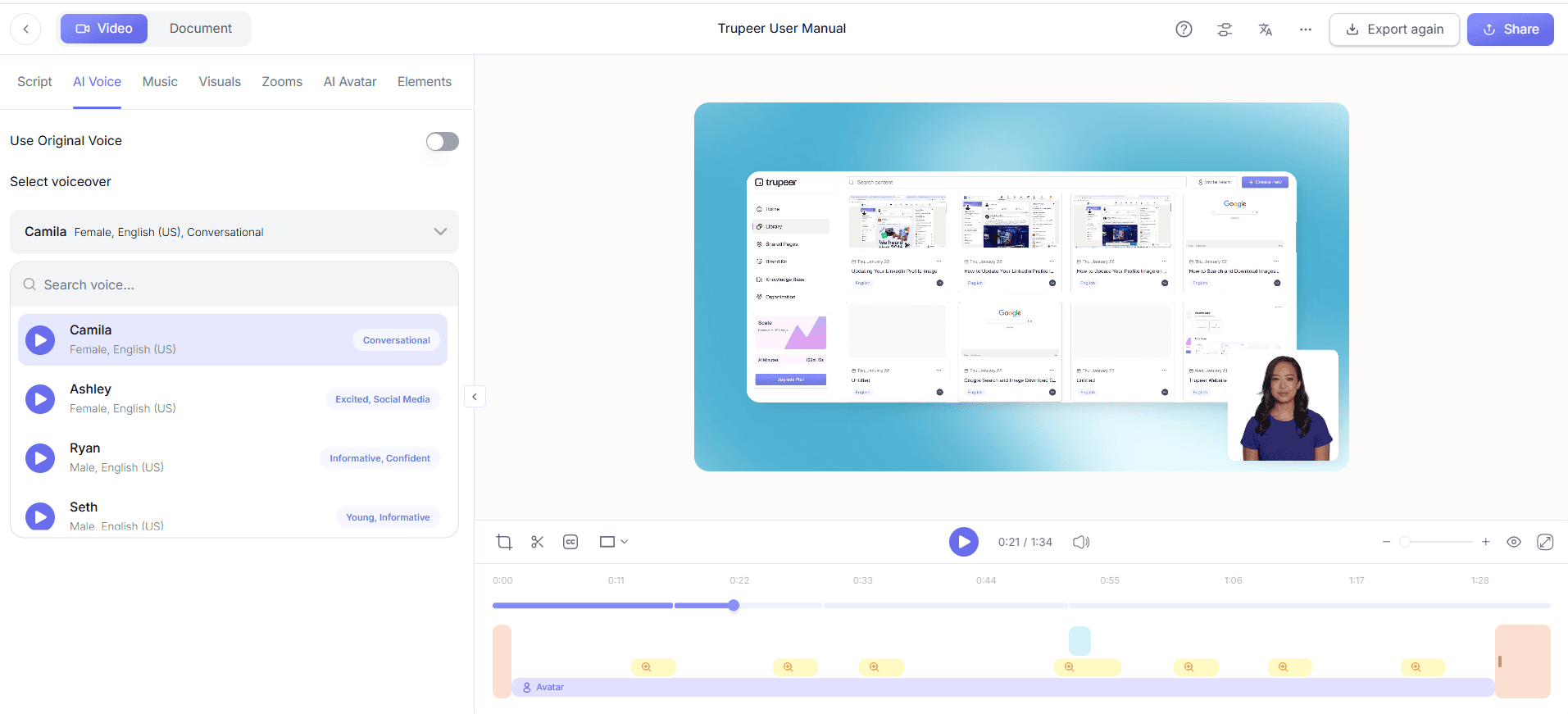
Step 4: Edit with Automatic Filler-Word Removal
With your initial recording and voiceover in place, it's time to refine the video. Trupeer's AI can automatically remove filler words like "um" and "ah," as well as long pauses, improving the overall flow and professionalism of your content. Access this feature by selecting "Edit Video" and choosing the filler-word removal option. This process is quick, typically taking less than 5 minutes, and results in a polished final product that maintains viewer engagement.
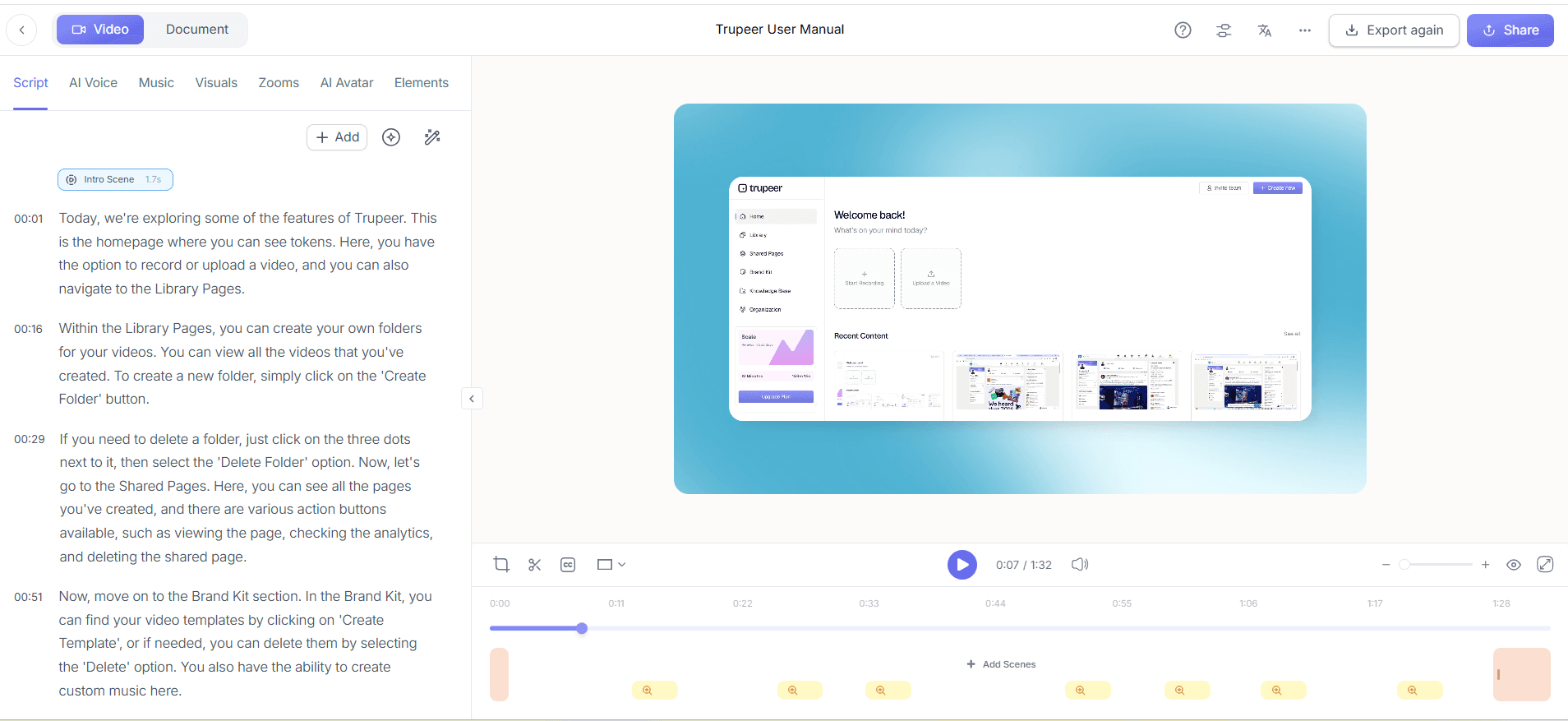
Step 5: Generate Automatic SOPs
For those creating instructional content, Trupeer's automatic SOP generation is a big shift. After editing, click on "Generate SOP" to produce a detailed, edit-ready document based on your recording. The SOP is exportable in multiple formats, such as PDF and HTML, allowing you to integrate it smoothly into training modules or documentation systems. This feature ensures that key procedures are documented accurately, reducing the risk of miscommunication and enhancing training efficiency.
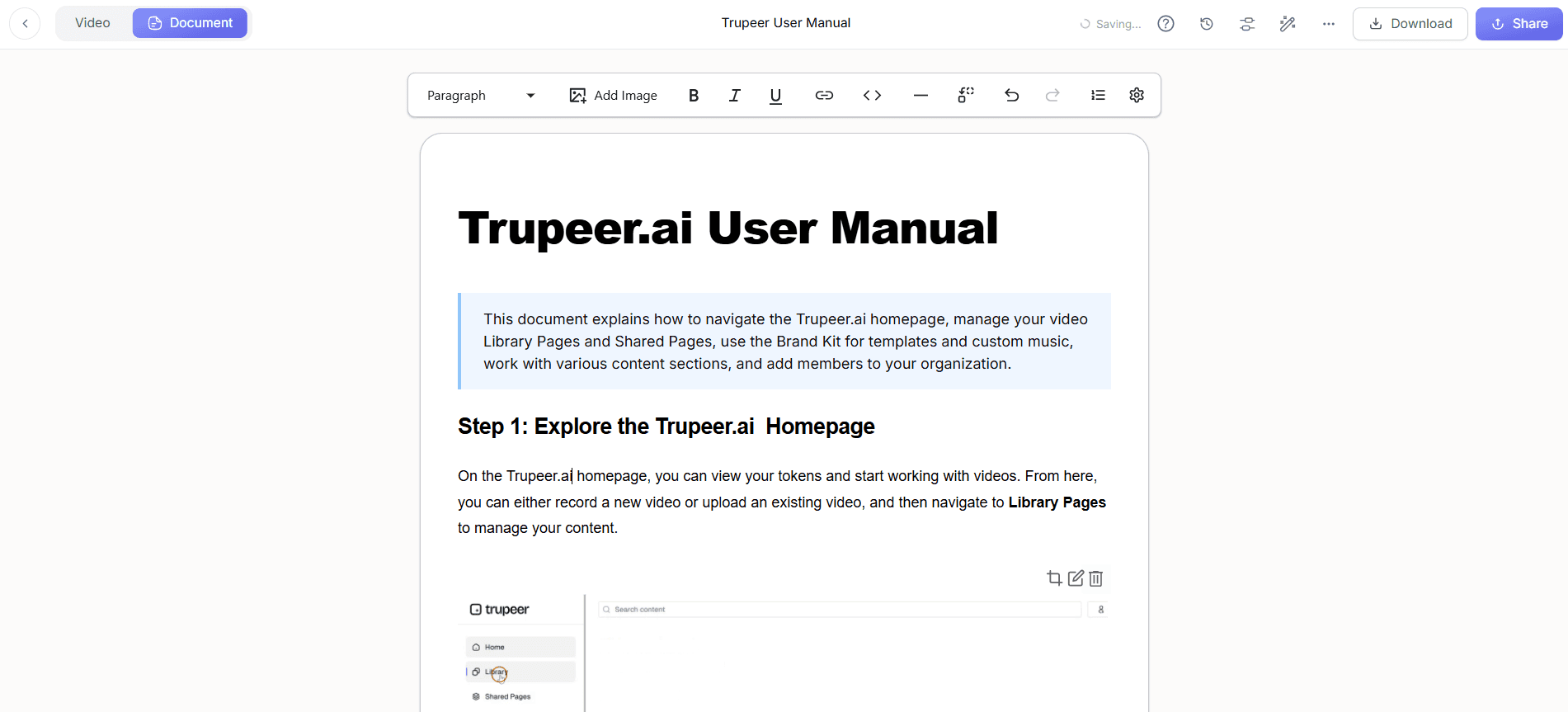
Step 6: Export and Distribute
Finally, export your video in the format that best suits your needs. Trupeer supports MP4, PDF, HTML, and SCORM exports, providing flexibility for different use cases. Click "Export," choose your desired format, and Trupeer will prepare the file for download. This process usually takes a few minutes. Once exported, you can distribute your video through channels like email, intranet, or a Loom alternative comparison platform, ensuring it reaches your desired audience with maintained quality across devices.
What tips help you maintain auto-zoom quality on different screen sizes and resolutions?
To ensure your recordings maintain high quality across different devices, follow these practical tips. Each one can significantly enhance the clarity and professionalism of your video content.
Use a Consistent Resolution. Record at a high resolution, like 1080p, to ensure clarity on larger screens. This reduces the risk of pixelation when zooming in.
Test on Multiple Devices. Before finalizing, test your video on different screen sizes to see how the auto-zoom functions. This helps identify any areas that may need adjustment.
use AI Voiceover. Use Trupeer's AI voiceover to provide clear audio that complements the visual content, enhancing the overall viewing experience.
Optimize for Accessibility. Incorporate captions and translations using AI video translation to reach a broader audience.
Refine with Filler-Word Removal. Use Trupeer's automatic filler-word removal to keep the video concise and maintain viewer attention.
Standardize Visual Style. Use branded templates to ensure consistency in visual elements across all recordings, reinforcing brand identity.
Consider a Scribe alternative comparison. Evaluate other tools to understand how Trupeer stands out in maintaining quality across devices.
Related reading
Frequently Asked Questions
How does Trupeer ensure quality across different screen sizes?
What formats can Trupeer export videos in?
Can Trupeer handle translations for global audiences?
Does Trupeer offer any collaboration features?
Is there a way to track viewer engagement with Trupeer?
Related Blogs



