4.8/5
Free Screen Recording Tools for Tutorial Videos
Record tutorial videos that teach any skill. Cursor effects, smart zoom, auto-generated chapters, captions and transcripts. No editing experience required.
Try for Free

Screen recording tools for tutorial videos make it simple to capture your screen, narrate your steps, and publish polished how-to content that viewers can follow along with. Build a tutorial once and let it teach for you forever. The thing that makes tutorial videos actually useful versus just a recording. A raw screen recording of you clicking through software is information. A tutorial video with cursor highlights at the click moments, automatic zoom on the small UI element you just opened, chapter markers letting viewers skip to step 4, captions auto-generated from your narration, and a searchable transcript on the side that's a teaching tool. The difference between the two used to require 4 to 8 hours of editing per video in Camtasia. Now it happens automatically in the recording-to-publish flow. So tutorial videos go from "thing we should make eventually" to "thing we ship Tuesday afternoon."
Record step-by-step tutorials with voiceover, webcam, and on-screen annotations
Use zoom, spotlight, and cursor effects to keep viewers focused on the right area
Edit out mistakes and add transitions without switching to professional video editing software
Auto-generate chapters, captions, and searchable transcripts for every tutorial
Publish directly to your website, YouTube, LMS, or knowledge base with one click
What Are Screen Recording Tools for Tutorial Videos?
Screen recording tools for tutorial videos are purpose-built applications that help creators capture on-screen demonstrations and transform them into clear, engaging, step-by-step instructional content. They go beyond basic screen capture by including features specifically designed for teaching cursor spotlight effects that show exactly where to click, automatic zoom that enlarges small interface elements, chapter markers that let viewers skip to specific steps, and annotation tools that overlay numbered instructions and callout boxes.
The category split worth knowing about. On one end: basic screen recorders like Loom, Vidyard, and the macOS built-in screen recorder. These capture the screen and audio but skip the tutorial-specific features. Useful for quick async messages, less useful for polished teaching content. On the other end: full video editors like Camtasia, Adobe Premiere, and Final Cut Pro. These have all the editing power but assume you're a video editor or willing to become one. In between: tools that combine capture with automated tutorial-grade features (cursor effects, smart zoom, chapter generation, caption auto-creation). Trupeer sits in this middle category, plus generates a matching written guide from the same recording. The cleanest pick depends on whether you need raw recordings (Loom is enough), polished tutorials with editing capacity (Camtasia works), or polished tutorials without an editor (the in-between category is where this page lives).
How Do Screen Recording Tools for Tutorial Videos Work?
The process is designed to be beginner-friendly while producing professional results:
Step 1: Set Up Your Tutorial Recording
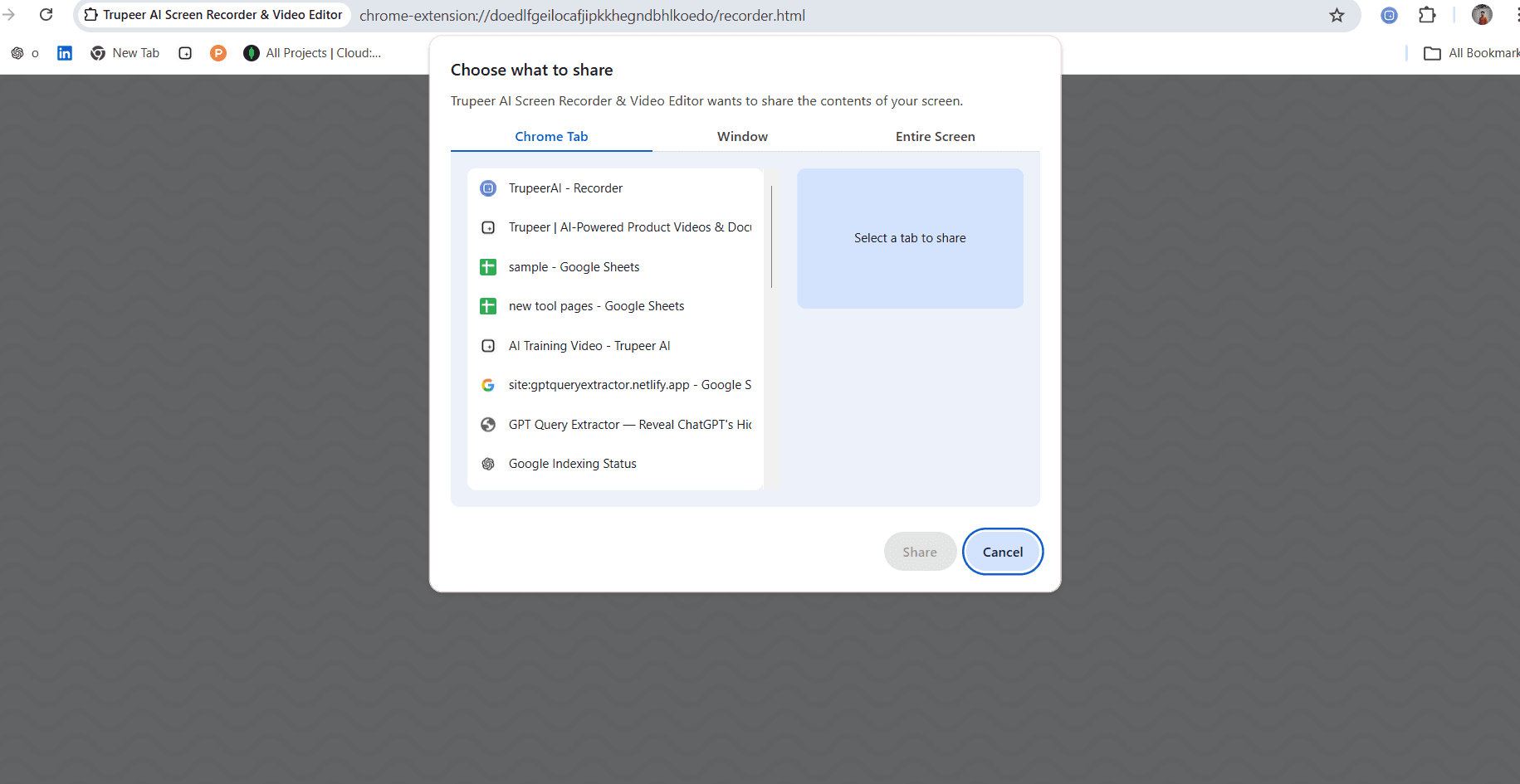
Open the application or workflow you want to teach. Configure your recording area, toggle your microphone for narration, and optionally enable your webcam. Prepare a brief outline of the steps you plan to cover so your tutorial flows logically.
Step 2: Record and Demonstrate
Hit record and walk through the process naturally, explaining each step as you perform it. The tool automatically tracks your cursor movements and can highlight clicks, display keystrokes, and zoom into relevant areas. If you stumble, simply pause and pick up where you left off.
Step 3: Polish and Publish
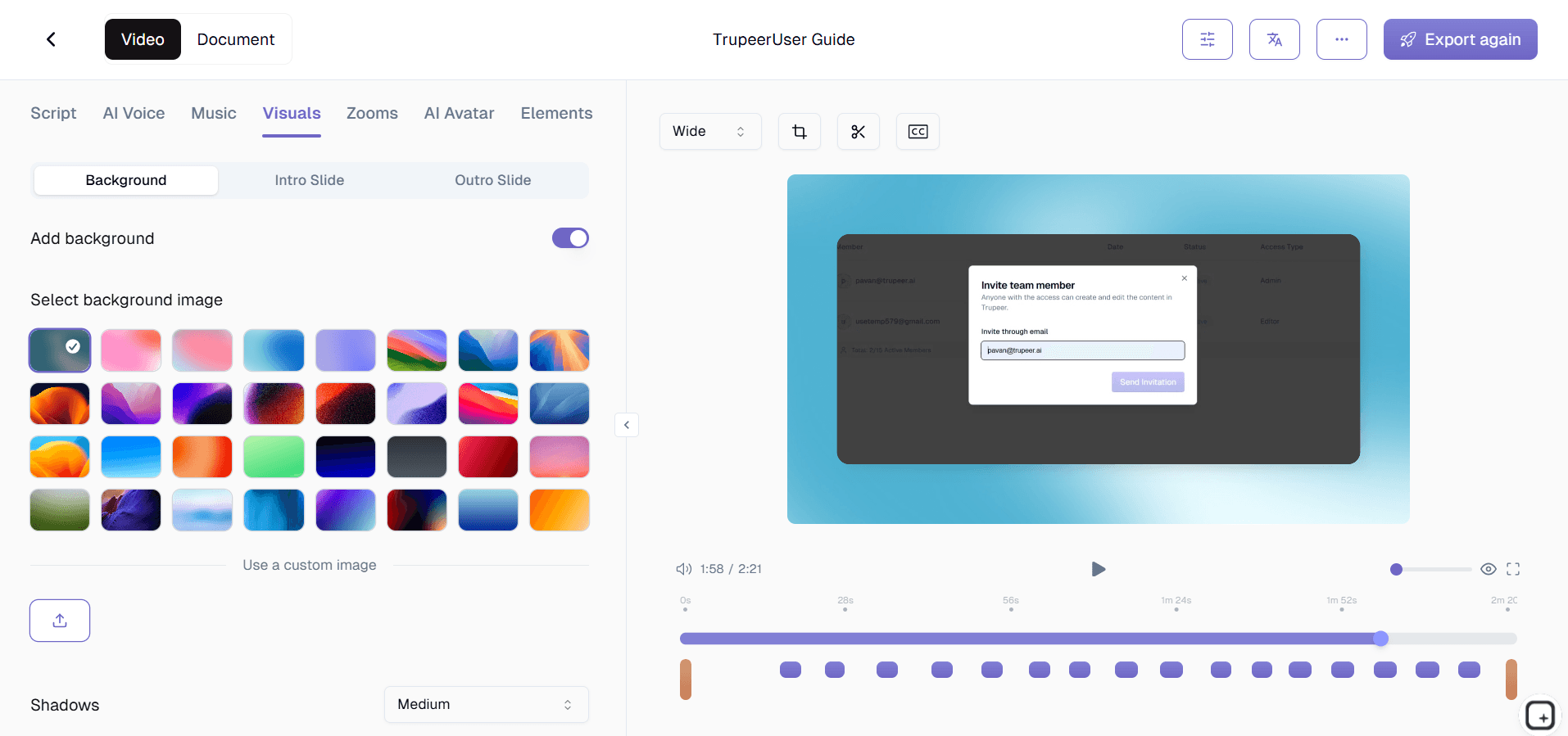
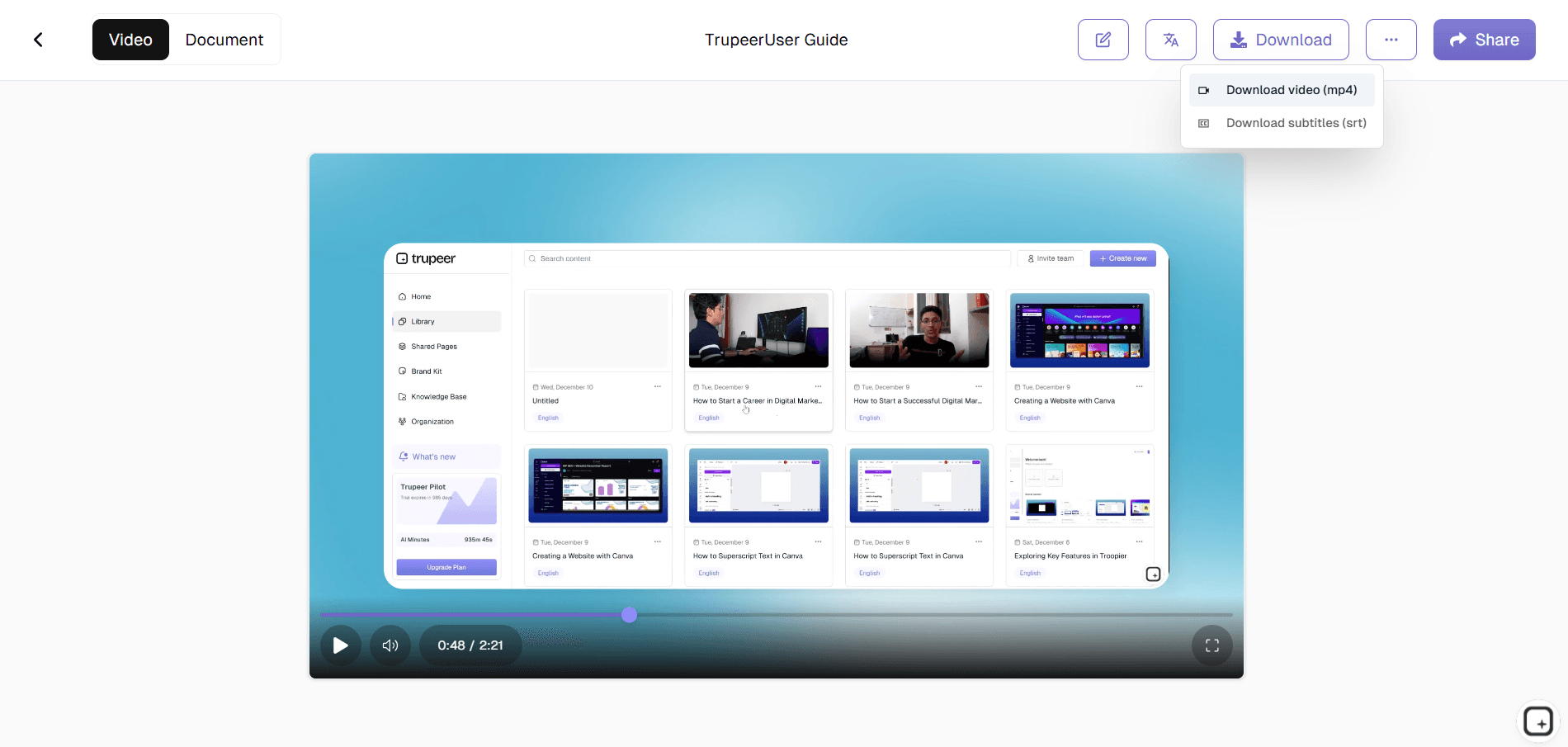
Open your recording in the editor to trim mistakes, add intro and outro slides, insert chapter markers, and apply zoom effects to small UI elements. The AI auto-generates captions and a transcript. Publish your tutorial via link, embed code, or direct upload to YouTube or your LMS.
Key Features of Screen Recording Tools for Tutorial Videos
Automatic Cursor Spotlight and Click Effects: Your cursor is the pointer that guides viewers through every tutorial step. The tool automatically adds a visible spotlight around your cursor, highlights each click with a colored ring or ripple animation, and can enlarge the cursor for better visibility ensuring learners always know exactly where to look and what to click next.
Smart Zoom and Pan Automation: When you click on a small button or type into a narrow input field, the tool automatically zooms in to make that element fill the frame, then smoothly pans back out when you move to the next area. This eliminates the need for manual zoom editing and keeps tutorials readable even on mobile screens.
Step-by-Step Chapter Generation: The tool detects natural pauses, application switches, and narration cues to automatically suggest chapter break points. You can accept, adjust, or add your own markers, creating a clickable table of contents that lets viewers jump directly to the step they need without scrubbing through the entire tutorial.
Multi-Layer Annotation Toolkit: Overlay numbered step indicators, directional arrows, highlighted boxes, freehand drawings, and text labels onto your recording. Position annotations precisely on the timeline so they appear and disappear at exactly the right moment, transforming a raw screen capture into a structured, guided learning experience.
Why Choose These Screen Recording Tools for Tutorial Videos?
Teach Once, Scale Infinitely: A single well-made tutorial video replaces hundreds of repetitive one-on-one explanations. Record the process once and let the video do the teaching for every future learner.
Professional Results, Zero Learning Curve: You do not need video editing skills. The automated zoom, cursor effects, and chapter generation handle the production polish so you can focus on teaching clearly.
Searchable and Navigable Content: Auto-generated transcripts and chapter markers make your tutorials searchable and skimmable, so viewers find the exact step they need in seconds.
Built for Iteration: Update a single step without re-recording the entire tutorial. Swap out a section, re-record the voiceover, and republish keeping your content current as products and processes evolve.
Both video and written guide from one source: Some learners watch tutorials. Others skim the steps. The same recording produces an MP4 plus a written guide with screenshots and numbered steps inline. So the team doesn't have to pick which format to invest in or maintain two separate production pipelines.
Screen Recording Tools for Internal Teams
1. Internal teams create tutorial videos for every recurring software task submitting timesheets, configuring VPN access, using the project management tool eliminating repetitive questions directed at IT and operations.
2. Team leads record quick tutorial videos when rolling out new tools, ensuring every team member can self-serve their way to proficiency without waiting for a scheduled training session.
3. Tutorial video libraries become the single source of truth for how things are done, reducing inconsistency caused by different people teaching the same process in different ways.
4. Internal tutorial videos are searchable by transcript, so employees can type a question and find the exact video and timestamp that answers it. Build complementary written guides at Trupeer's process guide tool.
Screen Recording Tools for SaaS Teams
1. SaaS teams produce feature tutorial videos that appear contextually inside the application, guiding users through setup and first-use workflows at the moment they need help.
2. Customer marketing teams create tutorial video series for email nurture campaigns, educating free-trial users on key features to drive paid conversions.
3. Product documentation teams replace screenshot-heavy help articles with embedded tutorial videos that show the exact clicks and keystrokes needed to complete each task.
4. Developer relations teams record API integration tutorials that walk external developers through authentication, endpoint usage, and error handling accelerating time-to-integration. Try Trupeer's screen recorder for your next SaaS tutorial.
Screen Recording Tools for Startups
1. Startups use tutorial videos to onboard customers without a dedicated customer success team, delivering a white-glove experience at self-serve scale.
2. Founders record product tutorial videos for investor pitches, demonstrating the user experience live on screen rather than relying on static slides.
3. Growth teams A/B test different tutorial video approaches short versus long, with webcam versus without using engagement data to optimize for activation rates.
4. Startup engineering teams record environment setup tutorials that get new developers productive on day one, critical when every hour of engineering time counts.
Screen Recording Tools for Enterprises
1. Enterprise training departments produce standardized tutorial videos that ensure consistent instruction across regions, departments, and thousands of employees.
2. IT teams create tutorial videos for major software migrations Office to Google Workspace, Jira to Asana, legacy CRM to Salesforce minimizing helpdesk ticket surges during transitions.
3. Knowledge management teams maintain versioned tutorial libraries that update alongside software releases, ensuring employees always access current instructions.
4. Enterprise compliance teams record audit-trail tutorial videos showing the exact steps for regulated processes, providing visual evidence of proper procedure documentation.
Screen Recording Tools for Remote Teams
1. Remote teams use tutorial videos to replace the over-the-shoulder learning that happens naturally in an office, giving distributed employees the same hands-on guidance.
2. Async tutorial videos let remote team members learn at their own pace, rewinding complex steps and pausing to practice something impossible in a live screen-share session.
3. Remote managers record personalized tutorial videos to coach individual team members through challenging workflows, providing visual mentorship across any time zone.
4. Distributed teams contribute to a shared tutorial library, with each team member recording the processes they know best building collective knowledge one video at a time.
Screen Recording Tools for Tutorial Videos for Developers
1. Developers record IDE tutorial videos showing debugging techniques, refactoring workflows, and code navigation shortcuts that are impossible to communicate through written documentation alone.
2. DevOps engineers create tutorial videos for infrastructure setup, container orchestration, and CI/CD pipeline configuration visual guides that reduce misconfiguration errors.
3. Developer educators produce multi-part tutorial video series that teach programming concepts from basics to advanced topics, using screen recordings of live coding sessions.
4. Tech writers pair screen-recorded tutorials with written documentation, giving learners the choice between reading and watching and often, doing both for maximum retention.
Screen Recording Tools for Tutorial Videos for Onboarding and Support Teams
1. Onboarding teams create role-specific tutorial video playlists that guide new hires through the exact tools and workflows they will use daily, dramatically reducing time-to-competence.
2. Support teams record tutorial videos for the most common customer questions and embed them in help-center articles, deflecting tickets while improving customer satisfaction.
3. Customer success managers send personalized tutorial video links when onboarding key accounts, providing a concierge experience that strengthens relationships from day one.
4. Support managers analyze which tutorial videos customers watch most frequently, using that data to identify product usability issues and prioritize UX improvements. Get started with Trupeer's screen recorder.
How tutorial video screen recording tools compare: a quick framework
Picking the right tutorial video screen recorder comes down to four questions worth answering before you start a trial.
Do you need a written guide alongside the video, or is the video enough? Help center content, knowledge base articles, and onboarding documentation usually need both. Internal sharing and async messages usually just need the video. If you need both, the production pipeline that generates them from one source saves significant time over running two separate workflows.
How much polish does the tutorial need? Internal training video that lives in the LMS for two years needs auto-edited polish (filler word removal, brand kit, captions). Quick async screen share to a teammate doesn't. The tier matters because it determines whether you need a tool with auto-editing (Trupeer, ScreenPal, newer Loom features) or just a raw recorder (basic Loom, QuickTime).
How often will you update existing tutorials? Tools that let you re-record one changed segment without rebuilding the whole video are significantly cheaper to maintain. Tools that require re-recording from scratch each time the UI changes accumulate documentation debt across the year.
How many languages does the audience speak? Global teams need translation built into the same workflow that produces the original. Otherwise the multilingual versions ship months after the original or never ship at all.
The honest mapping. For raw screen recording with no auto-editing and no written guide alongside, Loom is the path of least resistance. For polished tutorials with deep editing control and a team that has editor capacity, Camtasia handles the work well. For polished tutorials without editor capacity, tools with built-in auto-editing fit better Trupeer is one option, ScreenPal is another, Guidde is a third. The pick within that subcategory comes down to specific feature differences (translation handling, brand kit application, whether a matching written guide gets generated alongside).
One Recording Becomes a Tutorial Video, a Written Guide, and 65+ Languages
A good tutorial rarely lives in one format. Some people want to watch, some want to skim written steps, and your audience may not all speak the same language. With most screen recording software you would produce each of those separately. Trupeer generates them from a single recording. Record yourself walking through the task once, and the AI produces the finished tutorial video and, from the same source, auto-generates a transcript, captions, and a written step-by-step guide.
That makes it as much a tutorial video maker as a recorder. You are not just capturing footage, you are producing a complete teaching asset. When your tutorial needs to reach a wider audience, translate it into 65+ languages while keeping the same visuals and on-screen guidance, instead of re-recording for each market.
So a single capture can give you a polished video for YouTube or your LMS, a written guide for your help center, and localized versions for global users, all from one take.
This screen recorder chrome extension builds on Screenity, originally created by Alyssa X and licensed under the GNU GPLv3, with enhancements developed by the Trupeer team. Source code available here: https://github.com/trupeer-ai/trupeer-chrome-capture.
Explore Related Tools
Key Features
Cursor Effects
Automatic spotlight, click highlights, and keystroke display keep viewers focused on every step.
Smart Zoom
Auto-zoom into small UI elements so your tutorials stay readable on any screen size.
Chapter Markers
Auto-generated chapters let viewers jump directly to the step they need.
How It Works
Step 1
Configure your capture area
Step 2
Record your tutorial
Step 3
Edit and Publish
Frequently Asked Questions
Do I need video editing experience to make tutorial videos?
No. The tool handles production polish automatically with smart zoom, cursor effects, and chapter generation. You focus on teaching — the software handles the rest.
Can I update a single step without re-recording the whole tutorial?
Yes. You can replace individual sections, re-record voiceover for specific segments, and swap out clips — keeping your tutorials current without starting from scratch.
How do I make my tutorials accessible?
Every recording automatically gets AI-generated captions and a full transcript. You can also enable cursor spotlight, keystroke display, and chapter navigation for improved accessibility.
Can I publish tutorials directly to YouTube or my LMS?
Yes. One-click publishing lets you export to YouTube, Vimeo, any SCORM-compatible LMS, or your own website via embed code — all without manual reformatting.
How do I make a tutorial video without editing it myself?
Record your screen while you walk through the task, and Trupeer's AI turns the raw capture into a finished tutorial video, adding smart zoom, cursor effects, captions, and chapters automatically. It also generates a written step-by-step guide from the same recording, so you get a video and a doc in one pass.
More Tools


