
Google Sheets에 캘린더를 추가하는 방법
이 빠른 튜토리얼로 Google Sheets에 캘린더를 삽입하는 방법을 알아보세요. 계획을 세우든 진행 상황을 추적하든, 캘린더 추가는 간단하며 원하는 대로 커스터마이즈할 수 있습니다.
This document provides a clear and concise process for adding a calendar function within Google Sheets. By following the below steps, users can easily add a date selection feature in Google Sheets.
There are several easy ways to add a calendar to Google Sheets, whether you're using a template, building one from scratch with formulas, or installing a helpful add-on. You can even create a timeline view to visualize events over time.
Option 1: Use a Calendar Template
The quickest way to add a calendar:
Open Google Sheets and go to File > New > From template.
Search for “Calendar” in the template gallery.
Select a Template that fits your needs.
Customize It by adding your own events, dates, or formatting.
Option 2: Create a Custom Calendar
If you want more control over the layout:
Use the
DATE()Function
For example:=DATE(2025, 6, 9)will return June 9, 2025.Format the Cells
Change the display format to show the day, full date, or week, whichever works for you.Build Out the Month
Use formulas to auto-fill the rest of the month or generate weeks dynamically.
Option 3: Install a Calendar Add-on
Go to Add-ons > Get add-ons in the toolbar.
Search for “Calendar” and choose an add-on that fits your workflow.
Install and Configure
Follow the prompts provided by the add-on to set up your calendar layout or sync with events.
Option 4: Create a Timeline View
Perfect for tracking project timelines or events over time:
Select Your Data Range (it should include a start date and an end date).
Go to Insert > Timeline.
Customize the Timeline to match your project phases or event schedule.
Step-by-Step Guide: How To Add Calendar In Google Sheets
Step 1
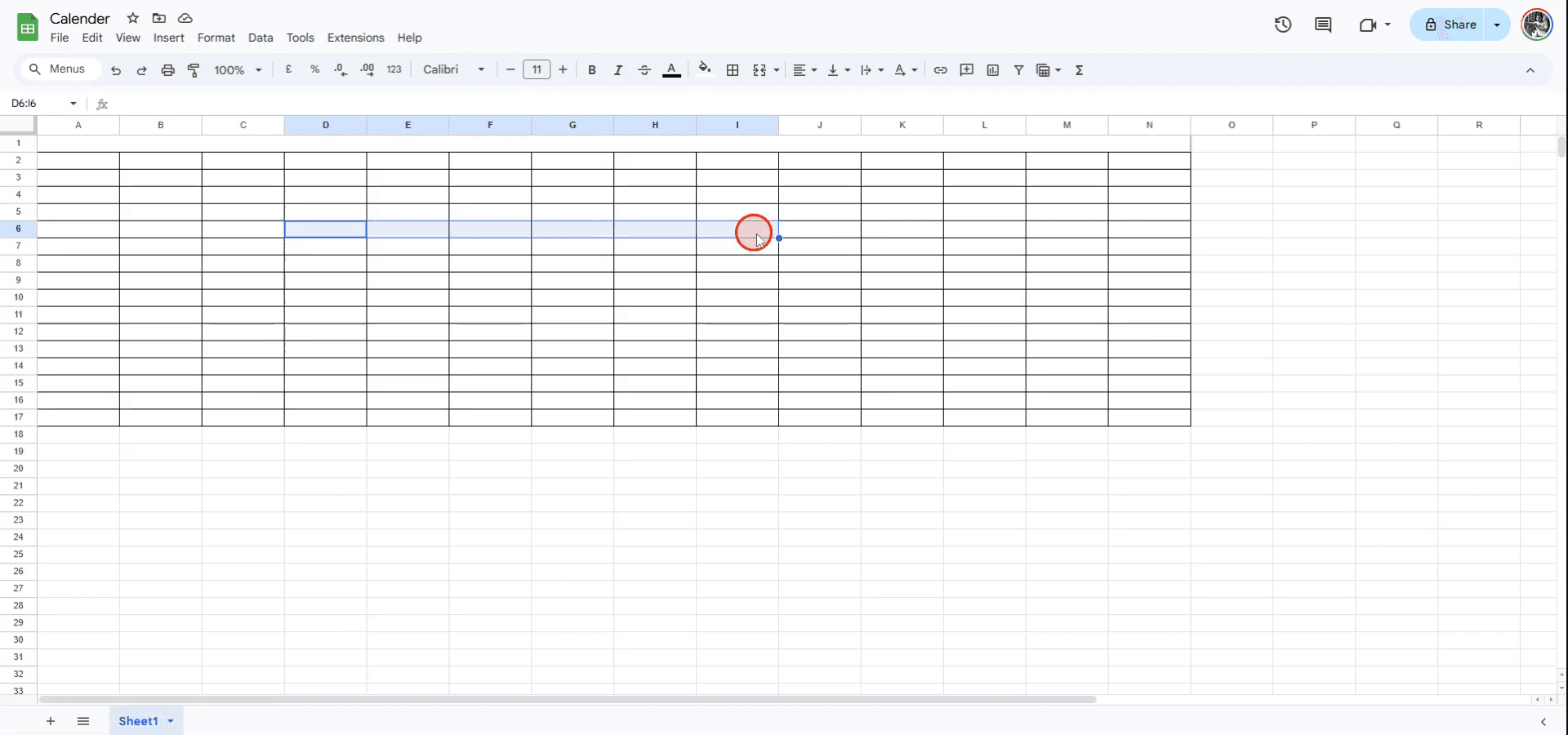
To add a calendar in Google Sheets, begin by selecting the cells where you want the calendar to appear.
Step 2
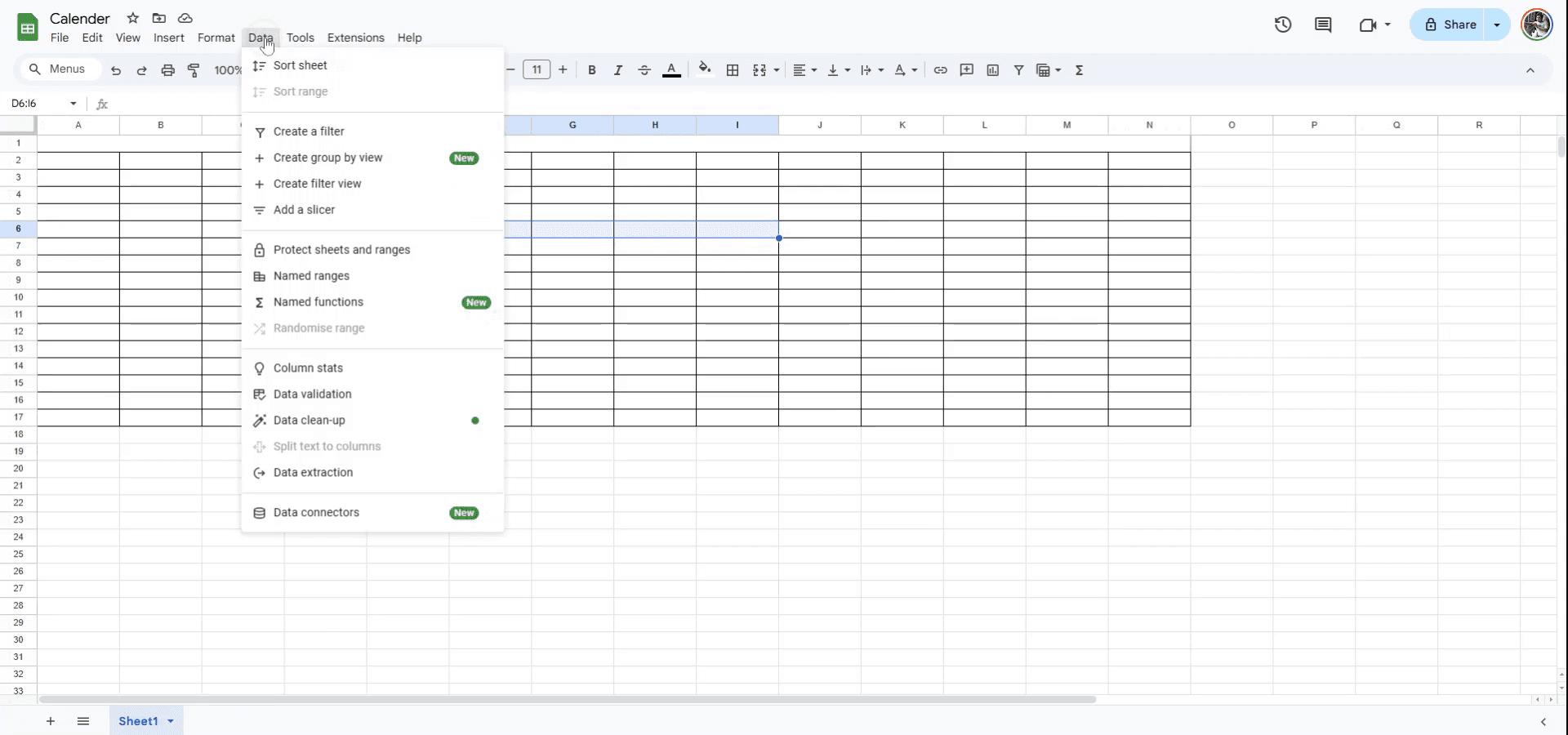
Once the cells are selected, navigate to the 'Data' menu located at the top of the interface.
Step 3
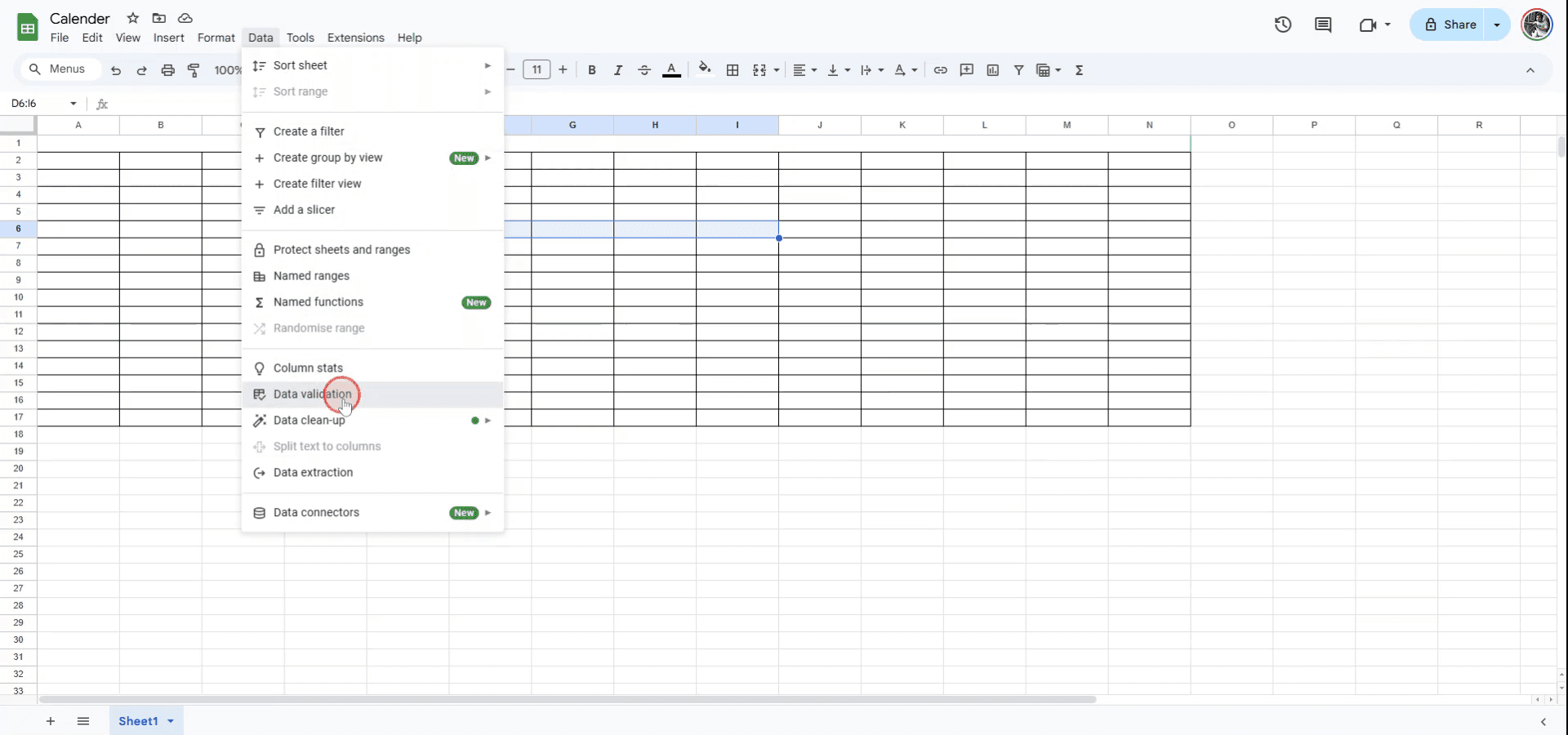
Within the 'Data' menu, select the 'Data Validation' option.
Step 4
In the 'Data Validation' settings, click on 'Add rule.'
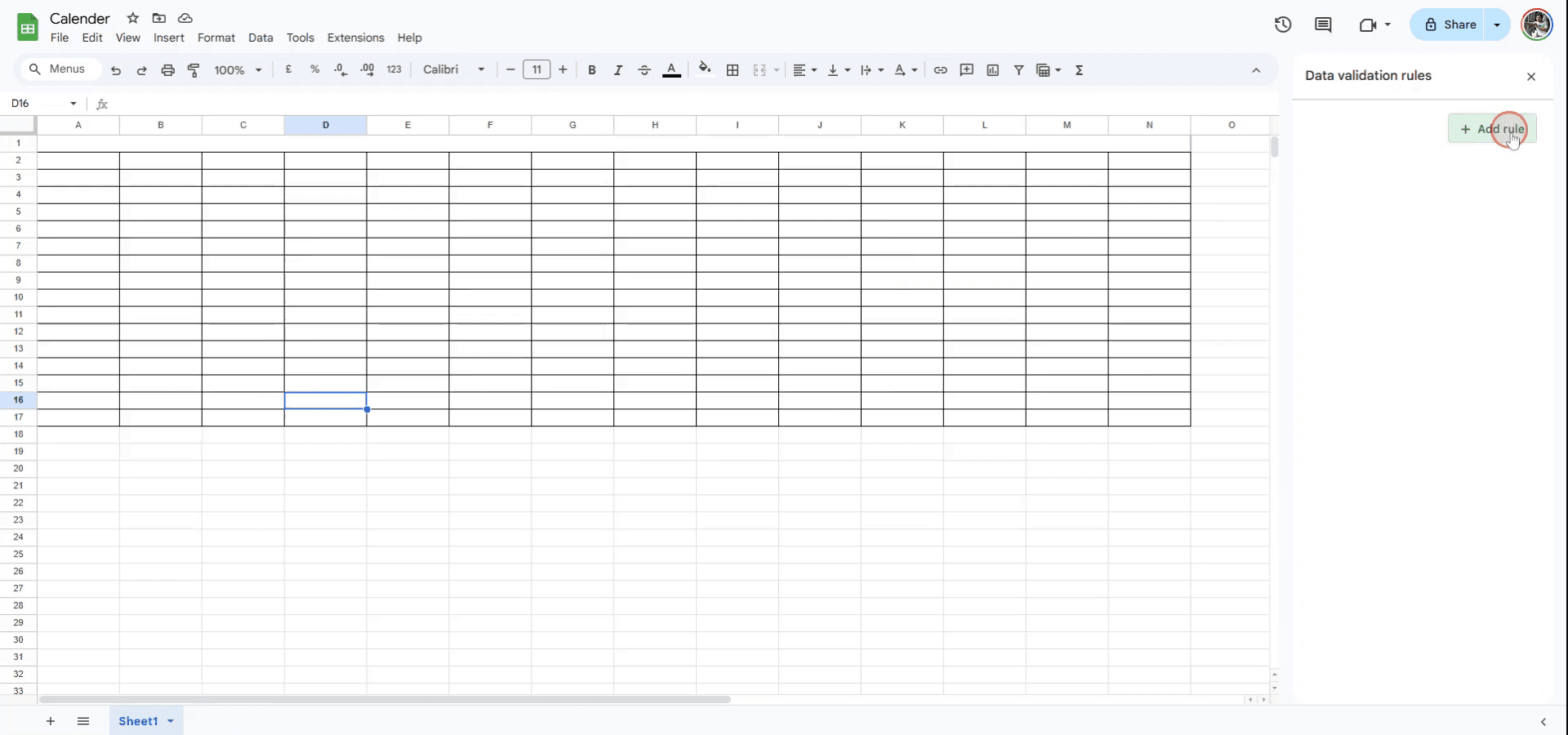
Step 5
From the criteria section, open the 'Criteria' drop-down list and select the 'Date' option.
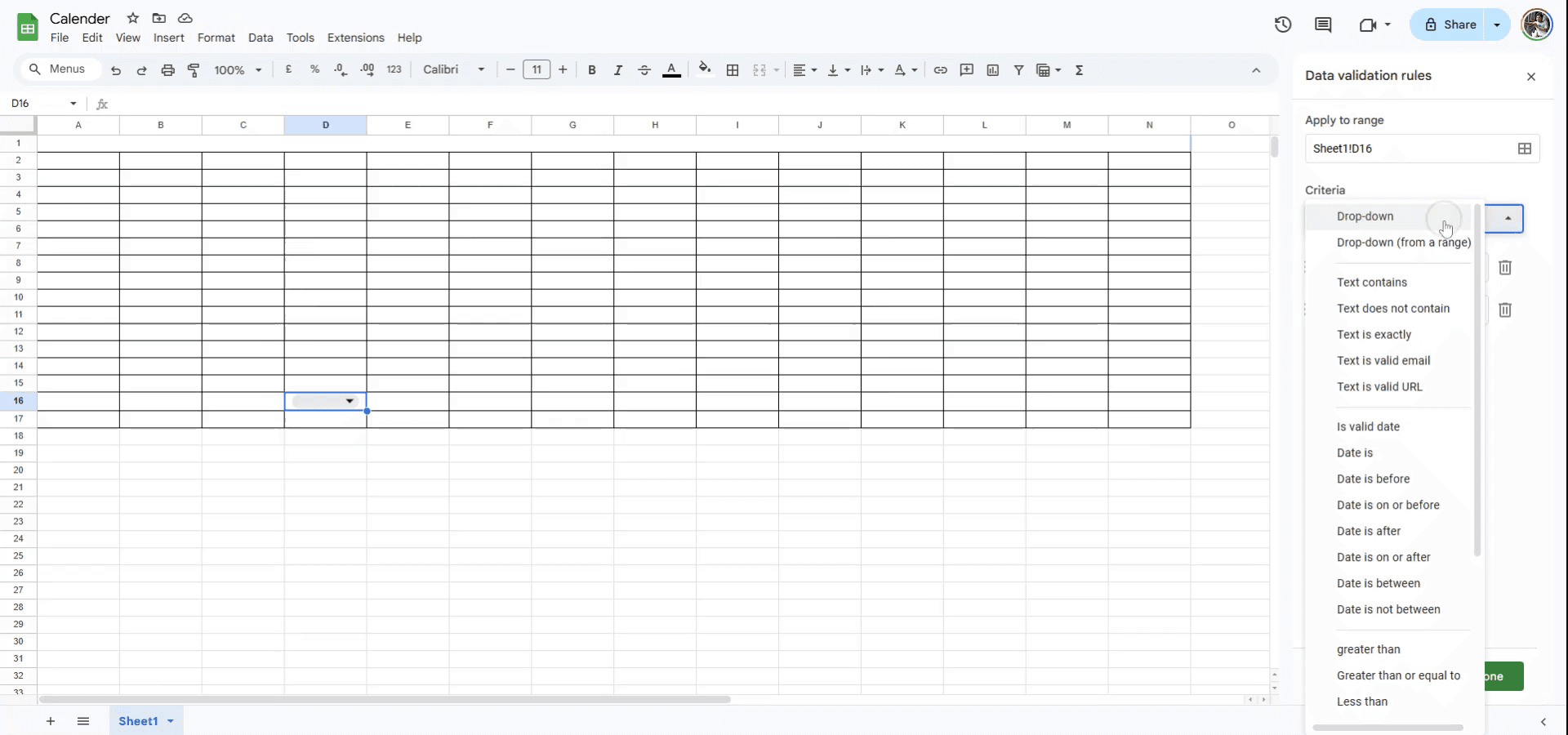
Step 6
If desired, click on 'Show help text for selected cell' to provide a pop-up guide for users.
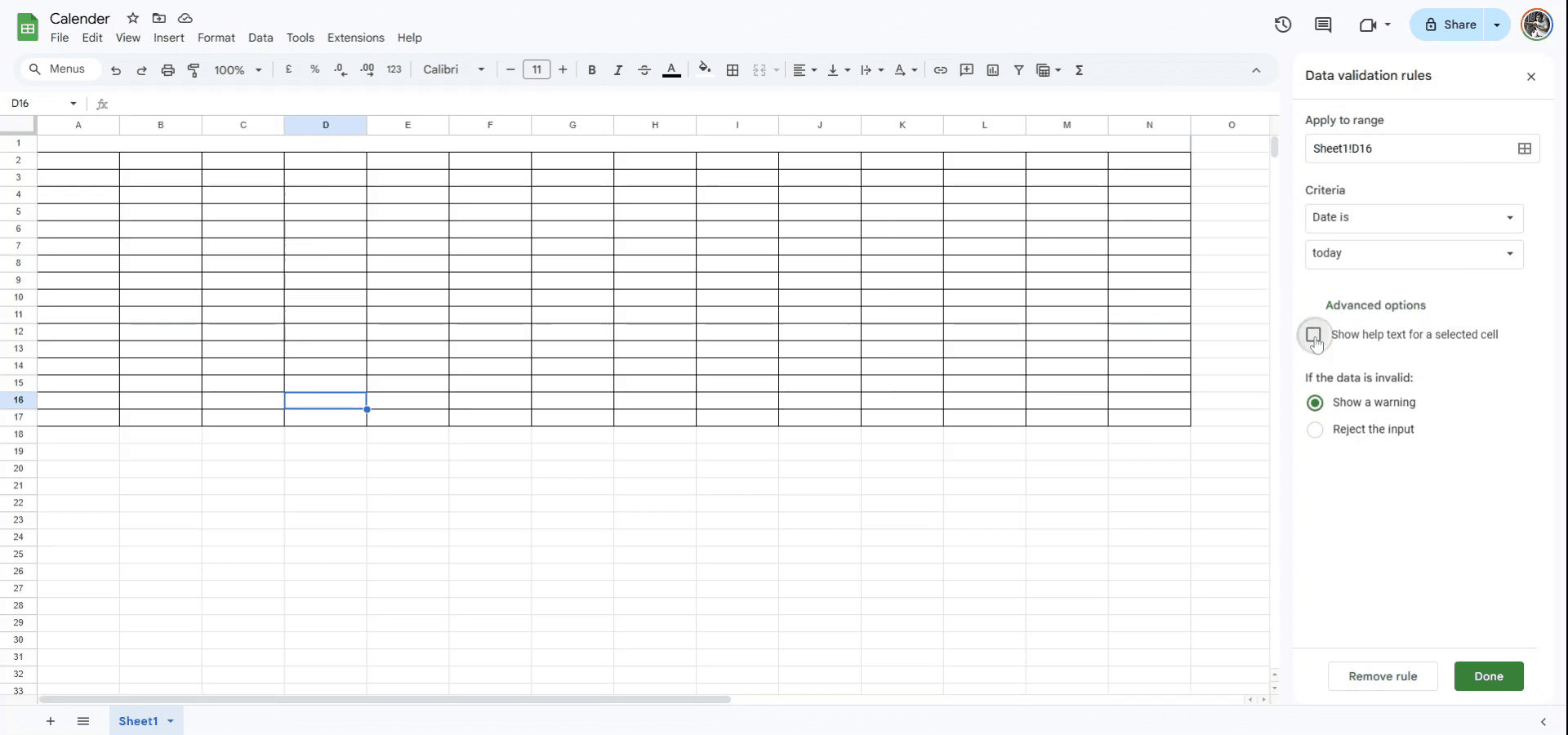
Step 7
Finally, click on 'Done.' You can now click on any of the specified cells to access a calendar pop-up for date selection.
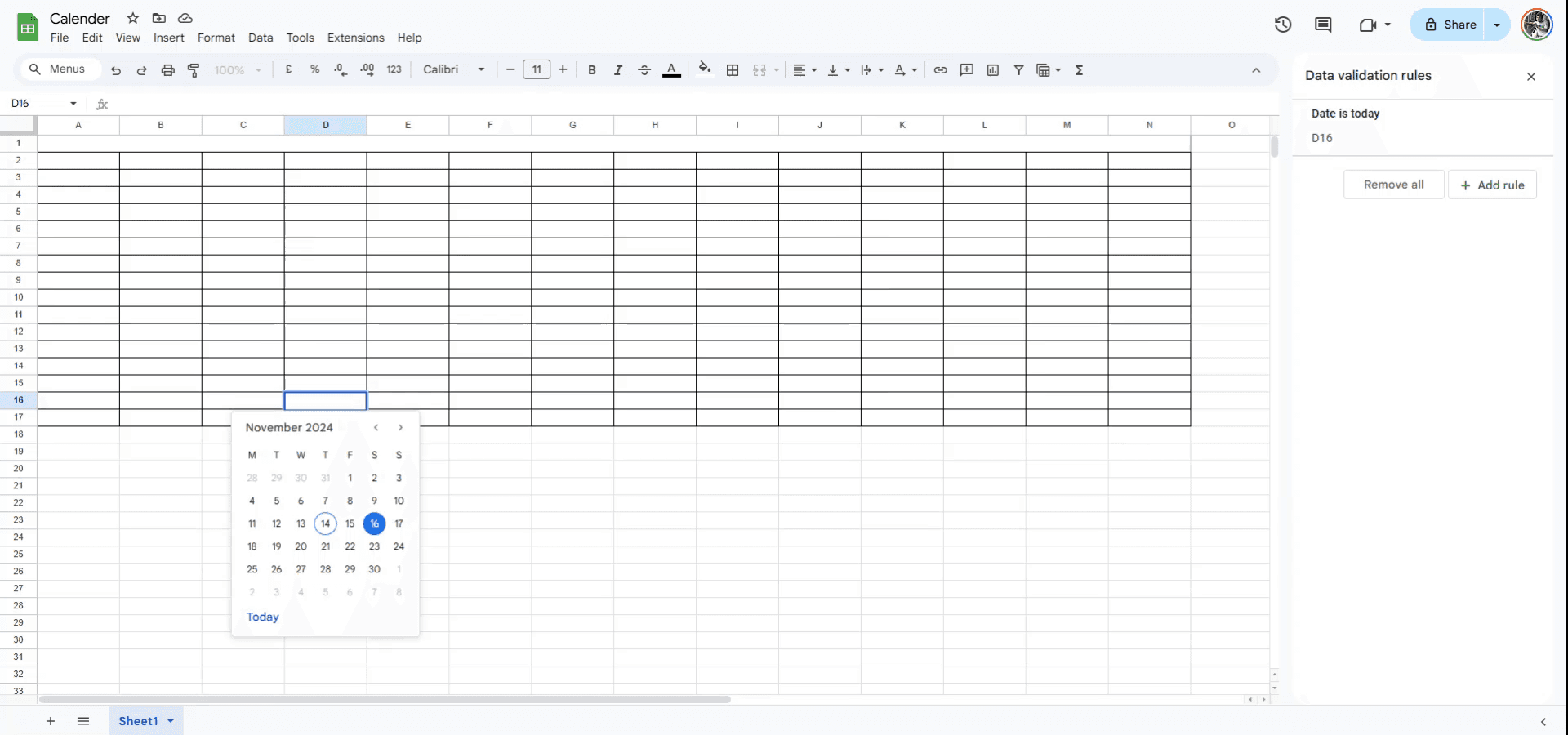
Google 스프레드시트에서 캘린더를 추가하는 방법 Pro 팁
Google 스프레드시트 템플릿 사용: 캘린더를 빠르게 추가하려면 파일 > 새로 만들기 > 템플릿에서로 이동한 다음 캘린더 템플릿을 선택하세요. 그러면 바로 사용할 수 있는 캘린더가 제공되며, 필요에 맞게 커스터마이즈할 수 있습니다.
맞춤 캘린더 만들기:
=DATE(year, month, day)같은 기본 날짜 함수를 사용해 맞춤 캘린더를 만들 수 있습니다. 셀 서식을 지정해 원하는 캘린더 레이아웃을 표시하세요.Google 스프레드시트 애드온 사용: 애드온 > 애드온 가져오기에서 캘린더 애드온을 검색한 뒤 캘린더 도구를 설치하여 이벤트를 생성하고 관리하세요.
온보딩에 포함하기 : 팀이 일정에 맞춰 구축하는 모든 것에 대해, 이 단계를 표준 운영 절차로 전환 하고, 찾기 쉬운 곳에 보관하면 도움이 됩니다.
Google 스프레드시트에서 캘린더를 추가할 때 흔한 실수와 방지 방법
잘못된 날짜 형식: 날짜가 제대로 표시되지 않으면 셀이 날짜 셀로 서식 지정되어 있는지 확인하세요. 수정: 셀을 마우스 오른쪽 버튼으로 클릭한 다음 셀 서식을 선택하고 날짜를 선택하세요.
셀 안에 텍스트를 넣을 공간이 없음: 캘린더에 이벤트를 추가할 때 텍스트가 잘릴 수 있습니다. 수정: 행 높이 또는 열 너비를 조정해 텍스트를 더 넣을 수 있는 공간을 확보하세요.
수동 업데이트: 수동으로 만든 캘린더는 잦은 업데이트가 필요할 수 있습니다. 수정: Google 스프레드시트 템플릿이나 애드온을 사용해 업데이트를 자동화하면 정확도와 편의성이 높아집니다.
Google Sheets에서 캘린더를 추가하는 방법에 대한 자주 묻는 질문
캘린더에서 반복 이벤트를 추가하는 방법은 무엇인가요?
Google Sheets 애드온을 사용하거나, 날짜를 기준으로 이벤트의 반복을 자동화하는 수식을 생성하세요.캘린더에서 이벤트에 색상을 지정할 수 있나요?
네, 서식 > 조건부 서식에서 조건에 따라 색상을 지정하도록 설정하면 됩니다.캘린더를 Google Calendar와 동기화할 수 있나요?
Sheets 캘린더는 별도로 운영되지만, Google Calendar의 API를 사용해 이벤트를 Google Sheet와 동기화할 수 있습니다.mac에서 화면 녹화하는 방법은 무엇인가요?
Mac에서 화면 녹화하려면 Trupeer AI를 사용할 수 있습니다. 전체 화면을 캡처할 수 있으며, AI 아바타 추가, 음성 내레이션 추가, 영상에서 확대/축소 같은 AI 기능을 제공합니다. trupeer의 AI 비디오 번역 기능을 사용하면 영상을 30+개 언어로 번역할 수 있습니다.화면 녹화에 AI 아바타를 추가하는 방법은 무엇인가요?
화면 녹화에 AI 아바타를 추가하려면 AI 화면 녹화 도구.를 사용해야 합니다. Trupeer AI는 AI 화면 녹화 도구로, 여러 아바타로 영상을 만들 수 있으며, 영상용 나만의 아바타를 만드는 데도 도움을 줍니다.windows에서 화면 녹화하는 방법은 무엇인가요?
Windows에서 화면 녹화하려면 기본 제공되는 게임 바(Game Bar)(Windows + G) 또는 Trupeer AI 같은 고급 AI 도구를 사용해 AI 아바타, 음성 내레이션, 번역 등 더 고급 기능을 활용할 수 있습니다.영상에 음성 내레이션을 추가하는 방법은 무엇인가요?
영상에 음성 내레이션을 추가하려면 trupeer ai 크롬 확장 프로그램을 다운로드하세요. 가입 후, 음성이 포함된 영상을 업로드하고 trupeer에서 원하는 음성 내레이션을 선택한 다음 편집한 영상을 내보내세요.화면 녹화 중 확대하는 방법은 무엇인가요?
화면 녹화 중 확대하려면 Trupeer AI의 줌 효과를 사용하세요. 특정 순간에 확대/축소할 수 있어 영상 콘텐츠의 시각적 임팩트를 강화합니다.
추천 읽을거리
관련 튜토리얼