チュートリアル
Figmaでオブジェクトをミラーリングする方法
Figmaでオブジェクトをミラーリングする方法を学び、フリップツール、スマートガイド、キーボードショートカットを使用します。デザインを水平または垂直に正確に反映させるためのクイックガイドです。

詳細な手順:
ダウンロードとインストール: デバイスのアプリストア(Google Play ストアまたは Apple App Store)から Figma Mirror アプリをダウンロードするか、モバイルブラウザで figma.com/mirror にアクセスしてください。
ログイン: Figma Mirror アプリを開き、デスクトップアプリまたはブラウザと同じ Figma アカウントを使用してログインします。
デザインを開く: デスクトップアプリまたはブラウザで希望の Figma ファイルを開きます。
フレームを選択: モバイルデバイスでミラーリングするトップレベルのフレームを選択します。
ミラーリング開始: Figma Mirror アプリで、「ミラーリング開始」ボタン(アプリのバージョンによって異なる場合があります)をタップします。
表示および操作: 選択したフレームがモバイルデバイスに表示され、プロトタイプとして操作できます。
ステップバイステップガイド: Figma でオブジェクトをミラーリングする方法
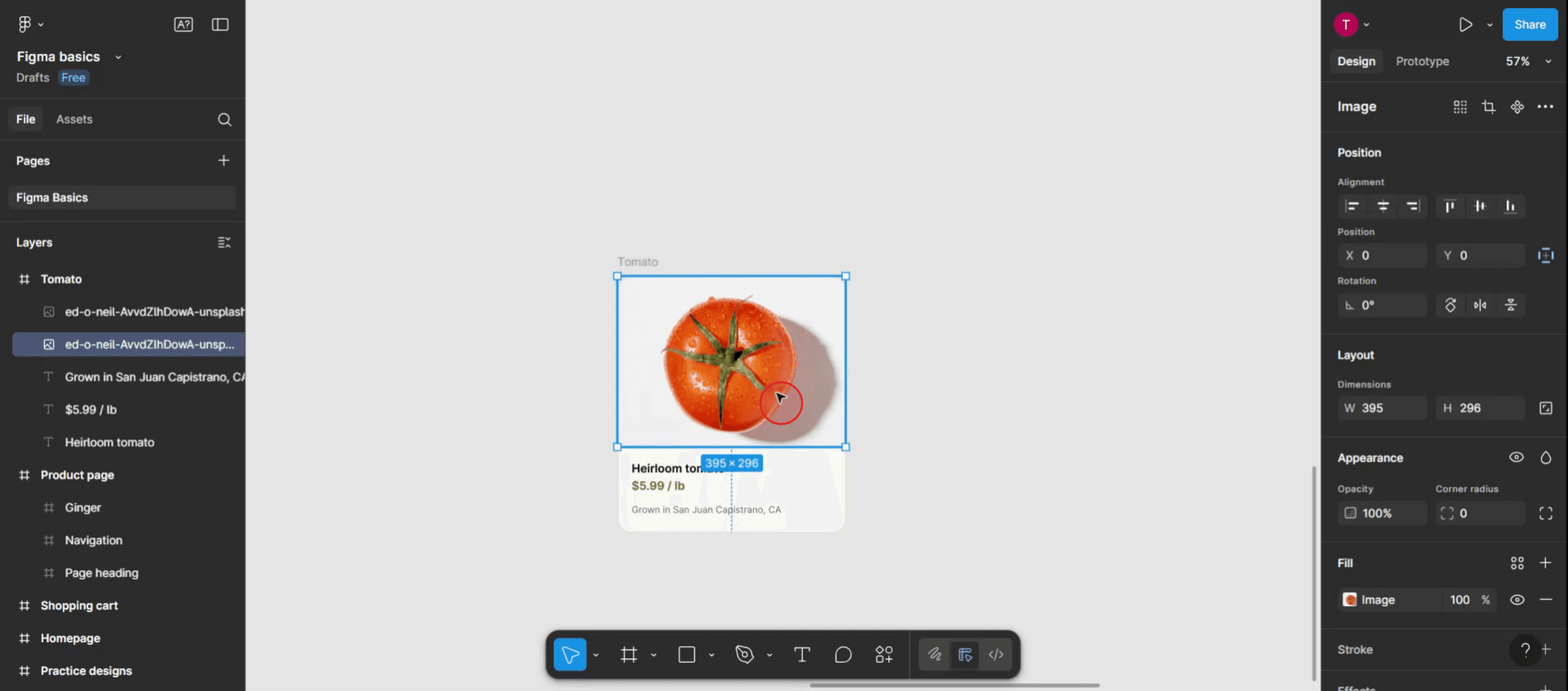
ステップ 1
最初に、ミラーリングしたいオブジェクトが選択されていることを確認してください。

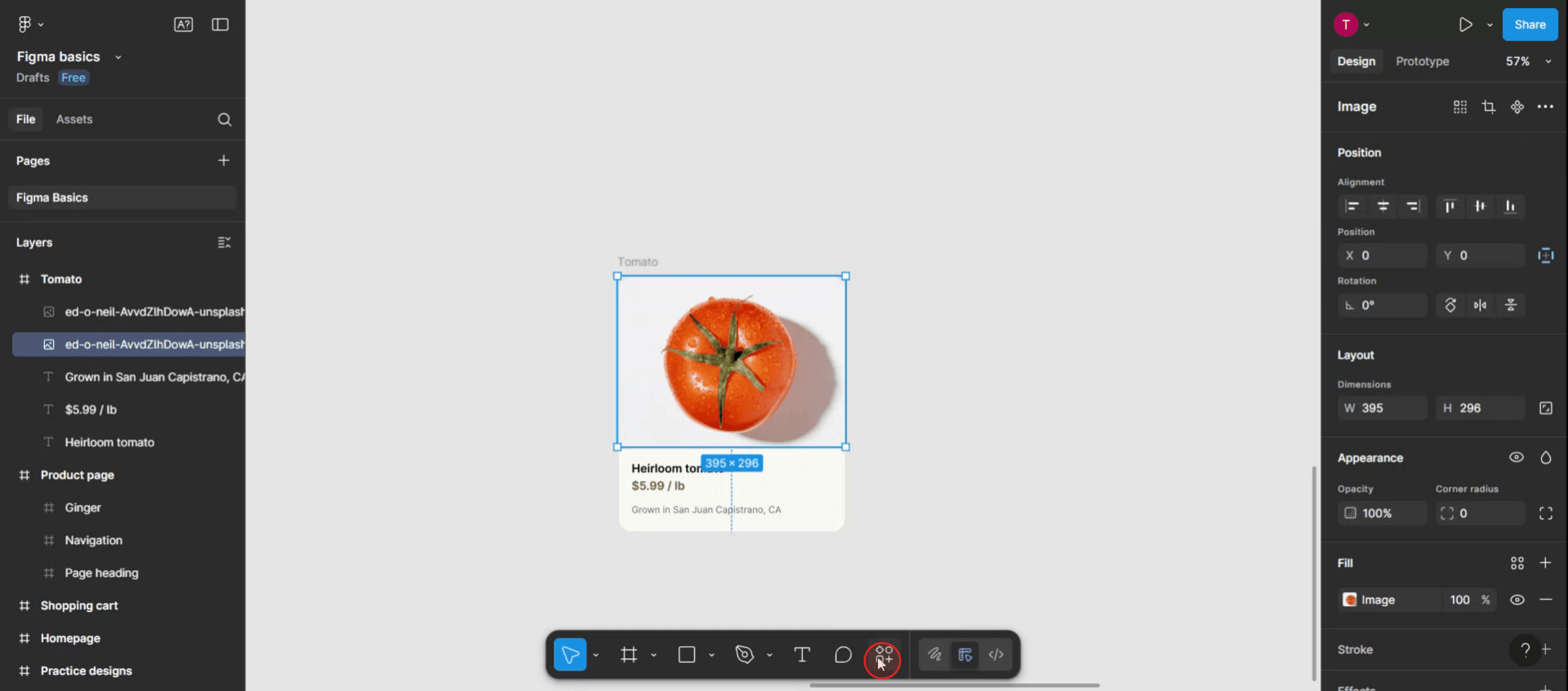
ステップ 2
次に、Figma インターフェイスのアクションメニューを見つけてクリックします。

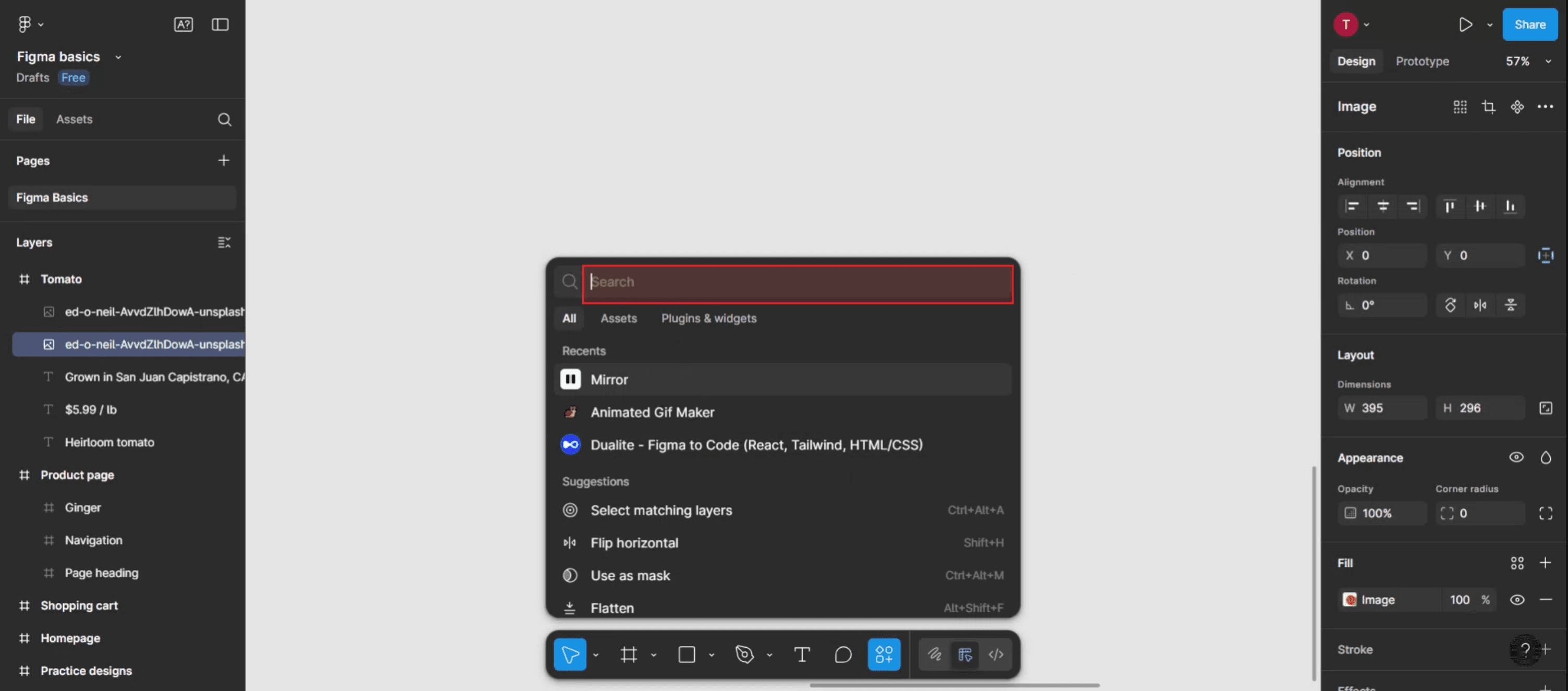
ステップ 3
検索コンソールに「mirror」と入力して、ミラーリングオプションを見つけます。

ステップ 4
「mirror」オプションを見つけたら、それをクリックします。

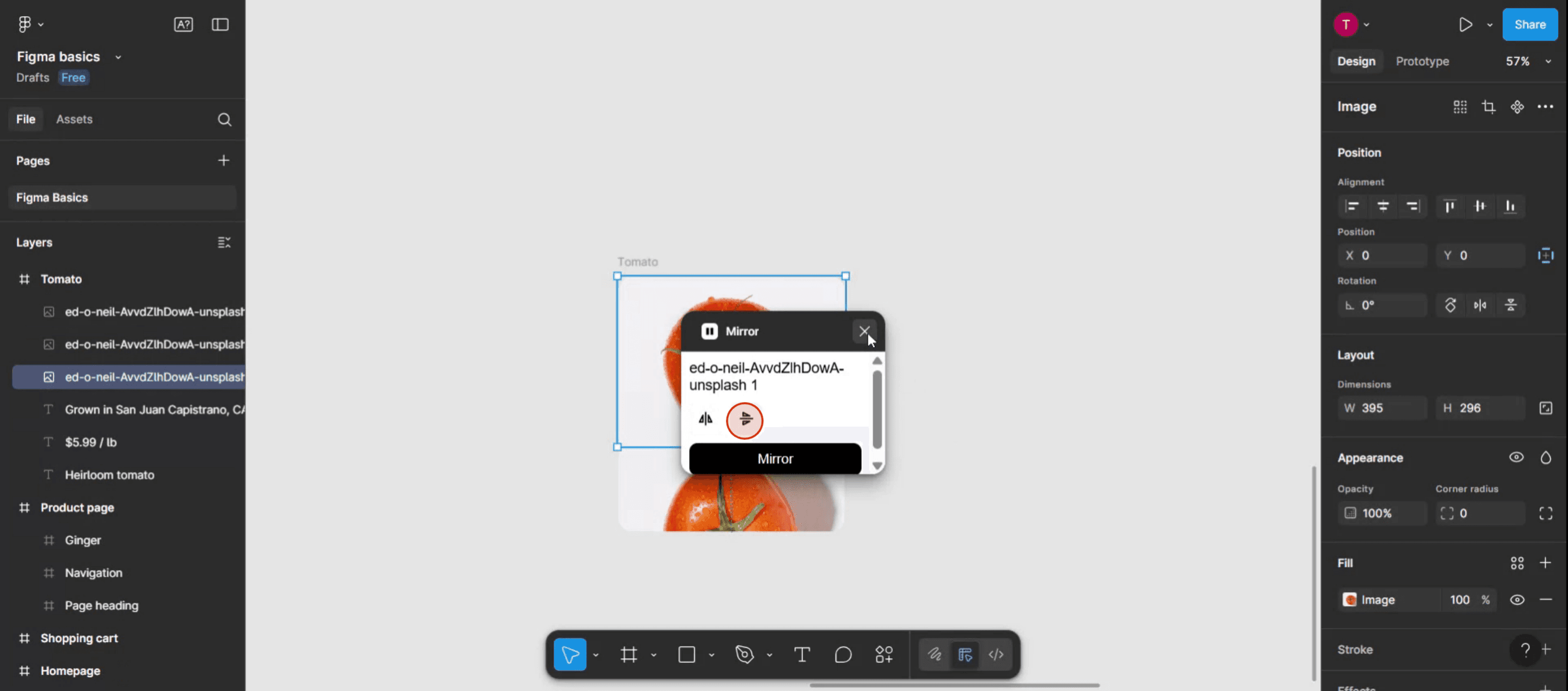
ステップ 5
ポップアップ内で、ミラーリングしたい方向を選択します: 水平または垂直のいずれか。

ステップ 6
プロセスを完了していただきありがとうございます。

Figma でオブジェクトをミラーリングするためのプロのヒント
オブジェクトを選択
ミラーリングしたい形状、アイコン、またはグループをクリックします。変換を適用する前に、全要素が選択されていることを確認してください。スケールツールを開く
キーボードのショートカット「K」を使用してスケールツールを有効にするか、上部のツールバーから選択します。負の幅を使用して水平方向にミラーリング
スケールツールがアクティブな状態で、Shift キーを押しながらオブジェクトの左端または右端をドラッグします。プロパティパネルに幅の負の値 (例: -100%) を入力して、水平に反転させます。負の高さを使用して垂直にミラーリング
垂直にミラーリングするには、スケールツールを使用しながらオブジェクトの上端または下端をドラッグします。プロパティパネルに高さの負の値 (例: -100%) を入力します。迅速な反転のためにキーボードショートカットを使用
キーボードショートカットを使用してミラーリングすることもできます:
水平反転: 右クリック → 水平反転
垂直反転: 右クリック → 垂直反転
一般的な落とし穴とそれを避ける方法
回転ではなく反転
ミラーリングと回転は同じではありません。180度回転させるのではなく、適切な方法でオブジェクトを反転させていることを確認してください。オブジェクトの位置がずれる
ミラーリングによりオブジェクトの位置が変更される場合があります。反転後に整列ツールを使用するか、オブジェクトを手動で再配置してください。グループ化の問題
グループ化されたオブジェクトをミラーリングする場合、すべての内部要素が意図したとおりにミラーリングされることを確認してください。必要に応じて、グループを解除してテストします。テキストが誤って反転する
テキストレイヤーを反転させると、それが読めなくなることがあります。ミラーリングされた外観が必要な場合は、アウトラインに変換を検討してください。コンポーネントが壊れる
コンポーネントを反転させると、動作が変わることがあります。大きなデザインで使用する前に、ミラーリングされたコンポーネントを徹底的にテストしてください。
Figma でオブジェクトをミラーリングすることに関するよくある質問
Figma でオブジェクトをミラーリングするにはどうすればよいですか?
オブジェクトを選択し、スケールツール (K) を使って、幅または高さの負の値を入力して水平方向または垂直方向に反転させます。複数のオブジェクトを一度にミラーリングできますか?
はい、最初にオブジェクトをグループ化し、次にフリップオプションまたはスケールツールを使用して一緒にミラーリングします。Figma で反転するためのショートカットはありますか?
はい、オブジェクトを右クリックしてメニューから「水平反転」または「垂直反転」を選択してください。ミラーリングはテキストの読みやすさに影響しますか?
はい、テキストを反転すると、読めなくなることがあります。視覚的にのみミラーリングするためには、必要に応じてテキストをアウトラインに変換してください。コンポーネント内のオブジェクトをミラーリングできますか?
はい、しかしミラーリングがコンポーネントの意図された動作や自動レイアウト構造に干渉しないことを確認してください。Mac で画面を録画するにはどうすればよいですか?
Mac で画面を録画するには、Trupeer AI を使用できます。これにより、画面全体をキャプチャでき、AI アバター、音声オーバー、ビデオのズームインおよびズームアウトなどの AI 機能が提供されます。trupeerの AI ビデオ翻訳機能を使用すると、ビデオを 30 以上の言語に翻訳できます。画面録画に AI アバターを追加するにはどうすればよいですか?
画面録画に AI アバターを追加するには、AI 画面録画ツールを使用する必要があります。Trupeer AI は AI 画面録画ツールで、複数のアバターを使用してビデオを作成するのに役立ち、ビデオ用に独自のアバターを作成するのも助けてくれます。Windows で画面を録画するにはどうすればよいですか?
Windows で画面を録画するには、組み込みのゲームバー (Windows + G) を使用するか、AI アバター、音声オーバー、翻訳などのより高度な機能を備えた Trupeer AI のような高度な AI ツールを使用することができます。ビデオに音声オーバーを追加するにはどうすればよいですか?
ビデオに音声オーバーを追加するには、trupeer ai chrome 拡張機能をダウンロードしてください。サインアップ後、音声を含むビデオをアップロードし、trupeer から必要な音声オーバーを選択して、編集したビデオをエクスポートします。画面録画でズームインするにはどうすればよいですか?
画面録画中にズームインするには、Trupeer AI のズーム効果を使用して、特定の瞬間にズームインおよびズームアウトができ、ビデオコンテンツの視覚的なインパクトを向上させます。

詳細な手順:
ダウンロードとインストール: デバイスのアプリストア(Google Play ストアまたは Apple App Store)から Figma Mirror アプリをダウンロードするか、モバイルブラウザで figma.com/mirror にアクセスしてください。
ログイン: Figma Mirror アプリを開き、デスクトップアプリまたはブラウザと同じ Figma アカウントを使用してログインします。
デザインを開く: デスクトップアプリまたはブラウザで希望の Figma ファイルを開きます。
フレームを選択: モバイルデバイスでミラーリングするトップレベルのフレームを選択します。
ミラーリング開始: Figma Mirror アプリで、「ミラーリング開始」ボタン(アプリのバージョンによって異なる場合があります)をタップします。
表示および操作: 選択したフレームがモバイルデバイスに表示され、プロトタイプとして操作できます。
ステップバイステップガイド: Figma でオブジェクトをミラーリングする方法
ステップ 1
最初に、ミラーリングしたいオブジェクトが選択されていることを確認してください。

ステップ 2
次に、Figma インターフェイスのアクションメニューを見つけてクリックします。

ステップ 3
検索コンソールに「mirror」と入力して、ミラーリングオプションを見つけます。

ステップ 4
「mirror」オプションを見つけたら、それをクリックします。

ステップ 5
ポップアップ内で、ミラーリングしたい方向を選択します: 水平または垂直のいずれか。

ステップ 6
プロセスを完了していただきありがとうございます。

Figma でオブジェクトをミラーリングするためのプロのヒント
オブジェクトを選択
ミラーリングしたい形状、アイコン、またはグループをクリックします。変換を適用する前に、全要素が選択されていることを確認してください。スケールツールを開く
キーボードのショートカット「K」を使用してスケールツールを有効にするか、上部のツールバーから選択します。負の幅を使用して水平方向にミラーリング
スケールツールがアクティブな状態で、Shift キーを押しながらオブジェクトの左端または右端をドラッグします。プロパティパネルに幅の負の値 (例: -100%) を入力して、水平に反転させます。負の高さを使用して垂直にミラーリング
垂直にミラーリングするには、スケールツールを使用しながらオブジェクトの上端または下端をドラッグします。プロパティパネルに高さの負の値 (例: -100%) を入力します。迅速な反転のためにキーボードショートカットを使用
キーボードショートカットを使用してミラーリングすることもできます:
水平反転: 右クリック → 水平反転
垂直反転: 右クリック → 垂直反転
一般的な落とし穴とそれを避ける方法
回転ではなく反転
ミラーリングと回転は同じではありません。180度回転させるのではなく、適切な方法でオブジェクトを反転させていることを確認してください。オブジェクトの位置がずれる
ミラーリングによりオブジェクトの位置が変更される場合があります。反転後に整列ツールを使用するか、オブジェクトを手動で再配置してください。グループ化の問題
グループ化されたオブジェクトをミラーリングする場合、すべての内部要素が意図したとおりにミラーリングされることを確認してください。必要に応じて、グループを解除してテストします。テキストが誤って反転する
テキストレイヤーを反転させると、それが読めなくなることがあります。ミラーリングされた外観が必要な場合は、アウトラインに変換を検討してください。コンポーネントが壊れる
コンポーネントを反転させると、動作が変わることがあります。大きなデザインで使用する前に、ミラーリングされたコンポーネントを徹底的にテストしてください。
Figma でオブジェクトをミラーリングすることに関するよくある質問
Figma でオブジェクトをミラーリングするにはどうすればよいですか?
オブジェクトを選択し、スケールツール (K) を使って、幅または高さの負の値を入力して水平方向または垂直方向に反転させます。複数のオブジェクトを一度にミラーリングできますか?
はい、最初にオブジェクトをグループ化し、次にフリップオプションまたはスケールツールを使用して一緒にミラーリングします。Figma で反転するためのショートカットはありますか?
はい、オブジェクトを右クリックしてメニューから「水平反転」または「垂直反転」を選択してください。ミラーリングはテキストの読みやすさに影響しますか?
はい、テキストを反転すると、読めなくなることがあります。視覚的にのみミラーリングするためには、必要に応じてテキストをアウトラインに変換してください。コンポーネント内のオブジェクトをミラーリングできますか?
はい、しかしミラーリングがコンポーネントの意図された動作や自動レイアウト構造に干渉しないことを確認してください。Mac で画面を録画するにはどうすればよいですか?
Mac で画面を録画するには、Trupeer AI を使用できます。これにより、画面全体をキャプチャでき、AI アバター、音声オーバー、ビデオのズームインおよびズームアウトなどの AI 機能が提供されます。trupeerの AI ビデオ翻訳機能を使用すると、ビデオを 30 以上の言語に翻訳できます。画面録画に AI アバターを追加するにはどうすればよいですか?
画面録画に AI アバターを追加するには、AI 画面録画ツールを使用する必要があります。Trupeer AI は AI 画面録画ツールで、複数のアバターを使用してビデオを作成するのに役立ち、ビデオ用に独自のアバターを作成するのも助けてくれます。Windows で画面を録画するにはどうすればよいですか?
Windows で画面を録画するには、組み込みのゲームバー (Windows + G) を使用するか、AI アバター、音声オーバー、翻訳などのより高度な機能を備えた Trupeer AI のような高度な AI ツールを使用することができます。ビデオに音声オーバーを追加するにはどうすればよいですか?
ビデオに音声オーバーを追加するには、trupeer ai chrome 拡張機能をダウンロードしてください。サインアップ後、音声を含むビデオをアップロードし、trupeer から必要な音声オーバーを選択して、編集したビデオをエクスポートします。画面録画でズームインするにはどうすればよいですか?
画面録画中にズームインするには、Trupeer AI のズーム効果を使用して、特定の瞬間にズームインおよびズームアウトができ、ビデオコンテンツの視覚的なインパクトを向上させます。
Start creating videos with our AI Video + Doc generator for free
Pro Tips for Mirroring Objects in Figma
Select the object
Click on the shape, icon, or group that you want to mirror. Make sure the entire element is selected before applying any transformation.Open the scale tool
Use the shortcut “K” on your keyboard to activate the Scale tool, or select it from the top toolbar.Mirror horizontally using negative width
With the Scale tool active, drag the left or right edge of the object while holding down the Shift key. Enter a negative value for the width in the property panel (e.g., -100%) to flip it horizontally.Mirror vertically using negative height
To mirror vertically, drag the top or bottom edge of the object while using the Scale tool. Enter a negative value for the height (e.g., -100%) in the property panel.Use keyboard shortcuts for quick flipping
You can also mirror using keyboard shortcuts:
Flip Horizontal: Right-click → Flip Horizontal
Flip Vertical: Right-click → Flip Vertical
Common Pitfalls and How to Avoid Them
Flipping instead of rotating
Mirroring and rotating are not the same. Make sure you’re flipping the object using the correct method, not rotating it by 180 degrees.Losing object alignment
Mirroring may change an object’s position. Use alignment tools or reposition the object manually after flipping.Grouping issues
If you’re mirroring a grouped object, ensure all internal elements mirror as intended. Ungroup and test if needed.Text flipping incorrectly
When you flip a text layer, it might become unreadable. Consider converting it to outlines if you need a mirrored appearance.Breaking components
Flipping a component may change its behavior. Test mirrored components thoroughly before using them in a larger design.
Pro Tips for Mirroring Objects in Figma
Select the object
Click on the shape, icon, or group that you want to mirror. Make sure the entire element is selected before applying any transformation.Open the scale tool
Use the shortcut “K” on your keyboard to activate the Scale tool, or select it from the top toolbar.Mirror horizontally using negative width
With the Scale tool active, drag the left or right edge of the object while holding down the Shift key. Enter a negative value for the width in the property panel (e.g., -100%) to flip it horizontally.Mirror vertically using negative height
To mirror vertically, drag the top or bottom edge of the object while using the Scale tool. Enter a negative value for the height (e.g., -100%) in the property panel.Use keyboard shortcuts for quick flipping
You can also mirror using keyboard shortcuts:
Flip Horizontal: Right-click → Flip Horizontal
Flip Vertical: Right-click → Flip Vertical
Common Pitfalls and How to Avoid Them
Flipping instead of rotating
Mirroring and rotating are not the same. Make sure you’re flipping the object using the correct method, not rotating it by 180 degrees.Losing object alignment
Mirroring may change an object’s position. Use alignment tools or reposition the object manually after flipping.Grouping issues
If you’re mirroring a grouped object, ensure all internal elements mirror as intended. Ungroup and test if needed.Text flipping incorrectly
When you flip a text layer, it might become unreadable. Consider converting it to outlines if you need a mirrored appearance.Breaking components
Flipping a component may change its behavior. Test mirrored components thoroughly before using them in a larger design.
Common FAQs About Mirroring Objects in Figma
How do I mirror an object in Figma?
Select the object, use the Scale tool (K), and enter a negative width or height to flip it horizontally or vertically.Can I mirror multiple objects at once?
Yes, group the objects first, then mirror them together using the Flip options or Scale tool.Is there a shortcut for flipping in Figma?
Yes, right-click on the object and choose “Flip Horizontal” or “Flip Vertical” from the menu.Will mirroring affect text readability?
Yes, flipping text can make it unreadable. Convert text to outlines if needed for visual-only mirroring.Can I mirror objects inside a component?
Yes, but make sure the mirroring doesn’t interfere with the component’s intended behavior or auto layout structure.How to screen record on mac?
To screen record on a Mac, you can use Trupeer AI. It allows you to capture the entire screen and provides AI capabilities such as adding AI avatars, add voiceover, add zoom in and out in the video. With trupeer’s AI video translation feature, you can translate the video into 30+ languages.How to add an AI avatar to screen recording?
To add an AI avatar to a screen recording, you'll need to use an AI screen recording tool. Trupeer AI is an AI screen recording tool, which helps you create videos with multiple avatars, also helps you in creating your own avatar for the video.How to screen record on windows?
To screen record on Windows, you can use the built-in Game Bar (Windows + G) or advanced AI tool like Trupeer AI for more advanced features such as AI avatars, voiceover, translation etc.How to add voiceover to video?
To add voiceover to videos, download trupeer ai chrome extension. Once signed up, upload your video with voice, choose the desired voiceover from trupeer and export your edited video.How do I Zoom in on a screen recording?
To zoom in during a screen recording, use the zoom effects in Trupeer AI which allows you to zoom in and out at specific moments, enhancing the visual impact of your video content.
People also ask
Common FAQs About Mirroring Objects in Figma
How do I mirror an object in Figma?
Select the object, use the Scale tool (K), and enter a negative width or height to flip it horizontally or vertically.Can I mirror multiple objects at once?
Yes, group the objects first, then mirror them together using the Flip options or Scale tool.Is there a shortcut for flipping in Figma?
Yes, right-click on the object and choose “Flip Horizontal” or “Flip Vertical” from the menu.Will mirroring affect text readability?
Yes, flipping text can make it unreadable. Convert text to outlines if needed for visual-only mirroring.Can I mirror objects inside a component?
Yes, but make sure the mirroring doesn’t interfere with the component’s intended behavior or auto layout structure.How to screen record on mac?
To screen record on a Mac, you can use Trupeer AI. It allows you to capture the entire screen and provides AI capabilities such as adding AI avatars, add voiceover, add zoom in and out in the video. With trupeer’s AI video translation feature, you can translate the video into 30+ languages.How to add an AI avatar to screen recording?
To add an AI avatar to a screen recording, you'll need to use an AI screen recording tool. Trupeer AI is an AI screen recording tool, which helps you create videos with multiple avatars, also helps you in creating your own avatar for the video.How to screen record on windows?
To screen record on Windows, you can use the built-in Game Bar (Windows + G) or advanced AI tool like Trupeer AI for more advanced features such as AI avatars, voiceover, translation etc.How to add voiceover to video?
To add voiceover to videos, download trupeer ai chrome extension. Once signed up, upload your video with voice, choose the desired voiceover from trupeer and export your edited video.How do I Zoom in on a screen recording?
To zoom in during a screen recording, use the zoom effects in Trupeer AI which allows you to zoom in and out at specific moments, enhancing the visual impact of your video content.
People also ask

Instant AI Product Videos & Docs from Rough Screen Recordings
Experience the new & faster way of creating product videos.
Instant AI Product Videos and Docs from Rough Screen Recordings.
Experience the new & faster way of creating product videos.
Instant AI Product Videos and Docs from Rough Screen Recordings.
Experience the new & faster way of creating product videos.
Instant AI Product Videos and Docs from Rough Screen Recordings.
Build Killer Demos & Docs in 2 minutes