Trupeer Blog
Summarise

Screen capture software is crucial for effective internal communication, bug reporting, and product documentation. Yet, many teams still use basic OS-level tools that fall short in features like annotation, scrolling capture, and efficient sharing. A well-chosen screen capture tool can transform how teams document and communicate visually. According to a study by TechSmith, 67% of professionals believe that improving visual communication enhances productivity significantly. This guide is designed to help professionals and teams find the best screen capture software that fits their specific needs, whether they're focused on annotation capabilities, sharing features, or advanced capture modes. For how to take a screenshot, it's often easier to record the process once than to write it all out.
Best screen capture tools: Head-to-Head Comparison
Tool | Trupeer | Snagit | ShareX | Lightshot | Greenshot | Markup Hero | CloudApp |
|---|---|---|---|---|---|---|---|
Capture Modes | Full screen, region, scrolling, window | Full screen, region, scrolling, window | Full screen, region, scrolling, window, webcam overlay | Full screen, region, window | Full screen, region, window | Region, window | Full screen, region, scrolling, window, webcam overlay |
Annotation Tools | Yes | Yes | Limited | Limited | Yes | Yes | Yes |
OCR | Yes | Yes | Yes | No | No | No | Yes |
Cloud Sharing | Yes | Yes | Yes | Limited | No | No | Yes |
Video Clip Support | Yes | Yes | Yes | No | No | No | Yes |
Free Tier | Yes | No | Yes | Yes | Yes | Yes | Limited |
Trupeer
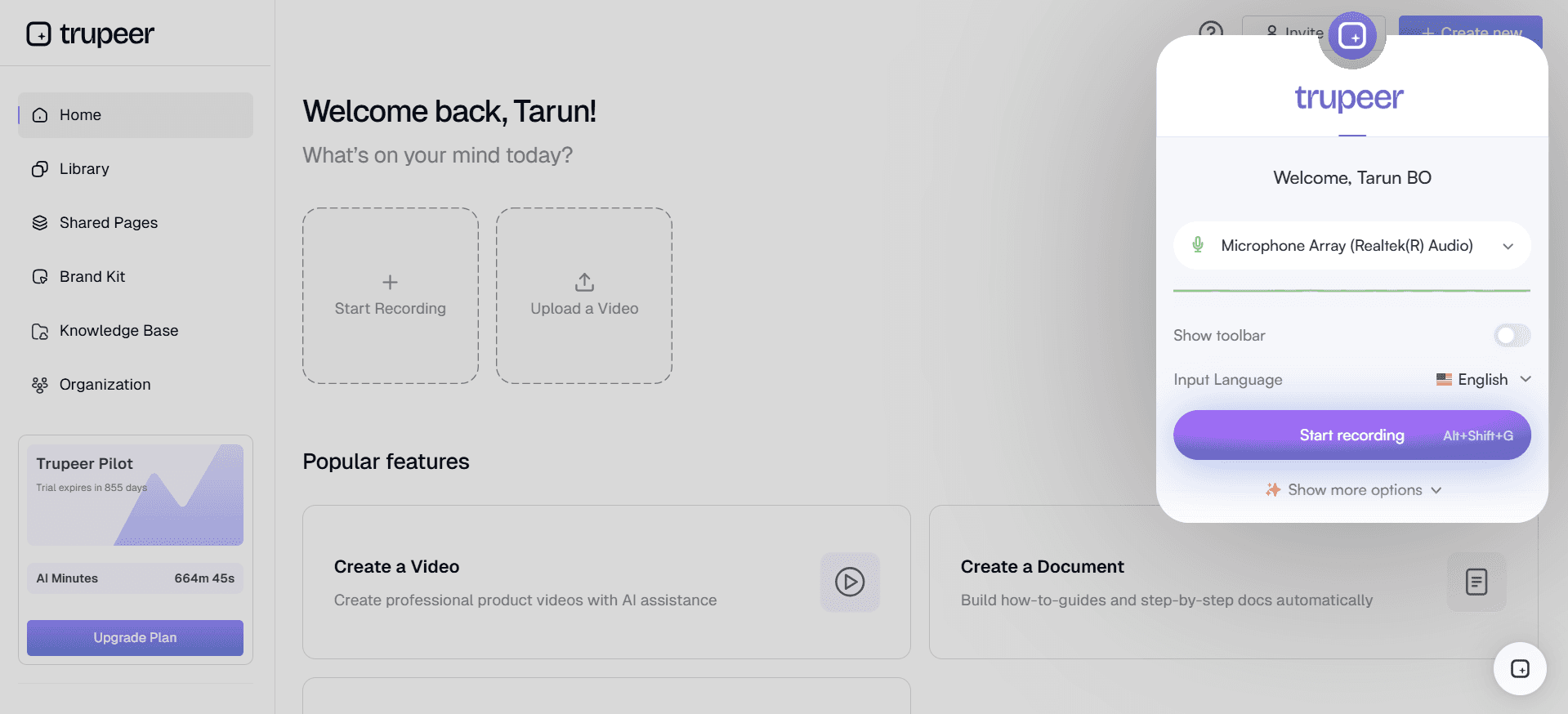
Trupeer is a versatile screen capture tool that caters to professionals seeking a comprehensive set of features. It excels in providing a seamless experience for capturing, annotating, and sharing screenshots, making it ideal for corporate environments and teams that prioritize collaboration. Trupeer stands out with its advanced AI capabilities, including optical character recognition (OCR) and automated annotations, which save time and enhance productivity.
With Trupeer, you'll get a tool that supports full-screen, region, scrolling, and window captures, ensuring you won't miss any detail. It's designed for ease of use, with intuitive controls that allow users to focus on creating effective visuals rather than learning complex software.
Key Features
Advanced AI-driven annotations
OCR for text extraction
Cloud-based sharing and collaboration
Multi-platform support
Video clip capture and editing
Customizable hotkeys
Integrations with major workplace tools
"Trupeer has streamlined our internal communications, saving us hours every week. Its intuitive annotation tools are a game-changer." - Sarah L., Project Manager at Tech Innovators
Pricing
Trupeer offers a premium experience without a free tier. Pricing starts at $49 per user per month, with enterprise plans available for larger teams.
Snagit
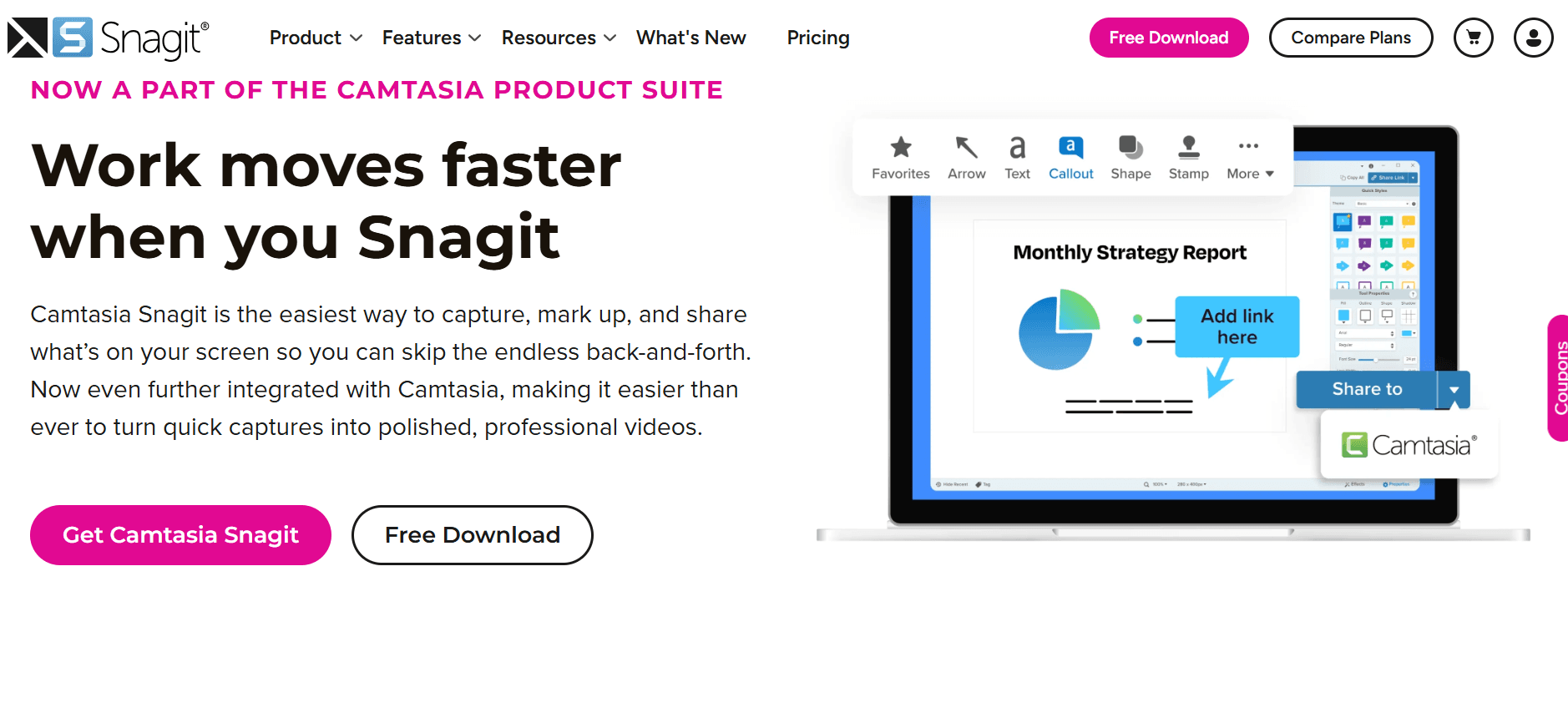
Snagit by TechSmith is a popular choice among educators and professionals for its powerful features and ease of use. It's particularly well-suited for those who need to create detailed tutorials or documentation, thanks to its robust capture and annotation capabilities. Snagit supports full-screen, region, and scrolling captures, making it versatile for various tasks.
One of Snagit's standout features is its ability to quickly transform captures into professional-looking visuals with an array of editing tools. This makes it ideal for users who need polished outputs with minimal effort.
Key Features
Scrolling capture
Comprehensive annotation tools
Video recording and trimming
Text extraction with OCR
Pre-made templates for quick edits
Cloud library for easy access
Multiple output formats
Pros
Cons
Intuitive interface for all skill levels
No free tier available
Powerful annotation and editing tools
Resource-heavy on older systems
Supports both screenshot and video capture
Limited integrations with third-party tools
Pricing
Snagit doesn't offer a free version, but users can try it for free for 15 days. The full version starts at $49.99 as a one-time purchase.
ShareX
ShareX is a free, open-source screen capture tool that is packed with features, making it a favorite among tech enthusiasts and developers. It provides a wide array of capture modes, including full screen, region, and scrolling, as well as a unique webcam overlay feature, which is relatively rare in free tools.
ShareX is highly customizable, allowing users to tailor its functionality to their specific needs. However, this level of customization can be overwhelming for newcomers or those looking for a straightforward solution.
Key Features
Comprehensive capture modes
Customizable workflows
Supports GIF creation
URL sharing capabilities
Annotation tools with basic editing
OCR support for text recognition
Free and open-source
Pros
Cons
Completely free with extensive features
Steep learning curve for new users
Highly customizable and versatile
Interface can be cluttered
Supports advanced workflows with scripting
Limited official support resources
Pricing
ShareX is entirely free, with no paid versions, making it accessible for everyone from individuals to teams.
Lightshot
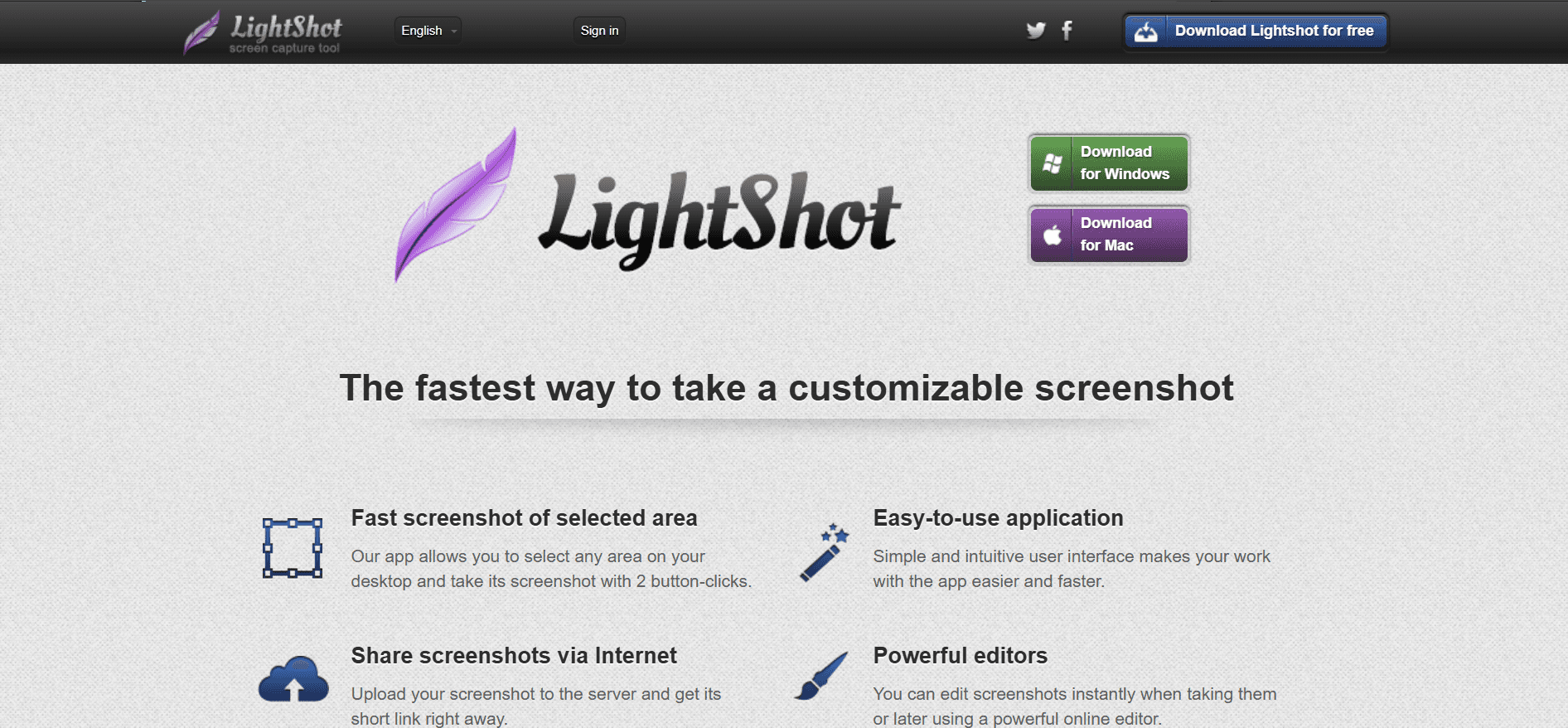
Lightshot is a straightforward and lightweight screen capture tool perfect for users who need quick and easy screenshots. It's particularly popular among casual users and those who want a no-fuss solution for capturing regions of their screens. Lightshot is available on multiple platforms, ensuring you can capture from almost any device.
While Lightshot lacks some advanced features found in more robust tools, its simplicity and ease of use make it appealing for users who prioritize speed and efficiency over feature-rich interfaces.
Key Features
Quick region capture
Instant upload to cloud
Basic annotation tools
Easy sharing options
Cross-platform availability
Simple and intuitive interface
Pros
Cons
Extremely easy to use for quick captures
Lacks advanced capture modes
Free and lightweight
Limited annotation options
Instant sharing capability
No video capture support
Pricing
Lightshot is free to use with no premium tiers, making it accessible for all users seeking basic capture functionality.
Greenshot
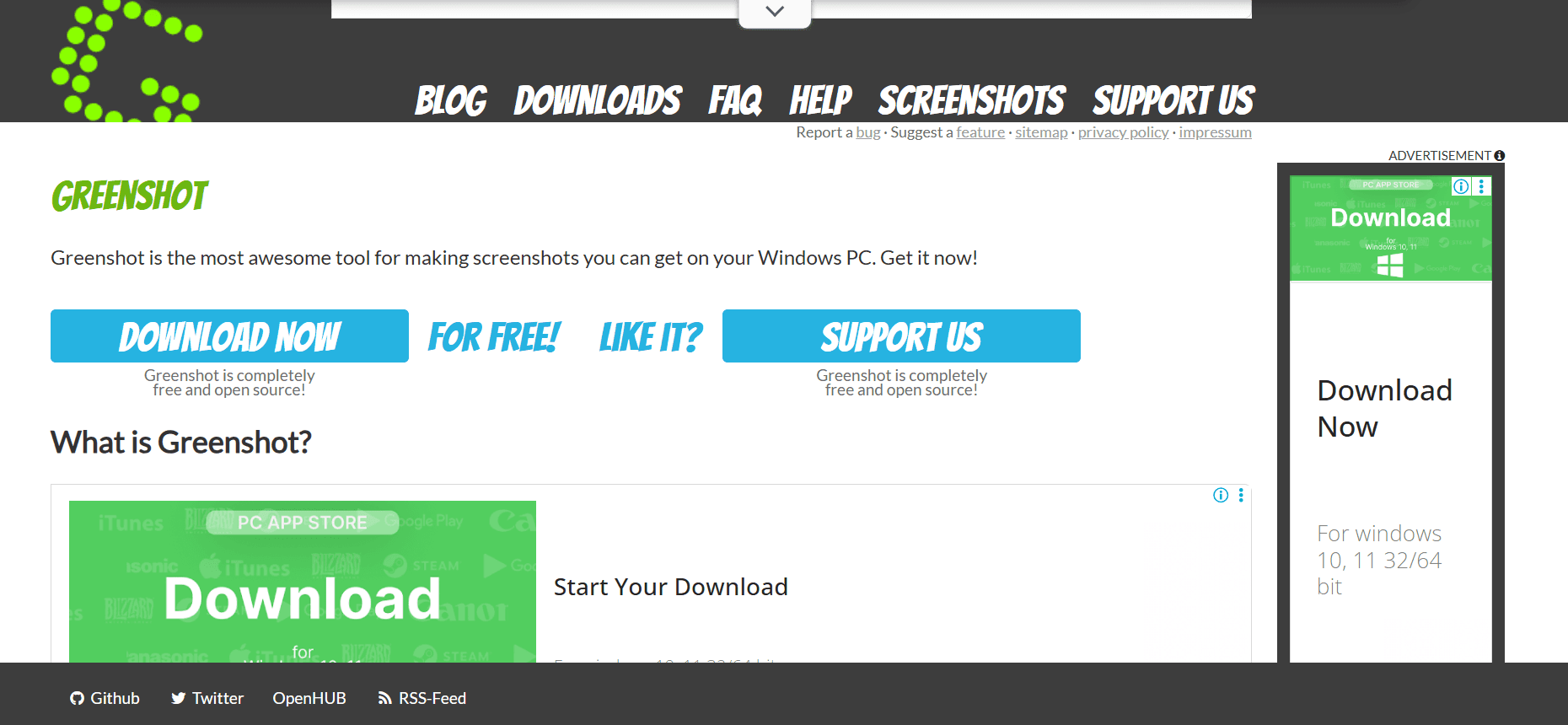
Greenshot is an open-source tool known for its simplicity and effectiveness in capturing screenshots. It's particularly favored in business environments where quick and reliable capture is required. Greenshot offers full-screen, region, and window capture options, making it versatile for various needs.
While Greenshot doesn't have the most extensive feature set, it provides essential tools for annotations and sharing, making it a reliable choice for users who need straightforward functionality without the bells and whistles.
Key Features
Basic capture modes
Simple annotation tools
Integration with Microsoft Office
Direct upload to cloud services
Free and open-source
Lightweight application
Pros
Cons
Easy to use with essential features
Limited advanced features
Integrates well with Office Suite
No video capture capabilities
Free and open-source
Basic annotation tools
Pricing
Greenshot is available for free, with no premium version, making it a cost-effective option for businesses and individuals alike.
Markup Hero
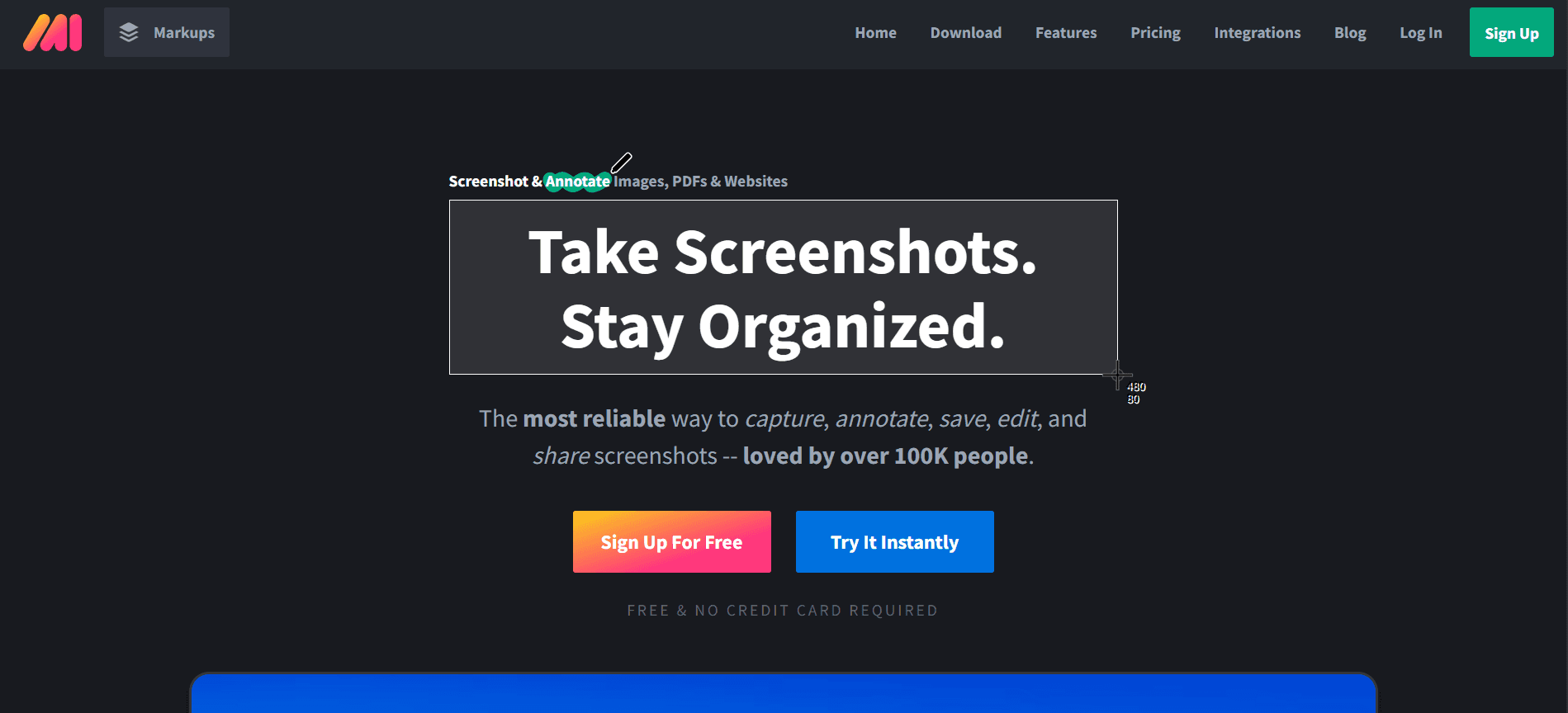
Markup Hero is designed for users who need to annotate and share screenshots quickly. It's an excellent tool for educators, designers, and anyone who often collaborates visually. Markup Hero focuses on ease of use and speed, allowing users to capture, annotate, and share in just a few clicks.
While it doesn't offer the broadest range of capture options, its emphasis on annotation and sharing makes it a powerful tool for those who need to create and distribute visuals rapidly.
Key Features
Quick capture and annotation
Cloud-based storage and sharing
Real-time collaboration features
Integrations with popular tools like Slack and Google Drive
Simple interface for ease of use
Available on multiple platforms
Pros
Cons
Excellent for fast annotation and sharing
Limited capture modes
Supports real-time collaboration
No video capture functionality
Free tier available with core features
Advanced features behind paywall
Pricing
Markup Hero offers a free tier with essential features, while premium plans start at $5 per user per month for advanced capabilities.
CloudApp
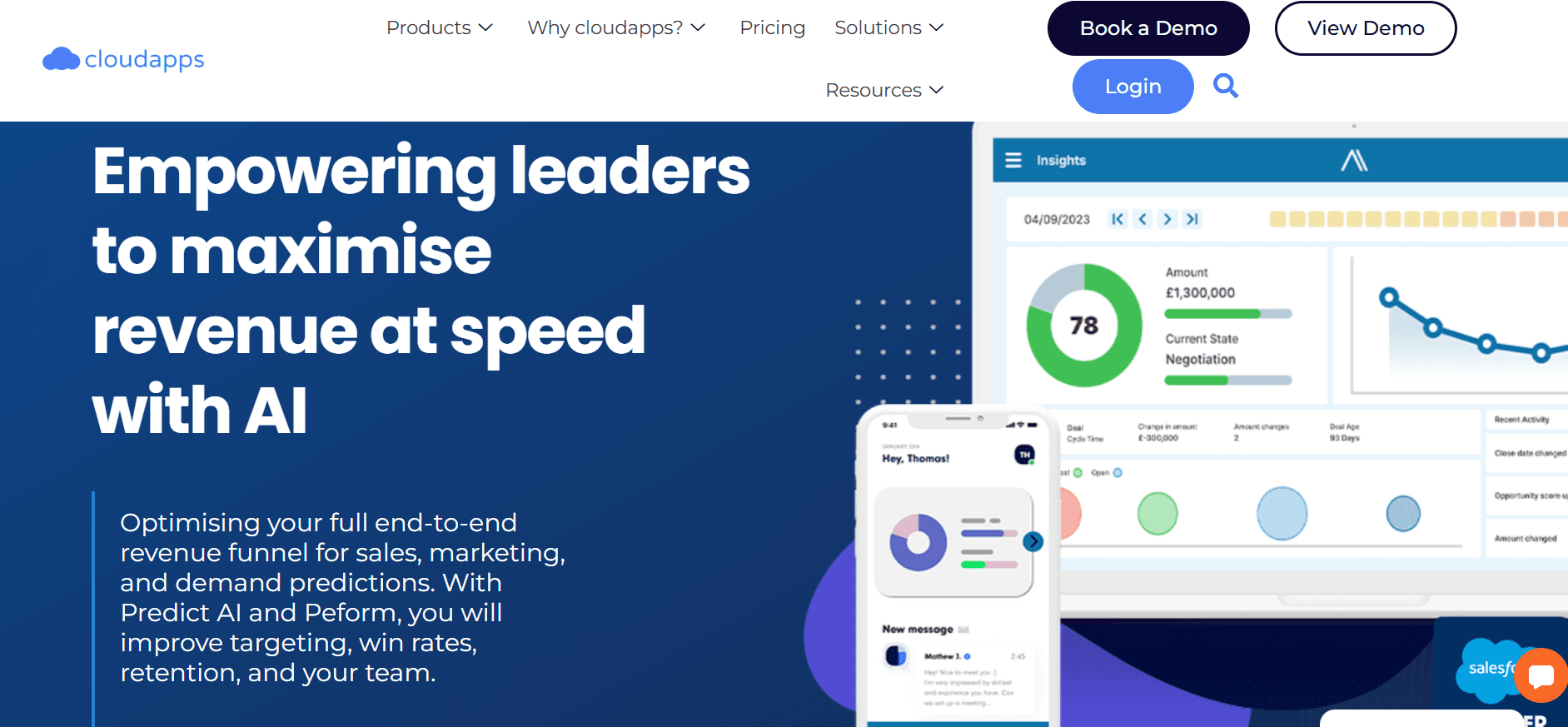
CloudApp, recently renamed to Zight, is a powerful tool favored by teams that require both screen capture and video capabilities. It offers a seamless experience for capturing, annotating, and sharing both screenshots and screen recordings, making it a comprehensive solution for diverse needs.
CloudApp's unique selling point is its integration with cloud services, allowing users to access and share their captures from anywhere. This makes it particularly useful for remote teams and organizations that prioritize accessibility and collaboration.
Key Features
Screen capture and video recording
Real-time annotation tools
Cloud storage and sharing
Integrations with workplace tools like Slack and Trello
Webcam overlay for personalized recordings
Support for GIF creation
Pros
Cons
Comprehensive capture and sharing features
Free plan has limited features
Excellent for remote collaboration
More expensive than some alternatives
Supports both screenshots and video clips
Can be resource-intensive
Pricing
CloudApp offers a limited free tier, with paid plans starting at $8 per user per month, providing additional features and storage capacity.
Screen Capture Challenges: What Teams Struggle With
Annotation Limitations
Inadequate tools for marking up screenshots can lead to miscommunication and errors.
Basic annotation options lack precision, impacting the clarity of the message conveyed.
Inability to customize annotations hinders personalization and branding efforts.
Teams often rely on external tools for advanced editing, increasing workflow complexity.
Sharing Friction
Difficulty in sharing captures across platforms can slow down collaboration.
Limited cloud integration restricts access to captures from multiple devices.
Manual sharing processes are time-consuming and prone to errors.
Data security concerns with cloud sharing options can hinder usage.
No Scrolling Capture
Inability to capture long web pages or documents in one go frustrates users.
Manual stitching of multiple screenshots is labor-intensive and inefficient.
Loss of context when splitting content across several images can confuse recipients.
Not all tools offer this feature, limiting choices for users.
Format Restrictions
Lack of support for diverse file formats limits the utility of captured images.
Converting files to compatible formats wastes time and resources.
Incompatibility with other software could lead to data loss or corruption.
Some tools enforce proprietary formats, complicating sharing and storage.
Storage and Organization
Without effective storage solutions, users struggle to find past captures quickly.
Poor organization features lead to cluttered digital workspaces.
Lack of tagging and categorization options complicates retrieval.
Teams spend excessive time managing files rather than focusing on core tasks.
Challenge
Traditional Process
Business Impact
Time Cost
Annotation Limitations
Use of external editing software
Increased error rates
+2 hours/week
Sharing Friction
Email attachments
Delayed collaboration
+3 hours/week
No Scrolling Capture
Multiple screenshots stitched manually
Reduced efficiency
+2.5 hours/week
Format Restrictions
File conversion tools
Productivity loss
+1.5 hours/week
Storage and Organization
Manual folder organization
Time wasted in retrieval
+3 hours/week
These challenges highlight the need for advanced screen capture tools that offer integrated solutions to streamline workflows and boost productivity. The next section delves into the essential features modern screen capture tools should have to overcome these hurdles effectively.
Must-Have Features in Modern Screen Capture Tools
Advanced Annotation Tools
Modern screen capture tools should include advanced annotation features that go beyond simple text and arrows. Users should have access to customizable shapes, callouts, and the ability to blur sensitive information. These features enhance the clarity and effectiveness of the visuals, ensuring that the message is communicated accurately. Tools like Trupeer excel in this area, offering AI-driven annotations that save time and improve precision.
Such tools should also allow for seamless integration with other applications, enabling users to annotate and share directly within their workflow. This integration reduces the need to switch between applications, thereby increasing efficiency and reducing the potential for errors.
Seamless Sharing and Collaboration
In the age of remote work, seamless sharing and collaboration capabilities are essential. Screen capture tools must offer robust cloud integration, allowing users to store and access captures from any device. Real-time collaboration features enable teams to work together more effectively, speeding up decision-making processes.
For instance, CloudApp provides excellent cloud storage and sharing options, facilitating easy collaboration across teams. Its integration with popular platforms like Slack and Trello makes it a preferred choice for businesses that prioritize collaboration.
Scrolling Capture Capability
The ability to capture scrolling content is vital for users who need to document web pages or lengthy documents. This feature eliminates the need for multiple screenshots and manual stitching, saving time and effort. Tools like Snagit and ShareX offer excellent scrolling capture functionality, making them ideal for users who frequently work with web content.
Moreover, capturing entire pages in one go ensures that the context is preserved, improving the quality of documentation and communication.
Optical Character Recognition (OCR)
OCR technology is a game-changer for users who need to extract text from images. By recognizing and digitizing text, OCR allows users to edit and reuse information without manual typing. This feature is particularly useful for creating editable documents from scanned images or screenshots.
Tools like Trupeer and Snagit incorporate OCR, making them valuable for professionals who deal with text-heavy materials. With OCR, users can streamline workflows, reduce errors, and enhance productivity.
Cross-Platform Compatibility
With the proliferation of different operating systems, it's crucial for screen capture tools to offer cross-platform compatibility. This ensures that users can capture, edit, and share content regardless of the device or operating system they're using. Compatibility with Windows, macOS, and even Linux can be a deciding factor for many users.
Trupeer and Markup Hero provide multi-platform support, ensuring users have a consistent experience across devices. This flexibility is vital for teams working in diverse environments, allowing them to maintain productivity without compatibility issues.
Intuitive User Interface
A user-friendly interface is essential for any tool to be effective. Screen capture software should be intuitive enough for first-time users while offering advanced features for power users. A clean, organized interface reduces the learning curve and encourages more frequent use.
Tools like Lightshot and Greenshot are praised for their simplicity and ease of use, making them accessible to users of all skill levels. An intuitive design ensures that users can focus on their tasks rather than struggling with the tool itself.
How to Choose Screen Capture Software Based on Your Use Case
Bug Reporting
In software development, bug reporting is a critical process that requires clear communication between testers and developers. Screen capture tools play a vital role by providing visual evidence of issues, making it easier for developers to understand and replicate bugs.
Key Challenges:
Capturing dynamic elements like dropdowns and tooltips
Annotating screenshots with detailed notes
Sharing visuals quickly with development teams
Solutions Needed:
Advanced capture modes including region and window
Robust annotation tools for clarity
Seamless integration with bug tracking software like Jira
Tool
Fits Use Case
Trupeer
Yes
Snagit
Yes
ShareX
Yes
Lightshot
Limited
Greenshot
Yes
"Using advanced screen capture tools has drastically improved our bug reporting process, cutting down communication time by half." - Mike T., QA Lead at TechCorp
Product Documentation
Creating detailed product documentation is essential for user guides, manuals, and training materials. Screen captures help illustrate complex processes and interfaces, making documentation more user-friendly and accessible.
Key Challenges:
Capturing step-by-step processes accurately
Maintaining consistency in visuals
Updating documentation with new software versions
Solutions Needed:
Scrolling capture for long pages
Templates for consistent formatting
Easy editing tools for quick updates
Tool
Fits Use Case
Trupeer
Yes
Snagit
Yes
CloudApp
Yes
Markup Hero
Limited
Customer Support
For customer support teams, screen captures can significantly enhance communication by providing visual explanations of product issues or solutions. This is especially valuable in tech support, where users may struggle to describe their problems verbally.
Key Challenges:
Explaining complex issues visually
Providing step-by-step guidance
Ensuring quick response times
Solutions Needed:
Instant capture and sharing capabilities
Real-time annotations for clarity
Easy integration with CRM systems like Zendesk
Tool
Fits Use Case
CloudApp
Yes
Snagit
Yes
Markup Hero
Yes
Lightshot
Limited
Tip: When dealing with complex support queries, use screen capture tools to record a short video walkthrough. This can provide clarity that static images can't.
Design Feedback
For design teams, exchanging feedback on visuals is crucial. Screen capture tools facilitate this by allowing designers to annotate and share their work easily, fostering collaboration and iteration.
Key Challenges:
Providing detailed feedback on design elements
Facilitating collaborative reviews
Tracking changes and updates
Solutions Needed:
Advanced annotation features for detailed feedback
Collaboration tools for team reviews
Version control to track design iterations
Tool
Fits Use Case
Trupeer
Yes
CloudApp
Yes
Markup Hero
Yes
Greenshot
Limited
5.Knowledge Base Creation
Building a comprehensive knowledge base is essential for internal training and customer education. Screen captures help illustrate instructions and processes, making the knowledge base more engaging and informative.
Key Challenges:
Documenting complex processes clearly
Ensuring materials are up-to-date
Integrating visuals with text-based content
Solutions Needed:
Scrolling capture for detailed documentation
OCR for converting images to text
Tools for easy updates and edits
Tool | Fits Use Case |
|---|---|
Trupeer | Yes |
Snagit | Yes |
CloudApp | Yes |
ShareX | Limited |
"Integrating screen captures into our knowledge base has not only made it more comprehensive but also significantly reduced our support tickets." - Lisa M., Knowledge Manager at EduTech Solutions
Best Practices for Effective Screen Capturing
Before Capturing
Identify the purpose of the capture to select the appropriate tool mode (full screen, region, etc.).
Ensure your screen is free from distractions like unnecessary tabs or notifications.
Plan your annotations ahead to maintain a clear and concise message.
Check your capture settings, such as resolution and format, to match your requirements.
Organize your workspace to streamline the capture process and minimize time wastage.
During Capturing
Use hotkeys for quick access to capture features, saving time and effort.
Capture relevant areas only to maintain focus and avoid information overload.
Annotate in real-time to preserve your initial thoughts and insights.
Utilize zoom-in features for detailed captures when needed.
Maintain consistency in style and formatting for professional-looking results.
After Capturing
Review captures for clarity and accuracy before sharing or storing.
Organize captures into folders with meaningful names for easy retrieval.
Share captures using integrated cloud services for seamless collaboration.
Regularly update your captures to reflect changes in the documented process or product.
Seek feedback from team members to refine future captures and processes.
Frequently Asked Questions
What is screen capture software?
Screen capture software allows you to take screenshots or record videos of your computer screen. It is used to create visual content for tutorials, documentation, and communication. These tools often include features for annotation, sharing, and editing to enhance the captured visuals.
Why do I need screen capture software?
Screen capture software is essential for effectively communicating complex information visually. It helps in creating tutorials, documenting processes, reporting bugs, and enhancing customer support. Visual content can often convey information more clearly and quickly than text alone.
How do I capture a scrolling window?
To capture a scrolling window, use a tool with scrolling capture capability like Snagit or ShareX. Start the capture process and select the scrolling window option. The software will automatically scroll through the content, capturing everything in one seamless image.
Can I edit my screenshots after capturing?
Yes, most screen capture tools offer basic to advanced editing capabilities. You can crop, annotate, add effects, and adjust colors. These features help refine your screenshots, making them more informative and professional before sharing or using them in documentation.
Is there a free version of Trupeer?
Trupeer does not offer a free version; it is a premium tool designed for professional use. However, it provides a free trial period, allowing you to explore its features before committing to a subscription plan.
What are the pricing options for Snagit?
Snagit is available as a one-time purchase for $49.99, making it an affordable option for many users. Discounts are available for educational and government institutions. You can also try it free for 15 days to evaluate its suitability for your needs.
How do I integrate screen capture tools with other software?
Integration depends on the tool and the software you want to connect with. Many tools offer direct integration options with platforms like Slack, Trello, and CRM systems. Check the tool's documentation for specific integration instructions or use API options for custom connections.
Can screen capture tools be used in remote teams?
Absolutely. Screen capture tools are particularly beneficial for remote teams, facilitating clear communication through visual content. Features like cloud sharing and real-time collaboration enhance team productivity, regardless of geographical location.
What are the steps to get started with Trupeer?
To start with Trupeer, sign up on their website, download the application, and follow the setup instructions. A free trial is available to explore its features. For detailed guidance, refer to the tutorials and resources provided on their website.
Final Thoughts
Choosing the right screen capture software depends largely on your specific needs and use cases. For those seeking a comprehensive tool, Trupeer stands out with its advanced features, making it an excellent choice for professional environments. Its AI-driven capabilities and seamless integrations cater to diverse requirements, from bug reporting to customer support.
To explore how Trupeer can enhance your team's productivity and communication, visit Trupeer's website for more information and to start your free trial. Discover the difference a powerful screen capture tool can make in your workflow today.
Related Blogs


