4.8/5
Free Screen Recording Software for Training Videos
Create professional training videos by recording your screen — no film crew, no studio, no hassle.
Try for Free

Screen recording software for training videos lets you turn any workflow, process, or software walkthrough into a polished training resource. Record your screen, add narration, edit out mistakes, and share with your team — all from one tool. What this actually replaces in the training production workflow. Old way: someone records the workflow in Loom or Camtasia. Editor cuts the filler words, adds zoom effects at click moments, adds captions, applies brand styling, exports for the LMS. 4 to 8 hours of editor time per training video. New way: someone records the workflow. The AI handles the cuts, zooms, captions, and brand kit automatically. Editor's part of the work disappears for the routine training video production. Most teams ship the auto-generated draft as-is for internal training. Some do a 5 to 10 minute review pass for customer-facing content. The editing phase that used to define the production calendar collapses into a coffee break.
Record step-by-step software walkthroughs with voiceover and webcam for engaging training content
Edit recordings with trimming, zoom effects, and callout annotations purpose-built for instructional videos
Auto-generate captions and transcripts to make training accessible and searchable
Organize recordings into training playlists and courses for structured learning paths
Share via link, embed in your LMS, or download for offline distribution
What Is Screen Recording Software for Training Videos?
Screen recording software for training videos is a specialized tool designed to help trainers, instructional designers, and subject-matter experts capture on-screen workflows and turn them into effective learning content. Unlike general-purpose screen recorders, this software includes features specifically tailored for training — such as zoom-and-pan effects that draw attention to key UI elements, chapter markers that let learners navigate to specific topics, and quiz integration that verifies comprehension. It bridges the gap between knowing how to do something and being able to teach it at scale. Instead of scheduling live training sessions that only reach people in the room, you record once and distribute everywhere — to new hires on day one, to remote teams across time zones, and to customers who prefer self-serve learning.
The category split worth knowing about. On one end: basic screen recorders like Loom, Vidyard, and the built-in macOS screen recorder. These capture clean recordings but skip the training-specific features. So a Loom recording is good for a quick async message, less useful as a polished training module that lives in the LMS for two years. On the other end: full video editors like Camtasia, Adobe Premiere, and Final Cut Pro. These have all the production power but assume the team has a dedicated video editor or is willing to become one. Between these two ends sits the category most training teams actually need: tools that combine capture with automated training-grade features (cursor highlights at click moments, smart zoom on UI elements, caption auto-generation, brand kit application). Trupeer sits in this middle category. Plus generates a matching written guide from the same recording, which is what most training teams end up wanting once they realize half their learners skim rather than watch.
How Does Screen Recording Software for Training Videos Work?
Creating training videos from screen recordings is a streamlined three-step process:
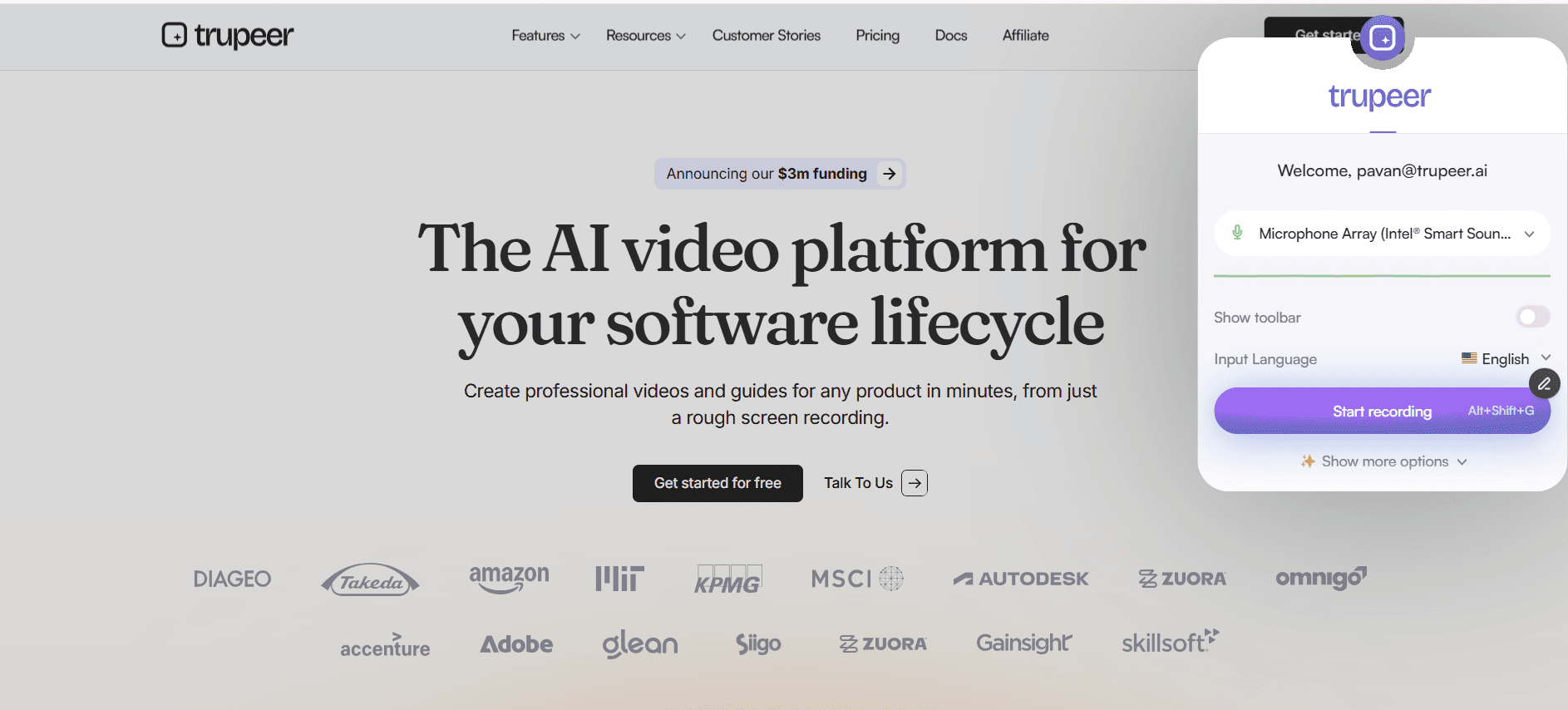
Step 1: Plan and Set Up Your Recording
Outline the training topic, open the application or workflow you want to demonstrate, and configure your recording settings capture area, audio source, webcam position, and resolution. A quick outline ensures your training stays focused and concise.
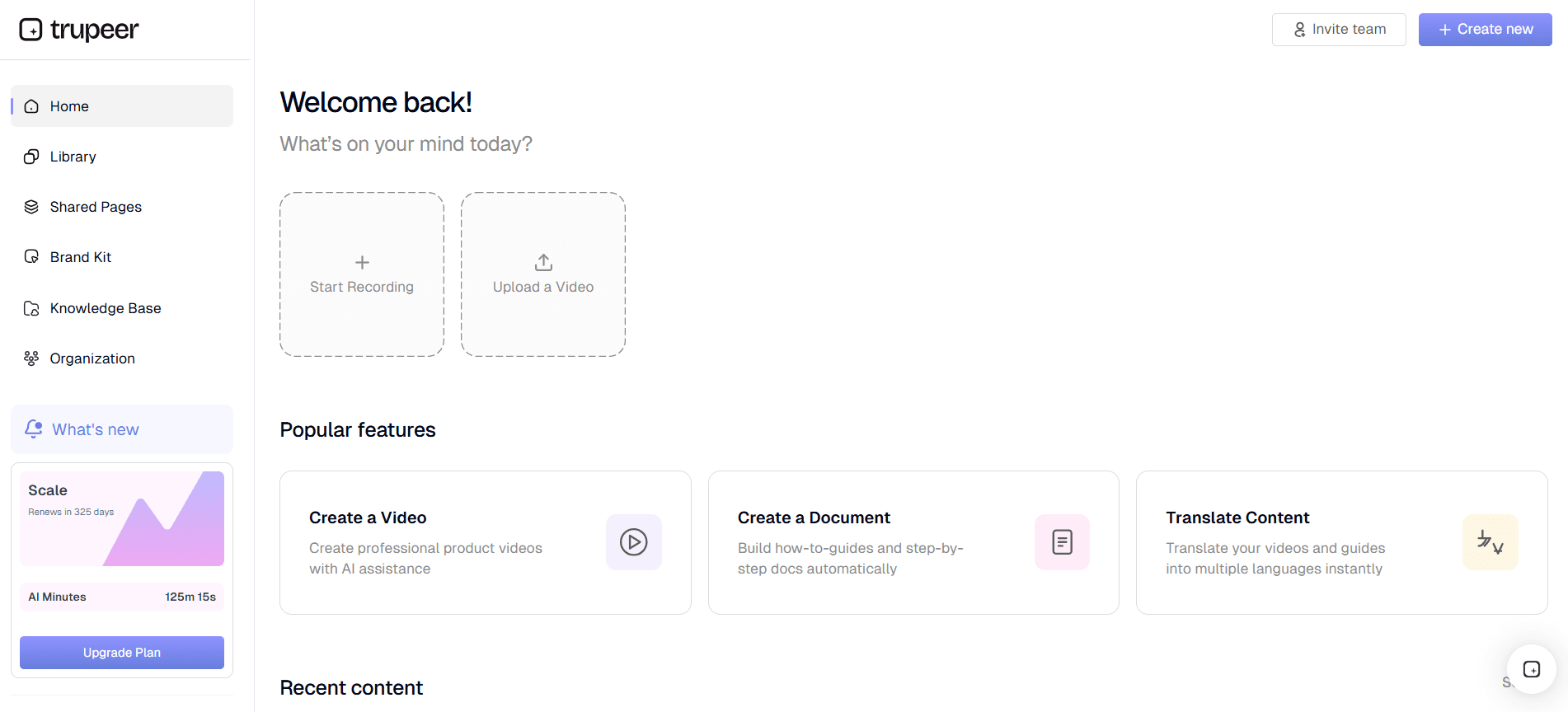
Step 2: Record the Training Walkthrough
Press record and walk through the process step by step, narrating each action as you go. Use mouse-click highlights and real-time annotations to emphasize important buttons, menus, and input fields. If you make a mistake, just pause and continue you will edit it out later.
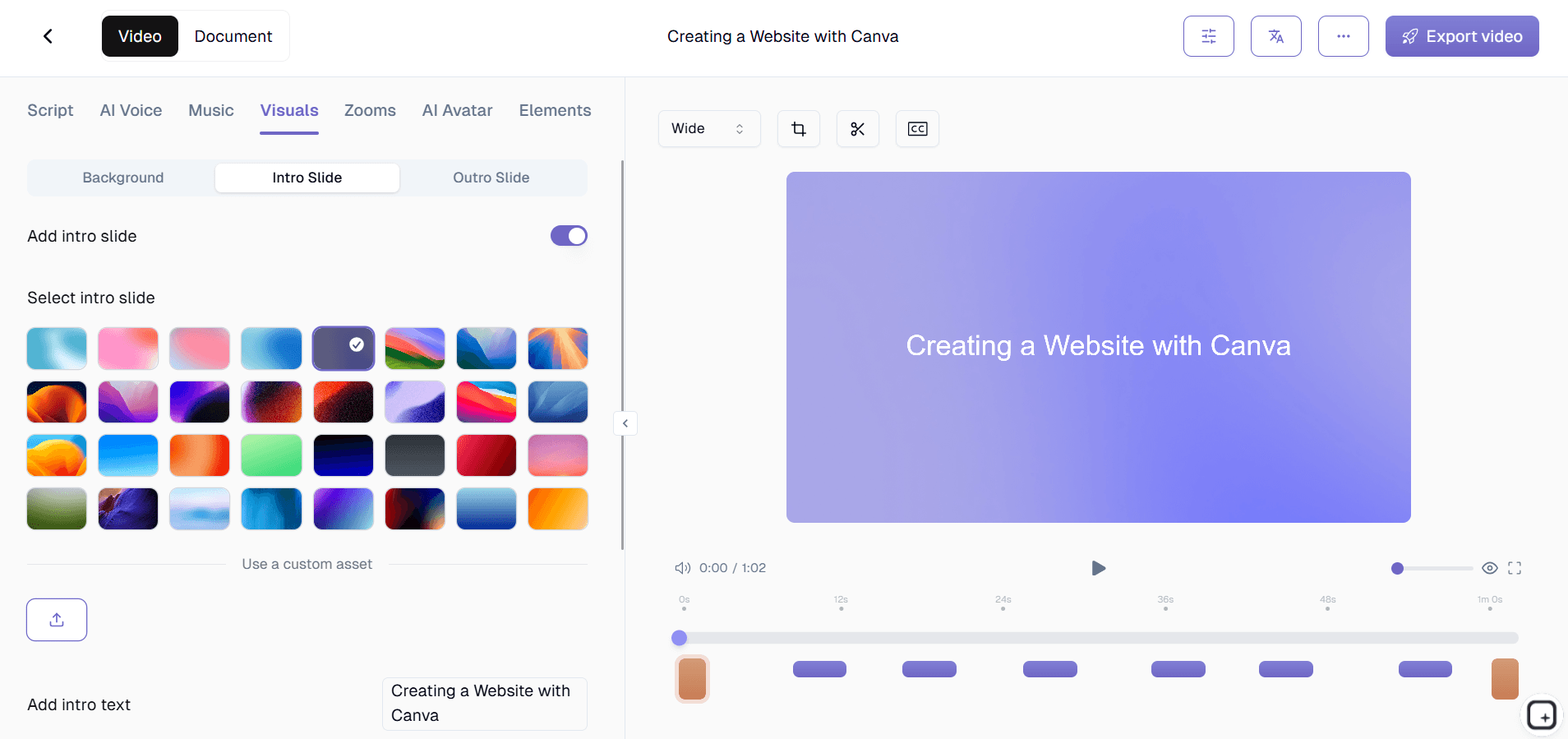
Step 3: Edit, Enhance, and Distribute
Open the recording in the built-in editor. Trim out errors, add zoom effects to highlight small UI elements, insert chapter markers for easy navigation, and overlay text callouts for key takeaways. Export the finished training video and share it via your LMS, company wiki, or a simple shareable link.
Key Features of Screen Recording Software for Training Videos
Zoom-and-Pan Effects: Automatically or manually zoom into specific areas of your screen to highlight small buttons, dropdown menus, or text fields that viewers might otherwise miss. Pan smoothly between different regions of the screen to guide the learner's eye through multi-step workflows without disorienting jumps or cuts. What "automatically zoom" looks like in practice. The AI watches the click sequence in your recording. When you click into a Settings menu, the video zooms in on the menu region so the trainee can see what you opened. Same with form fields and small UI elements. None of this requires manual timeline work. So a training video that would have needed 30 manual zoom-in cuts in Camtasia ships with all of them applied automatically based on what the AI detected in the recording. The reason this matters for training specifically. Trainees watching a software walkthrough need to know exactly which button got clicked. A small UI element clicked without a visible highlight gets missed by half the audience. The click highlights (colored rings, ripple effects, or spotlight animations depending on the configuration) mark every click moment automatically. Same with keyboard shortcut display when relevant. So learners stop asking "wait, what did you just click?" and start following the actual procedure.
Mouse Click Highlighting and Keystroke Display: Make every click visible with customizable click highlights colored rings, ripple effects, or spotlight animations that show exactly where the cursor lands. Display keyboard shortcuts on screen as you press them, teaching learners efficient workflows alongside the standard point-and-click approach. The reason this matters for training specifically. Trainees watching a software walkthrough need to know exactly which button got clicked. A small UI element clicked without a visible highlight gets missed by half the audience. The click highlights (colored rings, ripple effects, or spotlight animations depending on the configuration) mark every click moment automatically. Same with keyboard shortcut display when relevant. So learners stop asking "wait, what did you just click?" and start following the actual procedure.
Chapter Markers and Table of Contents: Insert chapter markers at key transition points in your training video so learners can jump directly to the topic they need. The auto-generated table of contents appears in the video player, making long training sessions navigable and eliminating the frustration of scrubbing through irrelevant content. The realistic use case. Trainee opens a 12-minute training video looking for the specific step they need help with. Without chapters, they scrub through the timeline trying to find it. With auto-generated chapters and a table of contents in the video player, they click directly to step 4 and get the answer in 30 seconds. This is the difference between a training video that gets watched and a training video that gets opened once, abandoned, and never returned to.
Voiceover Recording and Audio Enhancement: Record narration in real time as you capture your screen, or add voiceover in post-production for a more polished result. Built-in audio enhancement removes background noise, normalizes volume levels, and reduces echo ensuring your narration sounds professional even when recorded from a home office. The audio cleanup that most training teams underestimate. Background hum from a home office fan. Echo from a poorly insulated meeting room. Volume inconsistencies because the recording happened across multiple sessions on different days. All of these signal "amateur production" to learners and reduce trust in the training content. The audio enhancement runs automatically on the recording, normalizing volume and reducing noise. So a recording made on a laptop in someone's spare bedroom sounds closer to studio-grade than to "Tuesday afternoon at the kitchen table."
Callout Annotations and Text Overlays: Add arrows, numbered step indicators, highlighted boxes, and text labels to draw attention to critical elements in your recording. These instructional overlays transform a raw screen capture into a structured, easy-to-follow training experience that learners can absorb on the first watch. Where this fits in the production flow. The AI applies the click highlights and zoom effects automatically. The callouts and annotations are the layer where the human adds context the AI can't infer from the recording alone the "this step is critical" callout, the "warning: this action is permanent" overlay, the numbered step indicator that maps to the written guide alongside the video. So the routine annotation work is automated. The judgment-call annotation work stays in the human's hands.
Automatic Captioning and Transcript Generation: AI-powered speech recognition automatically generates accurate captions and a full transcript for every training video. Captions improve accessibility for hearing-impaired learners and boost comprehension for non-native speakers, while transcripts enable full-text search across your entire training library. The accessibility baseline most enterprise procurement reviews ask about. Captions auto-generate from the voiceover for every training video. Transcripts get generated alongside the video and become searchable text. So a learner searching the training library for "expense reimbursement" finds the right video even if the video title doesn't include those exact words. The transcript also handles the secondary use case of trainees who need to read rather than watch non-native English speakers, learners with hearing accessibility needs, employees in open offices where audio isn't practical.
Training Playlist and Course Organization: Group related training videos into playlists and structured courses with sequential or self-paced progression. Have slide-based training too? Here's how to turn a PowerPoint into a training video. Assign courses to teams or individuals, track completion status, and ensure learners follow the intended curriculum from foundational topics to advanced workflows. The existing bullet describes "structured courses with sequential or self-paced progression. Assign courses to teams or individuals, track completion status." From earlier work in this conversation, Trupeer's verified scope is knowledge base sections, chapters, and visibility settings not course assignment to specific users or completion tracking. Those features live at the LMS layer. Worth verifying with the product team before publishing this bullet as-is. If the actual scope is "organize videos into knowledge base sections" rather than "assign courses with completion tracking," the bullet should be rewritten to match reality.
Multi-Format Export and LMS Compatibility: Export training videos in MP4, SCORM, or xAPI formats for seamless integration with any learning management system. Alternatively, share via direct link or embed code for quick distribution through Slack, email, Notion, or your internal knowledge base. The existing bullet claims "MP4, SCORM, or xAPI formats for seamless integration with any learning management system." Trupeer's verified exports per earlier KB checks are MP4, PDF, and Word (DOCX). SCORM packaging hasn't been verified anywhere in this conversation. Same issue came up on the AI Instructional Video Generator page. If SCORM/xAPI export isn't actually a Trupeer feature, this bullet is concretely misleading to enterprise L&D buyers who specifically need SCORM packaging for their LMS. Worth verifying before publishing.
Why Choose This Screen Recording Software for Training Videos?
Purpose-Built for Training: Unlike generic screen recorders, every feature — from zoom effects to chapter markers to quiz integration — is designed with instructional content in mind. The realistic comparison. Generic screen recorders (Loom, the macOS recorder, OBS) capture cleanly but ship the raw footage. Training-specific tools (Trupeer, Camtasia, ScreenPal in some configurations) handle the click highlights, zoom effects, and brand-consistent output that turns a screen recording into actual training content. The difference shows up most visibly when a new hire opens a Loom recording versus a polished training module. The Loom feels like watching someone work. The polished module feels like being taught. Both have their place. For content that lives in the LMS for two years, the polished version earns its production effort.
Scale Training Without Scaling Costs: Record once, distribute to unlimited learners. Eliminate the cost and scheduling overhead of repeated live training sessions. A practical example. The senior compliance officer at a 300-person company runs the annual harassment prevention training as a live webinar. 1 hour. Has to do it 8 times across the year to accommodate schedules and new hires. That's 8 hours of senior officer time plus the meeting cost across all attendees. Recording the training once and shipping it to the LMS replaces 7 of those 8 sessions. The senior officer's time gets back. The new hires watch on day one rather than waiting for the next scheduled session. Compliance reporting gets cleaner because every employee's completion timestamp comes from the LMS rather than from attendance sign-in sheets.
Consistent Training Quality: Every learner receives the same high-quality instruction, regardless of when or where they access the content — no more variability between trainers or sessions. The pattern that fails most internal training programs. Manager A runs the new-hire training one way in March. Manager B runs it differently in April. By June, the team has three different versions of "the way we onboard people," each carrying different details and different gaps. The discrepancy shows up six months later as inconsistent customer experience or inconsistent compliance posture. A single training video that everyone watches creates a single version of the truth. Update the video, propagate everywhere. The consistency that used to require shadowing happens automatically.
Measurable Learning Outcomes: Track who watched what, how far they got, and how they scored on embedded quizzes, giving you data to continuously improve your training programs. The existing bullet claims "Track who watched what, how far they got, and how they scored on embedded quizzes, giving you data to continuously improve your training programs." Per the same issues flagged in Key Features above, Trupeer's verified scope is production analytics (videos created, AI minutes consumed, content shipped per user) rather than learner-side analytics (who watched, how far, quiz scores). Those features live at the LMS layer. Worth verifying the actual analytics scope before publishing this bullet. The training video data the team gets from Trupeer is about production velocity, not learner outcomes. If you want learner outcome data, the LMS handles that piece of the workflow.
Screen Recording Software for Training Videos for Internal Teams
1. Internal teams use screen recording software to document every recurring process — from expense reporting to CRM data entry — creating a video library that eliminates repetitive how-do-I questions.
2. Department leads record training walkthroughs for new software rollouts, ensuring every team member gets the same thorough introduction regardless of their location or shift schedule.
3. Screen-recorded training videos reduce the burden on senior staff who previously spent hours each week answering the same onboarding questions from new hires.
4. HR teams create compliance training videos with embedded acknowledgment checkpoints, maintaining an auditable record that every employee completed required modules. Build structured guides alongside your videos with Trupeer's process guide tool.
Screen Recording Software for Training Videos for SaaS Teams
1. SaaS customer education teams produce feature-specific training videos that walk users through setup, configuration, and advanced usage — reducing time-to-value and support ticket volume.
2. Product teams record release-note videos demonstrating new features in action, giving users visual context that written changelogs alone cannot provide.
3. Sales enablement teams create training videos that teach reps how to demo the product effectively, ensuring consistent messaging and reducing ramp time for new hires.
4. Partner teams produce co-branded training content that channel partners use to educate their own customers, extending your reach without additional headcount. Record product walkthroughs with Trupeer's screen recorder.
Screen Recording Software for Training Videos for Startups
1. Startups with lean teams use screen recording to create training content that scales as the company grows, ensuring knowledge is captured before it walks out the door.
2. Founders record product training videos for early customers, providing white-glove education that builds loyalty without requiring a dedicated customer success team.
3. Engineering leads document development environment setup and deployment procedures in training videos, cutting new-developer onboarding from days to hours.
4. Startup operations teams record training for internal tools and workflows, creating a self-serve knowledge base that keeps pace with the company's rapid iteration cycles.
Screen Recording Software for Training Videos for Enterprises
1. Enterprise L&D departments produce hundreds of training videos annually, using screen recording software to maintain consistency across global offices and thousands of employees.
2. IT teams record training for enterprise software migrations — ERP upgrades, CRM transitions, new collaboration platforms — ensuring minimal disruption to business operations.
3. Compliance teams create role-specific training paths using screen recordings of actual systems and workflows, making abstract policies concrete and actionable.
4. Enterprise training teams export screen recordings in SCORM format for seamless integration with established LMS platforms, maintaining existing reporting and certification workflows.
Screen Recording Software for Training Videos for Remote Teams
1. Remote teams replace live training webinars with on-demand screen recordings that team members watch on their own schedule, eliminating time-zone coordination headaches.
2. Managers record personalized training videos for individual team members who need extra support on specific tools or workflows, providing targeted coaching without scheduling a call.
3. Remote teams build a shared video library of recorded training sessions, ensuring that institutional knowledge is preserved and accessible even as team composition changes.
4. Async training via screen recording lets remote employees learn at their own pace, pausing, rewinding, and rewatching complex sections until they achieve mastery.
Screen Recording Software for Training Videos for Developers
1. Developer education teams record IDE walkthroughs, debugging sessions, and code-review processes, giving junior developers visual examples that complement written documentation.
2. DevOps teams create training videos for CI/CD pipeline setup, infrastructure provisioning, and monitoring configuration, reducing the tribal knowledge that bottlenecks incident response.
3. Senior developers record architectural decision walkthroughs as training content, helping the team understand not just how the system works but why it was designed that way.
4. Developer advocates produce screen-recorded tutorials for external developers integrating with the company's APIs, SDKs, and developer tools — driving adoption through visual education.
Screen Recording Software for Training Videos for Onboarding and Support Teams
1. Onboarding teams create day-one training video playlists that new hires work through independently, covering everything from IT setup to company culture to role-specific tool training.
2. Support teams record resolution walkthroughs for the top 20 most common customer issues, embedding them in help-center articles to deflect repetitive tickets.
3. Training managers use viewing analytics to identify which onboarding videos have low completion rates, then restructure or re-record those modules for better engagement.
4. Support teams create internal training videos that teach agents how to handle escalations, use support tools, and follow troubleshooting decision trees — standardizing quality across the team. Explore Trupeer's screen recorder to start building your training library.
The common pattern across these audiences: training content has to ship, but nobody on these teams is a video editor. The L&D specialist has curriculum design work. The customer education lead has customers to support. The developer education team has external integration work. The HR business partner has employees to onboard. Recording during the actual procedure work collapses the editing-and-packaging step into the AI processing phase. So a training video that used to require 4-8 hours of editor time per piece now ships in the same afternoon it was recorded. Most teams that adopt this pattern produce more training content in the first month with Trupeer than they shipped in the previous quarter.
Where Trupeer fits next to Camtasia, Loom, ScreenPal, and dedicated training platforms
The training video tooling space has a few rough clusters worth understanding. Loom and Vidyard are screen recorders without auto-editing. So a Loom recording ships exactly as recorded, filler words and all. Useful for quick async internal training. Less useful for content that lives in the LMS for two years and represents the company's training quality to new hires. Camtasia and ScreenPal are training-video editing tools with substantial editing power. They produce polished output when the team has editor capacity. The editing capacity is the catch: 4-8 hours of work per training video for someone competent in the tool, longer for newer users.
A different cluster: course authoring tools like Articulate Storyline, iSpring, and Adobe Captivate. These build full SCORM-packaged courses with branching scenarios, embedded quizzes, and learner-progress tracking. If the training has to be a formal course with prerequisites and assessments, those are the right tools. Trupeer doesn't replace them for that use case. Dedicated LMS platforms (Cornerstone, Workday Learning, Docebo, TalentLMS) host and track training, but don't help produce video content. Most enterprise training operations end up using two tools: a production layer for the volume of routine training videos, plus a hosting and tracking layer at the LMS. Trupeer fits the production layer.
The honest positioning for Trupeer in this cluster: it's the production layer that handles auto-editing automatically, generates a matching written guide alongside every video, applies the brand kit consistently, translates into 65+ languages from one source, and lets the team re-record one changed step when the underlying procedure shifts. What it isn't: a SCORM-packaging course builder, a learner-side analytics platform, or a quiz-and-assessment authoring tool. For teams whose training is mostly screen-recorded software walkthroughs and procedure documentation which is most internal training at most B2B SaaS companies Trupeer is built for that work. For teams whose training is mostly formal SCORM courses with quizzes and certifications, Articulate is the cleaner fit.
This screen recorder chrome extension builds on Screenity, originally created by Alyssa X and licensed under the GNU GPLv3, with enhancements developed by the Trupeer team. Source code available here: https://github.com/trupeer-ai/trupeer-chrome-capture.
Key Features
Training Editing
Zoom, pan, and annotate your recordings with tools built specifically for instructional content.
Auto Captions
AI-generated captions and transcripts make every training video accessible and searchable.
Course Builder
Organize videos into structured playlists and learning paths for sequential or self-paced training.
How It Works
Step 1
Set up your capture area, audio sources, and webcam — then outline the training topic you want to cover.
Step 2
Record your screen walkthrough with narration, using mouse highlights and annotations to guide learners.
Step 3
Edit, add chapters and captions, then share via LMS, link, or embed code.
Frequently Asked Questions
How is this different from a regular screen recorder?
This software includes training-specific features like zoom-and-pan effects, mouse click highlighting, chapter markers, callout annotations, and LMS-compatible export formats that generic screen recorders do not offer.
Can I add quizzes to my training videos?
Yes. You can embed quiz questions at any point in the video to verify learner comprehension, with results tracked in your analytics dashboard for individual and team-level reporting.
What formats can I export training videos in?
You can export in MP4 for general use, or SCORM and xAPI formats for direct integration with learning management systems. Shareable links and embed codes are also available.
Can my team collaborate on training video creation?
Yes. Multiple team members can contribute recordings, review edits, and organize content into courses using shared workspaces with role-based permissions.
How do I make my training videos accessible?
The software automatically generates captions and transcripts using AI speech recognition. You can also add visual annotations, chapter navigation, and keyboard shortcut displays to improve accessibility for all learners.
More Tools



