How to View Comments in Canva – Quick Guide
Want to see comments during a Canva presentation? Learn how to view feedback and collaborate without leaving presentation mode.
This guide provides a detailed explanation on how to view comments in Canva while working on presentations or documents.
While presenting, comments are not visible, but you can easily access and review them during the editing phase.
To view comments in Canva while presenting, it’s important to note that Canva’s Presenter View displays speaker notes, not collaborator comments. If you want to see comments left by collaborators, you’ll need to review them before presenting.
Here's a step-by-step guide:
Open Presenter View:
Click the "Present" button in the top right corner of your Canva editor.
From the dropdown options, choose "Presenter View".
This will open two separate windows, one for your audience and one for you as the presenter.Understand What’s Visible:
The Presenter View displays your speaker notes (which you’ve manually added in the notes section under each slide).
It does not show real-time comments or collaboration notes made using Canva’s comment feature.How to View Comments (Before Presenting):
Exit Presenter Mode.
In the editor, click on the comment bubble icon located in the top right of the toolbar.
This will open all comments left by collaborators, including threaded replies and timestamps.
You can respond, resolve, or copy these comments into your speaker notes if needed.Preparing Speaker Notes with Comments:
If comments are important to your presentation, manually add them to the speaker notes section of each slide.
These notes will then be visible in your Presenter View window during the live presentation.Dual Monitor Tip:
If using Presenter View, drag the presenter window to a second screen to privately view your notes while the audience only sees the slides.
This helps you stay informed without interrupting the presentation
Step-by-Step Guide: How to view comments in Canva
Step 1
To view comments in Canva while working on your presentation, begin by locating the specific presentation or document you are working on.
Step 2
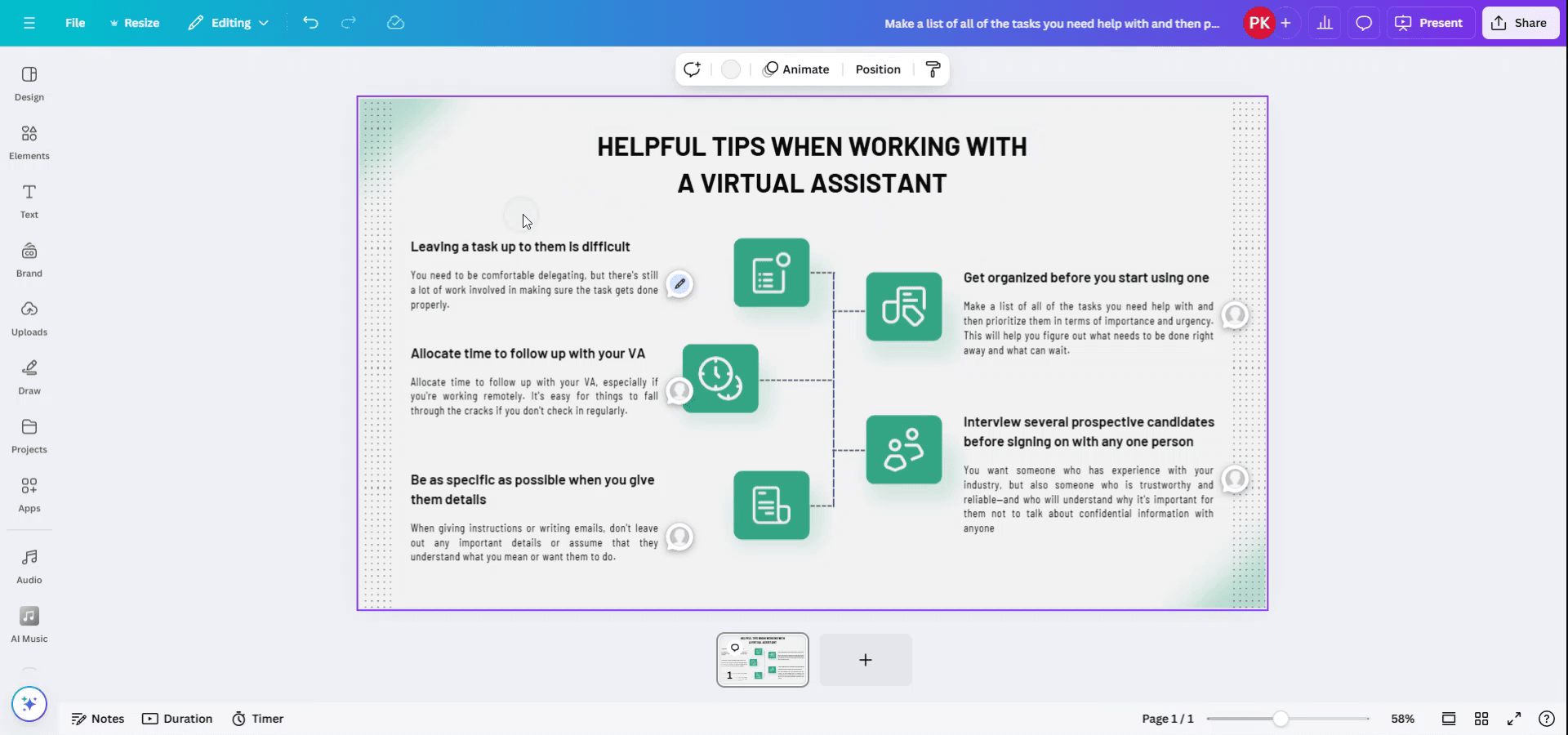
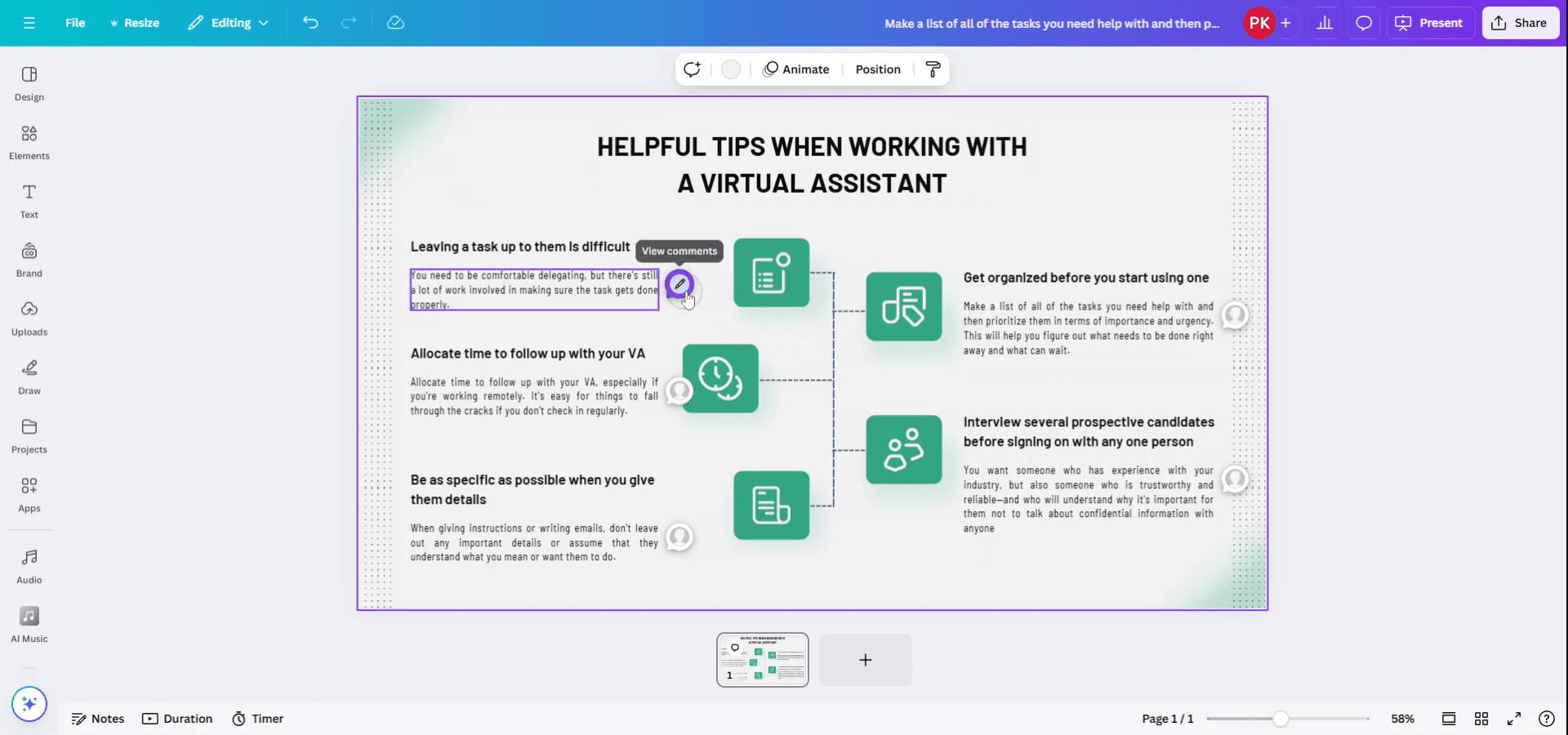
While comments are not visible in presentation mode, you can view them during the editing phase. To do this, look for the comment bubbles within your document interface.
Step 3
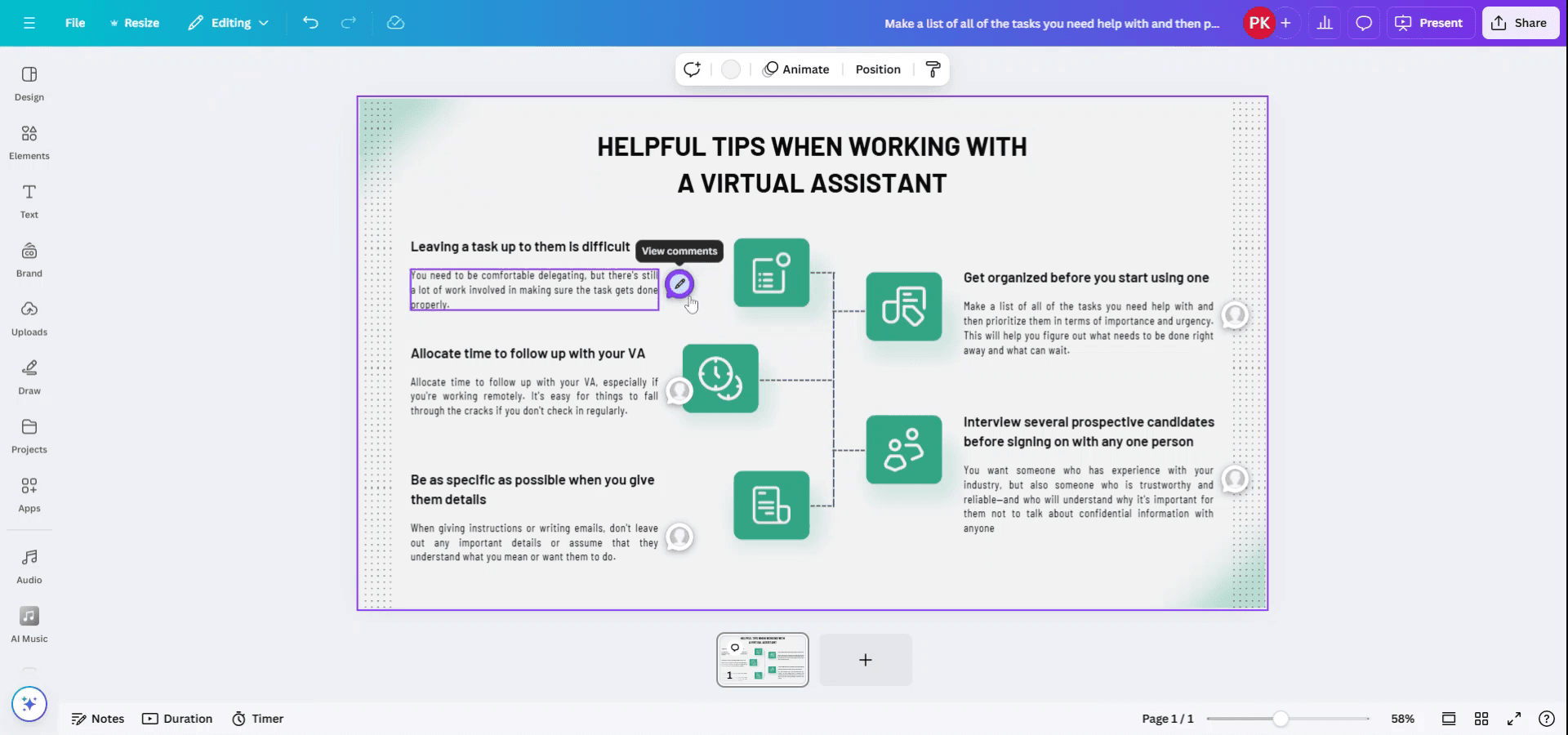
Click on these comment bubbles, which are located near the elements that have comments associated with them. By selecting the comment bubbles, you will be able to view all the comments related to those specific elements.
Pro tips for viewing comments in Canva while presenting
Enable Commenting Mode:
Make sure that commenting is enabled for your design. You can do this by clicking on the "Share" button, selecting "Anyone with the link," and then choosing the "Can comment" option.Use Canva's Present Mode:
When you're in presentation mode, comments may not appear directly on the slides. To view comments while presenting, open your design in a separate window or tab, where you can check comments.Switch Between Tabs:
If you're presenting and need to view comments, keep your presentation window and the comment window open in separate browser tabs. This allows you to quickly check comments while continuing the presentation.Manage Comments via the "Activity" Tab:
For a more organized view of the comments, use the "Activity" tab in Canva’s editor. You can access this by clicking on the "File" menu and selecting "View activity." This section lets you see all the comments left by collaborators.Use the Canva Mobile App:
If you're presenting on a laptop but need to check comments, you can also use the Canva mobile app on your phone to view and respond to comments in real time.
Common pitfalls and how to avoid them for viewing comments in Canva while presenting
Comments Not Displaying During Presentations:
Fix: Comments are not visible in presentation mode. Ensure you have a separate window open for checking comments or use the "Activity" tab to review them.Difficulty Switching Between Presenting and Viewing Comments:
Fix: Keep a secondary device (like your phone or tablet) handy, or use multiple tabs in your browser to quickly switch between presenting and checking comments.Missing Important Comments:
Fix: Make a habit of checking the “Activity” tab or enabling email notifications for comment updates, so you don’t miss crucial feedback.Distracting Comments During the Presentation:
Fix: If comments are popping up while presenting, consider disabling real-time notifications or mute notifications during your live presentation.Not Reviewing Comments Before Presenting:
Fix: Always review the comments before the presentation to ensure you're addressing key points without having to stop in the middle of presenting.
More Canva tutorials
How to Add a Border in Canva – Quick and Easy Steps
Часто задаваемые вопросы о просмотре комментариев в Canva во время презентации
Могу ли я просматривать комментарии во время презентации в Canva?
Нет, комментарии не отображаются в режиме презентации, но вы можете держать отдельную вкладку или устройство открытыми, чтобы следить за ними.Как управлять комментариями во время презентации?
Вы можете отслеживать комментарии в реальном времени во вкладке «Действия» или использовать мобильное приложение, чтобы проверять комментарии во время презентации.Могу ли я отвечать на комментарии во время презентации?
Да, вы можете отвечать на комментарии через вкладку «Действия» или в мобильном приложении Canva, но лучше делать это вне живой презентации.Будут ли другие видеть комментарии, пока я представляю?
Нет, комментарии являются приватными и доступны только тем, у кого есть доступ к дизайну. Во время презентации они не отображаются.Можно ли отключить комментарии в Canva?
Да, вы можете ограничить возможность комментирования, изменив настройки общего доступа, чтобы предотвратить оставление отзывов.Как сделать запись экрана на mac?
Чтобы сделать запись экрана на Mac, вы можете использовать Trupeer AI. Он позволяет записать весь экран и предоставляет возможности ИИ, такие как добавление AI-аватаров, добавление закадрового голоса, добавление зума (приближение и отдаление) в видео. С функцией AI-перевода видео от trupeer вы можете перевести видео на 30+ языков.Как добавить AI-аватар в запись экрана?
Чтобы добавить AI-аватар в запись экрана, вам нужно использовать инструмент для записи экрана с ИИ. Trupeer AI — это инструмент для записи экрана с ИИ, который помогает создавать видео с несколькими аватарами, а также позволяет создать собственный аватар для видео.Как сделать запись экрана на windows?
Чтобы сделать запись экрана в Windows, вы можете использовать встроенную панель Game Bar (Windows + G) или расширенный AI-инструмент, например Trupeer AI, для более продвинутых функций, таких как AI-аватары, закадровый голос, перевод и т. д.Как добавить закадровый голос в видео?
Чтобы добавить закадровый голос в видео, скачайте chrome-расширение trupeer ai. После регистрации загрузите видео с голосом, выберите нужный закадровый голос в trupeer и экспортируйте отредактированное видео.Как увеличить масштаб в записи экрана?
Чтобы увеличить масштаб во время записи экрана, используйте эффекты зума в Trupeer AI — они позволяют приближать и отдалять в определенные моменты, усиливая визуальное воздействие вашего видеоконтента.
Люди также спрашивают
Генератор технической документации
Как распечатать с двух сторон в Canva
Похожие руководства