

Как распечатать двусторонние документы в Canva
Узнайте, как распечатать двусторонние документы в Canva: создайте страницы для лицевой и оборотной стороны и используйте настройки двусторонней печати. Следуйте этому короткому руководству и создавайте понятные подсказки с Trupeer.
This guide provides detailed instructions for printing a design front to back using Canva.
Follow these steps to ensure your design is printed exactly as you envision, with options to customize paper type and quantity.
If you want to print something double-sided using Canva, it’s pretty simple, you just need to design both the front and back of your document, then choose the right settings when ordering prints.
Here’s how to do it step by step:
Design the Front and Back
Start by creating your design in Canva. Use one page for the front side and add a second page for the back side of your document.Go to the Print Section
Once your design is ready, click on the Print option in Canva.Set Up Your Print Options
Look for a setting like Print as sets or something similar. This tells Canva to pair your two pages and print them front and back on the same sheet.Choose Double-Sided Printing
Make sure you select Double-sided or Two-sided printing when prompted.Preview and Checkout
Review your design, check the preview to make sure everything looks good, and then go ahead with the checkout process.
Step-by-Step Guide: How To Print Double Sided On Canva
Step 1
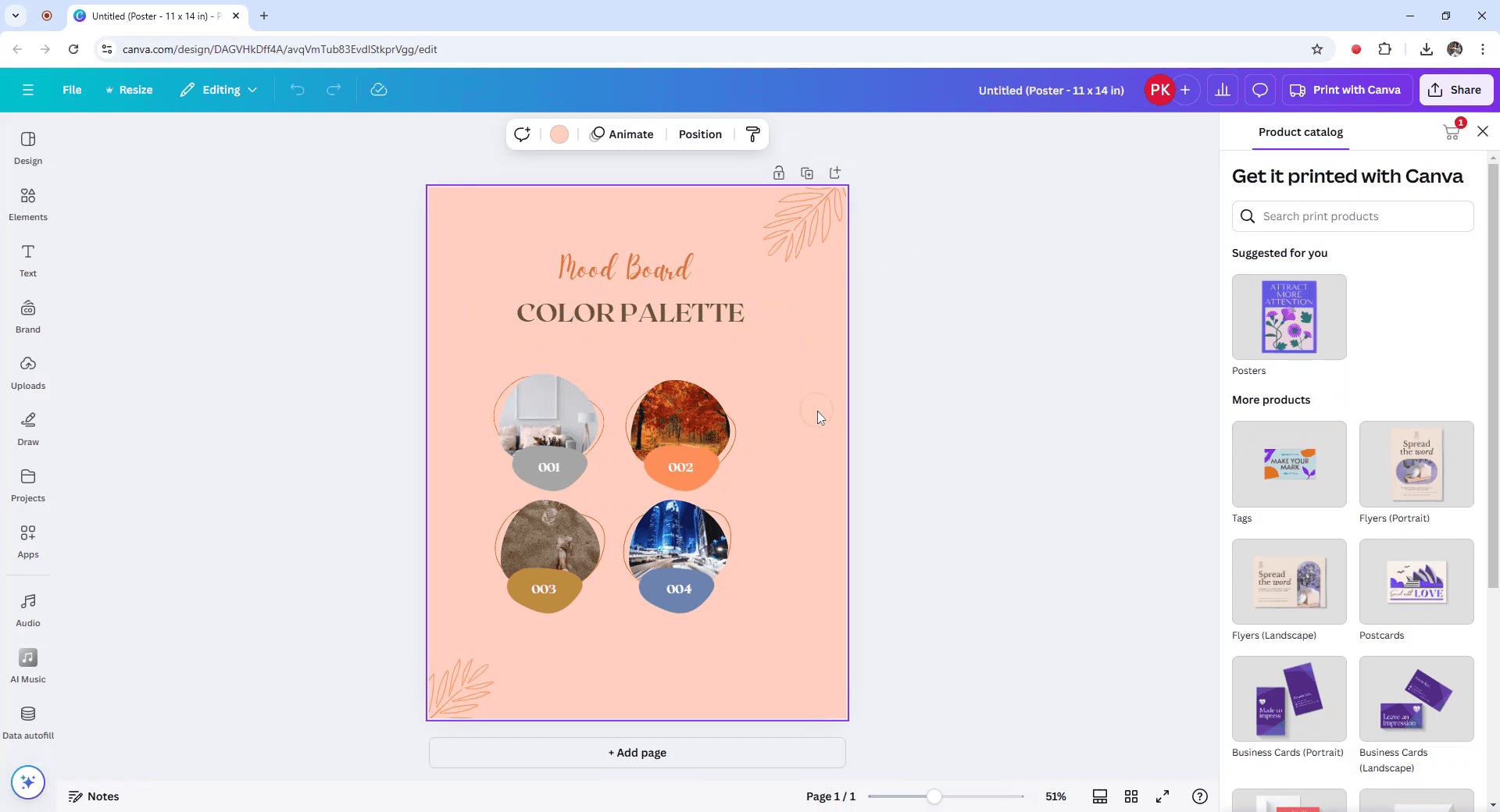
To begin the process of printing a design front to back in Canva, start by selecting the design you wish to print.
Step 2
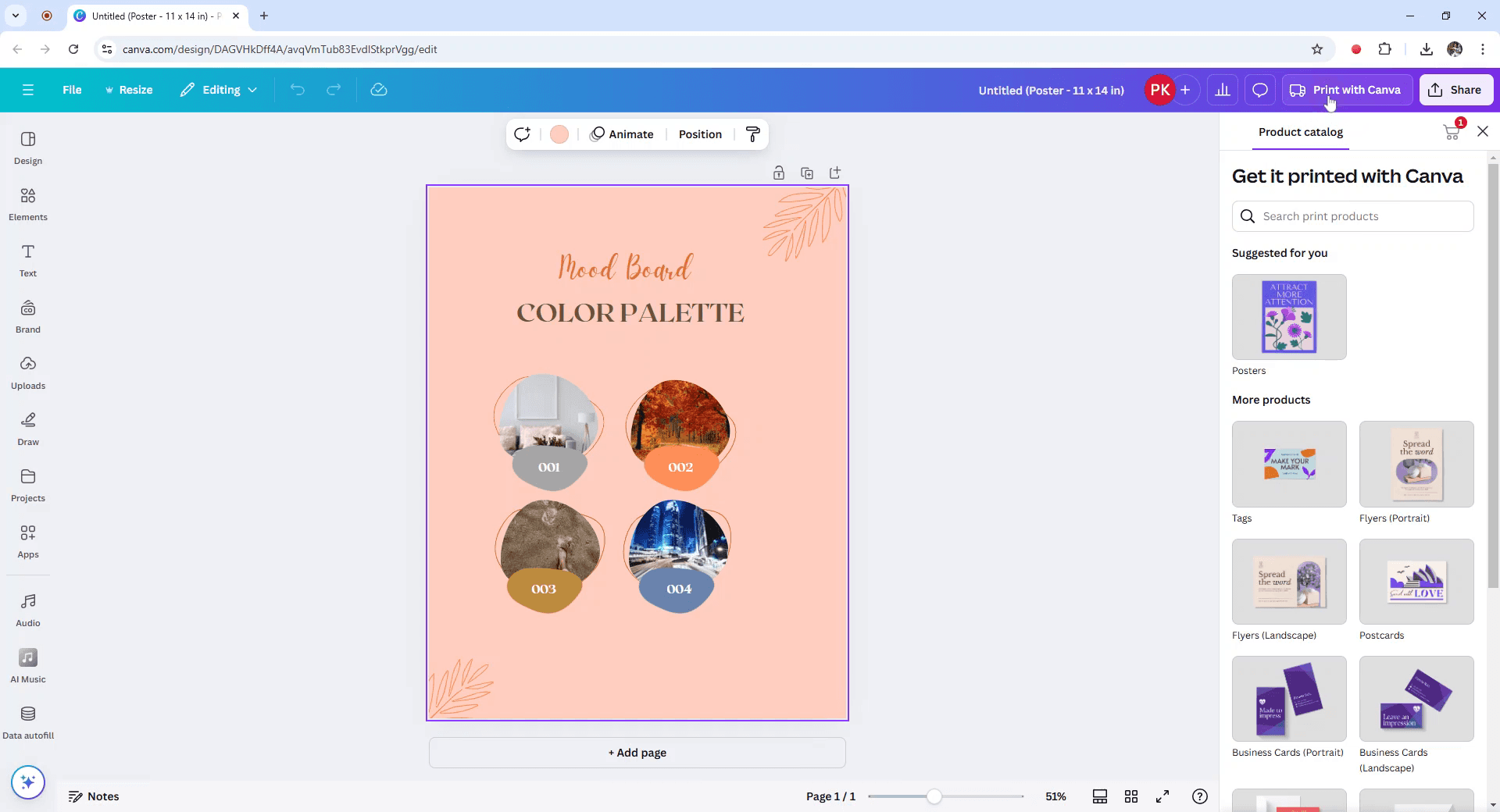
Next, locate and click on the "Print with Canva" option, which is situated at the top right corner.
Step 3
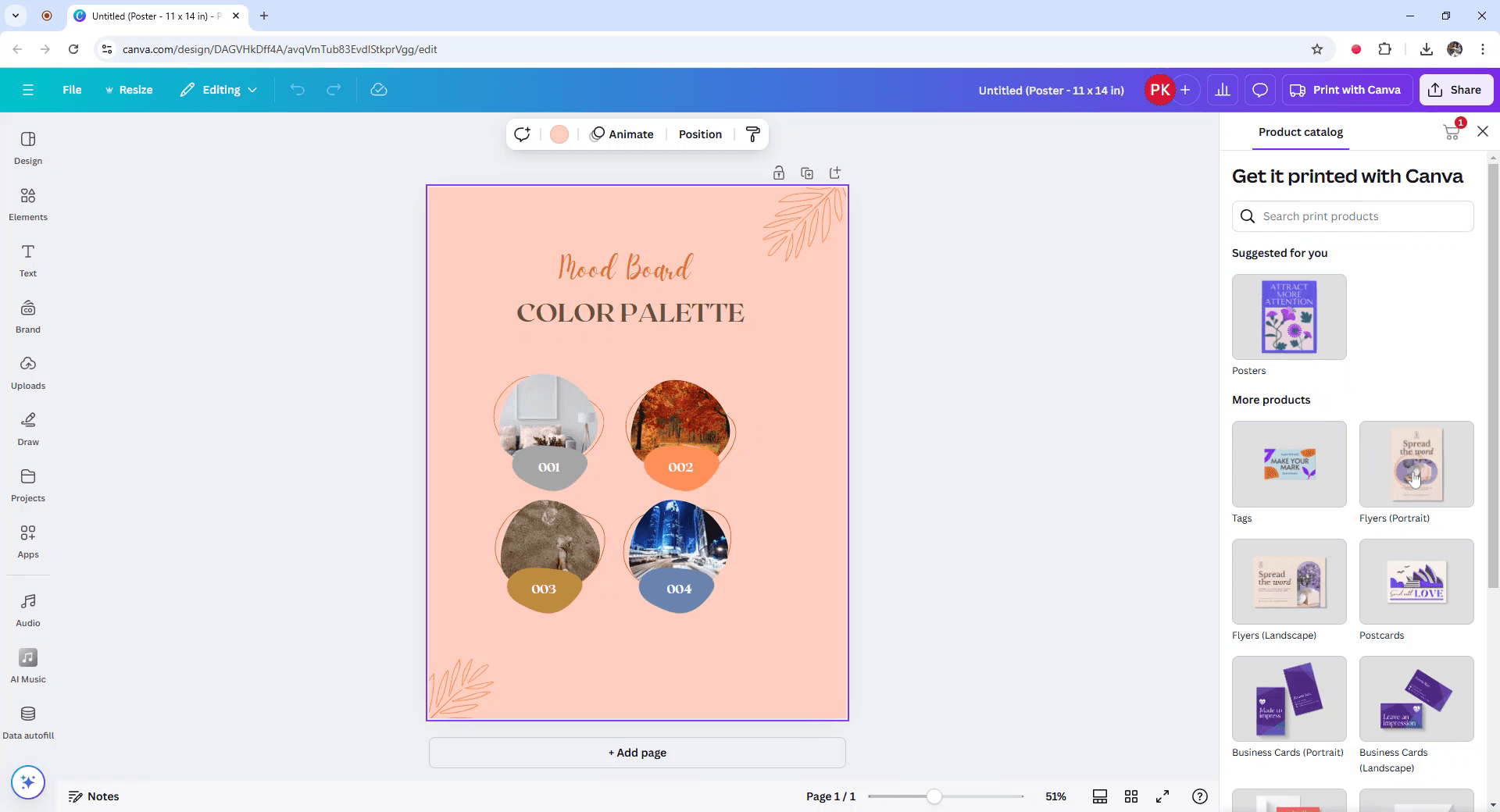
In the Selected Products menu, choose the Flyers option.
Step 4
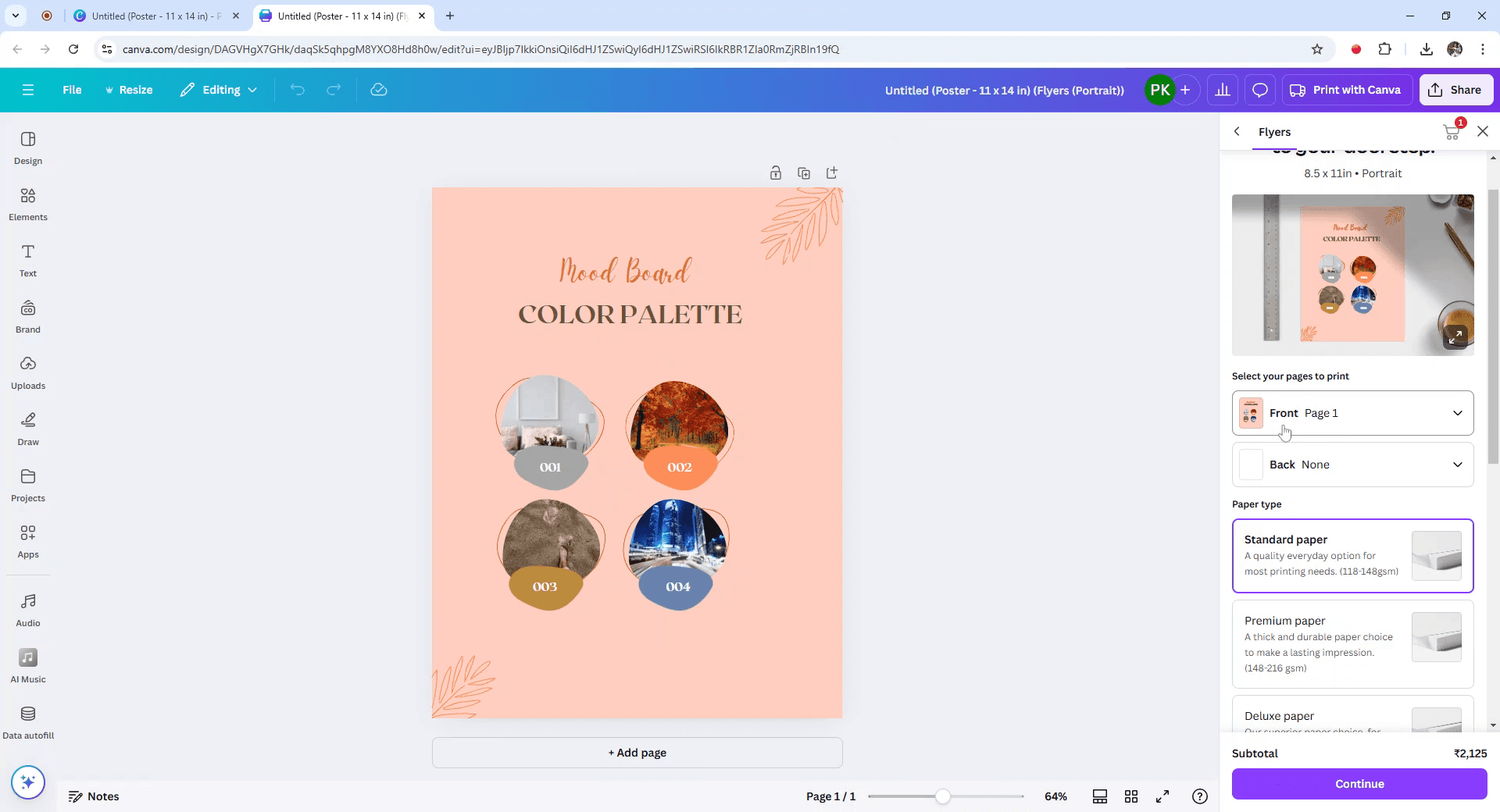
A new tab will open, allowing you to refine your product size. Make sure to select the pages you wish to print, starting with the front page.
Step 5
For the same design on the backside, navigate to the back section and select page 1 once more.
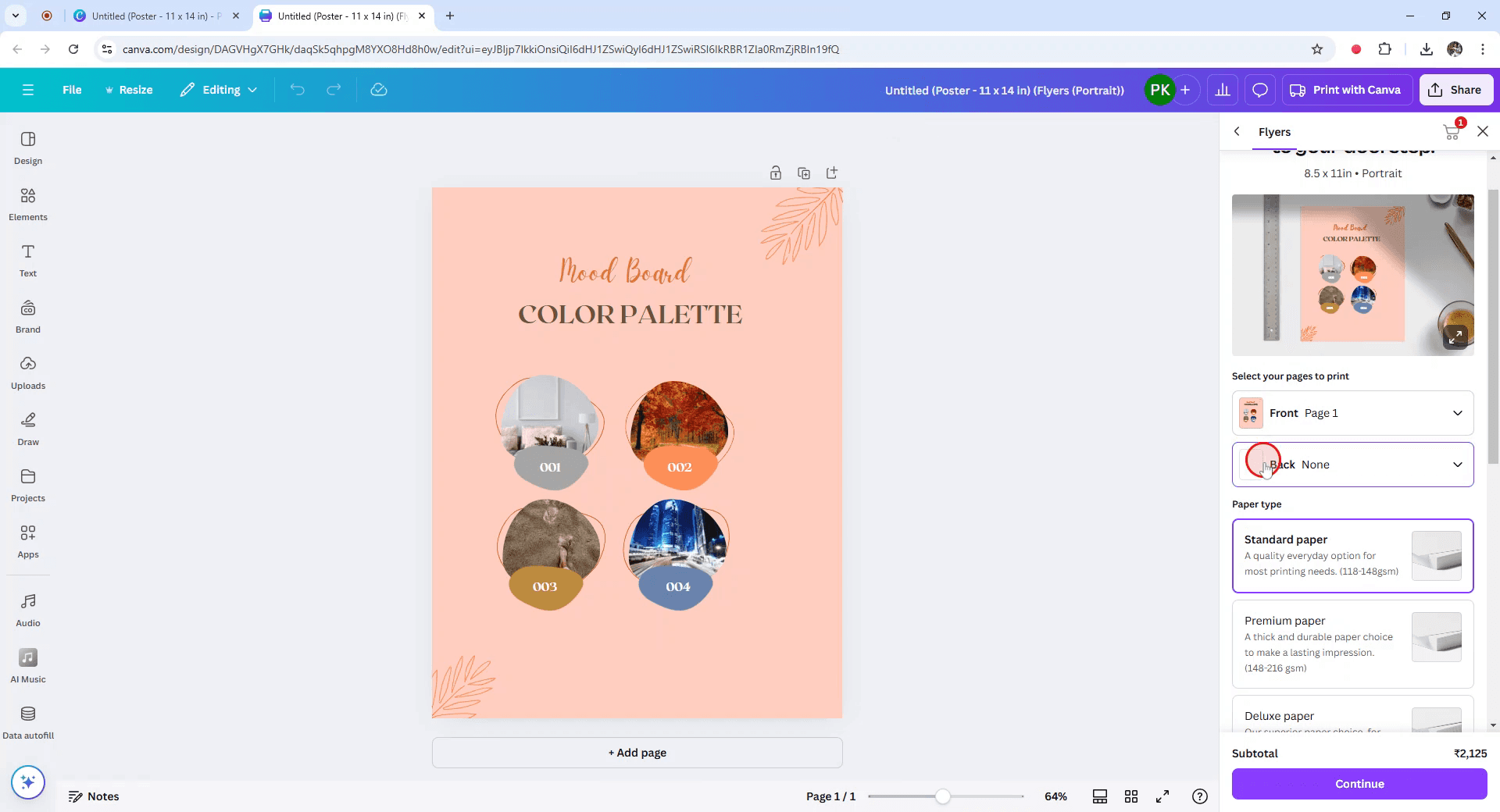
Step 6
Proceed by choosing your preferred type of paper and paper finish.
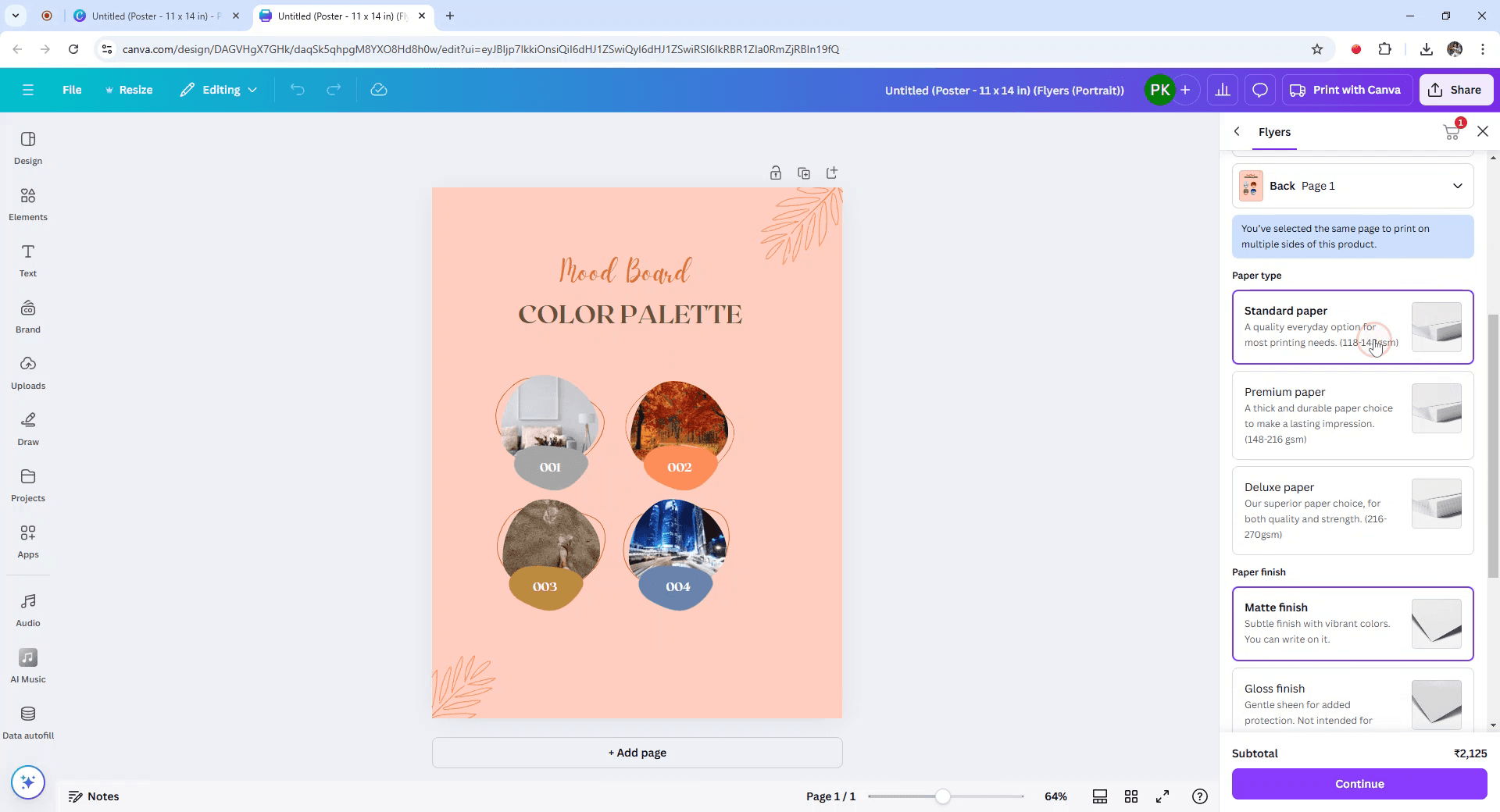
Step 7
Specify the quantity of products you need, then click Continue.
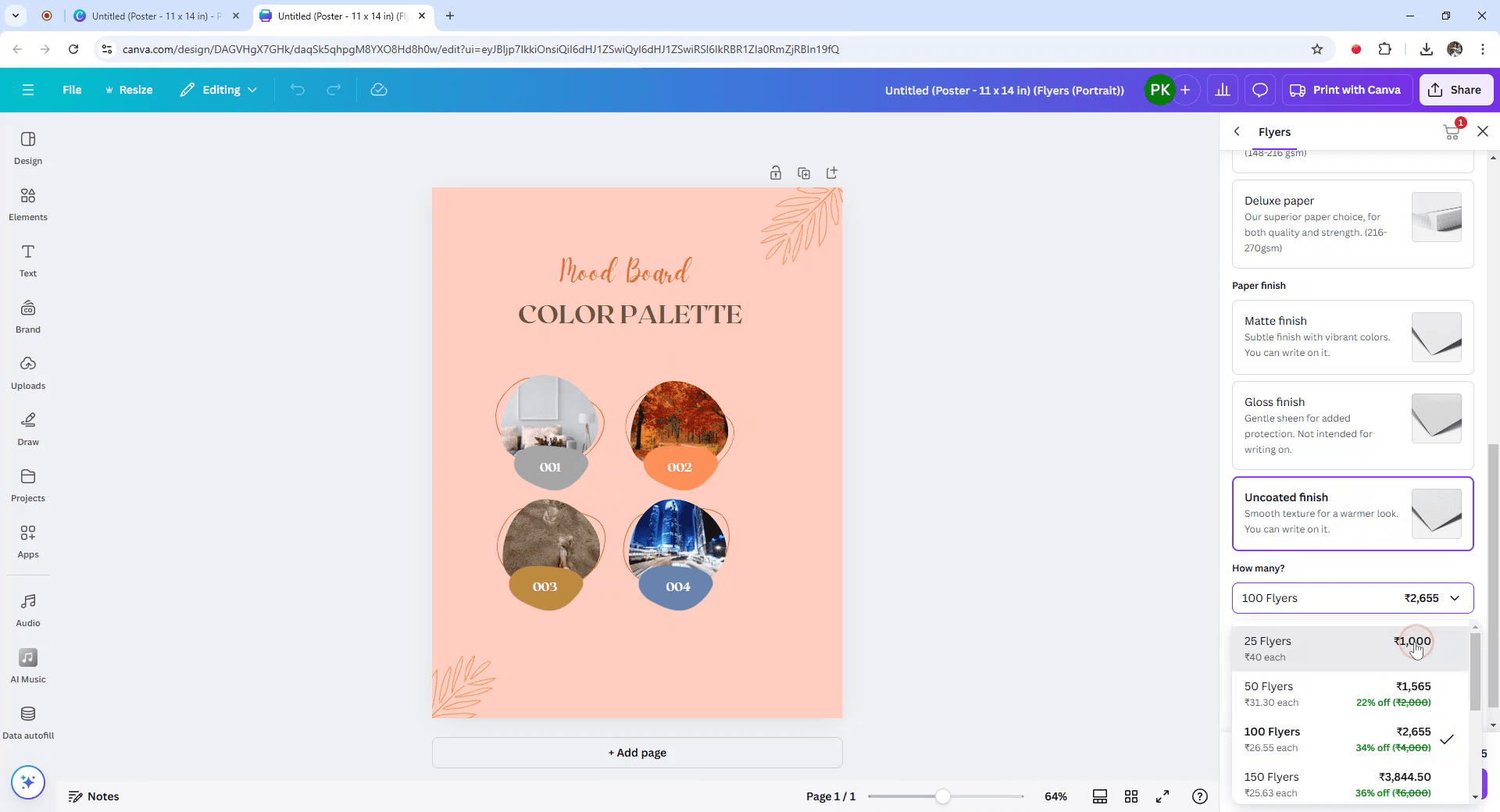
Step 8
Finally, add the items to your cart and arrange for shipping directly to your home.

Pro tips for printing double sided on Canva
Design Your Front and Back Separately:
Create the front of your design on one page and the back on another. In Canva, you can design multiple pages within a single project.Select Download and Choose PDF Print:
Once your design is ready, click on "Download" in the top-right corner and select "PDF Print" as the file type for high-quality printing.Download Both Pages:
Make sure both the front and back designs are selected (you can choose specific pages when downloading) and download them as a PDF.Prepare for Double-Sided Printing:
After downloading the PDF, open it in a PDF viewer. Ensure your printer is set to print on both sides of the paper (double-sided printing). Most modern printers have this feature.Check Printer Settings:
Before printing, ensure that your printer's settings are set to print on both sides. This is often found under the “Print Settings” or “Advanced Settings” of your printer.Turn this into training material:
If the steps are fiddly to describe, you can record a walkthrough your team can follow and let people follow along.
Common pitfalls and how to avoid them when printing double sided on Canva
Designs Misaligned After Printing:
Ensure that the front and back designs are aligned correctly by checking the print preview in your PDF viewer before printing.Incorrect Print Orientation:
Double-check the page orientation (landscape or portrait) in your printer settings to match your design.Print Settings Not Set to Double-Sided:
Make sure to select the double-sided printing option (also known as "Duplex Printing") in your printer settings.Bleed Not Included:
If your design goes all the way to the edge, make sure to enable the bleed option when downloading your design as a PDF. This ensures no white borders are left when printed.Quality Loss on Print:
Use high-resolution images (at least 300 DPI) to ensure good quality print. Choose "PDF Print" for the best quality download.
Частые вопросы, чтобы печатать двусторонние материалы в Canva
Могу ли я распечатать макеты лицевой и оборотной сторон из Canva?
Да, создайте две страницы в дизайне Canva: одну для лицевой стороны и одну для оборотной. Скачайте дизайн как PDF для печати и распечатайте обе стороны, используя функцию двусторонней печати на вашем принтере.Как распечатать двусторонний макет в Canva?
Canva напрямую не поддерживает двустороннюю печать. Скачайте дизайн как PDF и используйте опцию двусторонней печати на вашем принтере.Что делать, если мой принтер не поддерживает двустороннюю печать?
Если ваш принтер не поддерживает двустороннюю печать, вы можете сначала вручную распечатать лицевую сторону, затем перевернуть бумагу и распечатать оборотную.Могу ли я использовать Canva для создания визиток или листовок с двусторонней печатью?
Да, вы можете оформить обе стороны в Canva, скачать как PDF и распечатать лицевую и оборотную стороны визиток или листовок на совместимом принтере.Как проверить, что лицевой и оборотный макеты совпадают по выравниванию?
Проверьте выравнивание, просмотрев предварительный просмотр печати в программе для просмотра PDF и убедившись, что обе стороны совпадают так, как задумано.Как сделать запись экрана на mac?
Чтобы сделать запись экрана на Mac, вы можете использовать Trupeer AI. Он позволяет записывать весь экран и предоставляет возможности ИИ, такие как добавление AI-аватаров, добавление озвучки, добавление зума (приближение и отдаление) в видео. С функцией перевода видео Trupeer на основе ИИ вы можете перевести видео на 30+ языков.Как добавить AI-аватар в запись экрана?
Чтобы добавить AI-аватар в запись экрана, вам нужно использовать инструмент для записи экрана с ИИ. Trupeer AI — это инструмент для записи экрана с ИИ, который помогает создавать видео с несколькими аватарами, а также позволяет создать собственный аватар для видео.Как сделать запись экрана на windows?
Чтобы сделать запись экрана в Windows, вы можете использовать встроенную панель Game Bar (Windows + G) или расширенный инструмент ИИ, например Trupeer AI, для более продвинутых функций: AI-аватары, озвучка, перевод и т. д.Как добавить озвучку в видео?
Чтобы добавить озвучку в видео, скачайте расширение trupeer ai для Chrome. После регистрации загрузите видео с голосом, выберите нужную озвучку в trupeer и экспортируйте отредактированное видео.Как увеличить масштаб при записи экрана?
Чтобы увеличить масштаб во время записи экрана, используйте эффекты зума в Trupeer AI — они позволяют приближать и отдалять в определенные моменты, усиливая визуальное впечатление от вашего видео.
Рекомендуем к прочтению
Генератор технической документации
Как превратить изображение в раскраску в Canva
Похожие руководства



