
How to Mirror Objects in Figma
Learn how to mirror objects in Figma using flip tools, smart guides, and keyboard shortcuts. A quick guide to reflect designs horizontally or vertically with precision.
Detailed Steps:
Download and Install: Download the Figma Mirror app from your device's app store (Google Play Store or Apple App Store) or visit figma.com/mirror in your mobile browser.
Log In: Open the Figma Mirror app and log in using the same Figma account as your desktop app or browser.
Open the Design: Open the desired Figma file in the desktop app or browser.
Select a Frame: Choose the top-level frame you want to mirror on your mobile device.
Begin Mirroring: In the Figma Mirror app, tap on the "Begin Mirroring" button (or similar, depending on the app version).
View and Interact: Your selected frame will be displayed on your mobile device, and you can interact with it as a prototype.
Step-by-Step-Guide: How to Mirror Objects in Figma
Step 1
To begin, ensure you have the object selected that you wish to mirror.
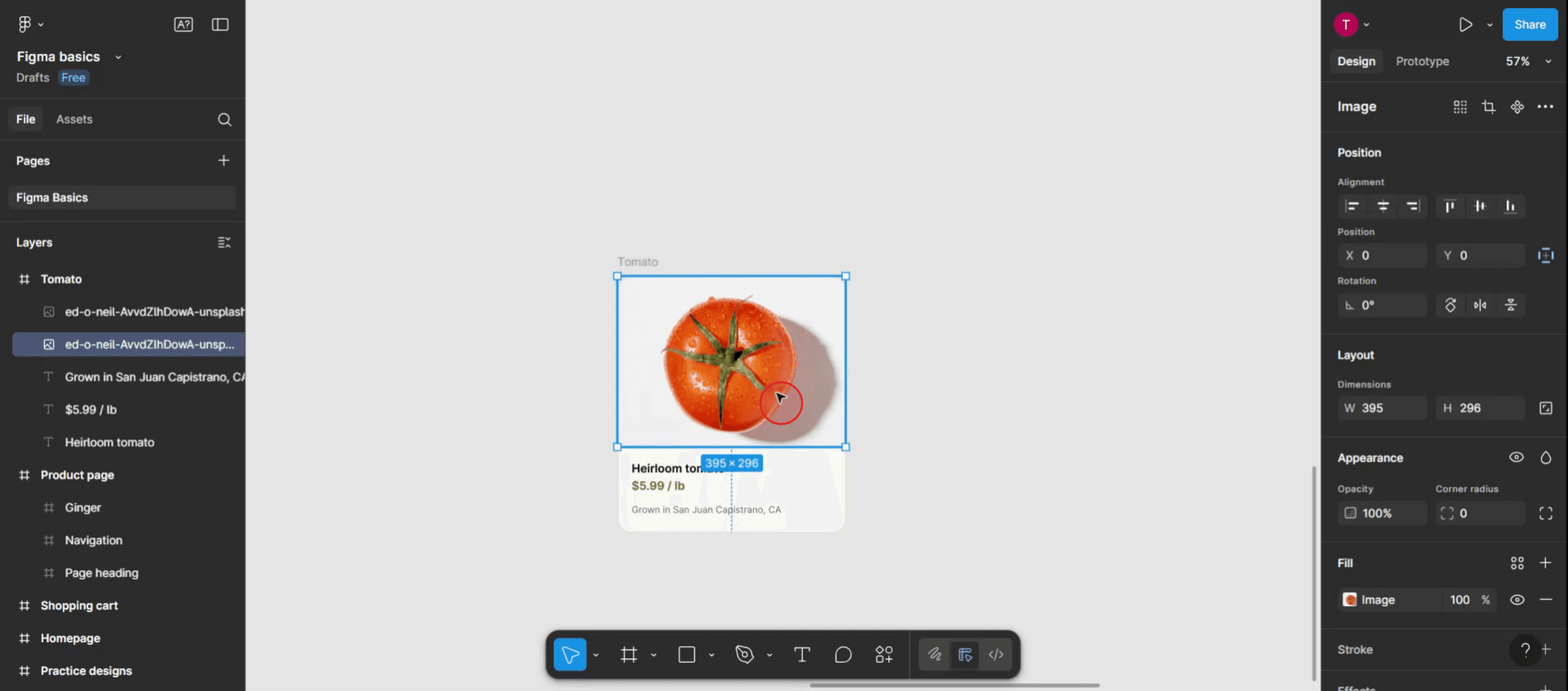
Step 2
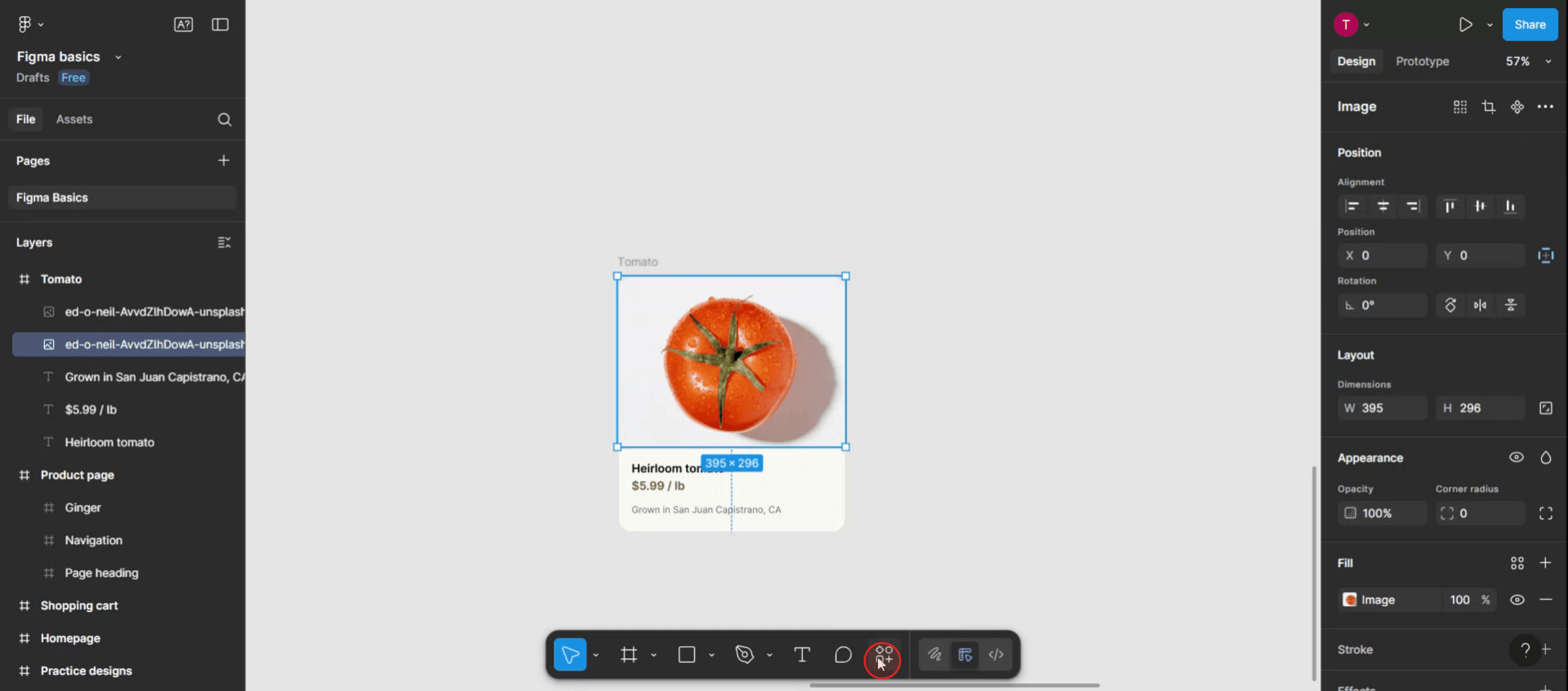
Next, locate the actions menu on your Figma interface and click on it.
Step 3
In the search console, type 'mirror' to find the mirroring option.
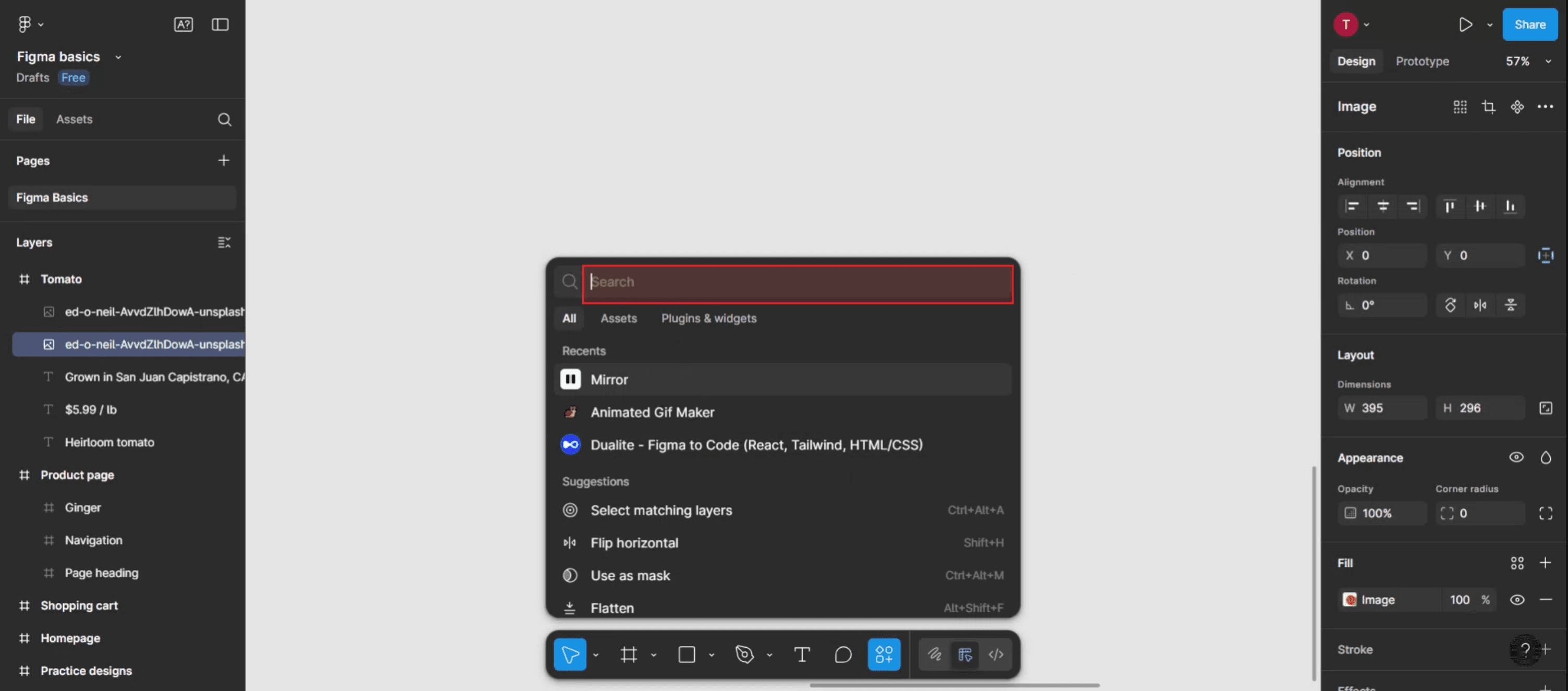
Step 4
After locating the 'mirror' option, click on it.

Step 5
Within the popup, choose the direction you prefer to mirror: either horizontal or vertical.
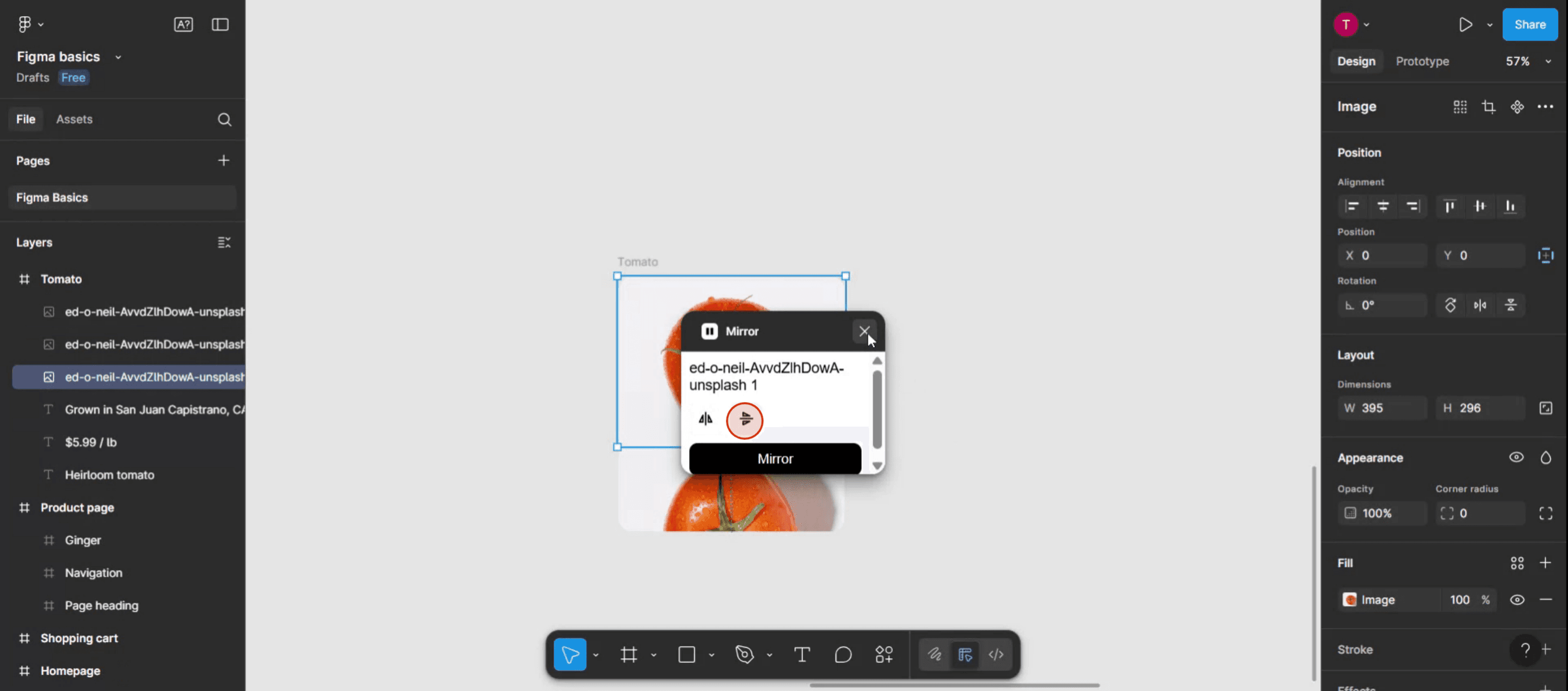
Step 6
Thank you for completing the process.

Полезные советы по зеркалированию объектов в Figma
Выберите объект
Нажмите на фигуру, значок или группу, которую вы хотите зеркалировать. Убедитесь, что выбран весь элемент, прежде чем применять любые преобразования.Откройте инструмент «Масштаб»
Используйте сочетание клавиш «K» на клавиатуре, чтобы активировать инструмент «Scale», или выберите его на верхней панели инструментов.Зеркалирование по горизонтали с помощью отрицательной ширины
Когда инструмент «Scale» активен, перетащите левую или правую границу объекта, удерживая нажатой клавишу Shift. Введите отрицательное значение ширины в панели свойств (например, -100%), чтобы перевернуть объект по горизонтали.Зеркалирование по вертикали с помощью отрицательной высоты
Чтобы зеркалировать по вертикали, перетащите верхнюю или нижнюю границу объекта, используя инструмент «Scale». Введите отрицательное значение высоты (например, -100%) в панели свойств.Используйте сочетания клавиш для быстрого переворота
Вы также можете зеркалировать с помощью сочетаний клавиш:
Переворот по горизонтали: ПКМ → Flip Horizontal
Переворот по вертикали: ПКМ → Flip Vertical
Частые ошибки и как их избежать
Переворот вместо поворота
Зеркалирование и поворот — это не одно и то же. Убедитесь, что вы переворачиваете объект правильным способом, а не поворачиваете его на 180 градусов.Потеря выравнивания
При зеркалировании позиция объекта может измениться. Используйте инструменты выравнивания или вручную переместите объект после переворота.Проблемы с группировкой
Если вы зеркалируете сгруппированный объект, убедитесь, что все внутренние элементы зеркалируются так, как задумано. Разгруппируйте и проверьте при необходимости.Некорректное зеркалирование текста
При перевороте текстового слоя он может стать нечитаемым. Если вам нужно зеркальное отображение, рассмотрите возможность преобразования в контуры.Нарушение работы компонентов
Переворот компонента может изменить его поведение. Тщательно протестируйте зеркальные компоненты, прежде чем использовать их в более крупном дизайне.
Common FAQs About Mirroring Objects in Figma
How do I mirror an object in Figma?
Select the object, use the Scale tool (K), and enter a negative width or height to flip it horizontally or vertically.Can I mirror multiple objects at once?
Yes, group the objects first, then mirror them together using the Flip options or Scale tool.Is there a shortcut for flipping in Figma?
Yes, right-click on the object and choose “Flip Horizontal” or “Flip Vertical” from the menu.Will mirroring affect text readability?
Yes, flipping text can make it unreadable. Convert text to outlines if needed for visual-only mirroring.Can I mirror objects inside a component?
Yes, but make sure the mirroring doesn’t interfere with the component’s intended behavior or auto layout structure.How to screen record on mac?
To screen record on a Mac, you can use Trupeer AI. It allows you to capture the entire screen and provides AI capabilities such as adding AI avatars, add voiceover, add zoom in and out in the video. With trupeer’s AI video translation feature, you can translate the video into 30+ languages.How to add an AI avatar to screen recording?
To add an AI avatar to a screen recording, you'll need to use an AI screen recording tool. Trupeer AI is an AI screen recording tool, which helps you create videos with multiple avatars, also helps you in creating your own avatar for the video.How to screen record on windows?
To screen record on Windows, you can use the built-in Game Bar (Windows + G) or advanced AI tool like Trupeer AI for more advanced features such as AI avatars, voiceover, translation etc.How to add voiceover to video?
To add voiceover to videos, download trupeer ai chrome extension. Once signed up, upload your video with voice, choose the desired voiceover from trupeer and export your edited video.How do I Zoom in on a screen recording?
To zoom in during a screen recording, use the zoom effects in Trupeer AI which allows you to zoom in and out at specific moments, enhancing the visual impact of your video content.
Suggested Reads
Technical Documentation Generator
Похожие руководства



