

How to Make a Pie Chart in Figma
Want to visualize data in Figma? Learn how to create a pie chart using shapes, angles, and plugins. A simple guide for building clean, data-driven visuals.
Here's a more detailed breakdown:
1. Create an Ellipse: Select the ellipse tool and draw a circle. You can hold Shift while dragging to ensure it's a perfect circle.
2. Access Arc Options: Hover over the circle, and you'll see a dot appear. Click and drag this dot to reveal the arc controls.
3. Adjust Sweep and Start: The arc controls allow you to adjust the "sweep" (slice size) and "start" (starting angle) of the arc.
4. Create Slices: Duplicate the initial arc (slice) to create additional slices for your pie chart. Adjust the sweep and start angles for each duplicate to create the desired proportions.
5. Color the Slices: Fill each slice with a distinct color to differentiate them. You can also add labels to each slice using the text tool.
6. Arrange and Refine: Arrange the slices and labels as needed. You can group the elements to keep the chart organized.
Step-by-Step-Guide: How to Make a Pie Chart in Figma
Step 1
Click on the 'Actions' section.

Step 2
When the pie chart option appears, simply click on it to select.

Step 3
The pie chart will now appear on your screen. Additionally, you will notice an 'Edit' option; click on this to proceed.
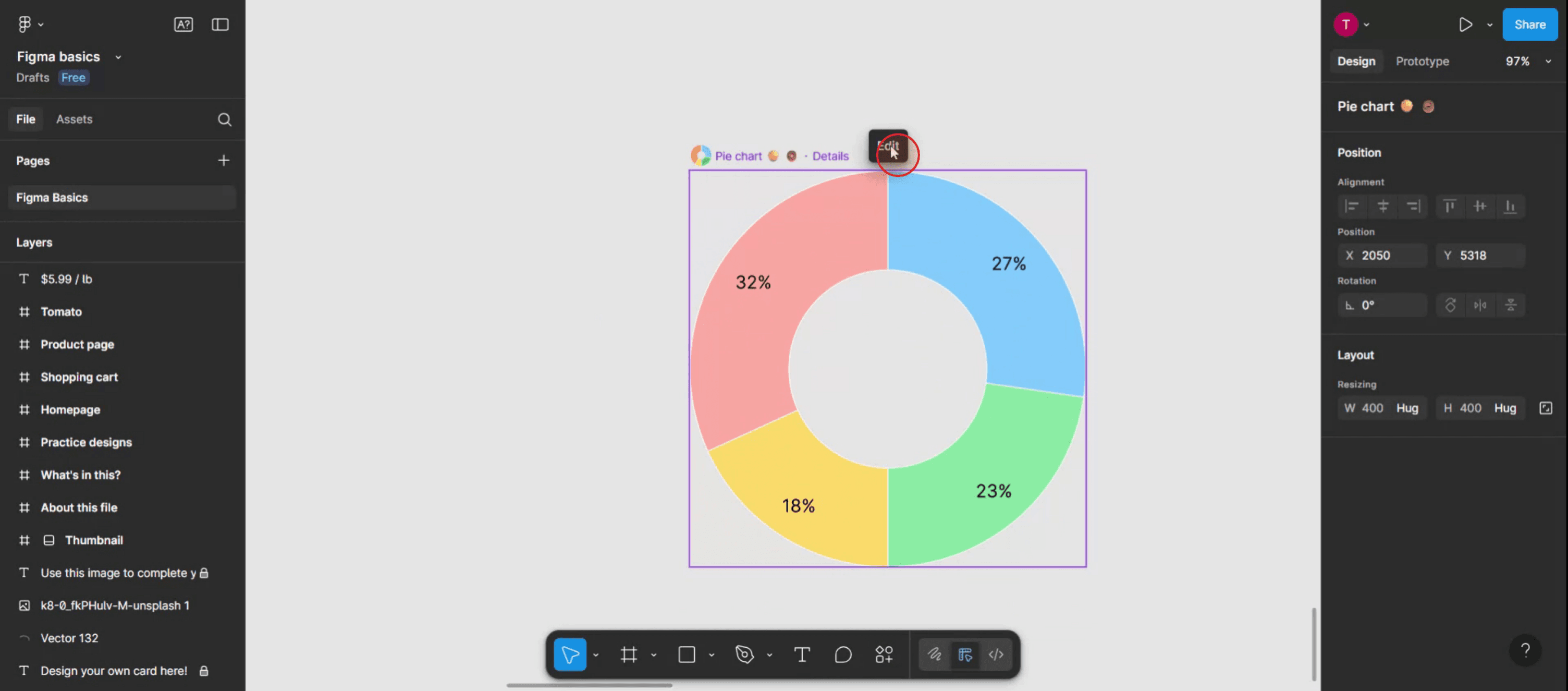
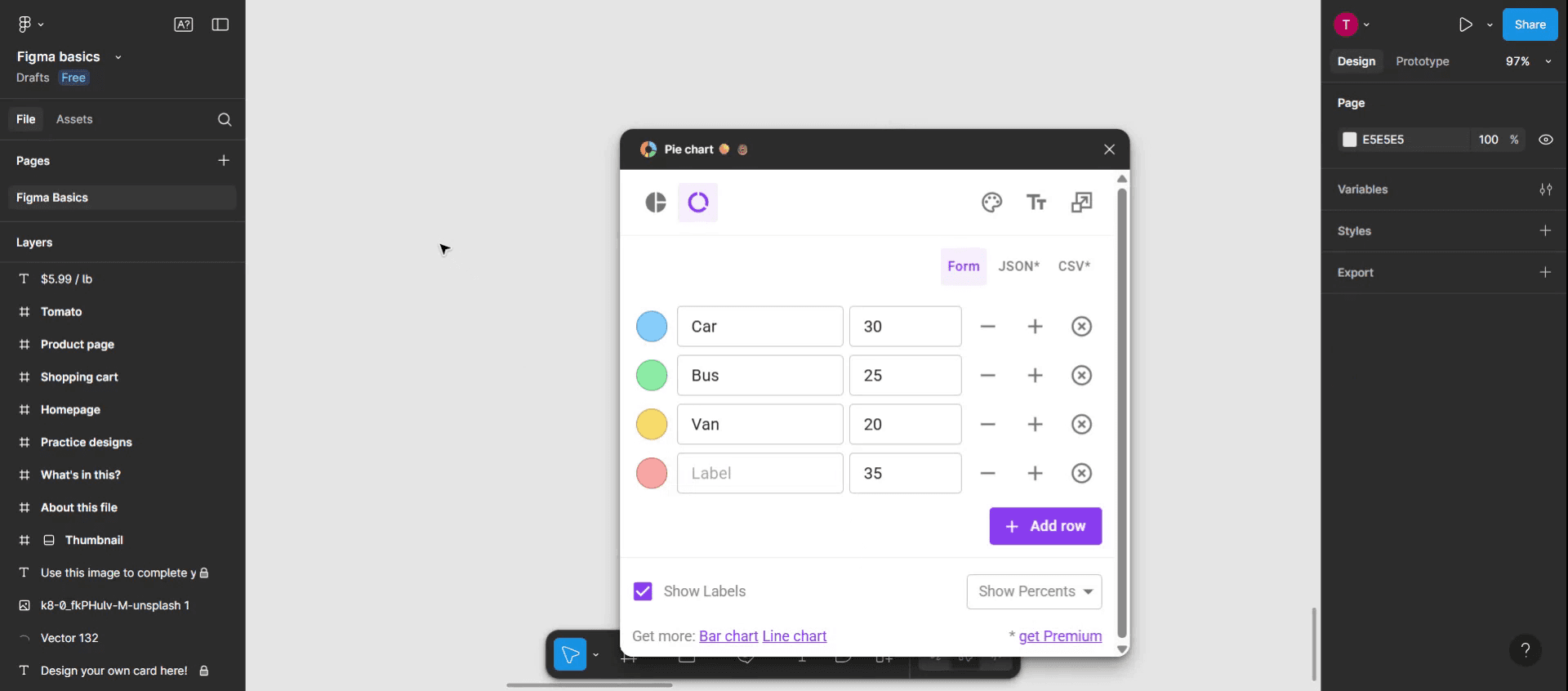
Step 4
In this step, customize the pie chart to meet your specific needs. Enter any desired labels and, once complete,
Step 5
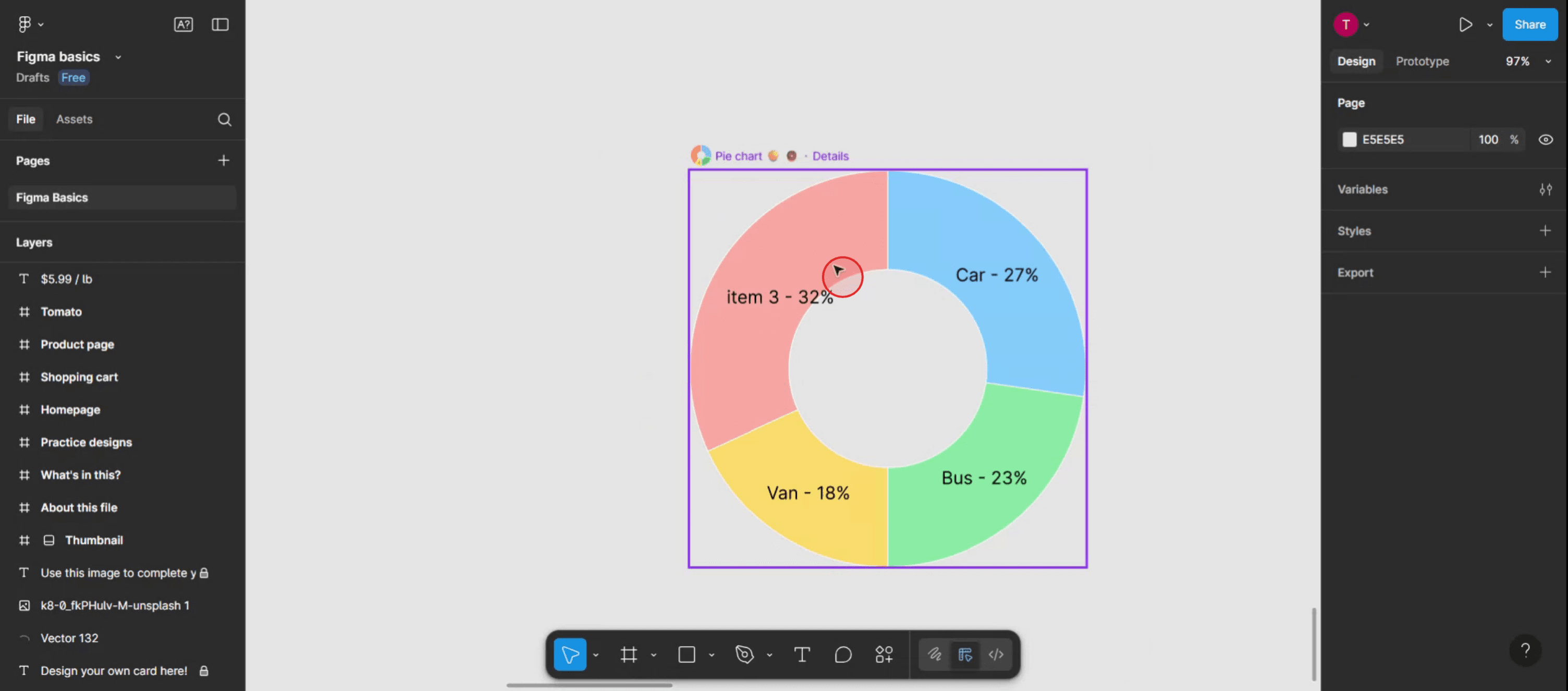
Tap anywhere on the screen to exit editing mode.

Step 6
Your changes will be applied to the pie chart.
Pro Tips for Creating a Pie Chart in Figma
Use the Ellipse Tool to Draw the Base
Select the Ellipse Tool (O), then click and drag on the canvas while holding Shift to draw a perfect circle. This will serve as your full pie chart base.Convert Circle to Arc
With the circle selected, go to the properties panel and adjust the "Arc" settings. Enable it by changing the "Start" and "End" angles to create a slice effect.Duplicate for Multiple Segments
To make more slices, duplicate the circle (Ctrl/Cmd + D), then adjust the arc angles for each to represent different data values. Use different colors for each slice.Use Math to Divide the Chart
If your data is in percentages, multiply 360 (degrees in a circle) by the percentage to get each slice’s angle. For example, 25% = 90°.Color-Code for Clarity
Use the Fill tool to assign distinct colors to each slice. This improves readability and visual appeal.
Common Pitfalls and How to Avoid Them
Arcs Not Aligned Correctly
Make sure each arc slice starts where the last one ends to avoid gaps or overlaps. Manually enter start and end angles for precision.Losing Track of Angles
Label your layers with slice degrees or data labels so you know which segment represents what.Misaligned Text Labels
Use Smart Guides or manually center text over each slice to maintain a clean and professional appearance.Slices Covering Each Other
Pay attention to layer order when adding slices. Bring slices to front or back as needed to avoid hiding other parts.Inaccurate Proportions
Double-check your math when translating percentages to angles to ensure accurate data representation.
Часто задаваемые вопросы о круговых диаграммах в Figma
Могу ли я создать круговую диаграмму в Figma без плагинов?
Да, вы можете использовать инструмент «Эллипс» и настройки «Дуга», чтобы вручную создавать круговые диаграммы без каких-либо плагинов.Есть ли плагин для создания круговых диаграмм в Figma?
Да, доступны плагины вроде «Chart» или «Pie Chart Maker», которые позволяют автоматизировать процесс с помощью входных данных.Как сделать срез ровно 25%?
Умножьте 360 на 0,25 (25%), это даст 90 градусов. Установите угол дуги так, чтобы он охватывал 90° — и получите идеальный срез 25%.Можно ли анимировать круговые диаграммы в Figma?
Хотя Figma поддерживает простые анимации прототипов, сложные анимации, основанные на данных, нужно создавать вне Figma.Можно ли экспортировать круговые диаграммы из Figma?
Да, выберите круговую диаграмму, перейдите в панель экспорта, выберите нужный формат (PNG, SVG, PDF) и нажмите Export.Как сделать запись экрана на mac?
Чтобы сделать запись экрана на Mac, вы можете использовать Trupeer AI. Он позволяет записывать весь экран и предоставляет возможности ИИ, такие как добавление AI-аватаров, добавление голосового сопровождения, а также масштабирование (приближение и отдаление) в видео. С функцией AI-перевода видео от trupeer вы можете перевести видео на 30+ языков.Как добавить AI-аватар в запись экрана?
Чтобы добавить AI-аватар в запись экрана, вам нужно использовать инструмент для записи экрана с ИИ. Trupeer AI — это инструмент для записи экрана с ИИ, который помогает создавать видео с несколькими аватарами, а также позволяет создать собственный аватар для видео.Как сделать запись экрана на windows?
Чтобы сделать запись экрана на Windows, вы можете использовать встроенную панель Game Bar (Windows + G) или расширенный AI-инструмент вроде Trupeer AI для более продвинутых функций, таких как AI-аватары, голосовое сопровождение, перевод и т. д.Как добавить голосовое сопровождение в видео?
Чтобы добавить голосовое сопровождение в видео, скачайте chrome-расширение trupeer ai. После регистрации загрузите видео с голосом, выберите нужный вариант голосового сопровождения в trupeer и экспортируйте отредактированное видео.Как увеличить масштаб при записи экрана?
Чтобы увеличить масштаб во время записи экрана, используйте эффекты масштабирования в Trupeer AI — они позволяют приближать и отдалять в определенные моменты, усиливая визуальное воздействие вашего видеоконтента.
Рекомендуем к прочтению
Генератор технической документации
Похожие руководства



