

How to Insert a Signature in Google Docs – Easy Digital Signing
Learn how to add your signature to Google Docs using Drawing, image upload, or eSignature tools. Quick steps for a professional finish.
This guide provides a simple and efficient process for adding a signature to your Google Docs document. Follow these steps carefully to ensure the signature is inserted correctly.
You can insert a signature into a Google Doc by drawing it directly, uploading an image, or using a dedicated add-on.
Method 1: Drawing a Signature
Open your Google Doc and place your cursor where you want the signature.
Go to:
Insert>Drawing>+ New.In the drawing window, click the “Scribble” tool from the line dropdown.
Draw your signature using your mouse or touchpad.
Click “Save and Close” to insert it into the document.
Resize or reposition the signature as needed.
Method 2: Inserting an Image of Your Signature
Open your Google Doc and position the cursor where you want the signature.
Go to
Insert>Image>Upload from computer(or choose Google Drive if stored there).Select your signature image file.
After it's inserted, adjust the size and placement.
Method 3: Using a Signature Add-on
Go to
Extensions>Add-ons>Get add-ons.Search for tools like “Simple Signature” or “DocuSign”.
Install and launch the add-on, then follow the on-screen steps to insert your signature.
Step-by-Step Guide: how to insert a signature in google docs
Step 1
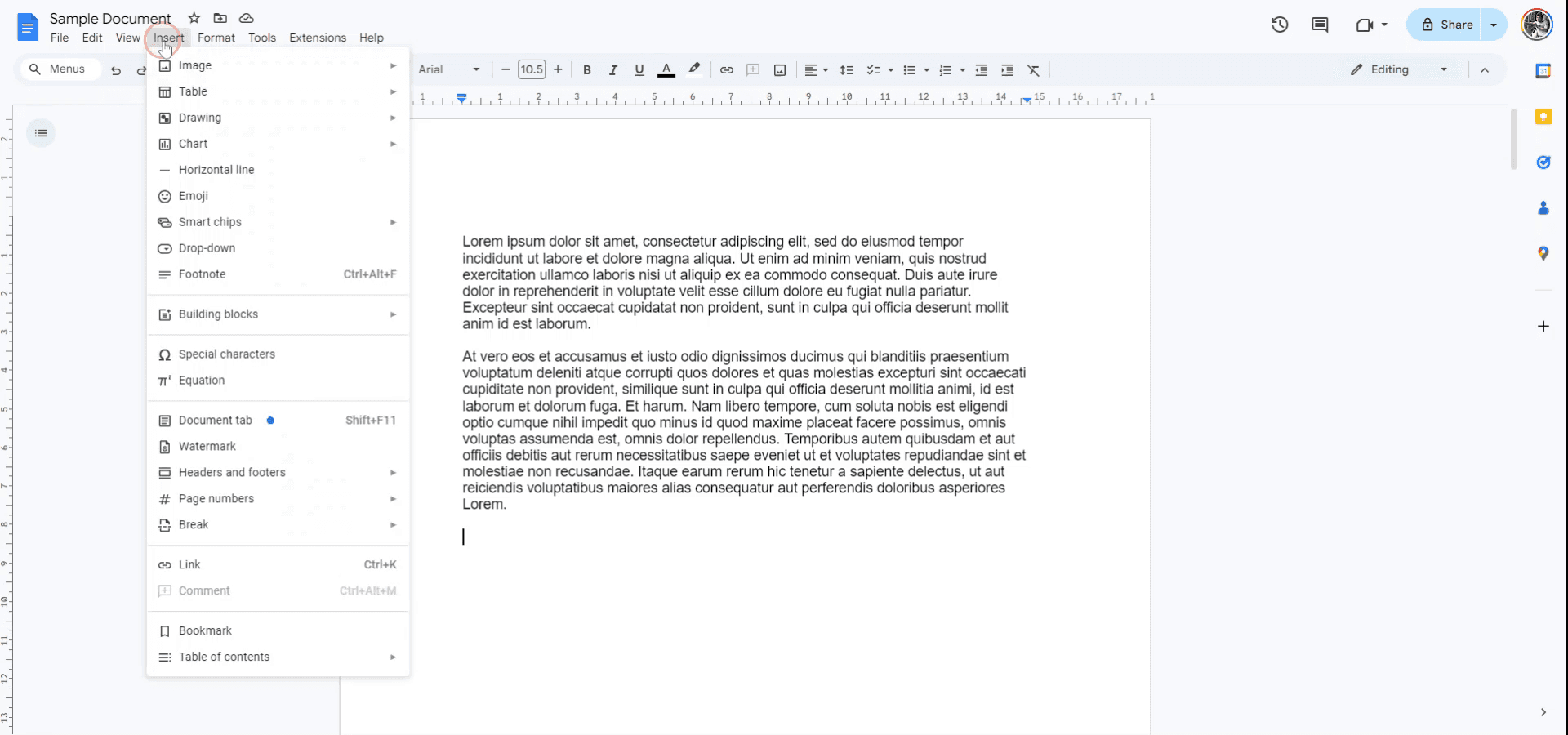
To add a signature to a Google Docs document, start by opening the document where you want to insert the signature. Next, navigate to the "Insert" option in the menu bar.
Step 2
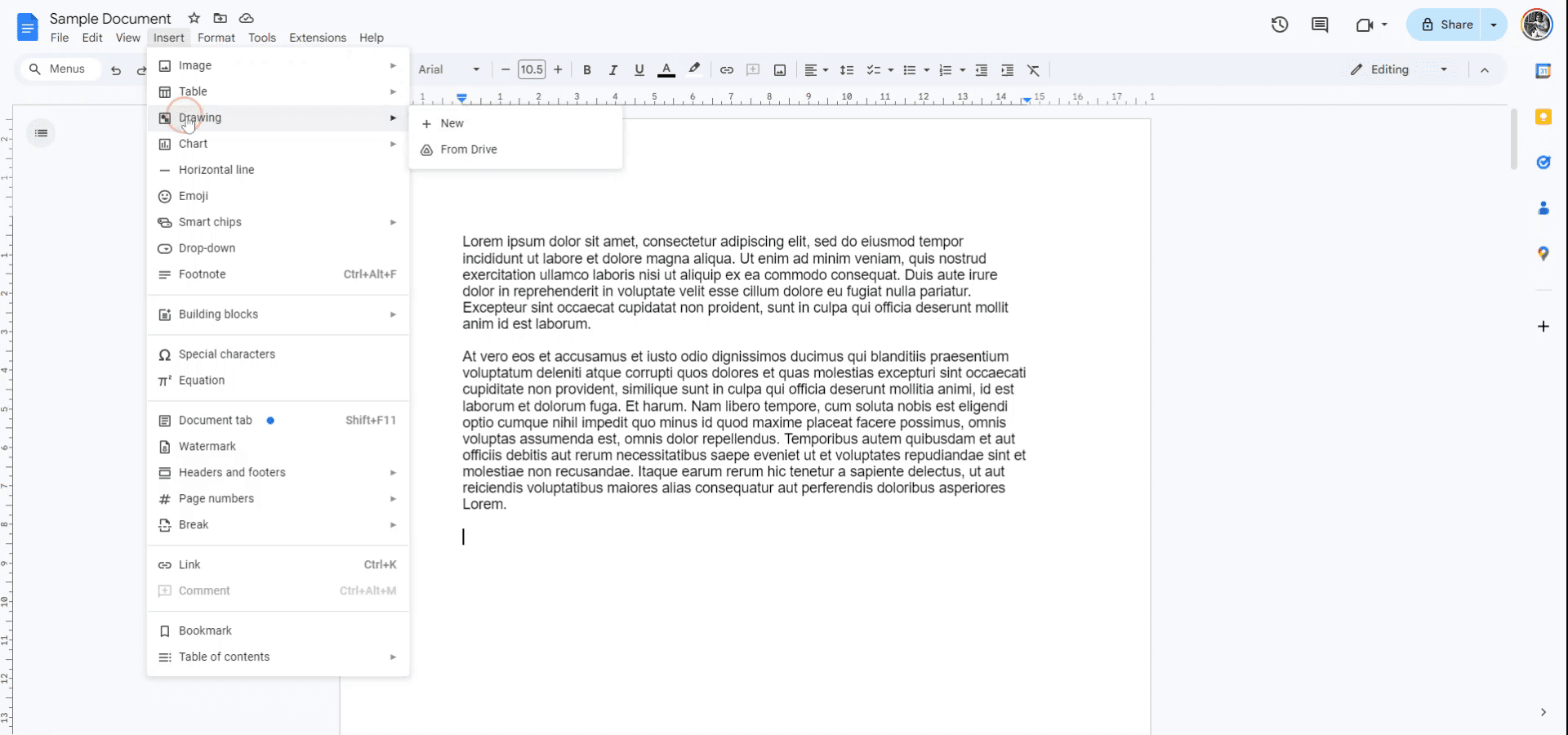
From the "Insert" drop-down menu, select "Drawing" and then click on "New." In the drawing window, click on the drop-down arrow next to the line tool.
Step 3
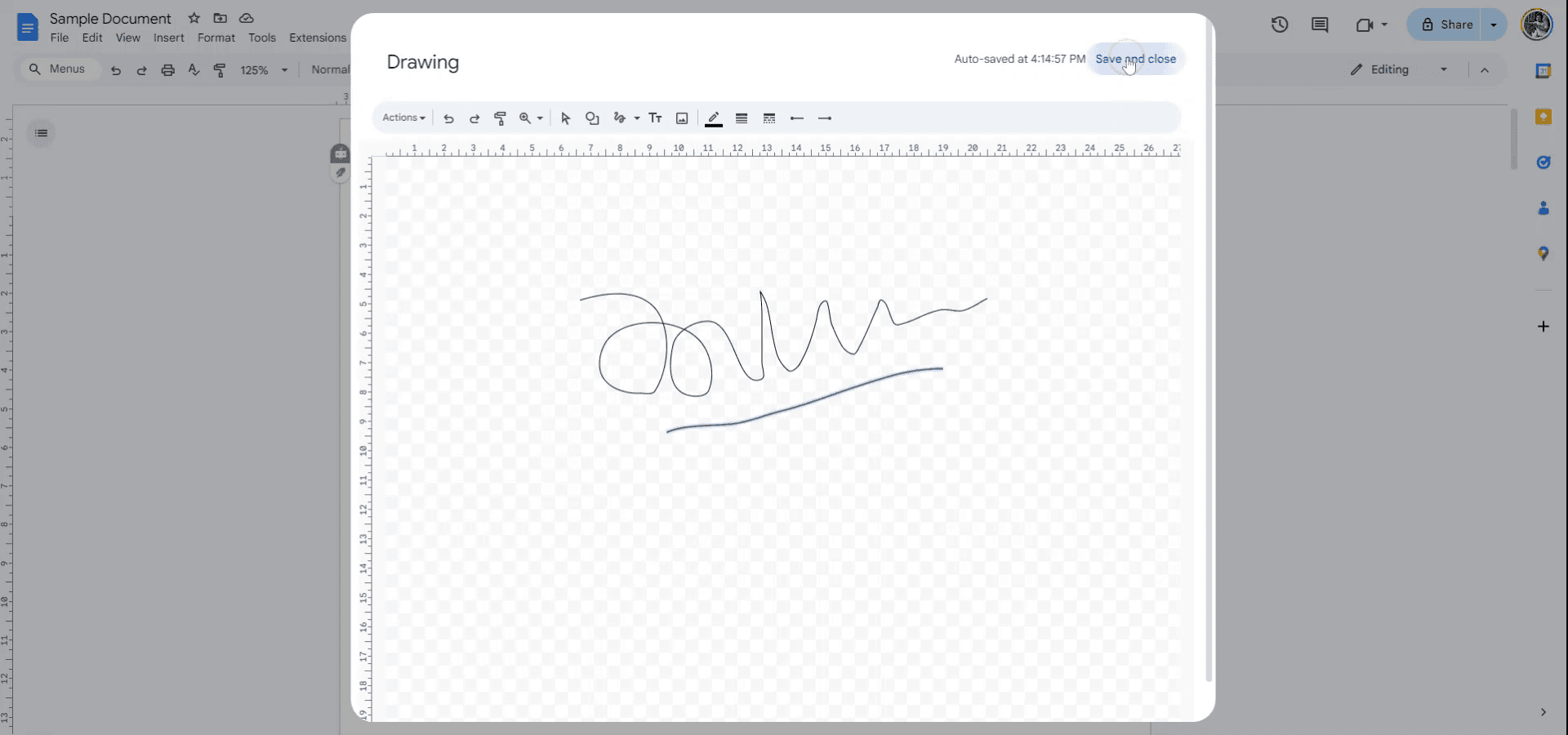
Select "Scribble" from the list of line options. You can now draw your signature using the scribble tool. Once completed, click on "Save and Close" to insert your signature into the Google Docs document. Your signature has now been successfully added. Thank you.
Pro tips to insert signature in google docs
Use Drawing Tool: Go to Insert > Drawing > New, and then use the Line tool or Scribble option to draw your signature directly in the document.
Upload an Image of Your Signature: Scan or sign on paper, then upload the image of your signature by going to Insert > Image > Upload from computer and place it where needed in the document.
Use a Digital Signature Tool: Use an external tool like DocuSign or HelloSign, which integrates with Google Docs, for a more formal and legally binding signature.
Insert Signature Using Google Docs Add-ons: Install signature add-ons like SignRequest or PandaDoc from the Add-ons > Get add-ons menu for a seamless digital signing experience.
Position the Signature Correctly: Once added, use the drag feature to adjust the size and placement of the signature to match your document’s layout.
Common pitfalls and how to avoid them when inserting signature on google docs
Blurry Signature Image: If your signature image is low resolution, it may appear blurry in the document.
Fix: Ensure the image of your signature is high-quality and properly scanned before uploading.Misalignment with Document: Your signature might not align properly with the document’s text or formatting.
Fix: Adjust the placement of the signature using the drag feature or use the Wrap text or Break text options for precise positioning.Insecure Signature: If you're not using a certified digital signing service, your signature may not be legally valid.
Fix: Use trusted services like DocuSign or HelloSign for legal purposes.Size Issues: The signature may appear too large or small in the document.
Fix: Adjust the signature size by clicking on it and dragging the corners to scale it to the right size.Editing the Signature Image: Once inserted, the signature image becomes part of the document, making it difficult to edit later.
Fix: Keep a backup of your signature image separately in case you need to make edits later.
Common FAQs for adding signature on google docs
How do I add a handwritten signature in Google Docs?
Use the Drawing tool to create a signature or upload an image of your handwritten signature.Can I use a digital signature in Google Docs?
Yes, you can use digital signature tools like DocuSign or HelloSign for legally binding signatures.How do I resize my signature in Google Docs?
Click on the signature (image or drawing) and use the drag handles to resize it to your desired dimensions.Can I sign a document on my mobile device?
Yes, you can use Google Docs on your mobile device to insert a signature via the Drawing tool or by uploading an image of your signature.Is the signature in Google Docs legally valid?
If you're using a third-party service like DocuSign, the signature can be legally valid. However, manually inserting a signature without these tools might not have legal standing.How to screen record on mac?
To screen record on a Mac, you can use Trupeer AI. It allows you to capture the entire screen and provides AI capabilities such as adding AI avatars, add voiceover, add zoom in and out in the video. With trupeer’s AI video translation feature, you can translate the video into 30+ languages.How to add an AI avatar to screen recording?
To add an AI avatar to a screen recording, you'll need to use an AI screen recording tool. Trupeer AI is an AI screen recording tool, which helps you create videos with multiple avatars, also helps you in creating your own avatar for the video.How to screen record on windows?
To screen record on Windows, you can use the built-in Game Bar (Windows + G) or advanced AI tool like Trupeer AI for more advanced features such as AI avatars, voiceover, translation etc.How to add voiceover to video?
To add voiceover to videos, download trupeer ai chrome extension. Once signed up, upload your video with voice, choose the desired voiceover from trupeer and export your edited video.How do I Zoom in on a screen recording?
To zoom in during a screen recording, use the zoom effects in Trupeer AI which allows you to zoom in and out at specific moments, enhancing the visual impact of your video content.
People also ask
Technical Documentation Generator
How to Turn an Image into a Coloring Page in Canva
How to Print Double Sided on Canva
Похожие руководства


