
Как вставить флажок в Google Docs — краткое руководство по форматированию
Узнайте, как добавить флажки в Google Docs для списков дел, форм или отслеживания задач. Следуйте этим простым шагам, чтобы легко вставить интерактивные или статические флажки.
This guide provides a step-by-step process for inserting checkboxes into a Google Doc.
By following these instructions, users can easily convert selected text into checkable items, making it simple to create lists or to-do items within a document.
You can insert a checkbox in Google Docs using a keyboard shortcut, the Format menu, or the toolbar. The quickest way is by typing [] (two square brackets with no space) and hitting the spacebar. You can also turn existing text into a checklist by using the Format menu.
Using the Keyboard Shortcut:
Type
[]without any space between the brackets.Press the spacebar.
A checkbox will appear automatically. You can type your list item and hit Enter to add another checkbox.
Using the Format Menu:
Highlight the text you want to turn into a checklist.
Go to Format > Bullets & numbering > Checklist.
Pick your preferred checkbox style — with or without a strikethrough.
Using the Toolbar:
Find the checklist icon in the toolbar (a small square with a checkmark).
Click it to insert checkboxes into your selected text or convert a list into a checklist.
Click the small arrow next to the icon to see more style options, like adding strikethrough on checked items.
Additional Notes:
If you don’t see the checklist icon, click the More button (three vertical dots) in the toolbar to reveal hidden tools.
On mobile, the process is pretty much the same — just use taps instead of clicks.
Step-by-Step Guide: How To Insert Checkbox In Google Docs
Step 1
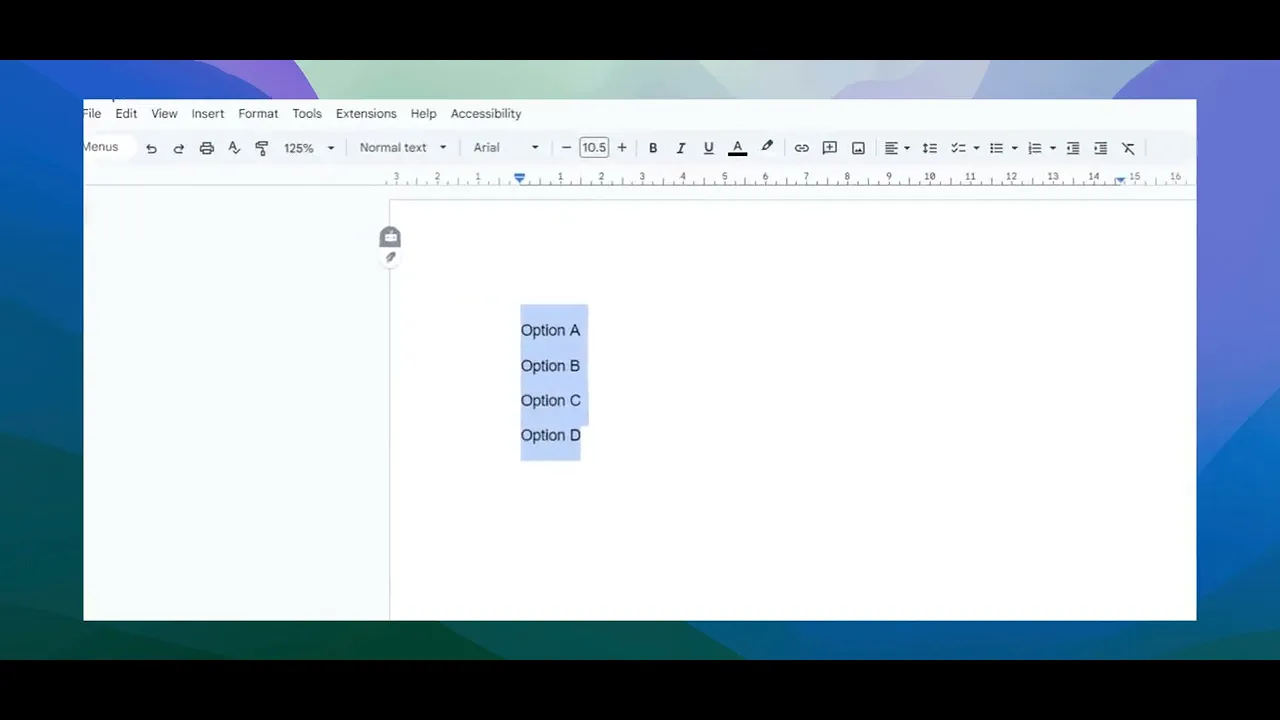
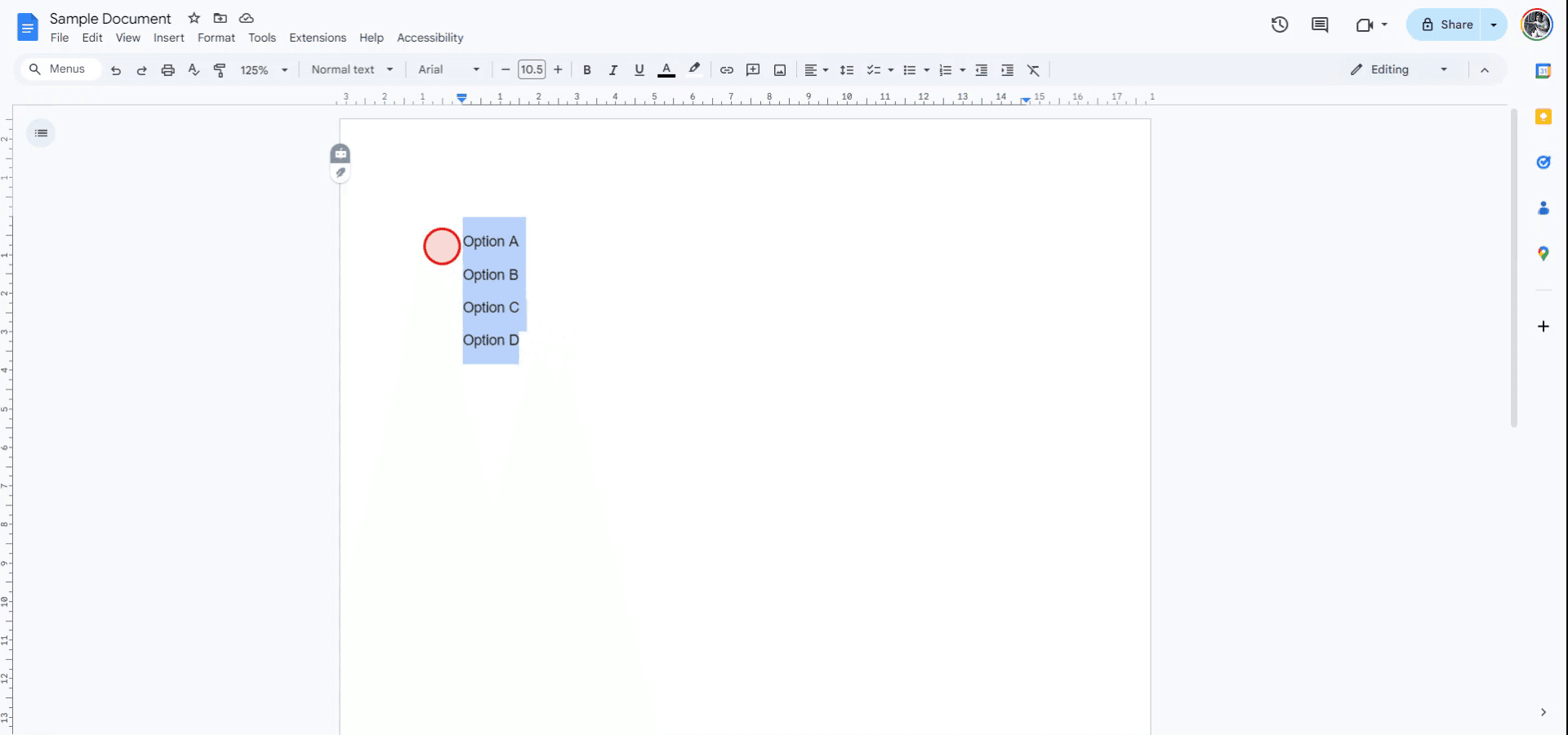
To begin, open the Google Document in which you wish to insert checkboxes. After opening the document, select the text where you want the checkboxes to appear.
Step 2
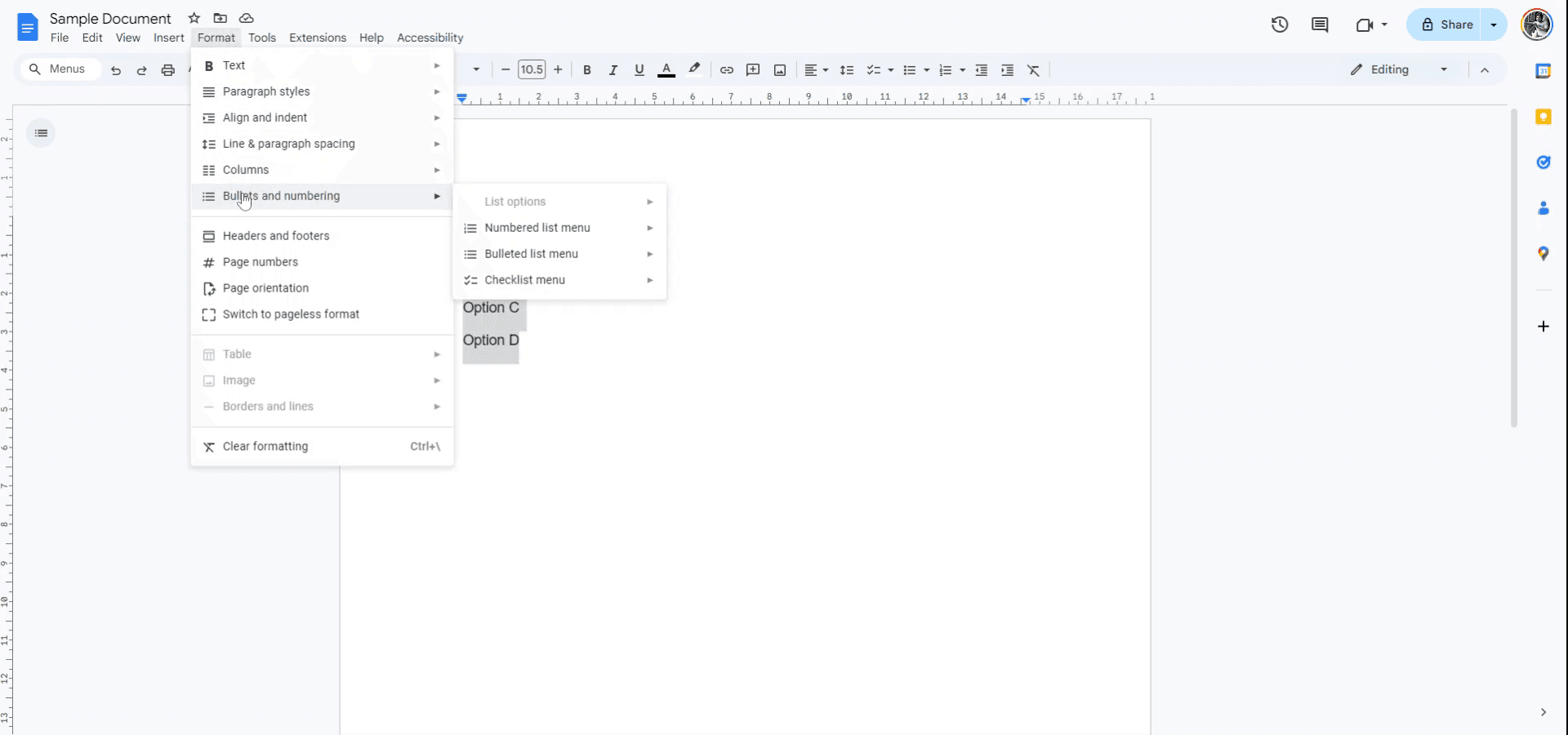
With the text selected, navigate to the 'Format' menu. From the drop-down menu, locate the 'Bullets and Numbering' option.
Step 3
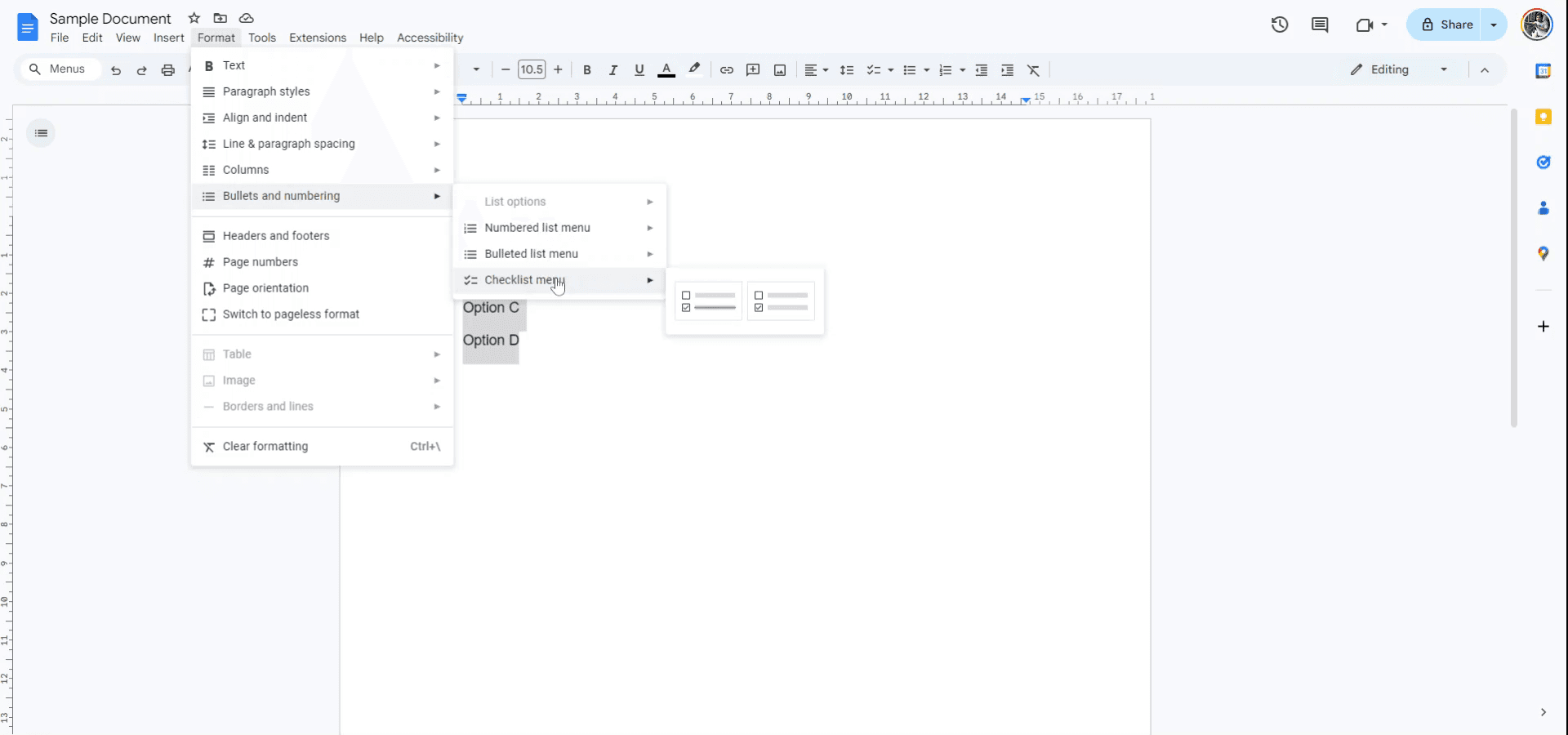
Within the 'Bullets and Numbering' sub-menu, choose the 'Checklist' option to convert the selected text into checkboxes.
You will now have two choices: one option allows for a checkbox to be crossed out when checked, and the other option displays a regular checkbox.
The selected text will now display the checkboxes according to your choice.
Pro Tips for successfully inserting checkboxes in google docs
Use the Built-In Checkbox Feature: To insert a checkbox, go to Insert > Checkbox. This automatically inserts an interactive checkbox that can be ticked on or off in Google Docs.
Create Interactive Lists: Use checkboxes in bulleted lists or as a task list by adding checkboxes before each item to create a to-do list or checklist.
Keyboard Shortcut for Checkboxes: Use Ctrl + Shift + 8 (Windows) or Cmd + Shift + 8 (Mac) to quickly add a checkbox list to your document.
Customize Checkbox Lists: You can customize the size, font, and style of the checkbox list items to make your checkboxes stand out or fit into the overall design of your document.
Use Checkboxes in Google Docs for Collaboration: Checkboxes are great for collaborative documents, allowing multiple users to mark tasks as completed or check off items on a shared checklist.
Record it once : If more than one person needs this, you can turn a recording into a written procedure rather than repeating the explanation.
Common pitfalls and how to avoid them for Inserting checkboxes in google docs
Checkboxes Not Appearing in Print or Exported Document: Interactive checkboxes may not appear properly when the document is printed or exported as a PDF.
Fix: Use non-interactive checkboxes or ensure the document is viewed in a format that supports interactive features.Accidental Checkbox Removal: It’s easy to accidentally delete checkboxes while editing the document.
Fix: Ensure you’re only selecting the checkbox itself and not the whole line or paragraph to avoid removing the checkbox.Checkboxes Misaligned with Text: Sometimes the checkboxes might misalign with the text, especially in large documents with multiple columns.
Fix: Ensure proper alignment by adjusting the list format or using tables to keep items properly aligned.Checkbox Not Being Ticked Properly: In collaborative environments, checkboxes might not appear ticked when others are editing the document.
Fix: Refresh the document or ensure that each collaborator has edit access and is using compatible versions of Google Docs.Difficulty Managing Large Checkbox Lists: A long checklist might become hard to manage or visually overwhelming.
Fix: Break the list into smaller sections or use headings to group related tasks, keeping it organized and easy to navigate.
Часто задаваемые вопросы о вставке флажков в Google Docs
Как вставить флажок в Google Docs?
Перейдите в «Вставка» > «Флажок», чтобы добавить интерактивный флажок. Кроме того, можно использовать Ctrl + Shift + 8 (Windows) или Cmd + Shift + 8 (Mac), чтобы быстро создать список флажков.Можно ли создать список дел с флажками в Google Docs?
Да, вы можете вставить флажки в маркированный или нумерованный список, чтобы создать чек-лист для задач или элементов.Можно ли взаимодействовать с флажками в Google Docs?
Да, флажки в Google Docs интерактивны: их можно отмечать или снимать отметку при просмотре документа в режиме редактирования.Как отформатировать список флажков в Google Docs?
После вставки флажков вы можете настроить шрифт, размер и выравнивание текста рядом с флажками, чтобы он соответствовал стилю документа.Можно ли распечатать флажки из Google Docs?
Флажки интерактивны в Google Docs, но если вы хотите, чтобы они корректно отображались при печати, убедитесь, что документ отформатирован соответствующим образом для печати (рассмотрите неинтерактивные флажки для печати).Как сделать запись экрана на mac?
Чтобы сделать запись экрана на Mac, вы можете использовать Trupeer AI. Он позволяет записать весь экран и предоставляет возможности ИИ, такие как добавление AI-аватаров, добавление голосового сопровождения, а также масштабирование (приближение и отдаление) в видео. С помощью функции AI-перевода видео от trupeer вы можете перевести видео на 30+ языков.Как добавить AI-аватар в запись экрана?
Чтобы добавить AI-аватар в запись экрана, вам нужно использовать инструмент для записи экрана с ИИ. Trupeer AI — это инструмент для записи экрана с ИИ, который помогает создавать видео с несколькими аватарами, а также позволяет создать собственный аватар для видео.Как сделать запись экрана на windows?
Чтобы сделать запись экрана в Windows, вы можете использовать встроенную панель Game Bar (Windows + G) или расширенный инструмент ИИ, например Trupeer AI, для более продвинутых функций, таких как AI-аватары, голосовое сопровождение, перевод и т. д.Как добавить голосовое сопровождение в видео?
Чтобы добавить голосовое сопровождение в видео, скачайте chrome-расширение trupeer ai. После регистрации загрузите видео с голосом, выберите нужный вариант голосового сопровождения в trupeer и экспортируйте отредактированное видео.Как увеличить масштаб при записи экрана?
Чтобы увеличить масштаб во время записи экрана, используйте эффекты масштабирования в Trupeer AI: они позволяют приближать и отдалять в определенные моменты, усиливая визуальное воздействие вашего видеоконтента.
Рекомендуем к прочтению
Генератор технической документации
Как добавить выпадающее меню в Google Docs
Как добавить подзаголовок в Google Docs
Как ввести символ TM (™) в Google Docs
Похожие руководства