

Figma에서 페이지 확장하는 방법
Canva에서 여러 페이지 또는 디자인을 한 번에 쉽게 다운로드하는 방법을 알아보세요. 이 빠른 가이드는 시간을 절약하고 작업 흐름을 간소화할 수 있도록 저장 단계까지 안내합니다.
This guide provides a clear and concise method for extending pages in Figma.
The process involves resizing your page or duplicating it while maintaining the design integrity. Follow these steps to efficiently manage your Figma project layouts.
In Figma, there isn’t a literal extend page button like in some other design tools, but you can easily extend your workspace by resizing frames, adjusting your view, or adding new pages. Here’s how you can do that:
1. Resizing a Frame
If you're working within a frame (which acts like a page in Figma), you can stretch it to fit more content:
Select the Frame: Click on the frame you want to resize.
Use the Right Sidebar: Open the Design panel on the right.
Drag to Resize: Hover over the frame's edge until your cursor changes, then drag it out to make the frame bigger either vertically, horizontally, or both.
Apply Constraints: Set horizontal or vertical constraints so your content adjusts properly when resizing.
2. Adjusting Your View (Zooming)
Sometimes, you don’t need to extend the frame just zoom out or adjust the interface scale to see more of the canvas:
In the Browser: Use your browser’s zoom settings (usually found under View > Zoom).
In the Figma Desktop App:
Go to View in the top menu.
Hover over Interface Scale and choose options like “Make Larger” or “Reset to Default.”
Keyboard Shortcuts:
Mac:
Reset:
Option + Shift + Command + 0Zoom In:
Option + Shift + Command + =Zoom Out:
Option + Shift + Command + -
Windows:
Reset:
Ctrl + Shift + Alt + 0Zoom In:
Ctrl + Shift + Alt + =Zoom Out:
Ctrl + Shift + Alt + -
3. Adding or Managing Pages
If you’re running out of space or want to organize your design better, just add more pages:
Add a New Page: Click on the current page name (like “Page 1”) in the top-left of the canvas, then hit the “+” to create a new one.
Rename Pages: Click the page name again to rename it for better organization.
Use Plugins: Try plugins like Add Multiple Pages if you need to bulk-create several new pages quickly.
Step-by-Step Guide: How to Extend Page in Figma
Method 1
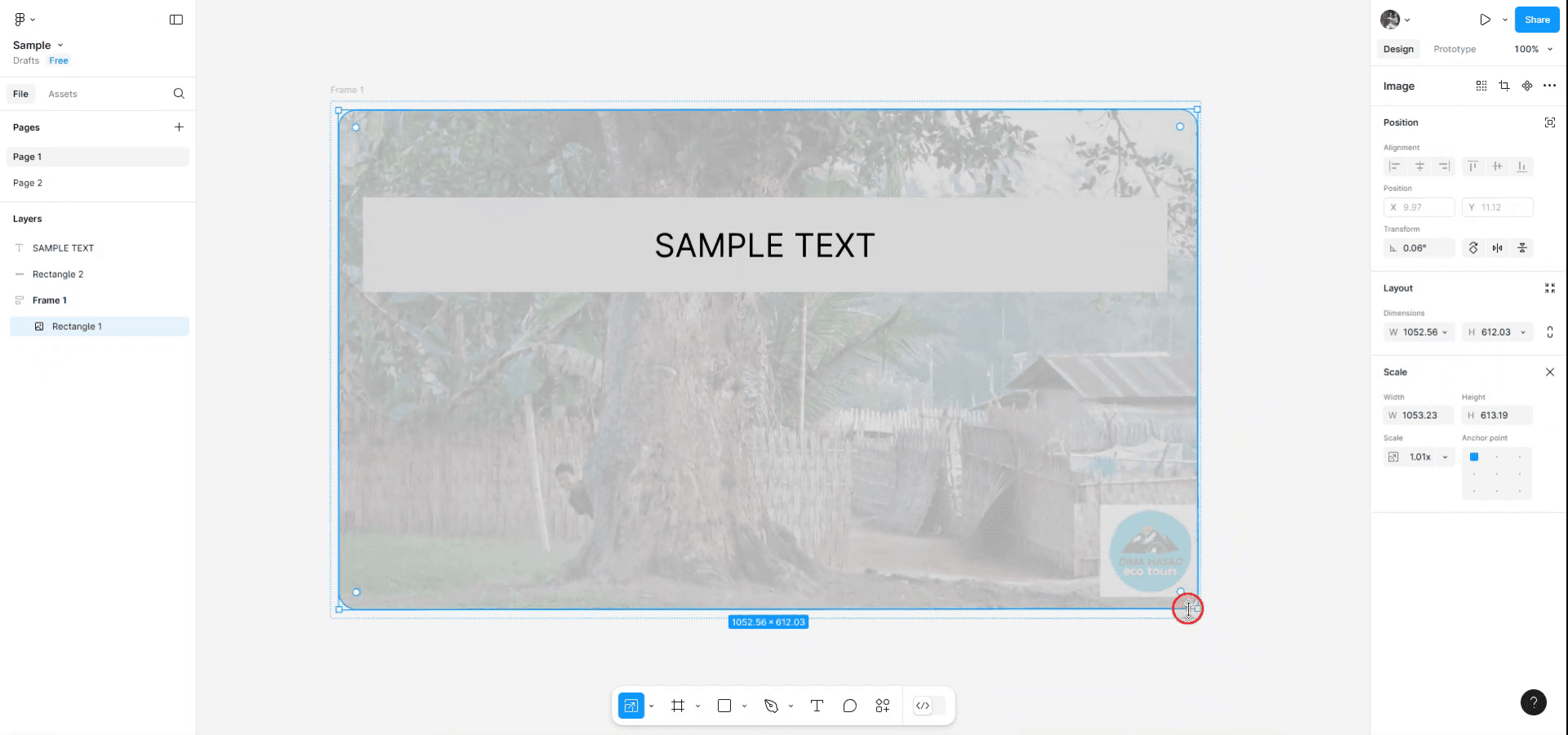
To begin extending a page in Figma, first open the sample design you wish to extend. Navigate to the extreme corner of your page and click on it.
Next, locate the resize button as indicated in the image. Click on this button to extend or resize your page to your desired dimensions.
Method 2
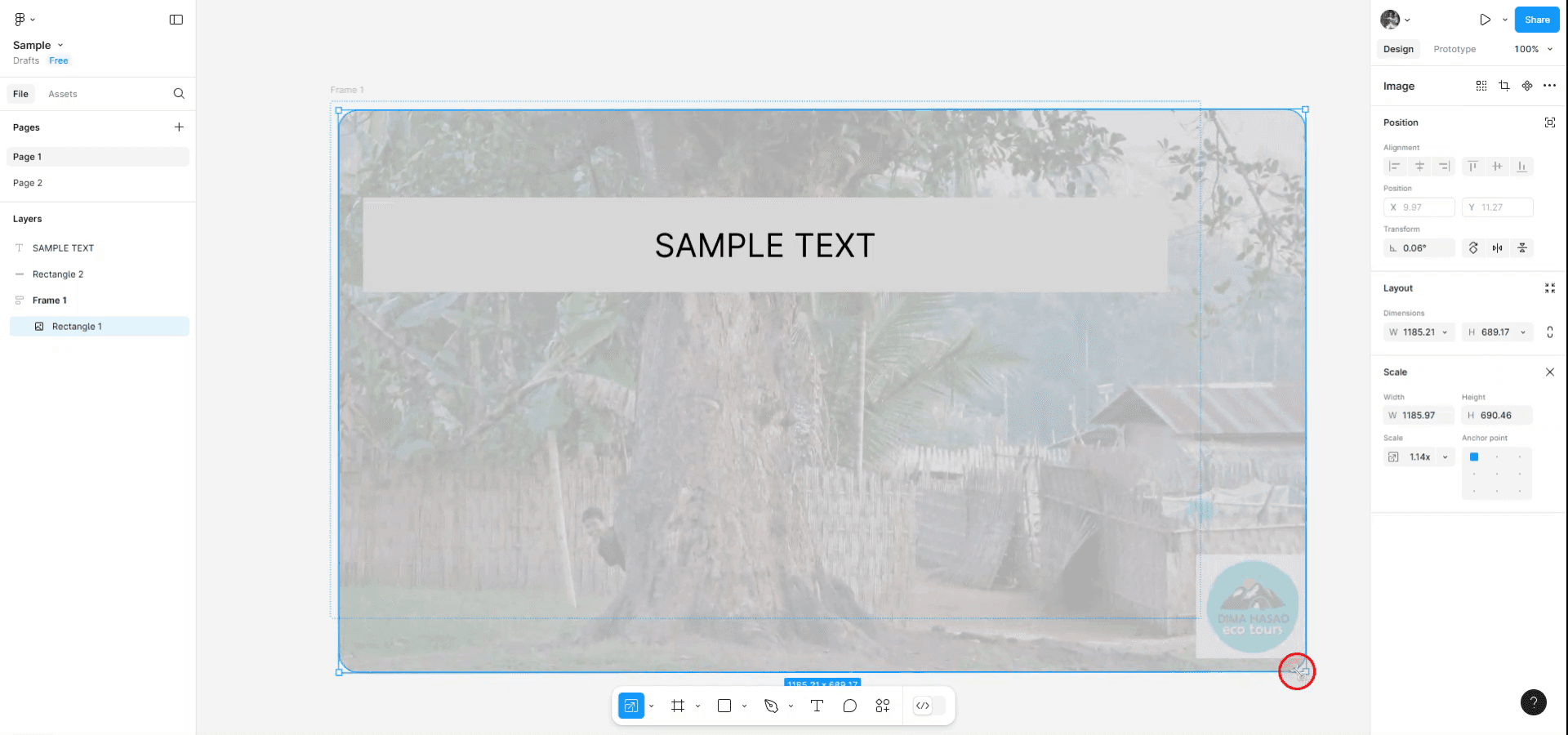
If you wish to resize while maintaining a fixed scale or aspect ratio, press the "K" key to activate the scale tool. This allows you to resize while automatically keeping the scale of the existing page fixed.
Method 3
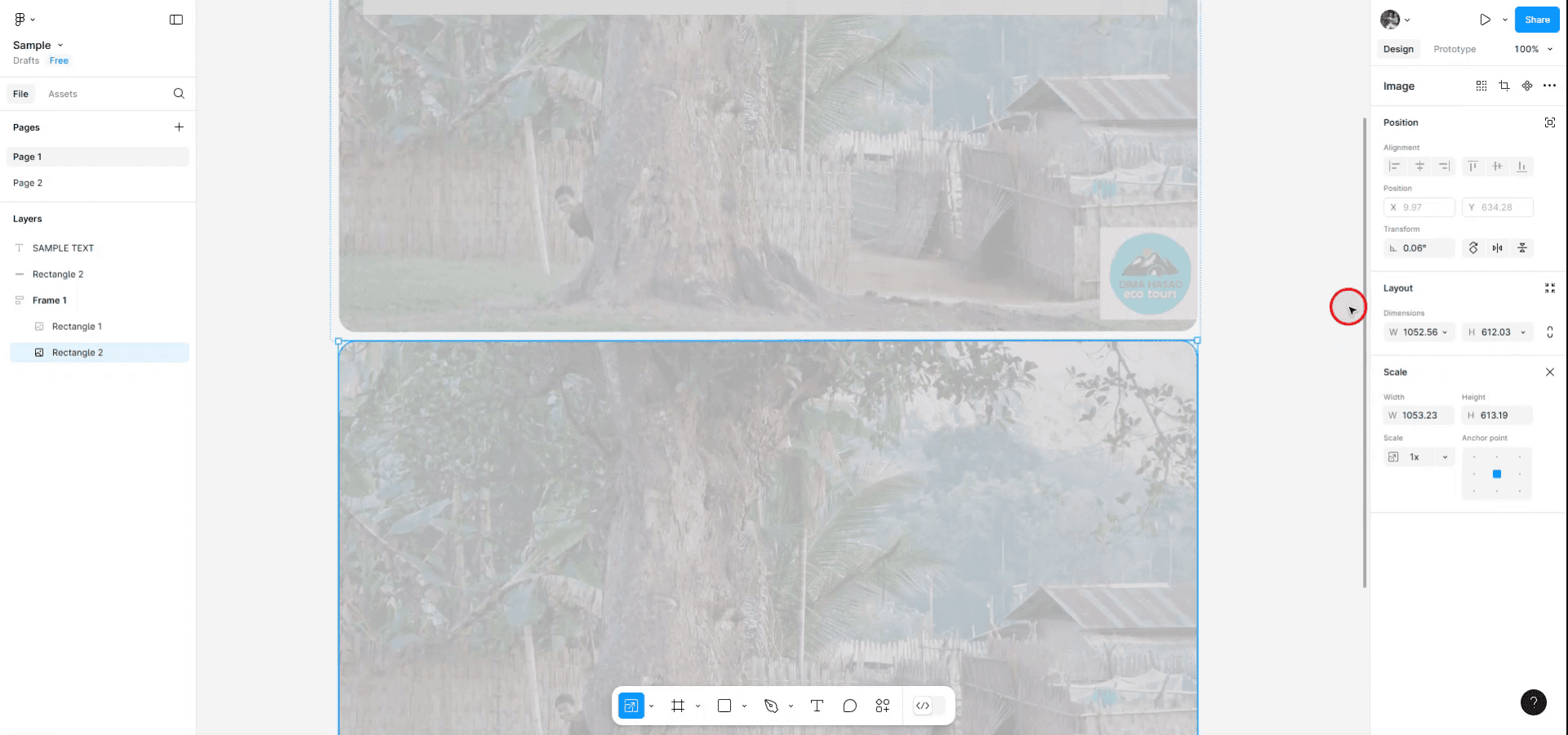
To extend the page by duplicating it, press "Ctrl + D" if you are using Windows, or "Command + D" if you are using a Mac. This action will duplicate your page and create a new instance.
Figma에서 페이지를 확장하는 방법에 대한 프로 팁
Figma에서 캔버스 크기를 어떻게 확장하나요?
Figma에서 캔버스 크기를 확장하려면 편집기에서 캔버스의 가장자리를 클릭하고 드래그하세요. 또한 프레임 또는 아트보드를 선택한 다음 크기 조절 도구를 사용해 핸들을 드래그하면 치수를 확장할 수 있습니다.
Figma에서 사용자 지정 페이지 크기를 설정할 수 있나요?
네, 가능합니다. 프레임 또는 아트보드를 선택하면 오른쪽 속성 패널에서 너비와 높이 옵션을 확인할 수 있습니다. 원하는 치수를 입력해 페이지 또는 디자인 영역의 사용자 지정 크기를 설정하세요.
Figma에서 페이지를 확장하면 기존 요소에 영향을 주나요?
페이지를 확장하면 캔버스 또는 프레임 크기만 조정되며 기존 요소의 배치에는 영향을 주지 않습니다. 다만 새 캔버스 치수에 맞게 디자인 구성요소를 필요에 따라 조정해야 합니다.
Figma에서 페이지를 확장할 때 흔히 발생하는 실수와 이를 피하는 방법
불필요하게 페이지를 확장하면 프로젝트를 탐색하기가 더 어려워지고 협업자에게 혼란을 줄 수 있습니다.
요소가 많은 매우 큰 캔버스 크기는 Figma의 성능을 저하시킬 수 있습니다. 확장은 적절한 범위로 유지하고 최적화하세요.
페이지를 확장하면 디자인을 내보내는 방식에 영향을 줄 수 있습니다. 특히 내보내기 설정이 새 치수와 일치하지 않는 경우가 그렇습니다. 크기 조정 후에는 항상 내보내기 설정을 다시 확인하세요.
Figma에서 페이지를 확장하는 방법에 대한 자주 묻는 질문
Figma에서 캔버스 크기를 어떻게 확장하나요?
Figma에서 캔버스 크기를 확장하려면 편집기에서 캔버스의 가장자리를 클릭하고 드래그하세요. 또한 프레임 또는 아트보드를 선택한 다음 크기 조절 도구를 사용해 핸들을 드래그하면 치수를 확장할 수 있습니다.Figma에서 사용자 지정 페이지 크기를 설정할 수 있나요?
네, 가능합니다. 프레임 또는 아트보드를 선택하면 오른쪽 속성 패널에서 너비와 높이 옵션을 확인할 수 있습니다. 원하는 치수를 입력해 페이지 또는 디자인 영역의 사용자 지정 크기를 설정하세요.Figma에서 페이지를 확장하면 기존 요소에 영향을 주나요?
페이지를 확장하면 캔버스 또는 프레임 크기만 조정되며 기존 요소의 배치에는 영향을 주지 않습니다. 다만 새 캔버스 치수에 맞게 디자인 구성요소를 필요에 따라 조정해야 합니다.mac에서 화면 녹화하는 방법은?
Mac에서 화면 녹화하려면 Trupeer AI를 사용할 수 있습니다. 전체 화면을 캡처할 수 있으며 AI 아바타 추가, 보이스오버 추가, 영상에서 줌 인/아웃 같은 AI 기능을 제공합니다. trupeer의 AI 비디오 번역 기능을 사용하면 영상을 30+개 언어로 번역할 수 있습니다.화면 녹화에 AI 아바타를 추가하는 방법은?
화면 녹화에 AI 아바타를 추가하려면 AI 화면 녹화 도구.를 사용해야 합니다. Trupeer AI는 AI 화면 녹화 도구로, 여러 아바타로 영상을 만들 수 있도록 도와주며 영상용 나만의 아바타를 만드는 데도 도움을 줍니다.windows에서 화면 녹화하는 방법은?
Windows에서 화면 녹화하려면 기본 제공 Game Bar(Windows + G) 또는 Trupeer AI 같은 고급 AI 도구를 사용해 AI 아바타, 보이스오버, 번역 등 더 고급 기능을 활용할 수 있습니다.영상에 보이스오버를 추가하는 방법은?
영상에 보이스오버를 추가하려면 trupeer ai 크롬 확장 프로그램을 다운로드하세요. 가입 후, 보이스가 포함된 영상을 trupeer에 업로드하고 원하는 보이스오버를 선택한 다음 편집한 영상을 내보내세요.화면 녹화에서 어떻게 확대(Zoom)하나요?
화면 녹화 중 확대하려면 Trupeer AI의 줌 효과를 사용하세요. 이 기능은 특정 순간에 맞춰 줌 인/아웃을 할 수 있어 영상 콘텐츠의 시각적 임팩트를 강화합니다.
다른 사람들이 함께 묻는 질문
관련 튜토리얼


