教程

如何在Zoom中禁用等待室

想要让参与者立即加入您的 Zoom 会议吗?了解如何在桌面或移动设备上通过简单步骤禁用 Zoom 的候机室功能。

这是一个逐步指南:

登录 Zoom 网络门户:访问 Zoom 网站并使用您的账户凭据登录. 
导航至设置:在导航菜单中,点击 "设置". 
找到等待室:在 "会议" 选项卡下,找到 "安全" 部分. 
禁用等待室:将 "等待室" 选项关闭. 
验证更改:如果出现验证对话框,点击 "禁用"以确认. 
检查管理员锁定:如果开关灰色,表示管理员已锁定。
您需要联系他们以进行更改. 

逐步指南:如何在 Zoom 中禁用等待室

第 1 步

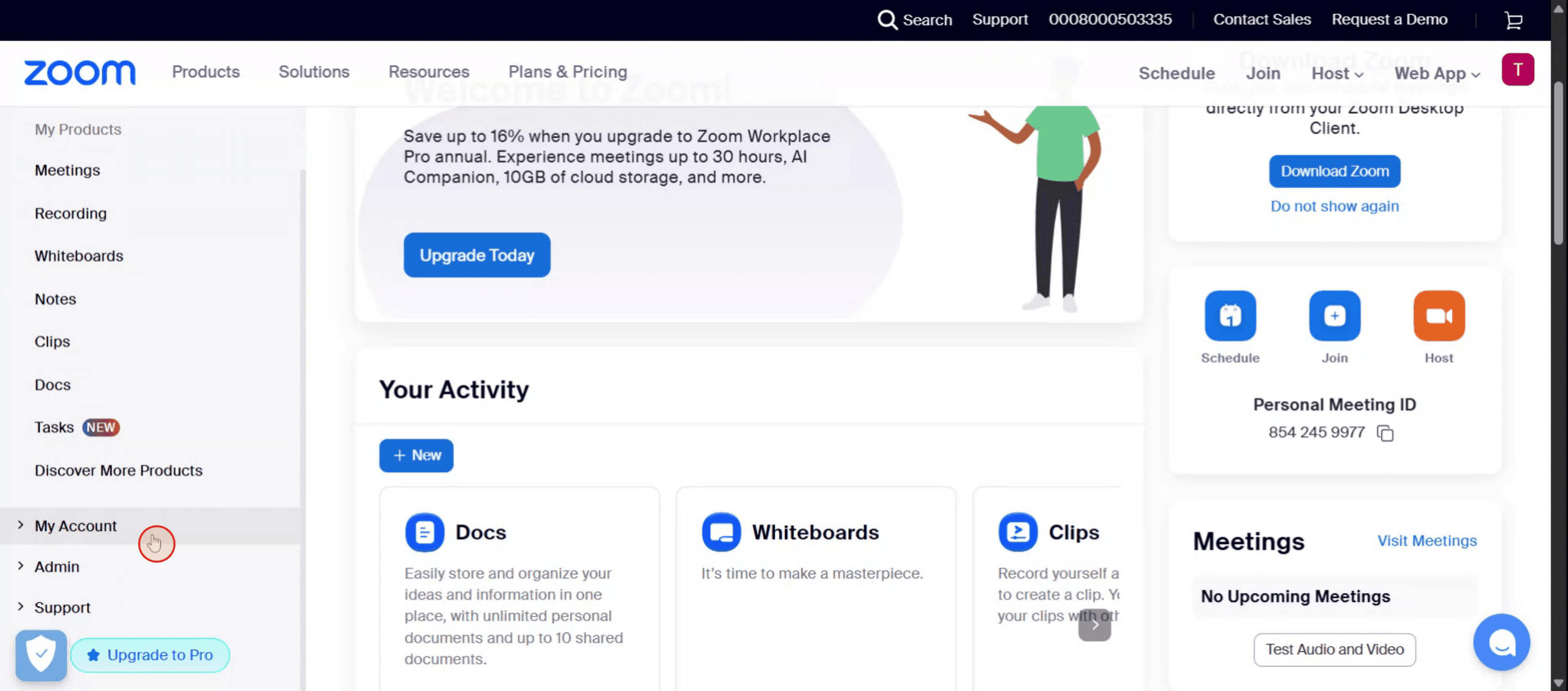
首先,找到并选择左侧菜单中的“我的账户”选项。

To begin, locate and select the My Account option from the left-side menu in Zoom.

第 2 步

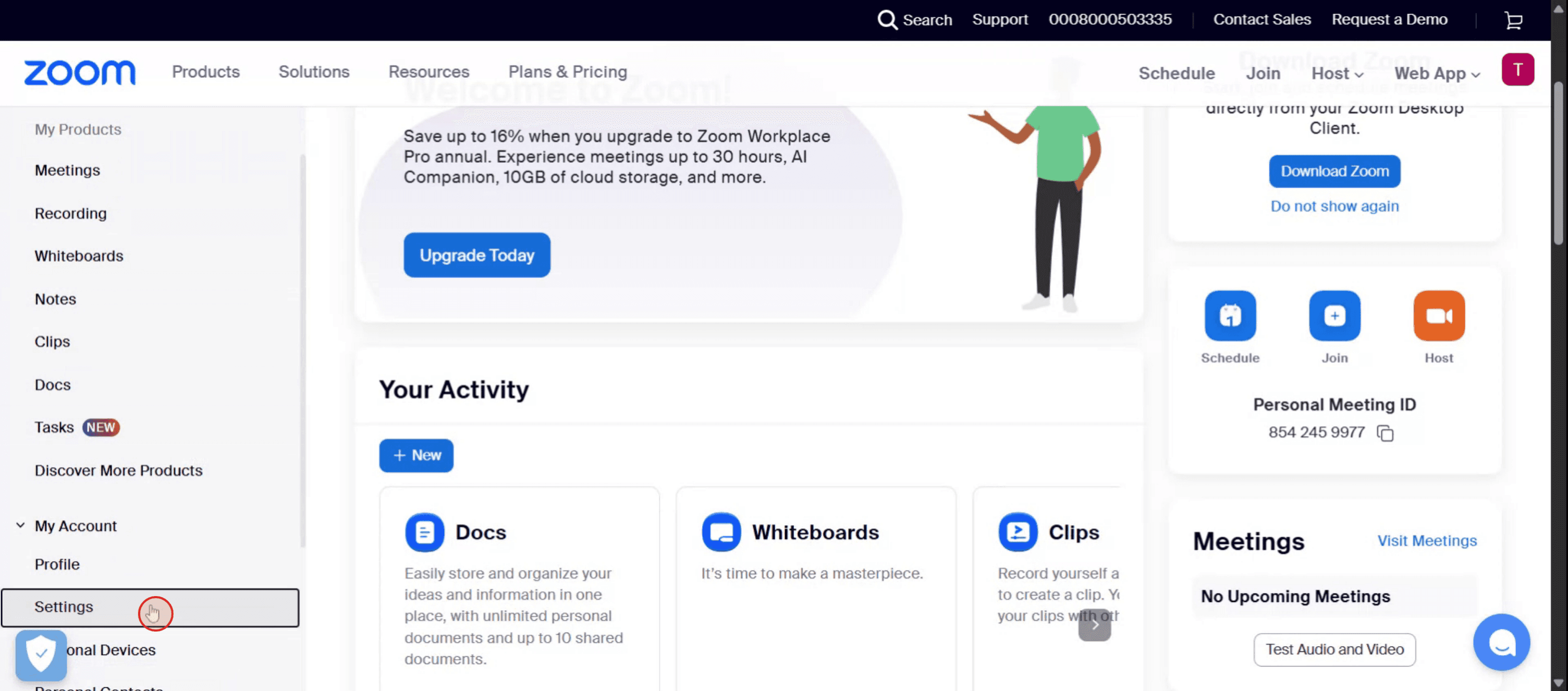
点击“设置”选项。

Click on the Settings option.

第 3 步

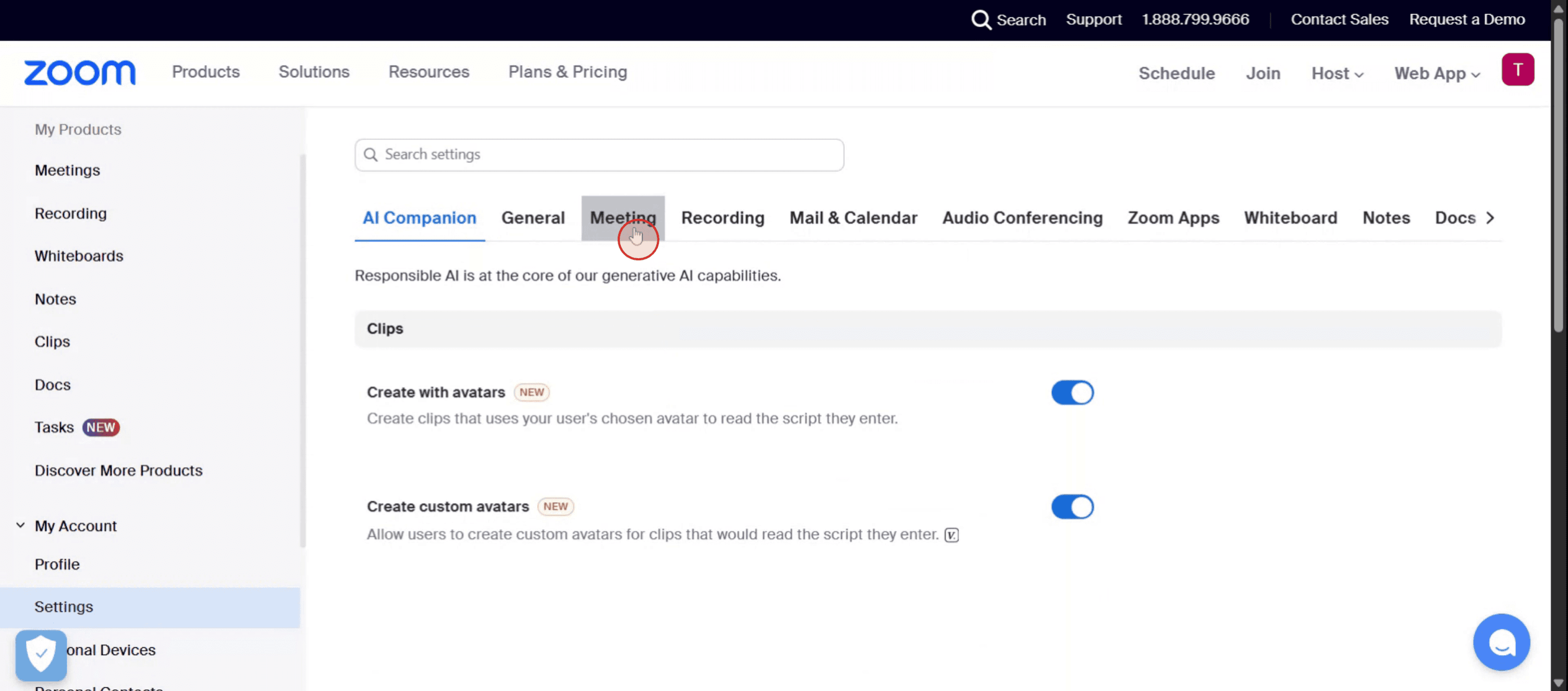
从可用选项中选择“会议”选项。

Select the Meetings option from the available choices.

第 4 步

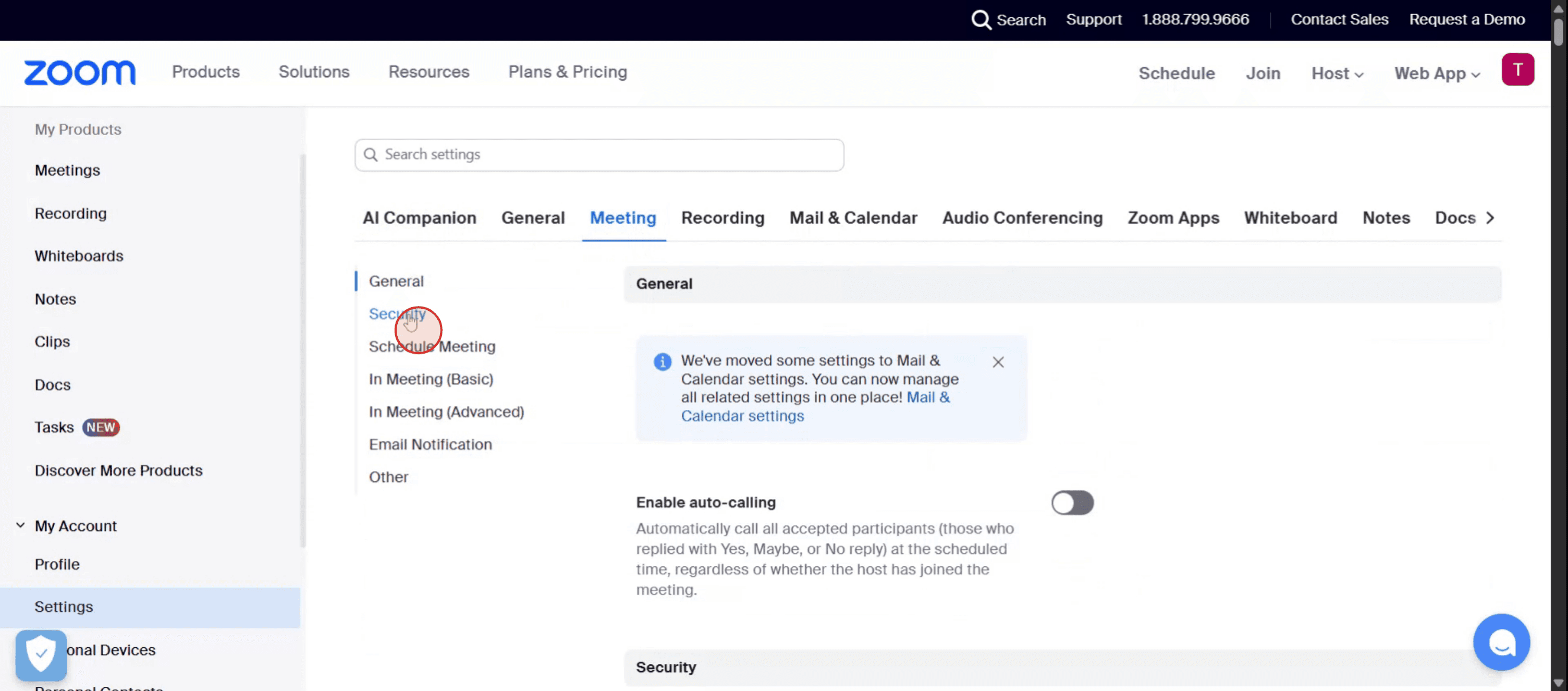
在这里,找到安全选项。

Here, locate the security options.

第 5 步

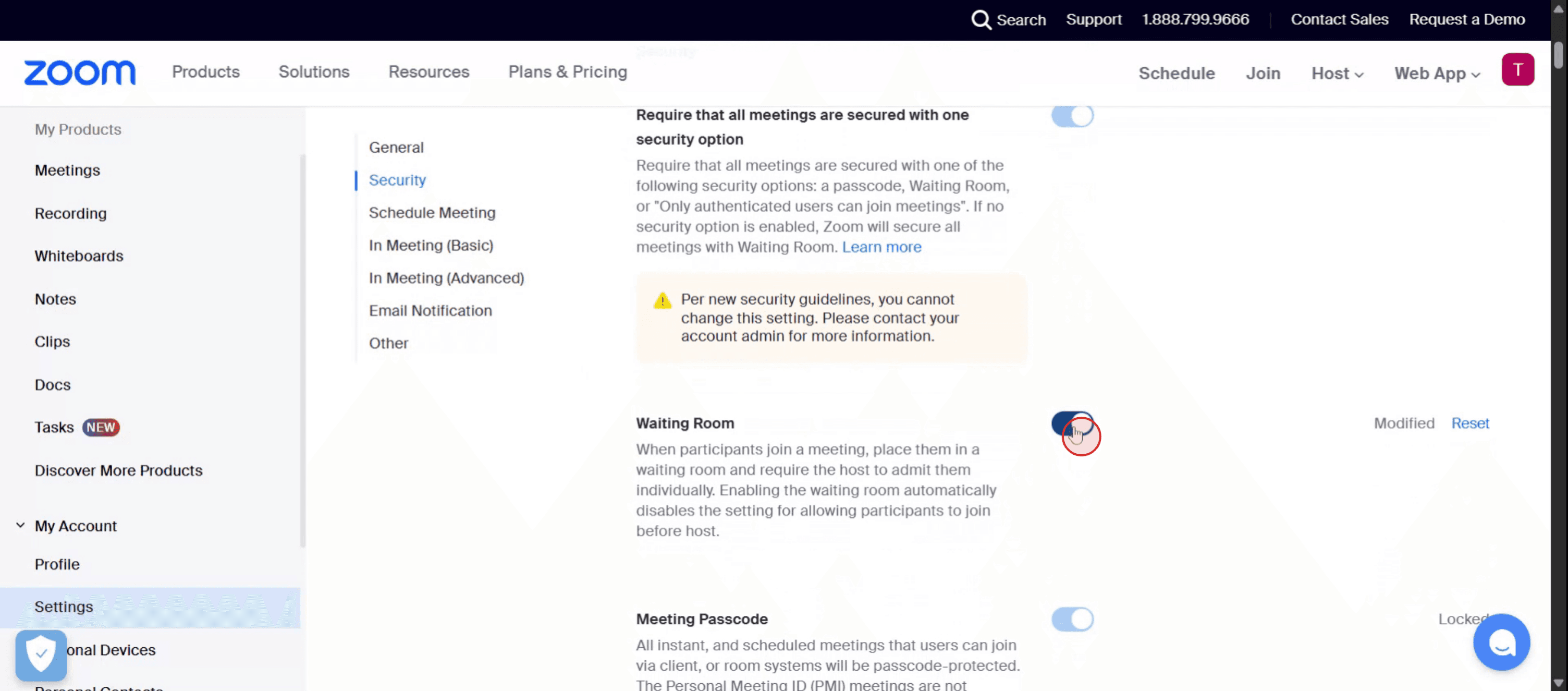
要在 Zoom 中禁用等待室,只需将开关关闭即可。

To disable the waiting room in Zoom, simply toggle the switch off.

禁用等待室的专业提示

  1. 登录到您的 Zoom 账户
    访问 Zoom 网站并使用您的管理员或主持人凭据登录。

  2. 转到设置部分
    登录后,根据您的角色,从左侧导航菜单中点击“设置”。

  3. 导航到安全选项卡
    在设置中,滚动到“安全”部分。这里通常列出了等待室功能。

  4. 找到等待室选项
    找到“等待室”的开关。如果它是启用状态(蓝色),则表示它当前处于活动状态。

  5. 禁用开关
    点击蓝色开关以关闭等待室功能。一旦禁用,参与者将能够在不被困在虚拟大厅中的情况下加入您的会议。

常见陷阱及如何避免

  1. 忘记保存更改
    如果您不向下滚动并在切换设置后点击“保存”,功能可能仍然保持激活状态。

  2. 仅为一些会议禁用等待室
    检查您是在账户级别禁用它还是仅为单独会议禁用。保持您的偏好一致。

  3. 禁用后安全顾虑
    没有等待室,参与者会立即进入。确保监督入场或使用密码以避免不受欢迎的与会者。

  4. 个人会议室仍然启用
    即使您全局禁用等待室,您的个人会议室可能仍会单独启用。调整两个。

  5. 设置被管理员锁定
    如果您是组织的一部分,某些设置可能会被管理员锁定。您需要权限才能更改它们。

关于在 Zoom 中禁用等待室的常见问答

  1. 如何禁用所有 Zoom 会议中的等待室?
    转到 Zoom 设置 > 安全部分,并关闭“等待室”选项。当提示时,应用所有会议的更改。

  2. 我可以仅为一个会议禁用等待室吗?
    可以,您可以在安排会议时通过在安全设置中取消选中“启用等待室”选项来禁用它。

  3. 关闭等待室在 Zoom 中安全吗?
    是的,但您应该启用其他安全功能,如密码或限制访问经过身份验证的用户,以维护会议安全。

  4. 我为什么无法关闭等待室?
    如果您是 Zoom 组织的一部分,该设置可能已被管理员锁定。请联系您的管理员请求更改。

  5. 关闭等待室会影响先前安排的会议吗?
    不会,除非您回去手动更新它们以反映新设置,否则不会影响现有会议。

  6. 如何在 Mac 上进行屏幕录制? 
    在 Mac 上进行屏幕录制,您可以使用 Trupeer AI。它允许您捕捉整个屏幕,并提供添加 AI 头像、添加旁白、在视频中缩放等 AI 功能。通过 trupeer 的 AI 视频翻译功能,您可以将视频翻译成 30 多种语言. 

  7. 如何将 AI 头像添加到屏幕录制中?
    要在屏幕录制中添加 AI 头像,您需要使用一个 AI 屏幕录制工具。 Trupeer AI 是一个 AI 屏幕录制工具,帮助您创建多个头像的视频,并帮助您为视频创建自己的头像。

  8. 如何在 Windows 上进行屏幕录制?
    要在 Windows 上进行屏幕录制,您可以使用内置的游戏栏(Windows + G)或使用更先进的 AI 工具,如 Trupeer AI,以获得更多高级功能,例如 AI 头像、旁白、翻译等。

  9. 如何向视频添加旁白?
    向视频添加旁白,下载 trupeer ai chrome 扩展程序。注册后,上传您的视频并选择 trupeer 的所需旁白,然后导出编辑后的 видео. 

  10. 如何在屏幕录制中放大?
    在屏幕录制中放大,使用 Trupeer AI 中的缩放效果,允许您在特定时刻放大和缩小,增强视频内容的视觉冲击力。

这是一个逐步指南:

登录 Zoom 网络门户:访问 Zoom 网站并使用您的账户凭据登录. 
导航至设置:在导航菜单中,点击 "设置". 
找到等待室:在 "会议" 选项卡下,找到 "安全" 部分. 
禁用等待室:将 "等待室" 选项关闭. 
验证更改:如果出现验证对话框,点击 "禁用"以确认. 
检查管理员锁定:如果开关灰色,表示管理员已锁定。
您需要联系他们以进行更改. 

逐步指南:如何在 Zoom 中禁用等待室

第 1 步

首先,找到并选择左侧菜单中的“我的账户”选项。

To begin, locate and select the My Account option from the left-side menu in Zoom.

第 2 步

点击“设置”选项。

Click on the Settings option.

第 3 步

从可用选项中选择“会议”选项。

Select the Meetings option from the available choices.

第 4 步

在这里,找到安全选项。

Here, locate the security options.

第 5 步

要在 Zoom 中禁用等待室,只需将开关关闭即可。

To disable the waiting room in Zoom, simply toggle the switch off.

禁用等待室的专业提示

  1. 登录到您的 Zoom 账户
    访问 Zoom 网站并使用您的管理员或主持人凭据登录。

  2. 转到设置部分
    登录后,根据您的角色,从左侧导航菜单中点击“设置”。

  3. 导航到安全选项卡
    在设置中,滚动到“安全”部分。这里通常列出了等待室功能。

  4. 找到等待室选项
    找到“等待室”的开关。如果它是启用状态(蓝色),则表示它当前处于活动状态。

  5. 禁用开关
    点击蓝色开关以关闭等待室功能。一旦禁用,参与者将能够在不被困在虚拟大厅中的情况下加入您的会议。

常见陷阱及如何避免

  1. 忘记保存更改
    如果您不向下滚动并在切换设置后点击“保存”,功能可能仍然保持激活状态。

  2. 仅为一些会议禁用等待室
    检查您是在账户级别禁用它还是仅为单独会议禁用。保持您的偏好一致。

  3. 禁用后安全顾虑
    没有等待室,参与者会立即进入。确保监督入场或使用密码以避免不受欢迎的与会者。

  4. 个人会议室仍然启用
    即使您全局禁用等待室,您的个人会议室可能仍会单独启用。调整两个。

  5. 设置被管理员锁定
    如果您是组织的一部分,某些设置可能会被管理员锁定。您需要权限才能更改它们。

关于在 Zoom 中禁用等待室的常见问答

  1. 如何禁用所有 Zoom 会议中的等待室?
    转到 Zoom 设置 > 安全部分,并关闭“等待室”选项。当提示时,应用所有会议的更改。

  2. 我可以仅为一个会议禁用等待室吗?
    可以,您可以在安排会议时通过在安全设置中取消选中“启用等待室”选项来禁用它。

  3. 关闭等待室在 Zoom 中安全吗?
    是的,但您应该启用其他安全功能,如密码或限制访问经过身份验证的用户,以维护会议安全。

  4. 我为什么无法关闭等待室?
    如果您是 Zoom 组织的一部分,该设置可能已被管理员锁定。请联系您的管理员请求更改。

  5. 关闭等待室会影响先前安排的会议吗?
    不会,除非您回去手动更新它们以反映新设置,否则不会影响现有会议。

  6. 如何在 Mac 上进行屏幕录制? 
    在 Mac 上进行屏幕录制,您可以使用 Trupeer AI。它允许您捕捉整个屏幕,并提供添加 AI 头像、添加旁白、在视频中缩放等 AI 功能。通过 trupeer 的 AI 视频翻译功能,您可以将视频翻译成 30 多种语言. 

  7. 如何将 AI 头像添加到屏幕录制中?
    要在屏幕录制中添加 AI 头像,您需要使用一个 AI 屏幕录制工具。 Trupeer AI 是一个 AI 屏幕录制工具,帮助您创建多个头像的视频,并帮助您为视频创建自己的头像。

  8. 如何在 Windows 上进行屏幕录制?
    要在 Windows 上进行屏幕录制,您可以使用内置的游戏栏(Windows + G)或使用更先进的 AI 工具,如 Trupeer AI,以获得更多高级功能,例如 AI 头像、旁白、翻译等。

  9. 如何向视频添加旁白?
    向视频添加旁白,下载 trupeer ai chrome 扩展程序。注册后,上传您的视频并选择 trupeer 的所需旁白,然后导出编辑后的 видео. 

  10. 如何在屏幕录制中放大?
    在屏幕录制中放大,使用 Trupeer AI 中的缩放效果,允许您在特定时刻放大和缩小,增强视频内容的视觉冲击力。

Start creating videos with our AI Video + Doc generator

Start creating videos with our AI Video + Doc generator

Start creating videos with our AI Video + Doc generator

Here's a step-by-step guide:

Sign in to the Zoom web portal: Go to the Zoom website and sign in with your account credentials. 
Navigate to Settings: In the navigation menu, click on "Settings". 
Locate Waiting Room: Under the "Meeting" tab, find the "Security" section. 
Disable Waiting Room: Toggle off the "Waiting Room" option. 
Verify the change: If a verification dialog appears, click "Disable" to confirm. 
Check for Admin Lock: If the toggle is grayed out, it is locked by your administrator.
You'll need to contact them to make changes. 

Step-by-Step-Guide: How to Disable the Waiting Room in Zoom

Step 1

To begin, locate and select the My Account option from the left-side menu in Zoom.

To begin, locate and select the My Account option from the left-side menu in Zoom.

Step 2

Click on the Settings option.

Click on the Settings option.

Step 3

Select the Meetings option from the available choices.

Select the Meetings option from the available choices.

Step 4

Here, locate the security options.

Here, locate the security options.

Step 5

To disable the waiting room in Zoom, simply toggle the switch off.

To disable the waiting room in Zoom, simply toggle the switch off.

Here's a step-by-step guide:

Sign in to the Zoom web portal: Go to the Zoom website and sign in with your account credentials. 
Navigate to Settings: In the navigation menu, click on "Settings". 
Locate Waiting Room: Under the "Meeting" tab, find the "Security" section. 
Disable Waiting Room: Toggle off the "Waiting Room" option. 
Verify the change: If a verification dialog appears, click "Disable" to confirm. 
Check for Admin Lock: If the toggle is grayed out, it is locked by your administrator.
You'll need to contact them to make changes. 

Step-by-Step-Guide: How to Disable the Waiting Room in Zoom

Step 1

To begin, locate and select the My Account option from the left-side menu in Zoom.

To begin, locate and select the My Account option from the left-side menu in Zoom.

Step 2

Click on the Settings option.

Click on the Settings option.

Step 3

Select the Meetings option from the available choices.

Select the Meetings option from the available choices.

Step 4

Here, locate the security options.

Here, locate the security options.

Step 5

To disable the waiting room in Zoom, simply toggle the switch off.

To disable the waiting room in Zoom, simply toggle the switch off.

Start creating videos with our AI Video + Doc generator for free

Start creating videos with our AI Video + Doc generator for free

Start creating videos with our AI Video + Doc generator for free

Pro Tips for Disabling the Waiting Room in Zoom

  1. Sign in to your Zoom account
    Go to the Zoom website and sign in using your administrator or host credentials.

  2. Go to the Settings section
    After logging in, click on “Settings” from the left-hand navigation menu under the “Personal” or “Admin” category depending on your role.

  3. Navigate to the Security tab
    Inside Settings, scroll to the “Security” section. This is where the Waiting Room feature is typically listed.

  4. Locate the Waiting Room option
    Find the toggle for “Waiting Room.” If it’s enabled (blue), that means it's currently active.

  5. Disable the toggle
    Click the blue toggle to turn off the Waiting Room feature. Once disabled, participants will be able to join your meetings without being held in a virtual lobby.

Common Pitfalls and How to Avoid Them

  1. Forgetting to save changes
    If you don’t scroll down and hit “Save” after toggling settings, the feature may remain active.

  2. Disabling Waiting Room only for some meetings
    Check whether you’re disabling it at the account level or just for individual meetings. Be consistent with your preference.

  3. Security concerns after disabling
    Without a Waiting Room, participants enter instantly. Make sure to monitor entry or use passcodes to avoid unwanted attendees.

  4. Personal Meeting Room still enabled
    Even if you disable Waiting Room globally, your Personal Meeting Room might still have it turned on separately. Adjust both.

  5. Settings locked by administrator
    If you're part of an organization, some settings might be locked by the admin. You’ll need permission to change them.

Pro Tips for Disabling the Waiting Room in Zoom

  1. Sign in to your Zoom account
    Go to the Zoom website and sign in using your administrator or host credentials.

  2. Go to the Settings section
    After logging in, click on “Settings” from the left-hand navigation menu under the “Personal” or “Admin” category depending on your role.

  3. Navigate to the Security tab
    Inside Settings, scroll to the “Security” section. This is where the Waiting Room feature is typically listed.

  4. Locate the Waiting Room option
    Find the toggle for “Waiting Room.” If it’s enabled (blue), that means it's currently active.

  5. Disable the toggle
    Click the blue toggle to turn off the Waiting Room feature. Once disabled, participants will be able to join your meetings without being held in a virtual lobby.

Common Pitfalls and How to Avoid Them

  1. Forgetting to save changes
    If you don’t scroll down and hit “Save” after toggling settings, the feature may remain active.

  2. Disabling Waiting Room only for some meetings
    Check whether you’re disabling it at the account level or just for individual meetings. Be consistent with your preference.

  3. Security concerns after disabling
    Without a Waiting Room, participants enter instantly. Make sure to monitor entry or use passcodes to avoid unwanted attendees.

  4. Personal Meeting Room still enabled
    Even if you disable Waiting Room globally, your Personal Meeting Room might still have it turned on separately. Adjust both.

  5. Settings locked by administrator
    If you're part of an organization, some settings might be locked by the admin. You’ll need permission to change them.

Common FAQs About Disabling Waiting Room in Zoom

  1. How do I disable the Waiting Room for all Zoom meetings?
    Go to Zoom Settings > Security section, and toggle off the “Waiting Room” option. Apply changes for all meetings when prompted.

  2. Can I disable the Waiting Room for just one meeting?
    Yes, you can disable it while scheduling a meeting by unchecking the “Enable waiting room” option in the security settings.

  3. Is it safe to turn off the Waiting Room in Zoom?
    Yes, but you should enable other security features like passcodes or restrict access to authenticated users to maintain meeting security.

  4. Why can’t I turn off the Waiting Room?
    If you're part of a Zoom organization, the setting may be locked by the administrator. Contact your admin to request changes.

  5. Does turning off Waiting Room affect previously scheduled meetings?
    No, it won’t affect existing meetings unless you go back and manually update them to reflect the new setting.

  6. How to screen record on mac? 
    To screen record on a Mac, you can use Trupeer AI. It allows you to capture the entire screen and provides AI capabilities such as adding AI avatars, add voiceover, add zoom in and out in the video. With trupeer’s AI video translation feature, you can translate the video into 30+ languages. 

  7. How to add an AI avatar to screen recording?
    To add an AI avatar to a screen recording, you'll need to use an AI screen recording tool. Trupeer AI is an AI screen recording tool, which helps you create videos with multiple avatars, also helps you in creating your own avatar for the video.

  8. How to screen record on windows?
    To screen record on Windows, you can use the built-in Game Bar (Windows + G) or advanced AI tool like Trupeer AI for more advanced features such as AI avatars, voiceover, translation etc.

  9. How to add voiceover to video?
    To add voiceover to videos, download trupeer ai chrome extension. Once signed up, upload your video with voice, choose the desired voiceover from trupeer and export your edited video. 

  10. How do I Zoom in on a screen recording?
    To zoom in during a screen recording, use the zoom effects in Trupeer AI which allows you to zoom in and out at specific moments, enhancing the visual impact of your video content.

People also ask

How to Rotate a Document in Canva

How to Add Fonts to Canva

How to Mask in Canva

How to Wrap Text in Canva

How to Spell Check in Canva

Common FAQs About Disabling Waiting Room in Zoom

  1. How do I disable the Waiting Room for all Zoom meetings?
    Go to Zoom Settings > Security section, and toggle off the “Waiting Room” option. Apply changes for all meetings when prompted.

  2. Can I disable the Waiting Room for just one meeting?
    Yes, you can disable it while scheduling a meeting by unchecking the “Enable waiting room” option in the security settings.

  3. Is it safe to turn off the Waiting Room in Zoom?
    Yes, but you should enable other security features like passcodes or restrict access to authenticated users to maintain meeting security.

  4. Why can’t I turn off the Waiting Room?
    If you're part of a Zoom organization, the setting may be locked by the administrator. Contact your admin to request changes.

  5. Does turning off Waiting Room affect previously scheduled meetings?
    No, it won’t affect existing meetings unless you go back and manually update them to reflect the new setting.

  6. How to screen record on mac? 
    To screen record on a Mac, you can use Trupeer AI. It allows you to capture the entire screen and provides AI capabilities such as adding AI avatars, add voiceover, add zoom in and out in the video. With trupeer’s AI video translation feature, you can translate the video into 30+ languages. 

  7. How to add an AI avatar to screen recording?
    To add an AI avatar to a screen recording, you'll need to use an AI screen recording tool. Trupeer AI is an AI screen recording tool, which helps you create videos with multiple avatars, also helps you in creating your own avatar for the video.

  8. How to screen record on windows?
    To screen record on Windows, you can use the built-in Game Bar (Windows + G) or advanced AI tool like Trupeer AI for more advanced features such as AI avatars, voiceover, translation etc.

  9. How to add voiceover to video?
    To add voiceover to videos, download trupeer ai chrome extension. Once signed up, upload your video with voice, choose the desired voiceover from trupeer and export your edited video. 

  10. How do I Zoom in on a screen recording?
    To zoom in during a screen recording, use the zoom effects in Trupeer AI which allows you to zoom in and out at specific moments, enhancing the visual impact of your video content.

People also ask

How to Rotate a Document in Canva

How to Add Fonts to Canva

How to Mask in Canva

How to Wrap Text in Canva

How to Spell Check in Canva

Start creating videos with our AI Video + Doc generator

Start creating videos with our AI Video + Doc generator

Start creating videos with our AI Video + Doc generator

Start creating videos with our AI Video + Doc generator

Instant AI Product Videos & Docs from Rough Screen Recordings

Experience the new & faster way of creating product videos.

Instant AI Product Videos and Docs from Rough Screen Recordings.

Experience the new & faster way of creating product videos.

Instant AI Product Videos and Docs from Rough Screen Recordings.

Experience the new & faster way of creating product videos.

Instant AI Product Videos and Docs from Rough Screen Recordings.