Trupeer Blog
Summarise

Imagine you're delivering a training session to a team spread across multiple time zones. You're relying on recorded training videos to ensure everyone gets the same information. But those videos, full of "um," "uh," and awkward pauses, diminish the professionalism of your presentation. The engagement drops, and the learning curve gets steeper. According to a study, videos with clear and concise speech can improve viewer retention by up to 60%. If you're responsible for training videos, eliminating these fillers can make your content significantly more impactful. Whether you're in HR, education, or corporate training, using AI to clean up your training videos can transform the way your audience absorbs information. why refining the content of training videos using AI is essential and how Trupeer features can help you achieve that.
Why does removing filler words, pauses, and ums from training videos matter?
Training videos are crucial for conveying critical information efficiently. However, when these videos are littered with filler words and unnecessary pauses, they become less effective. Viewers might lose interest, leading to lower retention of the information presented. This is particularly important in corporate settings where training videos are a key resource for onboarding and professional development. Precise communication is vital for effective AI adoption and workflow optimization. Stakeholders in HR and L&D departments need to ensure that their content is not just informative but also engaging and easy to follow.
Also, the presence of filler words can undermine the authority and credibility of the instructor or presenter. In a business environment, where time is money, every second counts. Training sessions need to be concise and to the point. By removing filler words, training videos can deliver a clearer message, maintain attention, and enhance the learning experience. This is particularly important for remote teams, where effective communication is a bridge across geographical and cultural divides.
What are the benefits of using AI to remove filler words from training videos?
Integrating AI into your video editing process can provide several key benefits that directly impact the quality and effectiveness of your training videos.
Improved engagement. By removing distractions like "um" and "ah," your videos can hold the viewer's attention longer, leading to better retention and understanding.
Enhanced clarity. Filler-free videos offer a clearer message, allowing audiences to focus on content rather than the delivery, crucial for training video production.
Increased professionalism. Clean, polished videos reflect well on your brand, presenting a competent and professional image to clients and employees alike.
Time efficiency. AI can quickly edit out unnecessary pauses, reducing video length and saving valuable time for both creators and viewers.
Consistent quality. Using an AI-powered video tool ensures that all videos maintain a consistent standard, essential for scalable training programs.
Accessibility. Clearer videos make it easier for non-native speakers to understand, broadening the reach and effectiveness of your training.
Which Trupeer features help you remove filler words, pauses, and ums from training videos?
Trupeer offers several advanced features that make it an ideal tool for cleaning up your training videos. how each of these features can assist in this process.
Automatic filler-word removal
This feature automatically detects and removes filler words such as "um," "ah," and long pauses from your video content. It uses sophisticated algorithms to ensure that the pacing remains natural even after these edits. For those working on auto-generated documentation, this feature guarantees that video content is as concise and clear as written material, enhancing the overall quality and professionalism of your training materials.
AI voiceover in 65+ natural voices
With Trupeer, you can replace the audio in your training videos with AI-generated voiceovers in a variety of accents and languages. This feature ensures that your content is delivered in a clear, engaging manner, free from any distracting filler words. It also allows for adjustable pacing and tone, ensuring that the final product matches the intended delivery style. This is particularly useful for creating multilingual video knowledge bases, expanding your training reach.
AI avatars / talking-head video
Trupeer's AI avatar feature can transform static content into dynamic presentations. By integrating talking-head videos, you can maintain viewer engagement while ensuring that the speech is free of fillers. The integration with HeyGen allows for custom avatars, giving your training videos a personalized touch. This feature is perfect for creating engaging, filler-free video content that resonates with diverse audiences, especially in easy video editing software for training videos.
Auto chapters and segment detection
Trupeer's auto chapter feature automatically segments your videos into logical sections, making it easier for viewers to navigate and focus on the content that matters most. This feature not only enhances the viewing experience but also ensures that each segment is clear and filler-free. Viewers can jump directly to the parts of the video that interest them, improving engagement and retention.
AI translation into 65+ languages with lip-sync
For training videos aimed at a global audience, Trupeer's AI translation capability can translate the content into over 65 languages while maintaining lip-sync accuracy. This ensures that your videos are accessible and engaging to non-English speakers, free from filler words that might be lost in translation. By using Trupeer's AI documentation platform, you can smoothly integrate these translations into your existing training materials, enhancing accessibility and inclusivity.
How do you remove filler words, pauses, and ums from training videos step by step with Trupeer?
Step 1: Record Your Video
Start by using Trupeer's browser-based recorder or desktop app to capture your training session. With the AI screen recording feature, you don't need any special equipment. Simply click on the "Record" button, choose your screen or window, and begin. Trupeer automatically detects clicks and zooms, ensuring every action is captured clearly. This process is straightforward and usually takes as long as your session itself. In case of interruptions, you can pause and resume without hassle.

Step 2: Automatic Filler-Word Removal
Once your recording is complete, Trupeer's post-capture editing kicks in. Navigate to the editing dashboard and select "Automatic filler-word removal." This feature scans your video for any "um," "ah," or awkward pauses and removes them smoothly. The process is swift, often taking no more than a few minutes regardless of video length. You'll receive a notification once the cleanup is done, and you can review the changes before finalizing them. Teams weighing tools often start with a Loom alternatives comparison before standardizing on a workflow.
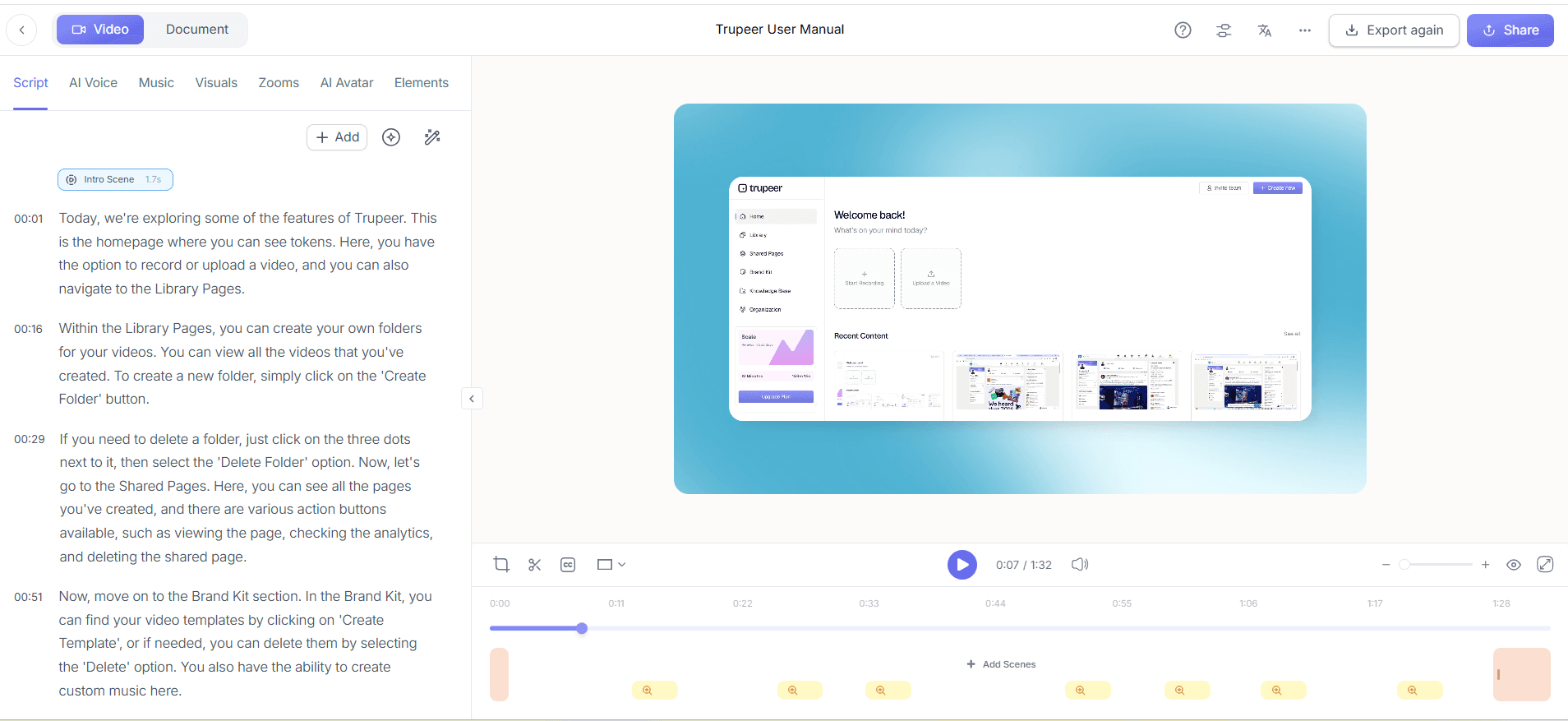
Step 3: Enhance with AI Voiceover
Enhance your video by selecting the AI voiceover option. Choose from over 65+ natural voices available. You can adjust the pace and tone to match your desired delivery style. This is particularly useful if you want to maintain a consistent voice across multiple videos. The voiceover generation is quick, usually completing in under five minutes. However, ensure you preview the final audio to confirm it aligns with your expectations before proceeding.

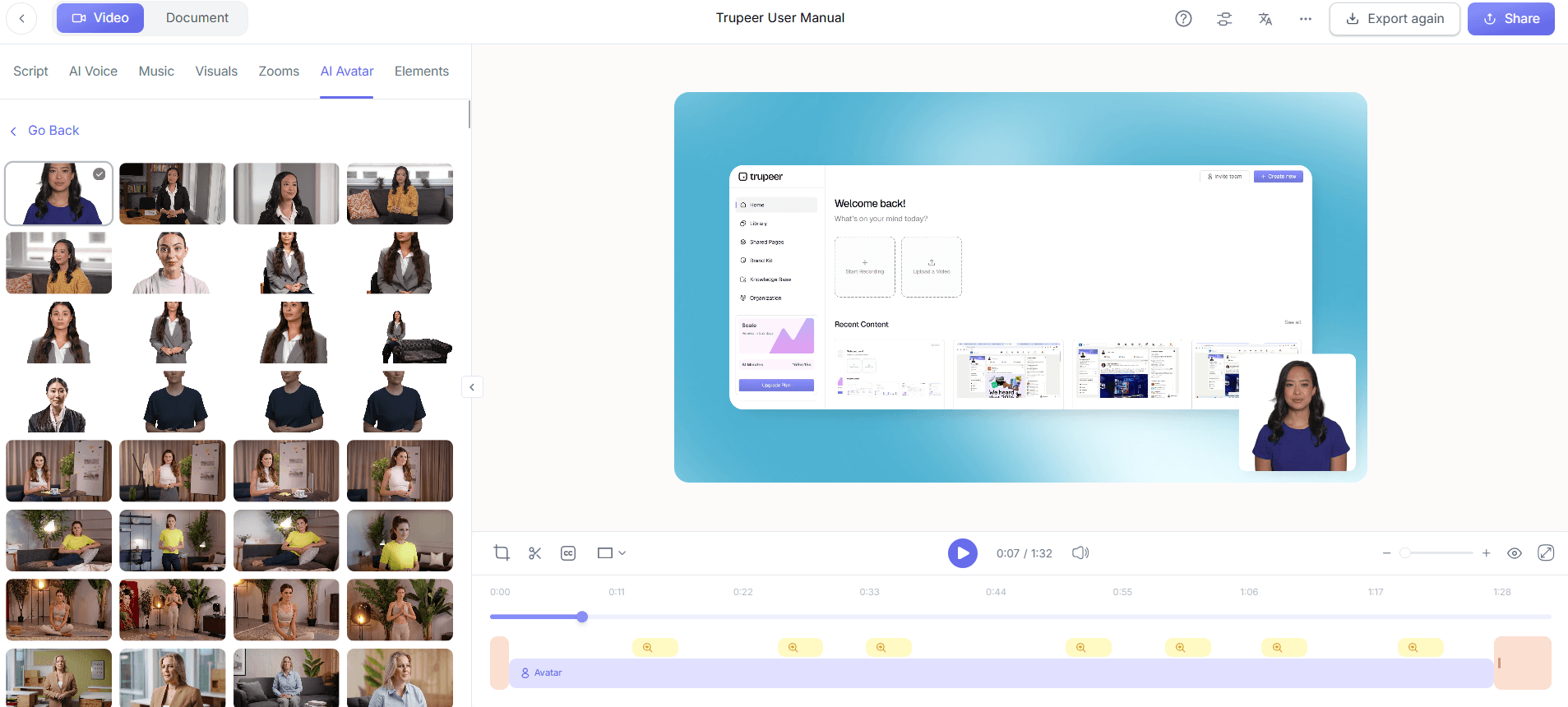
Step 4: Add AI Avatars for Engagement
To give your video a more engaging format, add an AI avatar. Trupeer's integration with HeyGen allows you to choose from a library of avatars or create a custom one. This feature is particularly effective for personalizing the experience, making the content more relatable. Adding an avatar is simple: just select "AI Avatars" in the dashboard, choose your avatar, and position it in your video. The avatar syncs with the audio, taking just a couple of minutes to integrate.
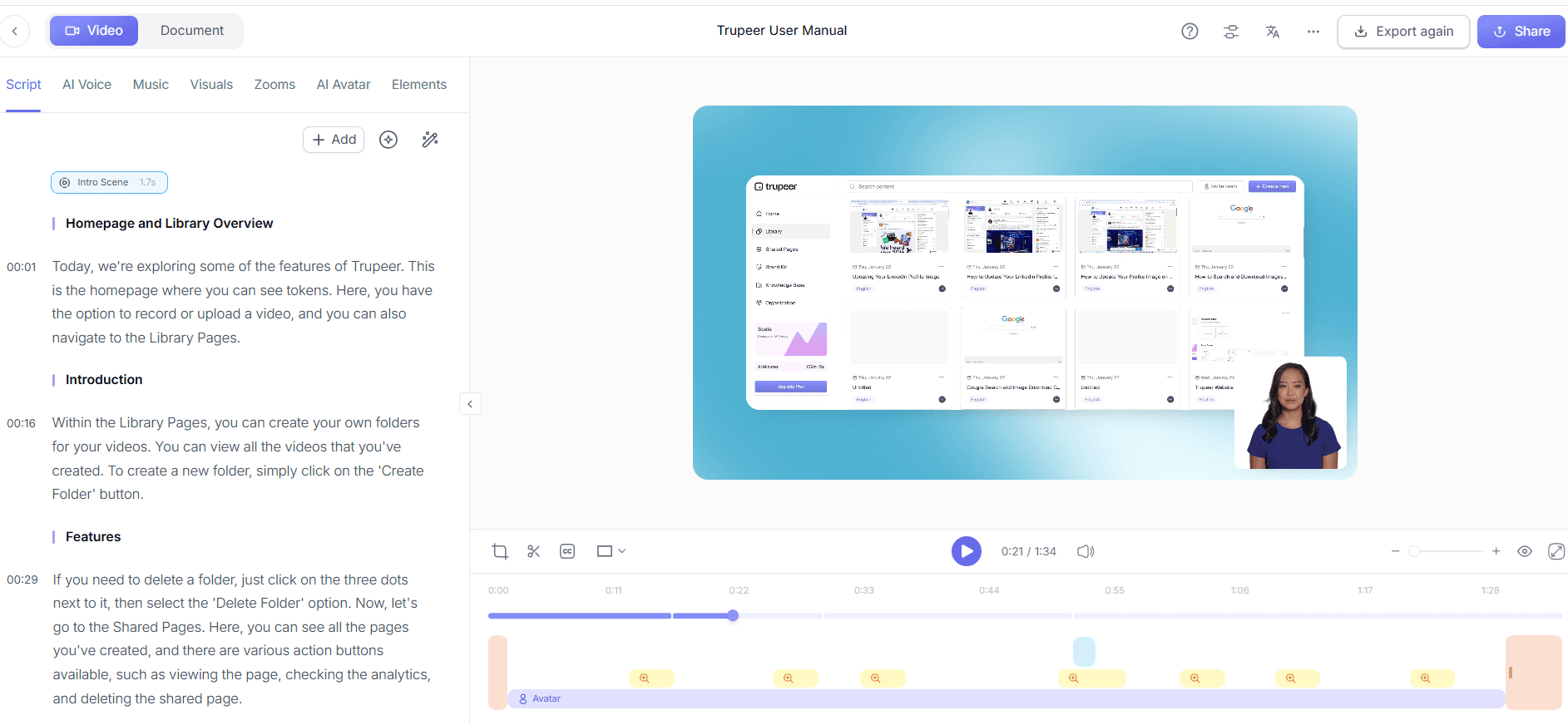
Step 5: Segment Your Video with Auto Chapters
Use the auto chapters feature to break down your video into digestible segments. This is particularly helpful for longer training sessions, allowing viewers to navigate to specific sections easily. Once you click on "Auto Chapters," Trupeer analyzes the content and automatically creates segments based on transitions and key points. This process is efficient, usually taking a couple of minutes. You can review the segments and make any necessary adjustments before saving.
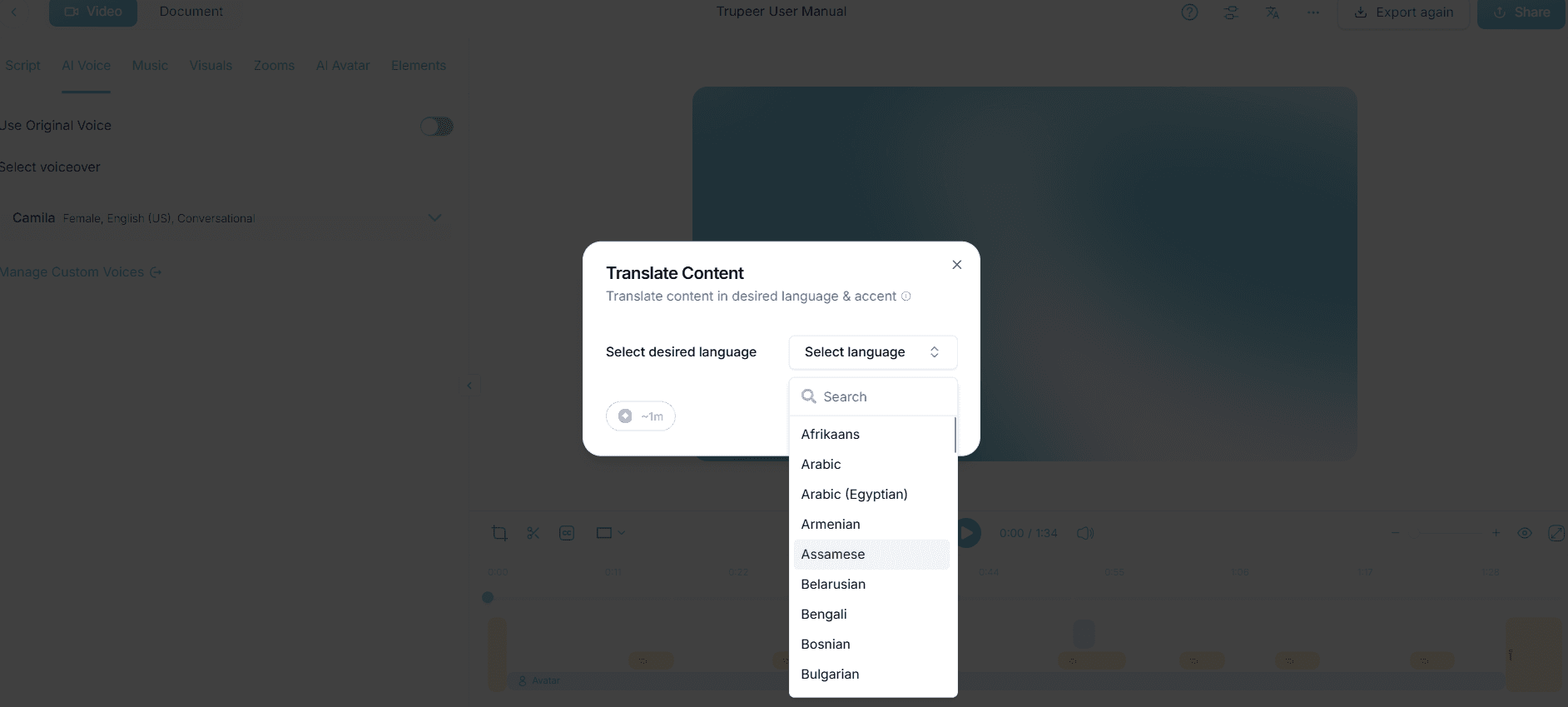
Step 6: Translate and Localize Content
For a global audience, use Trupeer's AI translation capabilities. Click on the "Translate" option and select your target languages. Trupeer supports over 40 languages and provides lip-sync accuracy, ensuring the translated content maintains its original timing and flow. This feature is invaluable for expanding the reach of your training videos. Depending on the video length, the translation process can take anywhere from a few minutes to an hour. Once complete, review the translations to ensure they meet your standards. Trupeer also ships a beginner friendly video editor for training videos that handles this step without extra setup.
What tips help you remove filler words, pauses, and ums from training videos?
Enhancing the quality of your training videos with AI requires strategic planning and execution. Here are some tips to help you maximize the effectiveness of your video cleanup efforts.
Plan Your Script. Having a clear script reduces the likelihood of filler words, ensuring a smoother recording process.
Practice Before Recording. Familiarize yourself with the content to minimize pauses and ums during the actual recording session.
Use High-Quality Equipment. Even though Trupeer can clean up audio, starting with clear input enhances the final output quality.
use AI Voiceover. ai/tools/ai-training-video">ai training video tool for consistent speech patterns and professional delivery.
Review and Edit. Always review your video post-edit for any remaining fillers or pacing issues before finalizing.
Feedback Loop. Have colleagues review your videos to catch any issues you might miss and refine the content further.
Explore Alternatives. Check out Scribe alternatives for SOPs to enhance your documentation process alongside video content.
Frequently asked questions
How does Trupeer automatically remove filler words?
Trupeer uses advanced AI algorithms to detect and remove filler words from your training videos. The system analyzes the audio track, identifies common fillers like "um" and "ah," and removes them while maintaining the natural flow of speech. This process is automated and typically takes just a few minutes, depending on the video length. It ensures that the resulting video is clear and professional, significantly enhancing viewer engagement and comprehension. For global audiences, adding AI video translation extends the same workflow across 40+ languages with lip-sync.
Can Trupeer handle multiple languages in a single video?
Yes, Trupeer supports multiple languages in a single video. The platform's translation feature can handle over 40 languages, offering lip-sync accuracy to maintain the video's natural timing and flow. This is ideal for training videos targeting multilingual audiences. If your video includes segments in different languages, Trupeer can process and translate each segment individually, providing a smooth viewing experience for diverse audiences.
What is the benefit of using AI avatars in training videos?
AI avatars add a dynamic and engaging element to training videos, making them more relatable and interesting. They can represent instructors or guides and are especially useful in maintaining viewer attention throughout longer sessions. With Trupeer's integration with HeyGen, creating custom avatars is straightforward, allowing you to personalize your content effectively. AI avatars can also synchronize with both audio and text, providing a cohesive and professional presentation.
Does Trupeer offer any analytics for video performance?
Yes, Trupeer provides detailed analytics to track video performance. The platform includes features like viewer engagement analytics, drop-off rates, and heatmaps. These insights help you understand how your audience interacts with the content, allowing you to make data-driven improvements. By analyzing these metrics, you can identify which sections of your videos are most engaging and which may need further refinement. This is crucial for optimizing future training sessions and ensuring maximum impact.
Is Trupeer suitable for small businesses or only large enterprises?
Trupeer is designed to cater to both small businesses and large enterprises. Its scalable features and flexible pricing models make it accessible for teams of any size. Small businesses can benefit from its user-friendly interface and automated features that save time and resources. Meanwhile, larger enterprises can take advantage of advanced capabilities like AI translation and comprehensive analytics. This versatility ensures that Trupeer is a valuable tool for organizations looking to enhance their training video content.
Related Blogs


