Trupeer Blog
Summarise

Imagine you're part of a large enterprise tasked with rolling out a new software tool across departments. The tool promises to simplify operations, but there's a hitch: many users are non-technical and unfamiliar with complex software interfaces. Your role is to ensure smooth adoption, and this means creating instructional materials that resonate with everyone, from IT specialists to administrative staff. A how-to video tailored for non-technical users can be a big shift in this scenario. A compelling video can reduce the learning curve significantly, with studies showing that users retain 95% of a message when they watch it in a video compared to just 10% when reading text.
Users retain 95% of a message when they watch it in a video compared to just 10% when reading text.
But creating such videos presents its own challenges. You need to simplify complex processes without sacrificing essential details, all while maintaining engagement. Understanding the stakes, it's crucial to produce content that is both informative and approachable. we'll explore how you can create effective how-to videos that cater specifically to non-technical enterprise users, ensuring that the content is accessible and engaging. For more insights on creating effective guides, you can explore how to create user guides to complement your video content.
Why does creating how-to videos for non-technical enterprise users matter?
Creating how-to videos for non-technical enterprise users is vital because it addresses a significant gap in understanding and engagement. In large organizations, there's often a diverse workforce with varying levels of technical expertise. This diversity can lead to challenges when implementing new tools or processes. If these users don't understand how to use new software effectively, it can result in decreased productivity, increased frustration, and even project failures. For instance, a software rollout can falter if employees aren't adequately trained, potentially costing the organization millions in lost productivity.
Also, traditional training methods like lengthy manuals and in-person workshops often fall short. Manuals can be dense and inaccessible, while workshops may not accommodate everyone's schedule or learning pace. Videos, on the other hand, offer a flexible learning solution that can be accessed anytime, anywhere. They can simplify complex information, making it digestible for non-technical users. By providing clear, visual instructions, how-to videos can bridge the knowledge gap, building confidence and autonomy among employees.
Emphasizing the importance of creating engaging and clear instructional content, the instructional videos use case highlights how these tools can be effectively integrated into an enterprise's workflow to enhance understanding and improve overall efficiency. As enterprises continue to evolve and embrace new technologies, the ability to communicate processes in an accessible manner becomes ever more crucial.
What are the benefits of creating how-to videos for non-technical enterprise users?
Creating how-to videos for non-technical enterprise users offers numerous advantages that can transform the way your organization handles training and adoption of new tools.
Enhanced comprehension. Videos transform complex processes into easy-to-follow visual segments, leading to better understanding and retention of information. This is crucial when you need to create instructional video content that resonates with diverse audiences.
Increased engagement. Video content is inherently more engaging than text. It captures attention and keeps users interested, reducing the dropout rate during training sessions. This engagement is vital for maintaining productivity during transitions.
Flexible learning pace. Employees can learn at their own pace, pausing or replaying sections as needed. This flexibility is especially beneficial for non-technical users who may need more time to grasp certain concepts.
Consistent messaging. Videos ensure that everyone receives the same information presented in the same way, reducing the risk of miscommunication. This consistency is critical for maintaining standards across the organization.
Cost-effective training. Once created, videos can be reused multiple times without additional costs, making them a cost-effective solution for ongoing training needs.
Scalable distribution. With digital platforms, videos can reach a global audience instantly. A single video generation platform can distribute content to any number of employees, regardless of location, ensuring widespread accessibility.
Which Trupeer features help you create how-to videos for non-technical enterprise users?
Trupeer offers a suite of features that can significantly enhance the process of creating how-to videos for non-technical enterprise users. These tools are designed to simplify and optimize video production, ensuring that your content is both high-quality and effective.
AI screen recording with auto-zoom and click detection
Trupeer's AI screen recording with auto-zoom and click detection is a big shift for capturing detailed instructional content. This feature automatically highlights important areas of the screen, such as buttons and menus, making it easier for viewers to follow along. As you record, the AI dynamically adjusts the focus to ensure that the most relevant parts of the screen are always in view. This is particularly beneficial for non-technical users who may struggle to identify key interface elements on their own.
Silent screen recording with automatic AI narration
The silent screen recording with automatic AI narration feature allows you to capture screen activity silently while the AI generates a natural-sounding voiceover. This means you don't have to worry about background noise or perfecting your narration in real time. Instead, focus on demonstrating the software's functionality while Trupeer handles the narration. This capability is ideal for producing clear and concise instructional videos without the need for professional voice talent.
Automatic filler-word removal
Trupeer's automatic filler-word removal simplifies the editing process by eliminating unnecessary pauses and filler words like "um" and "ah". This results in a polished and professional final product that retains viewer attention. For non-technical audiences, minimizing distractions is key to maintaining focus on the instructional content. This feature ensures that your videos are not only concise but also engaging, which is crucial for effective learning.
AI avatars / talking-head video
With Trupeer's AI avatars and talking-head video feature, you can add a personal touch to your instructional content. Choose from a stock library of avatars or create custom ones to deliver your message in a relatable and human-like manner. This visual element can help to build a connection with your audience, making the content more relatable and easier to digest. It also adds a layer of professionalism, enhancing the overall quality of your video.
Automatic SOP generation from any recording
Trupeer's automatic SOP generation from any recording feature is a powerful tool for creating supporting documentation alongside your videos. This capability extracts key steps and processes from your video recordings to generate standard operating procedures that are ready for editing and export. By using this feature, you ensure that your instructional content is comprehensive and that users have access to both video and text-based guides. This dual-format approach caters to different learning preferences, enhancing the overall effectiveness of your training materials.
These features, combined with Trupeer's auto-generated documentation, searchable knowledge base, and tools that allow you to create training videos in minutes, make it an indispensable platform for creating engaging and effective how-to videos for non-technical enterprise users.
How do you create how-to videos for non-technical enterprise users step by step with Trupeer?
Step 1: Capture the Screen
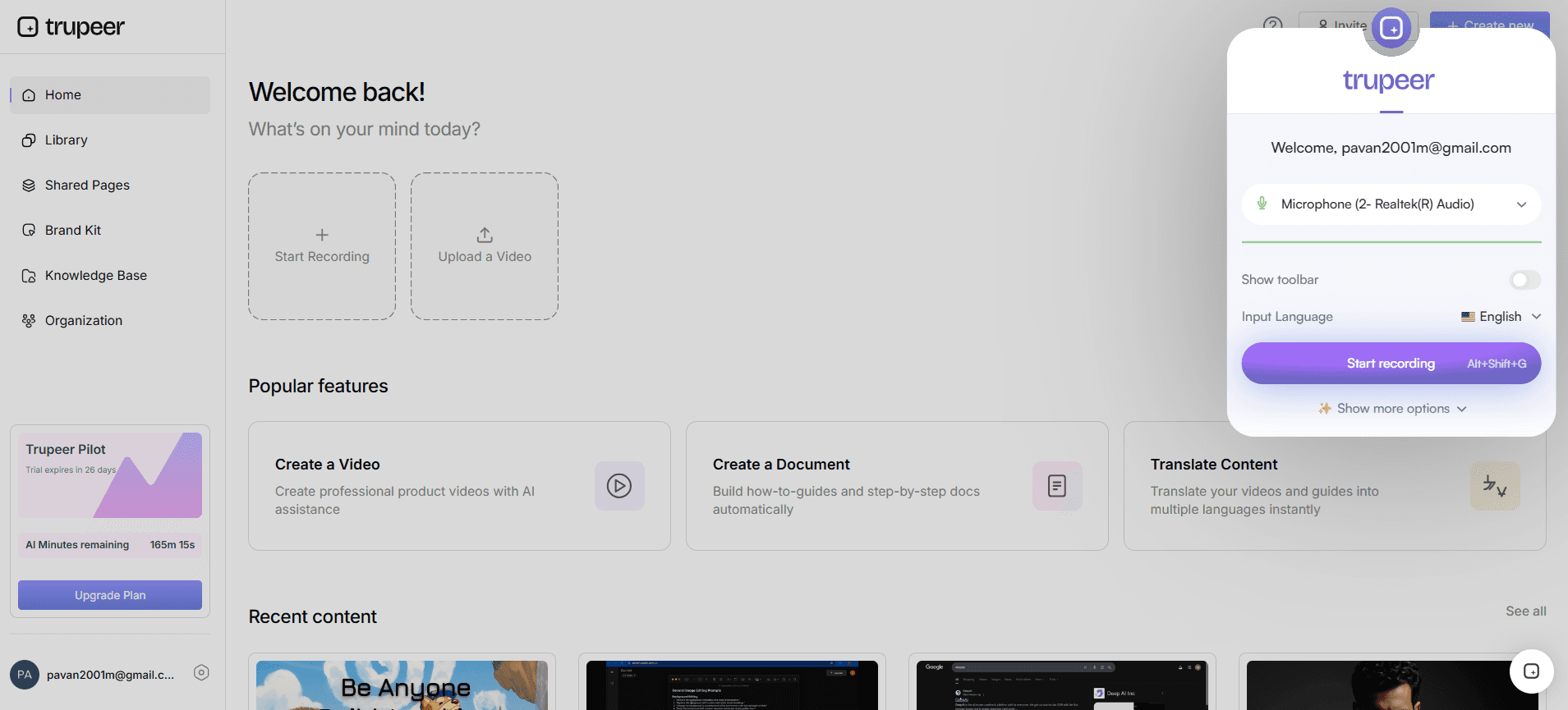
Begin by launching Trupeer's browser-based recorder, which requires no installation. Once open, select the application or area you want to capture. Trupeer's AI screen recording with auto-zoom and click detection will automatically focus on crucial elements like buttons and fields as you navigate. This ensures that your audience's attention is directed where it matters most. Click "Start Recording" and proceed through your demonstration at a natural pace. The AI adapts in real time to highlight the necessary components, making the process intuitive and effective. This step usually takes about 10-15 minutes, depending on the complexity of the workflow you're recording.
Step 2: Add AI Narration
After capturing the screen, it's time to add narration. Trupeer's silent screen recording with automatic AI narration can generate voiceover in one of 65+ natural voices. Select the voice that best matches your audience's preference and adjust the pace and tone as needed. The AI will automatically sync the narration with your screen actions, providing clear and coherent instructions. This feature is particularly useful if you're not comfortable recording your voice or need to ensure consistency across multiple videos. The process of adding AI narration typically takes just a few minutes, allowing you to focus on content quality rather than recording logistics.

Step 3: Edit the Video
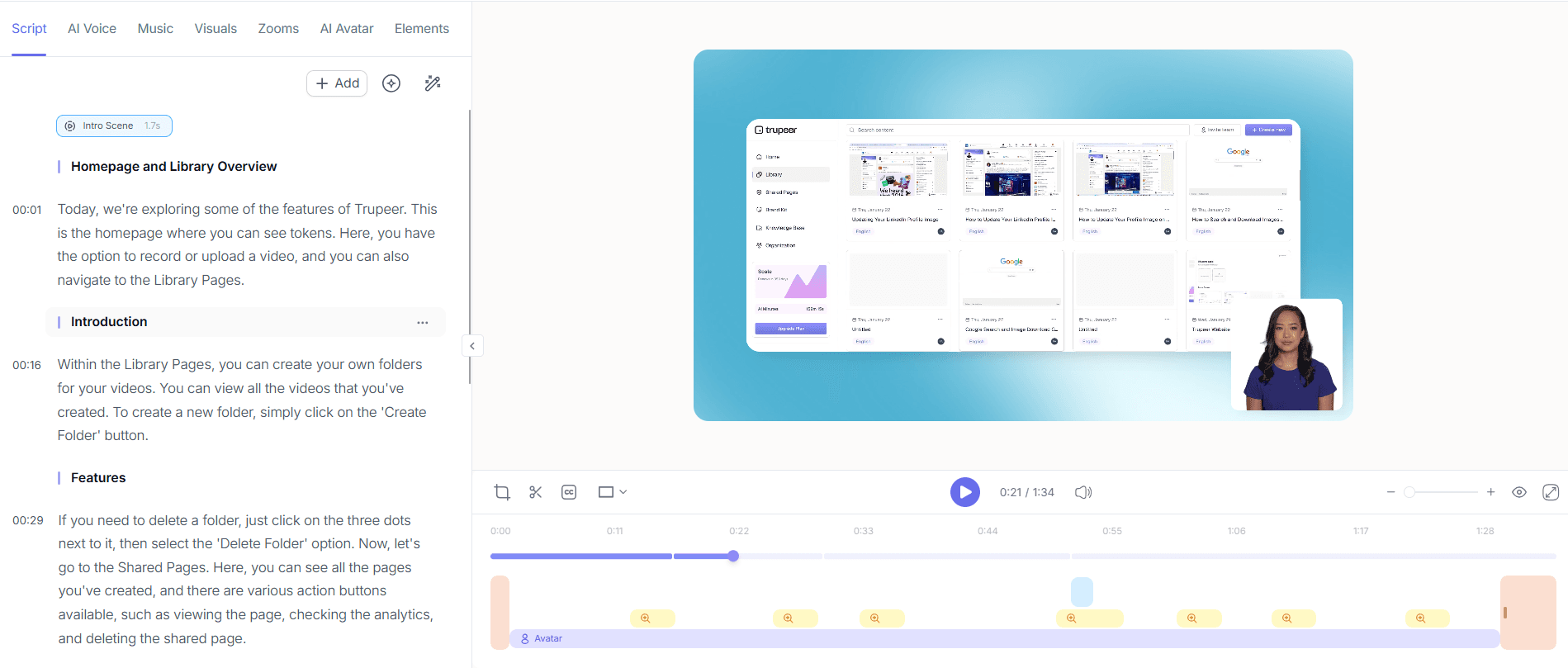
Next, refine your video by using Trupeer's automatic filler-word removal feature. This tool will automatically detect and eliminate unnecessary pauses and filler words such as "um" and "ah", resulting in a polished and professional final product. Access the editing interface by clicking "Edit Video" and allowing Trupeer's AI to process the footage. This step is crucial for maintaining viewer engagement, especially for non-technical users who can be easily distracted. Editing usually takes about 5-10 minutes, depending on the length of your recording, and ensures your content is concise and impactful.
Step 4: Incorporate AI Avatars
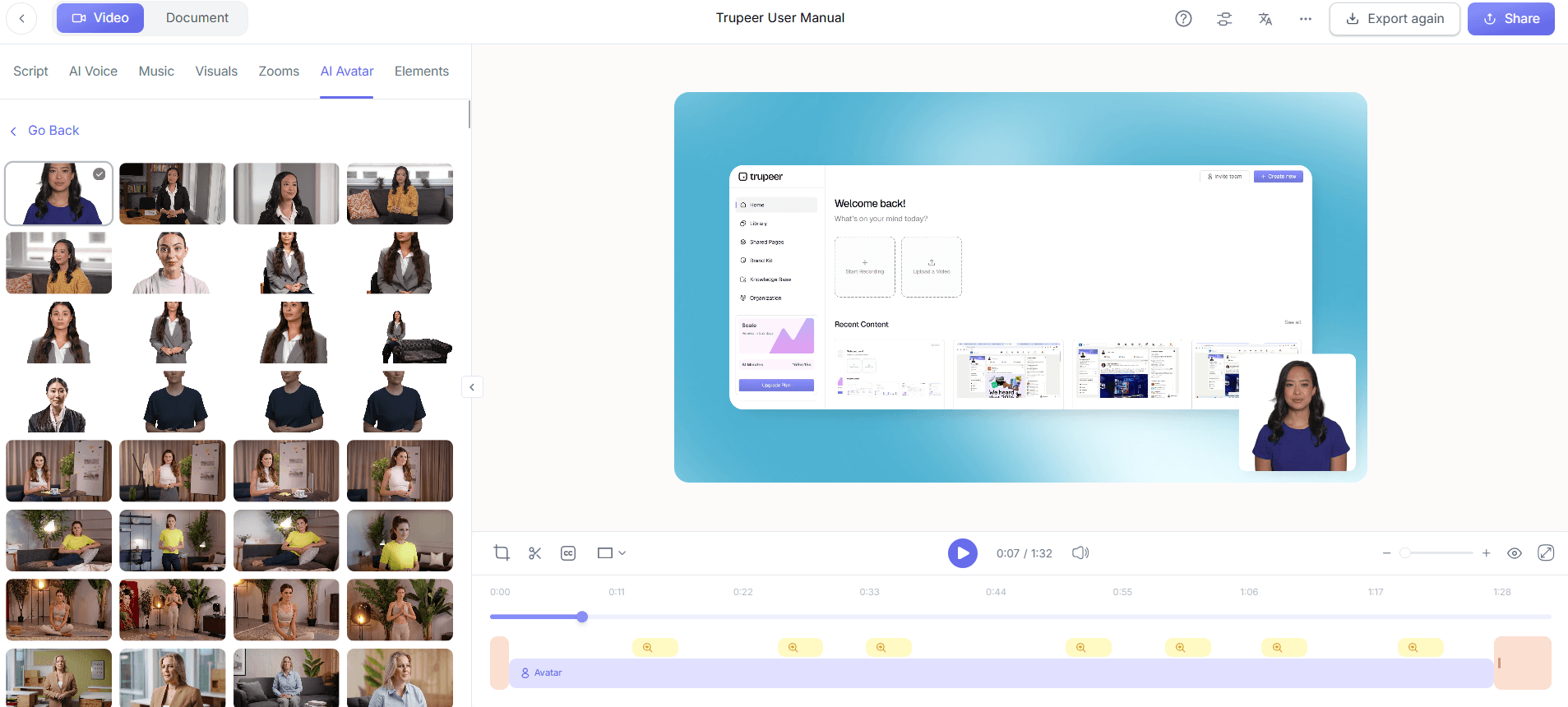
Enhance the personal connection of your video by adding AI avatars or talking-head elements. Choose from the stock library or create a custom avatar that aligns with your brand's identity. This step involves selecting "Add Avatar" from the enhancement options and positioning it within your video. The avatar can provide a friendly face to accompany the narration, making the content more engaging and relatable. This visual element is particularly effective for non-technical users, as it humanizes the digital instruction and can help build trust. Setting up an avatar usually takes about 10 minutes.
Step 5: Generate Supporting Documentation
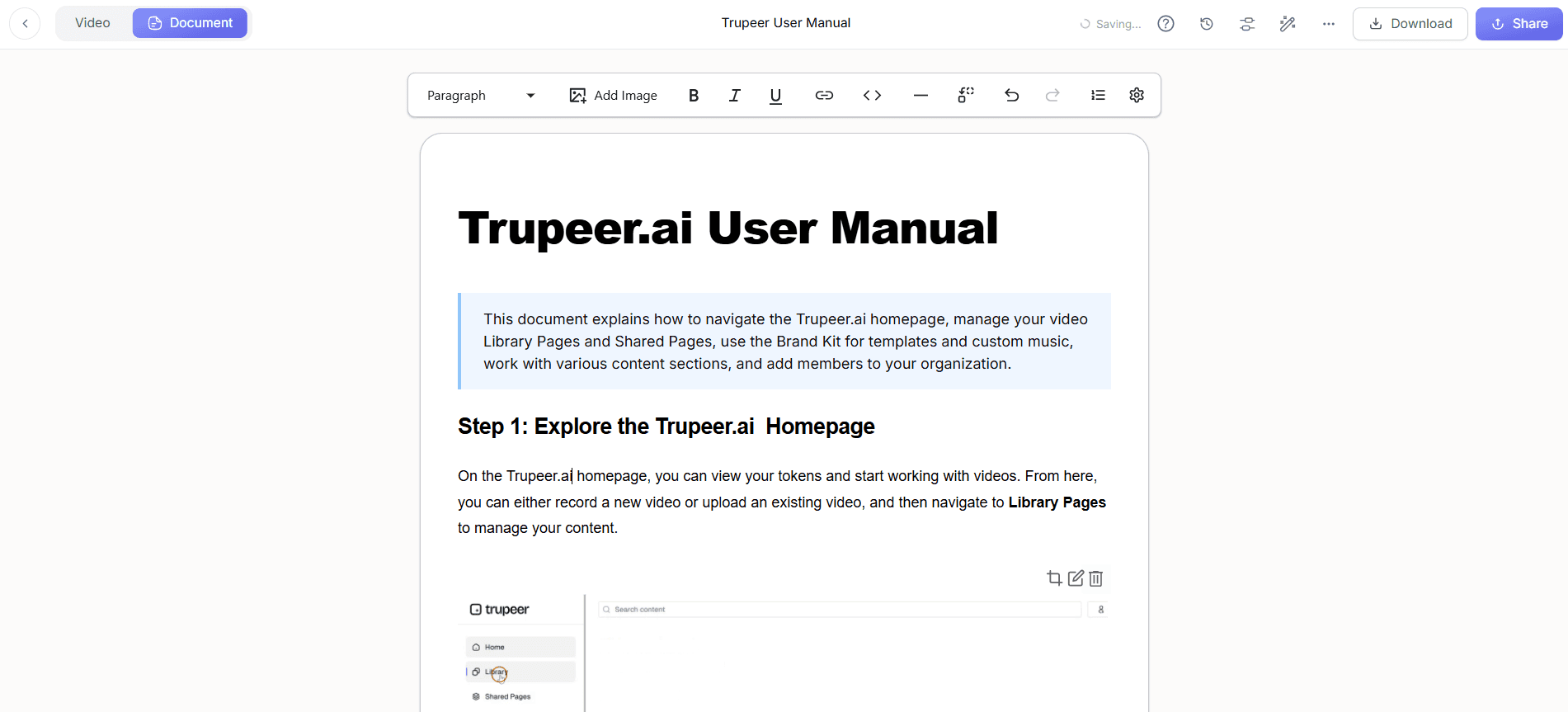
With Trupeer, you can automatically generate standard operating procedures (SOPs) directly from your recordings. This feature is accessed under the "Documentation" tab in the post-capture options. Once selected, Trupeer analyzes the video to extract key steps and processes, creating an editable document. This SOP can be exported in various formats such as PDF or HTML, and serves as a valuable supplement to the video, catering to users who prefer written instructions. This step aligns with the time taken to produce the video and documentation, making it an efficient addition to your training materials.
Step 6: Distribute and Analyze
Finally, distribute your video through Trupeer's platform. use the AI-searchable knowledge base to ensure employees can easily find the video and related materials using keyword searches. You can also embed the video in your company's intranet or distribute it via shared pages or custom-domain hosting. Trupeer provides analytics on viewer engagement, allowing you to track who has viewed the video and where they might have dropped off. This data is invaluable for refining your training approach and ensuring effective communication. Sharing your content typically takes a few minutes to set up, while analytics provide ongoing insights.
What tips help you create how-to videos for non-technical enterprise users?
Crafting how-to videos for non-technical enterprise users requires a strategic approach to ensure clarity and engagement. Here are some practical tips to enhance your video creation process and ensure it resonates with your audience.
Know your audience. Tailor content to fit the technical proficiency of your users. Simplify jargon and use relatable analogies to explain complex concepts.
Keep it concise. Aim for brevity without sacrificing clarity. Avoid overloading viewers with information. Each video should focus on a single topic or process.
Use visual aids. Incorporate graphics, diagrams, and annotations to emphasize key points. Visual aids can aid comprehension significantly.
Standardize your format. Consistent video structure helps users know what to expect. Use branded templates and style guides to maintain uniformity.
Test with real users. Before finalizing, get feedback from a sample of your target audience to ensure the content meets their needs and is easy to follow.
Iterate based on feedback. Use analytics and user feedback to refine and improve future videos. This iterative process leads to better training materials over time.
Explore alternatives. Stay informed about Scribe alternatives for SOPs and other platforms to continuously improve your video creation strategy.
Frequently asked questions
How can I make my how-to videos more engaging for non-technical users?
To make how-to videos engaging, focus on clarity and relatability. Use simple language and visual aids to explain complex processes. Incorporate storytelling elements where possible and break down information into manageable segments. also, adding interactive elements like quizzes or clickable sections within the video can maintain viewer interest and enhance learning. Regularly update content to keep it relevant and
What tools can I use to create effective how-to videos for enterprise users?
Several tools are available for creating effective how-to videos. Trupeer offers a comprehensive suite of features, including AI screen recording and automatic narration, which simplifies the video creation process. Other popular tools include Camtasia for its detailed editing capabilities and Adobe Captivate for interactive elements. When choosing a tool, consider factors like ease of use, available features, and your specific audience needs. Comparing Loom alternatives for teams can also help to determine the best fit for your organization.
Why is it important to create videos specifically for non-technical users?
Creating videos for non-technical users is crucial as it addresses the learning needs of a significant portion of the workforce who may not be comfortable with complex software interfaces. Videos can simplify instructions and make technology accessible, reducing the learning curve and enhancing productivity. They cater to diverse learning styles, providing visual and auditory learners with the resources they need to succeed. This approach ensures that all employees, regardless of technical expertise, can effectively use new tools and processes.
Can Trupeer help with video translation for global teams?
Yes, Trupeer can assist with video translation. Its AI translation feature supports over 40 languages, ensuring your content is accessible to a global audience. The platform also offers AI dubbing with lip-sync for non-English speakers, making it easier for international teams to understand your videos. This capability is essential for organizations with a diverse workforce, allowing them to maintain consistency in training and communication across different regions. ai/translation">AI video translation to enhance global reach.
Does Trupeer provide analytics for understanding video impact?
Yes, Trupeer provides comprehensive analytics to help you understand the impact of your videos. The platform offers viewer engagement metrics, including watch time, drop-off rates, and interaction heatmaps. These insights enable you to identify which parts of your video are most engaging and where viewers lose interest. By analyzing this data, you can make informed decisions to improve future content and ensure your videos effectively meet their instructional goals. This feedback loop is crucial for continuously enhancing your training materials.
Related Blogs


