Trupeer Blog
Summarise

Imagine you've just completed a complex software demo recording. You've captured every click and transition flawlessly, but there's one problem: it's completely silent. To make it engaging and informative, you need a precise narration that aligns with the visual content. Traditional methods might have you recording audio while watching the video, but this process is time-consuming and prone to errors. By using AI, you can generate a high-quality narrated video from your silent screen recording in a fraction of the time.
Studies show that AI narration can reduce video editing time by up to 60% compared to traditional methods.
For businesses needing to quickly create training materials, marketing content, or product demos, this efficiency isn't just beneficial, it's essential. Whether you're a product manager needing to showcase new features or a training specialist developing onboarding materials, converting silent recordings into narrated videos with AI saves time and ensures consistency. you'll learn how Trupeer's AI capabilities can transform your silent recordings into compelling, professional-grade narrated videos. Teams weighing tools often start with a Loom alternatives comparison before standardizing on a workflow.
Why does converting a silent screen recording to a narrated video matter?
In the business world, time and clarity are crucial. Silent recordings, while useful for capturing interface interactions, often lack the context that narration provides. This absence can lead to misunderstandings, especially in training or client presentations, where the narrative bridges the gap between what the viewer sees and what they need to understand. For businesses, the cost of miscommunication can be high, delayed project timelines, increased support tickets, and customer dissatisfaction.
Consider a software company rolling out a new feature. A silent screen recording might show the feature in action, but without audio, users might miss out on understanding the benefits or how to use it effectively. By converting this to a narrated video, the company can ensure that every viewer receives the same clear, concise message. This consistency is vital for training teams, onboarding new clients, or marketing new products. It also reduces the burden on support staff who might otherwise need to explain the same features repeatedly.
Also, narrated videos can enhance engagement. A study by Wyzowl found that 72% of people prefer to learn about a product or service through video. With AI, turning a silent screen recording into a narrated video isn't just about adding sound, it's about adding value. It's about ensuring that your message is heard, understood, and remembered. This same approach shows up in the ai adoption use case, where teams apply it at scale.
What are the benefits of converting silent screen recordings to narrated videos?
Transforming silent screen recordings into narrated videos offers numerous benefits, making it a crucial step for businesses that rely on clear communication and efficient workflows.
Enhanced Clarity. Adding narration to your recordings provides context and guidance, ensuring that viewers understand the content as intended. A best screen recording softwares can aid in this process.
Time Efficiency. AI narration significantly reduces the time spent on editing and voiceover tasks. This efficiency allows teams to produce more content in less time.
Consistent Messaging. AI-generated narrations ensure that each video maintains the same tone and style, which is crucial for branding and messaging consistency.
Scalability. With AI, you can quickly produce narrated videos in bulk without sacrificing quality. This scalability is vital for large training programs or marketing campaigns.
Multi-language Support. AI tools often support multiple languages, making it easier to create localized content for diverse audiences. This feature can greatly enhance your AI video platform.
Increased Engagement. Narrated videos are more engaging than silent ones, leading to higher viewer retention and comprehension rates.
Which Trupeer features help you convert a silent screen recording to a narrated video?
Trupeer offers a suite of powerful features designed to help you smoothly convert silent screen recordings into professionally narrated videos. Each capability is tailored to enhance different aspects of the recording and narration process.
Silent screen recording with automatic AI narration
Trupeer simplifies the conversion process with its silent screen recording feature integrated with automatic AI narration. This capability allows you to capture your screen without worrying about on-the-spot narration. Once the recording is complete, Trupeer's AI analyzes the visuals and generates a contextually accurate narration. This feature saves time and ensures a consistent quality across all videos. By using Trupeer's add audio to video tool, you can effortlessly enhance your recordings.
AI voiceover in 65+ natural voices
The AI voiceover feature provides a range of over 50 natural-sounding voices. You can choose the voice that best fits your brand's tone and adjust the pace and tone to match the video content. This flexibility ensures that the narration aligns perfectly with visual cues, enhancing the viewer's experience. Trupeer's AI voiceover helps you maintain a professional sound across all your videos, making it easier to engage and educate your audience.
AI avatars / talking-head video
Trupeer's AI avatars add a human touch to your videos. You can select from a stock library or create custom avatars to deliver narration, making your content more relatable and engaging. This feature is particularly useful for training videos and customer support materials, where a human presence can enhance comprehension and trust. By integrating these avatars, you can personalize your videos without additional production costs.
Automatic SOP generation from any recording
Trupeer's ability to generate automatic Standard Operating Procedures (SOPs) from any recording is a big shift. Once your video is narrated, Trupeer can create detailed SOPs that are ready for export. This feature is ideal for training and compliance purposes, ensuring that all procedural information is documented and easily accessible. With Trupeer's AI documentation platform, you can simplify your workflow and maintain a comprehensive record of all your processes.
AI-searchable knowledge base
Trupeer's AI-searchable knowledge base indexes every narrated video, allowing teams to search and access specific content quickly. This feature is invaluable for large organizations where knowledge sharing and retrieval are crucial. By providing deep-links with time stamps, Trupeer ensures that users can jump directly to the most relevant parts of a video, saving time and increasing productivity.
How do you convert a silent screen recording to a narrated video step by step with Trupeer?
Step 1: Capture Your Screen
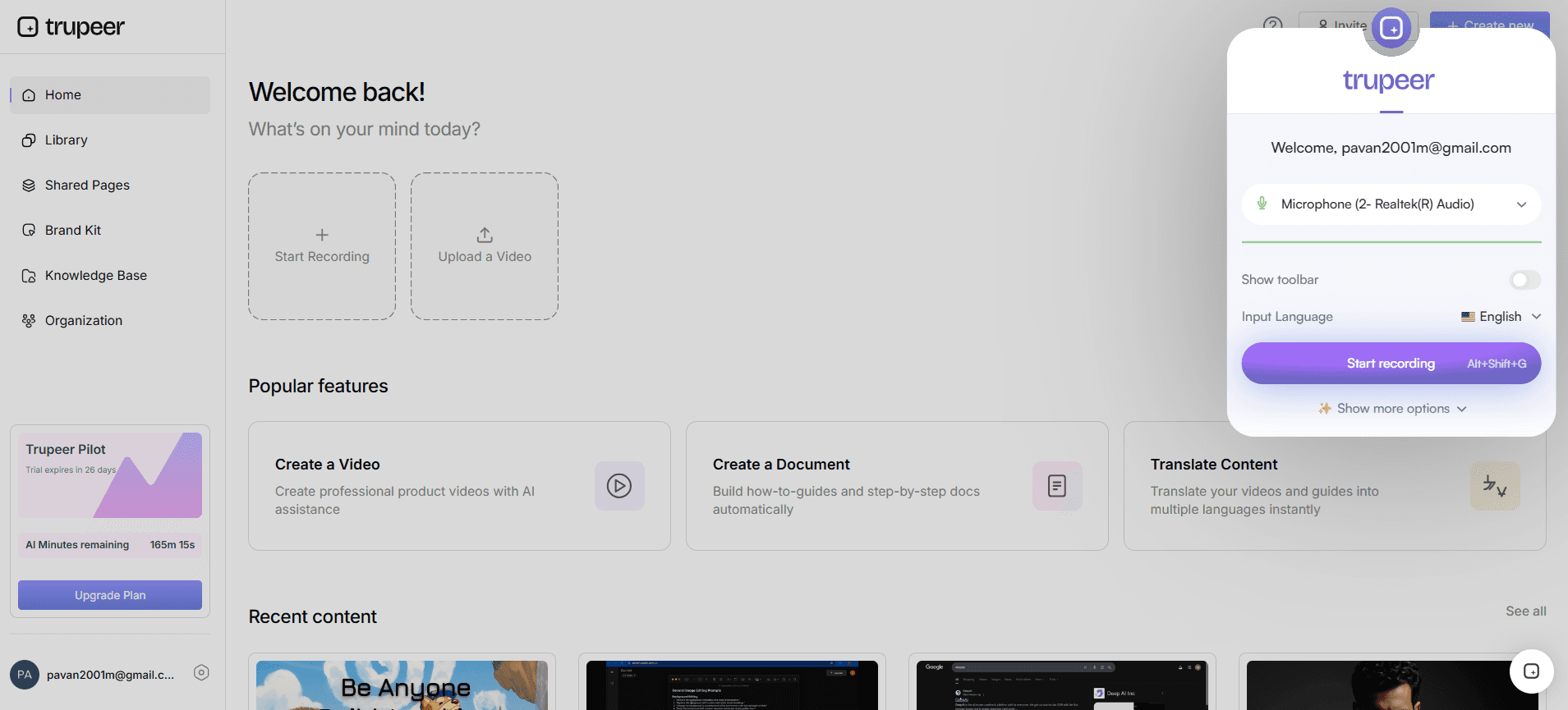
Begin by opening Trupeer's browser-based recorder or desktop app. Select the "Silent Screen Recording" option. This feature allows you to record your screen without audio, focusing on capturing the visuals accurately. As you navigate through your software or presentation, Trupeer detects clicks and zooms in automatically to emphasize important areas. Once finished, click "Stop" to end the recording. The video is then saved to your Trupeer dashboard, ready for further enhancement. This initial step ensures a crisp, clean recording without the distraction of on-the-fly narration.
Step 2: Generate AI Narration
With your silent recording ready, navigate to the "AI Narration" section in Trupeer. Here, you can choose from over 65+ natural voices. Select a voice that aligns with your brand's tone and adjust the pace and tone settings if necessary. Click "Apply Narration," and Trupeer's AI will analyze your video, generating a custom voiceover that matches the on-screen actions. This process typically takes a few minutes, depending on the length of your recording. The AI ensures that the narration is contextually accurate, enhancing the viewer's understanding.

Step 3: Incorporate AI Avatars
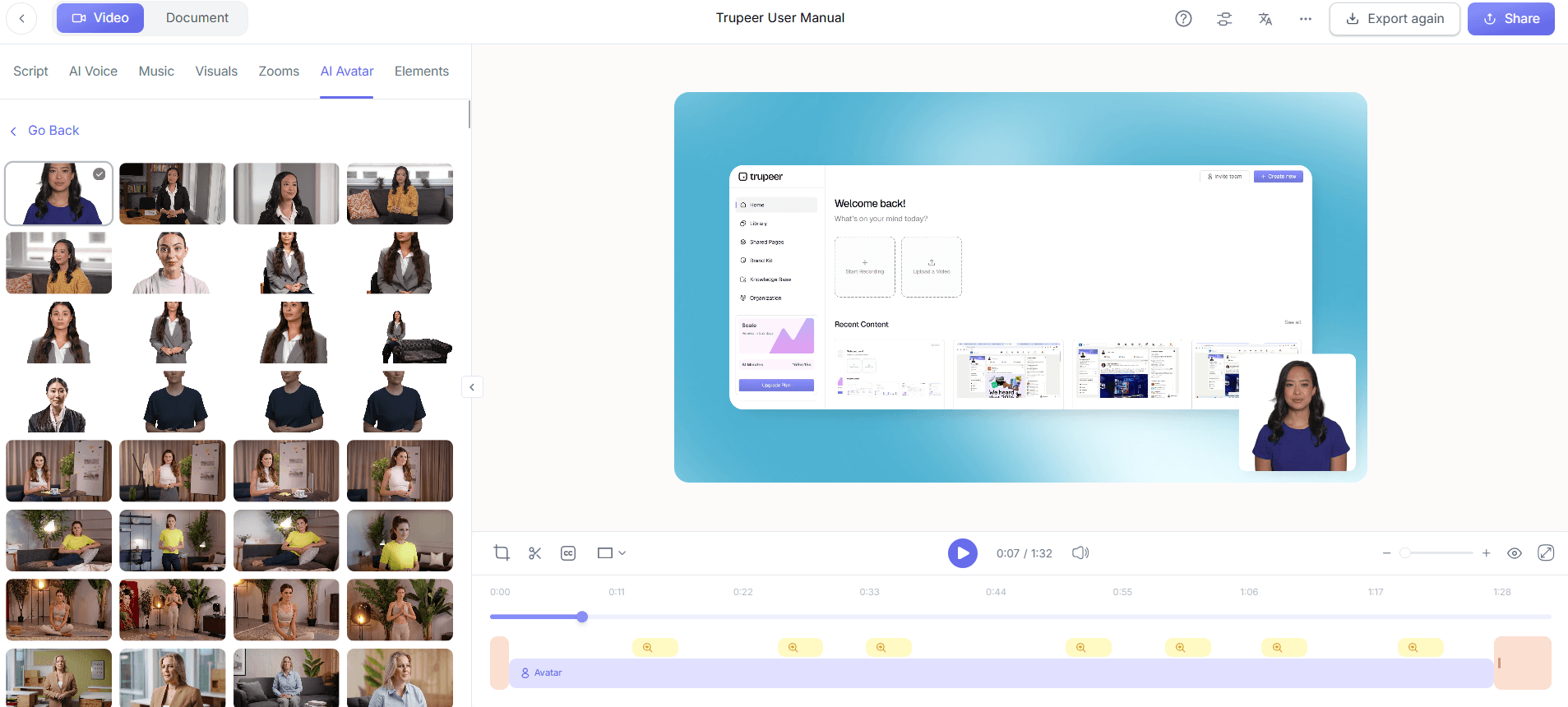
To add a personal touch, Go to the "Avatars" section and select a pre-made avatar or create a custom one. Incorporate these into your video to serve as a talking head, adding a human element to the narration. Position the avatar in a non-intrusive area of your video. This feature is especially useful for training videos, where seeing a 'face' can increase engagement. Apply the avatar to your project, and Trupeer will synchronize it with the narration smoothly.
Step 4: Edit and Remove Fillers
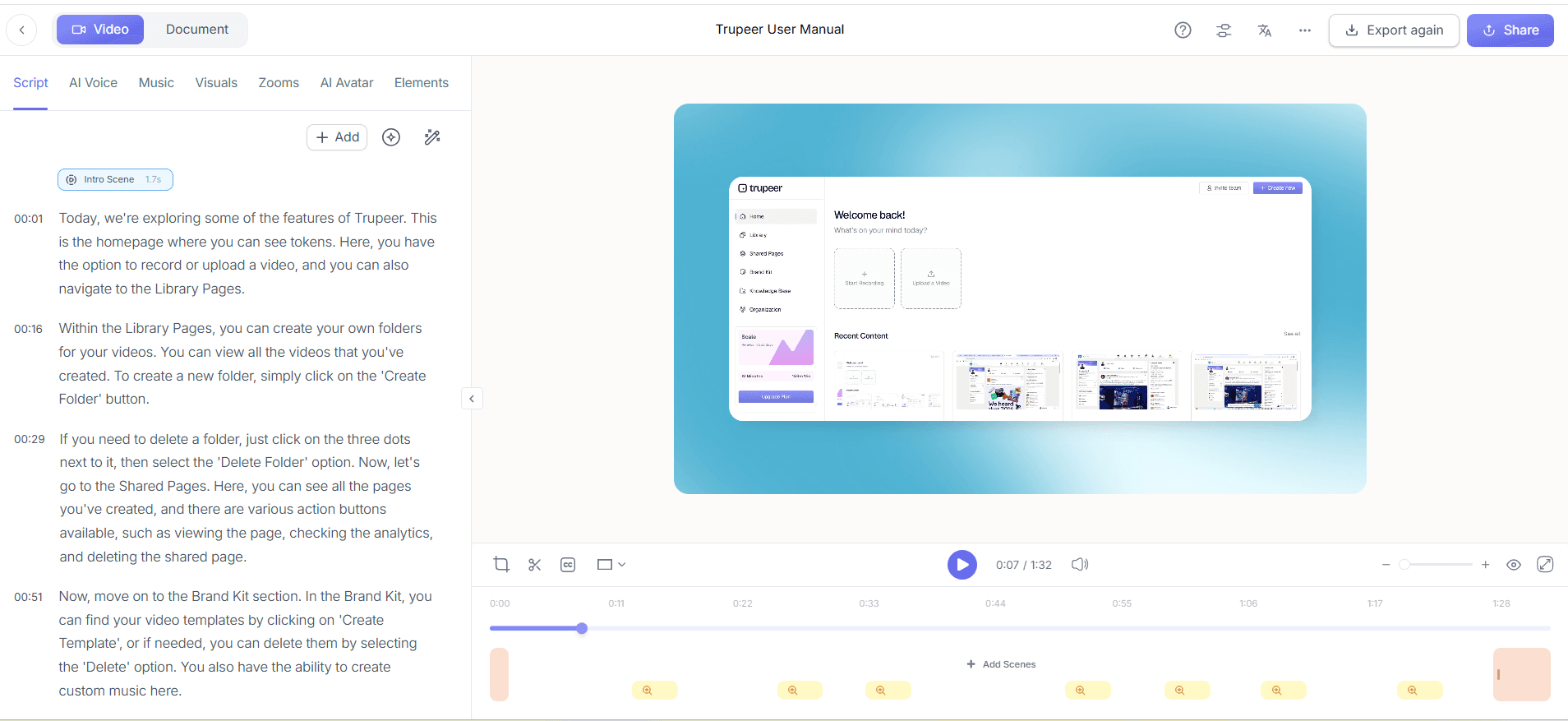
Access the "Editing & Enhancement" tools in Trupeer. Use the "Automatic Filler-Word Removal" feature to eliminate unnecessary sounds like "um" and "ah," ensuring your video remains polished. This feature analyzes your audio track and cuts out any detected filler words and long pauses automatically. This process is quick, taking only seconds to make your video sound more professional and concise. It's particularly beneficial when targeting a professional audience that expects clear and direct communication.
Step 5: Auto-generate SOPs
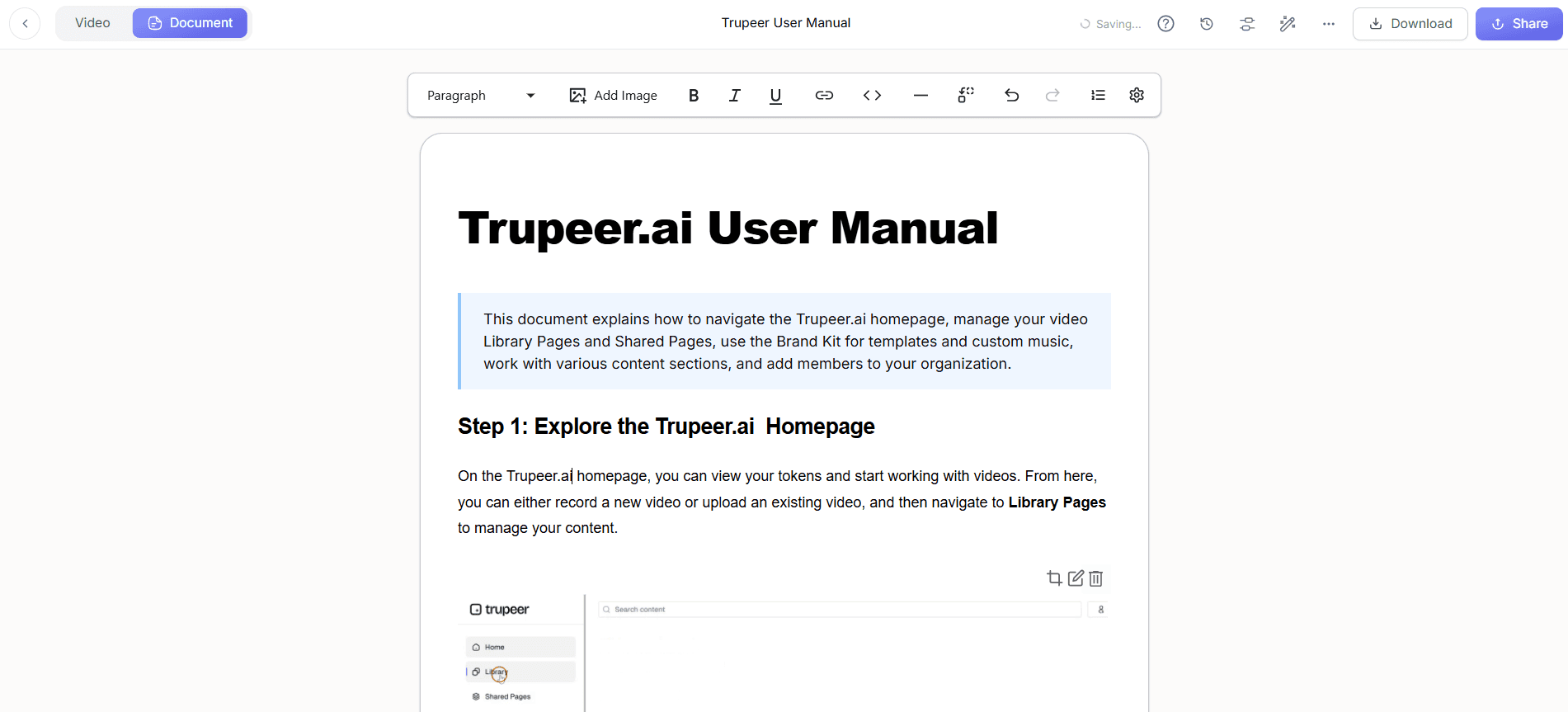
With your video now narrated and enhanced, use Trupeer's "Automatic SOP Generation" tool. This feature converts your video into a detailed Standard Operating Procedure document. Head to the "Documentation" section, click on "Generate SOP," and Trupeer will create a text-based guide that pairs with your video. This document is editable and exportable in various formats like PDF and HTML, providing a comprehensive resource for training or compliance needs. It ensures that your team can follow along with the video content in a structured manner. For a deeper look, our guide on best screen recording software covers the adjacent playbook.
Step 6: Distribute and Track Engagement
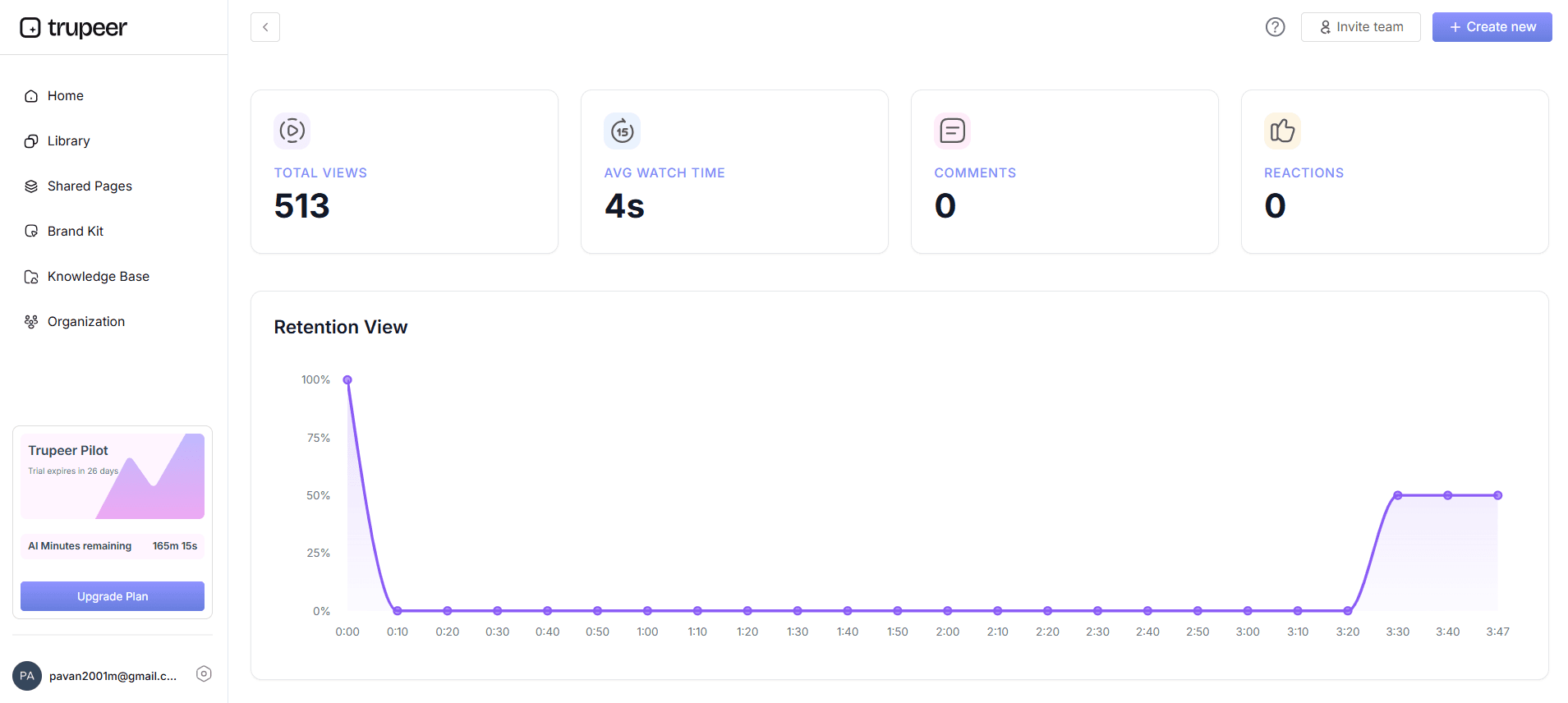
Finally, distribute your narrated video using Trupeer's "Distribution" tools. Share the video via custom-domain hosting or embed it in your website or app. Use the "Viewer Engagement Analytics" feature to track how viewers interact with your content. Trupeer provides heatmaps and drop-off rates, allowing you to see which parts of the video are most engaging. This data helps refine future content and ensures that your videos are effectively reaching and educating your audience. The analytics are updated in real-time, giving you immediate insights into viewer behavior.
What tips help you convert a silent screen recording to a narrated video?
Converting a silent screen recording into a narrated video can be simplified with some strategic tips. These tips will help you maximize the effectiveness of Trupeer's features and ensure your videos are both informative and engaging.
Plan Your Script. Before recording, outline the key points you want to highlight. This helps the AI generate contextually accurate narration.
Choose the Right Voice. Select a voice that complements your brand. Test a few options if needed to find the best match. Using a Scribe alternative comparison can aid in decision-making.
Use Avatars Wisely. Position avatars where they don't block important screen elements. This ensures the viewer's focus remains on the content.
use Analytics. Regularly review engagement metrics to understand viewer preferences. This data can inform future video content.
Standardize Branding. Use Trupeer's brand kits to maintain a consistent visual style across all your videos.
Export in Multiple Formats. Offer your video and associated documents in formats like MP4 and PDF for versatility.
use Free Tools. Explore Trupeer's free business video maker for additional resources and templates.
Frequently asked questions
How does Trupeer handle multiple voice options?
Trupeer offers over 65+ natural voice options for AI narration. This variety allows you to select a voice that best represents your brand's tone and style. Each voice can be adjusted for pace and tone, providing flexibility in how your message is delivered. This is particularly useful for different types of content, such as educational videos or product demos, where the tone may need to be more formal or conversational. The ability to choose from a wide range of voices ensures that your content remains engaging and relatable to your target audience.
What if I need to add subtitles to my video?
Trupeer supports subtitle generation, making it easy to add captions to your narrated videos. After generating the AI narration, you can use the subtitle tool to create accurate captions in multiple languages. This feature is integrated with Trupeer's AI translation capabilities, allowing you to reach a global audience effectively. Subtitles enhance accessibility and are essential for viewers who prefer reading along with the audio or who might be in noise-sensitive environments. They also improve SEO for video content, making it more searchable online.
Can I use Trupeer for training videos?
Yes, Trupeer is ideal for creating training videos. Its features, like automatic SOP generation and AI avatars, are specifically designed to enhance educational content. By using Trupeer, you can produce consistent and professional training materials quickly. The AI avatars add a personal touch, helping to maintain engagement, while the SOPs ensure that the content is documented and easy to follow. also, Trupeer's analytics tools allow you to track how trainees interact with the videos, providing insights into their effectiveness and areas for improvement.
Does Trupeer offer analytics on viewer engagement?
Trupeer provides comprehensive analytics on viewer engagement, including heatmaps and drop-off points. These metrics help you understand how viewers interact with your content, allowing you to identify which parts of your video are most engaging or where viewers lose interest. This data is crucial for refining your content strategy and ensuring that your videos effectively communicate your message. Real-time updates on engagement metrics enable you to make informed decisions and adjustments quickly, optimizing the impact of your video content.
Is Trupeer capable of translating videos into other languages?
Yes, Trupeer offers solid translation capabilities for videos. With its AI video translation tools, you can translate your narrated videos into over 40 languages. This feature includes lip-sync dubbing, ensuring that the translated audio matches the speaker's lip movements in the video. Such functionality is invaluable for reaching international audiences and making your content accessible to non-English speakers. By offering translations, you can expand your reach and connect with a global audience, enhancing your brand's international presence.
Related Blogs


