4.8/5
Free AI Tutorial Generator
Create engaging tutorials with AI annotations, voiceovers, and visuals for faster learning.
Get started for free

Stand out by converting your processes and workflows into detailed video tutorials that explain every step clearly. With Trupeer’s AI tutorial generator, a 5-step tutorial can be built in under 5 seconds.
Use Trupeer’s Tutorial Builder to:
Create onboarding tutorials, software demos, or training videos.
Auto-generate captions, highlights, and instructions for each step.
Record across multiple apps or browser tabs.
Use templates for consistent and quick tutorial creation.
Blur sensitive data and emphasize key elements.
Collaborate with team members for shared learning materials.
Same recording produces both the video tutorial and a written walkthrough with screenshots and numbered steps inline.
Re-record one changed step when the product updates. The AI re-processes that segment. The rest of the tutorial stays.
Translate to 65+ languages on paid tiers, applied to both video voiceover and written guide in the same job.
Free tier covers the basic recording-to-tutorial flow. No credit card to start. Paid tiers add brand kits, voice cloning, AI avatars, and translation.
Here's what makes this different from just "screen recording with extra steps." Most tutorial builders give you a screen recorder and call it done. You still have to write the steps, pick the moments to highlight, edit the cuts, add the captions, brand the output, and decide what to blur. That's where the actual tutorial-making time goes. Trupeer collapses all of that into the AI pass: the AI watches what happened on screen, picks the click moments that matter, writes the captions, applies the brand kit, and structures the steps. The recording stops, the tutorial exists. Maybe ten minutes for a 6-minute source. The work that used to need an afternoon now needs a coffee break.
Why Use Trupeer as Your Tutorial Builder?
Whether you’re an educator, product marketer, or support specialist, Trupeer’s tutorial builder saves hours of manual work by automating video creation and editing. Worth being clear about who this is built for. The person opening this tool is usually an educator, a product marketer, a customer success specialist, a support team lead, or a subject expert at a SaaS company. None of them are video editors. Most don't want to become video editors. The tutorial that used to require Camtasia and an afternoon ends up shipping in the same time as a long Slack message. So tutorials get created instead of postponed. Which is the entire point.
Here’s why Trupeer stands out:
1. Capture Any Workflow Easily
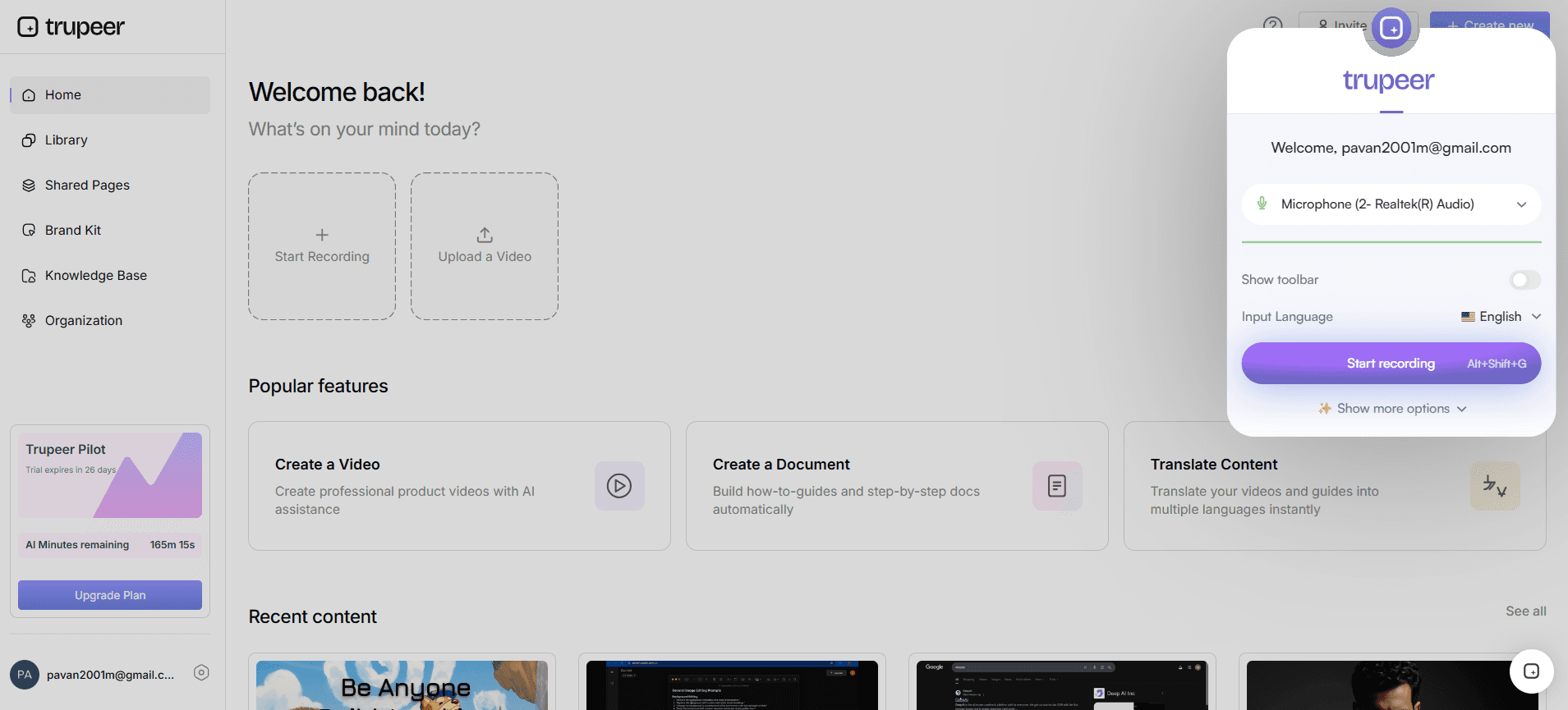
Trupeer captures your screen actions across browsers, apps, or tools.
The AI tutorial generator then automatically adds:
A clean title and subtitles.
AI-written step descriptions.
Annotated highlights for every key click or scroll.
Optional voice narration.
The capture happens in the browser. No software install. No setup wizard. Pick the screen, pick the audio source, hit record. Walk through whatever needs to be a tutorial: the new feature you're launching, the workflow customer support keeps explaining over and over, the onboarding sequence new users get lost in. Talk while you click, or stay silent and let the AI generate narration from the visual actions. The AI works on whatever was recorded. Most tutorials start as one-take recordings done between two other meetings.
2. Instantly Annotate and Edit
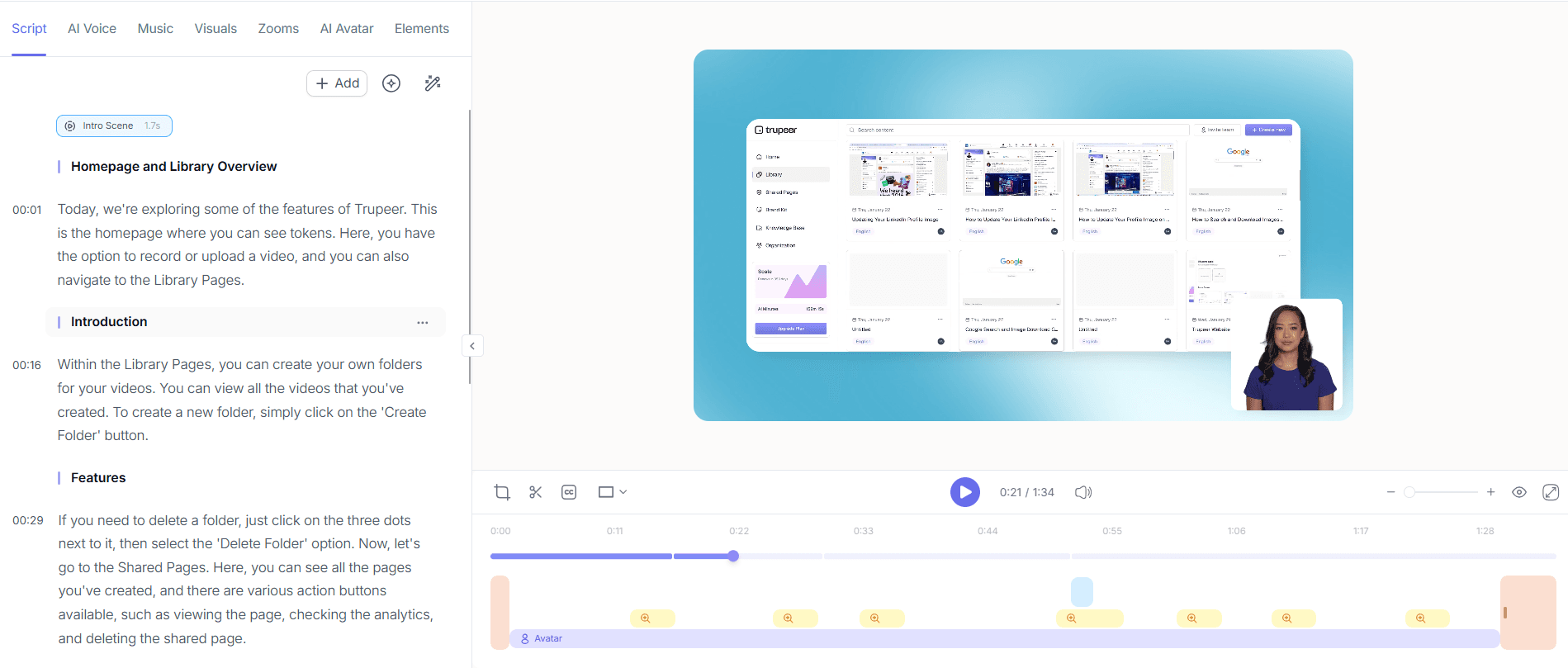
After capture, Trupeer automatically annotates your tutorial video.
You can:
Edit text, subtitles, or voiceover using AI.
Merge sections or steps into a single flow.
Add tips, alerts, or instructions.
Convert screenshots into short GIFs.
What "automatically annotate" means in practice. The AI picks up that you clicked into Settings, then Export, then chose CSV. So the tutorial gets steps that say "Open Settings. Click Export. Choose CSV." with screenshots at each click. Zoom effects apply at those moments. Cursor highlights mark the buttons that mattered. None of this requires a single timeline edit. Worth being clear: if you DO want to edit, the editor lets you trim, reorder, swap the voiceover, or add custom callouts. But for most tutorials the auto-generated version ships as-is. The editing layer is there if you want it. Not required if you don't.
3. Customize Tutorials with Your Branding
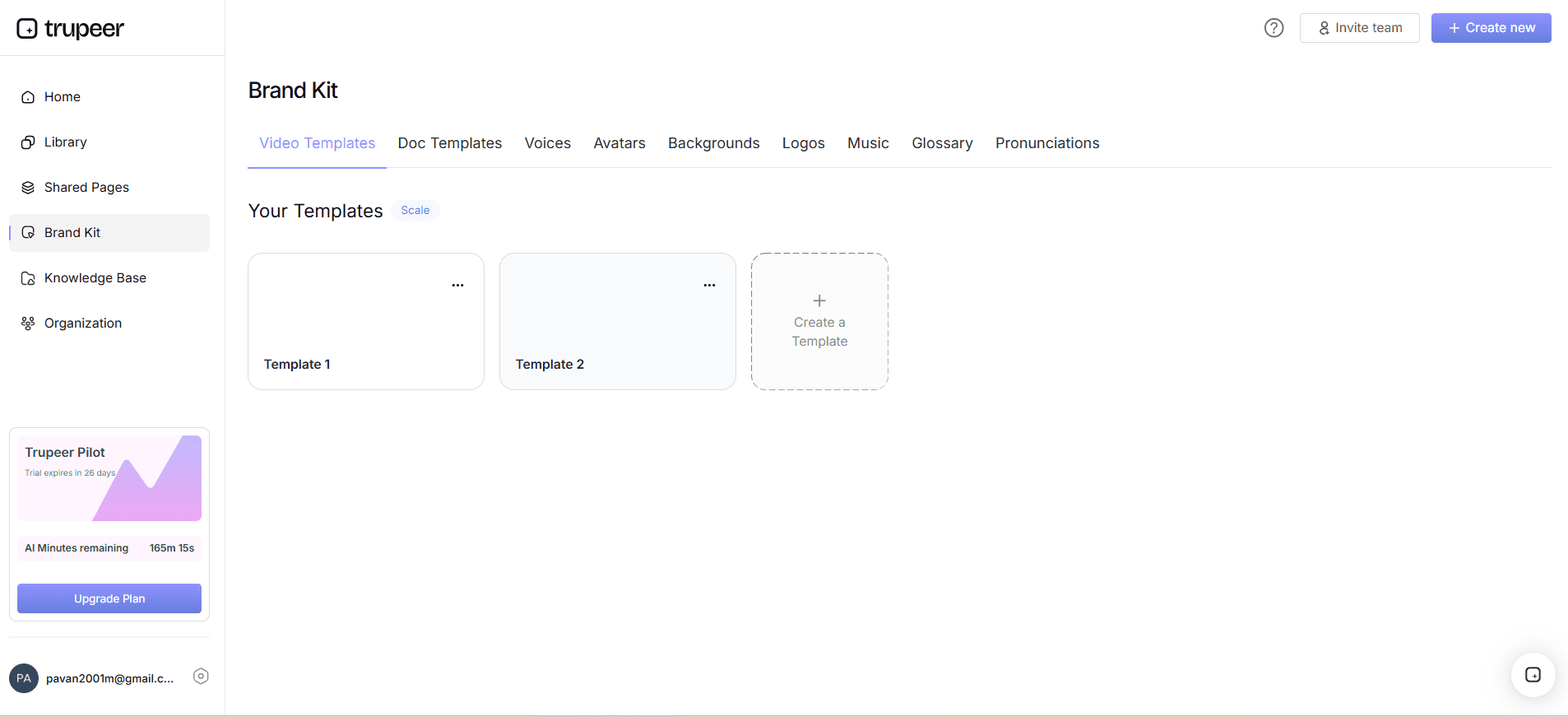
Enhance your tutorials with your brand identity:
Add logos and brand colors.
Apply custom backgrounds or typography.
Highlight buttons or actions.
Blur private data and add icons or shapes for emphasis.
The Shared Page link is what most teams use day-to-day. One branded URL hosts the video and the written walkthrough together. Visibility settings (public, organization-only, selected domains, invite-only) control who sees what. For tutorials that live inside an existing wiki or LMS, the embed code drops the player into Notion, Confluence, SharePoint, GitBook, or any platform that accepts iframe embeds. The MP4 and PDF downloads work for everywhere else. Both formats are real files: they work outside Trupeer if the team eventually decides to host the content somewhere else.
4. Share and Export Anywhere
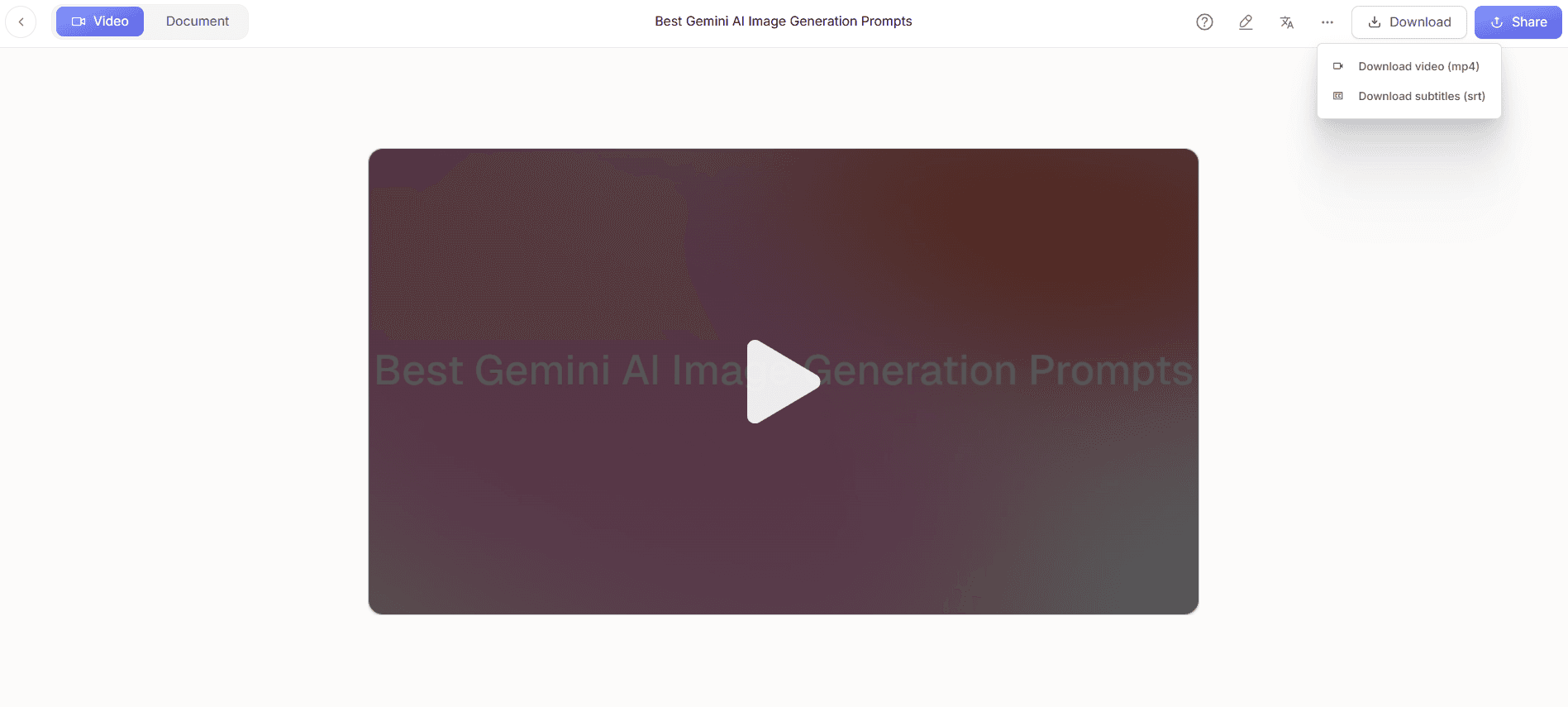
Once your tutorial is ready:
Generate a secure, shareable link.
Embed directly into your website or LMS.
Export as MP4, HTML, or PDF.
Enable SEO optimization for public tutorials.
The Shared Page link is what most teams use day-to-day. One branded URL hosts the video and the written walkthrough together. Visibility settings (public, organization-only, selected domains, invite-only) control who sees what. For tutorials that live inside an existing wiki or LMS, the embed code drops the player into Notion, Confluence, SharePoint, GitBook, or any platform that accepts iframe embeds. The MP4 and PDF downloads work for everywhere else. Both formats are real files: they work outside Trupeer if the team eventually decides to host the content somewhere else.
Where the tutorial builder fits next to Scribe, Tango, Loom, and Camtasia
The tutorial-creation space has a few rough clusters. Scribe and Tango capture clicks and produce step-by-step written tutorials automatically. They're fast and lightweight. The catch: they don't produce a matching video. So if the tutorial needs both a video and a written guide (which most teams want, because some learners watch and some skim), Scribe or Tango covers half the work. Trupeer and Guidde sit closer to each other: both produce video plus written guide from one recording. The differences come down to specific feature choices brand kit treatment, translation handling, the editor experience so it's worth trying both on the same workflow before committing.
A different cluster: Loom and Vidyard. These are screen recorders that don't auto-edit at all. So what you record is what you ship, ums and uhs included. Useful for quick internal share videos, less useful for polished tutorials that go in the help center or the LMS. Then there are the heavy-duty tools: Camtasia, Adobe Captivate, Articulate Storyline. These produce high-production-value tutorials when you put in the editing hours. The hours are real. Trupeer skips the editing phase by automating it. So the team without a dedicated video editor still ships polished tutorials. The team with a dedicated video editor still has Camtasia for the once-a-year homepage hero tutorial. Most teams that try Trupeer end up using it for the volume work and keeping Camtasia for the rare high-production-value projects.
What's actually free, and where the paid tier kicks in
The honest breakdown. Trupeer's free tier covers the core tutorial-making flow: record a screen walkthrough, generate the AI-edited video plus the written guide, share via a Shared Page link. No credit card to start. No 14-day trial timer counting down. The free version isn't a teaser; it's a working version of the product. The cap on free is recording length per individual tutorial and total monthly AI processing minutes, not a seat count that locks the team out when a fourth person joins.
Where paid kicks in: brand kits (logo, colors, intro and outro slides applied automatically across every tutorial), custom voice cloning for a consistent presenter voice across the tutorial library, AI avatars from the full catalog and via the HeyGen integration, translation across 65+ languages applied to both the video voiceover and the written guide in the same job, team workspaces with multiple seats and admin controls, longer recording limits per tutorial. None of these are required to make tutorials. They matter when the tutorial library scales past one person producing content, or when the tutorials need to ship in multiple languages for global customers. Most small teams stay on free indefinitely. The paid tier is there for when scale changes the math.
People also ask for
Free Screenshot Generator
Free SOP Generator
AI-Generated Documents
AI Video Translator
Free Online Course Creator
Benefits of Using Trupeer’s Tutorial Builder
AI-Powered Step Detection
Automatically extracts important actions from your video and organizes them into structured steps for better learning outcomes.
Engaging Visuals & Voiceovers
Add realistic voiceovers and interactive visuals to explain each step clearly, helping learners stay focused and engaged.
Fully Customizable Tutorials
Edit the tutorial’s content, visuals, and voiceovers to match your audience’s needs, your brand’s tone, and the learning context.
How to Build Interactive Tutorials with Trupeer
Step 1
Upload Your Video
Step 2
Generate & Customize
Step 3
Download & Share
Frequently Asked Questions
1. What is Trupeer’s Tutorial Builder?
Trupeer’s Tutorial Builder is an AI tutorial maker that helps you create professional step-by-step video tutorials. It records your process, adds AI narration, and formats everything into a cohesive, easy-to-follow guide perfect for onboarding, training, or product education.
2. Can I create tutorials for free with Trupeer?
Yes! Trupeer offers a free tutorial builder version where you can record short tutorials, add AI annotations, and share them instantly. For advanced features like longer recording time, branding, or AI voiceovers, you can upgrade to Trupeer Pro.
3. How does the AI in Trupeer’s Tutorial Builder work?
Trupeer’s AI tutorial generator analyzes your screen activity, identifies important actions, and automatically creates captions, highlights, and narration. It saves hours of editing time and ensures your tutorial flows logically from start to finish.
4. Can I use Trupeer to create SaaS or product tutorials?
Absolutely. Trupeer is ideal for SaaS teams, educators, and product marketers. The video tutorial creator supports web apps, desktop tools, and product workflows making it easy to produce onboarding or feature-explainer videos in minutes.
5. How can I share or publish tutorials made with Trupeer?
You can share tutorials directly via a link, embed them into websites or help centers, or export in multiple formats (MP4, PDF, HTML). Trupeer also offers SEO-optimized publishing, making your tutorials discoverable online for better engagement.
More Tools



