Как убрать «Открыт(а к работе» из LinkedIn
Узнайте, как всего за несколько кликов убрать рамку «Открыт(а к работе» из вашего профиля в LinkedIn. Пошаговая инструкция, чтобы быстро отключить ее на компьютере или мобильном устройстве
To remove the Open to Work feature on LinkedIn, navigate to your profile, locate the Open to Work section, and click the pencil icon to edit. Then, scroll down and select the Delete from profile or Delete option, which will remove the feature from your profile.
Here's a more detailed breakdown:
Go to your profile: Click on your profile picture in the top right corner of the LinkedIn homepage and select View profile.
Find the Open to Work section: This section is usually located below your profile photo and headline.
Edit the section: Click the pencil icon on the Open to Work box.
Delete the feature: Scroll down to the bottom of the edit page and click on Delete from profile or Delete.
Confirm the change: You might need to confirm your choice to remove the feature.
Verify: Check your profile to ensure the Open to Work section is no longer visible.
Step-by-Step-Guide: How to Remove Open to Work from LinkedIn
Step 1
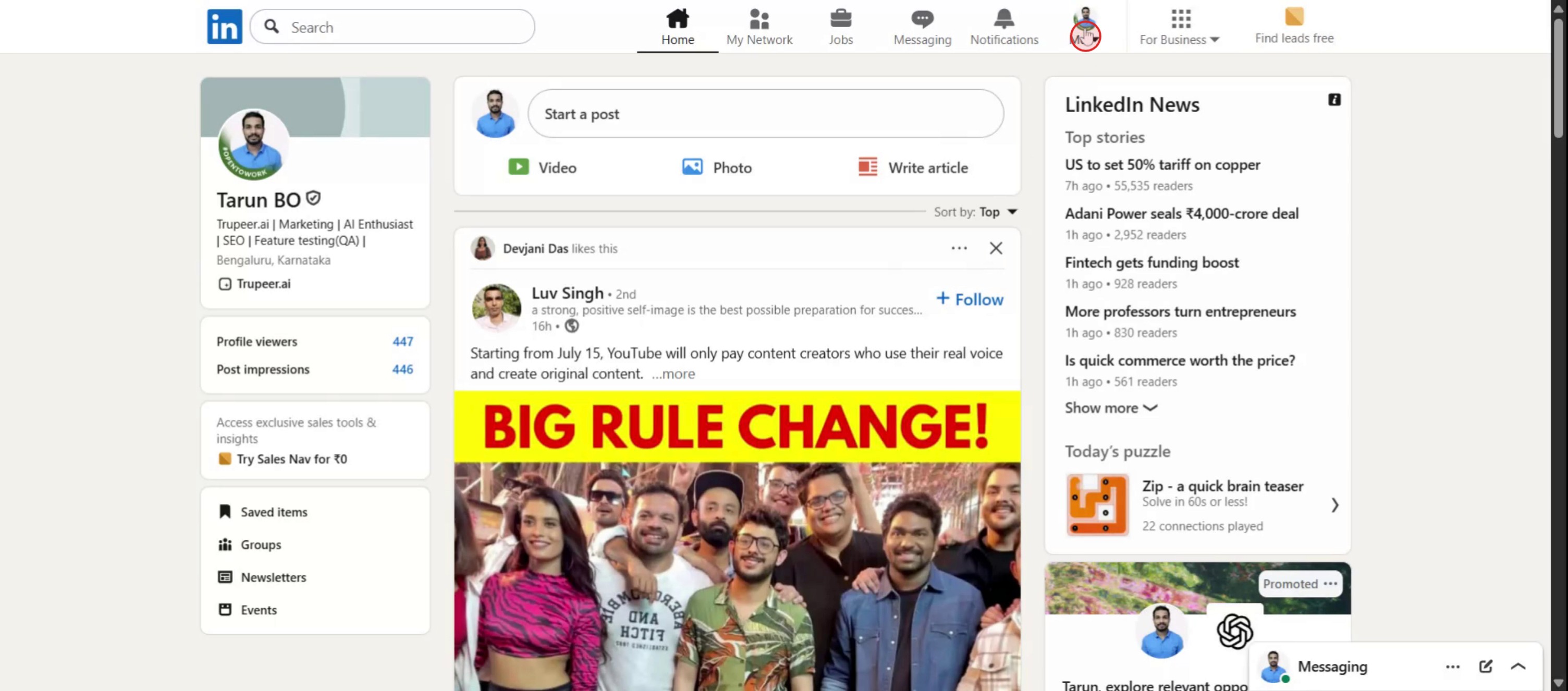
To begin, locate and click on the Me option on your LinkedIn homepage.
Step 2
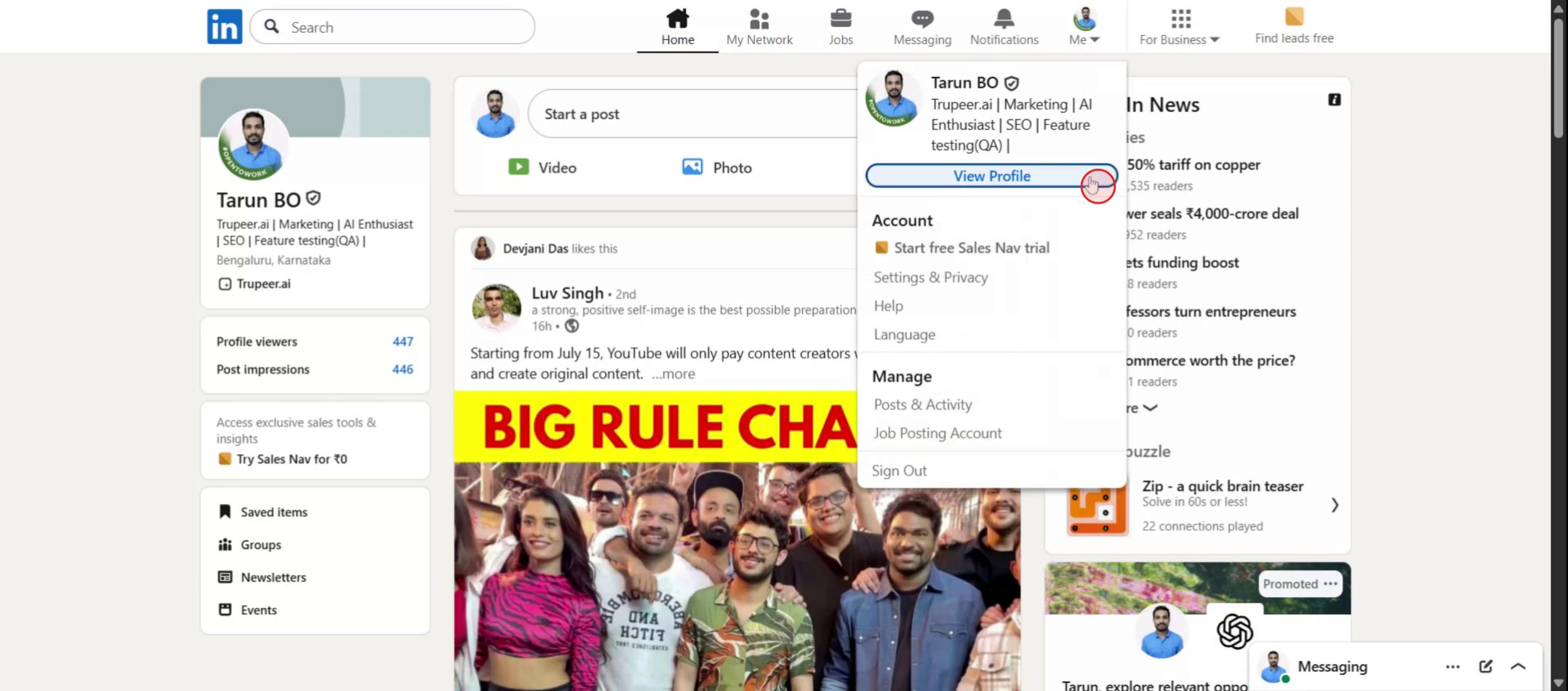
Next, select View Profile from the dropdown menu to proceed to your profile page.
Step 3
Click on the Edit button.

Step 4
Click on the Delete option to initiate the removal process.

Step 5
Finally, you will observe that the Open to Work feature has been successfully removed from your profile.
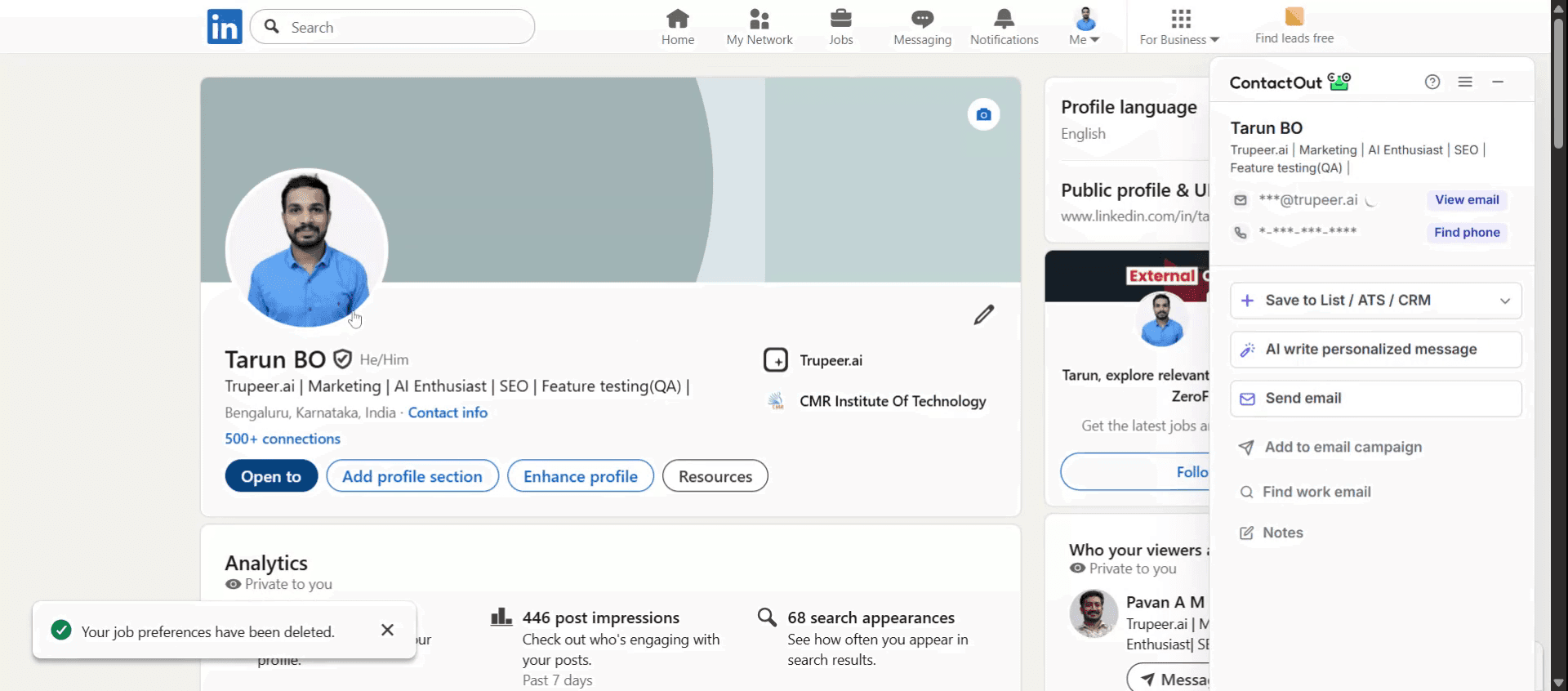
Pro Tips for Removing Open to Work from LinkedIn
Go to Your LinkedIn Profile
Open LinkedIn and click on your profile picture or name to go to your profile page.Find the 'Open to Work' Section
Scroll down your profile until you see the “Open to Work” box under your headline or in the “Intro” section.Click the Pencil Icon
On the “Open to Work” box, click the pencil (edit) icon to make changes to your job preferences.Select 'Delete from Profile'
In the pop-up window, scroll to the bottom and click the option that says “Delete from profile” or “Remove from profile.”Confirm the Removal
A confirmation prompt will appear. Click “Delete” or “Remove” to confirm and permanently remove the “Open to Work” label.Refresh Your Profile
Go back to your profile and refresh the page to confirm that the badge and preferences are no longer visible.
Common Pitfalls and How to Avoid Them
Can't Find the 'Open to Work' Option
Make sure you're viewing your own profile, not someone else’s. The option appears only on your profile when logged in.Changes Not Saving
If edits don't save, check your internet connection and try again. Make sure you're clicking the final “Save” or “Delete” button.Still Visible to Recruiters
Removing the badge from your profile doesn't always remove it from LinkedIn’s recruiter tools. You may need to edit preferences under “Job Preferences” in the Jobs tab.Mobile App Not Updating
If you're making changes on the mobile app and they don't reflect, try logging in through the desktop version.Removing Instead of Editing
If you only want to hide the badge but keep job preferences active, choose the option to only make it visible to recruiters.
Часто задаваемые вопросы об удалении Open to Work в LinkedIn
Как удалить бейдж Open to Work с моего профиля?
Перейдите в свой профиль, нажмите на значок карандаша в разделе Open to Work, затем выберите «Удалить из профиля».Могу ли я скрыть Open to Work для широкой аудитории, но оставить для рекрутеров?
Да: при редактировании раздела выберите видимость «Только рекрутерам» вместо «Всем участникам LinkedIn».Почему Open to Work все еще отображается после того, как я его удалил?
Обновите профиль или подождите несколько минут. Иногда изменения вступают в силу не сразу.Можно ли удалить Open to Work в приложении LinkedIn?
Да, но версия для компьютера дает больше контроля и надежнее для редактирования настроек видимости.Узнают ли рекрутеры, что я открыт(а) для работы, если я удалю бейдж?
Только если вы оставите активными настройки предпочтений по работе и выберете «Только рекрутерам» в параметрах видимости.Как сделать запись экрана на mac?
Чтобы сделать запись экрана на Mac, вы можете использовать Trupeer AI. Он позволяет записать весь экран и предоставляет возможности ИИ, например добавление AI-аватаров, добавление голосового сопровождения, добавление зума вперед и назад в видео. С функцией перевода видео Trupeer на основе ИИ вы можете перевести видео на 30+ языков.Как добавить AI-аватар в запись экрана?
Чтобы добавить AI-аватар в запись экрана, вам нужно использовать инструмент для записи экрана с ИИ. Trupeer AI — это инструмент для записи экрана на основе ИИ, который помогает создавать видео с несколькими аватарами, а также позволяет создать собственный аватар для видео.Как сделать запись экрана на windows?
Чтобы сделать запись экрана в Windows, вы можете использовать встроенную панель Game Bar (Windows + G) или расширенный AI-инструмент вроде Trupeer AI для более продвинутых функций, таких как AI-аватары, голосовое сопровождение, перевод и т. д.Как добавить голосовое сопровождение в видео?
Чтобы добавить голосовое сопровождение в видео, скачайте chrome-расширение trupeer ai. После регистрации загрузите видео с голосом, выберите нужный вариант голосового сопровождения в trupeer и экспортируйте отредактированное видео.Как увеличить масштаб в записи экрана?
Чтобы увеличить масштаб во время записи экрана, используйте эффекты зума в Trupeer AI — они позволяют приближать и отдалять в определенные моменты, усиливая визуальное впечатление от вашего видеоконтента.
Рекомендуем к прочтению
Technical Documentation Generator
Как поделиться профилем GitHub
Как отключить отображение просмотров профиля в LinkedIn
Как деактивировать аккаунт в LinkedIn
Как удалить Open to Work из LinkedIn
Похожие руководства