
How to Use Magic Eraser in Canva – Remove Objects in Seconds
Learn how to use Canva’s Magic Eraser tool to instantly remove unwanted objects, people, or backgrounds from photos with just a few clicks.
This guide provides detailed instructions on how to use the Picture Eraser tool in Canva, a powerful feature for editing and customizing images.
Follow these steps to effectively remove unwanted parts of your images with ease.
Canva’s Magic Eraser allows you to quickly remove unwanted objects from photos using AI. Follow these steps to use it effectively:
1. Open Your Image
Log into your Canva account.
Open an existing design or create a new one.
Upload the image you want to edit and click on it to select.
2. Access the Magic Eraser Tool
Click Edit Photo from the top toolbar.
Under the Effects tab, select Magic Eraser.
3. Brush Over the Object
Use the brush to paint over the object you want to erase.
You can adjust brush size with the slider to suit the object’s dimensions.
4. Click "Erase"
Once brushed, click Erase and Canva’s AI will remove the object from the photo.
5. Use Magic Edit (Optional)
After erasing, you can use Magic Edit to replace the erased space with something else.
Brush the area, describe what you want, and let Canva generate the new element.
6. Save Your Work
Once editing is complete, click Done, then Save to Canva to preserve your changes.
Step-by-Step Guide: How To Use Magic Eraser in Canva
Step 1
To begin using the Picture Eraser in Canva, select the image you wish to edit.
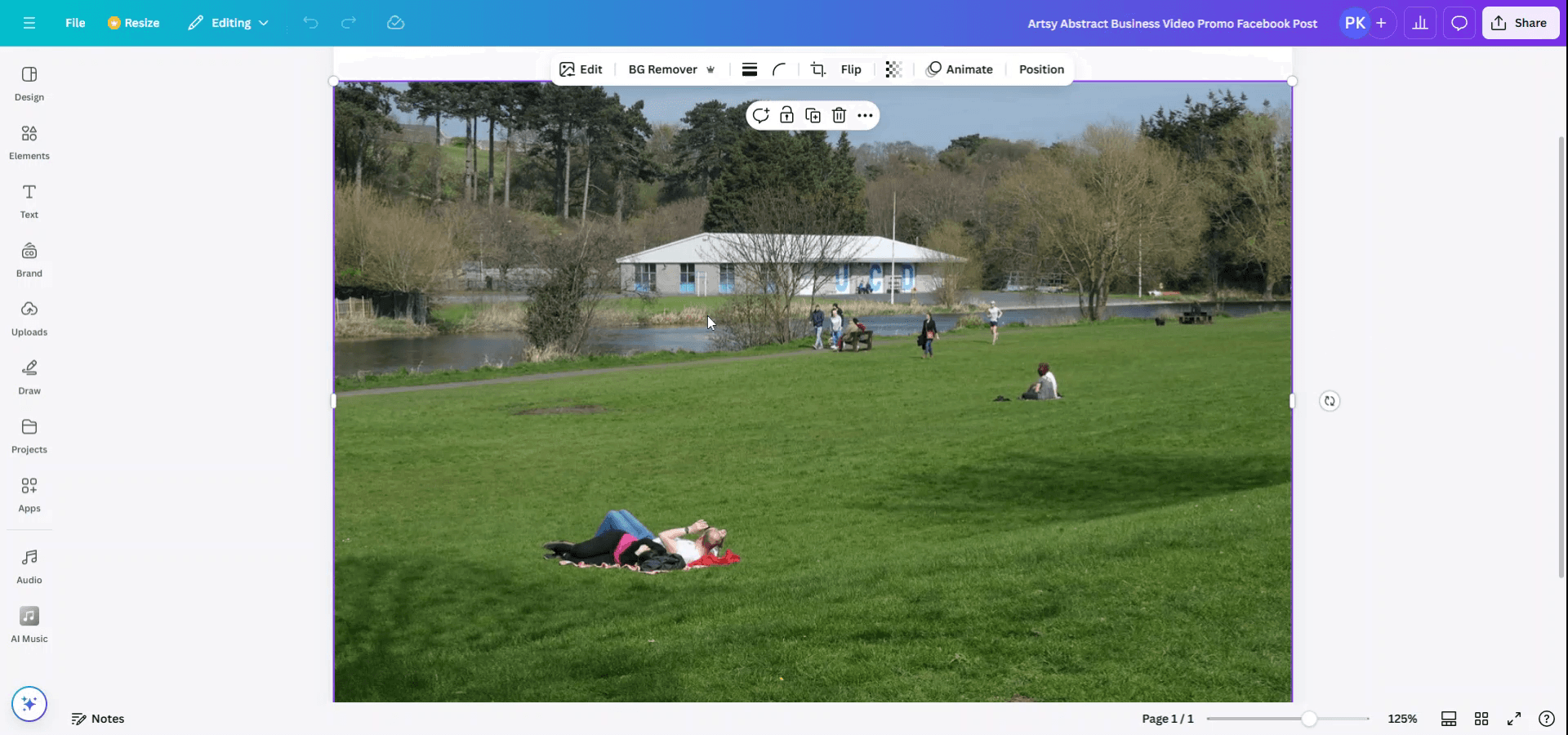
Step 2
Once the image is selected, a toolbar will appear. Click on the "Edit" option.
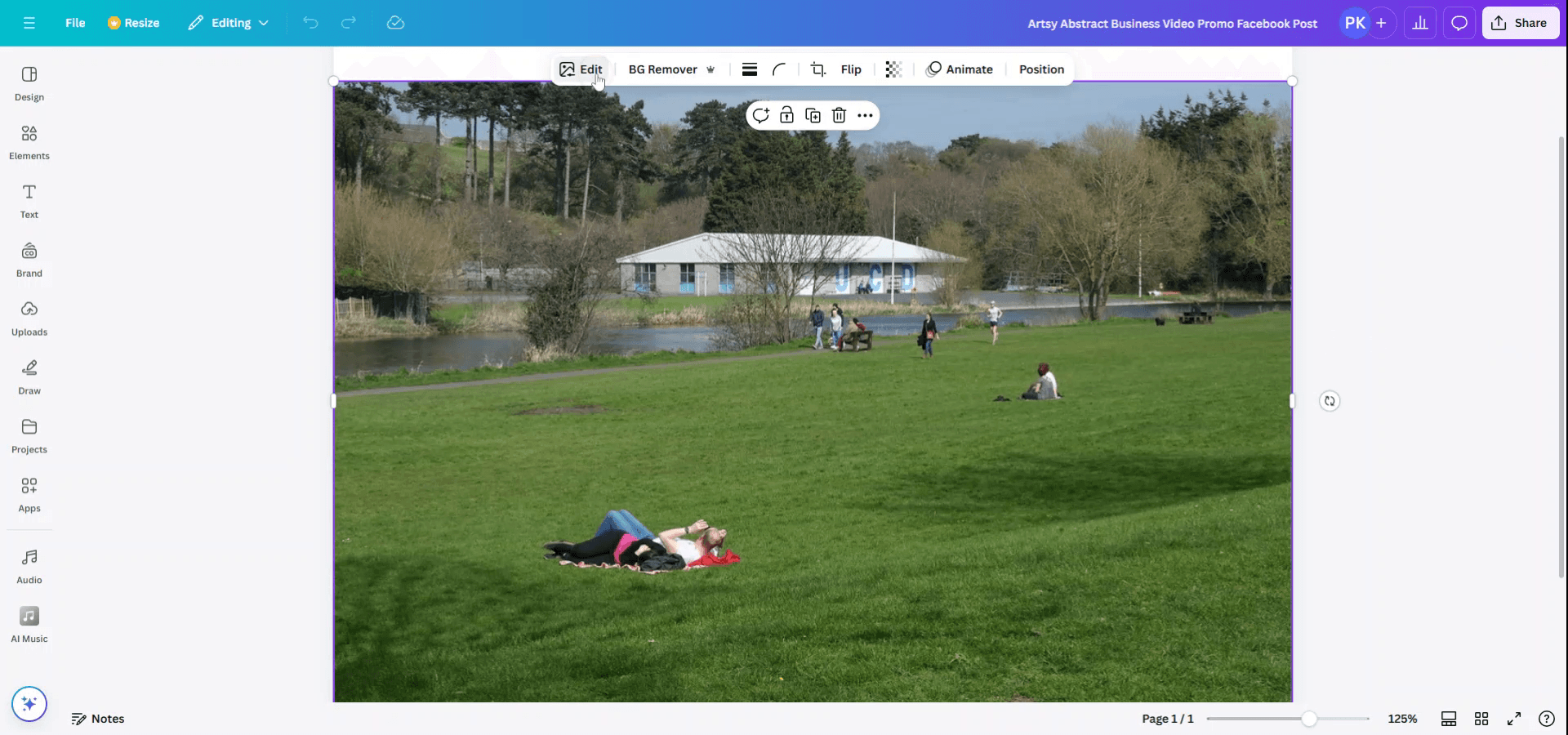
Step 3
Upon entering the editing mode, you will find various options for image modifications. Select the "Magic Eraser" tool from these options.
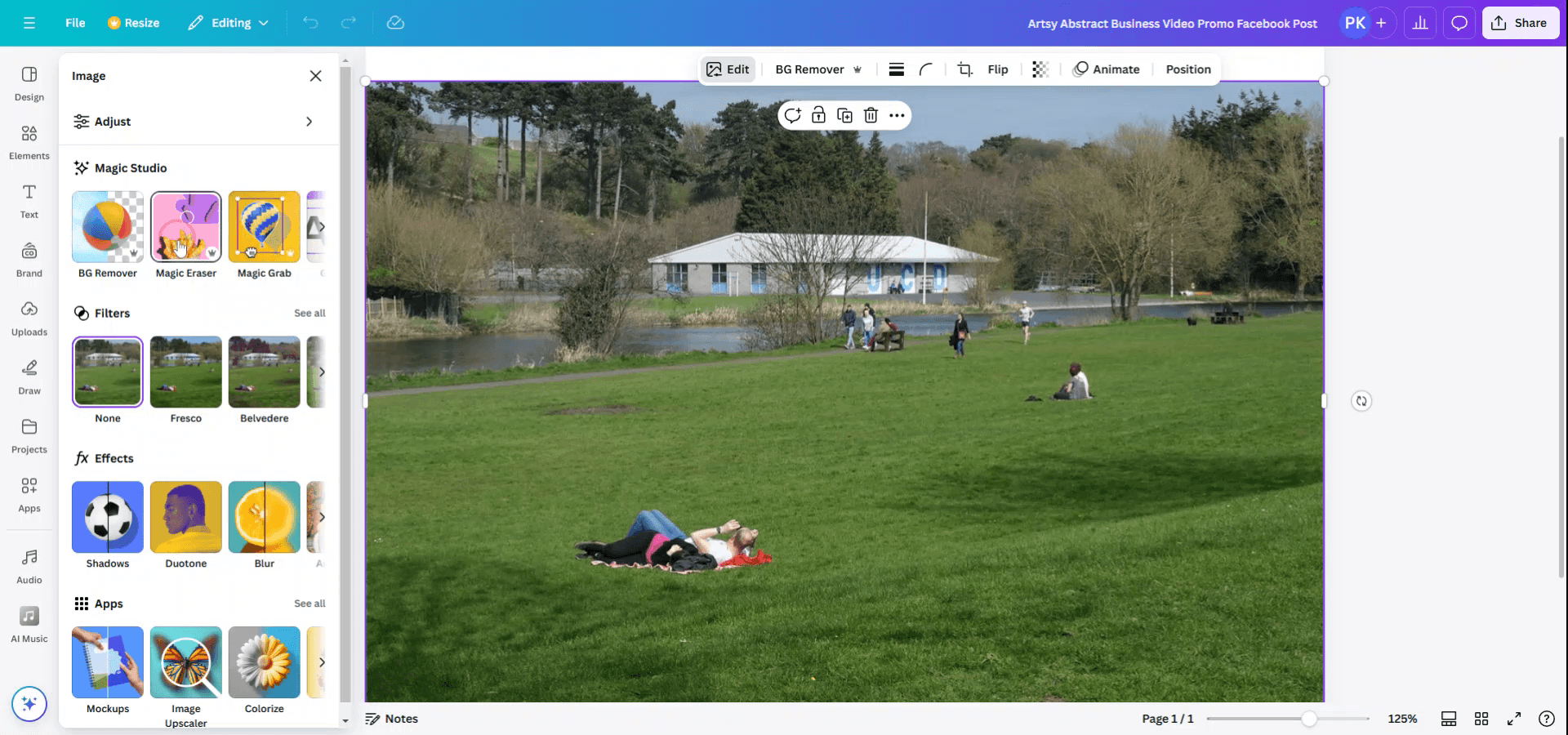
Step 4
Using the Magic Eraser tool, choose whether to select by brush or by click. In this instance, use the brush to highlight the portion of the image you want to remove, and then click on "Erase."
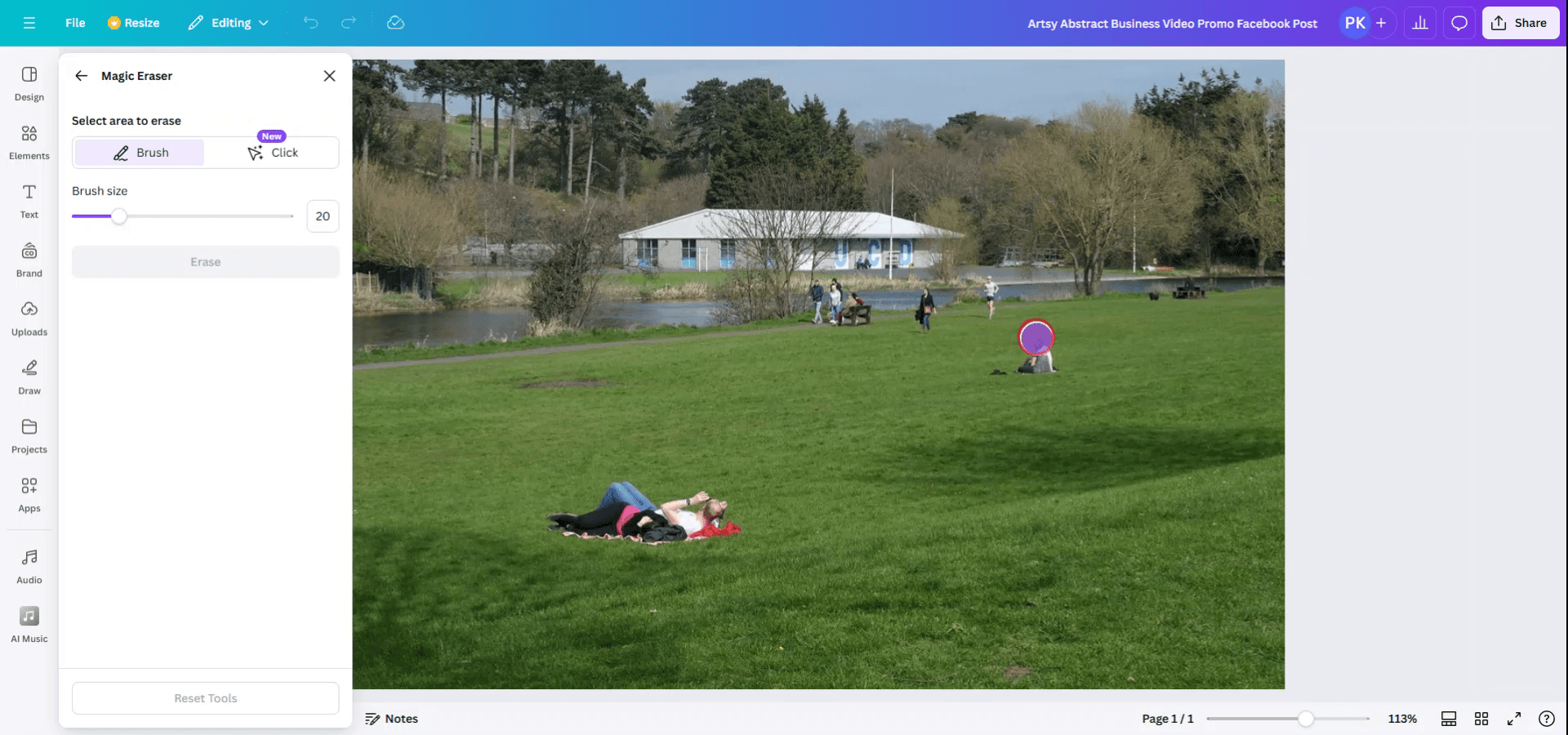
Step 5
And Voila! Your selection will be removed.
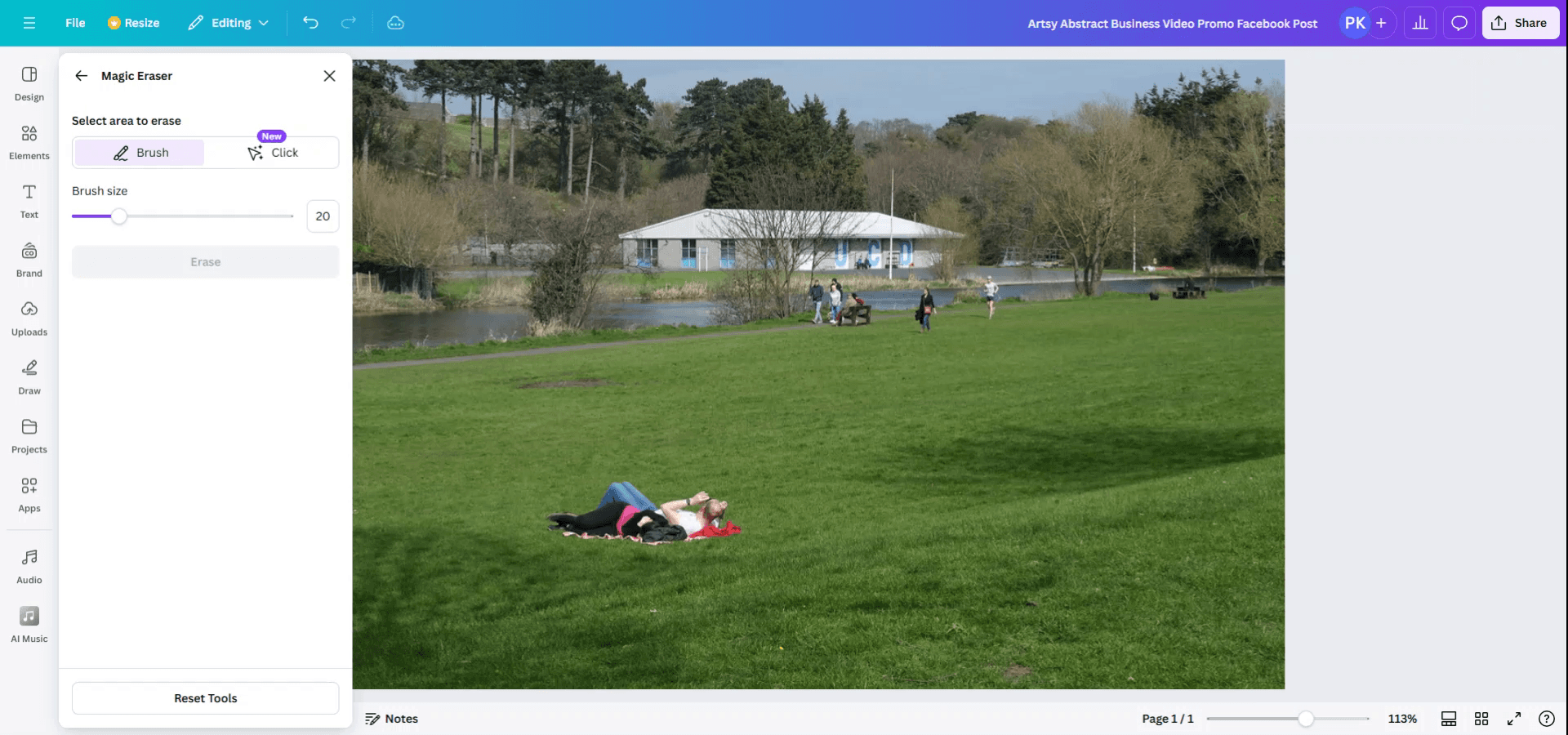
Pro tips for using magic eraser in Canva
Select the Image to Edit:
Click on the image you want to edit in your design.Click on "Edit Image":
After selecting the image, click on the "Edit image" option on the toolbar above your design.Choose the "Background Remover" Tool:
In the "Edit image" panel, scroll down and find the "Background Remover" tool. While this tool is primarily for removing backgrounds, it can also function similarly to an eraser to eliminate unwanted parts of an image.Use the Eraser Tool on the Image:
If you're trying to erase parts of the image selectively, use the "Erase" feature in the "Adjust" settings after removing the background. This allows you to erase specific areas from the image, effectively making them transparent.Adjust Eraser Size:
You can adjust the size of the eraser tool to be more precise by dragging the slider for size. This helps when working on detailed parts of the image.
Common pitfalls and how to avoid them using magic eraser in Canva
Erasing Unwanted Areas by Mistake:
Zoom in before erasing to have better control over what you are removing. You can undo any accidental erasures by pressingCtrl + Z(Windows) orCommand + Z(Mac).Image Quality Deteriorating After Erasing:
Avoid overusing the eraser on high-resolution images. If the image starts to lose clarity, consider using the tool in moderation or choose a different technique like cropping instead.Inaccurate Erasing:
Use a smaller eraser for precise areas, and adjust the transparency of the eraser tool to fine-tune the removal process. Also, use the "Restore" feature if you erase too much.No Clear Eraser Option:
If you don’t see the "Background Remover" or eraser tool, ensure you’re using a Canva Pro account, as some features are exclusive to Canva Pro users.Losing Part of the Design After Erasing:
Always make a duplicate of the image before using the eraser tool. This allows you to revert to the original if you need to.
Часто задаваемые вопросы об использовании Magic Eraser в Canva
Могу ли я стереть части изображения в Canva?
Да, вы можете стереть части изображения с помощью инструмента удаления фона и инструмента «Ластик». Однако эта функция доступна пользователям Canva Pro.Как отменить стирание в Canva?
Вы можете отменить стирание, нажавCtrl + Z(Windows) илиCommand + Z(Mac).Есть ли способ стереть определённые области, не затрагивая всё изображение?
Да, инструмент «Ластик» позволяет выборочно удалять части изображения. Вы можете настроить размер ластика для более точного контроля.Могу ли я использовать ластик, чтобы стереть фон изображения?
Да, инструмент удаления фона эффективно убирает фон, а инструмент «Ластик» можно использовать для более тонкой настройки или удаления частей изображения.Можно ли использовать ластик на бесплатном аккаунте Canva?
Инструменты «Ластик» и «Удаление фона» доступны пользователям Canva Pro. Пользователи с бесплатным аккаунтом могут использовать только ограниченные функции редактирования изображений.Как сделать запись экрана на mac?
Чтобы сделать запись экрана на Mac, вы можете использовать Trupeer AI. Он позволяет записывать весь экран и предоставляет возможности ИИ, такие как добавление AI-аватаров, добавление озвучки, добавление зума в видео и из него. С функцией перевода видео с помощью ИИ от trupeer вы можете перевести видео на 30+ языков.Как добавить AI-аватар в запись экрана?
Чтобы добавить AI-аватар в запись экрана, вам нужно использовать инструмент для записи экрана с ИИ. Trupeer AI — это инструмент для записи экрана с ИИ, который помогает создавать видео с несколькими аватарами, а также позволяет создать собственный аватар для видео.Как сделать запись экрана на windows?
Чтобы сделать запись экрана в Windows, вы можете использовать встроенную панель Game Bar (Windows + G) или расширенный инструмент ИИ, например Trupeer AI, для более продвинутых функций, таких как AI-аватары, озвучка, перевод и т. д.Как добавить озвучку в видео?
Чтобы добавить озвучку в видео, скачайте расширение trupeer ai для Chrome. После регистрации загрузите видео с голосом, выберите нужную озвучку в trupeer и экспортируйте отредактированное видео.Как увеличить масштаб в записи экрана?
Чтобы увеличить масштаб во время записи экрана, используйте эффекты зума в Trupeer AI — они позволяют приближать и отдалять в определённые моменты, усиливая визуальное впечатление от вашего видеоконтента.
Рекомендуем к прочтению
Генератор технической документации
Как разблокировать страницу в Canva
Как превратить изображение в раскраску в Canva
Похожие руководства



