Как закруглить углы в Canva
Узнайте, как закруглить углы в Canva с помощью элементов управления радиусом углов, рамок и настроек границы, чтобы создавать плавные изображения и формы. Следуйте этому короткому руководству и создавайте направляющие с Trupeer.
To round corners of elements in Canva, select the element (image, shape, etc.), click on "Border style" in the toolbar, and then use the "Corner rounding" slider or input field to adjust the radius of the rounded corners
Here's a more detailed breakdown:
Select the element: Click on the image, shape, or other element you want to modify.
Open Border style: In the toolbar above the editor, click on "Border style".
Adjust corner rounding: Use the "Corner rounding" slider to increase or decrease the roundness of the corners. You can also directly enter a numerical value in the input field next to the slider.
(Optional) Add a border: If you want a visible border around the element, you can also adjust the border weight and color using the other options in the "Border style" panel.
Step-by-Step-Guide: How to Round Corners in Canva
Step 1
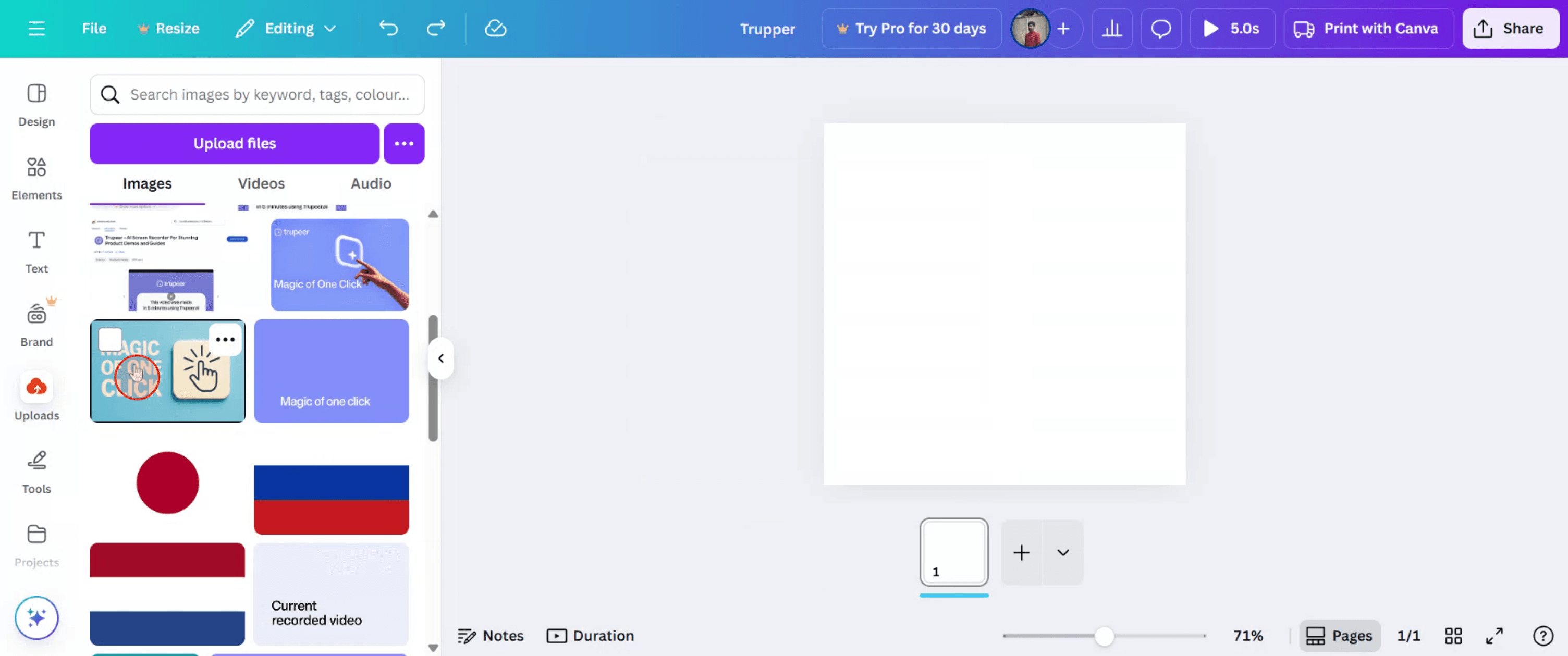
Start by navigating to the Upload section in Canva and clicking on it.

Step 2
Select an image from the Upload section.
Step 3
Once the image is selected, locate and click the "Round Corners" option.
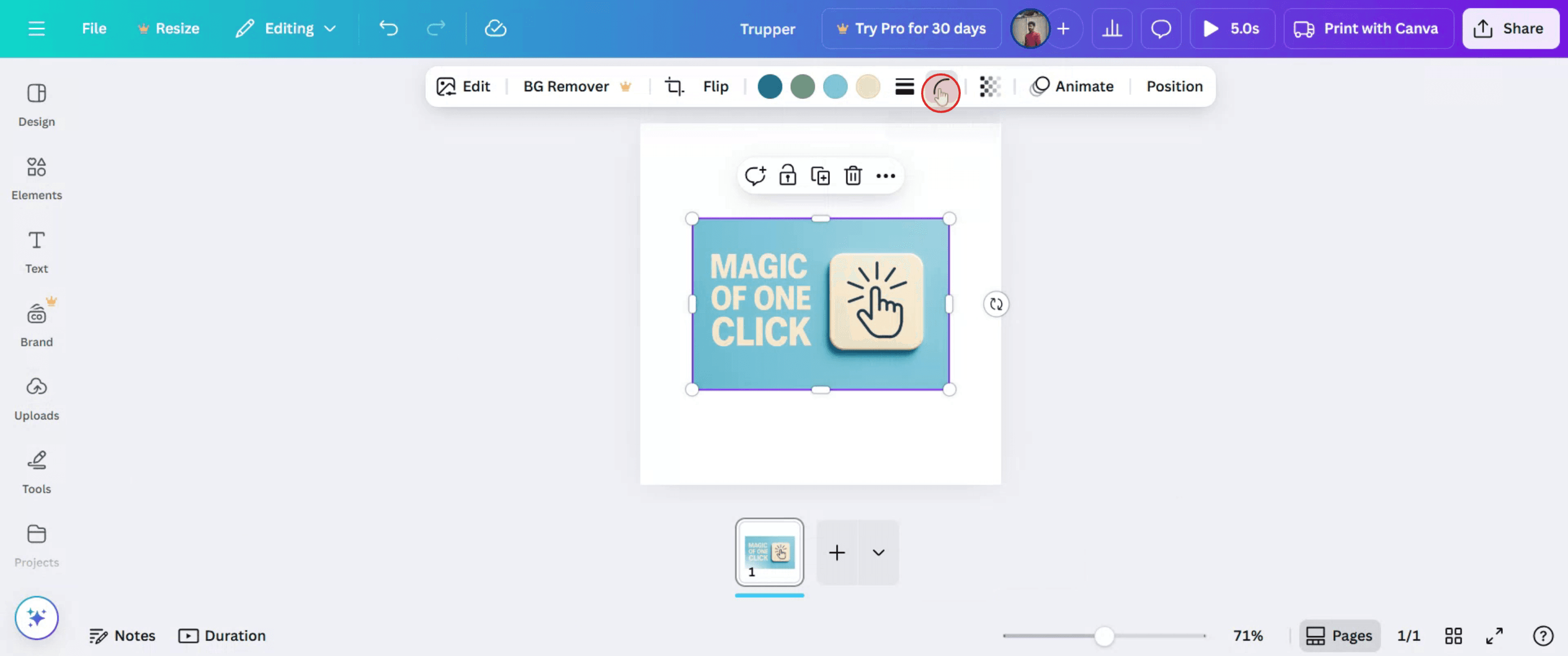
Step 4
Adjust the degree of rounding to achieve the desired corner curvature for your image.
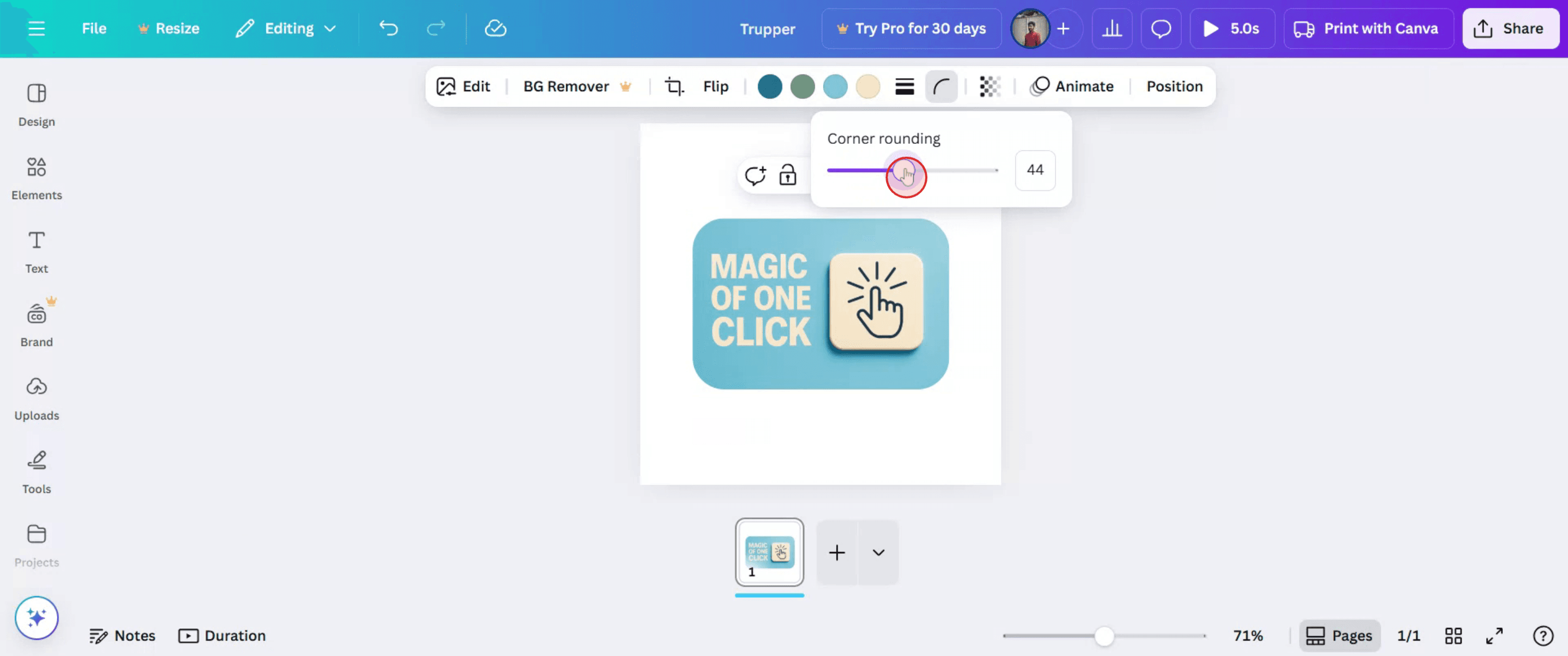
Step 5
Once satisfied with the rounded corners, click on the "Share" button to distribute the image to others.

Pro Tips for Rounding Corners in Canva
Open Your Design in Canva
Log in and open the design where you want to round the corners of an element.Select the Image or Shape
Click on the image, shape, or element you want to edit.Click on ‘Edit Image’ for Photos
If you're editing a photo, select the image and then click the “Edit Image” option from the top toolbar.Apply a Frame to Round Photo Corners
Use the Elements tab and search for a rounded frame. Drag the image into the frame to make the corners rounded.Use the Border Radius Slider for Shapes
For certain shapes, Canva allows you to adjust the corner radius directly using the corner rounding handles or sliders in the toolbar.Resize and Reposition as Needed
After rounding the corners, adjust the size and placement to fit your overall design.
Common Pitfalls and How to Avoid Them
Trying to Round Corners of Unsupported Elements
Not all elements support corner rounding. Try using frames or shapes that allow radius adjustments.Using Frames That Distort the Image
Some rounded frames may stretch or crop your image. Choose a frame that matches your layout size and proportions.Corners Not Appearing Rounded After Download
If corners look sharp in the downloaded file, make sure the effect was properly applied and use PNG format for better visual accuracy.Dragging Images into Frames Incorrectly
Make sure the image snaps into the frame. If it doesn’t, it will not inherit the rounded corners.No Option for Rounding Text Boxes
Text boxes can’t be rounded directly. Use a rounded shape behind the text for a similar effect.
Часто задаваемые вопросы о скруглении углов в Canva
Как скруглить углы изображения в Canva
Используйте скругленную рамку во вкладке Elements и перетащите в нее свое изображение.Можно ли скруглить углы фигуры
Да, для некоторых фигур можно использовать маркеры радиуса границы, чтобы скруглить углы.Есть ли в Canva прямой инструмент для скругления углов
Только некоторые элементы имеют эту функцию. Рамки и фигуры предлагают максимум возможностей.Можно ли скруглить углы текстового поля
Нет, но вы можете разместить текст поверх фигуры с закругленным прямоугольником для похожего эффекта.Доступна ли функция скругления углов для бесплатных пользователей
Да, вы можете использовать рамки и инструменты для углов, доступные в бесплатной версии.Как сделать запись экрана на mac?
Чтобы сделать запись экрана на Mac, вы можете использовать Trupeer AI. Он позволяет записать весь экран и предоставляет возможности ИИ, такие как добавление AI-аватаров, добавление голосового сопровождения, а также масштабирование (приближение и отдаление) в видео. С функцией AI-перевода видео от trupeer вы можете перевести видео на 30+ языков.Как добавить AI-аватар в запись экрана?
Чтобы добавить AI-аватар в запись экрана, вам нужно использовать инструмент для записи экрана с ИИ. Trupeer AI — это инструмент для записи экрана с ИИ, который помогает создавать видео с несколькими аватарами, а также помогает создать собственный аватар для видео.Как сделать запись экрана на windows?
Чтобы сделать запись экрана в Windows, вы можете использовать встроенную панель Game Bar (Windows + G) или расширенный AI-инструмент, например Trupeer AI, для более продвинутых функций, таких как AI-аватары, голосовое сопровождение, перевод и т. д.Как добавить голосовое сопровождение в видео?
Чтобы добавить голосовое сопровождение в видео, скачайте chrome-расширение trupeer ai. После регистрации загрузите свое видео с голосом, выберите нужный вариант голосового сопровождения в trupeer и экспортируйте отредактированное видео.Как увеличить масштаб при записи экрана?
Чтобы увеличить масштаб во время записи экрана, используйте эффекты масштабирования в Trupeer AI — они позволяют приближать и отдалять в определенные моменты, усиливая визуальное впечатление от вашего видеоконтента.
Рекомендуем к прочтению
Генератор технической документации
Как распечатать двусторонний документ в Canva
Похожие руководства