

Как процитировать сообщение в Slack
Узнайте, как цитировать сообщения в Slack, чтобы улучшить ясность и контекст во время общения. Краткое руководство по цитированию с помощью блочных цитат и параметров форматирования.
Here's a more detailed breakdown:
Copy the message: Highlight the text you want to quote and copy it (Ctrl+C on Windows or Cmd+C on Mac).
Start a new line: In the Slack message field, press Shift + Enter to create a new line without sending the message.
Add the quote indicator: Type a ">" (greater-than symbol).
Paste the message: Paste the copied text after the ">" symbol.
Send the message: Press Enter to send the message with the quote.
Step-by-Step Guide: How to Quote in Slack
Step 1
Click on the three dots next to the message.

Step 2
From the menu that appears, select the "Copy Link" option.
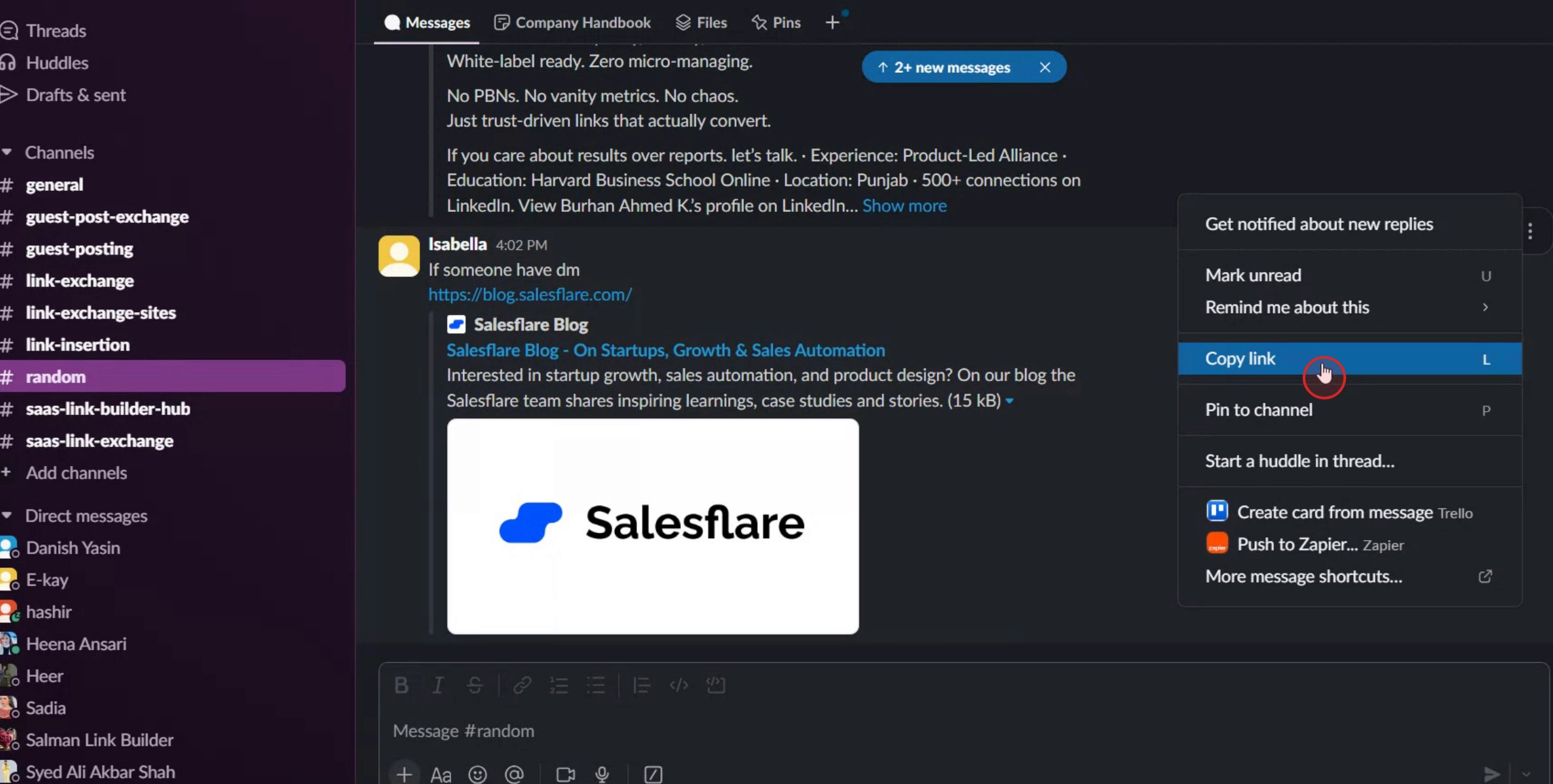
Step 3
Paste the link into the message field and ensure it is directed to the desired recipient.
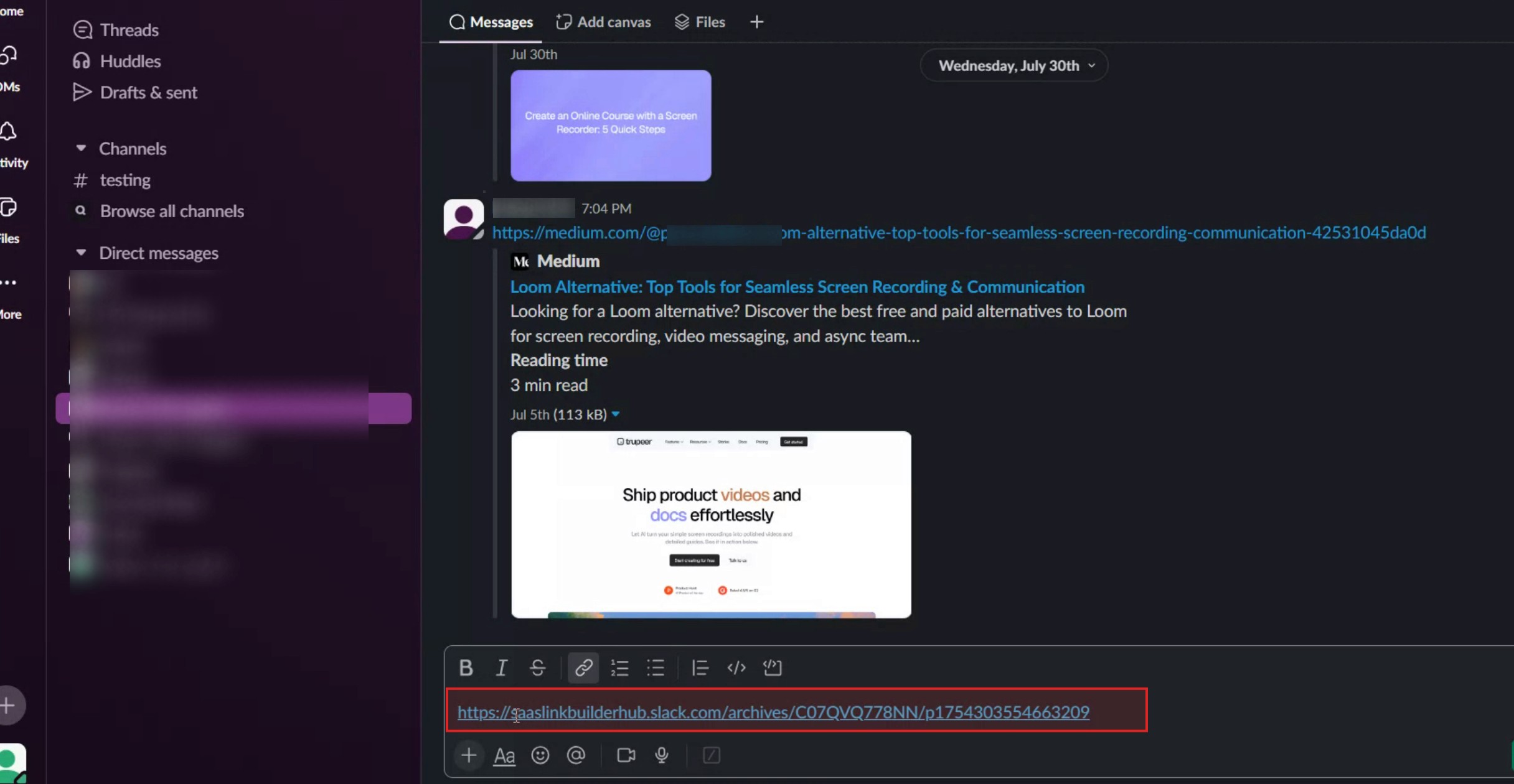
Step 4
Then click on the send option.
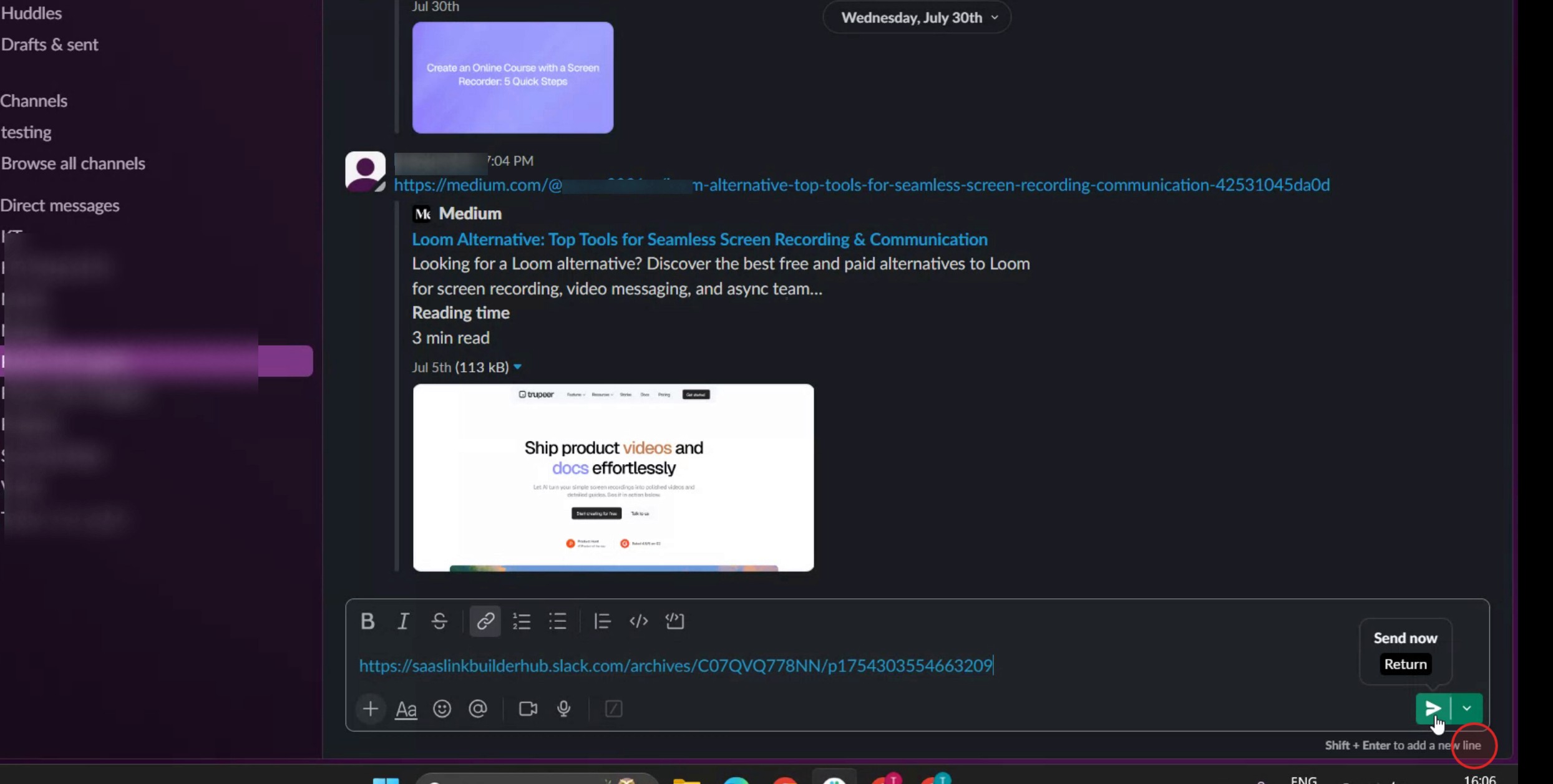
Полезные советы по цитированию сообщений в Slack
Используйте формат блочной цитаты
Чтобы процитировать сообщение напрямую, введите знак «больше» (>), затем пробел и текст сообщения, которое вы хотите процитировать. Например:Используйте Shift + Enter для нескольких строк
Если вы хотите процитировать несколько строк в одном блоке, нажимайте Shift + Enter после каждой строки вместо Enter. Так вся ваша цитата останется в одном блоке, не отправляя сообщение преждевременно.Объединяйте цитаты с ответами
Отвечая кому-то в ветке или канале, вы можете процитировать часть его сообщения с помощью формата блочной цитаты, а затем ответить ниже. Это добавляет контекст к вашему ответу и делает общение более понятным.Цитируйте конкретные сообщения с помощью копирования и вставки
Выделите сообщение, которое хотите процитировать, скопируйте его, а затем вставьте в свое сообщение, предварив символом «больше» и пробелом. Этот способ особенно удобен для цитирования сообщений, которые находятся выше по ходу разговора.Используйте приложения или интеграции для расширенного цитирования
Некоторые интеграции Slack, например Slack Threads или боты сторонних разработчиков, позволяют создавать расширенные системы цитирования или ссылок. Изучите Slack App Directory, чтобы найти инструменты, которые расширяют возможности цитирования.
Частые ошибки и как их избежать
Забыли пробел после «>»
Если не поставить пробел после знака «больше», Slack не распознает формат цитаты. Всегда вводите "> " вместо просто ">".Цитируете слишком много текста
Длинные цитаты загромождают разговор. Цитируйте только нужную часть, чтобы обсуждение оставалось читаемым и сфокусированным.Не используете ветки, когда это необходимо
Цитирование в публичном канале вместо ветки может вызвать путаницу. Используйте ветки, чтобы цитировать и отвечать в контексте, когда разговор уже организован в ветки.Смешиваете обычный текст с цитатами
Если вы забудете отделить цитату от сообщения, все может выглядеть как единый блок. Добавьте перенос строки между цитатой и вашим ответом.Используете цитаты для конфиденциальной информации
Цитирование сообщений с чувствительными или приватными данными может привести к случайным раскрытиям. Всегда перепроверяйте перед тем, как цитировать контент в общих каналах.
Common FAQs About Quoting in Slack
Can I quote a message automatically in Slack?
Slack doesn’t have a built-in “quote” button, but you can use the blockquote format (> followed by space) to manually quote messages.Can I quote in Slack mobile app?
Yes, the same formatting (using > and a space) works in the mobile app. Just type it directly into the message field.How do I quote multiple lines?
Use Shift + Enter to add line breaks within the same quote block before sending the message.Can I use code block instead of quote for messages?
Yes, but code blocks are better for technical content. For regular quoting, use the blockquote format to distinguish clearly.Does Slack notify users when I quote them?
No, quoting someone’s message does not trigger a notification unless you mention them using @username.How to screen record on mac?
To screen record on a Mac, you can use Trupeer AI. It allows you to capture the entire screen and provides AI capabilities such as adding AI avatars, add voiceover, add zoom in and out in the video. With trupeer’s AI video translation feature, you can translate the video into 30+ languages.How to add an AI avatar to screen recording?
To add an AI avatar to a screen recording, you'll need to use an AI screen recording tool. Trupeer AI is an AI screen recording tool, which helps you create videos with multiple avatars, also helps you in creating your own avatar for the video.How to screen record on windows?
To screen record on Windows, you can use the built-in Game Bar (Windows + G) or advanced AI tool like Trupeer AI for more advanced features such as AI avatars, voiceover, translation etc.How to add voiceover to video?
To add voiceover to videos, download trupeer ai chrome extension. Once signed up, upload your video with voice, choose the desired voiceover from trupeer and export your edited video.How do I Zoom in on a screen recording?
To zoom in during a screen recording, use the zoom effects in Trupeer AI which allows you to zoom in and out at specific moments, enhancing the visual impact of your video content.
Suggested Reads
Technical Documentation Generator
How to Turn an Image into a Coloring Page in Canva
How to Print Double Sided on Canva
Похожие руководства



