
How to Ping Someone on Teams
Learn how to ping someone on Microsoft Teams using mentions, tags, and notifications. This guide explains how to grab someone’s attention in chats and channels.
Here's a step-by-step guide:
Open the chat or channel: Navigate to the specific chat or channel within Microsoft Teams where you want to get someone's attention.
Type the "@" symbol: In the message box, type the "@" symbol.
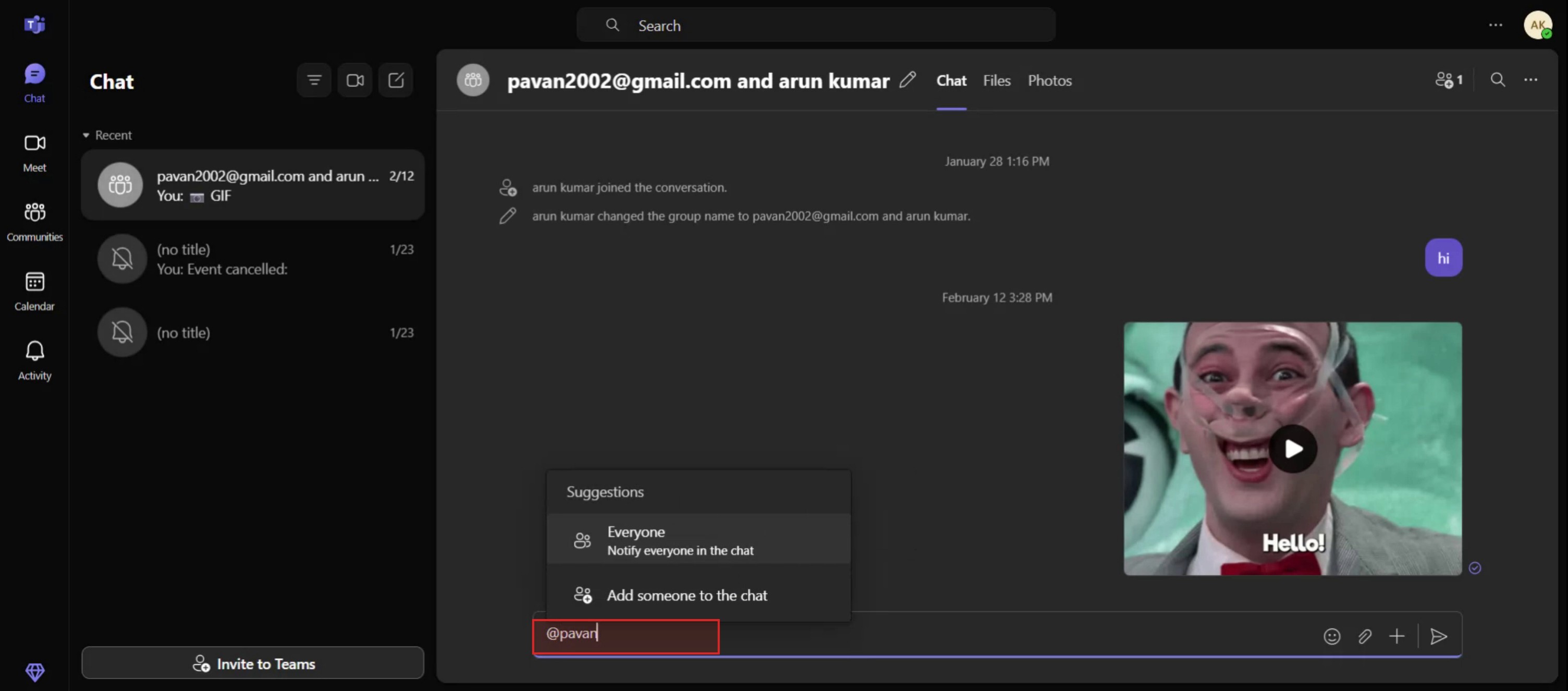
Start typing their name: Begin typing the name of the person you want to ping. Teams will suggest matching names from your contacts or the channel members.
Select the person: Choose the correct person from the suggested list.
Type your message: Add your message to the person, making it clear why you're pinging them.
Send the message: Click the send button to deliver your message and notify the person.
Step-by-Step Guide: How to Ping Someone on Teams
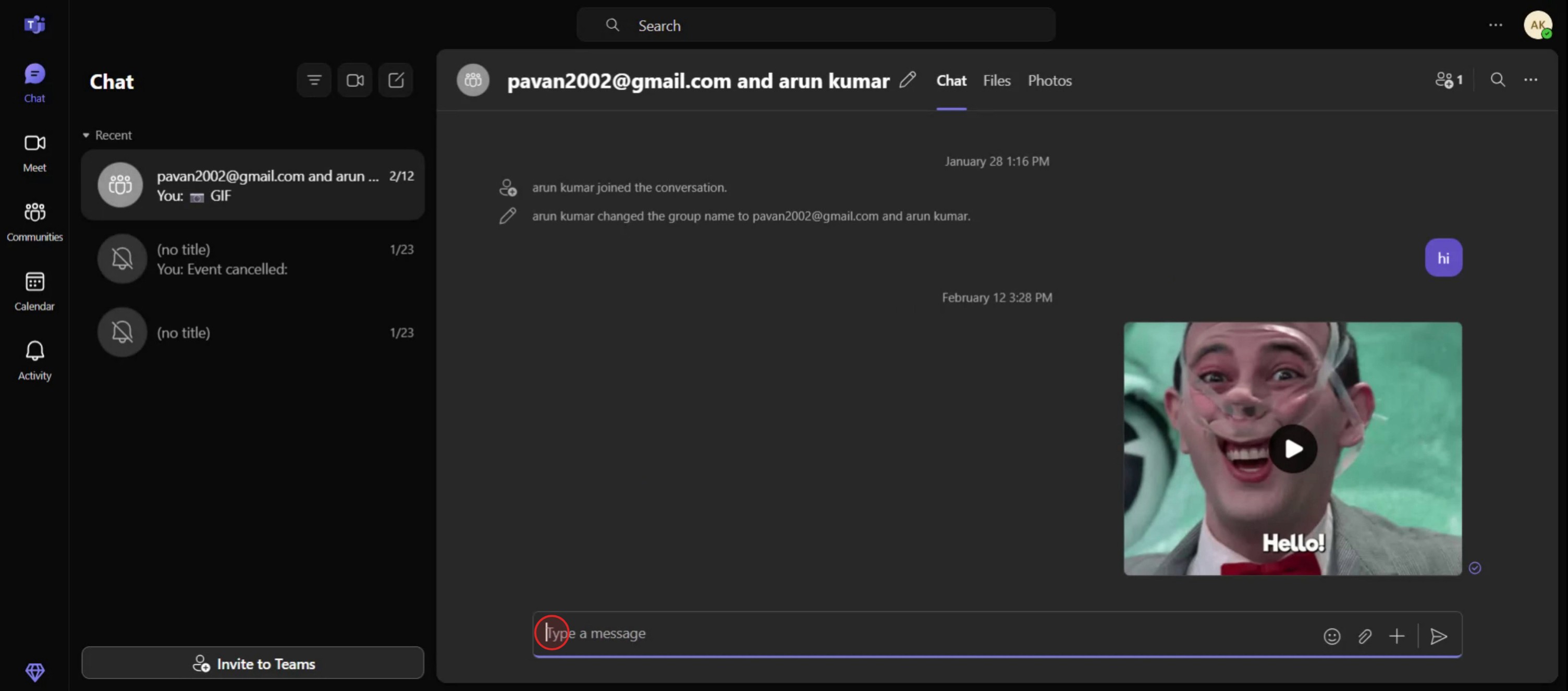
Step 1
In the message you can start by typing At the rate(@).
Step 2
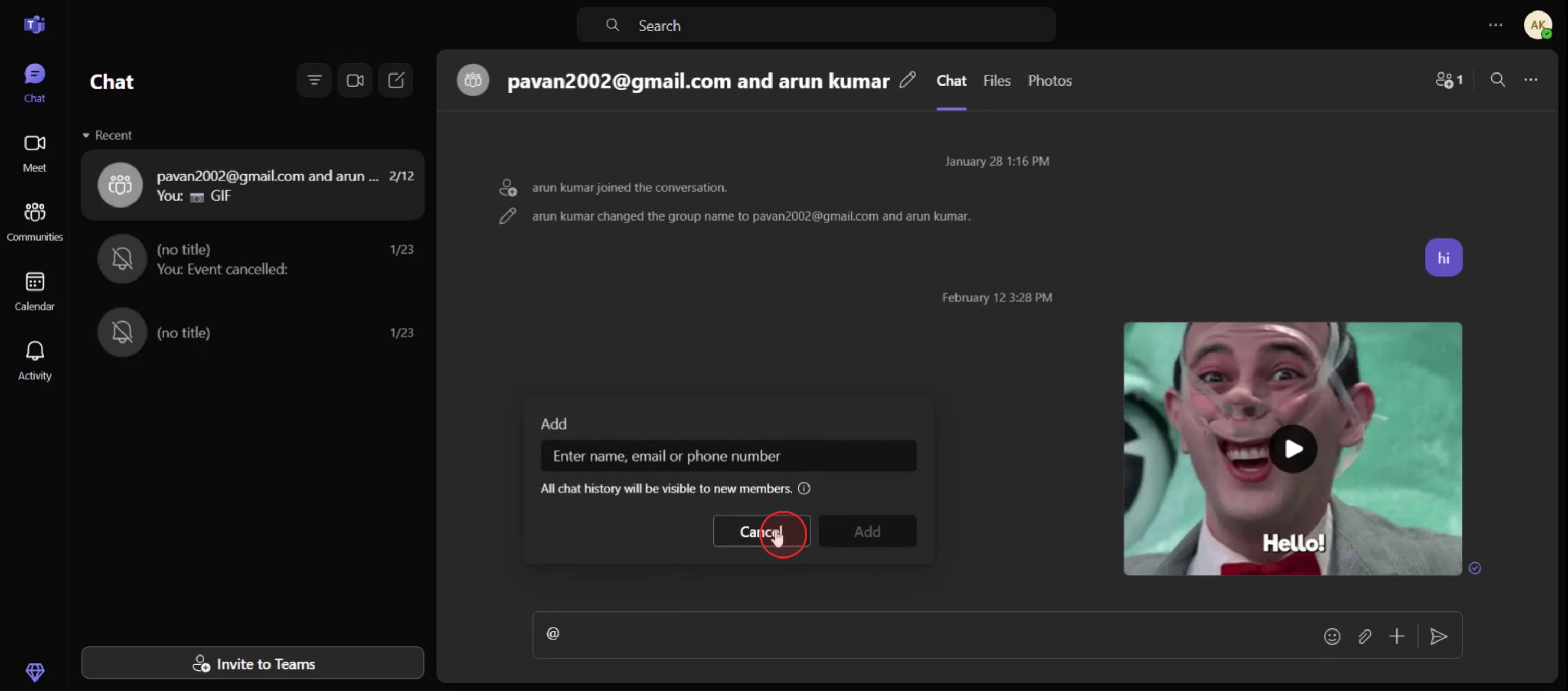
In the chat, you have the option to enter additional contact information, such as a phone number or email ID.
Step 3
Also you can easily enter the person the name,
Pro Tips for Pinging Someone in Microsoft Teams
Use @Mentions to Grab Attention
To ping someone directly, type “@” followed by their name in a chat, channel, or comment. For example, “@John Doe” will notify that person. Make sure the name turns into a clickable blue mention before sending.Ping Entire Teams or Channels
You can also ping a whole team or channel by using “@team” or “@channel” depending on your organization's settings. This is useful when you need everyone’s attention quickly.Use Specific Tags for Groups
If your admin has set up custom tags like “@DesignTeam” or “@Managers,” use those to ping relevant groups instead of individuals. This keeps communication targeted and efficient.Ping in Threads to Maintain Context
When in a channel, it’s better to ping someone within a thread rather than starting a new message. This keeps the conversation organized and context clear.Use Reactions and Follow-Up Messages
If you’ve pinged someone and haven’t received a response, you can add a reaction to their last message or follow up with a brief nudge like “Just checking in on this, @Name.”
Common Pitfalls and How to Avoid Them
Typing Names Without @
Typing someone’s name without the “@” won’t notify them. Always use the @ symbol to trigger a notification.Overusing Group Pings
Pinging entire teams too often can cause notification fatigue. Use group mentions only when necessary.Not Checking User Access
If you ping someone in a private channel they’re not part of, they won’t see it. Make sure the person has access to the channel before mentioning them.Multiple Pings Without Response
Repeatedly pinging someone can seem pushy. Give some time before following up again.Assuming the Ping Was Seen
Not everyone checks Teams instantly. If the matter is urgent, consider escalating through a call or email.
Часто задаваемые вопросы о пингах в Teams
Отправляет ли использование @упоминания письмо?
В зависимости от настроек уведомлений получателя Teams может отправить письмо, если сообщение не будет просмотрено в течение определенного времени.Могу ли я пинговать человека в личном чате и в команде одновременно?
Нет, каждый пинг остается в рамках конкретного диалога. Если нужно, вам придется написать отдельно.Увидит ли кто-то мой пинг, если он офлайн?
Да, они получат уведомление, когда снова будут в сети, в зависимости от своих настроек.Можно ли пинговать человека в мобильном приложении Teams?
Да, @упоминания работают на мобильных устройствах так же, как и на компьютере.Могу ли я пинговать кого-то анонимно?
Нет, Teams всегда показывает, кто отправил пинг. Все сообщения и упоминания можно отследить до отправителя.Как сделать запись экрана на mac?
Чтобы сделать запись экрана на Mac, вы можете использовать Trupeer AI. Он позволяет записать весь экран и предоставляет возможности ИИ, такие как добавление AI-аватаров, добавление закадрового голоса, добавление зума (приближение и отдаление) в видео. С функцией AI-перевода видео от trupeer вы можете перевести видео на 30+ языков.Как добавить AI-аватар в запись экрана?
Чтобы добавить AI-аватар в запись экрана, вам нужно использовать инструмент для записи экрана с ИИ. Trupeer AI — это инструмент для записи экрана с ИИ, который помогает создавать видео с несколькими аватарами, а также позволяет создать собственный аватар для видео.Как сделать запись экрана на windows?
Чтобы сделать запись экрана в Windows, вы можете использовать встроенную панель Game Bar (Windows + G) или расширенный инструмент ИИ, например Trupeer AI, для более продвинутых функций, таких как AI-аватары, закадровый голос, перевод и т. д.Как добавить закадровый голос в видео?
Чтобы добавить закадровый голос в видео, скачайте chrome-расширение trupeer ai. После регистрации загрузите видео с голосом, выберите нужный закадровый голос в trupeer и экспортируйте отредактированное видео.Как увеличить масштаб в записи экрана?
Чтобы увеличить масштаб во время записи экрана, используйте эффекты зума в Trupeer AI — они позволяют приближать и отдалять в определенные моменты, усиливая визуальное воздействие вашего видеоконтента.
Рекомендуем к прочтению
Генератор технической документации
Как превратить изображение в раскраску в Canva
Как печатать с двух сторон в Canva
Похожие руководства