
Как вставлять фигуры в Canva — быстрые советы по дизайну
Узнайте, как добавлять и настраивать фигуры в Canva, чтобы улучшить дизайн. Простые шаги для вставки кругов, квадратов, стрелок и многого другого.
This document provides a detailed walkthrough on inserting and customizing shapes within the GIMP application.
The process includes selecting, customizing and manipulating shapes to fit your design needs effectively.
Adding shapes in Canva is simple and helps enhance your design layout. Here's how to do it:
Step-by-Step Guide:
Open Your Design:
Start a new design or open an existing one in Canva.
Go to the “Elements” Tab:
Located on the left-hand toolbar, click Elements.
Select “Lines & Shapes”:
Scroll to the Lines & Shapes section, or type a specific shape (e.g., "circle", "arrow", "heart") into the search bar.
Insert the Shape:
Click on the shape you want to use. It will appear on your canvas.
Customize the Shape:
You can:
Resize by dragging the corners.
Rotate using the rotation handle.
Change color, border thickness, transparency, and layering using the top toolbar.
Step-by-Step Guide: How To Insert Shapes in Canva
Step 1
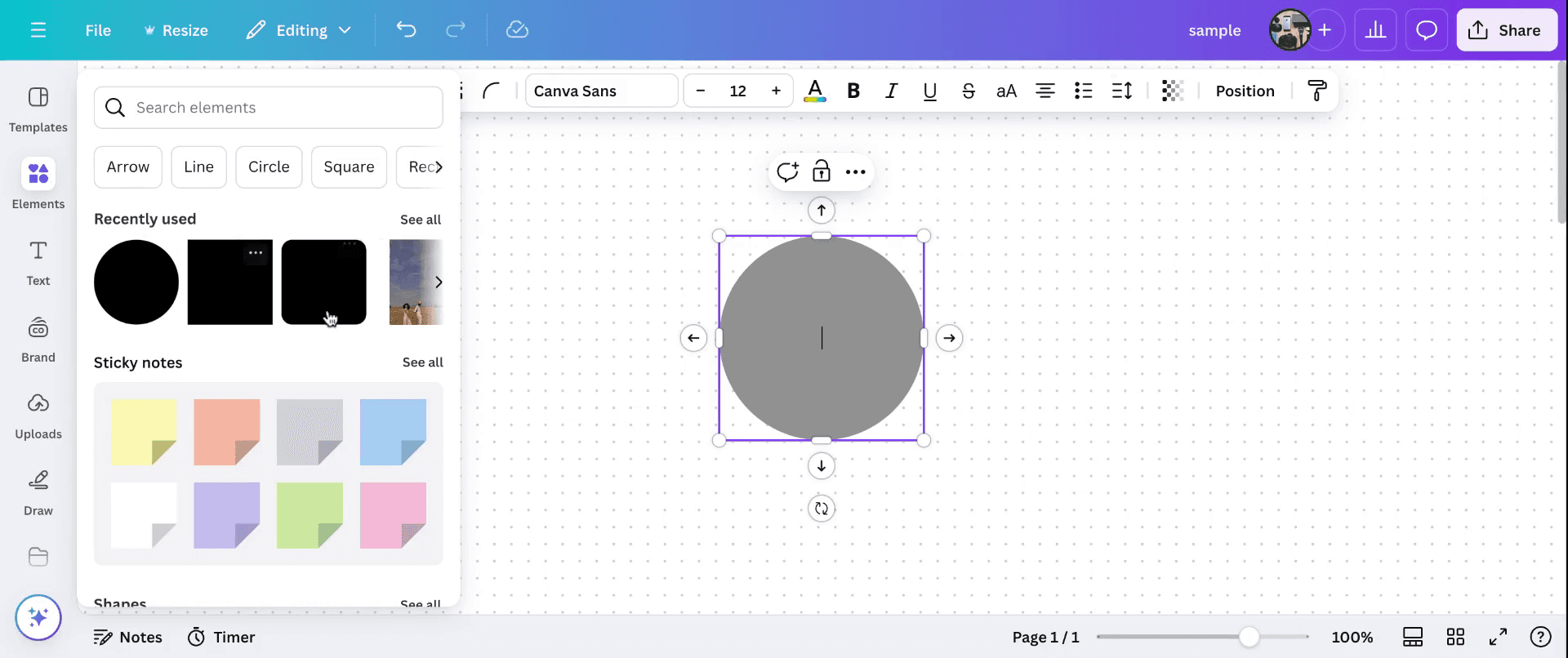
In this tutorial, we will learn how to insert shapes in Canva . Start by navigating to the 'Elements' section and select the shapes you wish to work with. Once a shape is selected, you can customize it by choosing various tools. This allows you to adjust the shape's properties such as color and other characteristics.
Step 2
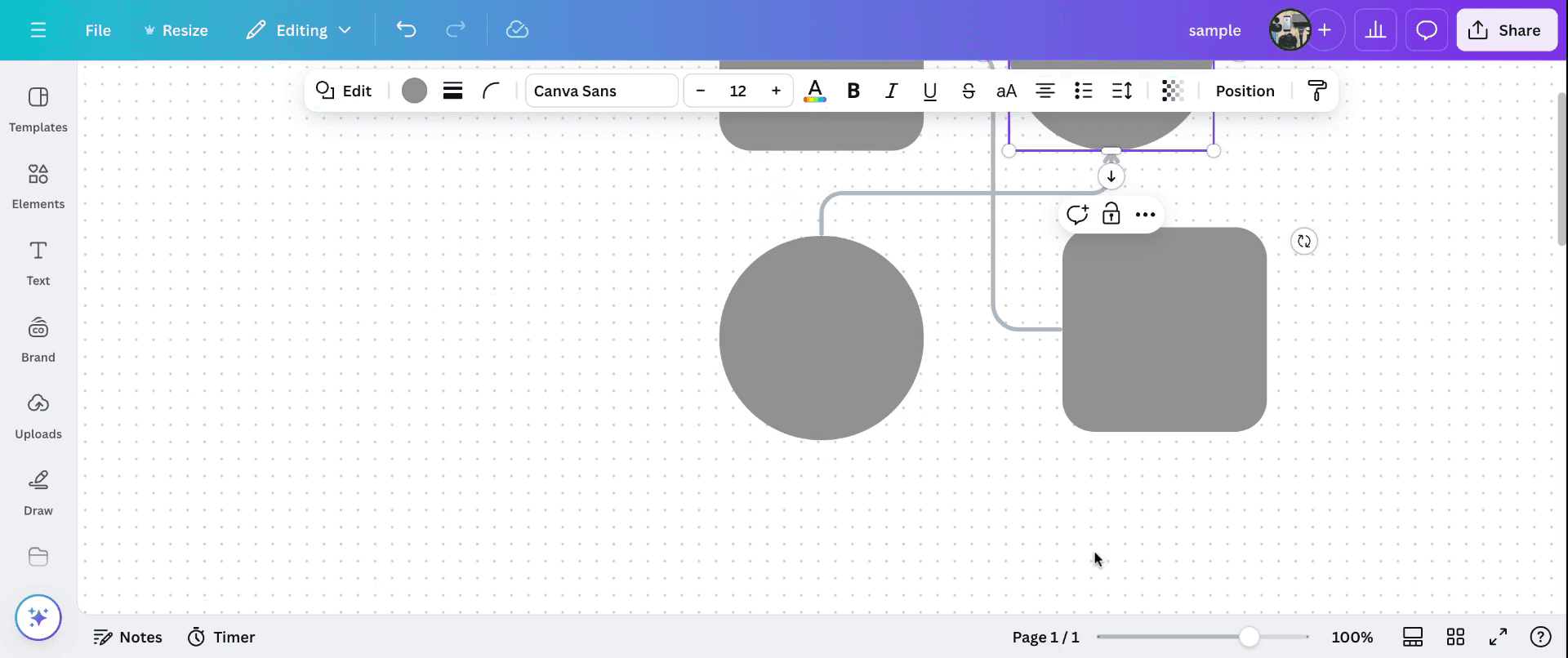
After selecting a shape, you can insert additional shapes and modify their sizes by dragging and change layouts.
Step 3
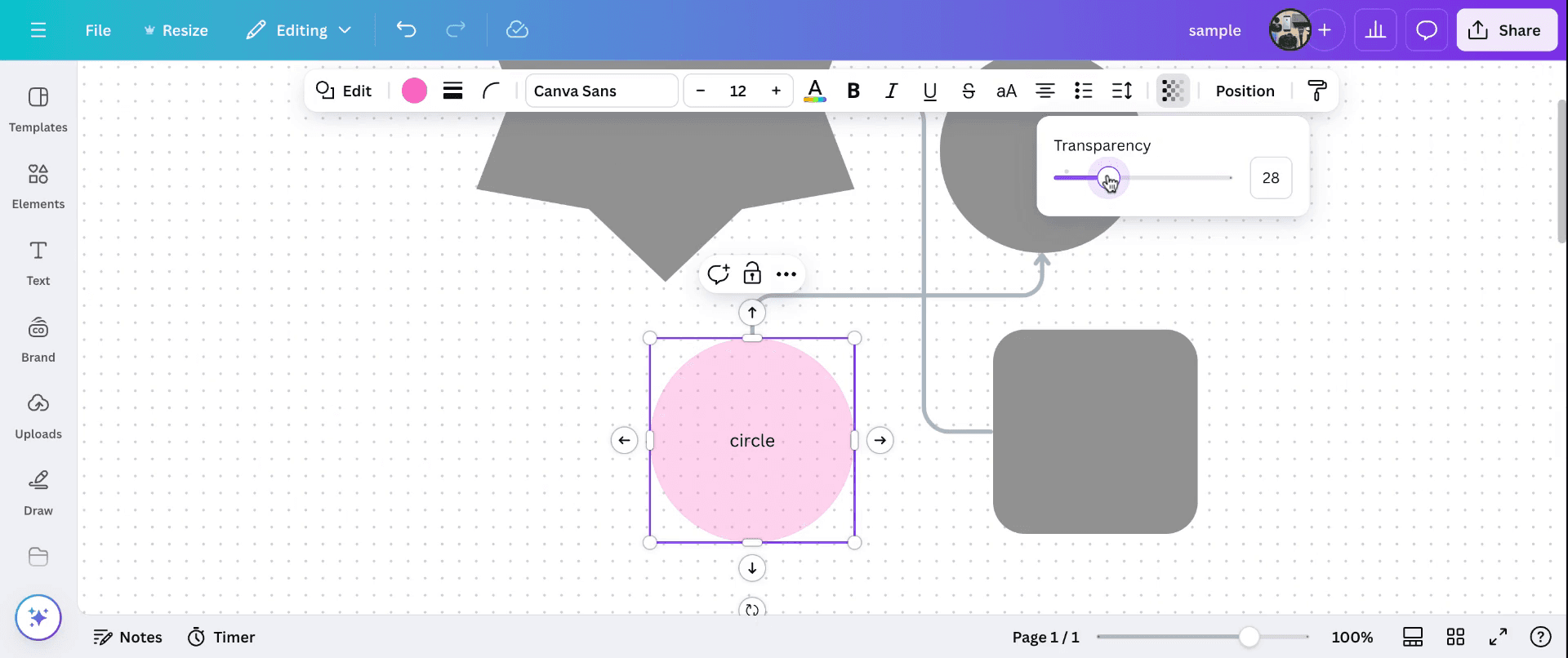
Additionally, you have the option to add text within a shape and adjust its transparency levels to suit your design requirements. This is how to insert shapes in Canva, allowing you to create intricate and personalized designs.
Pro Tips for successfully inserting shapes in Canva
Use the "Elements" Tab: Go to the Elements section and select Shapes to find a variety of options like circles, squares, triangles, and custom shapes.
Customize the Shape: Once added to your design, you can resize, rotate, and change the color of the shape to match your design style or theme.
Layer and Arrange Shapes: Use the Position tool to layer shapes, place them on top of each other, or arrange them in a specific order to create more complex designs.
Adjust Transparency: You can adjust the transparency of a shape to create effects like soft overlays or semi-transparent backgrounds.
Combine Shapes for Custom Designs: You can combine multiple shapes to create unique, custom designs. Use the Group option to group multiple shapes and make adjustments all at once.
Common pitfalls and how to avoid them for inserting shapes in Canva
Shapes Overlapping Unintentionally: Shapes might overlap awkwardly when adding multiple elements to a design.
Fix: Use the Position tool to align and distribute shapes evenly, ensuring they don't overlap unintentionally.Distorted Shapes: Resizing shapes unevenly can distort their proportions.
Fix: Hold down the Shift key while resizing to maintain the shape's original proportions.Shape Colors Clashing with Background: Sometimes the color of the shape may not stand out well against the background.
Fix: Choose colors that complement or contrast with the background to maintain visibility. You can also adjust the transparency to balance the design.Shapes Not Aligned Properly: Misalignment can make your design look unprofessional or uneven.
Fix: Use Canva’s Snap to Grid or alignment tools to ensure shapes are aligned correctly.Too Many Shapes Overcrowding the Design: Adding too many shapes can make your design look cluttered and messy.
Fix: Keep the design clean by using only essential shapes, and ensure there's enough space between them to avoid visual clutter.
Часто задаваемые вопросы о вставке фигур в Canva
Как вставить фигуру в Canva?
Перейдите на вкладку Elements, выберите Shapes и укажите нужную фигуру для добавления в дизайн. Затем перетащите ее в рабочую область.Можно ли изменить цвет фигуры в Canva?
Да, после добавления фигуры вы можете нажать на нее и выбрать цвет на палитре или добавить пользовательские цвета, чтобы они соответствовали вашему дизайну.Можно ли изменить размер или повернуть фигуру?
Да, вы можете изменить размер фигуры, перетаскивая ее углы, или повернуть ее, нажав на маркер поворота в верхней части фигуры.Как наложить несколько фигур друг на друга?
Чтобы наложить фигуры, выберите фигуру и используйте кнопку Position, чтобы переместить ее вперед или назад, позволяя складывать фигуры друг на друга.Можно ли объединить несколько фигур в один дизайн?
Да, вы можете объединить фигуры, сгруппировав их. Выберите несколько фигур, щелкните правой кнопкой мыши и выберите Group, чтобы объединить их в один элемент для удобных изменений.Спасибо за то, что следуете этому руководству.Как сделать запись экрана на mac?
Чтобы сделать запись экрана на Mac, вы можете использовать Trupeer AI. Он позволяет записывать весь экран и предоставляет возможности ИИ, такие как добавление AI-аватаров, добавление голосового сопровождения, добавление зума (приближения и отдаления) в видео. С функцией AI-перевода видео от trupeer вы можете перевести видео на 30+ языков.Как добавить AI-аватар в запись экрана?
Чтобы добавить AI-аватар в запись экрана, вам нужно использовать инструмент для записи экрана с ИИ. Trupeer AI — это инструмент для записи экрана с ИИ, который помогает создавать видео с несколькими аватарами, а также позволяет создать собственный аватар для видео.Как сделать запись экрана на windows?
Чтобы сделать запись экрана в Windows, вы можете использовать встроенную панель Game Bar (Windows + G) или расширенный инструмент ИИ, например Trupeer AI, для более продвинутых функций, таких как AI-аватары, голосовое сопровождение, перевод и т. д.Как добавить голосовое сопровождение в видео?
Чтобы добавить голосовое сопровождение в видео, скачайте расширение trupeer ai для Chrome. После регистрации загрузите ваше видео с голосом, выберите нужное голосовое сопровождение в trupeer и экспортируйте отредактированное видео.Как увеличить масштаб при записи экрана?
Чтобы увеличить масштаб во время записи экрана, используйте эффекты зума в Trupeer AI — они позволяют приближать и отдалять в определенные моменты, усиливая визуальное воздействие вашего видеоконтента.
Рекомендуем к прочтению
Генератор технической документации
Как превратить изображение в раскраску в Canva
Как печатать с двух сторон в Canva
Похожие руководства



