
Как увеличить время в видео Canva — легко добавьте больше времени
Узнайте, как увеличить время в видео Canva, расширив длительность клипа, настроив таймлайн или добавив страницы. Следуйте этому краткому руководству и создавайте понятные видеоинструкции с Trupeer.
This document provides a detailed process on how to extend the duration of a video using Canva.
Follow these steps to effectively adjust the length of your video content, ensuring your projects meet your specific requirements.
Step-by-Step Guide: How To Increase Time On Canva Videos
Step 1
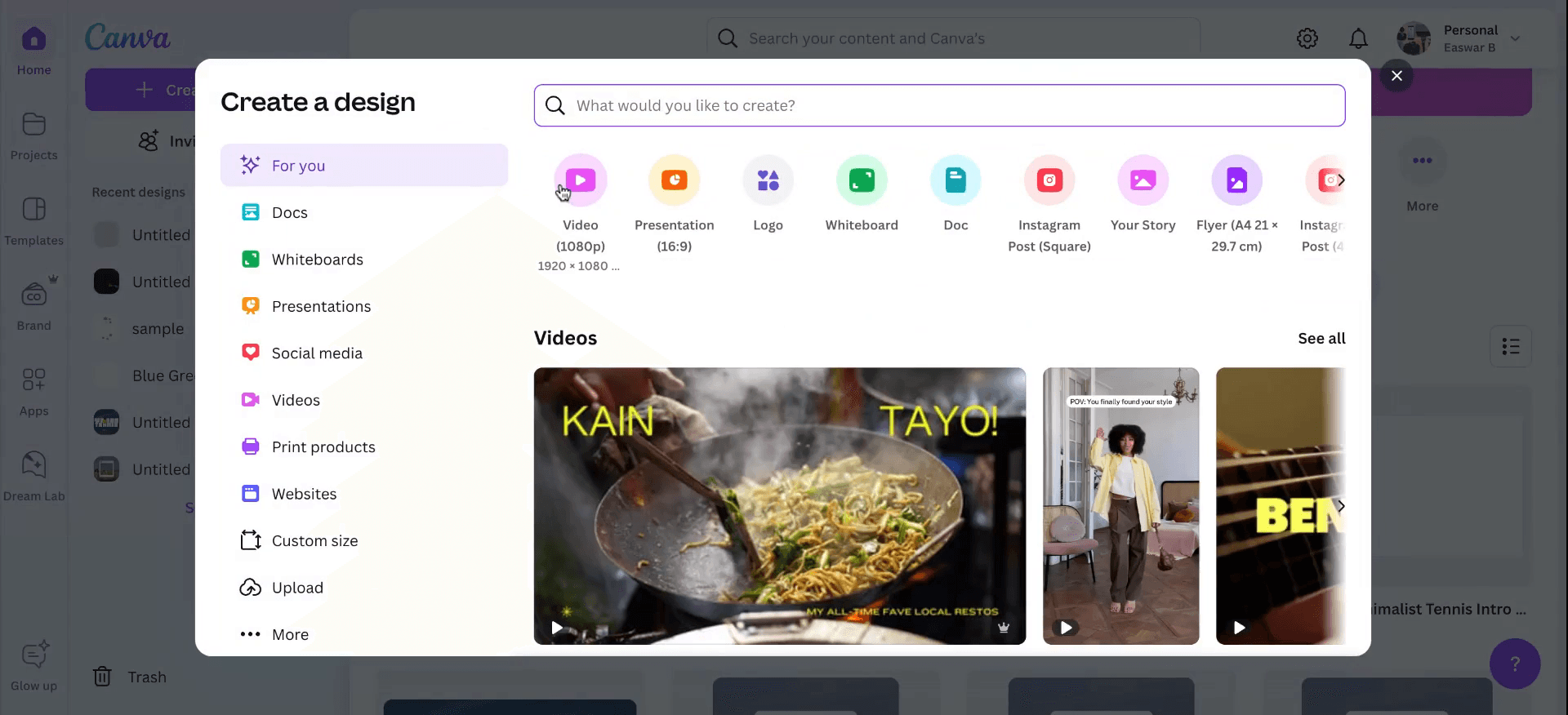
Begin by opening Canva and navigating to your design. On the Canva homepage, select "Create a Design," and choose the "Video" option to initiate a new video project. Proceed to the "Elements" section and then to "Design." Select the video you wish to edit
Step 2
Proceed to the "Elements" section and then to "Design." Select the video you wish to edit.
Step 3
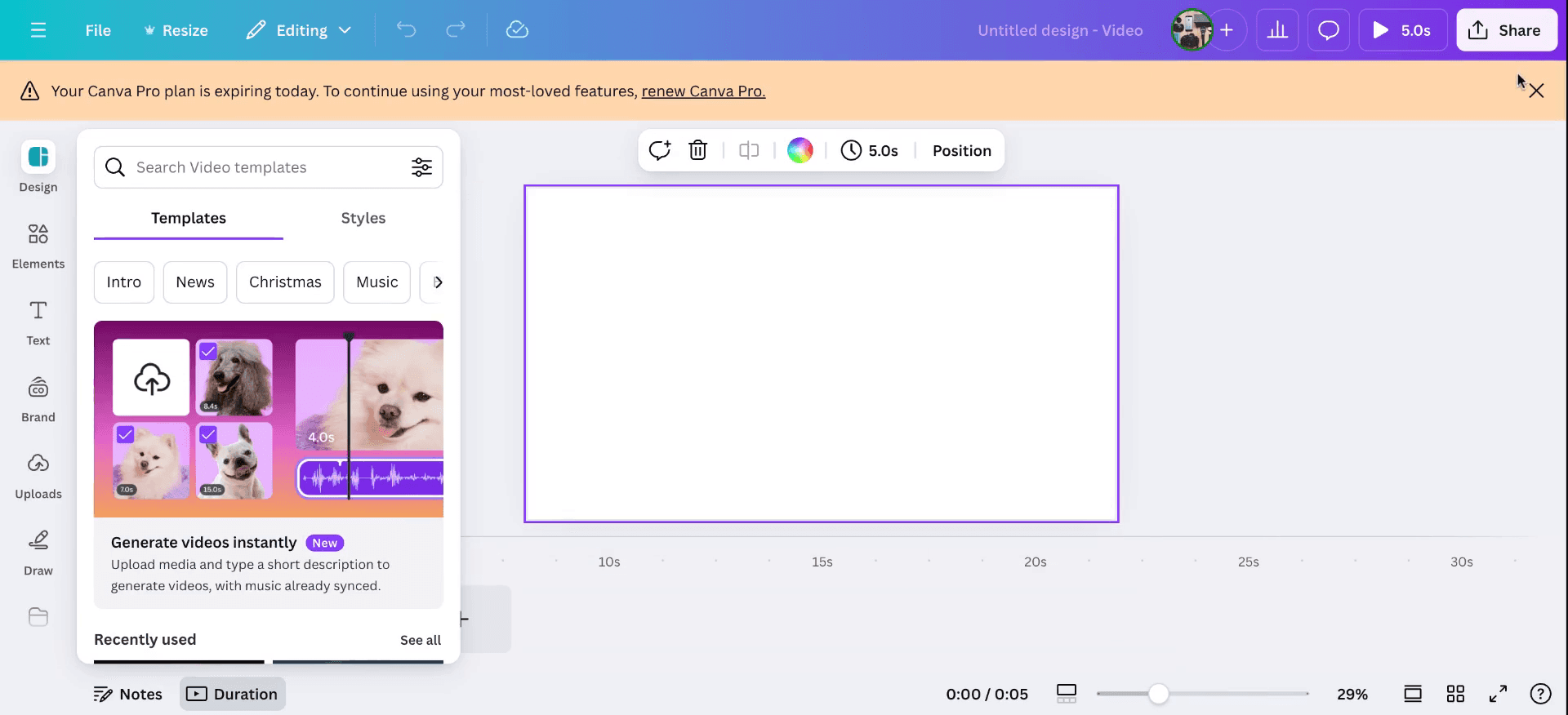
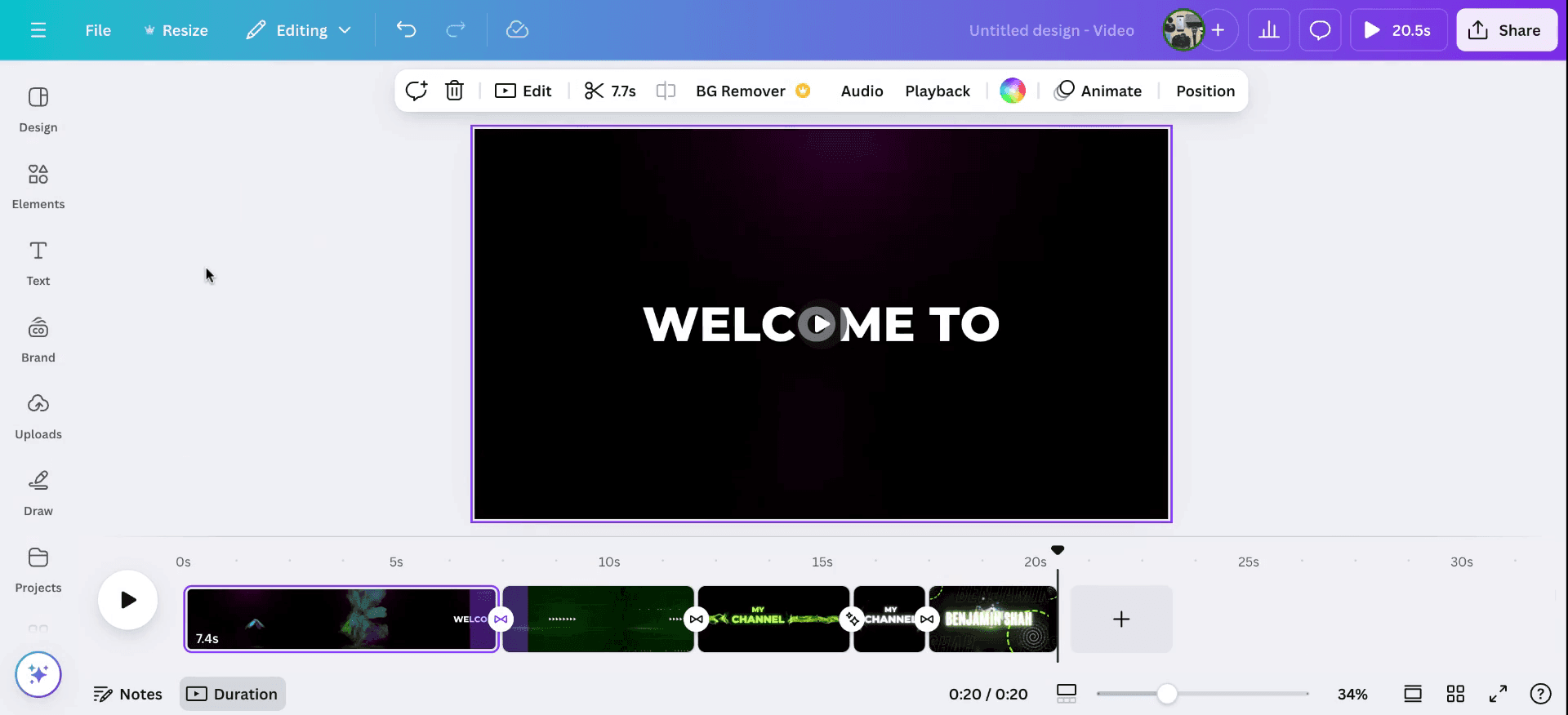
Select the video you wish to edit. Initially, the video duration is set to 15 seconds. You can locate the timeline below; simply drag the timeline to extend the video's length according to your needs.
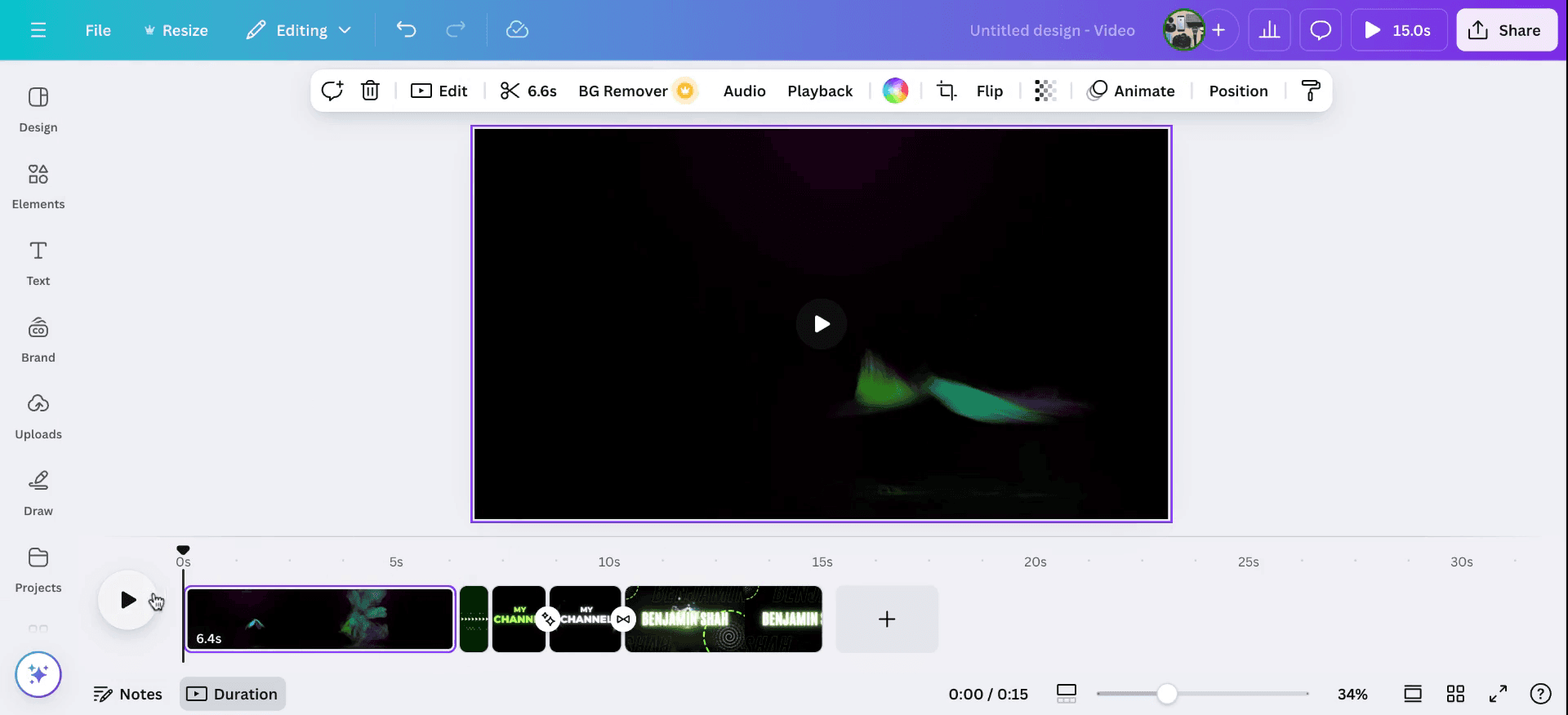
To further customize, click on the specific video clip, and drag it to the right to increase its duration. This action will extend the video timeline. Once extended, you can play the video to review the changes. Additionally, you have the option to edit the video, add new pages, or duplicate existing pages to further lengthen the video content.
Step 4
To further customize, click on the specific video clip, and drag it to the right to increase its duration. This action will extend the video timeline. Once extended, you can play the video to review the changes. Then you can option to edit the video, add new pages, or duplicate existing pages to further lengthen the video content.
Pro Tips for increasing time on Canva videos
Duplicate the Video Clip: To extend the video duration, duplicate the video clip in your timeline. This will allow the same content to play multiple times, effectively increasing the overall video time.
Adjust Duration of Each Clip: Click on the video clip in the timeline and drag the edges to extend its duration. You can adjust the length for individual clips, such as video or text boxes, to match your desired time.
Slow Down the Video Speed: You can reduce the speed of the video clip by selecting the clip, clicking on "Animate", and adjusting the speed settings to make it last longer.
Add More Scenes or Slides: If you need to increase time with additional content, add more slides to your video and fill them with relevant images, text, or animations.
Use Background Music or Voiceover: Extend the video with a longer background music track or voiceover to fill out the extra time created by adjusting clip duration.
Make this repeatable: If you are showing this to a wider team, you can capture this as a video tutorial rather than repeating the demo.
Common Pitfalls and how to avoid them for increasing time on Canva
Unwanted Repetition: Simply duplicating a video clip can make the video feel repetitive and monotonous.
Fix: Ensure each duplicated clip adds value by incorporating different angles, scenes, or effects to maintain viewer engagement.Distorted Video Quality: Slowing down the video might result in a blurry or pixelated appearance, especially if it's not high resolution.
Fix: Always use high-quality footage to prevent distortion when changing the speed or extending the video length.Choppy Transitions: Adding new scenes or clips without smooth transitions can make the video feel disjointed.
Fix: Use Canva’s transition effects to create smooth, cohesive changes between clips, ensuring the video flows naturally.Overloading with Content: Adding too much content to stretch the time can overwhelm the viewer and distract from the core message.
Fix: Keep the additional content relevant and concise, ensuring that every segment adds value to the video.Out-of-Sync Audio: Extending the video duration without adjusting the audio track might result in mismatched audio and video length.
Fix: Ensure your background music, voiceover, or sound effects are aligned with the new video length, adjusting the audio duration accordingly.
Часто задаваемые вопросы, чтобы увеличить время просмотра видео в Canva
Как увеличить длительность видео в Canva?
Чтобы увеличить длительность, нажмите на видеоклип на таймлайне и перетащите его края, чтобы увеличить продолжительность. Также можно дублировать клипы или добавлять новые сцены.Можно ли замедлить скорость видео в Canva, чтобы увеличить время?
Да, вы можете замедлить видео: выберите видеоклип, нажмите Animate и отрегулируйте настройки скорости, чтобы видео длилось дольше.Можно ли добавить дополнительные сцены в видео Canva?
Да, вы можете добавить больше сцен: нажмите кнопку Add a new page и заполните новые сцены изображениями, текстом или анимациями.Не будет ли дублирование видеоклипа выглядеть однообразно?
Возможно, это будет казаться однообразным, если вы не добавите вариативность, например разные ракурсы, новый контент или эффекты, чтобы видео оставалось интересным.Как добавить более длинную фоновую музыкальную дорожку к видео?
Вы можете увеличить время, добавив более длинную музыкальную дорожку из библиотеки Canva или загрузив свою. Убедитесь, что длина музыки соответствует увеличенной длительности видео. Так вот как увеличить время просмотра видео в Canva.Как сделать запись экрана на Mac?
Чтобы сделать запись экрана на Mac, вы можете использовать Trupeer AI. Он позволяет записать весь экран и предоставляет возможности ИИ, такие как добавление AI-аватаров, добавление озвучки, добавление зума (приближения и отдаления) в видео. С функцией AI-перевода видео от trupeer вы можете перевести видео на 30+ языков.Как добавить AI-аватар в запись экрана?
Чтобы добавить AI-аватар в запись экрана, вам нужно использовать инструмент для записи экрана с ИИ. Trupeer AI — это инструмент для записи экрана с ИИ, который помогает создавать видео с несколькими аватарами, а также позволяет создать собственный аватар для видео.Как сделать запись экрана на Windows?
Чтобы сделать запись экрана на Windows, вы можете использовать встроенную панель Game Bar (Windows + G) или расширенный AI-инструмент вроде Trupeer AI для более продвинутых функций, таких как AI-аватары, озвучка, перевод и т. д.Как добавить озвучку в видео?
Чтобы добавить озвучку в видео, скачайте chrome-расширение trupeer ai. После регистрации загрузите видео с голосом, выберите нужную озвучку в trupeer и экспортируйте отредактированное видео.Как увеличить масштаб в записи экрана?
Чтобы увеличить масштаб во время записи экрана, используйте эффекты зума в Trupeer AI — они позволяют приближать и отдалять в определенные моменты, усиливая визуальное воздействие вашего видеоконтента.
Рекомендуем к прочтению
Technical Documentation Generator
Как создать узор из текста в Canva
Похожие руководства



