
How to make Canva downloads better quality
Want sharper images from Canva? Learn how to increase download resolution in Canva by selecting the right file type, size, and quality settings.
This guide provides a concise walkthrough for improving the quality of your downloads from Canva.
With a pro subscription, you can access advanced features that enhance the resolution and overall quality of your downloaded designs.
If you're noticing low-quality or blurry downloads in Canva, you can boost resolution using a few built-in tools and best practices:
1. Use the AI Image Up scaler
Go to Apps > Image Up scaler in Canva.
Upload an image or select one already in your design.
Choose an upscale option: 2x, 4x, 8x, or 16x.
Click Upscale to enhance quality.
2. Choose the Right File Type for Export
PDF Print – Ideal for professional printing with 300 DPI.
JPG – Good for web use, but may sacrifice quality.
3. Adjust Download Quality Settings
Click Share > Download.
Select file type.
Use the Quality slider (if available) and set to High.
Increase dimensions (px) manually for larger output (e.g., 2000x2000+).
4. Start With High-Resolution Inputs
Upload images at 300 DPI when possible.
Check design dimensions: Avoid anything below 500×500 px.
Don’t stretch low-res images within your design.
5. Additional Tips
Remove filters if your image appears soft or washed out.
Try flattening PDFs for cleaner exports: toggle "Flatten PDF" before downloading.
If alignment issues occur, switch browsers for a cleaner export.
Step-by-Step Guide: How To Increase Resolution in Canva For Downloads
Step 1
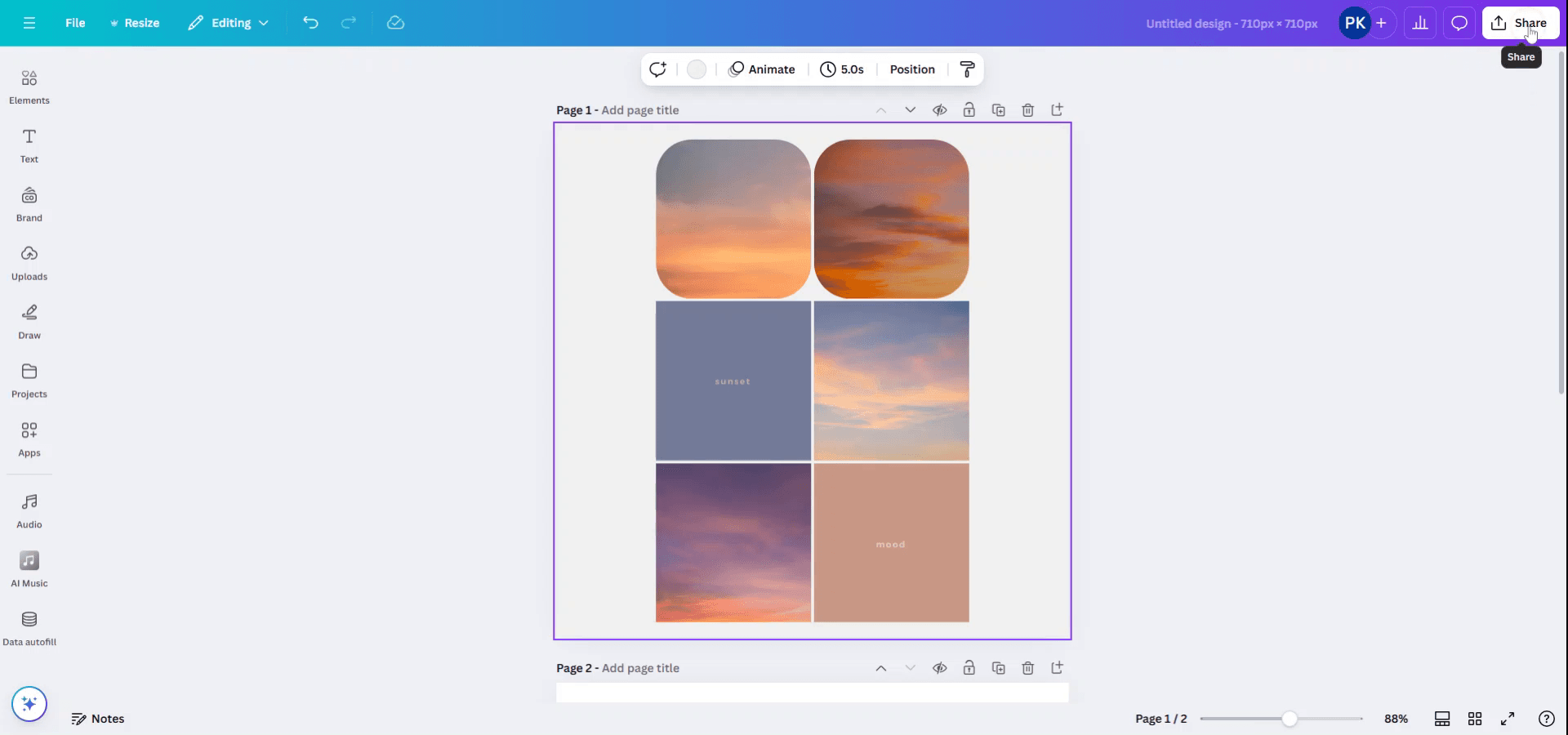
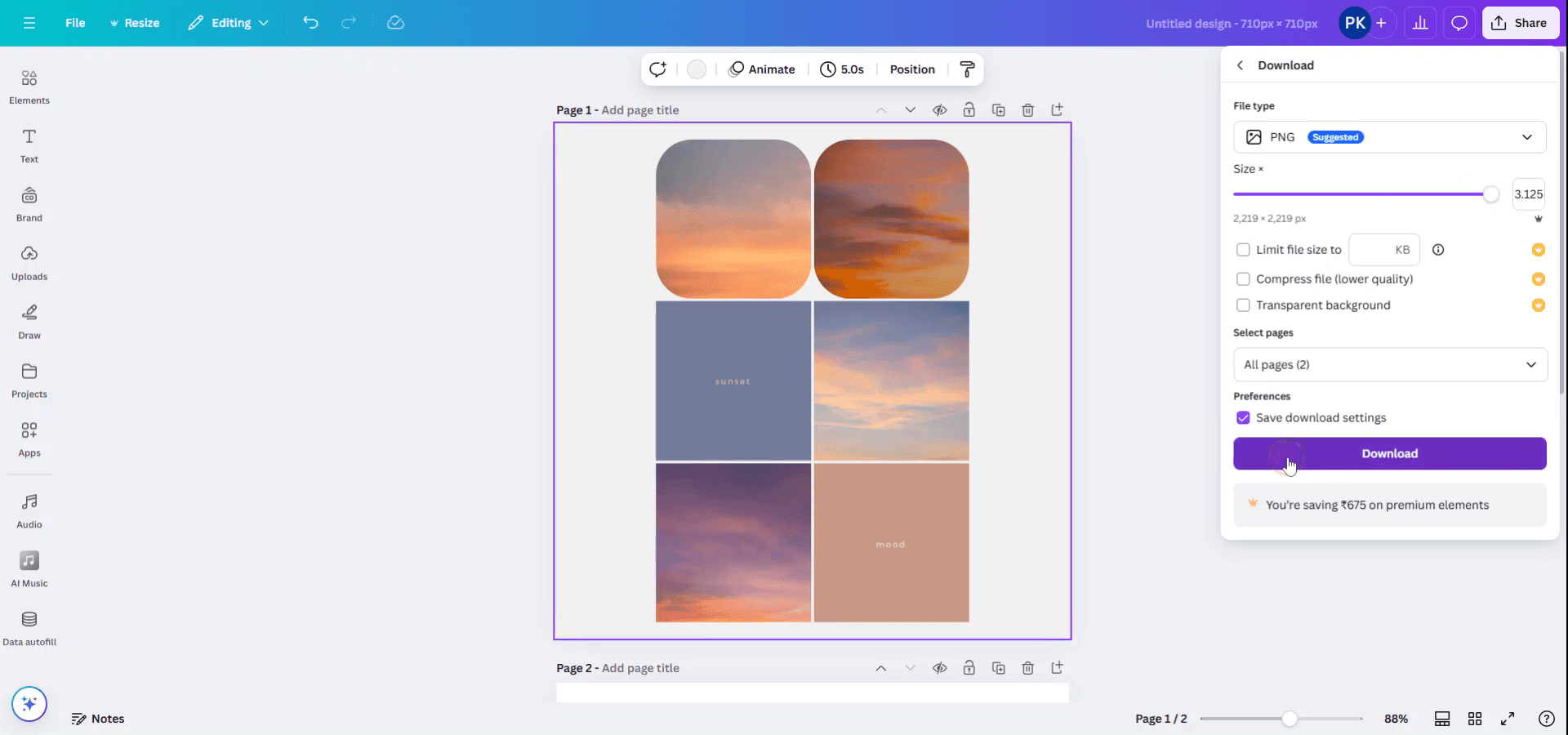
To enhance download quality in Canva, ensure you have a pro subscription. Select the design you wish to download. Click the 'Share' option located at the top right corner.
Step 2
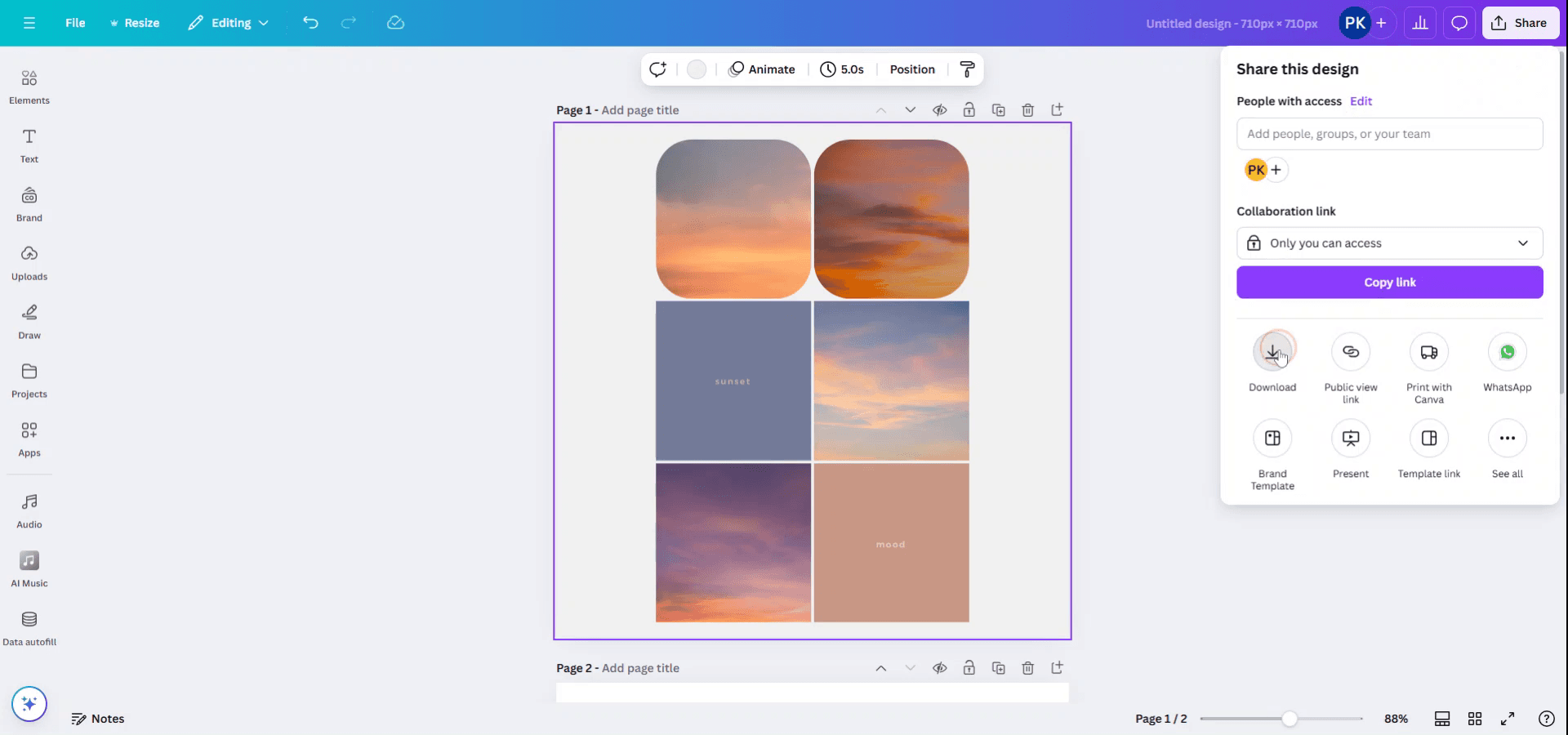
Within the 'Share this design' menu, select 'Download'.
Step 3
With a pro membership, you have the option to increase the image size to suit your preferences. Adjust the image size according to your needs.

Step 4
If there are file size restrictions, you can limit the file size to a specific size. Options to compress the file, reduce quality, or add a transparent background are available. Once satisfied with the settings, click 'Download'.
Pro tips for making Canva downloads better quality
Use "PDF Print" for High-Resolution Downloads: When downloading your design, select "PDF Print" for the highest quality. This format retains more detail, especially for printing.
Download in PNG Format: If you need high-quality images, download your design as a PNG. PNG files support high resolutions without losing quality.
Increase Image Size: Before downloading, increase the dimensions of your design (if possible). A larger size ensures better quality when the design is printed or displayed on large screens.
Adjust the Quality Settings: When downloading in PNG or JPG format, Canva lets you adjust the quality slider. Set it to "High" to get the best resolution possible.
Use Canva Pro's "Transparent Background" Option: If you're downloading a logo or other graphic that requires a clean background, use the "Transparent Background" option for better quality and versatility.
Use High-Resolution Images: For elements like photos and logos, always use high-resolution images in your design. Low-res images will make the entire design appear pixelated when downloaded in large sizes.
Turn this into training material : To save doing this live each time, you can create a video version of this guide.
Common pitfalls and how to avoid them for better quality downloads in Canva
Low-Resolution Images: Using low-quality images can result in a pixelated or blurry final download.
Always use high-resolution images for a crisp and clear design.Downloading in JPG Format for Prints: JPG files are great for online use but not ideal for print.
Choose "PDF Print" for the highest quality print output, especially if you need sharp images and text.Forgetting to Adjust the Download Settings: By default, Canva might select a lower quality for downloads.
Always check and manually select the "High" quality setting before downloading.Not Considering Output Size: Downloading a small design in a high resolution might lead to an oversized file.
Balance resolution and file size, especially if you're uploading to websites or printing.Incorrect Dimensions for Printing: If you plan to print your design, be sure to match the output dimensions with the print size to avoid scaling issues.
Set your design dimensions to the specific size you need, such as 8.5 x 11 inches for letter-sized paper, before downloading.
More Canva tutorials
Часто задаваемые вопросы о том, как улучшить качество загрузок из Canva
Как скачать изображение высокого качества из Canva?
Используйте формат PNG и выберите качество «Высокое» при загрузке. Для максимально высокого качества печати выберите «PDF Print».Какой формат лучше всего подходит для печати?
PDF Print — лучший формат для печати высокого качества. Он сохраняет разрешение и позволяет выбрать параметры с вылетом.Можно ли скачать дизайн с более высоким разрешением?
Да, увеличьте размер дизайна перед загрузкой или используйте настройки загрузки Canva Pro для более высокого разрешения.Почему после загрузки изображение выглядит пиксельным?
Обычно это происходит из-за изображений с низким разрешением. Убедитесь, что вы используете изображения высокого разрешения для четкой загрузки.Что такое опция «Прозрачный фон»?
Опция «Прозрачный фон» позволяет скачать ваш дизайн без фона, что особенно полезно для логотипов или графики. Эта опция доступна пользователям Canva Pro.Как сделать запись экрана на mac?
Чтобы сделать запись экрана на Mac, вы можете использовать Trupeer AI. Он позволяет записывать весь экран и предоставляет возможности ИИ, такие как добавление AI-аватаров, добавление закадрового голоса, добавление зума (приближение и отдаление) в видео. С функцией перевода видео с помощью ИИ от trupeer вы можете перевести видео на 30+ языков.Как добавить AI-аватар в запись экрана?
Чтобы добавить AI-аватар в запись экрана, вам нужно использовать инструмент для записи экрана с ИИ. Trupeer AI — это инструмент для записи экрана с ИИ, который помогает создавать видео с несколькими аватарами, а также позволяет создать собственный аватар для видео.Как сделать запись экрана на windows?
Чтобы сделать запись экрана в Windows, вы можете использовать встроенную панель Game Bar (Windows + G) или расширенный инструмент ИИ, например Trupeer AI, для более продвинутых функций, таких как AI-аватары, закадровый голос, перевод и т. д.Как добавить закадровый голос в видео?
Чтобы добавить закадровый голос в видео, скачайте расширение trupeer ai для Chrome. После регистрации загрузите видео с голосом, выберите нужный закадровый голос в trupeer и экспортируйте отредактированное видео.Как увеличить масштаб при записи экрана?
Чтобы увеличить масштаб во время записи экрана, используйте эффекты зума в Trupeer AI — они позволяют приближать и отдалять в определенные моменты, усиливая визуальное впечатление от вашего видеоконтента.
Также спрашивают
Генератор технической документации
Как разблокировать страницу в Canva
Похожие руководства