チュートリアル
Slackでハイパーリンクを作成する方法
Slackメッセージにハイパーリンクを追加する方法を、フォーマットのヒントやショートカットを使用して学びましょう。このガイドでは、デスクトップユーザーとモバイルユーザーの両方のためのSlackでのテキストリンクについて説明します。

より詳細な内訳は次のとおりです:
テキストを選択します: 特定の単語をハイライトしてクリック可能なリンクに変えます。
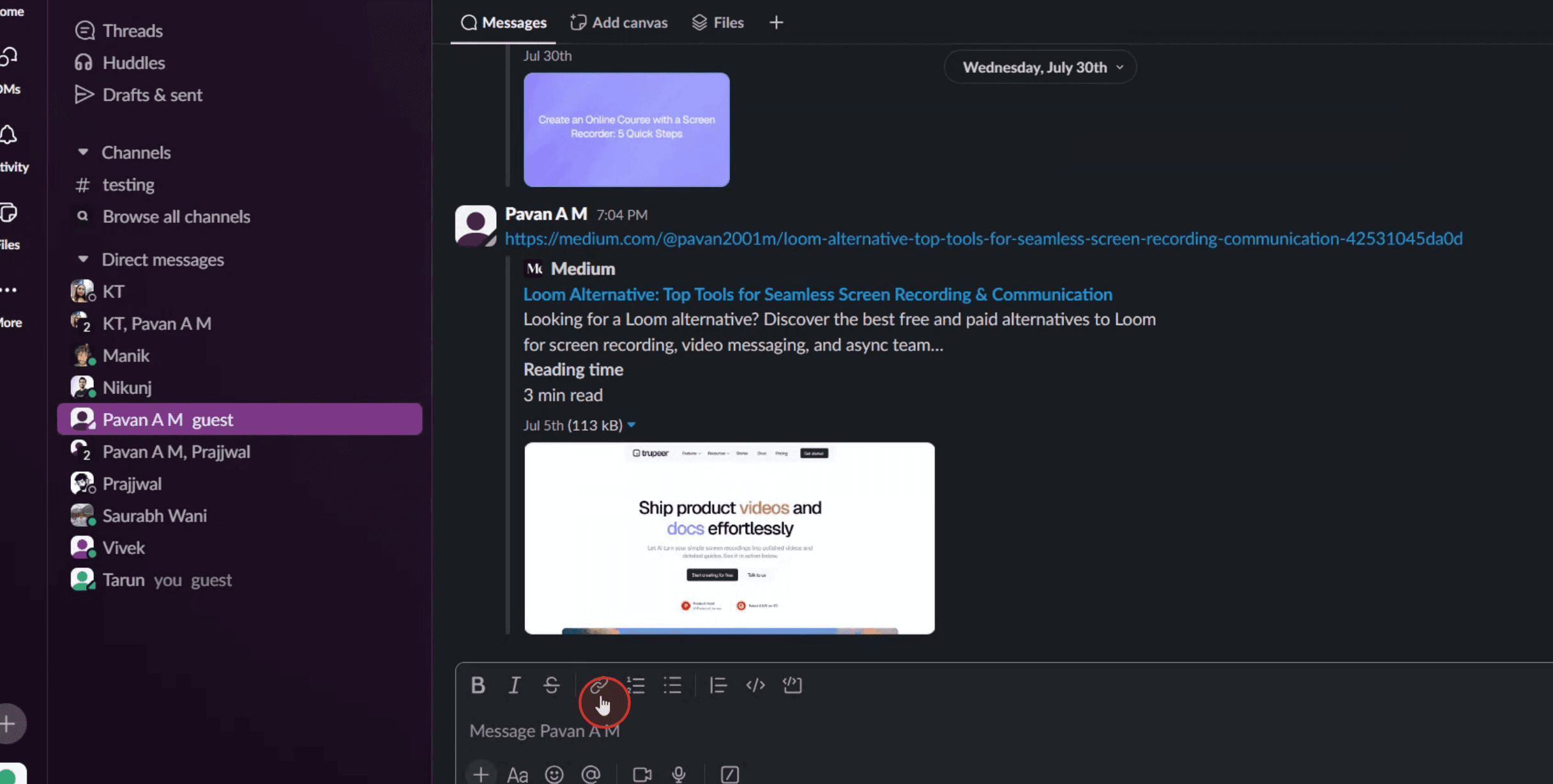
リンクアイコンまたはキーボードショートカットを使用します: リンクアイコン: メッセージ入力フィールドの上にあるフォーマットツールバーでチェーンリンクアイコンをクリックします。
キーボードショートカット: Command + Shift + U (Mac) または Ctrl + Shift + U (Windows/Linux) を使用します。
URLを貼り付けます: 表示されるダイアログボックスに、リンクしたいURLを貼り付けます。
ステップバイステップガイド: Slackでハイパーリンクを作成する方法
ステップ1
会議メニューのリンクオプションを見つけてクリックします。

ステップ2
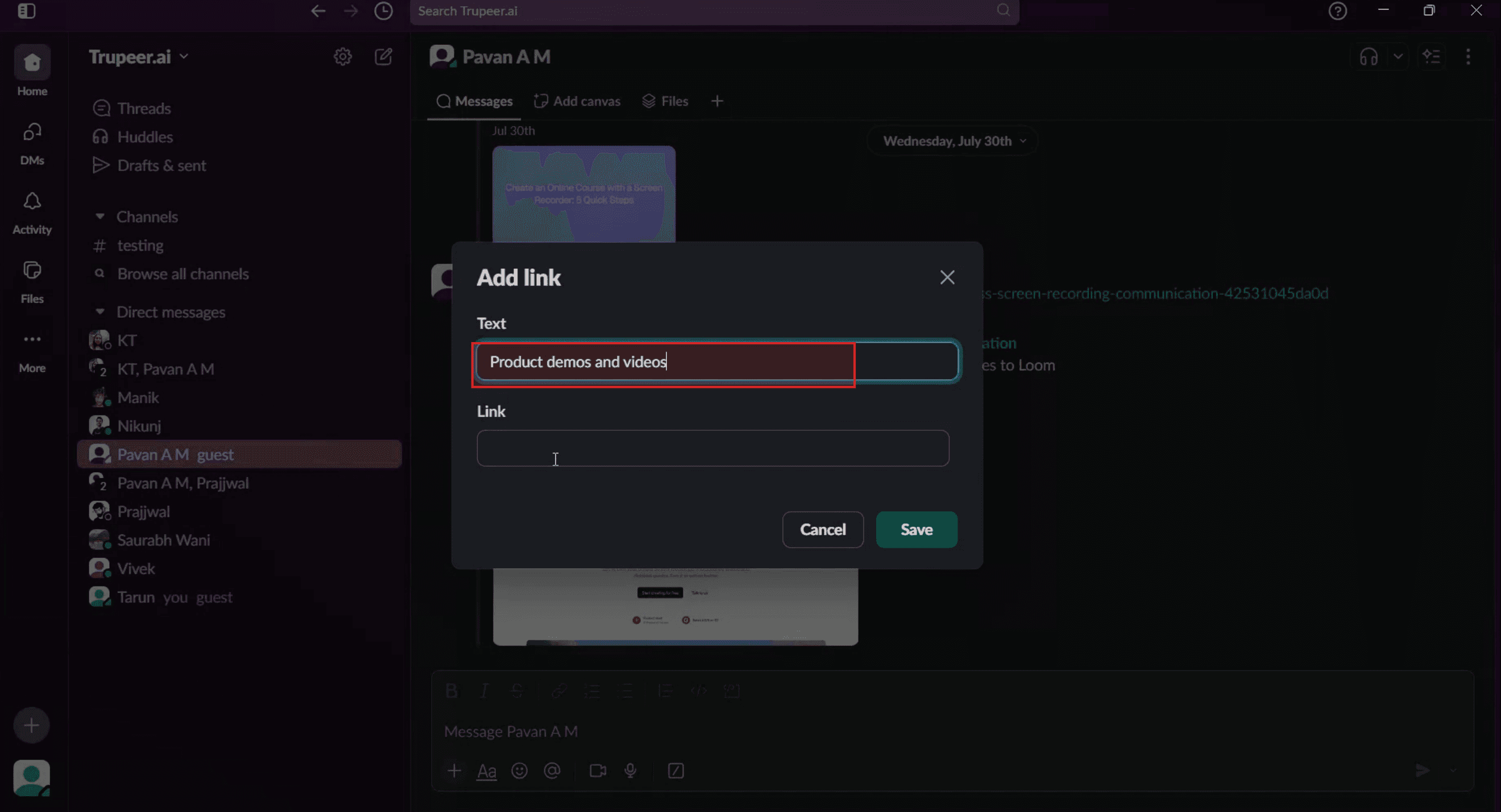
ポップアップウィンドウが表示されますので、指定されたフィールドに希望するテキストを入力してください。

ステップ3
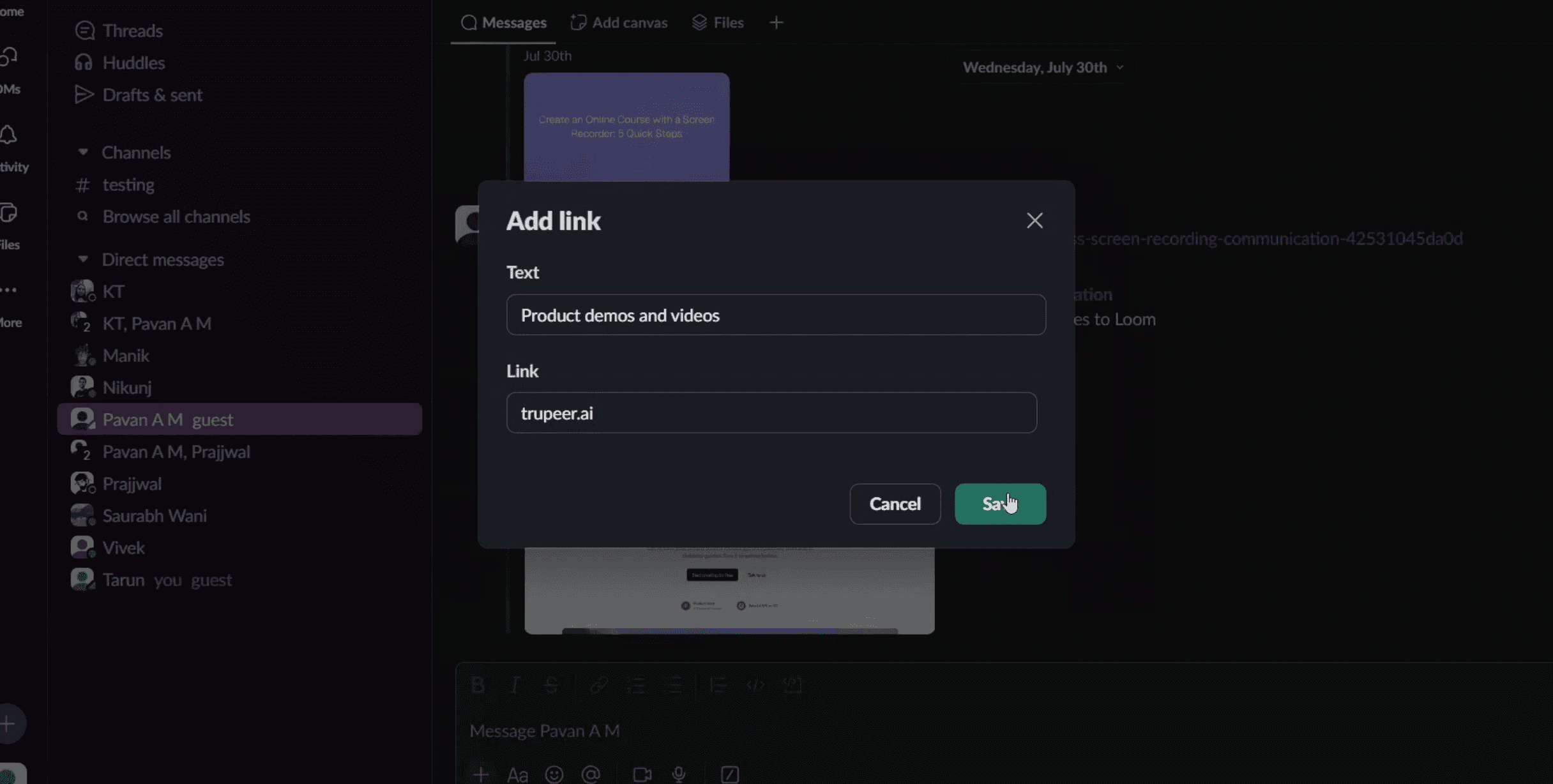
次に、リンクフィールドにURLをコピー&ペーストするか、手動でリンクを入力します。

ステップ4
保存オプションをクリックします。

ステップ5
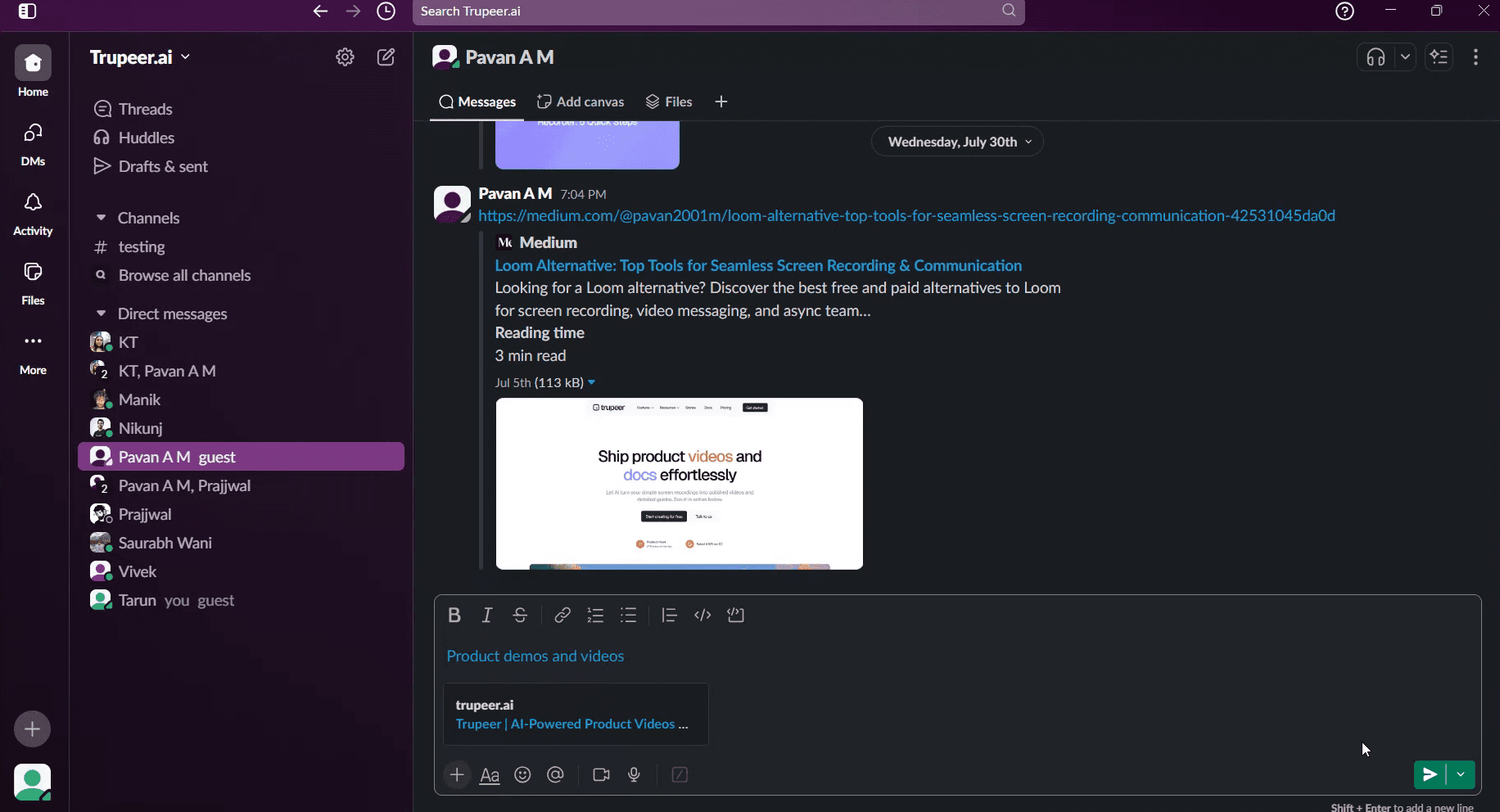
そのテキストは、選択したウェブサイトまたはURLにリンクされます。テキストは選択したウェブサイトまたはURLにリンクされます。

Slackでハイパーリンクを作成するためのプロのヒント
Slackの組み込みリンクフォーマットを使用する
Slackは通常のメッセージで従来のハイパーリンク(テキストにリンクを埋め込むこと)をサポートしていません。代わりに、メッセージにURLをそのまま貼り付けると、Slackが自動的にクリック可能なリンクに変換します。Slackポストでフォーマットを使用してハイパーリンクを作成する
テキストにハイパーリンクを埋め込む必要がある場合は、Slackのポストを使用します。メッセージボックスの近くにある「+」アイコンをクリックして「ポストを作成」を選択します。エディタでテキストをハイライトし、フォーマットツールバーを使用してハイパーリンクを挿入します。角括弧を使用して説明的なテキストを追加する
通常のメッセージでカスタムテキストのリンクをフォーマットするには、角括弧とパイプ記号を次のように使用します:
<https://example.com|ここをクリック>
Slackは「ここをクリック」と表示し、URLにリンクします。コードスニペットを使用して長いURLを共有する
技術的なリンクやURLを含むコードを共有する場合は、コードフォーマット(バックティック)を使用して、完全なテキストを保持し、読みやすくします。送信前にリンクをプレビューする
URLを貼り付けると、Slackは通常、プレビューを生成します(サポートされている場合)。プレビューを確認して、リンクが正しいか、適切な宛先を指しているか確認してください。
一般的な落とし穴とそれを避ける方法
プレーンテキストメッセージに埋め込もうとすること
Slackはプレーンメッセージに埋め込まれたハイパーリンクをサポートしていません。フォーマットされたテキストが必要な場合は、角括弧メソッドまたはポストを使用してください。リンクのプレビューが表示されない
一部のウェブサイトはSlackプレビューをサポートしていません。リンクが正しいかどうか、そして最初に「https://」を含んでいるか確認してください。フォーマットエラー
リンク形式の誤タイプ(パイプ|または閉じ括弧>が不足しているなど)は、ハイパーリンクが壊れるか、正しく表示されない原因となります。全員が見えないポスト
Slackポストは現在のチャンネルまたは会話でアクセス可能です。適切な文脈で共有していることを確認してください。壊れたリンク
他の人と共有する前に、フォーマットしたり短縮したリンクが正しいページを開くかどうかを必ずテストしてください。
Slackでのハイパーリンクに関する一般的なFAQ
通常のSlackメッセージにテキストをハイパーリンクできますか?
いいえ、しかし<URL|テキスト>を使用してクリック可能なリンクをフォーマットできます。たとえば: <https://example.com|サイトを訪問>。Slackポストにハイパーリンクを追加するにはどうすればよいですか?
新しいポストを開き、テキストをハイライトし、リンクアイコンをクリックして、リンクを埋め込むURLを入力します。Slackでリンクをプレビューできますか?
はい、SlackはYouTubeやGoogleドライブなどの多くのサポートされたリンクのプレビューを自動的に表示します。SlackのスレッドやDMでもリンクは機能しますか?
はい、リンクはSlackの任意のメッセージコンテキスト、スレッド、チャンネル、ダイレクトメッセージで使用できます。リンクが機能しないのはなぜですか?
フォーマットエラー、適切なURL構造、宛先サイトのアクセス権を再確認してください。Macで画面録画するにはどうすればよいですか?
Macで画面録画するには、Trupeer AIを使用することができます。これにより、全画面をキャプチャし、AIアバターの追加、音声オーバー、ビデオのズームインおよびズームアウトなどのAI機能を提供します。TrupeerのAIビデオ翻訳機能を使用すると、ビデオを30以上の言語に翻訳できます。画面録画にAIアバターを追加するにはどうすればよいですか?
画面録画にAIアバターを追加するには、AI画面録画ツールを使用する必要があります。Trupeer AIはAI画面録画ツールで、複数のアバターでビデオを作成したり、自分のアバターをビデオに作成したりするのに役立ちます。Windowsで画面録画するにはどうすればよいですか?
Windowsで画面録画するには、ビルトインゲームバー(Windows + G)や、AIアバター、音声オーバー、翻訳などの高度な機能を持つTrupeer AIのような高度なAIツールを使用できます。ビデオに音声オーバーを追加するにはどうすればよいですか?
ビデオに音声オーバーを追加するには、Trupeer AI Chrome拡張機能をダウンロードします。サインアップが完了したら、ボイスを持つビデオをアップロードし、Trupeerから希望の音声オーバーを選択し、編集したビデオをエクスポートします。画面録画中にズームインするにはどうすればよいですか?
画面録画中にズームインするには、特定の瞬間にズームインおよびズームアウトを可能にするTrupeer AIのズーム効果を使用して、ビデオコンテンツの視覚的インパクトを強化します。

より詳細な内訳は次のとおりです:
テキストを選択します: 特定の単語をハイライトしてクリック可能なリンクに変えます。
リンクアイコンまたはキーボードショートカットを使用します: リンクアイコン: メッセージ入力フィールドの上にあるフォーマットツールバーでチェーンリンクアイコンをクリックします。
キーボードショートカット: Command + Shift + U (Mac) または Ctrl + Shift + U (Windows/Linux) を使用します。
URLを貼り付けます: 表示されるダイアログボックスに、リンクしたいURLを貼り付けます。
ステップバイステップガイド: Slackでハイパーリンクを作成する方法
ステップ1
会議メニューのリンクオプションを見つけてクリックします。

ステップ2
ポップアップウィンドウが表示されますので、指定されたフィールドに希望するテキストを入力してください。

ステップ3
次に、リンクフィールドにURLをコピー&ペーストするか、手動でリンクを入力します。

ステップ4
保存オプションをクリックします。

ステップ5
そのテキストは、選択したウェブサイトまたはURLにリンクされます。テキストは選択したウェブサイトまたはURLにリンクされます。

Slackでハイパーリンクを作成するためのプロのヒント
Slackの組み込みリンクフォーマットを使用する
Slackは通常のメッセージで従来のハイパーリンク(テキストにリンクを埋め込むこと)をサポートしていません。代わりに、メッセージにURLをそのまま貼り付けると、Slackが自動的にクリック可能なリンクに変換します。Slackポストでフォーマットを使用してハイパーリンクを作成する
テキストにハイパーリンクを埋め込む必要がある場合は、Slackのポストを使用します。メッセージボックスの近くにある「+」アイコンをクリックして「ポストを作成」を選択します。エディタでテキストをハイライトし、フォーマットツールバーを使用してハイパーリンクを挿入します。角括弧を使用して説明的なテキストを追加する
通常のメッセージでカスタムテキストのリンクをフォーマットするには、角括弧とパイプ記号を次のように使用します:
<https://example.com|ここをクリック>
Slackは「ここをクリック」と表示し、URLにリンクします。コードスニペットを使用して長いURLを共有する
技術的なリンクやURLを含むコードを共有する場合は、コードフォーマット(バックティック)を使用して、完全なテキストを保持し、読みやすくします。送信前にリンクをプレビューする
URLを貼り付けると、Slackは通常、プレビューを生成します(サポートされている場合)。プレビューを確認して、リンクが正しいか、適切な宛先を指しているか確認してください。
一般的な落とし穴とそれを避ける方法
プレーンテキストメッセージに埋め込もうとすること
Slackはプレーンメッセージに埋め込まれたハイパーリンクをサポートしていません。フォーマットされたテキストが必要な場合は、角括弧メソッドまたはポストを使用してください。リンクのプレビューが表示されない
一部のウェブサイトはSlackプレビューをサポートしていません。リンクが正しいかどうか、そして最初に「https://」を含んでいるか確認してください。フォーマットエラー
リンク形式の誤タイプ(パイプ|または閉じ括弧>が不足しているなど)は、ハイパーリンクが壊れるか、正しく表示されない原因となります。全員が見えないポスト
Slackポストは現在のチャンネルまたは会話でアクセス可能です。適切な文脈で共有していることを確認してください。壊れたリンク
他の人と共有する前に、フォーマットしたり短縮したリンクが正しいページを開くかどうかを必ずテストしてください。
Slackでのハイパーリンクに関する一般的なFAQ
通常のSlackメッセージにテキストをハイパーリンクできますか?
いいえ、しかし<URL|テキスト>を使用してクリック可能なリンクをフォーマットできます。たとえば: <https://example.com|サイトを訪問>。Slackポストにハイパーリンクを追加するにはどうすればよいですか?
新しいポストを開き、テキストをハイライトし、リンクアイコンをクリックして、リンクを埋め込むURLを入力します。Slackでリンクをプレビューできますか?
はい、SlackはYouTubeやGoogleドライブなどの多くのサポートされたリンクのプレビューを自動的に表示します。SlackのスレッドやDMでもリンクは機能しますか?
はい、リンクはSlackの任意のメッセージコンテキスト、スレッド、チャンネル、ダイレクトメッセージで使用できます。リンクが機能しないのはなぜですか?
フォーマットエラー、適切なURL構造、宛先サイトのアクセス権を再確認してください。Macで画面録画するにはどうすればよいですか?
Macで画面録画するには、Trupeer AIを使用することができます。これにより、全画面をキャプチャし、AIアバターの追加、音声オーバー、ビデオのズームインおよびズームアウトなどのAI機能を提供します。TrupeerのAIビデオ翻訳機能を使用すると、ビデオを30以上の言語に翻訳できます。画面録画にAIアバターを追加するにはどうすればよいですか?
画面録画にAIアバターを追加するには、AI画面録画ツールを使用する必要があります。Trupeer AIはAI画面録画ツールで、複数のアバターでビデオを作成したり、自分のアバターをビデオに作成したりするのに役立ちます。Windowsで画面録画するにはどうすればよいですか?
Windowsで画面録画するには、ビルトインゲームバー(Windows + G)や、AIアバター、音声オーバー、翻訳などの高度な機能を持つTrupeer AIのような高度なAIツールを使用できます。ビデオに音声オーバーを追加するにはどうすればよいですか?
ビデオに音声オーバーを追加するには、Trupeer AI Chrome拡張機能をダウンロードします。サインアップが完了したら、ボイスを持つビデオをアップロードし、Trupeerから希望の音声オーバーを選択し、編集したビデオをエクスポートします。画面録画中にズームインするにはどうすればよいですか?
画面録画中にズームインするには、特定の瞬間にズームインおよびズームアウトを可能にするTrupeer AIのズーム効果を使用して、ビデオコンテンツの視覚的インパクトを強化します。
Start creating videos with our AI Video + Doc generator for free
Pro Tips for Hyperlinking in Slack
Use Slack’s Built-In Link Formatting
Slack doesn’t support traditional hyperlinking (like embedding a link into text) in regular messages. Instead, paste the full URL directly into your message, and Slack will automatically convert it into a clickable link.Hyperlink Using Formatting in Slack Posts
If you need to embed hyperlinks in text, use Slack Posts. Create a Post by clicking the “+” icon near the message box and selecting “Create a post.” In the editor, highlight text and use the formatting toolbar to insert a hyperlink.Use Angle Brackets to Add Descriptive Text
To format a link with custom text in regular messages, use angle brackets and a pipe symbol like this:
<https://example.com|Click here>
Slack will display it as “Click here” and link it to the URL.Use Code Snippets to Share Long URLs
If you’re sharing technical links or code that includes URLs, use code formatting (backticks) to preserve the full text and make it easier to read.Preview Links Before Sending
When you paste a URL, Slack often generates a preview (if supported). Check the preview to ensure the link is correct and points to the right destination.
Common Pitfalls and How to Avoid Them
Trying to Embed in Plain Text Messages
Slack doesn’t support embedded hyperlinks in plain messages. Use the angle bracket method or Posts if you need formatted text.Link Preview Not Appearing
Some websites don’t support Slack previews. Make sure the link is correct and includes "https://" at the beginning.Formatting Errors
Mistyping the link format (like missing a pipe | or a closing bracket >) can cause the hyperlink to break or display incorrectly.Posts Not Visible to Everyone
Slack Posts are accessible in the current channel or conversation. Make sure you’re sharing it in the right context.Broken Links
Always test your formatted or shortened links to ensure they open the correct page before sharing with others.
Pro Tips for Hyperlinking in Slack
Use Slack’s Built-In Link Formatting
Slack doesn’t support traditional hyperlinking (like embedding a link into text) in regular messages. Instead, paste the full URL directly into your message, and Slack will automatically convert it into a clickable link.Hyperlink Using Formatting in Slack Posts
If you need to embed hyperlinks in text, use Slack Posts. Create a Post by clicking the “+” icon near the message box and selecting “Create a post.” In the editor, highlight text and use the formatting toolbar to insert a hyperlink.Use Angle Brackets to Add Descriptive Text
To format a link with custom text in regular messages, use angle brackets and a pipe symbol like this:
<https://example.com|Click here>
Slack will display it as “Click here” and link it to the URL.Use Code Snippets to Share Long URLs
If you’re sharing technical links or code that includes URLs, use code formatting (backticks) to preserve the full text and make it easier to read.Preview Links Before Sending
When you paste a URL, Slack often generates a preview (if supported). Check the preview to ensure the link is correct and points to the right destination.
Common Pitfalls and How to Avoid Them
Trying to Embed in Plain Text Messages
Slack doesn’t support embedded hyperlinks in plain messages. Use the angle bracket method or Posts if you need formatted text.Link Preview Not Appearing
Some websites don’t support Slack previews. Make sure the link is correct and includes "https://" at the beginning.Formatting Errors
Mistyping the link format (like missing a pipe | or a closing bracket >) can cause the hyperlink to break or display incorrectly.Posts Not Visible to Everyone
Slack Posts are accessible in the current channel or conversation. Make sure you’re sharing it in the right context.Broken Links
Always test your formatted or shortened links to ensure they open the correct page before sharing with others.
Common FAQs About Hyperlinking in Slack
Can I hyperlink text in a regular Slack message?
No, but you can format a clickable link using <URL|text>. For example: <https://example.com|Visit site>.How do I add a hyperlink in a Slack Post?
Open a new Post, highlight the text, click the link icon, and enter the URL to embed the link.Can I preview links in Slack?
Yes, Slack automatically shows a preview for many supported links like YouTube, Google Drive, and others.Do links work in Slack threads and DMs?
Yes, links can be used in any message context in Slack, including threads, channels, and direct messages.Why isn’t my link working?
Double-check for formatting errors, proper URL structure, and access permissions on the destination site.How to screen record on mac?
To screen record on a Mac, you can use Trupeer AI. It allows you to capture the entire screen and provides AI capabilities such as adding AI avatars, add voiceover, add zoom in and out in the video. With trupeer’s AI video translation feature, you can translate the video into 30+ languages.How to add an AI avatar to screen recording?
To add an AI avatar to a screen recording, you'll need to use an AI screen recording tool. Trupeer AI is an AI screen recording tool, which helps you create videos with multiple avatars, also helps you in creating your own avatar for the video.How to screen record on windows?
To screen record on Windows, you can use the built-in Game Bar (Windows + G) or advanced AI tool like Trupeer AI for more advanced features such as AI avatars, voiceover, translation etc.How to add voiceover to video?
To add voiceover to videos, download trupeer ai chrome extension. Once signed up, upload your video with voice, choose the desired voiceover from trupeer and export your edited video.How do I Zoom in on a screen recording?
To zoom in during a screen recording, use the zoom effects in Trupeer AI which allows you to zoom in and out at specific moments, enhancing the visual impact of your video content.
People also ask
Common FAQs About Hyperlinking in Slack
Can I hyperlink text in a regular Slack message?
No, but you can format a clickable link using <URL|text>. For example: <https://example.com|Visit site>.How do I add a hyperlink in a Slack Post?
Open a new Post, highlight the text, click the link icon, and enter the URL to embed the link.Can I preview links in Slack?
Yes, Slack automatically shows a preview for many supported links like YouTube, Google Drive, and others.Do links work in Slack threads and DMs?
Yes, links can be used in any message context in Slack, including threads, channels, and direct messages.Why isn’t my link working?
Double-check for formatting errors, proper URL structure, and access permissions on the destination site.How to screen record on mac?
To screen record on a Mac, you can use Trupeer AI. It allows you to capture the entire screen and provides AI capabilities such as adding AI avatars, add voiceover, add zoom in and out in the video. With trupeer’s AI video translation feature, you can translate the video into 30+ languages.How to add an AI avatar to screen recording?
To add an AI avatar to a screen recording, you'll need to use an AI screen recording tool. Trupeer AI is an AI screen recording tool, which helps you create videos with multiple avatars, also helps you in creating your own avatar for the video.How to screen record on windows?
To screen record on Windows, you can use the built-in Game Bar (Windows + G) or advanced AI tool like Trupeer AI for more advanced features such as AI avatars, voiceover, translation etc.How to add voiceover to video?
To add voiceover to videos, download trupeer ai chrome extension. Once signed up, upload your video with voice, choose the desired voiceover from trupeer and export your edited video.How do I Zoom in on a screen recording?
To zoom in during a screen recording, use the zoom effects in Trupeer AI which allows you to zoom in and out at specific moments, enhancing the visual impact of your video content.
People also ask

Instant AI Product Videos & Docs from Rough Screen Recordings
Experience the new & faster way of creating product videos.
Instant AI Product Videos and Docs from Rough Screen Recordings.
Experience the new & faster way of creating product videos.
Instant AI Product Videos and Docs from Rough Screen Recordings.
Experience the new & faster way of creating product videos.
Instant AI Product Videos and Docs from Rough Screen Recordings.
Build Killer Demos & Docs in 2 minutes