

Cara Menerapkan Filter di Google Sheets
Pelajari cara menambahkan filter di Google Gheets dengan panduan langkah demi langkah yang cepat ini. Mulai bekerja di Google Sheets seperti pro hari ini!
In this document, you will learn how to effectively apply filters in Google Sheets to sort and analyze your data.
Filters allow you to display only the information you need while hiding unnecessary details.
Filtering helps you view only the data you need without deleting or moving anything.
1. Enable Filtering
Select the data range: Click any cell within the table or range you want to filter.
Turn on filter: Go to Data > Create a filter, or click the filter icon (funnel symbol) in the toolbar.
Filter icons appear: A small filter arrow will now be visible next to each column header.
2. Apply Filters
Click a filter icon: Click the arrow next to the column heading you want to filter.
Choose your filter method:
By values: Check or uncheck specific values to show/hide them.
By condition: Set rules like "greater than," "contains," or "starts with."
By color: Filter rows based on text or fill colors.
3. Save Filter Views (Optional)
Use this if multiple users need different filtered views:
Go to Data > Filter views > Create new filter view.
Name the view for easy reference.
Apply your filters, just like in step 2.
Save and access later under Data > Filter views.
4. Remove Filters
To reset the view, go to Data > Remove filter, or click the filter icon again and choose Remove filter.
Step-by-Step Guide: How to apply filter in Sheets
Step 1
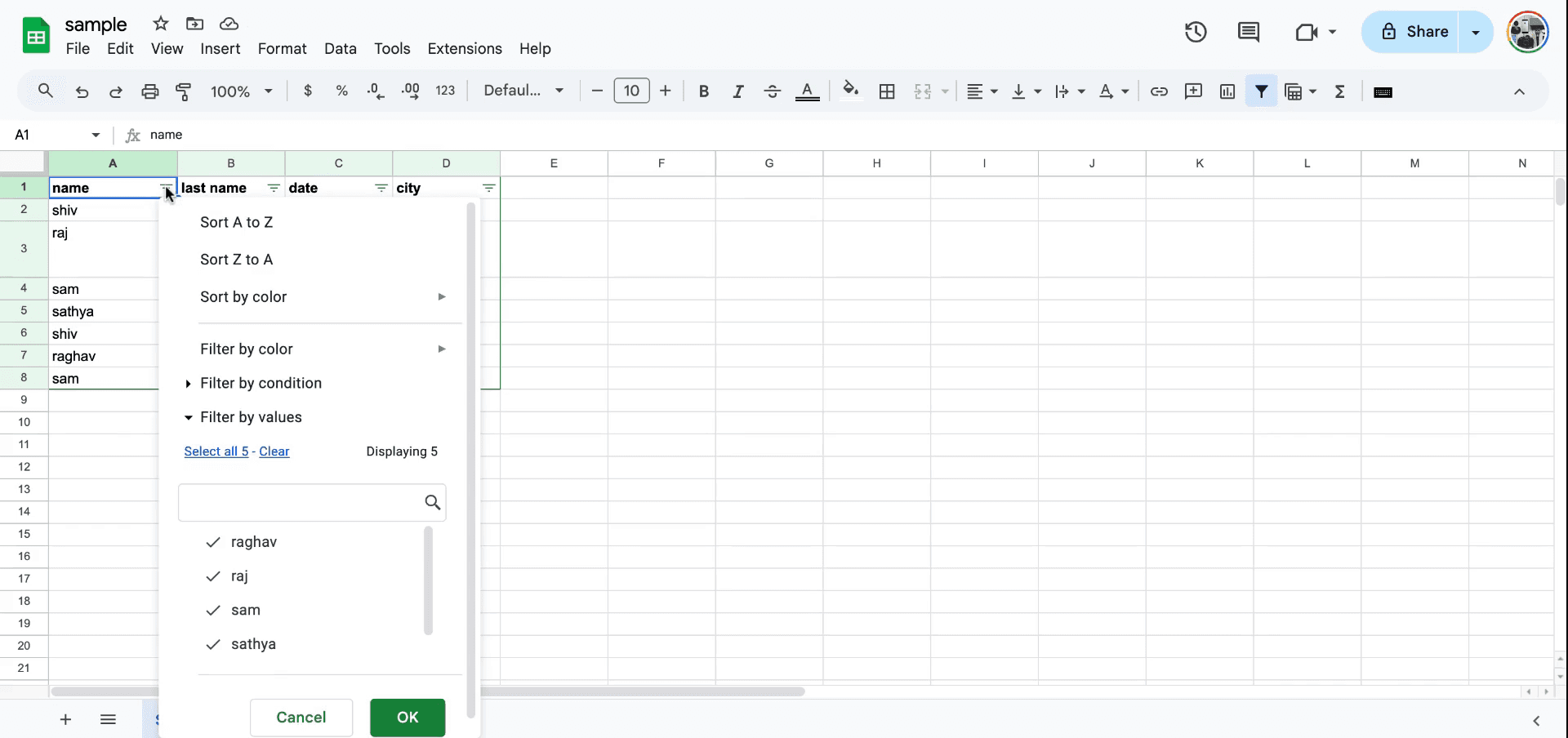
To begin applying a filter in your sheet, navigate to the menu and click on the filter icon. After selecting the appropriate element, a filter button will be visible, which you can use to initiate the filtering process.
Step 2
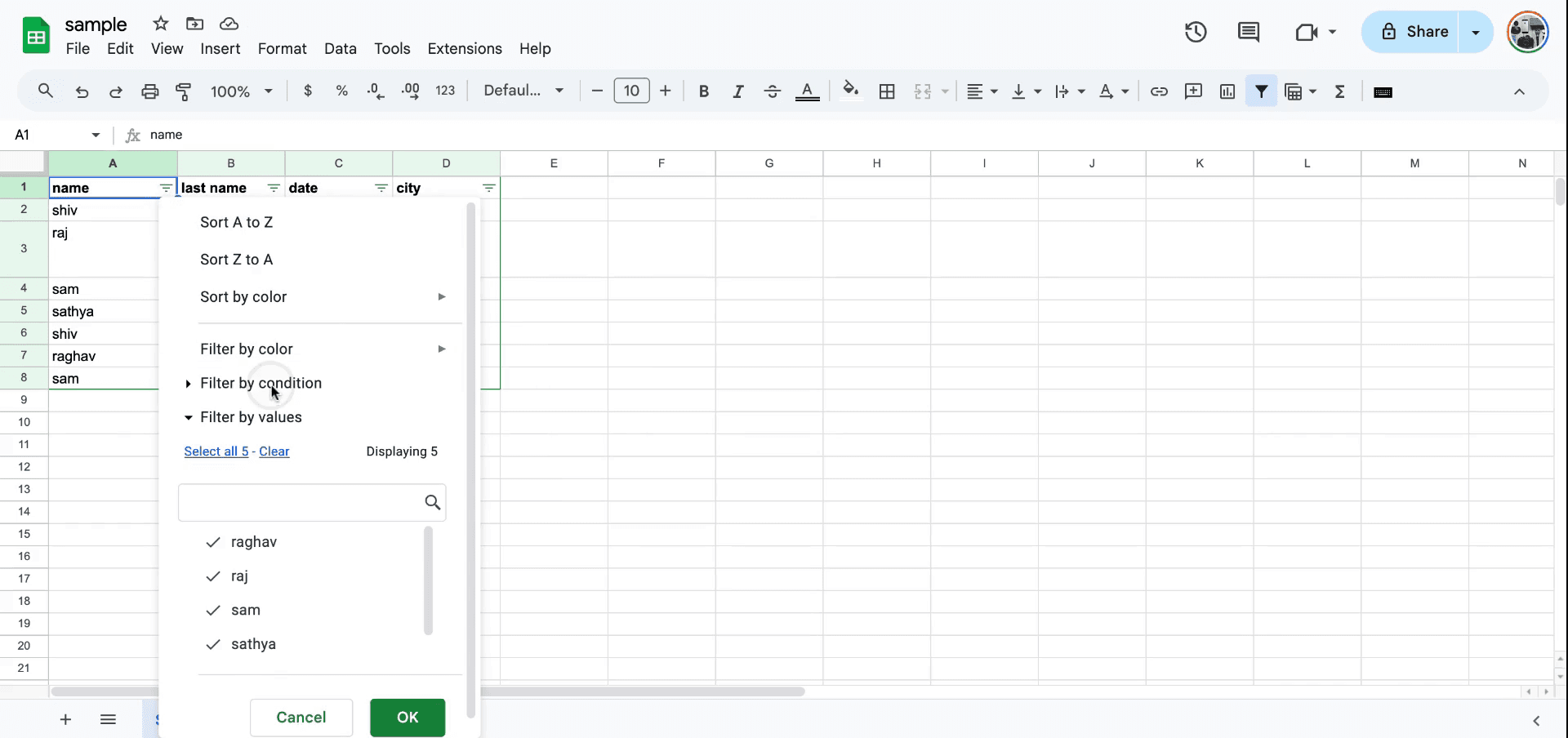
Once the filter menu is open, you can choose to filter by condition. There are various options available such as filtering by text, date, and more.
Step 3
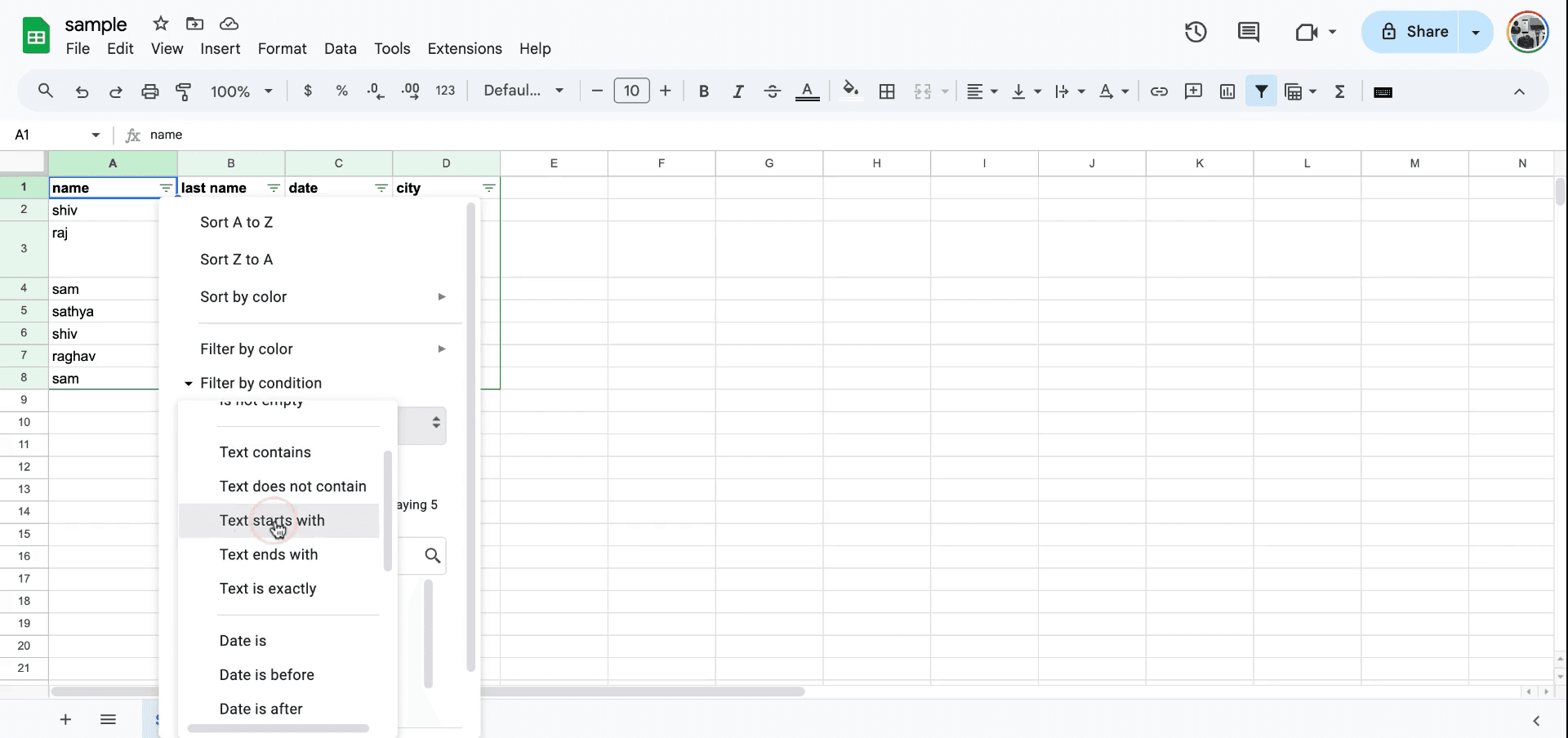
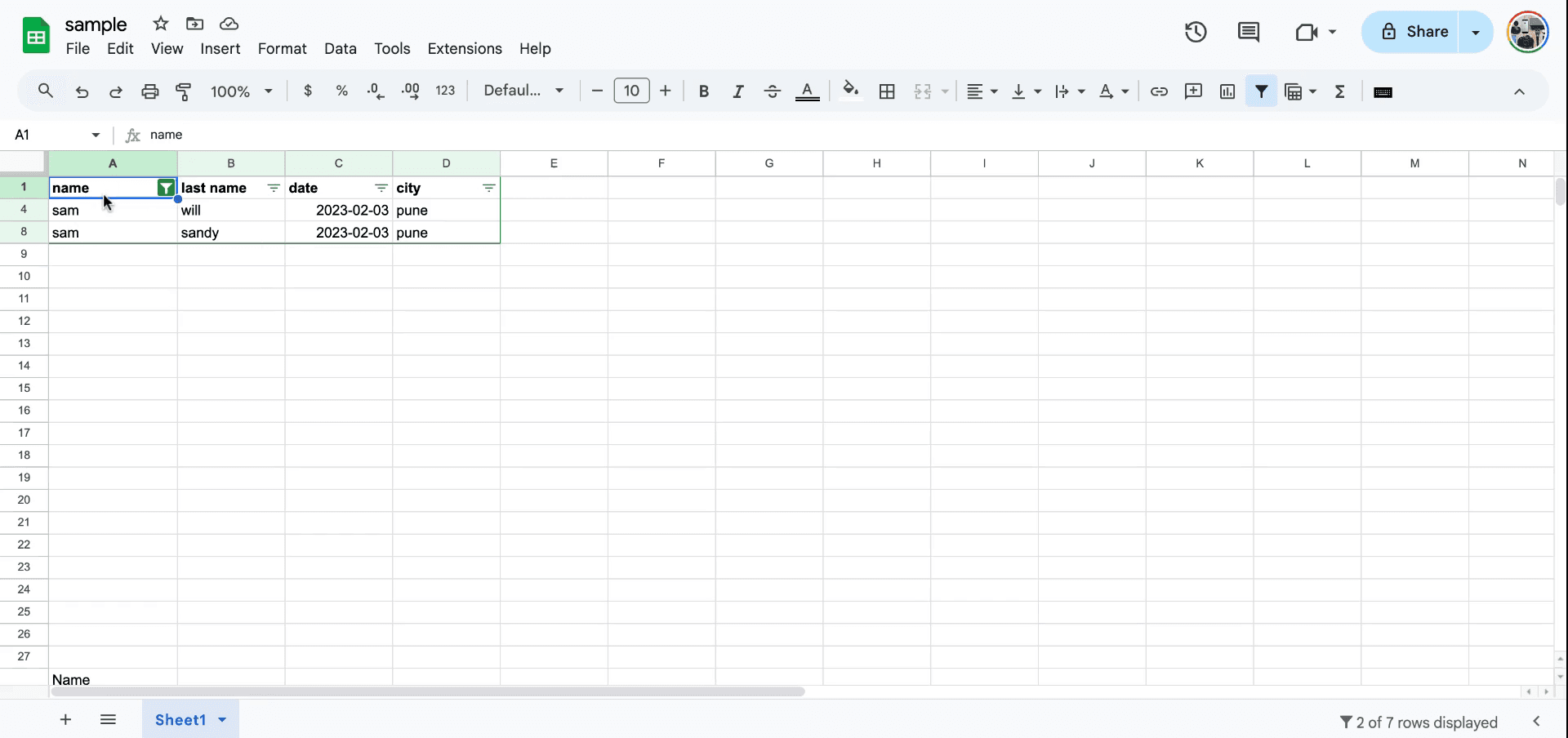
To filter data where text begins with a specific letter, for example, enter "S" to display only the values starting with "S".If you need to modify the filter, you can remove it and then apply a new filter, such as filtering for entries that begin or end with the letter "S".
Step 4
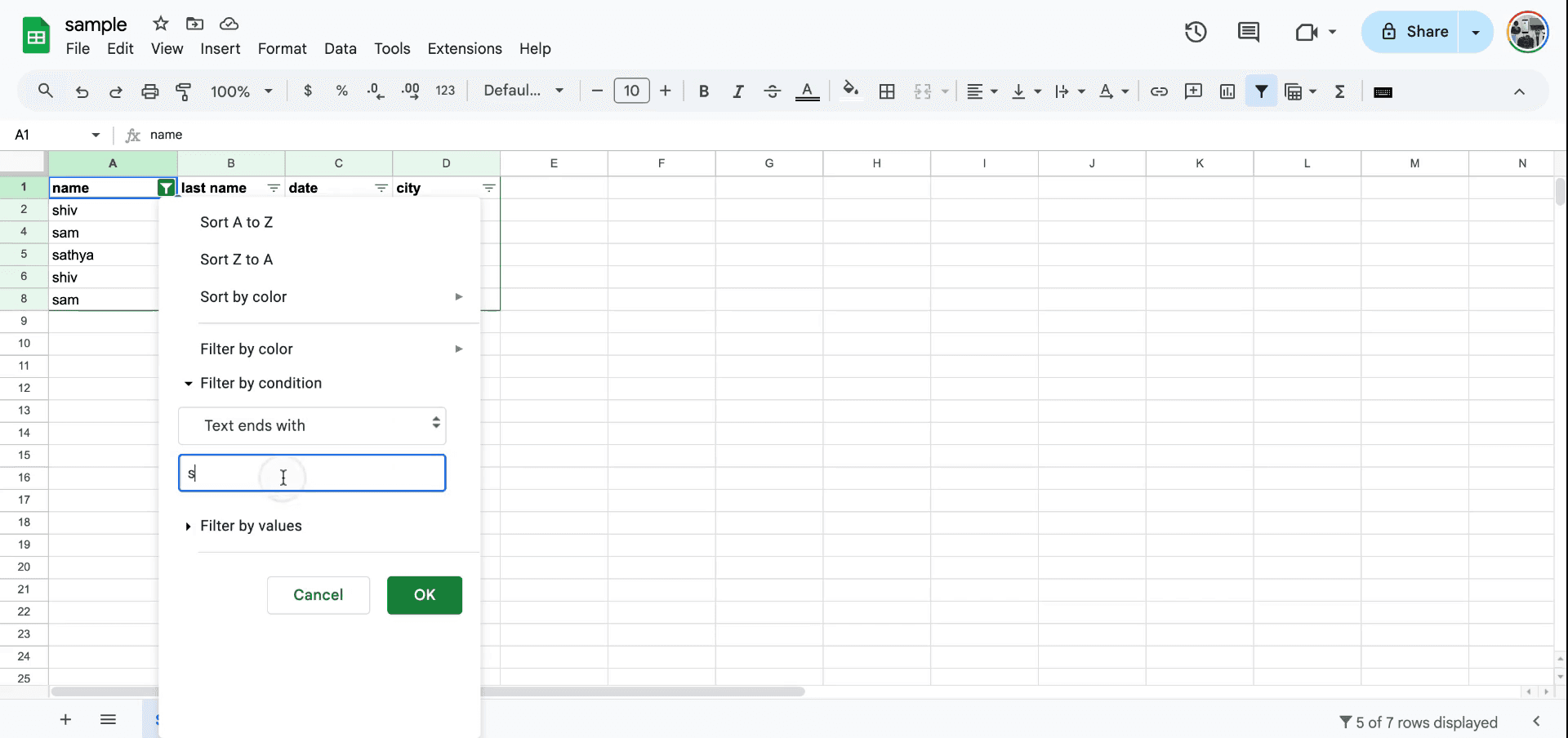
Similarly, to view entries where names end with the letter "M", apply the "ends with M" filter. This will display only the entries that match this criteria.
Step 5
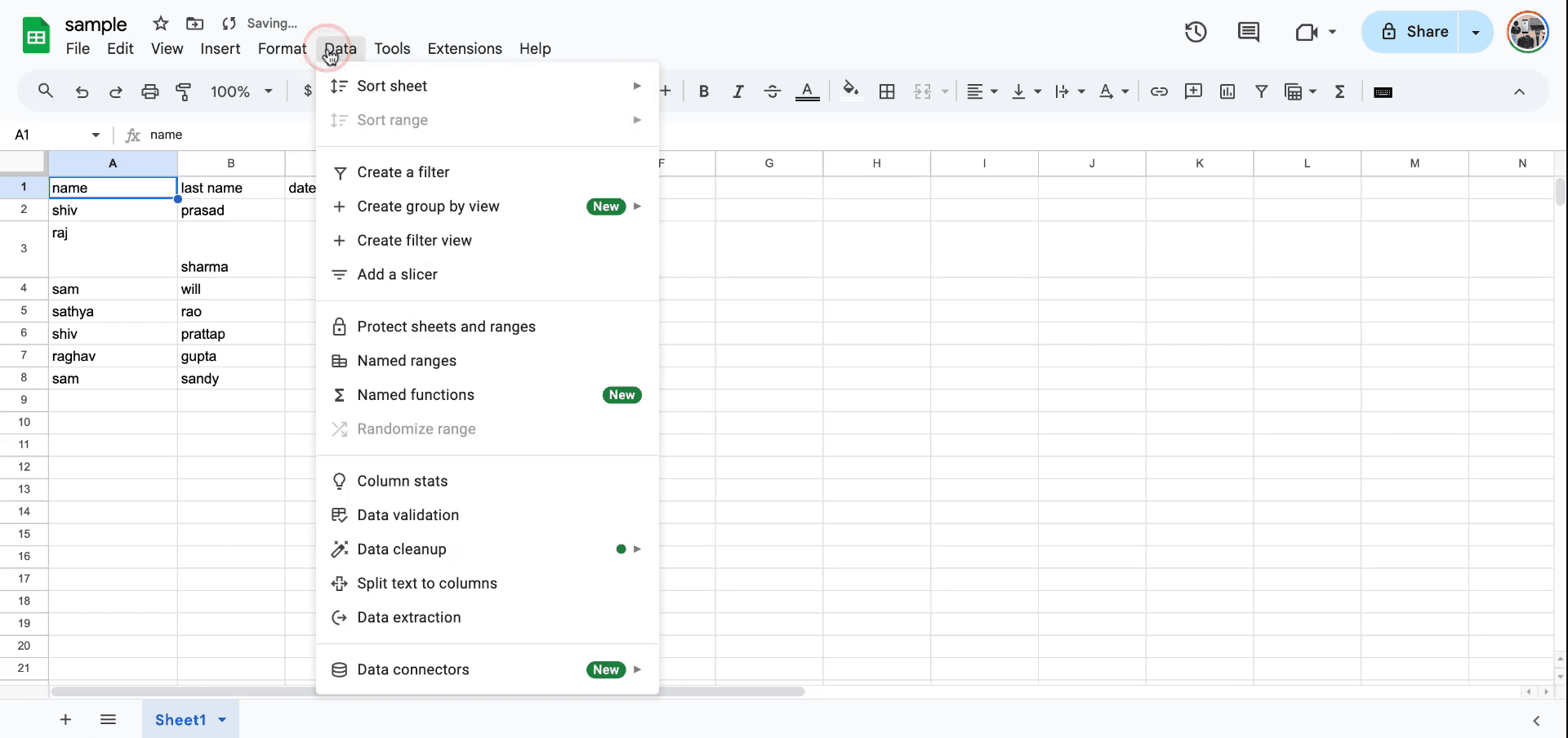
The filter function can also be accessed through another method. You can go to the data menu for additional options.
Method 2
Step 1
Within the data menu, there is an option to insert and create a filter. This serves as an alternative method to initiate the filtering process.
Step 2
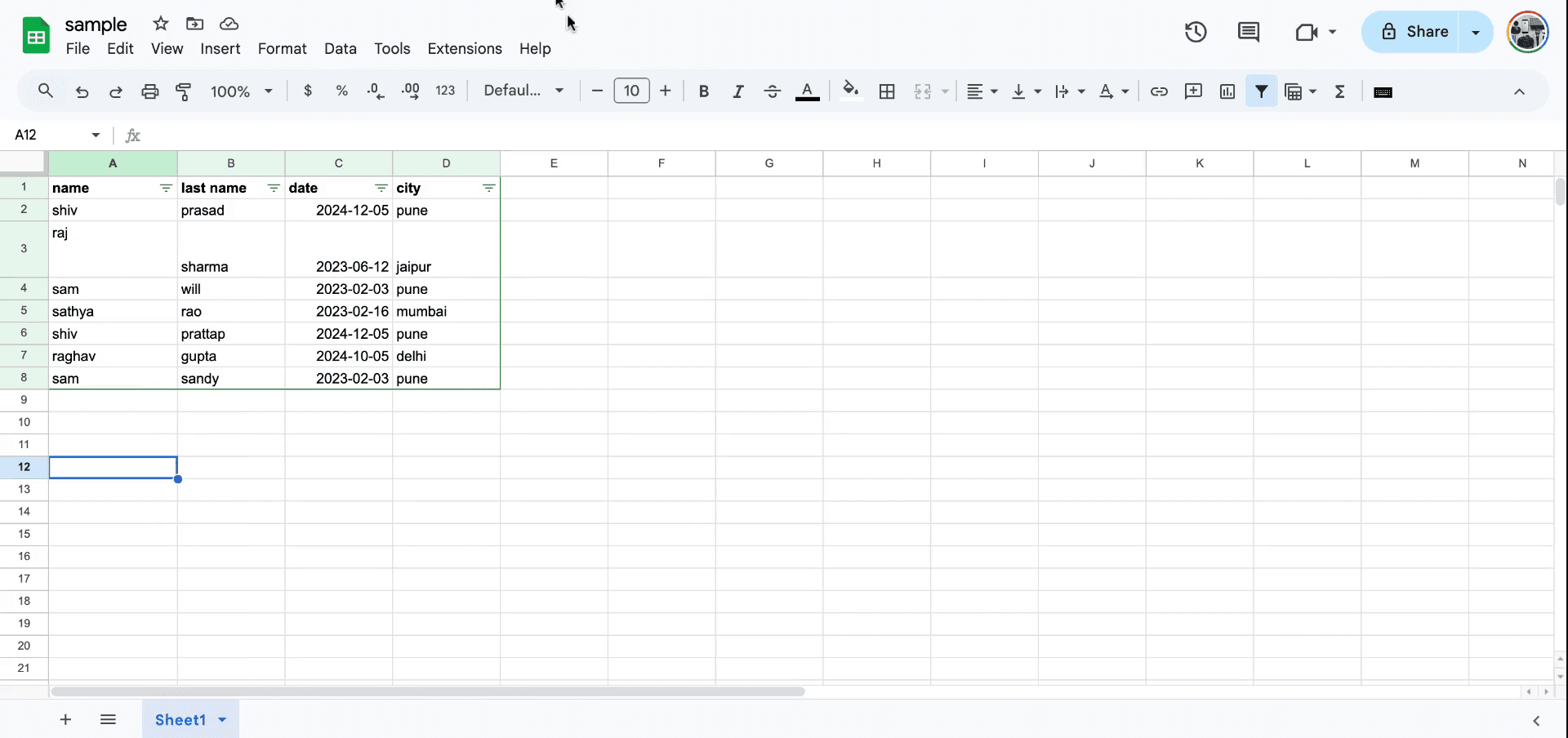
After creating a filter, you can proceed with the same process of filtering by condition to refine your data display.So thats how to apply filters in sheets.
Tips pro untuk menerapkan filter di Google Sheets
Gunakan ikon filter: Pilih rentang sel yang ingin Anda filter, lalu klik ikon filter di toolbar untuk menambahkan filter ke rentang yang dipilih.
Filter berdasarkan kondisi: Klik panah dropdown di header kolom, pilih Filter berdasarkan kondisi, lalu pilih kondisi yang Anda inginkan (mis., nilai lebih besar dari, teks berisi, dll.).
Filter berdasarkan warna: Anda dapat memfilter sel berdasarkan warna teks atau latar belakangnya dengan memilih Filter berdasarkan warna di menu dropdown.
Kesalahan umum dan cara menghindarinya saat menerapkan filter di Google Sheets
Filter tidak diterapkan ke seluruh kumpulan data: Filter mungkin tidak mencakup semua kolom yang relevan. Perbaikan: Pastikan rentang yang Anda pilih mencakup semua kolom yang ingin Anda filter.
Data menghilang: Terkadang data terlihat hilang karena filter. Perbaikan: Klik ikon filter dan pilih Hapus filter untuk menampilkan semua data lagi.
Perubahan yang tidak disengaja pada data yang difilter: Memfilter dapat menimbulkan kebingungan saat membuat perubahan pada data yang terlihat. Perbaikan: Periksa kembali apakah filter sedang aktif atau nonaktif sebelum mengedit.
FAQ umum untuk menerapkan filter di Google Sheet
Bisakah saya menerapkan beberapa filter sekaligus?
Ya, Anda dapat menerapkan filter pada kolom yang berbeda secara bersamaan.Bagaimana cara menghapus filter?
Klik ikon filter dan pilih Hapus filter untuk menghapusnya.Bisakah saya memfilter berdasarkan rentang tanggal atau angka?
Ya, Anda dapat memfilter kolom berdasarkan rentang tanggal atau rentang angka dengan memilih kondisi yang relevan di dropdown filter.Cara screen record di mac?
Untuk screen record di Mac, Anda dapat menggunakan Trupeer AI. Ini memungkinkan Anda merekam seluruh layar dan menyediakan kemampuan AI seperti menambahkan avatar AI, menambahkan voiceover, menambahkan zoom in dan out di video. Dengan fitur terjemahan video AI dari trupeer, Anda dapat menerjemahkan video ke 30+ bahasa.Cara menambahkan avatar AI ke screen recording?
Untuk menambahkan avatar AI ke screen recording, Anda perlu menggunakan alat screen recording AI. Trupeer AI adalah alat screen recording berbasis AI yang membantu Anda membuat video dengan beberapa avatar, sekaligus membantu Anda membuat avatar Anda sendiri untuk video tersebut.Cara screen record di windows?
Untuk screen record di Windows, Anda dapat menggunakan Game Bar bawaan (Windows + G) atau alat AI canggih seperti Trupeer AI untuk fitur yang lebih lanjut, seperti avatar AI, voiceover, terjemahan, dll.Cara menambahkan voiceover ke video?
Untuk menambahkan voiceover ke video, unduh ekstensi chrome trupeer ai. Setelah mendaftar, unggah video Anda dengan suara, pilih voiceover yang diinginkan dari trupeer, lalu ekspor video hasil edit Anda.Bagaimana cara melakukan Zoom pada screen recording?
Untuk melakukan zoom saat screen recording, gunakan efek zoom di Trupeer AI yang memungkinkan Anda melakukan zoom in dan out pada momen-momen tertentu, sehingga meningkatkan dampak visual konten video Anda.
Orang juga bertanya
Technical Documentation Generator
Cara Menambahkan Simbol Rupee di Google Sheets
Cara Mengubah Format Mata Uang di Google Sheets
Cara Menambahkan Poin-Poin Peluru di Google Sheets
Tutorial Terkait



