Trupeer Blog
Summarise

Imagine you're launching a new software product. You need to explain its features to potential users in a clear and engaging way. Text alone won't cut it, especially when explainer videos are dominating social media feeds. Social media platforms prioritize video content because it garners higher engagement rates. A study revealed that video content generates 1,200% more shares than text and images combined. But creating these videos can be time-consuming and technically challenging, particularly if you're starting from scratch. This guide will walk you through transforming basic screen recordings into compelling social media explainer videos using tools like Trupeer.ai. Whether you're a marketer, educator, or business owner, you'll learn how to enhance your videos with AI-driven features, saving time and maximizing impact.
Why does creating social media explainer videos from screen recordings matter?
In a competitive digital landscape, businesses must communicate their product's value quickly and effectively. Social media platforms have become essential channels for product marketing. They're not just about reaching a broad audience; they're about engaging potential customers in meaningful ways. Video content, particularly explainer videos, plays a crucial role in this. They allow businesses to demonstrate products in action, making complex features digestible. This is particularly relevant for software products where user interfaces and functionalities need visualization.
For marketers, the challenge lies in producing content that captures attention within seconds. Screen recordings offer a raw and straightforward way to create video content. But, they often lack polish. This is where AI-enhanced tools like Trupeer.ai come in. They allow you to add professional touches like voiceovers, branding elements, and even AI-generated avatars. By converting simple screen recordings into engaging videos, businesses can enhance their product marketing workflow, leading to higher user engagement and conversion rates.
What are the benefits of creating social media explainer videos from screen recordings?
Transforming screen recordings into polished explainer videos offers several tangible benefits. Here are some key advantages:
Enhanced Engagement. Video content is more engaging than text, leading to higher click-through and conversion rates. A single product video creation can increase sharing and interaction.
Cost-Effective Production. Creating videos from screen recordings is cheaper than hiring a full production team. You can produce high-quality content with minimal budget and still reach a broad audience.
Time Efficiency. Using AI tools simplifies the editing process. Features like automatic filler-word removal and AI voiceovers reduce post-production time, allowing quicker turnaround times for content publication.
Consistent Branding. With brand kits and templates, businesses can maintain a consistent visual style across all videos, reinforcing brand identity and making content instantly recognizable.
Accessibility. By using AI dubbing and translation tools, videos can reach non-English speaking audiences, expanding market reach significantly. This makes an AI video platform essential for global marketing strategies.
Scalability. As your business grows, you can produce more content without a linear increase in resources. Tools like Trupeer.ai allow for batch processing and automation, making it easier to scale video production.
Which Trupeer features help you create social media explainer videos from screen recordings?
Trupeer.ai offers a suite of features tailored for transforming screen recordings into polished explainer videos. Here are some key capabilities:
AI Screen Recording with Auto-Zoom and Click Detection
This feature simplifies the recording process by automatically focusing on areas of interest, like mouse clicks and significant screen changes. It ensures that viewers' attention is directed where you want it, without manual adjustments. This is particularly useful for software demos where specific interactions need highlighting. The auto-zoom feature enhances the viewing experience, making sure that key actions are never missed. By using this feature, you can create professional-quality videos without extensive editing, simplifying the production process significantly.
AI Voiceover in 65+ Natural Voices
Adding a voiceover can dramatically increase the professionalism of your video. Trupeer offers a wide range of natural-sounding voices that can be adjusted for pace and tone, allowing you to tailor the narration to fit the mood and style of your content. Whether you're aiming for an authoritative or friendly tone, you can customize it to match your brand's voice. This feature eliminates the need for hiring voice actors, reducing costs and production time. Plus, you can localize content using the same feature, ensuring your message is heard across different languages.
Brand Kits and Branded Templates
Consistency is key in branding, and Trupeer provides tools to ensure every video aligns with your brand’s visual identity. With pre-designed templates and customizable brand kits, you can easily apply your logo, color scheme, and other branding elements across all videos. This not only reinforces brand recognition but also saves time in the design process. Once set, these templates allow quick content updates without starting from scratch, helping maintain a cohesive look across all your social media channels.
Automatic SOP Generation from Recordings
For businesses that need to produce training content or internal documentation, this feature is invaluable. Trupeer can generate standard operating procedures (SOPs) directly from your screen recordings. These are editable and exportable, making it easy to maintain up-to-date documentation. This capability is particularly beneficial for training new employees or updating existing teams on new software features. By integrating with the AI documentation platform, your videos serve dual purposes: as engaging external content and internal educational resources.
AI-Searchable Knowledge Base
Once your videos are created, storing them in an organized manner is crucial. Trupeer’s AI-searchable knowledge base indexes every recording with timestamp-level deep links. This feature enhances the discoverability of content, allowing team members and customers to find specific information quickly. It supports collaborative workflows, enabling teams to access and review video content efficiently. This capability not only improves content accessibility but also supports ongoing learning and development within the organization.
How do you create social media explainer videos from screen recordings step by step with Trupeer?
Step 1: Record Your Screen
Begin by using Trupeer’s AI screen recording with auto-zoom and click detection feature. This requires opening the Trupeer browser-based recorder, which needs no installation. Click on the "Start Recording" button, and the tool will automatically focus on areas where clicks occur or where significant activity happens on the screen. This helps in creating a video that naturally directs viewer attention to key actions. The auto-zoom ensures that the interface elements are clearly visible, creating a more engaging viewer experience. Once your recording is complete, click "Stop" to save the file. This process takes approximately the same amount of time as your recording, making it efficient for quick video production. Teams weighing tools often start with a Loom alternatives comparison before standardizing on a workflow.

Step 2: Enhance with AI Voiceover
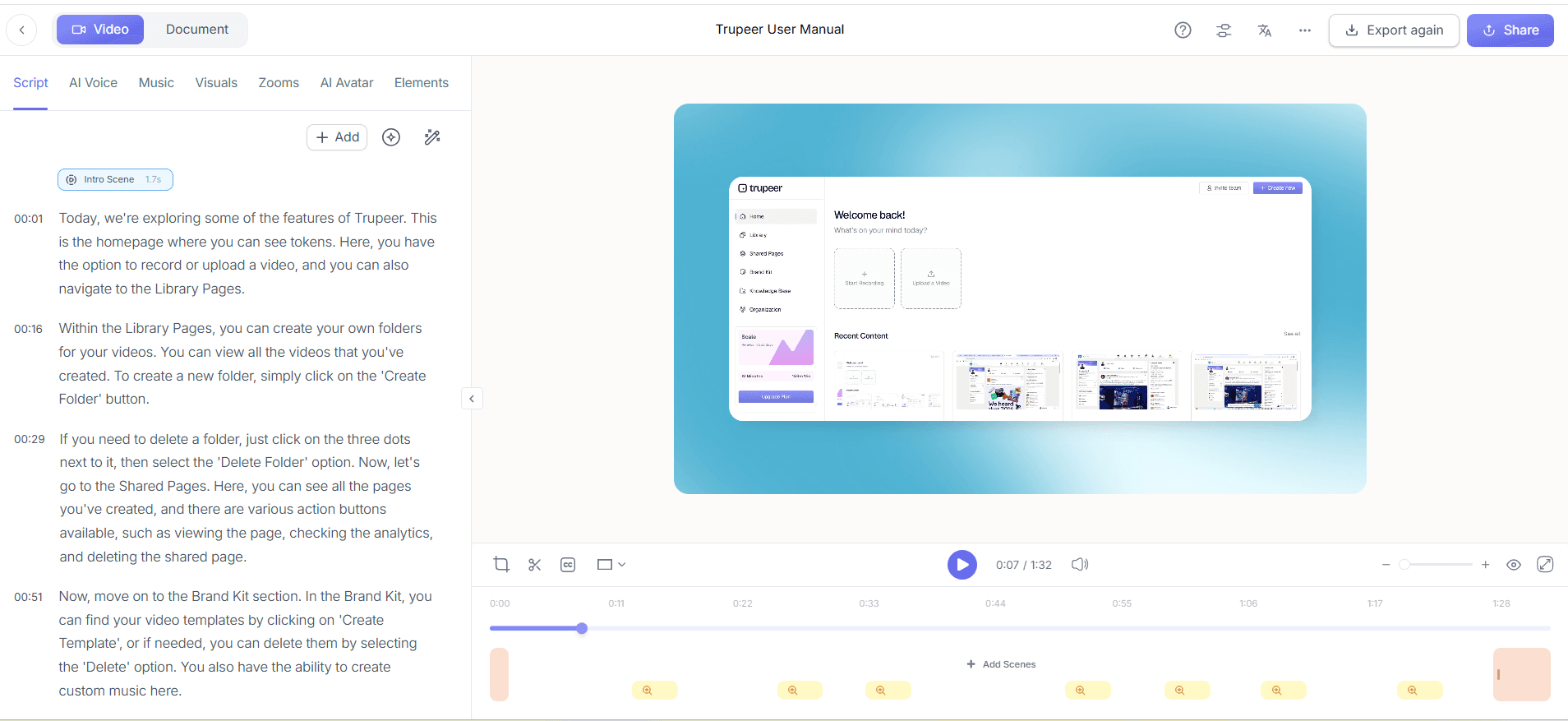
After recording, navigate to the editing interface to add an AI voiceover to your video. Trupeer’s AI voiceover feature offers over 65+ natural voices. Choose a voice that matches your brand tone and adjust the pace and tone to fit the mood of your video. Simply select your script and the desired voice, then click “Apply.” The AI will generate a voiceover in seconds, saving you the hassle of recording audio manually. This step is crucial for creating a professional and polished final product, enhancing viewer engagement.

Step 3: Edit and Remove Filler Words
In the editing panel, use Trupeer’s automatic filler-word removal feature to clean up your video. This feature automatically detects and removes words like "um" and "ah," as well as long pauses, creating a smoother viewing experience. The tool highlights sections with filler words, allowing you to review and confirm the changes before applying them. This process typically takes a few minutes, depending on the length of your recording, and ensures that your video maintains a professional quality.
Step 4: Apply Branding with Templates
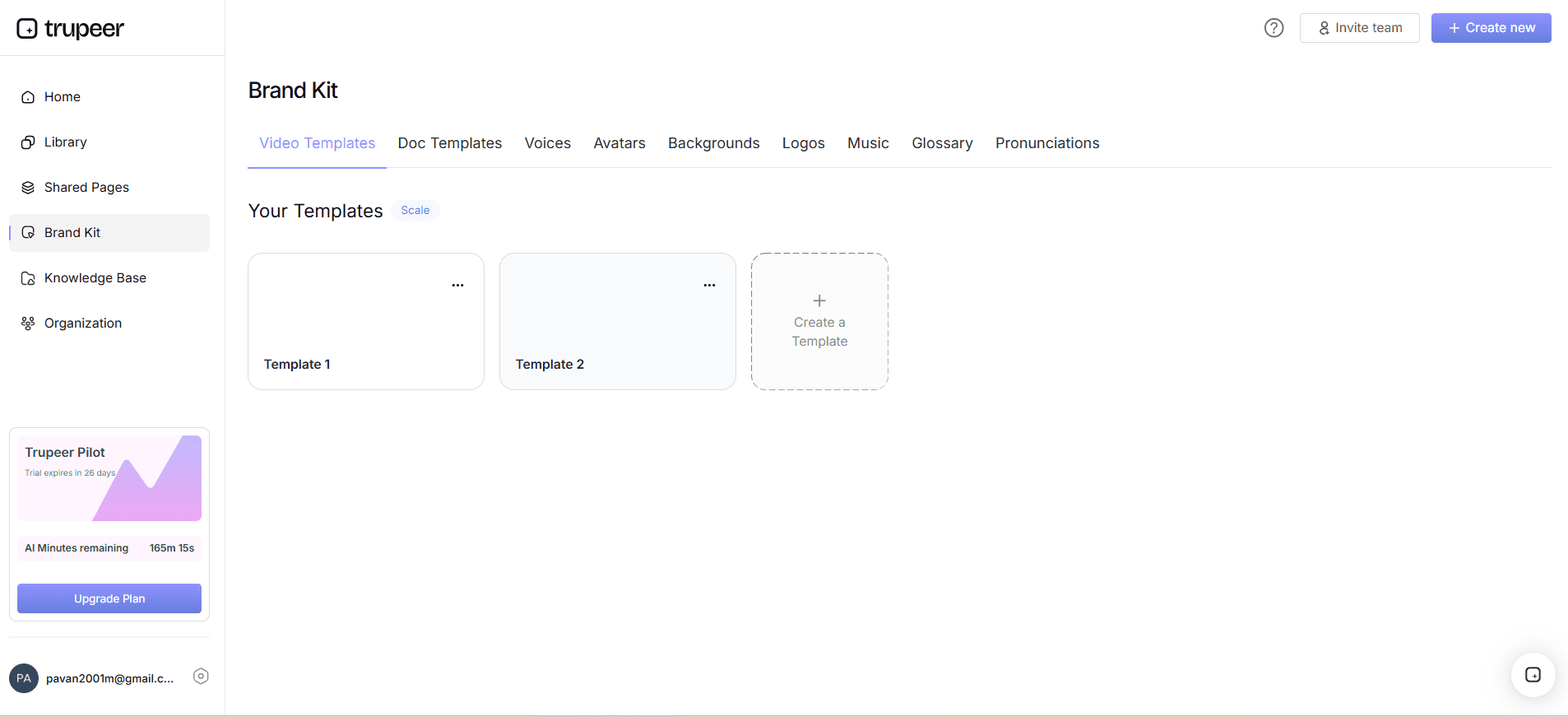
To maintain consistency, use Trupeer’s brand kits and branded templates. Access this feature from the editing interface and select your pre-configured brand kit, which includes your logo, color palette, and fonts. Apply these elements to your video with a single click. This ensures that every piece of content aligns with your brand identity. Templates are particularly useful for teams, as they standardize the look and feel of all videos, saving time and effort in the design process.
Step 5: Generate and Export SOPs
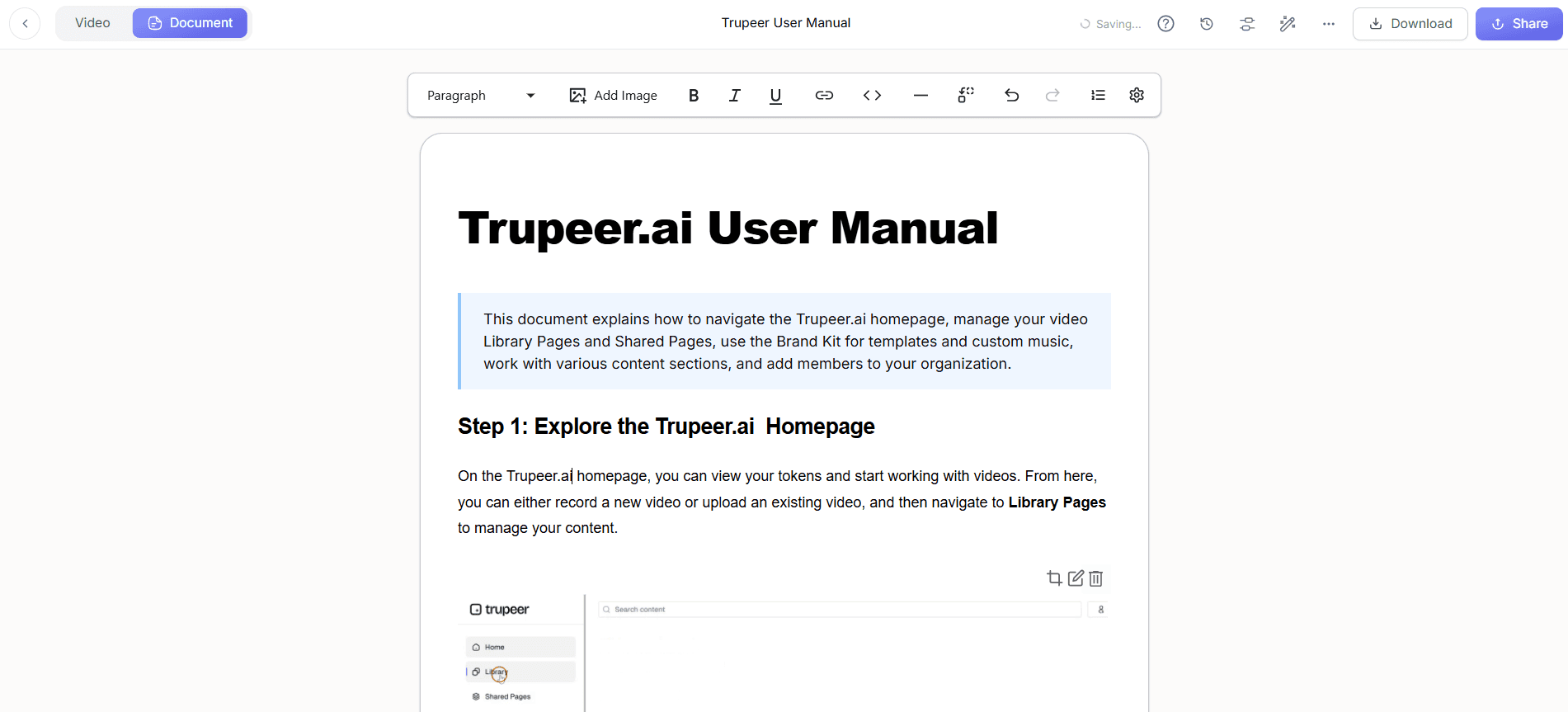
For instructional content, use Trupeer’s automatic SOP generation feature. After finalizing your video, click on “Generate SOP” to convert your video into a detailed, step-by-step standard operating procedure. This is especially beneficial for training videos. The SOPs are exportable in multiple formats, including PDF and HTML. This feature serves dual purposes by creating content that’s useful internally and externally, all from a single recording, while saving time on documentation efforts.
Step 6: Distribute via Knowledge Base
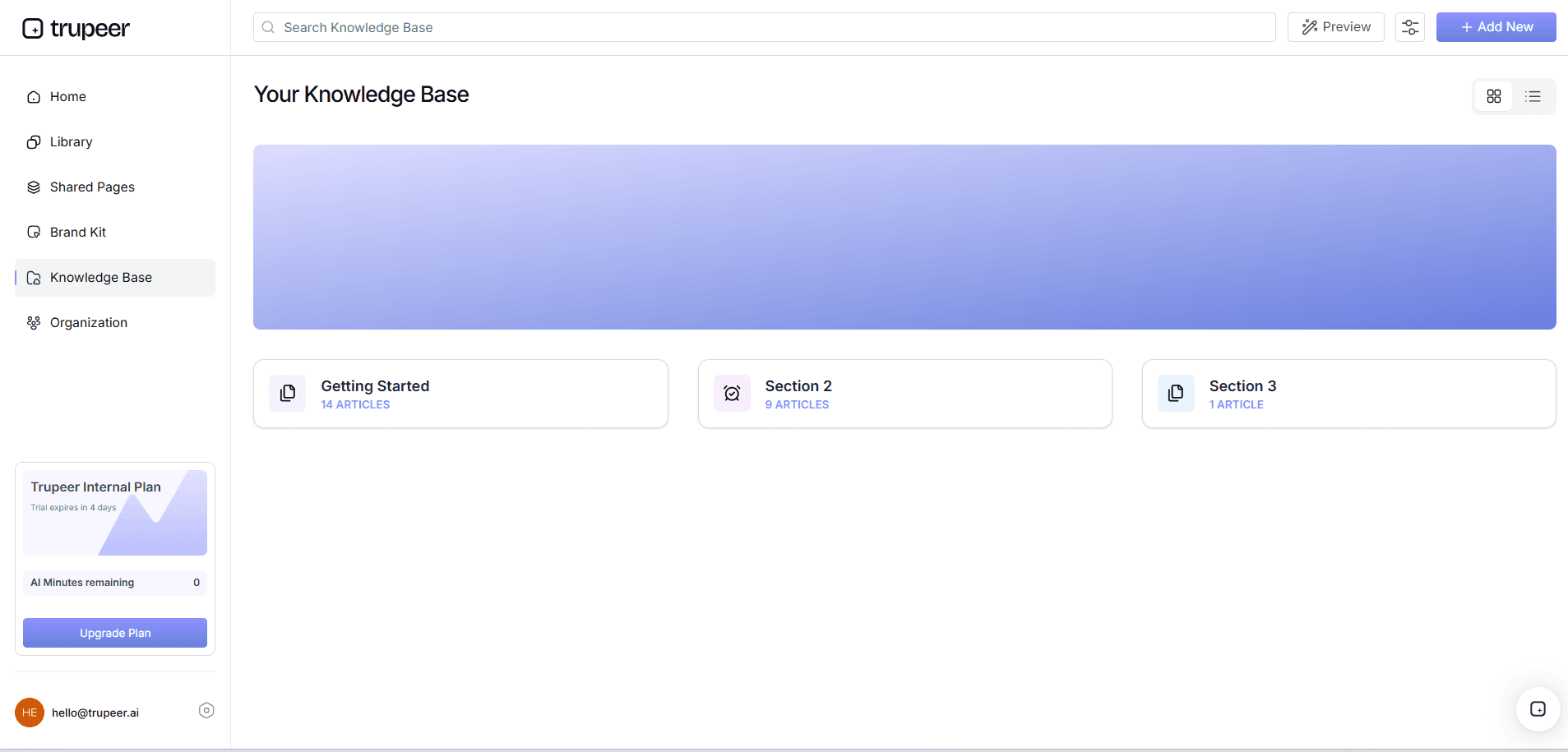
Once your video is ready, distribute it using Trupeer’s AI-searchable knowledge base. Upload the video to the platform, which indexes it with timestamp-level deep links, making it easy for viewers to find specific sections. This feature supports collaborative review, allowing team members to leave comments and suggestions. It also enhances accessibility, ensuring that your content is easily discoverable and shareable. This step is essential for maximizing the reach and utility of your videos across different platforms and audiences.
What tips help you create social media explainer videos from screen recordings?
Creating compelling explainer videos from screen recordings involves more than just technical steps. Here are some practical tips to enhance your video production process and outcomes:
Plan Your Script. Before recording, outline your script to ensure clarity and conciseness. This reduces editing time and ensures your message is clear.
Use High-Quality Equipment. Even with screen recordings, using a high-resolution monitor can improve video quality. This ensures your final product looks professional.
Standardize Your Branding. use a screen recording software for training videos to maintain consistency across all content.
Test Your Voiceover. Experiment with different AI voices to find the one that best fits your brand's tone, ensuring it resonates with your audience.
Focus on Key Features. Highlight the most impactful parts of your product or service to keep your audience engaged and the video concise.
Use Analytics. Monitor viewer engagement through analytics to refine your future videos and improve content strategy.
Optimize for Mobile Viewing. Ensure that your videos are viewable on mobile devices, as a significant portion of social media users access content via mobile.
When SOPs come into the same conversation, a Scribe alternatives comparison helps clarify the scope.
Frequently asked questions
How can I ensure my explainer video is engaging?
To make your explainer video engaging, focus on clear messaging and dynamic content. Use Trupeer's AI features to add professional voiceovers and remove filler words, ensuring a smooth narrative flow. Incorporate branding elements to maintain visual consistency and use auto-zoom features to highlight key actions. also, keep your videos concise; aim for 60 to 90 seconds to retain viewer attention. Using viewer analytics, you can refine your approach based on engagement metrics such as drop-off points and heatmaps.
What is the best format for exporting my video?
The best format depends on your distribution needs. Trupeer allows you to export in various formats like MP4, HTML, and PDF. MP4 is ideal for social media sharing due to its compatibility and high-quality output. HTML format is useful if you're embedding the video into web pages, ensuring smooth integration. PDF exports are beneficial for documentation purposes, pairing visual content with textual instructions. Choose the format that best aligns with your distribution strategy and audience preferences.
Can I use my own voice for the narration?
Yes, you can use your own voice by recording it separately and integrating it into the video. However, Trupeer offers advanced AI voice cloning, where you can create a digital version of your voice from a short sample. This allows you to maintain a personal touch while using AI for consistency and ease of production. By using AI voiceover, you save time and ensure high-quality audio, even if you're not available to record each session.
Does Trupeer support video translation for global audiences?
Yes, Trupeer supports video translation with its AI video translation feature. This tool translates and dubs your video into over 40 languages with synchronized lip-sync. It expands your content’s reach by making it accessible to non-English speaking audiences, crucial for global marketing strategies. This feature ensures your message maintains its original intent and tone, allowing you to effectively engage with diverse international audiences without needing separate recording sessions.
Is Trupeer suitable for live product demonstrations?
While Trupeer excels in creating polished, pre-recorded explainer videos, it’s not designed for live demonstrations. The platform focuses on enhancing recorded content with features like AI voiceovers and editable SOP generation. For live demos, However, you can record a live session and then use Trupeer to edit and enhance it, preparing a high-quality version for future use. This approach maximizes the utility of live content by repurposing it into engaging, shareable videos.
Related Blogs


