Trupeer Blog
Summarise

Imagine your product team just finished a major update. The stakeholders are eager to see the new features in action, but the documentation isn't ready yet. You need a Product Requirements Document (PRD), User Acceptance Testing (UAT) scripts, and technical specifications. Creating these from scratch can be time-consuming, but using product walkthroughs can accelerate the process. According to a recent study, teams that use screen recordings for documentation save up to 40% of time compared to traditional methods. But not all tools are created equal. Finding the best screen recording software is crucial to ensure you get high-quality, detailed outputs.
This process isn't just about speed; it's about precision and clarity. When you generate documentation directly from product walkthroughs, you capture real-time interactions and user flows. This method ensures that every click and hover is documented, reducing the risk of misinterpretation. But how do you use this potential effectively? By choosing tools that offer AI-enhanced features, such as automatic click detection and narration, you can create comprehensive documentation. This guide will show you how to transform your screen recordings into valuable product artifacts that serve multiple stakeholders, from developers to QA testers and product managers.
Why does creating PRDs, UAT Docs, and Technical Specs from product walkthroughs matter?
Creating PRDs, UAT docs, and technical specs from product walkthroughs is essential because it bridges the gap between product development and user experience. When product managers and development teams work on new features, they often face the challenge of ensuring that everyone involved understands the functionality and expected outcomes. Traditional documentation methods can lead to inconsistencies and misinterpretations, especially in fast-paced environments where updates are frequent.
Using product walkthroughs as the foundation for documentation addresses these issues by providing a visual and interactive reference. This approach not only captures the intended use cases but also highlights potential UI or UX issues that might not be apparent in text-based documents. With the increasing complexity of software products, these documents need to be accurate and easily understood by both technical and non-technical stakeholders. By using product walkthroughs, teams can ensure that the documentation is always in sync with the latest product iteration, minimizing errors and enhancing communication across departments. using this method also aligns with operations workflow strategies by optimizing resource allocation and reducing the time needed to onboard team members.
What are the benefits of creating PRDs, UAT Docs, and Technical Specs from product walkthroughs?
Generating documentation from product walkthroughs offers several advantages that improve efficiency and accuracy across the board.
Enhanced accuracy. By directly capturing user interactions, you ensure that your documentation reflects real user experiences, reducing the chances of discrepancies.
Time efficiency. Automating the documentation process with AI technical documentation tools can cut documentation time by up to 50%, freeing up resources for other critical tasks.
Consistency across teams. A single source of truth, such as a video generation platform, ensures that all team members refer to the same material, reducing miscommunications.
Improved stakeholder engagement. Visual walkthroughs make it easier for non-technical stakeholders to understand complex processes, facilitating better feedback and collaboration.
Scalability. As your product evolves, updating documentation is as simple as recording a new walkthrough, ensuring scalability without additional overhead.
Reduced training costs. New team members can quickly get up to speed by reviewing comprehensive video documentation, decreasing the need for lengthy training sessions.
Which Trupeer features help you create PRDs, UAT Docs, and Technical Specs from product walkthroughs?
Trupeer offers a suite of features specifically designed to simplify the creation of PRDs, UAT docs, and technical specs from product walkthroughs.
AI screen recording with auto-zoom and click detection
This feature allows you to capture detailed interactions within your product interface. By automatically detecting clicks and zooming into areas of interest, Trupeer ensures that every crucial aspect of the user journey is documented. This capability is invaluable when creating PRDs, as it highlights specific elements that need to be addressed in the development process. The precision of this tool helps in capturing minute user actions that might otherwise be overlooked, leading to a more comprehensive documentation output.
Automatic SOP generation from any recording
Trupeer's AI-driven system can convert any screen recording into a structured Standard Operating Procedure. This feature is particularly useful for generating UAT documentation, as it outlines each step involved in user testing scenarios. With the AI documentation platform, you can export these documents in various formats, ensuring they are accessible and editable by all stakeholders. The edit-ready nature of these SOPs means you can quickly adapt them to changes in the product or testing requirements.
AI voiceover in 65+ natural voices, adjustable pace and tone
The AI voiceover feature allows you to add narration to your product walkthroughs, providing additional context and explanations. This is particularly beneficial for technical specifications, where detailed explanations of functionality are required. The ability to choose from over 65+ natural voices and adjust the pace and tone ensures that the narration complements the visual elements, making the documentation more engaging and easier to follow. This feature can be a big shift for teams looking to address diverse audience needs, including non-native speakers.
AI-searchable knowledge base with timestamp deep-links
Integrating your recordings into a video knowledge base makes them easily searchable and accessible. Each recording can be indexed with timestamp-level deep links, allowing team members to jump directly to relevant sections. This is incredibly useful for technical teams needing quick access to specific aspects of product functionality. By providing an AI-searchable repository, Trupeer ensures that all documentation is just a few clicks away, enhancing productivity and reducing the time spent searching for information.
Auto-updating documentation tied to the underlying recording
Trupeer's ability to maintain auto-generated documentation ensures that your documents stay current with the latest product changes. Whenever you update the product, you can easily create a new recording, and the documentation will automatically reflect these updates. This feature is crucial for maintaining accuracy and relevance in your PRDs and technical specs, especially in agile environments where changes occur rapidly. It also minimizes the risk of outdated information leading to development errors or miscommunication.
How do you create PRDs, UAT Docs, and Technical Specs step by step with Trupeer?
Step 1: Capture the Product Walkthrough
Begin by launching the Trupeer screen recording tool. Choose between the browser-based recorder or the desktop app based on your preference. To capture the product walkthrough, click on "Start Recording." Trupeer's AI screen recording with auto-zoom and click detection will automatically focus on active areas and highlight user interactions. This ensures every crucial action is documented. Once you've finished the walkthrough, stop the recording. The entire process typically takes as long as the walkthrough itself, plus a few minutes for setup. If you encounter any issues, such as unexpected application behavior, simply pause and resume the recording as needed.

Step 2: Generate SOP from Recording
After capturing the walkthrough, use Trupeer's automatic SOP generation feature. Click on "Generate SOP" from the recording menu. Trupeer will convert the video into a structured SOP document, highlighting each step of the process. This document is editable and exportable, allowing you to make adjustments to suit your specific needs. The SOP generation is nearly instantaneous, taking less than a minute for most recordings. If your recording includes complex workflows, consider reviewing the SOP for accuracy before distribution.
Step 3: Add AI Voiceover for Clarity
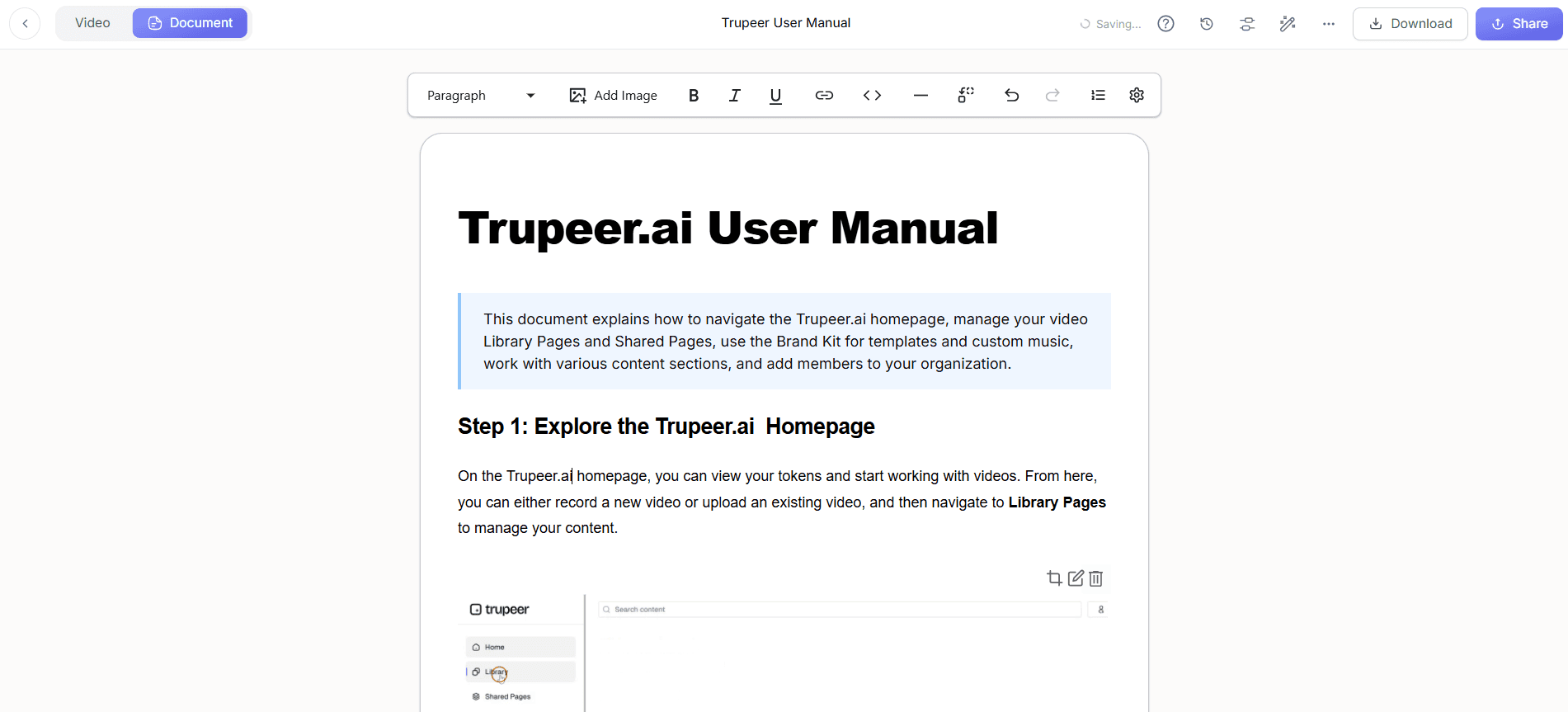
To enhance the documentation, add an AI voiceover to your video. Select "Add Voiceover" from the post-capture menu. Choose from over 50 natural-sounding voices and adjust the pace and tone to match your audience's preferences. This feature is particularly useful for technical specs, where detailed explanations enhance understanding. The voiceover is processed quickly, typically within a few minutes, and adds an auditory layer of information that complements the visual content. Trupeer also ships a best screen recording tool that handles this step without extra setup.

Step 4: Translate for Global Teams
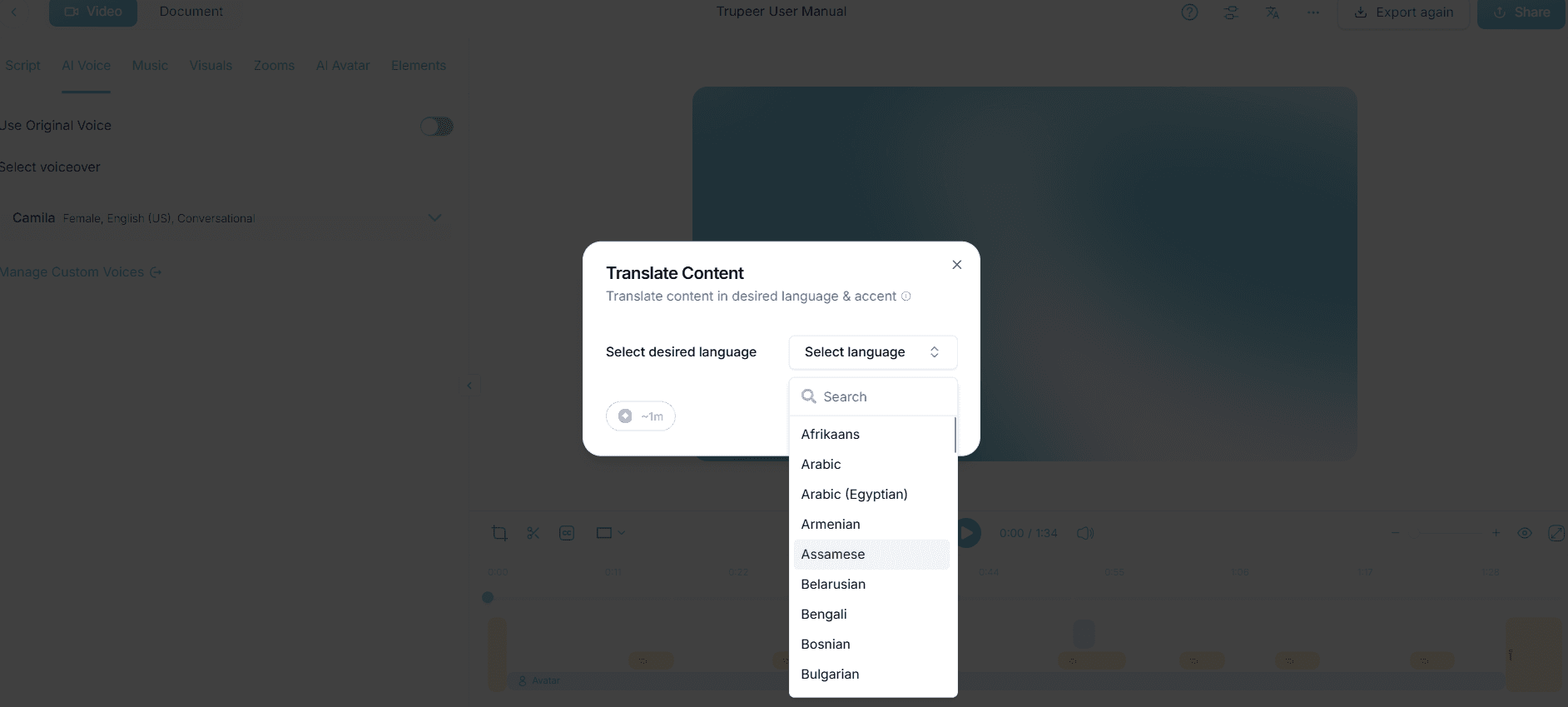
If you're working with international teams, Trupeer's AI translation feature becomes invaluable. Select "Translate Video" and choose from over 40 languages. Trupeer's AI will translate the spoken and written content in the video, ensuring all team members can access the material in their native language. This process includes lip-sync adjustments to maintain visual consistency. Translation and dubbing are completed in just a few minutes, making this an efficient way to disseminate information globally.
Step 5: Organize in Knowledge Base
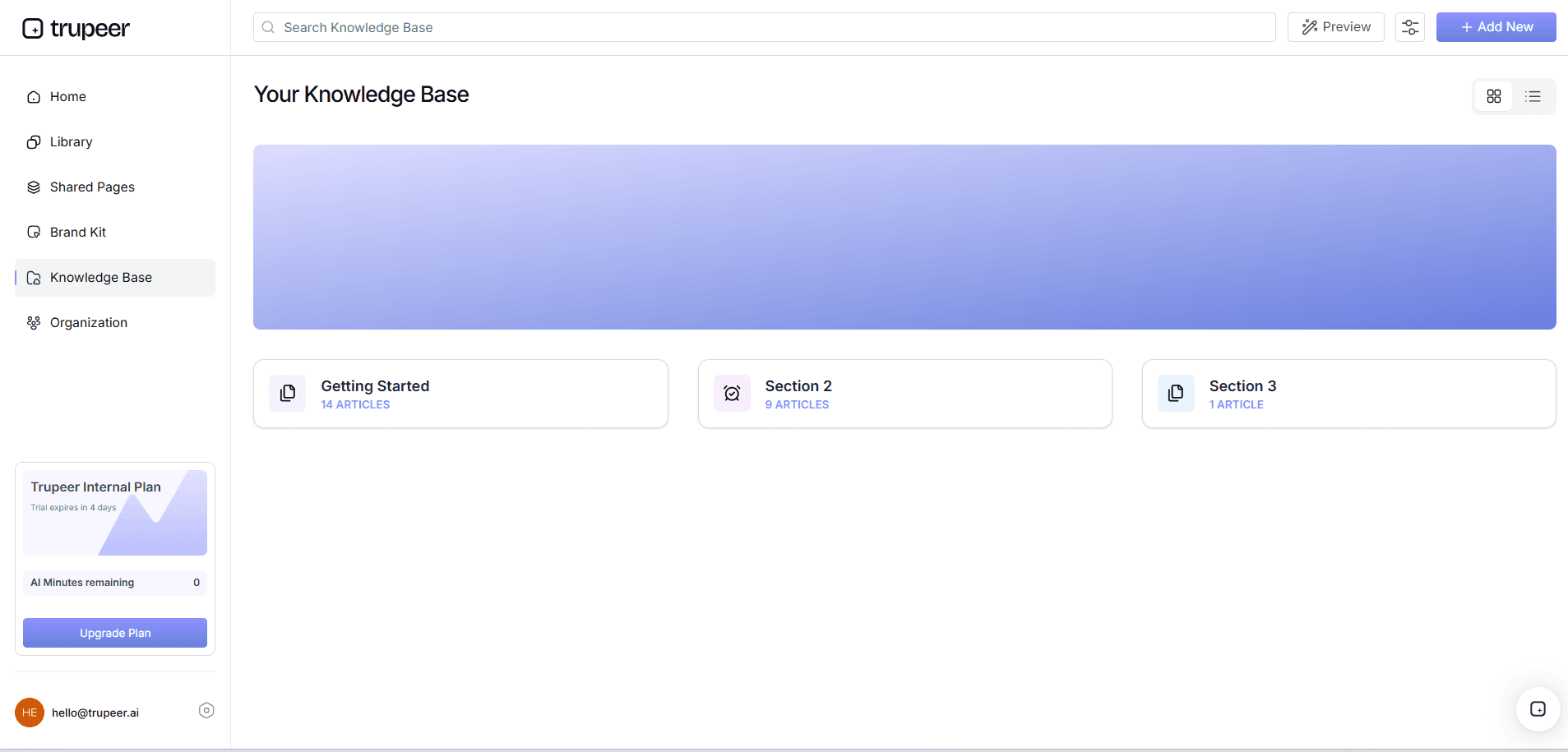
To keep your documentation accessible, add the video and its corresponding documents to Trupeer's AI-searchable knowledge base. Click "Add to Knowledge Base" and tag the content with relevant keywords. This makes it easy for team members to locate specific information using the search function. The knowledge base indexes content with timestamp-level deep links, allowing users to jump directly to sections of interest. Setting this up takes only a few minutes but provides long-term benefits in terms of accessibility and organization. Teams weighing tools often start with a Loom alternatives comparison before standardizing on a workflow.
Step 6: Update Documentation as Needed
As your product evolves, revisit the documentation to ensure it remains current. With Trupeer's auto-updating documentation feature, you can simply create a new recording to reflect product changes. Click "Update Documentation" and select the new recording. Trupeer will automatically refresh the relevant documents, keeping them aligned with the latest product version. This feature not only saves time but also ensures accuracy, as outdated information is a common source of errors and confusion.
What tips help you create PRDs, UAT Docs, and Technical Specs from product walkthroughs?
Creating documentation from product walkthroughs is a powerful approach, but there are specific strategies you can employ to maximize effectiveness and efficiency.
Standardize your recording setup. Consistent settings ensure all recordings maintain the same quality and focus, making it easier to compare and compile results.
Use detailed annotations. Annotate recordings during or after capture to highlight specific actions or decisions that are critical for understanding the workflow.
Schedule regular updates. Set a routine to review and update documentation, ensuring that it remains accurate and relevant as the product evolves.
use AI translation tools. For global teams, use an AI product documentation tool to translate content, ensuring inclusivity and broad understanding.
Integrate feedback loops. Encourage team members to provide feedback on documentation quality and completeness, leading to continuous improvement.
use version control. Keep track of document versions to manage changes effectively and ensure everyone works with the most current information.
Consider alternatives. Evaluate different tools by reviewing a Scribe alternative comparison to ensure your chosen solution meets all your requirements.
Frequently asked questions
How does Trupeer help in creating PRDs?
Trupeer assists in creating Product Requirements Documents (PRDs) by capturing detailed product walkthroughs and converting them into structured documents. The AI screen recording feature ensures that all user interactions are recorded with precision, which forms the basis for accurate PRDs. With automatic SOP generation, these recordings can be quickly transformed into comprehensive documents that outline each requirement in detail. This method not only saves time but also enhances the clarity and consistency of the PRDs, making them more reliable for development teams.
What makes Trupeer's UAT documentation unique?
Trupeer's UAT documentation stands out due to its ability to generate test scripts directly from product walkthroughs. By using the AI-driven SOP generation feature, Trupeer creates detailed UAT documents that map out each testing scenario. These documents are edit-ready and can be exported in various formats, making them versatile for different testing environments. The precision of AI click detection ensures that all user actions are accurately captured, providing a clear framework for testers to follow during user acceptance testing.
Can Trupeer translate technical specs into multiple languages?
Yes, Trupeer can translate technical specifications into multiple languages using its AI translation capability. This feature allows you to select from over 40 languages, ensuring that your documentation is accessible to global teams. The translation process includes lip-sync adjustments for video content, maintaining the integrity of the original material. This capability is especially beneficial for multinational companies, as it facilitates communication and understanding across different language groups.
Why is AI voiceover important for documentation?
AI voiceover is crucial for documentation because it adds an auditory dimension that complements visual content, enhancing understanding. Trupeer's AI voiceover feature offers over 50 natural-sounding voices, allowing you to tailor the narration to your audience's preferences. This is particularly beneficial for technical specifications, where verbal explanations can clarify complex processes. By adjusting the pace and tone, the voiceover can be made more engaging, which is essential for keeping the audience's attention and ensuring the message is effectively communicated. For global audiences, adding AI video translation extends the same workflow across 40+ languages with lip-sync.
Does Trupeer support frequent updates to documentation?
Yes, Trupeer supports frequent updates to documentation through its auto-updating feature. This capability is essential in dynamic environments where product changes are frequent. By recording a new walkthrough, you can update your documentation effortlessly. Trupeer ensures that all linked documents reflect the latest product version, minimizing the risk of outdated information causing errors or confusion. This feature simplifies the process of keeping documentation accurate, saving time and reducing the workload typically associated with manual updates.


